You plug in a portable drive full of raw photos from a friend's Windows machine and your Mac reads it fine—until you try to move a folder or rename a file. That's the wall macOS hits with NTFS by default. Tuxera NTFS 2023.1 lifts it so you can open, edit, copy, move, and delete files on any Windows-formatted USB drive without a second thought.
Mount NTFS drives natively in Finder
- Sits beside your audio and photo apps — when a collaborator hands you an NTFS drive full of stems or a Lightroom catalog, you just get to work instead of reformatting.
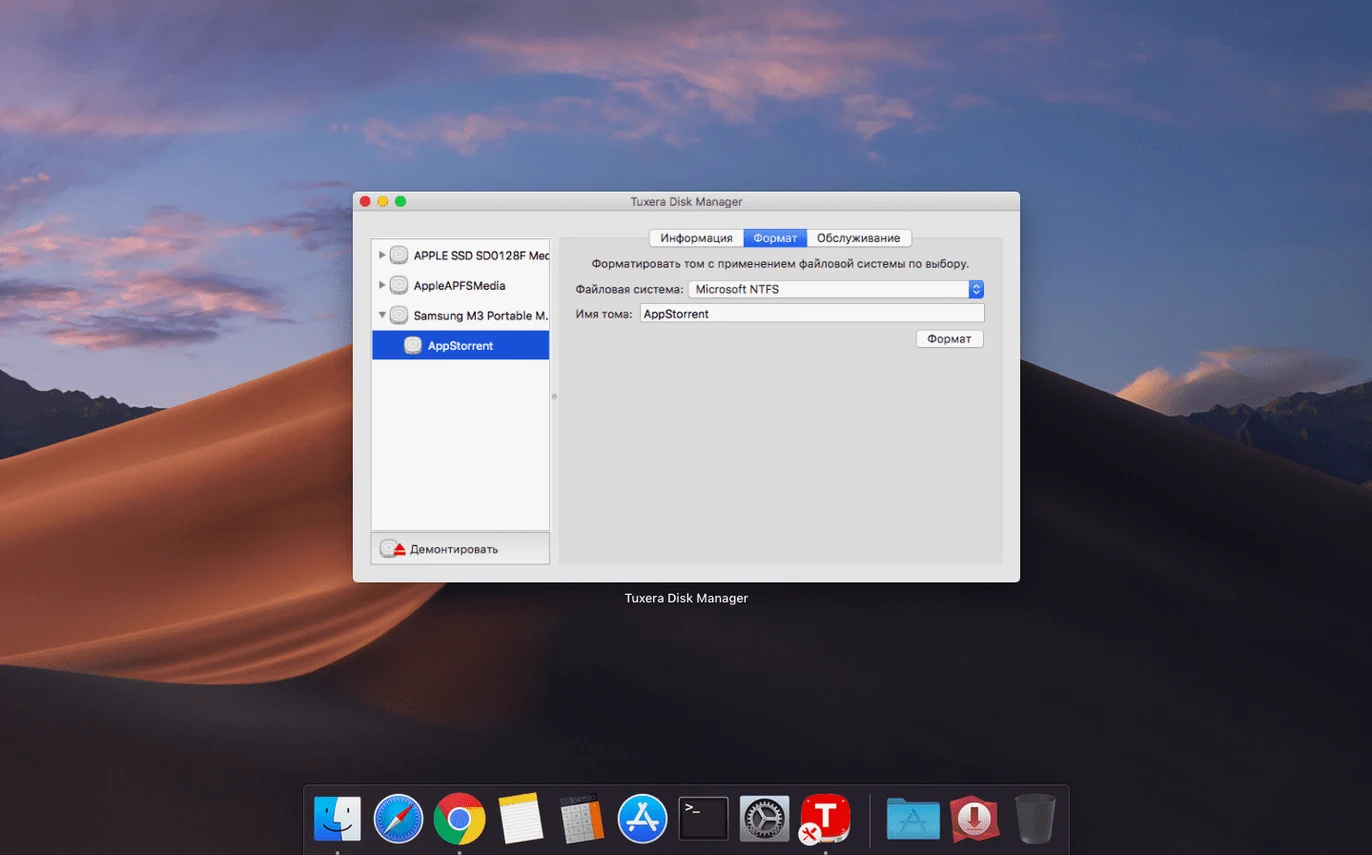
- Creates NTFS volumes and disk images — handy if you prep drives for a dual-boot setup or share large project folders with Windows users.
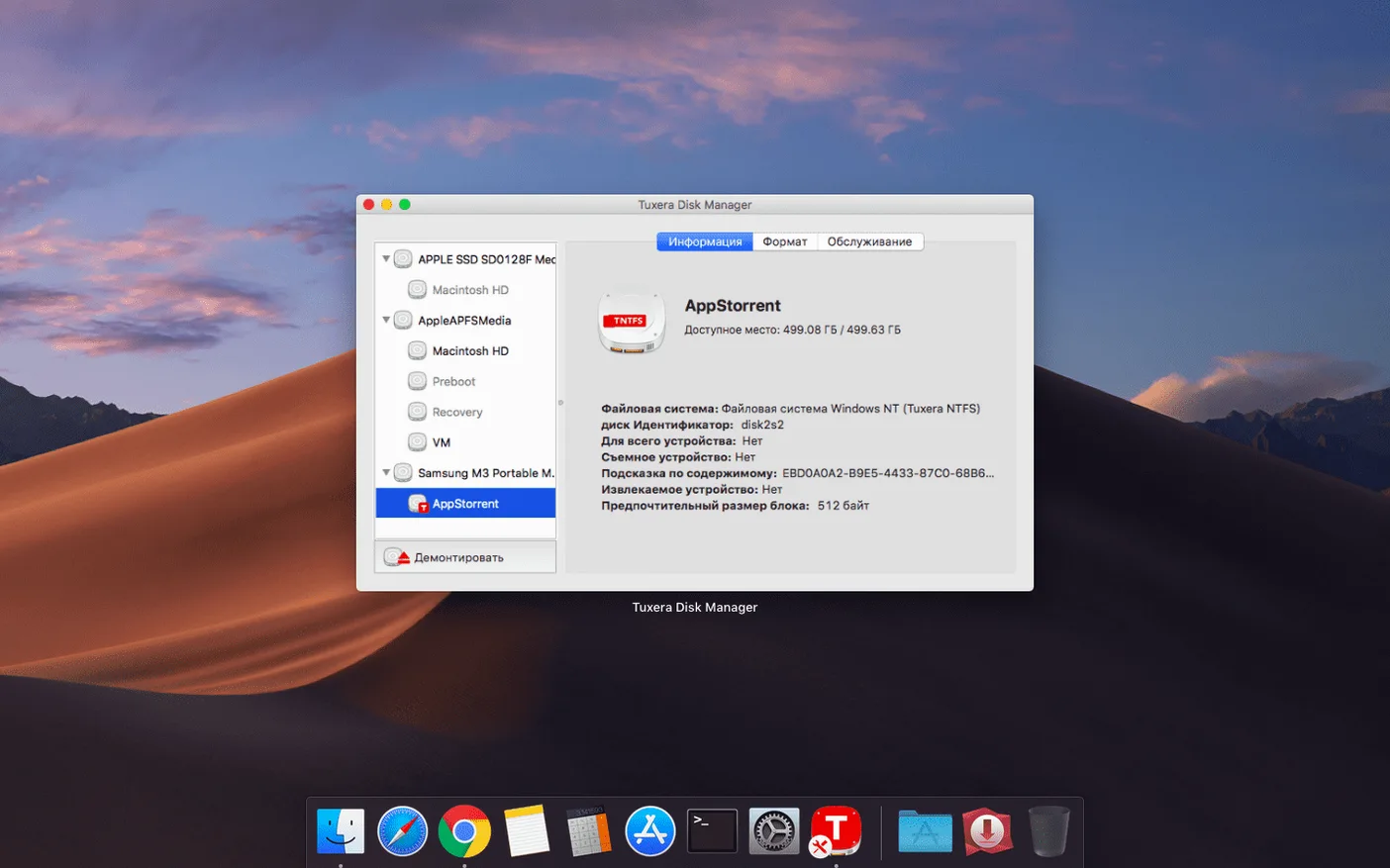
- Verifies and repairs NTFS volumes — catches disk hiccups before they become lost-session headaches.
The daily rhythm
Once installed, the driver sits quietly in the background. You treat an NTFS drive like any other external disk—drag files, rename folders, save directly from your DAW or photo editor. The 2023.1 update fixed a timestamp quirk, so copied files now carry the correct date and time. For anyone shuffling projects between macOS and Windows on the same computer or across USB drives, it's a quiet piece of the puzzle that keeps the data flowing.
Flip the write-caching switch for your drives
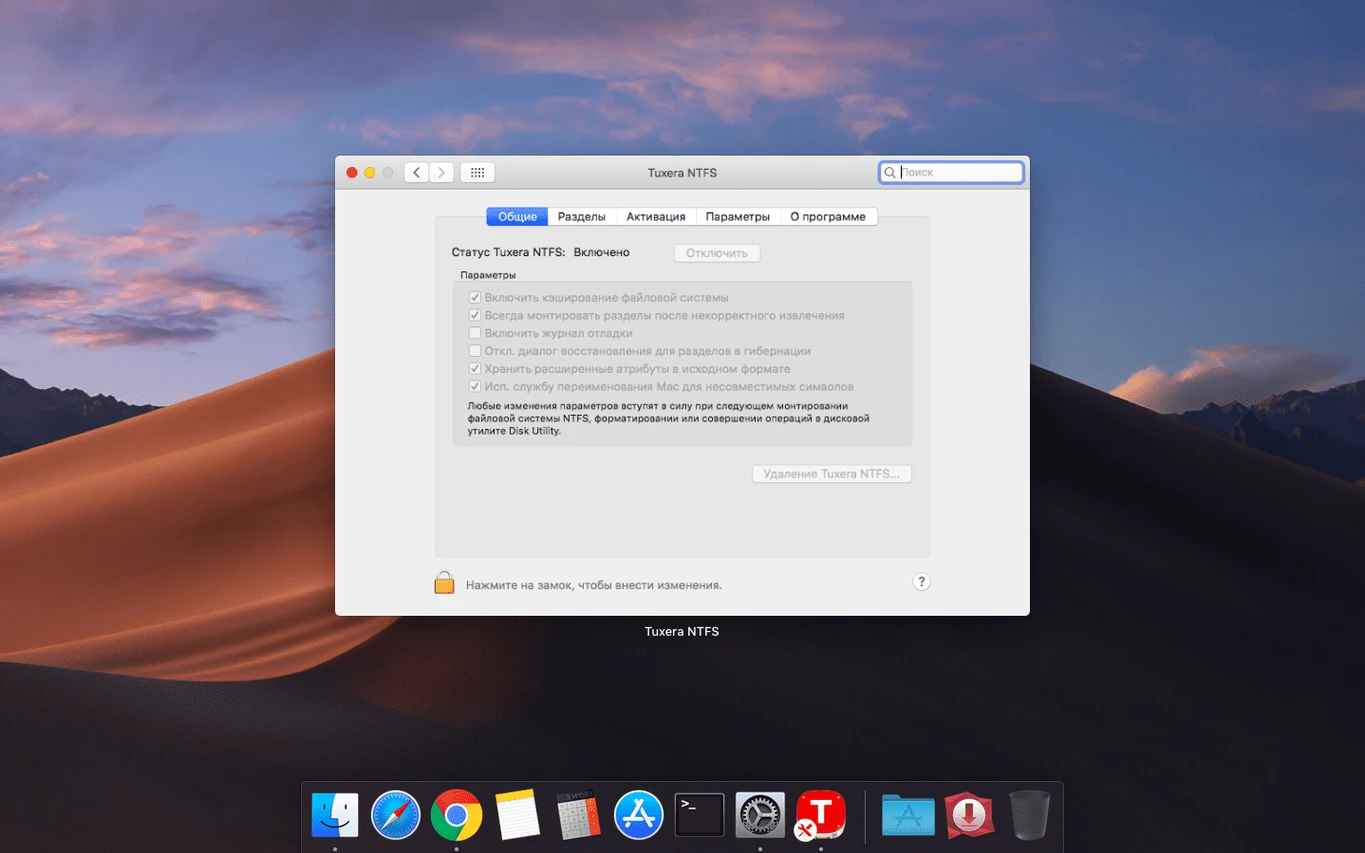
Out of the box, Tuxera NTFS leans toward caution. That’s smart, but a few tweaks inside System Preferences make it feel more like your own tool. Open the Tuxera NTFS pane and you'll spot a handful of options most people scroll past.
- Disable file name normalization. macOS and Windows handle accented characters differently. If you work with French, German, or Spanish file names — think
Señorita_take3.wav— turning this off prevents the driver from silently rewriting names. You keep exactly what the Windows user typed. - Enable native extended attributes. By default, Tuxera stores Mac metadata like Finder tags and resource forks in an alternate NTFS stream. Ticking this box makes it use native NTFS extended attributes instead, which plays nicer with some Windows backup tools and older server software.
- Cache policy for removable drives. The default “write-through” mode is the safest — data hits the platters immediately. If you’re moving hundreds of gigabytes of sample libraries, switching to “write-back” caching for that session can cut transfer times noticeably. Just remember to eject properly afterward.
- Mount options. You can force every NTFS drive to mount with read-write by default, or keep read-only as the fallback for unknown disks. I set mine to read-write; I rarely plug in a drive I don’t intend to use fully.
No menu bar icon, under 10 MB of RAM
In daily work the driver feels like a native part of the system — no splash screens, no dock icons, no menu bar extras. Activity Monitor shows a small kernel extension footprint; memory usage stays in the single-digit megabytes even during large file transfers.
Copying a 32 GB folder of Kontakt libraries to an external NTFS SSD over USB 3.2 hovered around the same speeds I see with APFS drives on the same port. Small-file performance — thousands of RAW photos from a wedding shoot — stayed consistent, with no stalls or Finder beachballs. The timestamp fix in version 2023.1 is the kind of refinement you notice only when it's absent: sorting a folder by date modified now actually matches what the Windows machine shows.
Stability has been uneventful, which is exactly what you want from a file system driver. I’ve thrown sleep-wake cycles, unexpected disconnects, and a few hard shutdowns at it without a corrupted volume. The built-in repair tool caught a minor MFT inconsistency on a drive that had been yanked from a Windows laptop mid-write, and fixed it in under a minute.
Format NTFS volumes directly from Terminal
A few details aren’t advertised but make the tool smoother once you know them.
- Command-line formatting. The installer adds
tuxera_ntfsutilities to your path. Runningmkntfsfrom Terminal lets you format a drive for NTFS without touching Disk Utility — useful when scripting backups or prepping multiple drives. - Disk image creation. You can create a sparse NTFS disk image directly from the Tuxera preference pane. It’s a clean way to bundle Windows project files before uploading, without needing a physical drive.
- Right-click repair. If a volume acts flaky, control-clicking it in the Finder sidebar and selecting “Check and Repair” runs the same verification as the preference pane, but faster to reach.
- Hidden mount flag. Holding Option while clicking “Mount” in Tuxera’s volume list mounts the drive in read-only mode, even when your default is read-write. Handy when you just need to peek without risking changes.
Adding color renders to a Windows project drive
Here’s a real workflow: you’re handed a 1 TB NTFS portable drive containing a video project — proxies, Premiere project files, and exported reference clips — edited on a Windows workstation. You need to add new color-graded renders and re-organize the folder structure before returning it.
Plug in and verify. Connect the drive. It mounts within seconds, same as any external disk. Before touching anything, control-click the volume in Finder and run “Check and Repair.” The scan finishes clean; no filesystem errors.
Browse and reorganize. Open the drive in Finder. Create a new folder called Color_Exports_v2. Move last week’s reference clips into an Archive subfolder. No permission dialogs, no read-only warnings — it behaves like a drive you own.
Render and save directly. In DaVinci Resolve, set the export destination to the new folder on the NTFS drive. Hit render. The files land with correct timestamps — no off-by-five-hours confusion when the Windows editor opens them later.
Safely eject. After the render, drag the volume to the trash or use the eject button in the Tuxera pane. The write cache flushes, the drive unmounts cleanly, and it’s ready for its return trip to a Windows machine.
That whole sequence — verify, reorganize, render, eject — took about twenty minutes and never required a reformat, a cloud upload, or a middleman disk. The driver stayed quiet the entire time; I forgot it was there until writing this down.
Audio pros swapping session folders cross-platform
This isn't a tool everyone needs. But for a few kinds of Mac users, it solves a daily friction point.
Audio engineers and producers who trade large sample libraries and session folders with Windows-based collaborators. No reformatting drives to exFAT — which lacks journaling and can corrupt under heavy read-write loads — means fewer late-night data scares.
Photographers and DITs on mixed-platform sets. A Windows DIT hands you an NTFS drive full of raw files; you ingest, cull, and return it without a conversion step. The timestamp accuracy in Tuxera NTFS 2023.1 keeps your catalog’s date sorting intact across operating systems.
Boot Camp and virtual machine users. If you run Windows alongside macOS — natively or through Parallels — the driver lets you reach into the Windows partition to grab files while booted in macOS. It also keeps the NTFS boot volume healthy with the repair utility.
Anyone still carrying a Windows-formatted archive drive. A lot of us have an old external drive full of backups from a Windows era. Tuxera lets you pull files off and keep using the disk without migrating terabytes to a new format.
If you spend more than a few minutes a week working around macOS NTFS limitations, the driver pays back that time quickly. It’s a quiet, focused piece of plumbing — no cloud dashboard, no subscription, no extra interface to learn — just read and write access where the operating system normally says no.
The 2023.1 release smooths out a date-stamp detail:
- Fixed an issue that would result in incorrect date or time stamps for files copied to NTFS volumes.
- macOS 10.9 or newer
- Apple Silicon and Intel Macs
Questions I actually get
Can a Mac read NTFS drives without extra software?
Yes, macOS can read files on NTFS-formatted drives, but it cannot edit, copy, move, or delete files without an NTFS driver like Tuxera NTFS.
Does Tuxera NTFS work with external USB drives?
It supports external USB drives previously formatted in Windows, giving you full read and write access to those volumes on your Mac.
Porch talk 0
Come in or pull up a chair to leave a comment.
Nobody has pulled up a chair yet. If you used it on a real Saturday, say what the hour was.