

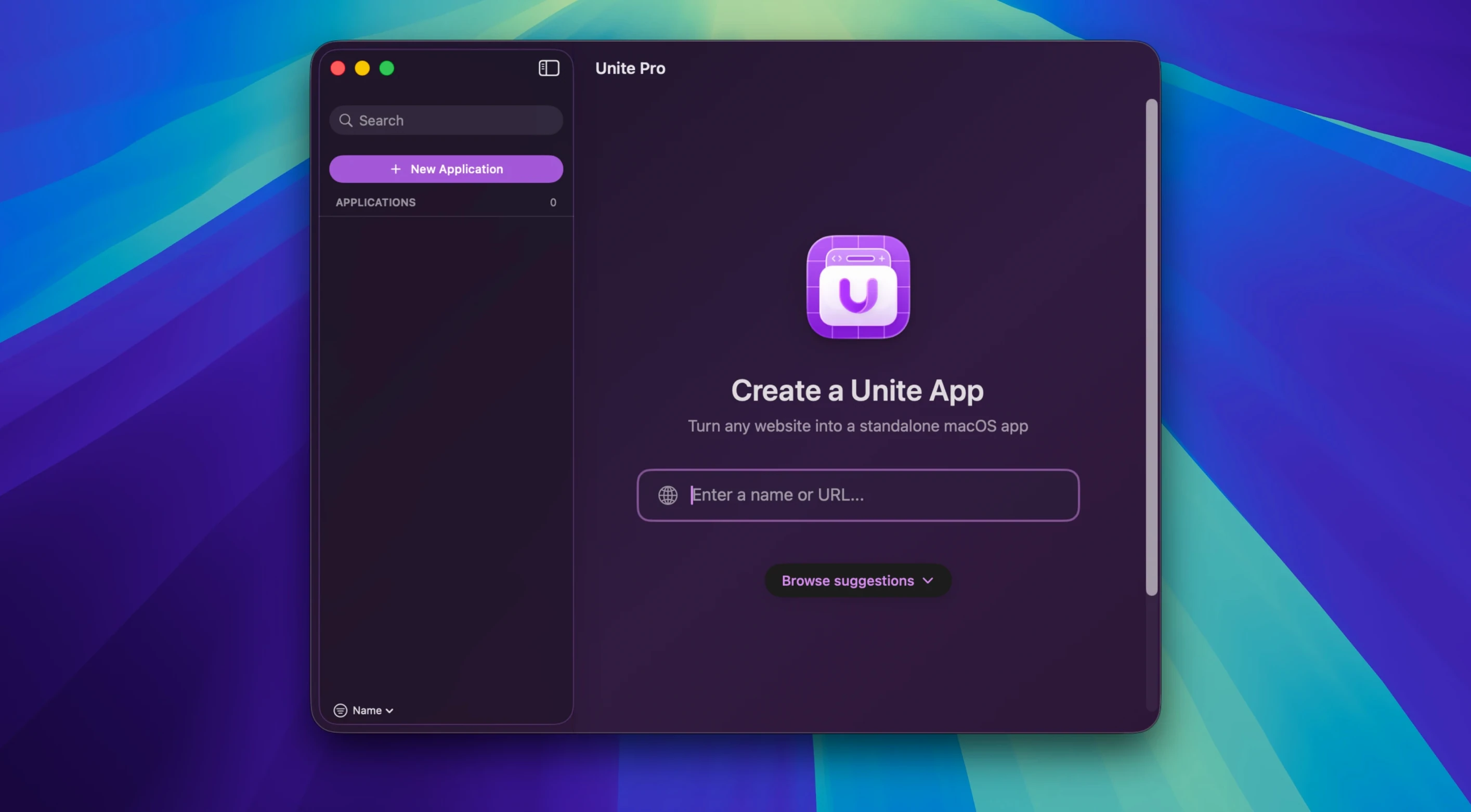
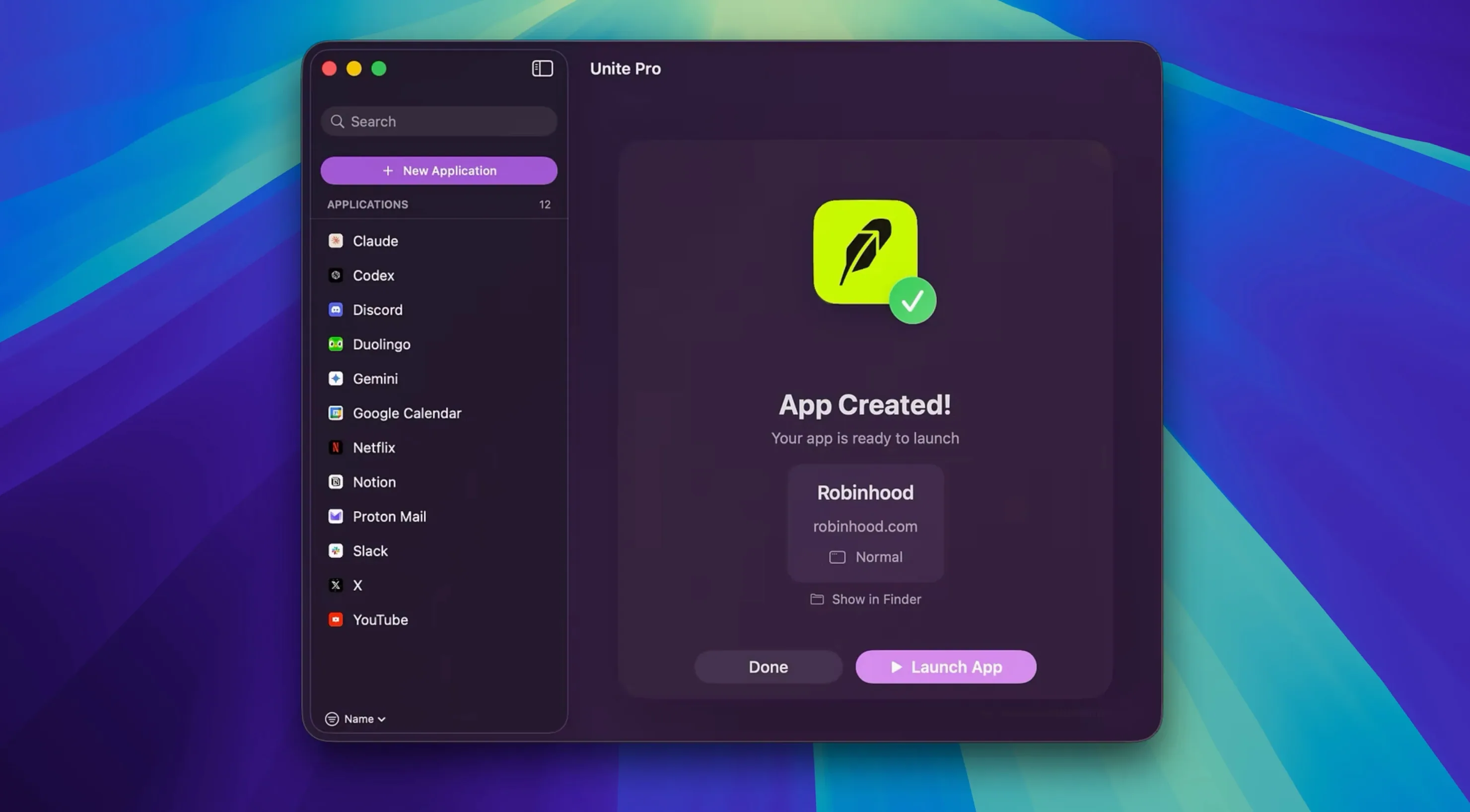
mailto links finally get the attention they’ve been missing. Unite Pro 1.8 adds a default email client mode, so clicking an email address can open a pre-filled compose page in the service you’ve set as your app’s default. It’s a small touch that makes a web app feel properly at home on your desktop.
Package a site as a standalone app
Each site you turn into an app runs in its own browser instance, complete with macOS notifications. You get a dedicated Dock icon and a space that behaves like native software, not just another tab lost in a window.
Keep downloads predictable
Version 1.8 remembers your last chosen download folder per app, so the save dialog stops sending files to places you didn’t intend. It’s a practical nudge toward the kind of consistency you’d expect from a regular Mac program.
Pin what matters to the menu bar
Apps you create can live up in the menu bar for quick access, staying out of the way until you need them. Built for Apple Silicon and Intel machines, Unite Pro is designed for macOS 26 Tahoe and available in six languages. If you keep a handful of web tools open all day, this one’s worth a look.
A start-to-finish setup for a Notion workspace
Let’s walk through turning a Notion team wiki into a self-contained Mac app. It’s a common use case — something you check a dozen times a day but don’t want buried under browser tabs.
Start by launching Unite Pro and pasting your Notion URL into the creation field. Give the app a name like “Team Wiki” and pick a distinct icon color so you spot it instantly in the Dock. Before clicking Create, open the Settings pane for this app and toggle on macOS notifications — you’ll thank yourself when someone leaves a comment on a page you own. Next, head to the Scripts tab and add a small user style that hides the Notion sidebar if your workspace rarely uses it. A few lines of CSS is all it takes, and the result is a cleaner, more focused window.
Once it’s built, launch your new app and sign in. Because Unite Pro isolates cookies and sessions per app, logging into Notion here won’t interfere with your browser session. Pin it to the menu bar through the app’s preferences, and you’ve got a lightweight workspace that stays one click away. This whole routine — from pasting a URL to a pinned menu bar app — takes under three minutes once you’ve done it a couple of times.
Start With Two Apps, Not a Dozen
Start with just two or three apps, not a dozen. The temptation is to package every web tool you use, but learning how each one behaves in its own instance takes a few days. Notice which apps you actually reach for and which ones just sit in the Dock.
A practical habit: after creating an app, immediately visit its settings and assign a download folder. Unite Pro 1.8 remembers the last folder per app, but giving it an explicit starting point — like ~/Downloads/Invoices for a billing tool — saves a step later. Also, give each app a distinct Dock icon tint. The visual separation matters more than you’d expect when you’re switching between Gmail, a team chat, and a project tracker throughout the day.
If you’re working with an email service like Gmail or Outlook, set up the default email client mode early. Once you do, mailto links from other apps will open a compose window in the service you designated, pre-filled and ready to send. It’s one of those features that quietly removes friction from your afternoon.
Route Every mailto: Link Through the Right App
- Default email client mode — Head into an email app’s settings and enable this. Any mailto link you click anywhere on your Mac will route through the right compose page.
- Notification preferences per app — Unite Pro supports macOS notifications, but the default behavior might be too chatty for some sites. Dial it down for things like RSS readers or dashboards that update constantly.
- User scripts for common annoyances — Spend ten minutes writing or pasting a small script that hides cookie banners or collapses sidebars on the sites you use most. The effect is immediate and makes the app feel less like a wrapped browser.
- Menu bar pinning — For utilities you check briefly — a time tracker, a server monitor — pinning to the menu bar keeps the Dock clean and the tool accessible.
Version 1.8 tightens up a couple of everyday interactions. Here’s what’s new:
- A default email client mode lets supported services open a pre-filled compose window from mailto links.
- Download prompts now remember the last folder you chose, so you spend less time navigating save dialogs.
- macOS 15 or later
- Built for Apple Silicon and Intel Macs
- Designed for macOS 26 Tahoe
Porch talk 0
Come in or pull up a chair to leave a comment.
Nobody has pulled up a chair yet. If you used it on a real Saturday, say what the hour was.
More for the same hour
Everything in Mac Apps
 UltraEdit
25.0.0.11 Mac Apps
28 MB
UltraEdit
25.0.0.11 Mac Apps
28 MB

 Vector Magic
1.20 Mac Apps
17 MB
Vector Magic
1.20 Mac Apps
17 MB
 Viaduct
1.3.0 Mac Apps
49 MB
Viaduct
1.3.0 Mac Apps
49 MB

 Typeface
4.5.0 Mac Apps
23 MB
Typeface
4.5.0 Mac Apps
23 MB

 VideoByte BD-DVD Ripper
2.1.6 Mac Apps
124 MB
VideoByte BD-DVD Ripper
2.1.6 Mac Apps
124 MB

 VideoProc Converter AI
8.12 Mac Apps
254 MB
VideoProc Converter AI
8.12 Mac Apps
254 MB
 Tuxera NTFS
2023.1 Mac Apps
111 MB
Tuxera NTFS
2023.1 Mac Apps
111 MB

 TunesKit iPhone Unlocker
2.7.0.16 Mac Apps
64 MB
TunesKit iPhone Unlocker
2.7.0.16 Mac Apps
64 MB