

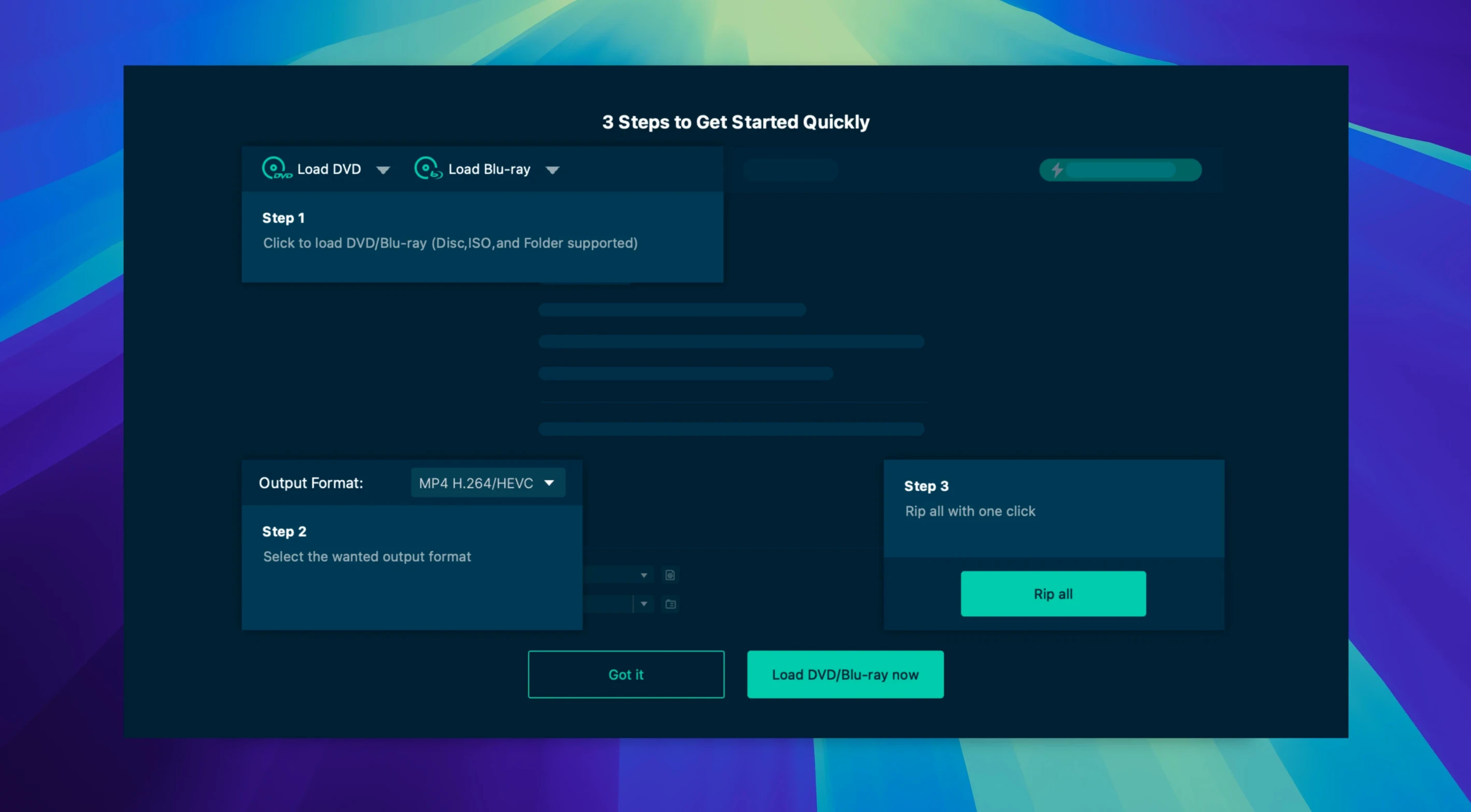
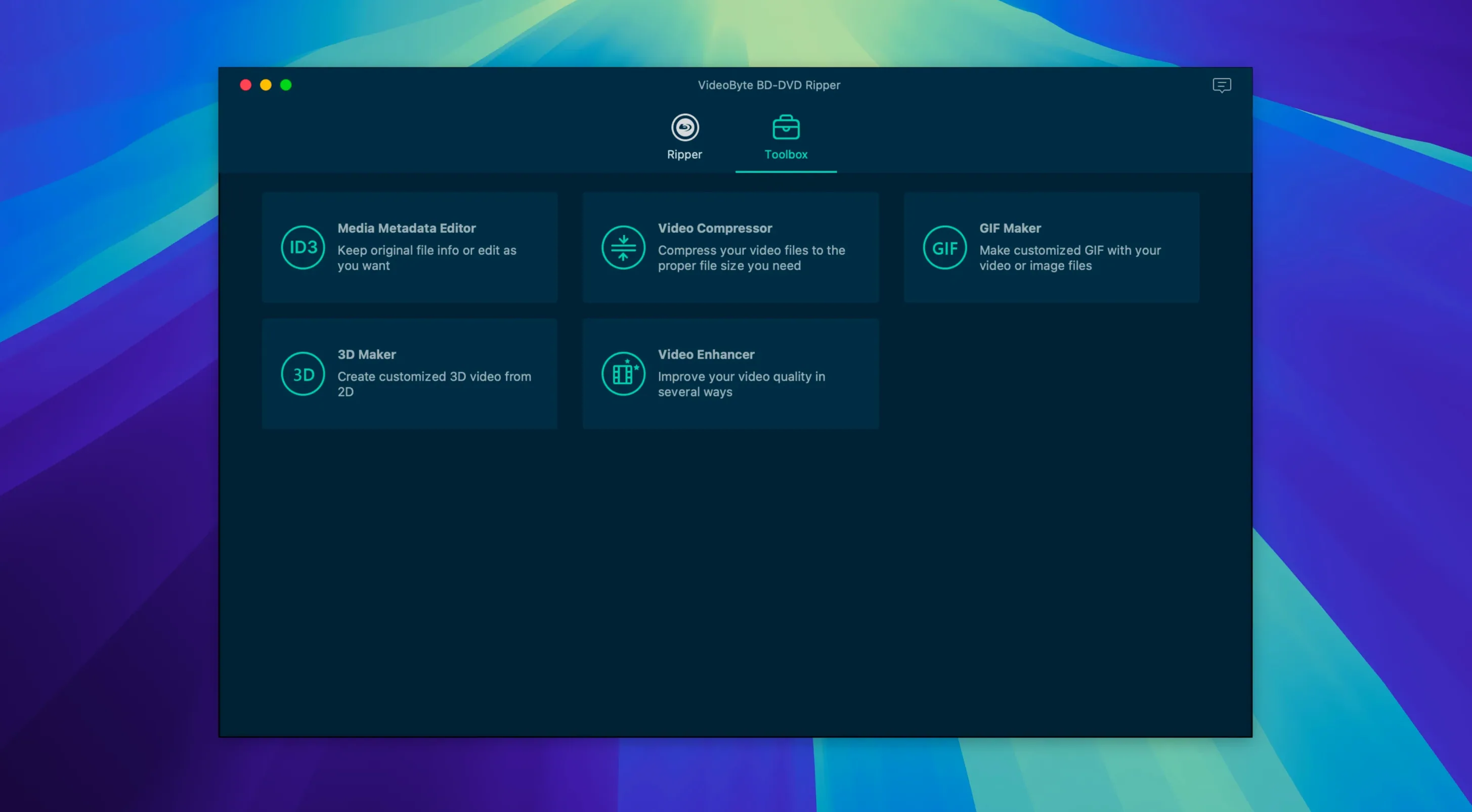
You’ve just pulled a dusty Blu-ray box set off the shelf and want to watch an episode on your iPad during the commute. The disc is in the drive, the software is installed, and now you’re staring at the main window wondering what to click first. Here are three things worth trying right away.
What’s the simplest way to get a video off a commercial disc?
Load the disc and let the app identify the main title automatically. It can strip CSS, AACS, BD+, and even Cinavia protections without extra steps, so you’re usually watching a preview within a minute.
Which output format should I pick for my first rip?
Browse the preset profiles for Apple, Samsung, or Sony devices. If you’d rather dial things in yourself, there are more than 300 format options, with hardware acceleration from Intel, AMD, and NVIDIA available to speed things up.
How do I keep the original audio and subtitles?
Before hitting the start button, check the track selection panel. The app can preserve the original surround sound mix and any subtitle streams on the disc, so nothing gets lost in translation.
Lands Between MakeMKV’s Raw Dumps and HandBrake’s Deep Settings
Mac users who rip discs regularly have probably heard of MakeMKV and HandBrake. They sit at different points on the convenience-to-control spectrum, and VideoByte lands somewhere in the middle with its own flavor.
MakeMKV excels at one thing: pulling the raw title off a Blu-ray or DVD and wrapping it in an MKV container, untouched. No encoding, no format decisions, just a straight copy. That’s fast, but the files stay chunky and you still need another tool if you want MP4 for an iPhone. VideoByte skips that second step. You pick the device profile up front and walk away with a compressed file ready to play. The trade-off is time — re-encoding takes longer than a straight remux — but the convenience of one-and-done suits people who don’t want to babysit a toolchain.
HandBrake is the open-source powerhouse. It reads unprotected sources and lets you fine-tune every encoder parameter. Developers love it. But it won’t touch a commercially pressed Blu-ray with AACS or BD+ on board; you have to strip that elsewhere first. VideoByte handles the decryption internally, which makes the workflow shorter for someone who just wants to convert a store-bought disc without hunting for a companion utility. HandBrake’s encoding quality is stellar, and power users will miss its granular controls, but VideoByte’s preset-driven approach keeps things moving when you don’t need to tweak the x264 advanced options panel.
A couple of searches like videobyte bd-dvd ripper crack or videobyte torrent will surface chatter about the TNT release. That’s a different conversation. On its own merits, the app holds up as a capable middle ground: more format coverage than MakeMKV’s single-container approach, less tweakable than HandBrake but way friendlier for protected discs.
Hardware-Accelerated Blu-ray Rip Under 45 Minutes
On an Intel Mac with a supported GPU, hardware acceleration kicks in automatically for H.264 encodes. A two-hour Blu-ray main title can finish in under 45 minutes when the stars align — meaning a clean disc, a quiet system, and an output format that plays nicely with the encoder chip. Software-only encodes take longer, sometimes double, and the fans will remind you the machine is working. The app doesn’t throttle aggressively, so temperatures climb on thinner laptops; closing other heavy programs helps.
Memory use stays modest. Watching Activity Monitor during a rip shows the process hovering around 400–600 MB, with occasional spikes when it scans a disc’s structure. The interface stays responsive even while encoding, so you can queue up another title or browse the preset list without stutter. Crashes are rare in version 2.1.6, though I’ve seen it stall on discs with heavy scratching. A quick clean of the disc surface usually revives the read.
One quirk worth noting: the app sometimes takes an extra ten or fifteen seconds to mount a Blu-ray’s title tree, especially on external USB drives that have spun down. That’s normal. If the progress bar sits still for more than a minute, eject the disc and try again before assuming the worst. The Gatekeeper dance during installation — opening the launcher, pressing Enter in Terminal — is a one-time hurdle, and after that the app starts like any other.
When the Scanner Rejects a Disc’s Protection Scheme
“No valid source found.” This usually means the disc’s protection scheme tripped up the scanner. Try closing the app, ejecting the disc, and reinserting it. If the message persists, check whether the disc has heavy smudges or scratches; even a fingerprint can throw off the read on a Blu-ray’s tighter track pitch. A microfiber wipe from center to edge often sorts it.
Audio out of sync on longer titles. This crops up occasionally with Cinavia-protected discs or when hardware acceleration and software decoding disagree about frame timing. Switching the output container from MP4 to MKV and disabling hardware acceleration for that title usually fixes it. You lose some speed but gain a clean sync.
Subtitle tracks appear but won’t burn in. The “force subtitles” checkbox only applies to tracks flagged as forced on the original disc. If you want a commentary track or a full subtitle stream burned into the picture, select it manually and choose “Render into video” from the subtitle dropdown. Soft subtitles — the kind you toggle on and off — are the default for most presets.
Apple Silicon Macs and the Intel architecture note. The build specs list x86 64-bit, and on an M-series Mac the app runs through Rosetta 2. It works, but you’ll notice slightly longer load times when opening a disc and a bit more CPU heat compared to a native ARM binary. The developer page mentions Apple Silicon support, so the Rosetta path is baked into the current experience. If you’re on an M1 or M2 MacBook Air, keep it on a desk rather than a lap during a long rip; passive cooling has its limits.
A session from disc to file, step by step
Imagine a Sunday afternoon. You’ve got a Blu-ray of a concert film and a desire to watch it on an iPad during a flight tomorrow. You slide the disc into an external Samsung USB drive, wait for the whir to settle, and open VideoByte.
The app takes about twenty seconds to scan the disc. The title list populates — main feature at the top, a few extras below. You ignore the extras and click the main title, which clocks in at one hour and fifty-two minutes. A preview pane springs to life, showing a few seconds of the stage lights. So far, so good.
You open the output format selector and scroll past the raw video codec options to the Apple section. The iPad Pro preset catches your eye: H.264, 1920x1080, AAC stereo. You keep the original DTS-HD track as a secondary audio stream and add the English subtitle track, set to soft display so you can toggle it mid-flight.
The trimming tool invites you to chop off the long end credits, but you leave them in — maybe the band sneaks in a hidden track. You skip the crop and filter panels and head straight to the destination folder, picking a folder on the desktop called “Flight movies.”
You press the big blue start button. The progress bar edges forward. The MacBook Pro’s fans spin up audibly around the fifteen-minute mark, a low whoosh that fades into background noise. You grab a coffee, answer a few emails, and glance back to see the bar at eighty percent. Forty-one minutes after you started, the file lands on the
- macOS 10.10 or later
- Intel-based Mac
Questions I actually get
Does VideoByte BD-DVD Ripper work on Apple Silicon Macs?
Yes, the developer states support for both Intel and Apple Silicon processors, covering macOS 10.12 through 15.x.
Will it handle old DVDs with CPRM or APS protection?
Yes, the app can remove CPRM and APS along with other common commercial protections, so even trickier discs should open without a fight.
Porch talk 0
Come in or pull up a chair to leave a comment.
Nobody has pulled up a chair yet. If you used it on a real Saturday, say what the hour was.
More for the same hour
Everything in Mac Apps
 VideoProc Converter AI
8.13 Mac Apps
Updated 254 MB
VideoProc Converter AI
8.13 Mac Apps
Updated 254 MB

 Viaduct
1.3.0 Mac Apps
49 MB
Viaduct
1.3.0 Mac Apps
49 MB

 VideoProc Converter
6.6 Mac Apps
86 MB
VideoProc Converter
6.6 Mac Apps
86 MB

 ViWizard Spotify Music Converter
2.17.0 Mac Apps
7 MB
ViWizard Spotify Music Converter
2.17.0 Mac Apps
7 MB

 Vector Magic
1.20 Mac Apps
17 MB
Vector Magic
1.20 Mac Apps
17 MB

 VMware Fusion Pro
26H1 Mac Apps
479 MB
VMware Fusion Pro
26H1 Mac Apps
479 MB

 WALTR PRO
4.0.122 Mac Apps
29 MB
WALTR PRO
4.0.122 Mac Apps
29 MB

 Unite Pro
1.8 Mac Apps
27 MB
Unite Pro
1.8 Mac Apps
27 MB