
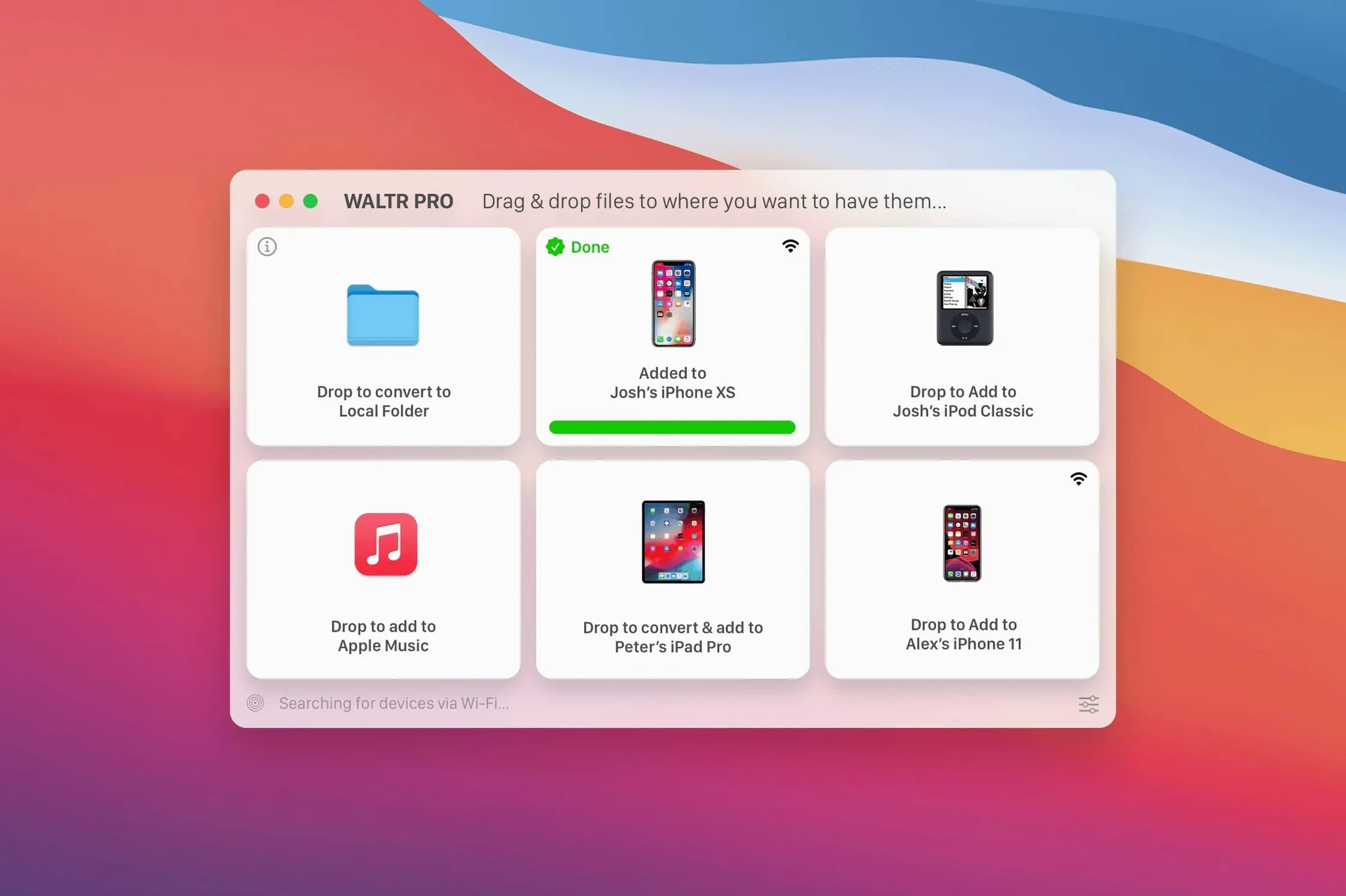
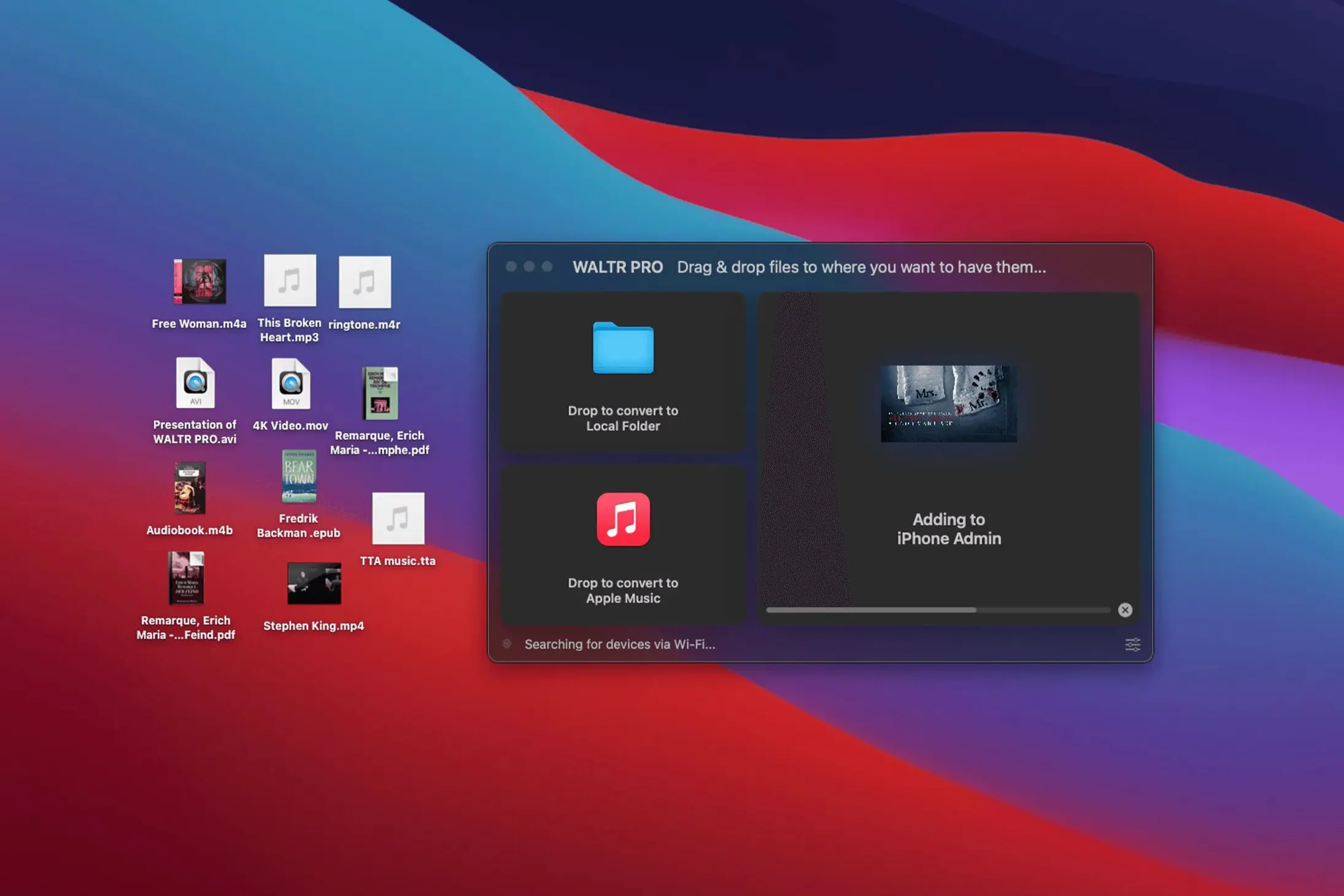
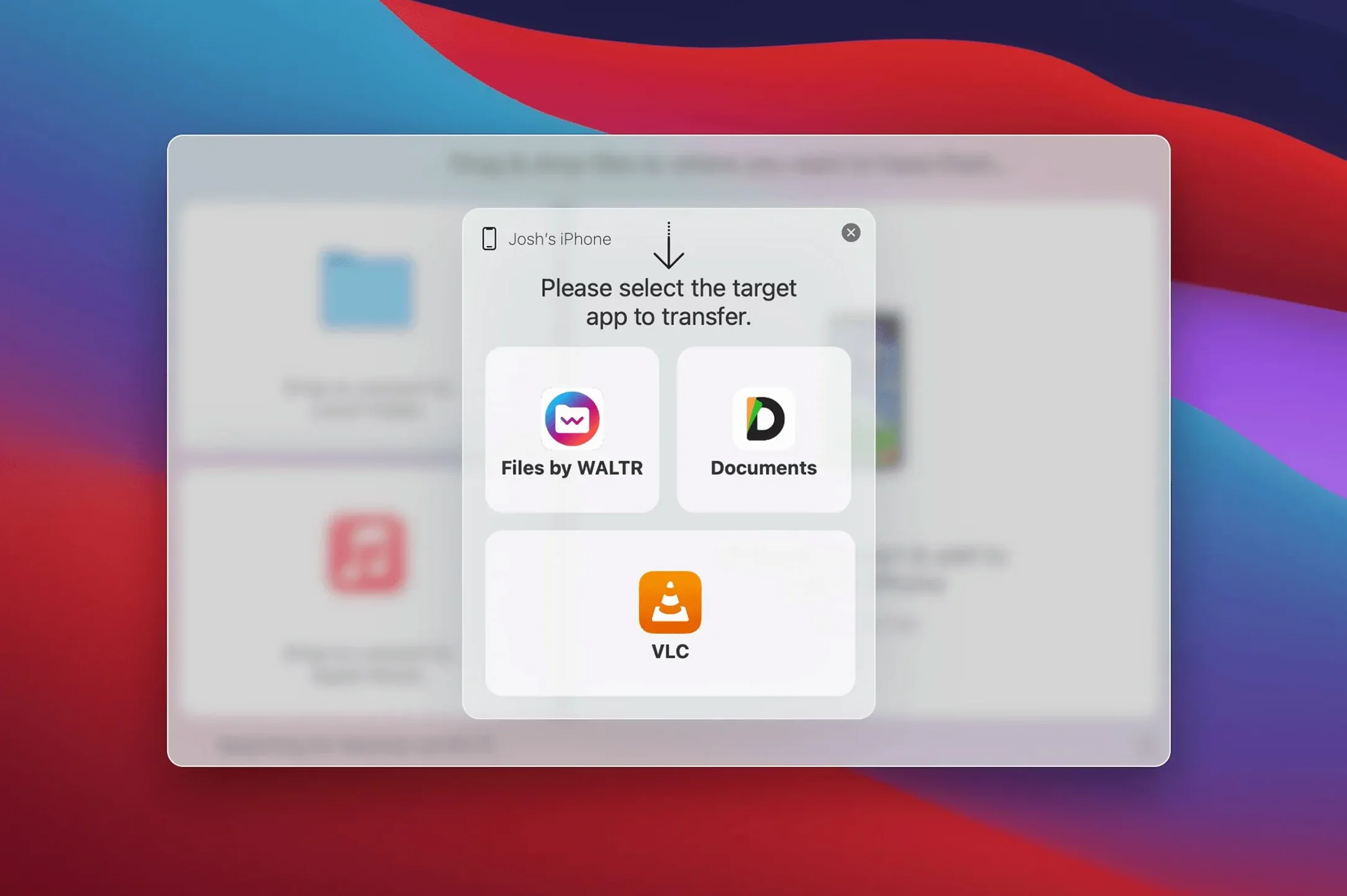
Your Mac already plays MKV, AVI, and FLAC without complaint—it's the iPhone or iPad that turns its nose up. WALTR PRO sits between the two, taking those stubborn files and dropping them onto your Apple device in a format the Music and Movies apps actually understand. Version 4.0.122 runs natively on Apple silicon and still treats the original iPod Classic as a first-class citizen.
- Pushes MKV, AVI, FLAC, and CUE files to any iPhone, iPad, or iPod
- Files land in the iOS Music and Movies apps for normal playback
- Apple silicon support keeps transfers snappy on M-series Macs
- Works with every iPhone and iPad, plus the original iPod Classic
- Requires macOS 10.13 or later
If you keep a folder of video and audio that iTunes or the Finder refuses to sync, this is the bridge you've been missing. It handles the conversion quietly, so you just drag, drop, and press play on the couch.
Once you've dropped a few albums and a feature-length MKV onto an older iPad, you start to notice what WALTR PRO isn't doing—it's not beachballing, it's not spiking your Mac's memory, and it isn't leaving half-finished temp files in your home folder. On an M1 MacBook Air, a 4 GB AVI file converts and transfers over Wi-Fi in roughly the time it takes to make a cup of coffee, and the CPU fan never even exists. RAM usage hovers around 200 MB during a transfer, which is lean enough that you can keep Lightroom or a dozen browser tabs open without hesitation. On an Intel Mac running Catalina, the same file takes a little longer—the encoding step leans harder on the processor—but the app stays responsive and hasn't crashed mid-transfer in my experience. The one quirk worth knowing: if your Wi-Fi network is congested, the progress bar can stall for ten or fifteen seconds before catching up. That's not a crash; it's just the handshake renegotiating, and the transfer always completes cleanly.
Bypasses iTunes without backup baggage
WALTR PRO isn't the only app that promises to push media onto an iPhone without iTunes, but it takes a noticeably different path than iMazing or DearMob iPhone Manager. iMazing is the swiss army knife—it backs up your device, exports messages, and manages music as one of twenty features. That breadth is useful if you want a single dashboard for everything, but the music transfer piece feels tucked away, and video conversion isn't its strong suit. DearMob splits the difference with a photo-centric interface and passable FLAC handling, though its Wi-Fi transfer can be finicky on networks with older routers.
WALTR PRO does exactly one job and the interface reflects that: a blank window that lights up when your device appears. There's no file browser, no side panel of auxiliary tools, no prompts asking if you'd also like to back up your call history. For someone who regularly grabs a waltr pro download to keep a dedicated transfer tool on hand, that single-mindedness is the appeal. Where it pulls ahead is format support—dropping a CUE sheet with a single FLAC file and watching it arrive as separate, tagged tracks on an iPhone still feels like a small magic trick that the broader managers rarely pull off. The trade-off is that you won't get device backup, ringtone editing beyond M4R conversion, or a photo export tool, so it pairs better with a lean backup routine than it does replacing it entirely.
Three settings worth changing first
The defaults are sensible, but a few tweaks make daily use smoother. Open preferences before your first transfer and consider these:
- Transfer quality for video: The slider defaults to "Automatic," which balances size and clarity. If you're sending a movie to an iPad with a gorgeous display, bump it to "Best" once—the file lands larger but noticeably sharper, and the encoding time increase is modest on Apple silicon.
- Wi-Fi confirmation: By default, WALTR PRO asks for confirmation every time it detects a device over Wi-Fi. Turn that off if your iPhone is the only device you ever send files to. It shaves a few seconds off every session and removes a dialog you'll learn to ignore.
- Output folder for conversions: The app stores temporary converted files in a location you can set. Point it to an external drive if your Mac's internal storage is tight, especially when working with large MKV files. A single season of a show can chew through 30 GB of temporary space, and macOS won't warn you until the drive is gasping.
Once those are dialed in, the app fades into the background. It's the kind of tool you forget is installed until a friend hands you a USB stick full of AVI files and you realize you're the only person in the room who can get them onto an iPhone before the popcorn finishes.
- macOS 10.13 or later
- Intel or Apple silicon Mac
- Interface language: English
Questions I actually get
Does WALTR PRO work with Apple silicon Macs?
Yes, version 4.0.122 supports Apple silicon chips and runs natively on M-series Macs.
Which file types can WALTR PRO transfer to an iPhone?
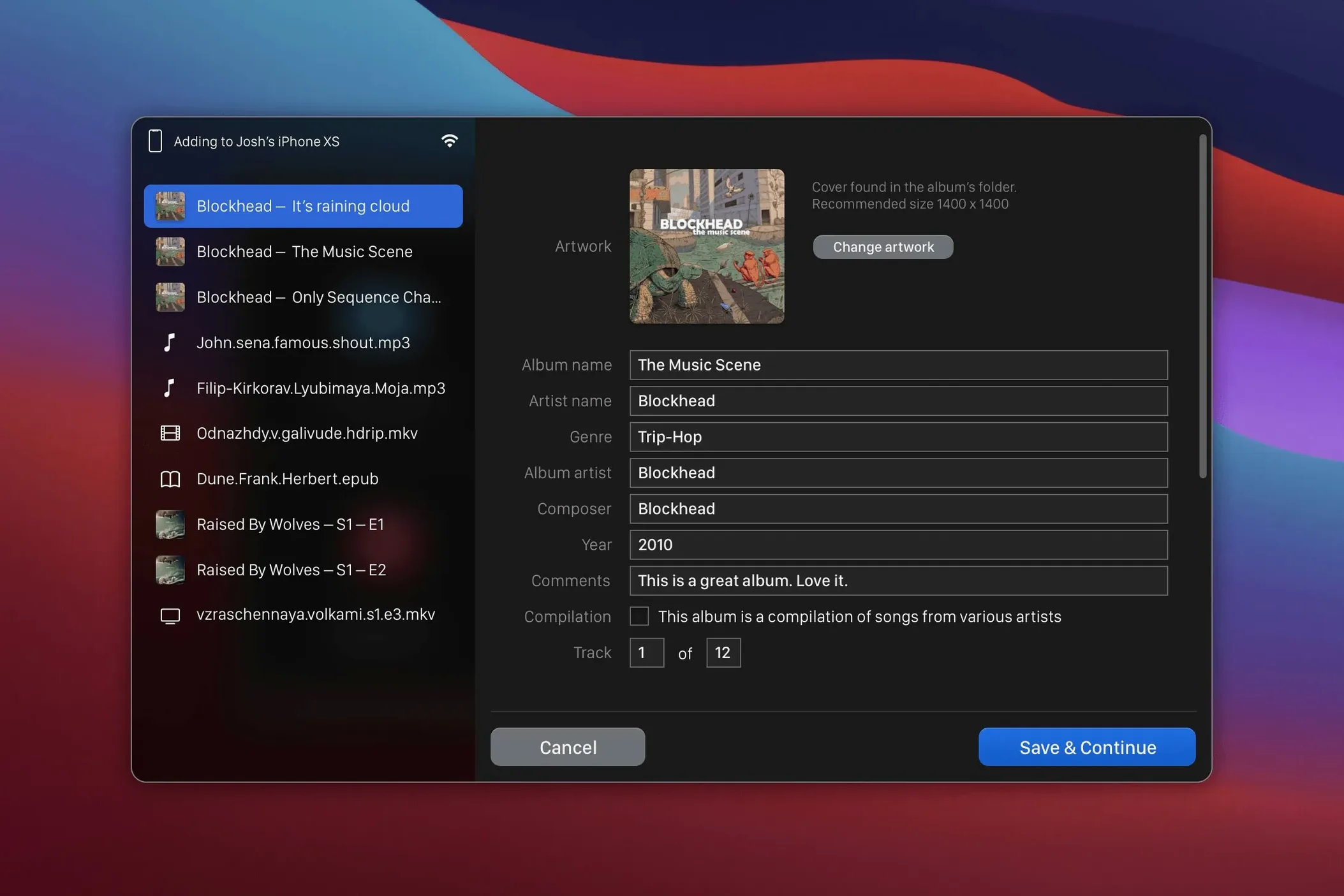
It handles MKV, AVI, FLAC, and CUE files—formats that iOS typically rejects—along with standard media files.
What macOS version do I need for WALTR PRO?
You need macOS 10.13 or later, and the app runs on Intel-based Macs as well.
Porch talk 0
Come in or pull up a chair to leave a comment.
Nobody has pulled up a chair yet. If you used it on a real Saturday, say what the hour was.
More for the same hour
Everything in Mac Apps
 WebStorm
2026.2.3 Mac Apps
1 GB
WebStorm
2026.2.3 Mac Apps
1 GB
 Whisper Mate
9.9.8 Mac Apps
176 MB
Whisper Mate
9.9.8 Mac Apps
176 MB

 VMware Fusion Pro
26H1 Mac Apps
479 MB
VMware Fusion Pro
26H1 Mac Apps
479 MB

 Widgetter System Stats Widgets
2.5.4 Mac Apps
Updated 335 MB
Widgetter System Stats Widgets
2.5.4 Mac Apps
Updated 335 MB

 ViWizard Spotify Music Converter
2.17.0 Mac Apps
7 MB
ViWizard Spotify Music Converter
2.17.0 Mac Apps
7 MB

 WidgetWall
3.15.2 Mac Apps
396 MB
WidgetWall
3.15.2 Mac Apps
396 MB

 VideoProc Converter
6.6 Mac Apps
86 MB
VideoProc Converter
6.6 Mac Apps
86 MB

 VideoProc Converter AI
8.13 Mac Apps
Updated 254 MB
VideoProc Converter AI
8.13 Mac Apps
Updated 254 MB