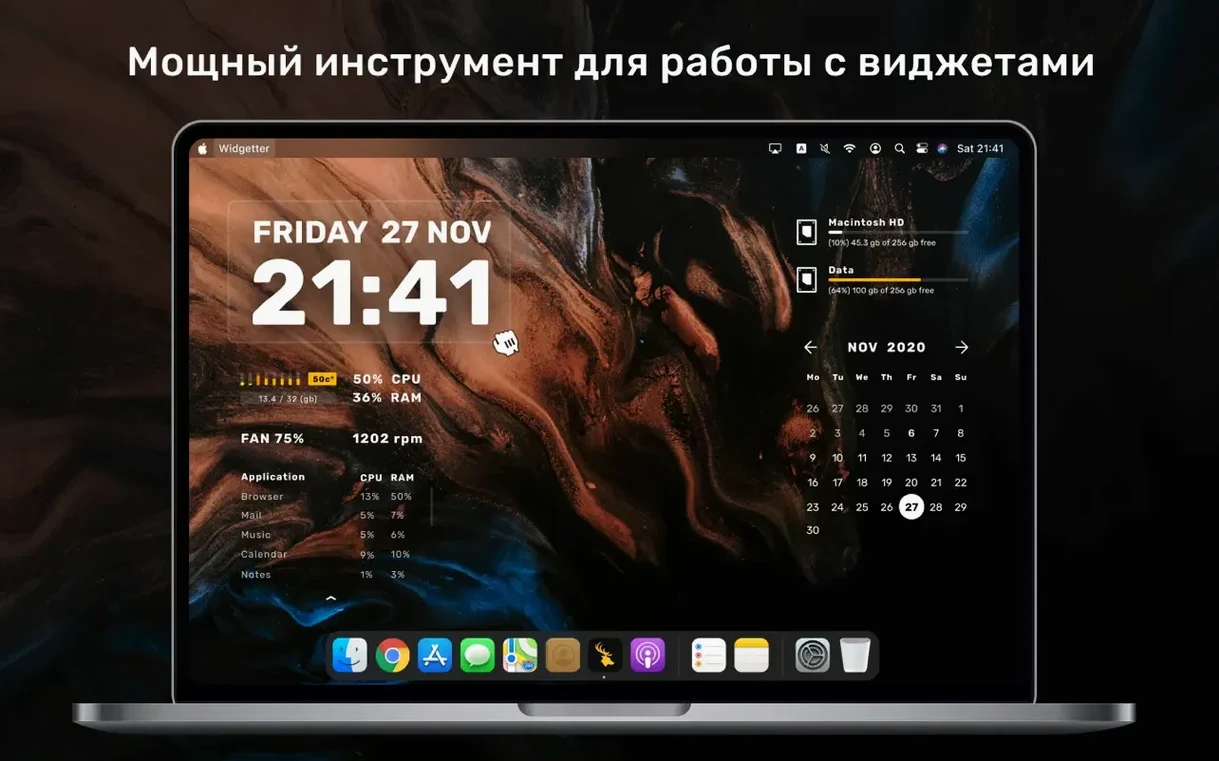
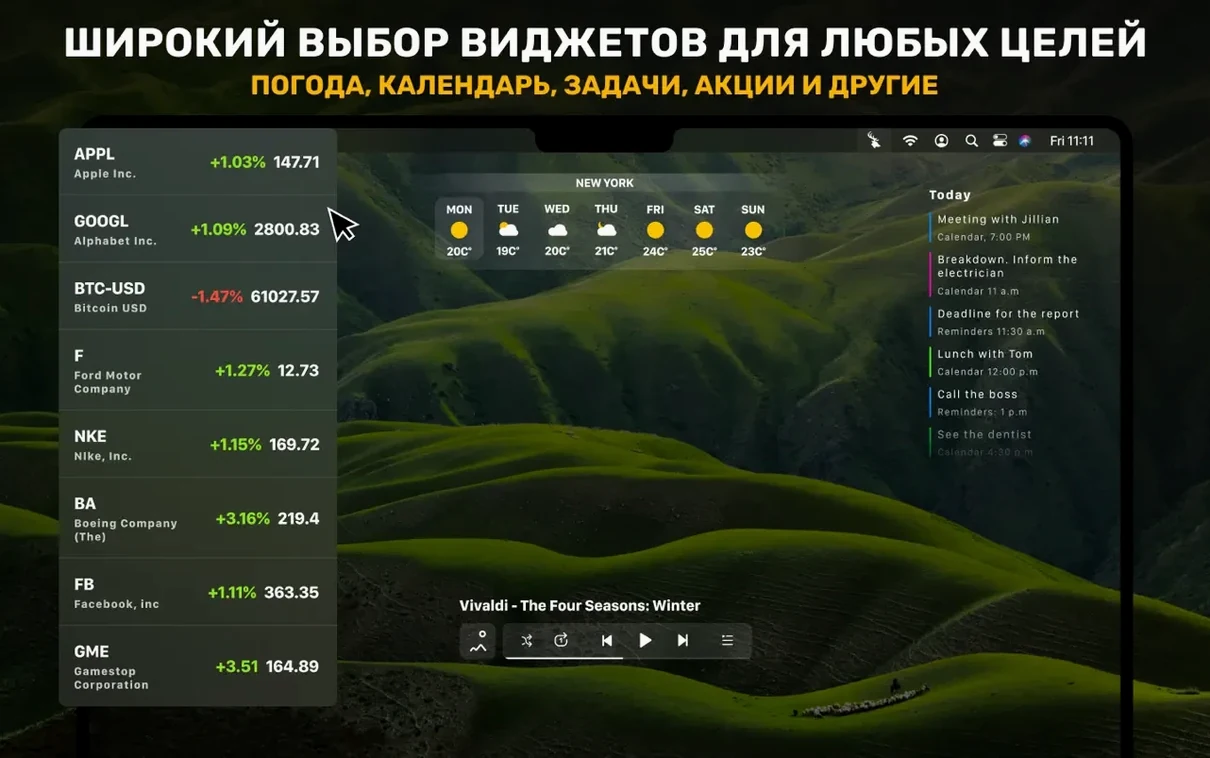
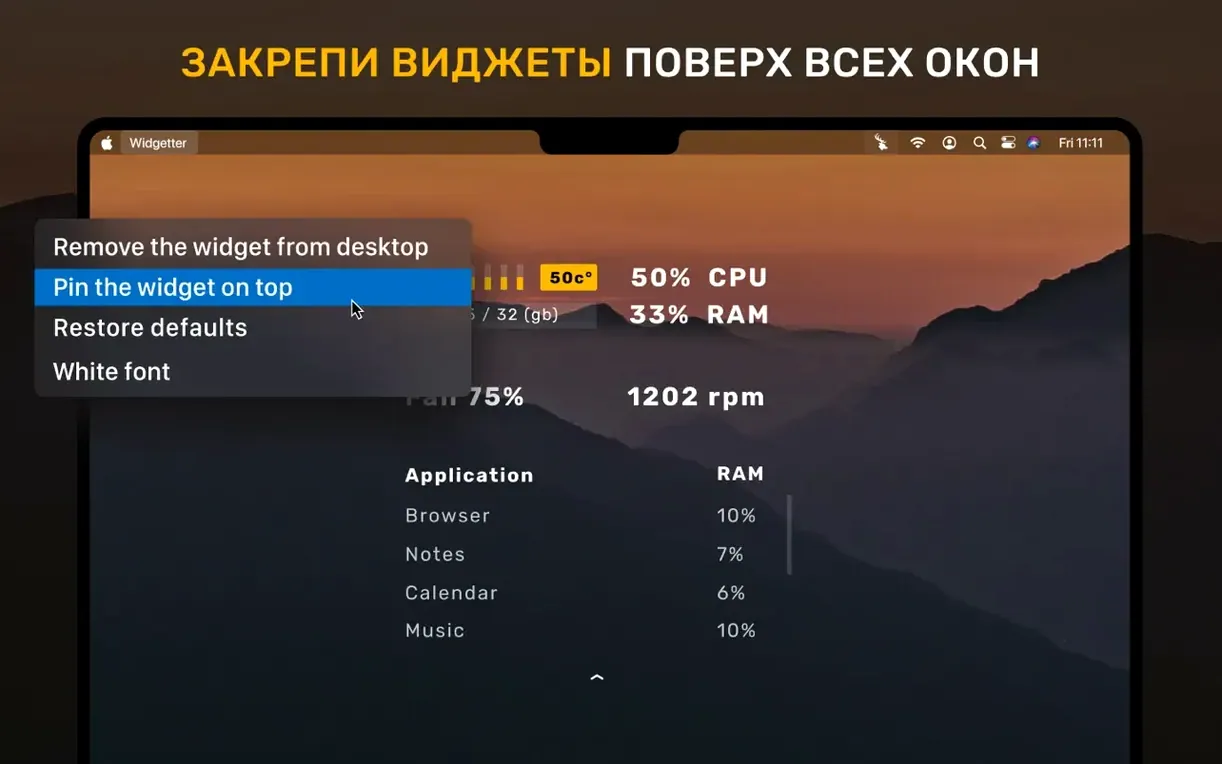
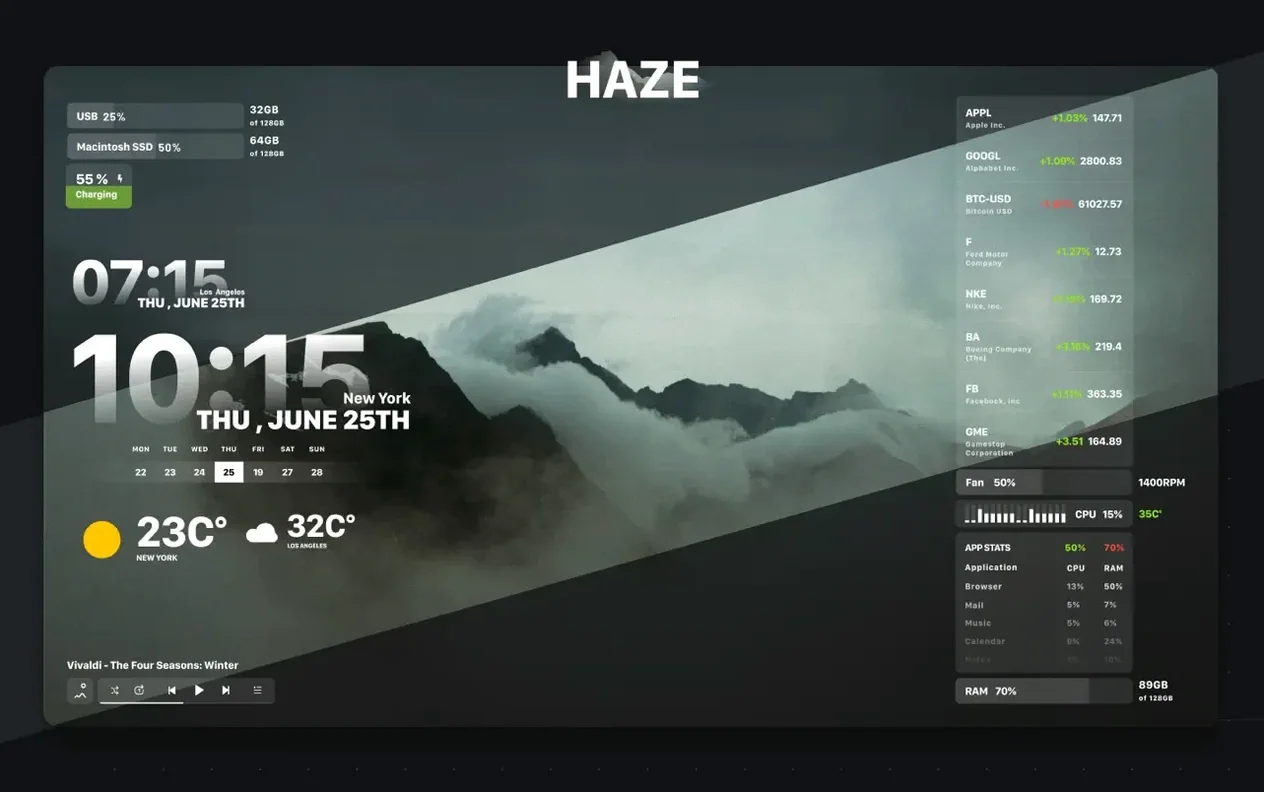
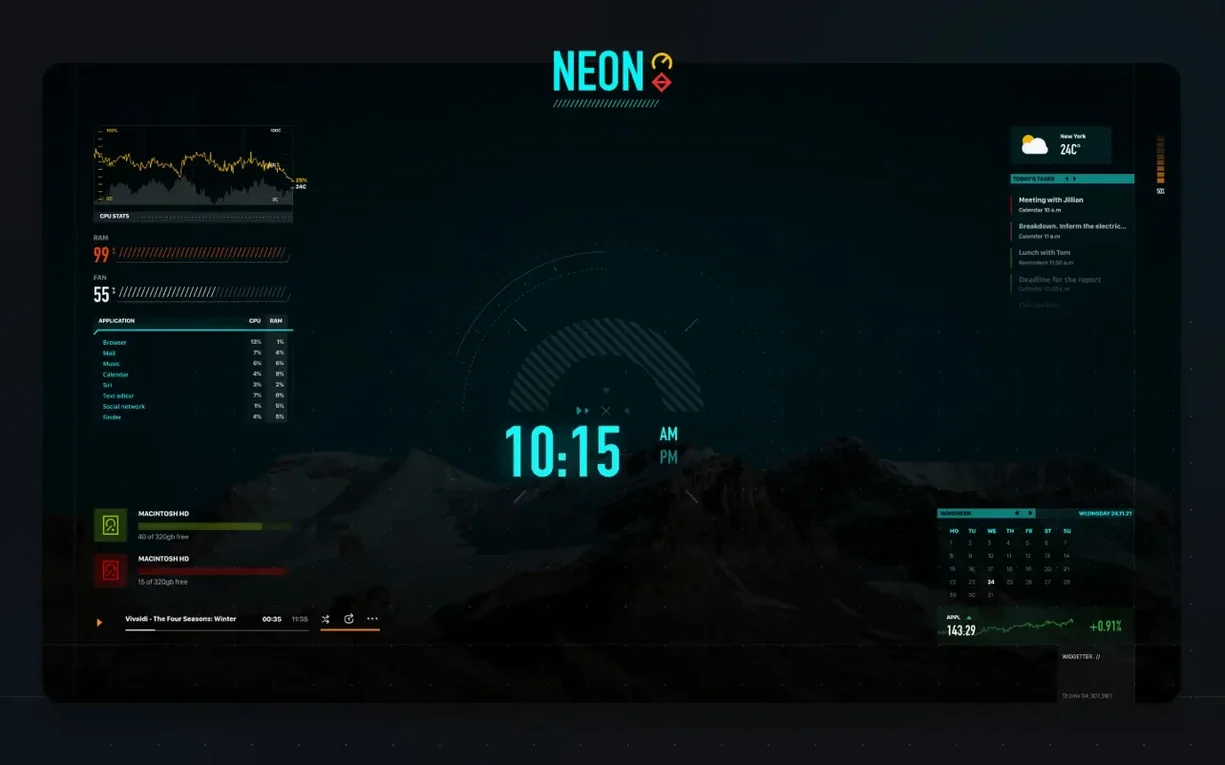
A cluttered desktop hides the little bits of information you actually need throughout the day. Widgetter solves this by putting live system stats, weather, and calendars right where you can see them, without opening a dozen separate apps.
Which widgets should I add first?
Start with a system stats widget to keep an eye on CPU and memory pressure, then drop in a weather tile for your city. Having multiple widgets of the same type is allowed, so you can track conditions in two or three places at once.
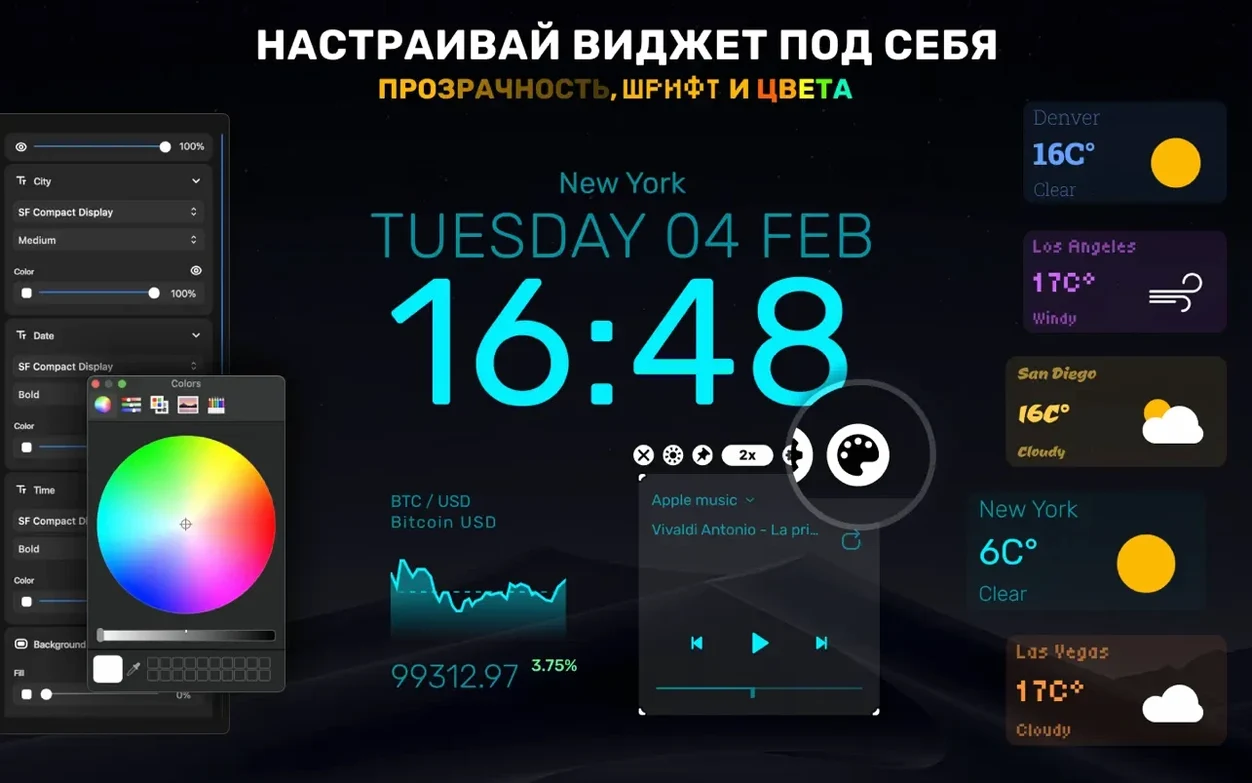
Can I match the widgets to my desktop look?
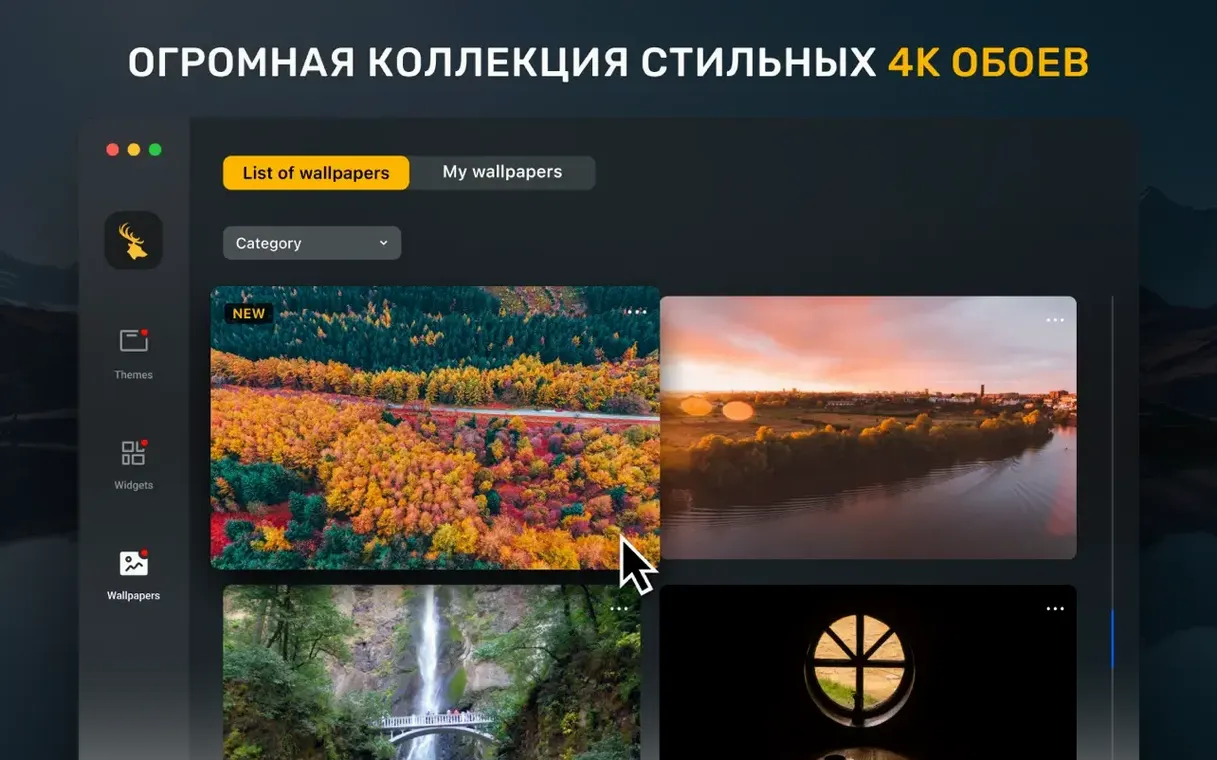
Yes. Colors and fonts are adjustable, so the widgets settle in alongside your wallpaper instead of fighting it. The app also includes its own collection of 4K and 5K wallpapers if you want a fresh backdrop.
Time zone clocks and calendar tiles without dock clutter
Beyond system data and weather, you can add time zone clocks for different cities and calendar widgets to keep upcoming events visible. It’s a quiet way to organize workspace content without adding more dock icons.
Where Widgetter fits in your daily stack
Widgetter doesn’t try to replace your calendar app or your weather service. It pulls from what macOS already knows—your reminders, your Calendar events, the system sensors—and surfaces that information passively. I keep a narrow battery and CPU strip tucked beside the menu bar, so when Final Cut starts rendering, I notice the fan speed climb before I hear it. If you already lean on tools like Raycast or Alfred for quick actions, Widgetter fills the gap for glanceable data you don’t want to trigger with a keyboard shortcut.
Integration is light by design. The calendar widget reads from the same Calendar database your menu bar date uses; the reminders widget syncs with Apple’s Reminders. Weather pulls location data from the macOS Location Services framework. There’s no separate account to create, no web dashboard—just widgets that respect what the system already tracks. This also means Widgetter plays nicely with Dark Mode and multiple Spaces, since each desktop can carry its own set of tiles without overlap.
Cramming too many large widgets on one screen
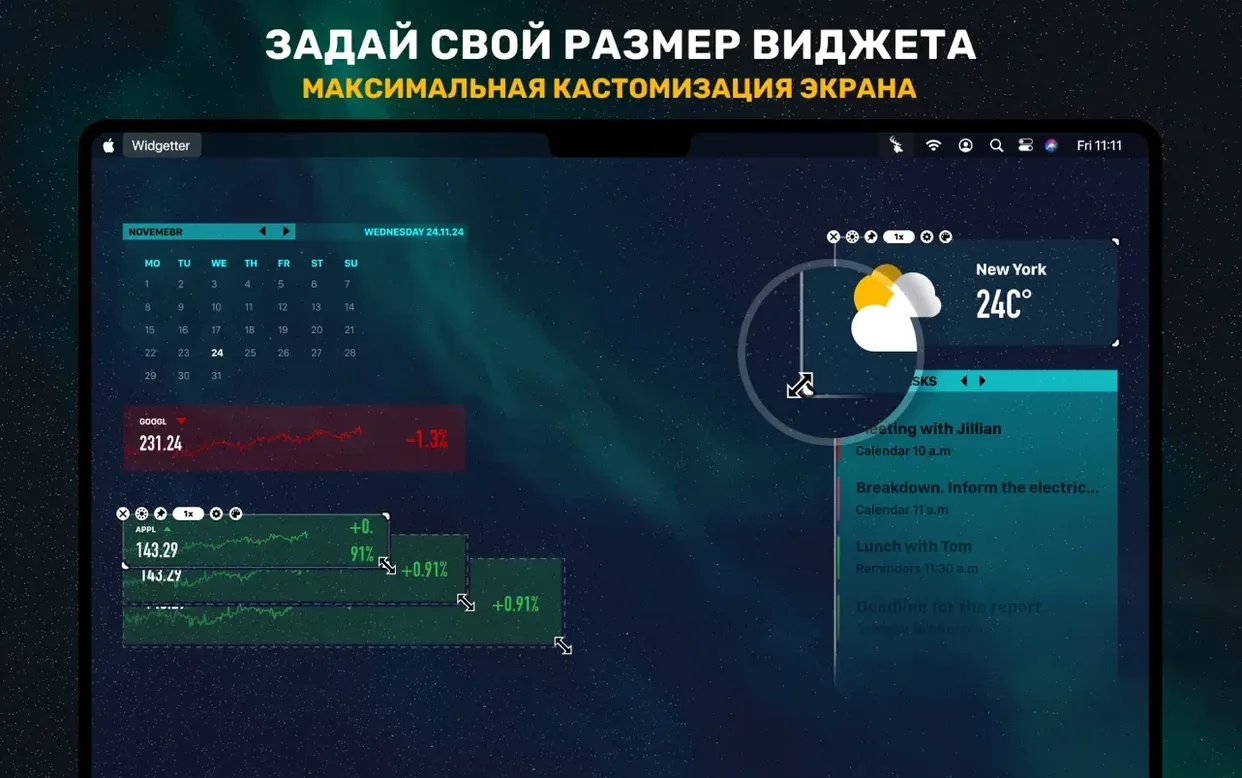
New users often cram too many large widgets onto one screen and wonder why the desktop feels heavy. Start with two or three small tiles and live with them for a day before adding more. Another common stumble is forgetting that free-form sizing works by dragging widget edges—right-clicking won’t reveal a size menu. And if a network speed widget shows zero when your connection is fine, check that Widgetter has permission under System Settings > Privacy > Local Network; macOS sometimes blocks it silently after an update.
People also overlook the error-highlighting feature. A CPU widget that turns amber isn’t broken—it’s flagging sustained high load. That’s your cue to open Activity Monitor and see what’s hogging cycles. Treat those color shifts as a nudge, not a glitch.
Prebuilt tiles over command-line scripting
Next to Übersicht, Widgetter trades scripting flexibility for immediacy. Übersicht loves a command line and some CSS know-how; Widgetter gives you prebuilt, styled tiles that work the moment you drag the disk image contents to Applications. No JSON configs, no terminal. The trade-off is less custom logic—Übersicht can run shell scripts and display their output, which Widgetter won’t do.
Set against iStat Menus, Widgetter lives on the desktop while iStat Menus claims the menu bar. If you want CPU history and network throughput tucked into a drop-down, iStat Menus is the tighter fit. Widgetter makes sense when you prefer a persistent visual dashboard that stays visible between app windows. The Widgetter System Stats Widgets torrent mac crowd often discovers it while hunting for lightweight alternatives that handle RPM, storage, and weather in a single download without extra keystrokes.
Compared to GeekTool, which hasn’t seen an update in years, Widgetter feels modern on Apple Silicon Macs and handles Retina scaling without blurry text. GeekTool users sometimes migrate over when they get tired of wrestling with log file paths and font smoothing. Widgetter’s built-in 4K and 5K wallpaper set is a bonus that none of these alternatives bundle.
A small maintenance update that keeps those stats ticking along smoothly. Version 2.5.3 tidies up a handful of minor bugs that could cause a flicker or a misread here and there.
- macOS 10.13.2 or later
- Apple Silicon or Intel 64-bit Mac
Questions I actually get
Does Widgetter work on older Macs?
It runs on macOS 10.13.2 and later, and supports both Intel and Apple Silicon machines.
Can I run more than one weather widget?
Yes, you can add multiple widgets of the same type, which is handy for tracking weather in several cities at a glance.
Porch talk 0
Come in or pull up a chair to leave a comment.
Nobody has pulled up a chair yet. If you used it on a real Saturday, say what the hour was.