

From web developers wrangling server deployments to photographers sending raw files to cloud storage, Transmit has long been the tool for moving data with a sense of certainty. The latest update doesn’t rewrite the rulebook; it sharpens what was already there.
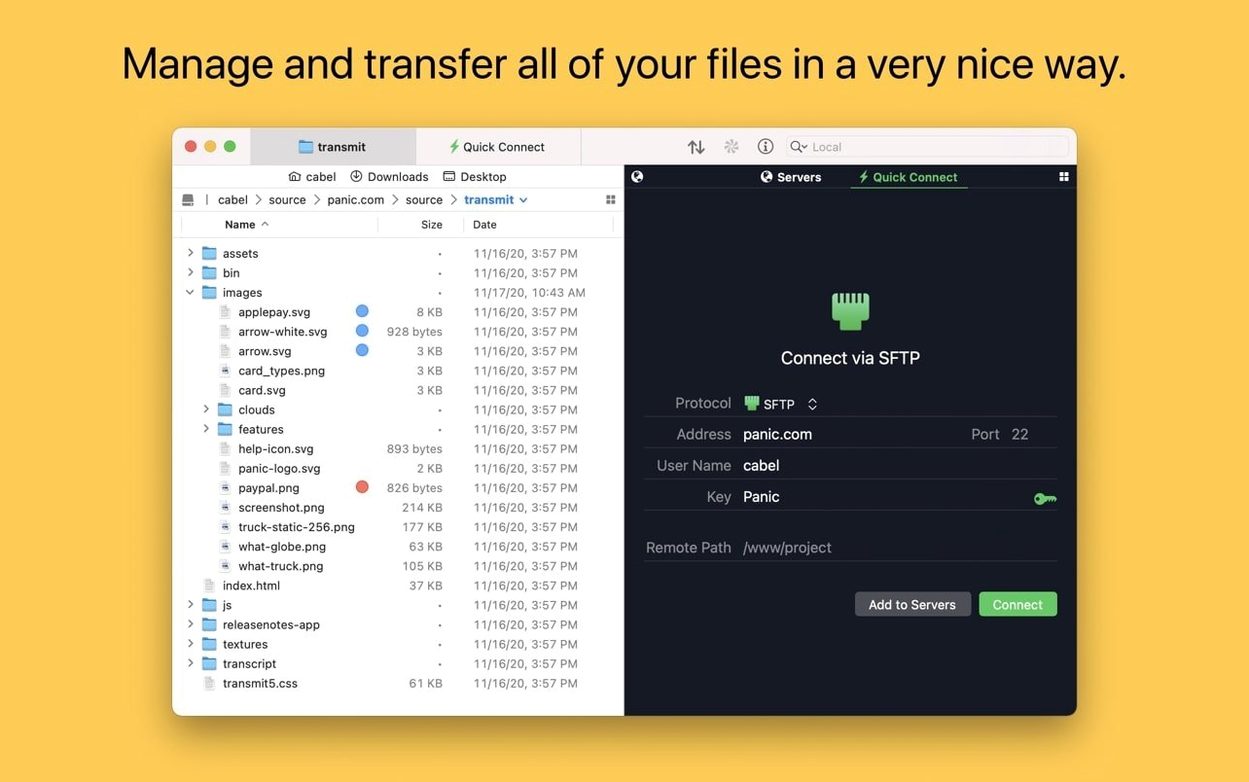
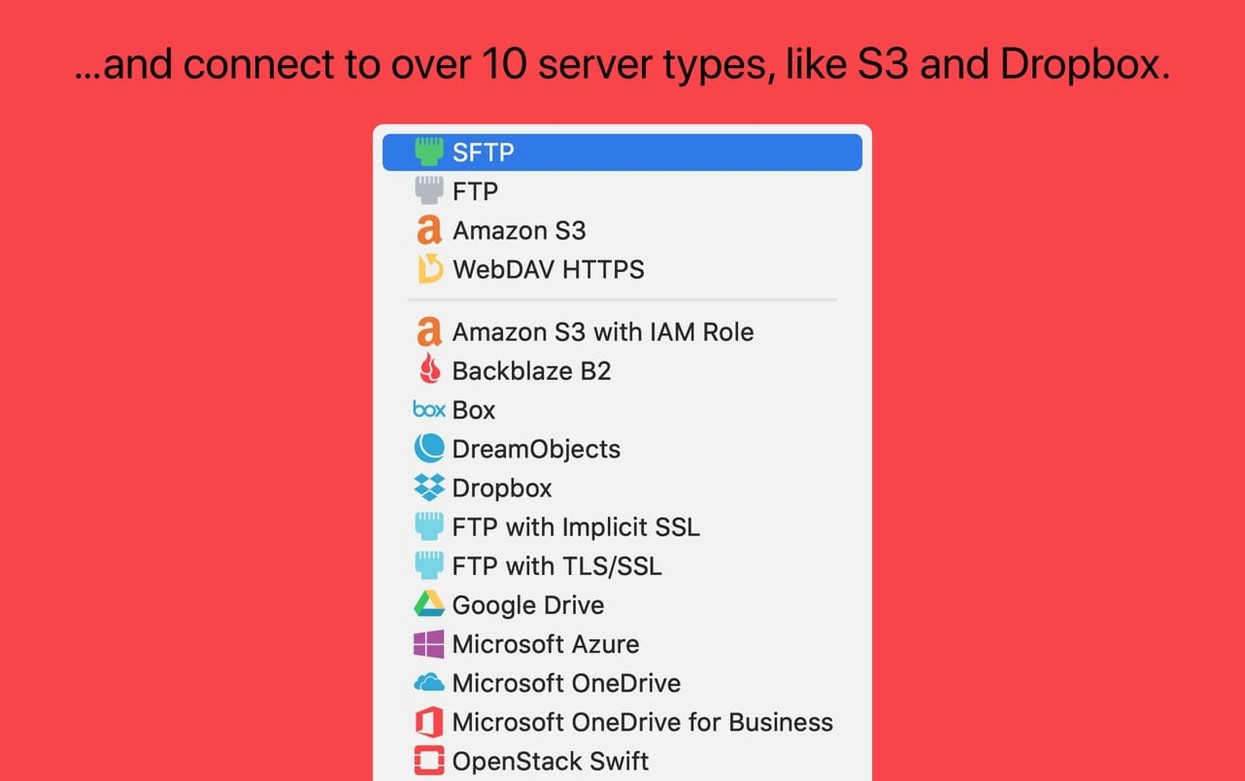
Protocols — FTP, SFTP, WebDAV, and S3. The four pillars of file transfer, all handled within a familiar dual-pane browser.
Key Management — Generate and manage secure keys inside the app. No need to juggle outside terminals for a quick SFTP connection.
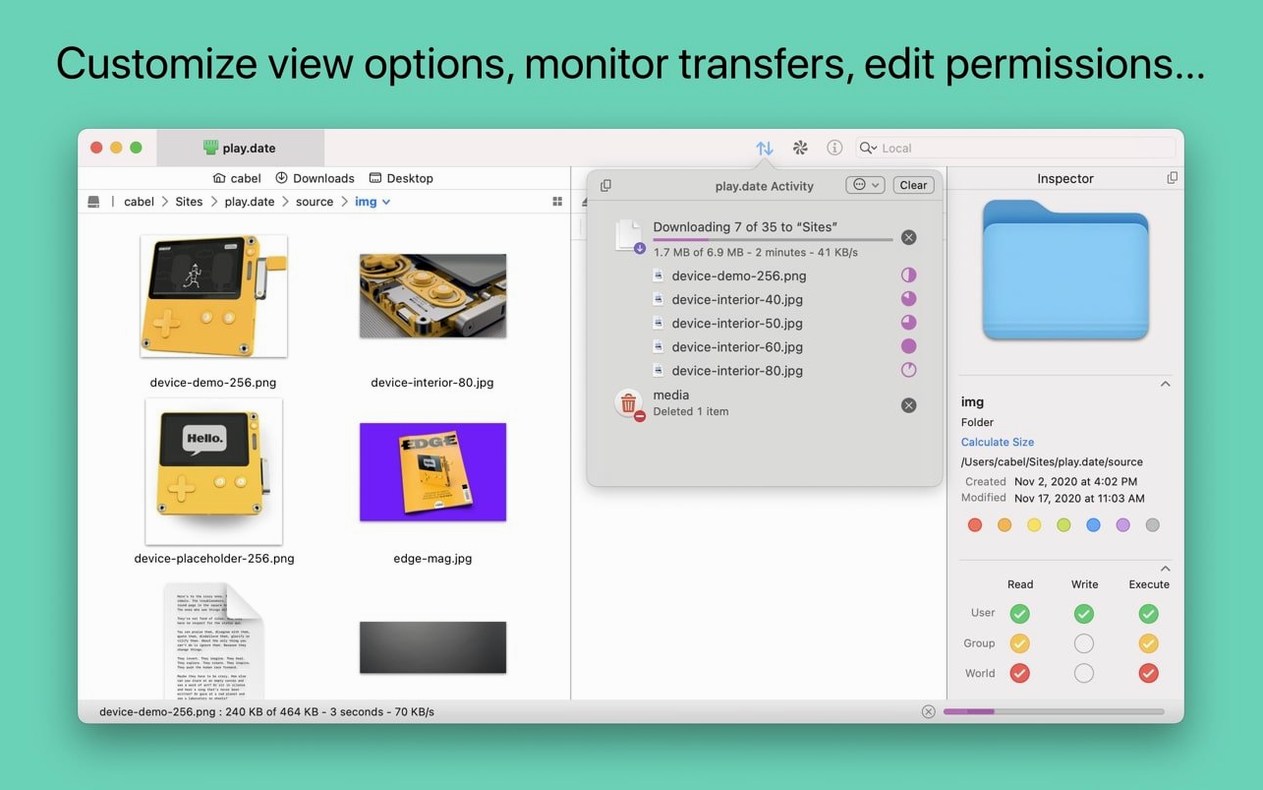
Inspector — An information sidebar that lets you check permissions, file sizes, and modification dates without opening a separate dialog. A small thing that saves a dozen clicks during a busy sync.
Panic Sync — Synchronizes your server credentials across other Panic apps. Set up a site once and it appears everywhere.
Batch Rename — Rename a group of local or remote files in one pass. The German File Rename text fields are now properly sized, fixing a long-standing localization quirk.
Where Things Go Sideways
Even a polished tool has its friction points, and Transmit is no exception. The most common snag shows up with S3 uploads. If a file exceeds the 5 TB limit Amazon imposes on a single PUT request, Transmit now throws a clear error instead of a cryptic timeout. Before version 5.11.6, you'd stare at a stalled progress bar with no explanation. Now the message tells you exactly what happened — the file is simply too large for a direct upload, and you'll want to split it or use multipart uploads through the S3 console.
Another recurring headache involves the Get Info toolbar button. Users would launch the app, select a remote file, and wonder why the button stayed grayed out. That was a timing quirk in the interface; the button didn't register the selection until the connection fully settled. The fix in this release makes it active right after launch, so you can inspect a file immediately.
SFTP key authentication trips people up more than it should. Transmit's built-in key manager is straightforward, but beginners often import a key without realizing the server expects a specific format. If you generated the key in an older tool, it might be in PEM format when the server wants OpenSSH. The app doesn't convert keys on the fly — you'll need to export and re-import in the correct format. The good news is that once the key is in your Transmit keychain, Panic Sync pushes it to any other Panic app you use, so the hassle is a one-time affair.
Drag-and-Drop That Leaves Partial Files Behind
The dual-pane layout invites drag-and-drop, and that's where newcomers get into trouble. Dragging a folder from the remote pane to your desktop seems innocent enough, but if the connection drops mid-transfer, you end up with a partial copy and no warning. Transmit doesn't automatically resume interrupted transfers by default — you have to re-initiate the copy and confirm you want to overwrite the incomplete files. Seasoned users learn to watch the transfer queue panel like a hawk.
Another early mistake: treating Transmit like a simple file browser and ignoring the Places Bar. It sits at the bottom of the window, ready for one-click jumps to your most-used local and remote folders. Beginners often navigate manually through folder trees every session, burning minutes on repetitive clicks. Dragging a frequently accessed folder onto the Places Bar takes two seconds and saves dozens of trips through the directory hierarchy.
Tags are underused as well. You can color-label servers and folders — red for production servers, blue for staging, yellow for personal cloud storage. It sounds trivial, but when you manage eight or nine connections across different services, visual cues prevent the stomach-dropping moment of accidentally deleting files from the wrong S3 bucket.
How Transmit Stacks Up
Cyberduck covers similar ground — FTP, SFTP, WebDAV, S3, and a long list of cloud providers — but the experience is looser. Cyberduck's interface uses a single-pane browser with bookmark drawers, which appeals to users who prefer a Finder-style view. Where Transmit pulls ahead is the dual-pane muscle and the transfer queue granularity. If you spend hours moving files between servers, having both panes visible and a detailed queue with per-file status beats Cyberduck's simpler approach. Cyberduck does offer one thing Transmit doesn't: integration with external editors for quick remote file editing. Transmit expects you to download, edit locally, and re-upload — a deliberate choice that keeps the transfer tool focused.
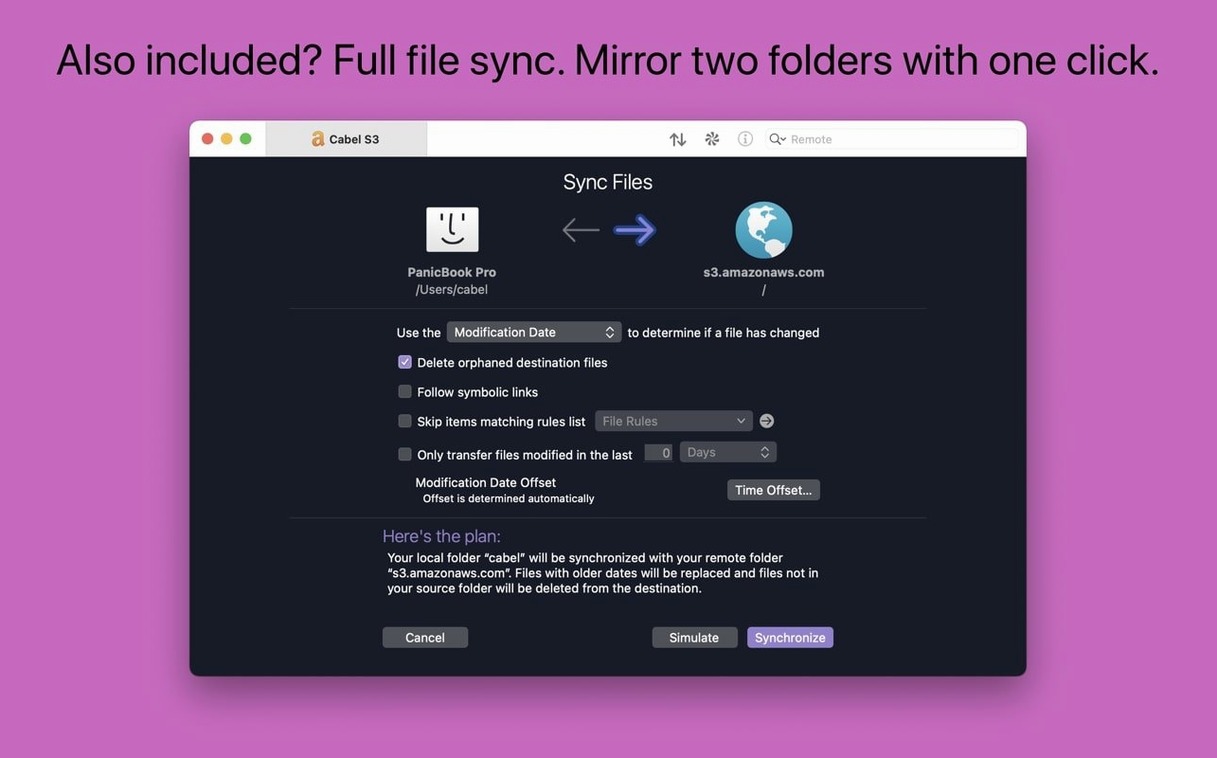
ForkLift is the closest competitor in spirit. It also uses a dual-pane layout and adds a built-in file viewer, archive browser, and even a basic sync engine that can mirror folders between local and remote locations. Transmit's local-to-remote sync is functional but not as configurable — no scheduling, no detailed conflict resolution options. ForkLift edges ahead for users who want a Finder replacement that happens to connect to servers. Transmit stays in its lane as a transfer specialist, and that restraint means a cleaner interface and fewer features that feel half-baked.
FileZilla has been the free stalwart for years, and it handles FTP and SFTP competently. The interface feels dated on macOS, and it lacks the deep cloud integrations Transmit brings — no Backblaze B2, no Google Drive, no Rackspace Cloud Files. If your work never touches cloud storage and you want a straightforward FTP client at no cost, FileZilla does the job. But the moment you need S3 file management or an inspector sidebar that shows permissions at a glance, Transmit's tighter macOS integration and broader protocol support make the difference clear.
If your workflow depends on a rock-solid file browser that connects to just about anything, Transmit remains the quiet standard.
Transmit 5.11.7 lands with a fresh batch of stability work and quiet refinements across its engine.
- macOS 13 or later
- Apple Silicon or Intel 64-bit
Questions I actually get
Does Transmit work on Apple Silicon Macs?
Yes, Transmit runs natively on both Intel and Apple Silicon Macs, requiring macOS 13 Ventura or later.
What protocols does Transmit support?
It connects via FTP, SFTP, WebDAV, and Amazon S3, covering everything from legacy servers to modern cloud storage buckets.
Can I sync my server settings between Macs?
Absolutely. With Panic Sync, your site credentials and settings are securely synchronized across your other Macs running Panic software.
Porch talk 0
Come in or pull up a chair to leave a comment.
Nobody has pulled up a chair yet. If you used it on a real Saturday, say what the hour was.
More for the same hour
Everything in Mac Apps
 TouchDesigner
2025.31550 Mac Apps
615 MB
TouchDesigner
2025.31550 Mac Apps
615 MB

 TunesKit iPhone Unlocker
2.7.0.16 Mac Apps
64 MB
TunesKit iPhone Unlocker
2.7.0.16 Mac Apps
64 MB
 Tuxera NTFS
2023.1 Mac Apps
111 MB
Tuxera NTFS
2023.1 Mac Apps
111 MB

 Typeface
4.5.1 Mac Apps
Updated 23 MB
Typeface
4.5.1 Mac Apps
Updated 23 MB

 Topaz Video AI
1.7.2 Mac Apps
Updated 1.6 GB
Topaz Video AI
1.7.2 Mac Apps
Updated 1.6 GB

 Topaz Photo AI
2.1 Mac Apps
36 MB
Topaz Photo AI
2.1 Mac Apps
36 MB

 Topaz Gigapixel AI
1.4.0 Mac Apps
Updated 372 MB
Topaz Gigapixel AI
1.4.0 Mac Apps
Updated 372 MB

 UltraEdit
25.0.0.11 Mac Apps
28 MB
UltraEdit
25.0.0.11 Mac Apps
28 MB