If you've ever hit "Export" in Lightroom and wished the crop gave you more pixels to work with, that's the gap Gigapixel AI fills. It picks up where your raw processor leaves off, using a trained model to enlarge an image without the smudged, painterly look of traditional resampling.
The dedicated upscale pass for finished shots
- Companion, not replacement. It doesn't organize or adjust exposure. You bring it a finished TIFF or JPEG from Capture One, Photos, or whatever you edit in, and it handles the upscale pass.
- Detail preservation. The AI model looks for edges and textures — fabric weave, eyelashes, brickwork — and reconstructs them at the larger size instead of just interpolating pixels.
- Old photo revival. A scanned 4×6 print that falls apart at 200% can often be enlarged with cleaner lines and fewer artifacts.
- Native on Mac silicon. Version 1.3.5 runs on Apple Silicon and Intel 64-bit Macs, so processing time scales with your hardware.
Single-minded batch enlargement without catalog bloat
This is the current build of the legacy Gigapixel AI line — the one Topaz later folded into the newer Topaz Gigapixel branding. It requires macOS 12 or newer and the interface is English only. No batch-renaming tricks, no cataloging; it does one job and hands the result back to you for the next step in your workflow.
Living with Gigapixel AI day to day
After a few weeks of folding it into regular work, what stands out isn't the tech — it's how little it interrupts you. Launch times on an Apple Silicon machine are brief enough that you don't reach for your phone while waiting. Memory pressure stays modest; I've had it crunching a 24-megapixel TIFF while Safari, Lightroom, and a dozen other apps hummed along, and the system never buckled. That matters when you're jumping between tasks and don't want to close half your workspace just to run one upscale.
Stability has been uneventful in the best way. No mid-batch crashes, no mysterious "processing error" dialogs after thirty minutes of work. The app leans on the Neural Engine where it can, and you feel that in cooler chassis temperatures compared to brute-force CPU rendering. If you're on an older Intel Mac, expect longer processing times — not glacial, but enough that a batch of fifty images becomes a background task while you make coffee.
A full workflow: prepping a scanned watercolor for print
Say you've scanned a small watercolor illustration at 600 DPI — a 4×5-inch original destined for an 11×14-inch print. Here's how the pass through Gigapixel AI looks start to finish.
- Clean the scan first. In your regular editor, adjust levels, spot out dust, and crop to the final composition. Save a 16-bit TIFF; don't hand Gigapixel a JPEG with compression artifacts baked in.
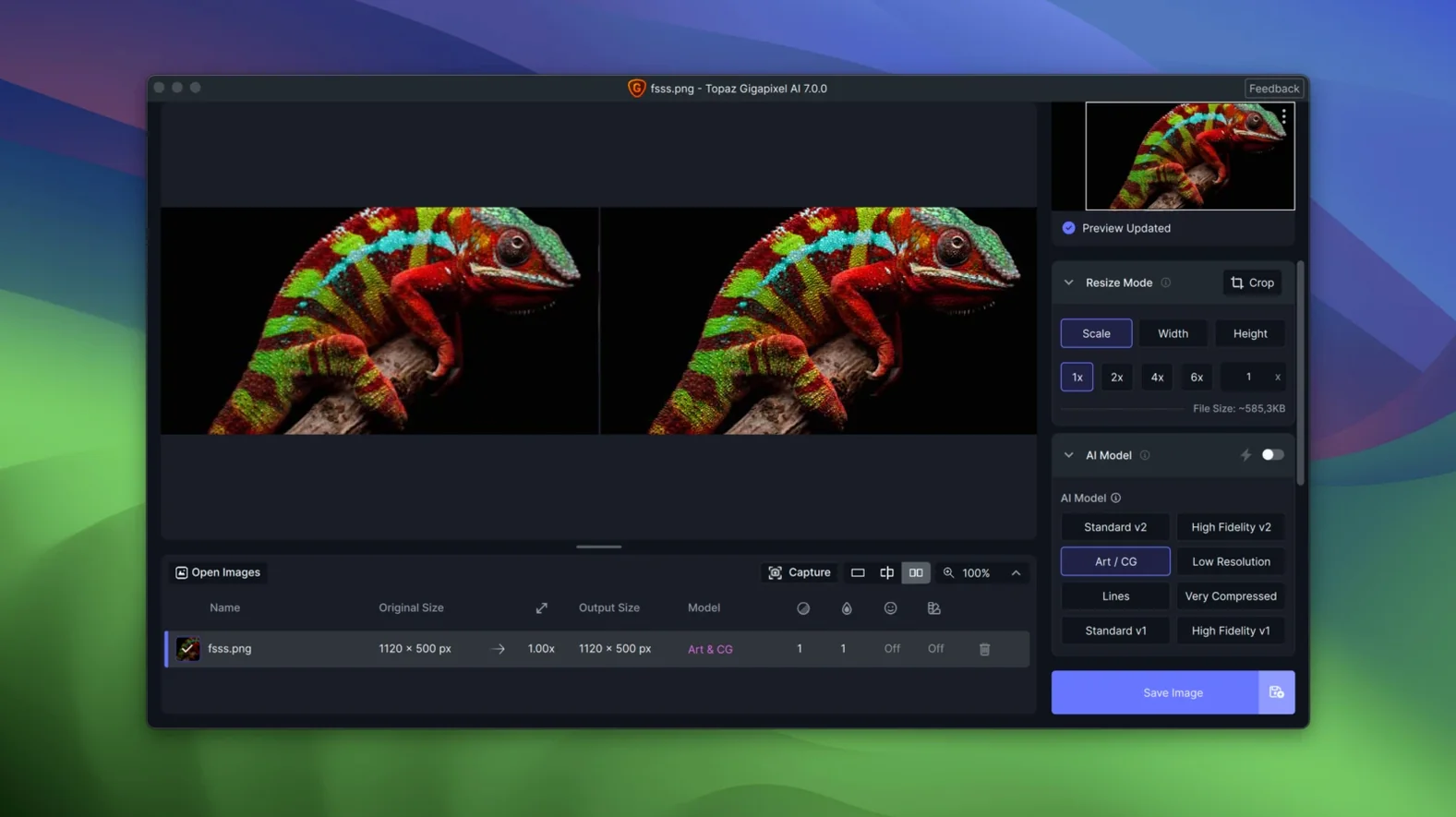
- Open and set scale. Drag the TIFF onto Gigapixel's window. Set the enlargement to 2× — that gives you roughly 4800×6000 pixels at output, plenty for 11×14 at 300 DPI without interpolation guesswork later.
- Choose the right model. The "Standard" model handles most images well, but for watercolor paper texture and soft pigment edges, try "Art & CG." Toggle the preview between models on a detailed section — a leaf edge or a brush overlap — and watch how each treats fine grain.
- Dial in noise and blur. If the scan has a slight softness from the scanner glass, nudge "Suppress Noise" to around 15 and "Remove Blur" to 20. Too high and watercolor washes start looking like plastic; keep the preview zoomed in and trust your eyes.
- Process and hand off. Hit save, pick TIFF output, and wait the thirty seconds or so it takes on a modern Mac. Open the result in your editor, apply output sharpening for the print surface, and you're done.
The whole step adds maybe two minutes to your prep time and saves the printer driver from doing a worse upscale on its own.
Rescuing soft candid portraits for print deadlines
An event shooter comes back from a dimly lit awards dinner with a handful of candid portraits that looked fine on the camera LCD but reveal soft focus at full size. The client wants one for a magazine sidebar — a tight headshot that needs cropping hard into a group frame, leaving maybe 1200 pixels across for a 2400-pixel requirement.
This is the kind of rescue Gigapixel AI was built for, and it's where the "Face Recovery" option earns its keep. After cropping in Lightroom, the photographer exports a TIFF, drops it into Gigapixel, and sets 2× enlargement with the "Standard" model. Face Recovery — a toggle that's easy to overlook — analyzes facial features separately from the background and reconstructs eyes, brow lines, and lip edges with a consistency that generic sharpening can't touch. What was a slightly soft expression becomes usable editorial material. Not miracle territory — you won't invent eyelashes that weren't captured — but solid enough that the art director doesn't question the source file.
For anyone who shoots in available light and occasionally misses critical focus by a hair, having this in the toolkit turns a deleted frame into a delivered one.
Drag a folder, scrub the preview
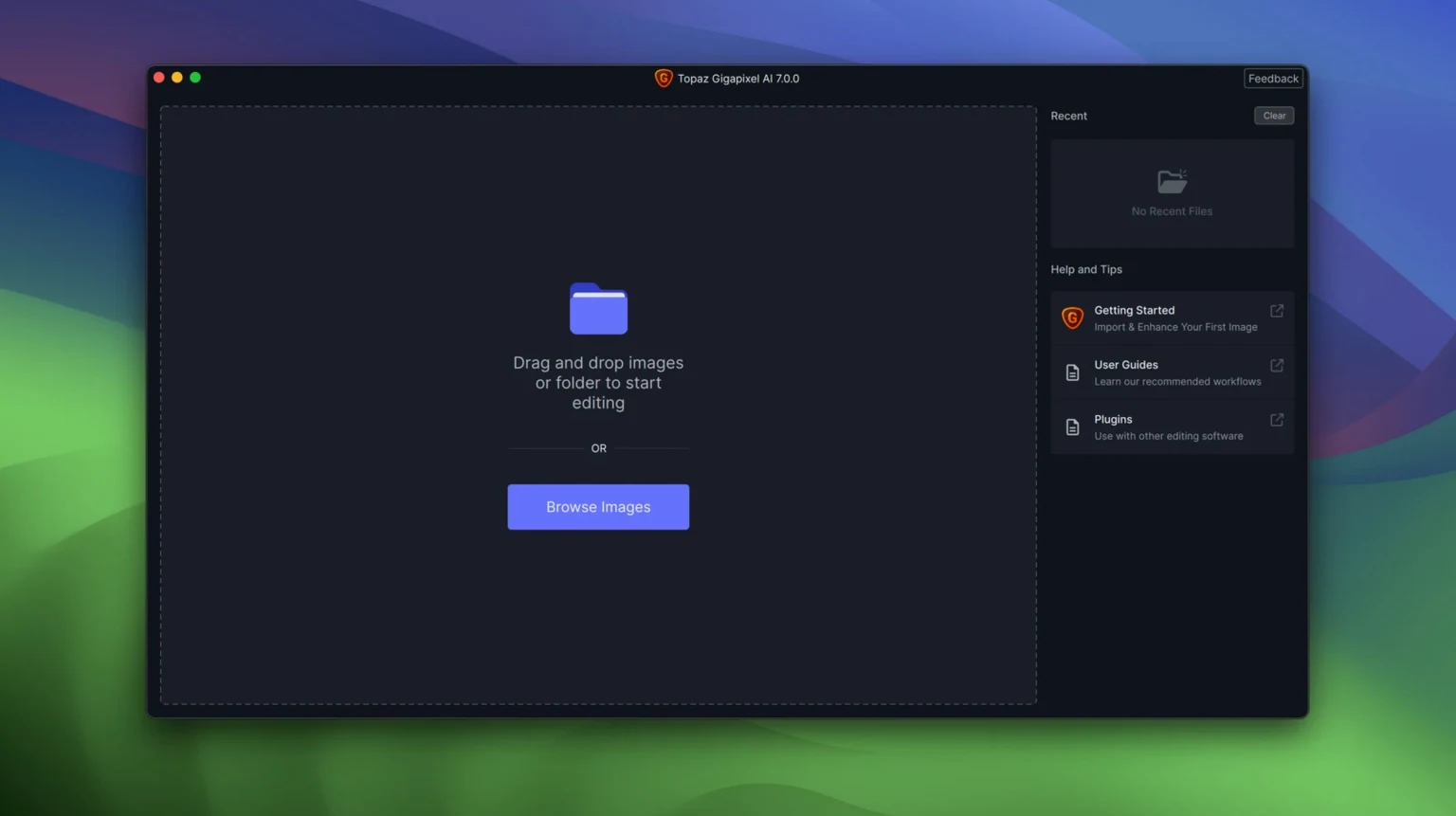
- Drag-and-drop works everywhere. You don't need to use the Open dialog. Drag a folder of images onto the window and Gigapixel queues them all for batch processing, keeping whatever model and settings are currently active.
- Preview scrubbing. Click and drag on the preview pane to move around the image instead of using the thumbnail navigator. It's faster and feels more direct when you're checking detail across a large file.
- Keyboard shortcuts for scale. The number keys 1 through 6 jump directly to 0.5×, 1×, 2×, 4×, 6×, and "custom" scale in the preview. Saves a lot of trips to the dropdown menu when comparing outputs.
- Batch output format matching. If you feed it a mix of TIFFs and JPEGs, the default "Save As" behavior preserves each file's original format unless you override it. One fewer setting to check before walking away from a long queue.
- Model memory. The app remembers your last-used AI model per session, but not between launches. If you consistently use "Art & CG" for illustration work, make a mental note to check the dropdown when you start a new session.
- Right-click reset. A right-click on any slider returns it to its default value. Handy when you've been experimenting with noise suppression and want a clean slate without remembering the exact number.
- macOS 13 or later
- Apple Silicon or Intel 64-bit Mac
Questions I actually get
What macOS version does Topaz Gigapixel AI 1.3.5 need?
Version 1.3.5 requires macOS 12 Monterey or a newer version of macOS.
Porch talk 0
Come in or pull up a chair to leave a comment.
Nobody has pulled up a chair yet. If you used it on a real Saturday, say what the hour was.