

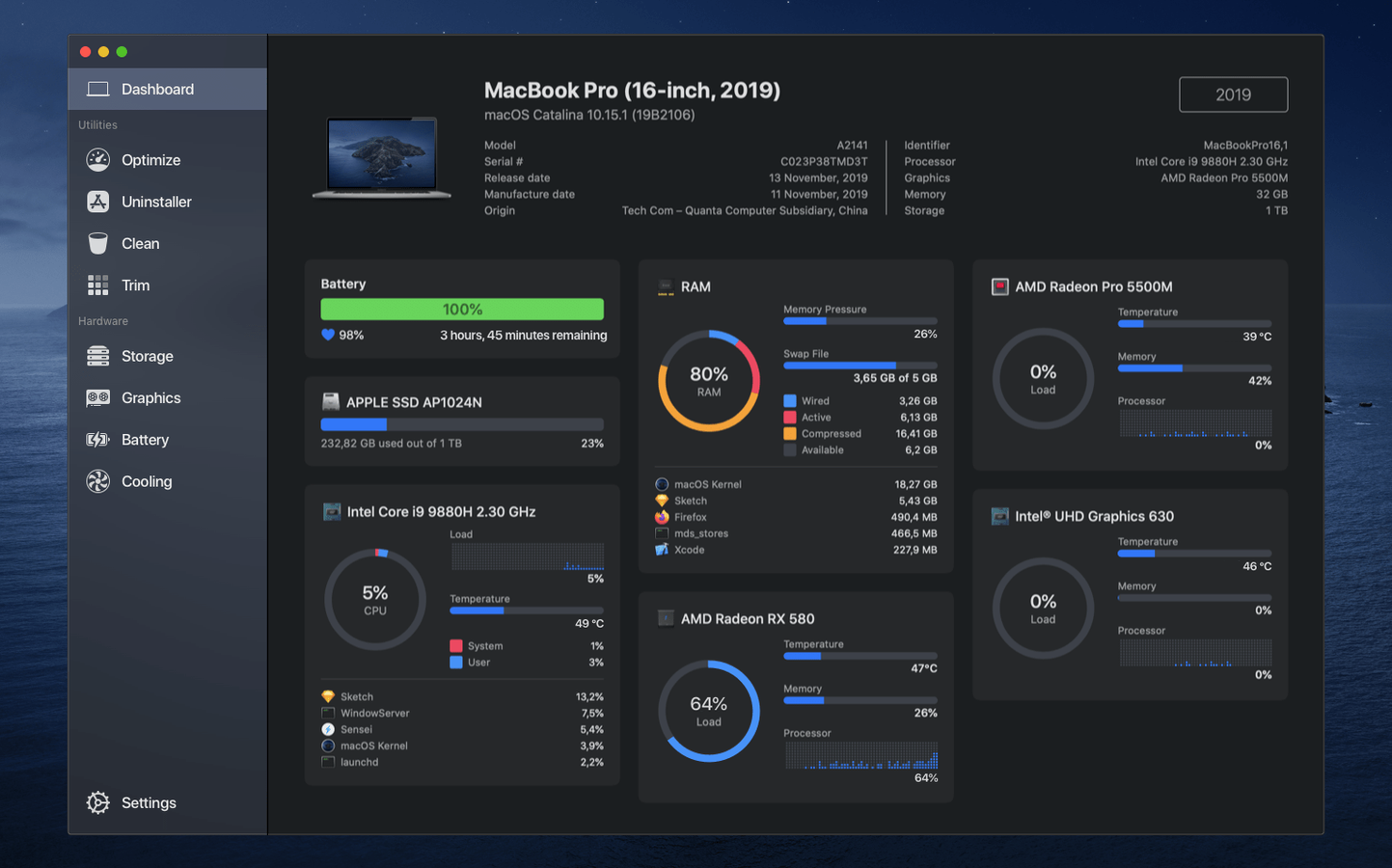
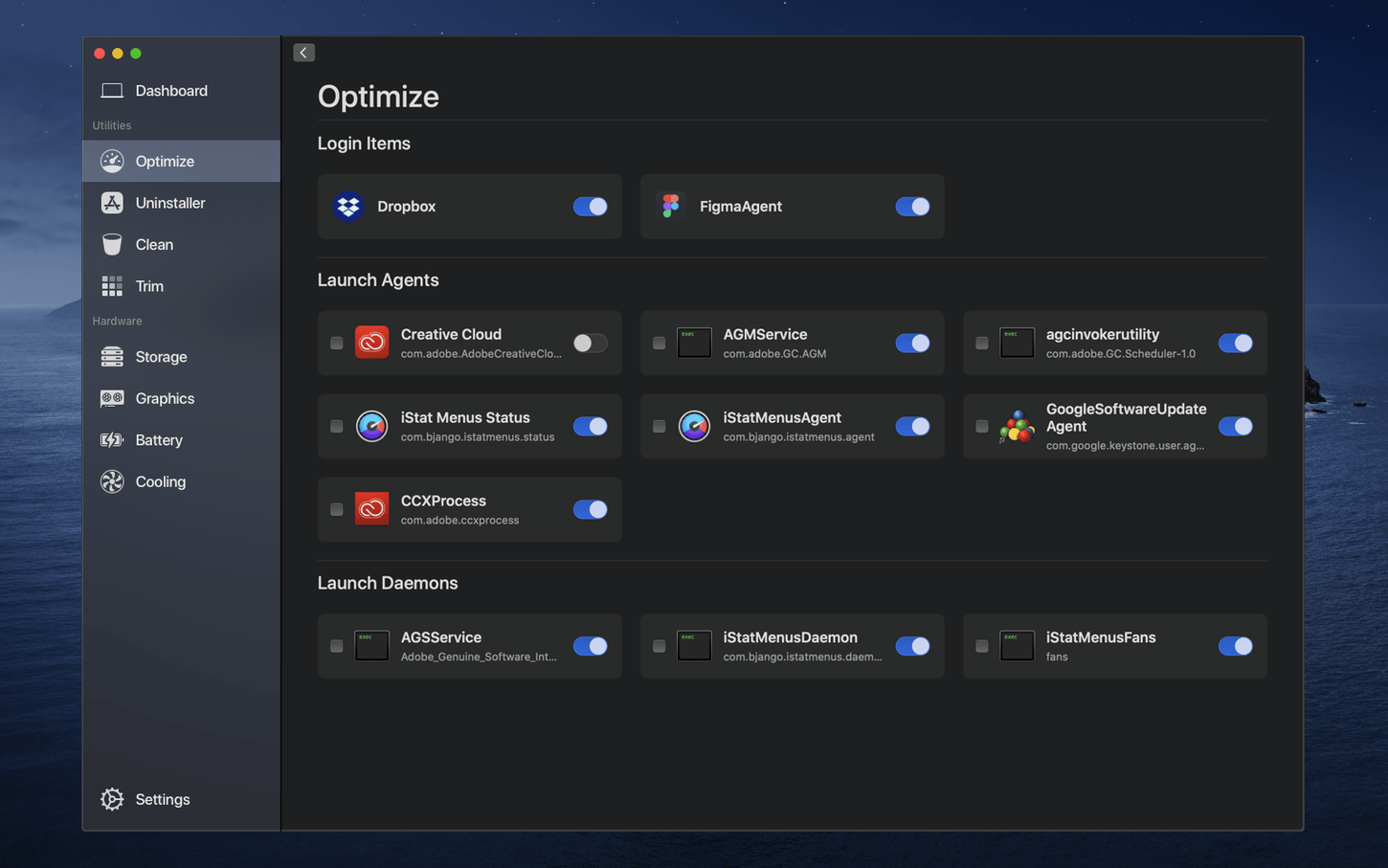
Trim Enabler lives inside this app, and that's a good place to start. It's one of those utilities you might not think about until a drive feels sluggish, then you remember it's there. Sensei wraps that function into a broader Mac performance monitor and cleaner, built by Cindori AB, that watches your hardware without getting in the way.
Check what's running hot
The System Monitor sits in the menu bar and tracks GPU, CPU, and RAM activity. A quick glance tells you if something's hogging resources before the fans spin up.
Reclaim disk space
Built-in cleanup tools find caches, logs, and other clutter that pile up over months of regular use. You decide what stays and what goes.
Keep an SSD healthy
Beyond monitoring, Sensei can enable TRIM on compatible solid-state drives, which helps maintain write performance as the drive fills up.
The whole thing runs natively on Apple Silicon and Intel Macs. If you like knowing what your machine is doing without opening three different utilities, it fits the bill.
Jumping straight to the large-file purge
The biggest one is rushing into the cleanup tools and deleting everything with a large file size next to it. Sensei marks caches and logs it considers safe to remove, but it won’t stop you from clearing things a particular app might rebuild slowly later. A better habit is to run the scan, then uncheck anything tied to an application you use every day — Xcode caches, for example, or browser profiles that hold open tabs — and only purge what you recognize.
Another common slip: enabling TRIM without checking whether your SSD enclosure actually passes the command through. Sensei can toggle it, but the result depends on the bridge chip in an external enclosure. If the drive doesn’t report TRIM support afterward, the setting won’t stick, and that’s a hardware limitation, not a bug. People sometimes toggle it repeatedly and wonder why nothing changes.
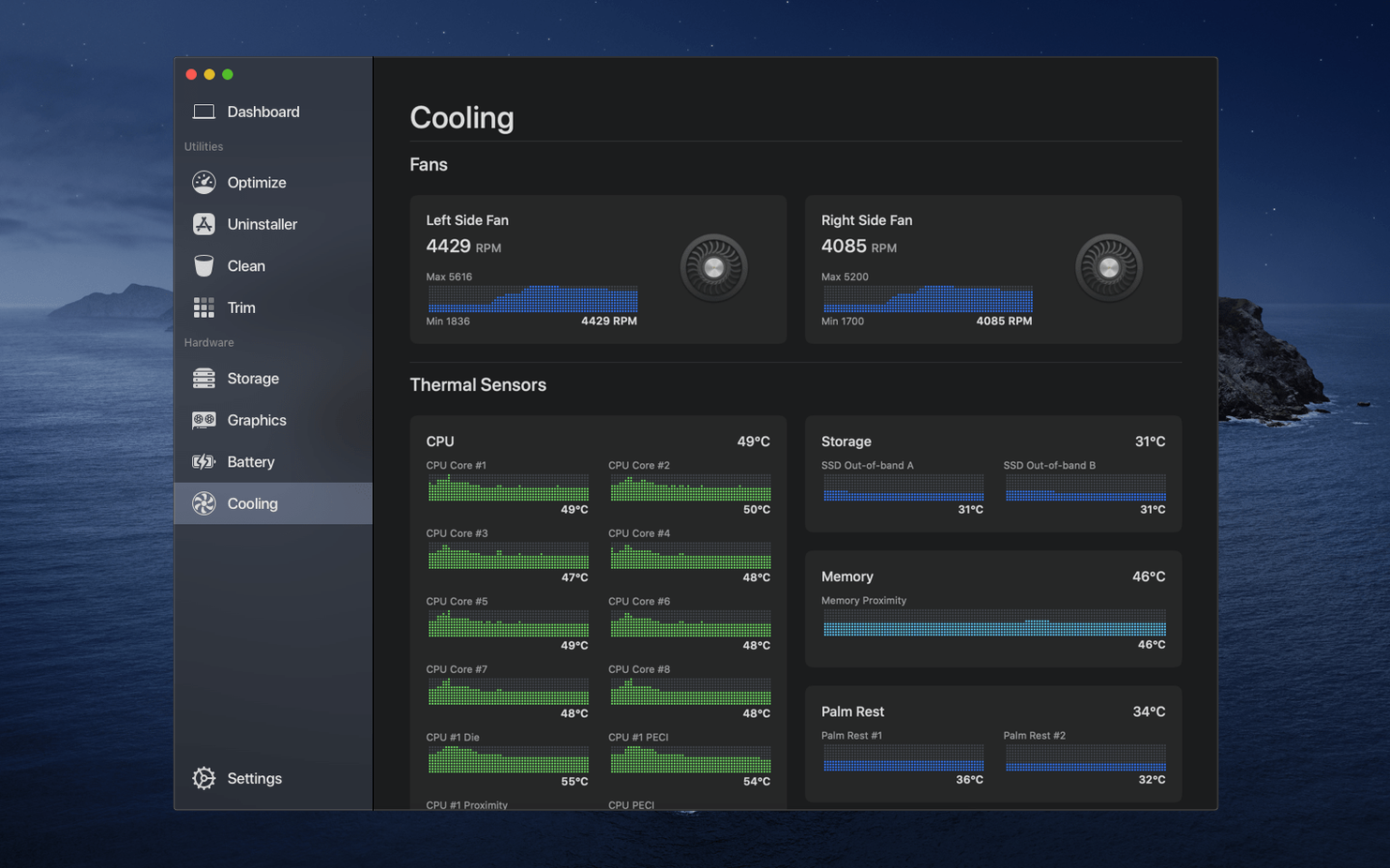
The fan control module catches a few newcomers off-guard too. Setting a custom curve is straightforward, but setting a fixed low speed and forgetting about it while rendering video can push temperatures higher than you’d like. The app assumes you know what you’re doing here — it doesn’t scream a warning if the CPU hits 95 degrees. Use automatic mode as your baseline, and only tweak curves when you’re watching the thermal readouts.
The menu bar monitor is the only background process
Does it run background processes all the time? There’s a lightweight helper for the menu bar monitor, but it’s negligible on resources. The full app only spins up when you open it. If you close the window, the menu bar readout keeps ticking along without the main interface sitting in memory.
Will it conflict with other system tools? Sensei reads the same sensors and S.M.A.R.T. data that other utilities query, so running it alongside something like iStat Menus generally works. If you have another tool controlling fans, pick one or the other — two apps fighting over the same controller can produce odd ramp-up behavior.
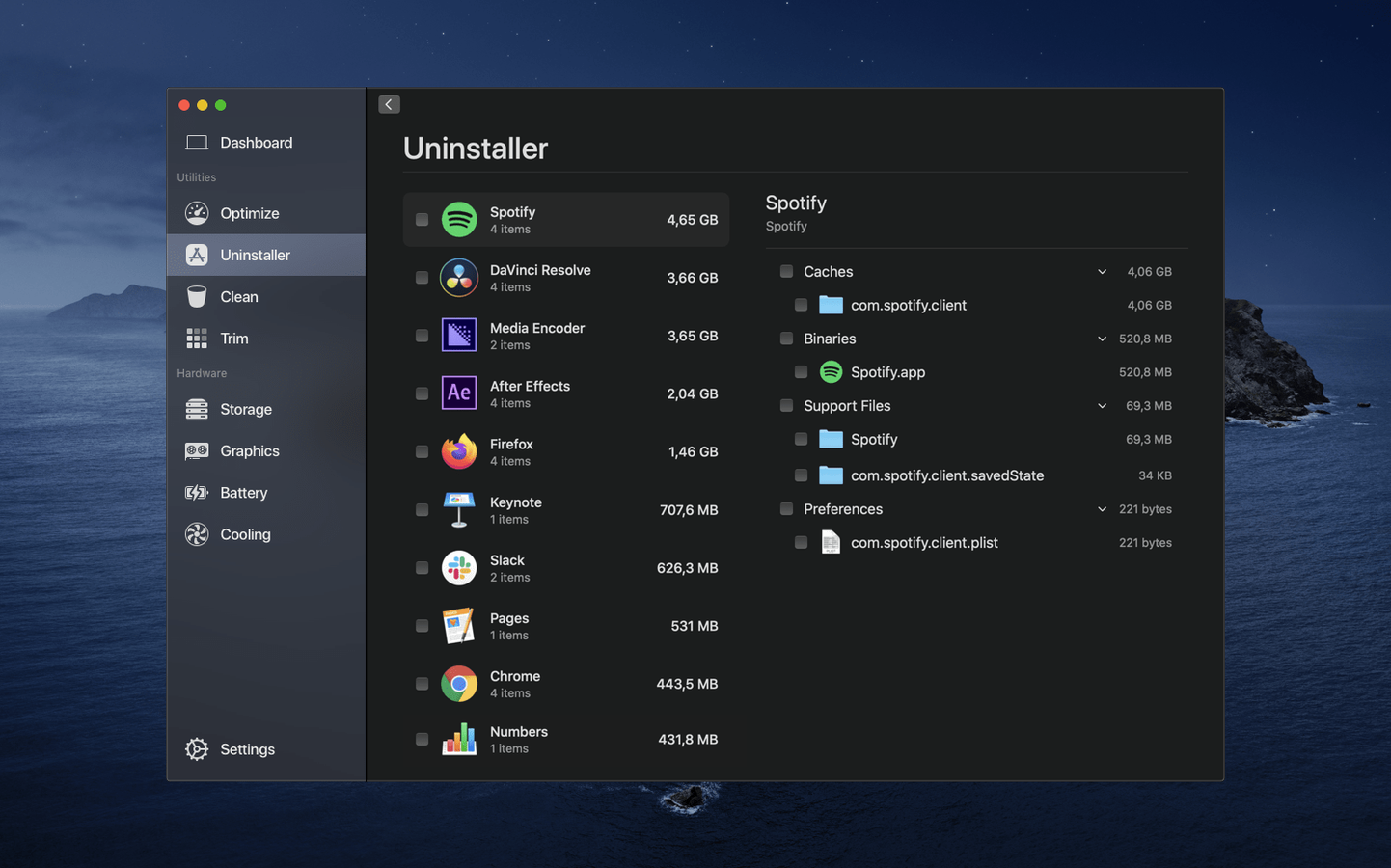
Does the uninstaller catch leftover files? It searches the usual Library folders and preference locations, but no uninstaller is omniscient. Apps that scatter support files in unconventional directories may leave traces. Sensei’s uninstaller is solid for most well-behaved software; for anything with kernel extensions or deeply embedded launch daemons, checking manually afterward is a smart move.
Is the menu bar monitor customizable? You can pick which metrics appear — CPU, memory, disk activity, network throughput, temperatures — and adjust the update interval. The design stays compact, so you’re not staring at a string of numbers stretching across the bar.
How recent updates changed the daily experience
The jump to version 2 brought a redesigned Dashboard that consolidates hardware information onto one scrolling pane. Before, you’d click between separate tabs to see storage health, battery cycles, and thermal sensors. Now it’s a single view with collapsible sections, which cuts down on hunting around when you just want a quick snapshot.
Sensei 2.0.2 refined the disk cleanup scanner’s accuracy — earlier builds occasionally flagged browser cache folders as larger than they really were on APFS volumes with snapshots. That fix makes the cleanup summary match reality more closely, so you’re not chasing phantom gigabytes. Sensei 1.7.1, for those still on older hardware, addressed a memory leak in the menu bar monitor that crept in during long uptimes. The current 2.1.2 release runs smoothly on Apple Silicon and Intel, with the monitor drawing less power than earlier versions when the display sleeps.
Everyday use feels quieter now. The app used to request full disk access repeatedly after macOS updates; recent builds hold the permission more reliably, so you’re not re-granting it every few weeks.
Raw sensor data versus guided cleanup wizards
CleanMyMac X leans heavily into guided maintenance — it nudges you through scans, suggests what to remove, and wraps everything in a friendlier package with malware scanning and privacy checks. Sensei takes a more technical posture. You get raw sensor data, TRIM toggling, and fan curves without the hand-holding, which appeals if you want the numbers first and the suggestions second. CleanMyMac’s uninstaller catches orphaned files with a broader net, but Sensei’s hardware monitoring runs deeper.
iStat Menus focuses almost entirely on monitoring, with an extensive menu bar system that can display practically every sensor your Mac exposes. It doesn’t do cleanup, uninstalling, or TRIM. If you only care about watching temperatures and resource usage in obsessive detail, iStat Menus is the specialist. Sensei bundles that monitoring ability with maintenance tools, so it replaces two or three utilities if you’d rather have one app covering both jobs.
TG Pro is the go-to for fan control purists. It gives you per-sensor temperature readouts and granular fan curve editing that goes a notch deeper than Sensei’s fan module. But TG Pro doesn’t touch disk cleanup, app removal, or battery health reporting. Sensei’s fan controls are enough for most people who just want to dial down noise during light work; TG Pro suits users who need to map specific sensors to individual fans in a Mac Pro.
What sets Sensei apart is the combination — monitoring, cleaning, TRIM, and fan control in one window — delivered with a design that doesn’t feel like a dashboard crammed full of blinking widgets. If you’re already comfortable poking around Activity Monitor and Disk Utility, it puts those capabilities closer together. A sensei download lands you in that middle ground: more hardware visibility than an all-in-one cleaner, more maintenance features than a pure monitor.
- macOS 14 or later
- Apple Silicon or Intel processor
Porch talk 0
Come in or pull up a chair to leave a comment.
Nobody has pulled up a chair yet. If you used it on a real Saturday, say what the hour was.
More for the same hour
Everything in Mac Apps
 ScreenFlow
10.5.2 Mac Apps
95 MB
ScreenFlow
10.5.2 Mac Apps
95 MB

 Screen Studio
4.1.0-5005 Mac Apps
Updated 981 MB
Screen Studio
4.1.0-5005 Mac Apps
Updated 981 MB

 Shadowrocket
2.2.92 Mac Apps
36 MB
Shadowrocket
2.2.92 Mac Apps
36 MB

 SiteSucker Pro
6.2.2 Mac Apps
6 MB
SiteSucker Pro
6.2.2 Mac Apps
6 MB

 Sketch
2026.3.1 Mac Apps
103 MB
Sketch
2026.3.1 Mac Apps
103 MB

 RightFont
10.2.1 Mac Apps
18 MB
RightFont
10.2.1 Mac Apps
18 MB

 SketchUp Pro
27.0.267 Mac Apps
Updated 1.6 GB
SketchUp Pro
27.0.267 Mac Apps
Updated 1.6 GB
 Rhino
8.30.26103.11002 Mac Apps
760 MB
Rhino
8.30.26103.11002 Mac Apps
760 MB