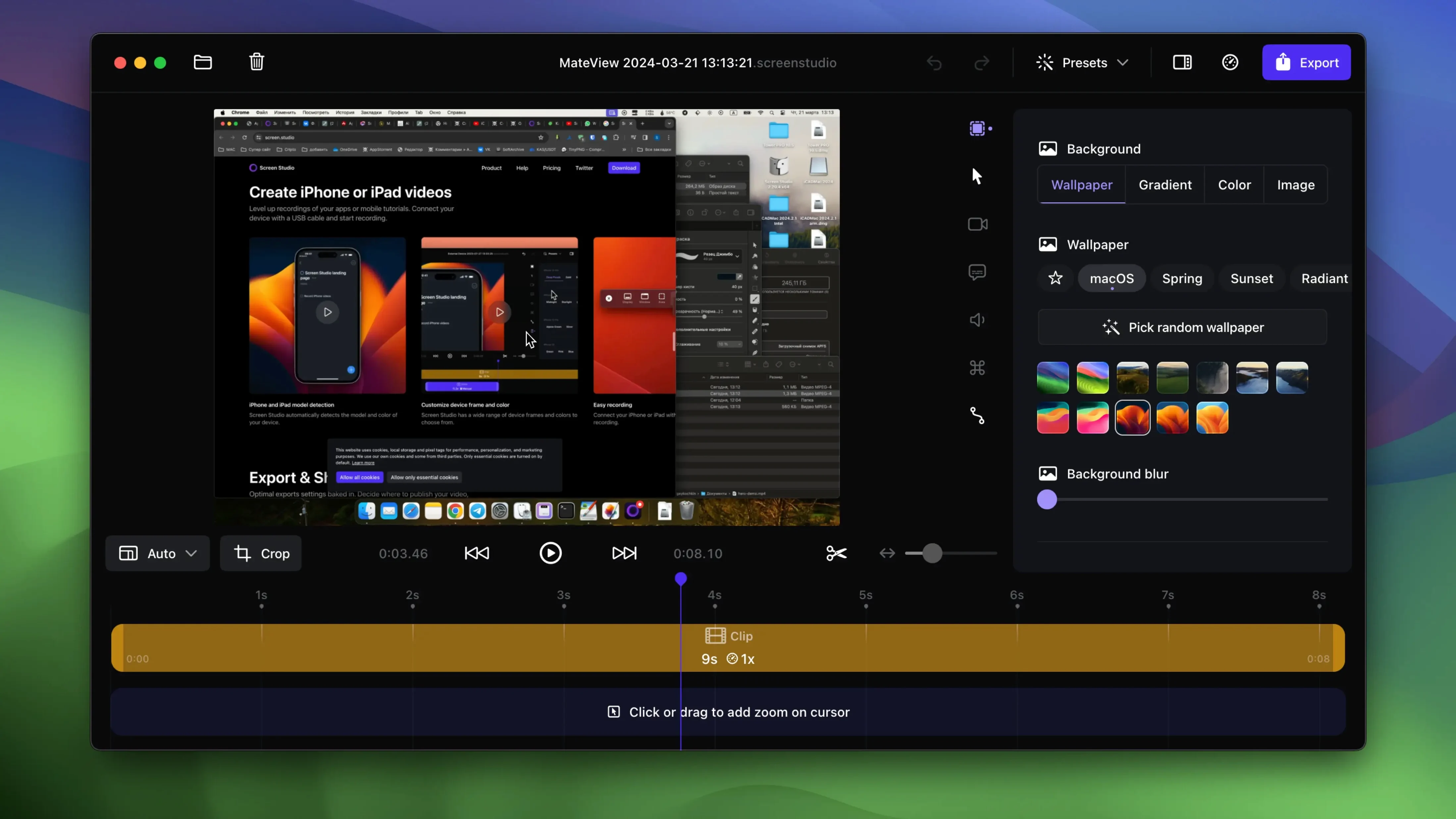
Screen Studio is a macOS screen recorder that looks at what you're doing and moves the camera for you, zooming into clicks and smoothing cursor paths so the result feels like someone edited it by hand.
Record with the camera already framed
You hit record, do your thing, and the app handles the rest — it follows the cursor, crops in tight when you click a button, and hides desktop clutter so viewers focus on the task. Webcam, mic, and system audio all come in together without extra routing.
Clean up the movement after recording
Cursor size, motion smoothing, and those automatic zooms can all be adjusted once you've stopped. You can also hide a static cursor completely or trim, crop, and speed up sections before you share anything.
Get it out the door fast
Copy the finished clip straight to the clipboard for a Slack message or email, or have the app generate a shareable link. When you plug in an iPhone or iPad, Screen Studio picks up the device model and color automatically and records from that screen too.
A support engineer's morning bug report
Maya works customer-facing tech support for a SaaS company. A user reports that the export button does nothing on Safari 17. Maya opens Screen Studio, sets the recording area to the browser window, and clicks through the broken flow once. The app tracks her cursor to the button, zooms tight on the click, and catches the blank screen that follows. She trims the dead air at the end, sends the clip to the engineering team, and gets back to her queue — all before her coffee cools. The automatic zoom meant she never had to think about framing; the clipboard export meant she never opened a Finder window.
Recording before the timeline
Screen Studio doesn't try to replace a timeline editor like Final Cut. It sits earlier in the chain, right next to the things you already use to explain software.
- QuickTime Player — use it for dead-simple recordings you won't edit. Screen Studio takes over when the clip needs to look finished.
- Keynote and PowerPoint — record a slide deck walkthrough, export vertically, and post it to LinkedIn without touching a separate layout tool.
- Slack and Discord — the clipboard copy function means a bug report lands in a thread before someone asks "what build are you on?"
- iPhone and iPad via USB — record a mobile onboarding flow in portrait, with the device frame detected automatically, then drop the 4K60 clip into a product demo reel.
- macOS Shortcuts — place a recording session inside a larger automation: clean the desktop, launch the target app, start Screen Studio, and stop when a timer fires.
Rough edges worth a quick tune-up
No tool fits every desk without a little tuning. Here are the rough edges that come up most often.
System audio is silent
Screen Studio needs a system audio capture extension, and macOS gatekeeps those pretty hard. If you see silence on playback, head to System Settings → Privacy & Security → Screen & System Audio Recording and flip the toggle for Screen Studio. A relaunch usually sorts it, though a few users on macOS 14 have needed to remove and re-add the extension in the app's preferences.
Connected iPhone shows a black screen
The USB cable matters more than you'd think. A charging-only cable won't carry a video signal. Use the cable that came with the phone or any MFi-certified data cable, and if the device still doesn't appear, unlock it once and tap "Trust" on the prompt — the app won't prompt again after that.
Cursor smoothing feels too aggressive
The default motion curve assumes you want that buttery, speed-ramped look. If it feels unnatural for a precise click path, pull the smoothing slider back in the editing panel and reduce cursor size a notch. You can also set the cursor to hide after a second of stillness, which cleans up the video more than any motion tweak.
Auto-zoom misses the action
Screen Studio watches click events, but a hover-based UI won't trigger a zoom. In those cases, drag a manual zoom region onto the timeline for that section — the app blends it into the automatic ones without a hard cut.
Fifteen-minute feature walkthrough
Let's say you want to walk a colleague through a new filter feature in your company's dashboard. Here's how a fifteen-minute session typically unfolds.
Set the stage. You quit Slack, hide desktop icons with the toggle in Screen Studio's menu bar helper, and open the dashboard in a clean Safari window. In the app, you pick "Application Window" as the capture source and check that both the webcam and system audio meters are moving.
Record in one take. You hit record and talk through the feature: open the filter panel, click three options, show the results table, and wrap it up. You don't stop mid-take — mistakes are easier to trim than re-record.
Trim and tune. You drag the start and end points in the timeline to cut the fumbling at the top and the silence at the tail. A bad zoom on the filter panel gets replaced by a manual region. You bump the voice volume normalization up and let the background noise filter quiet the HVAC hum.
Style the frame. The selfie overlay sits too large over the data table, so you shrink it and push it to the bottom-right corner. You set a soft shadow behind the screen and add a touch of padding so the window doesn't kiss the edge of the frame.
Export and share. The dashboard looks best at 16:9, so you leave the orientation horizontal and export to 4K. You copy the video to the clipboard and paste it into a team thread. The whole process took less time than writing step-by-step instructions, and nobody asks follow-up questions about which menu to open.
If you've been stitching together recordings with QuickTime and a separate editor, this is the kind of session that makes you wonder why you waited. People hunting for a Screen Studio cracked Mac package often just want to see how the auto-zoom feels before committing — the download is straightforward and the app walks you through system permissions on first launch, so you'll know within ten minutes whether it fits your style.
- macOS 13 or later
- Works on Apple Silicon and Intel 64-bit Macs
Questions I actually get
Can I clean up the audio after recording?
Yes. The app can normalize voice volume and remove background noise automatically so your narration comes through clearly without extra software.
Can I change how the cursor looks in the final video?
Absolutely. You can resize the cursor and have a static cursor disappear with a smooth animation, all after the recording is finished.
Porch talk 0
Come in or pull up a chair to leave a comment.
Nobody has pulled up a chair yet. If you used it on a real Saturday, say what the hour was.