You have outgrown the quick, single-track capture. Now you need to pull in a camera feed, isolate the system audio from your voiceover mic, and maybe even record an iPad screen—all at once, into a single timeline. That’s the weight ScreenFlow is built to carry, and version 10.5.2 sharpens a few tools that experienced hands will immediately appreciate.
Capture computer audio, camera, and iOS screen on separate tracks
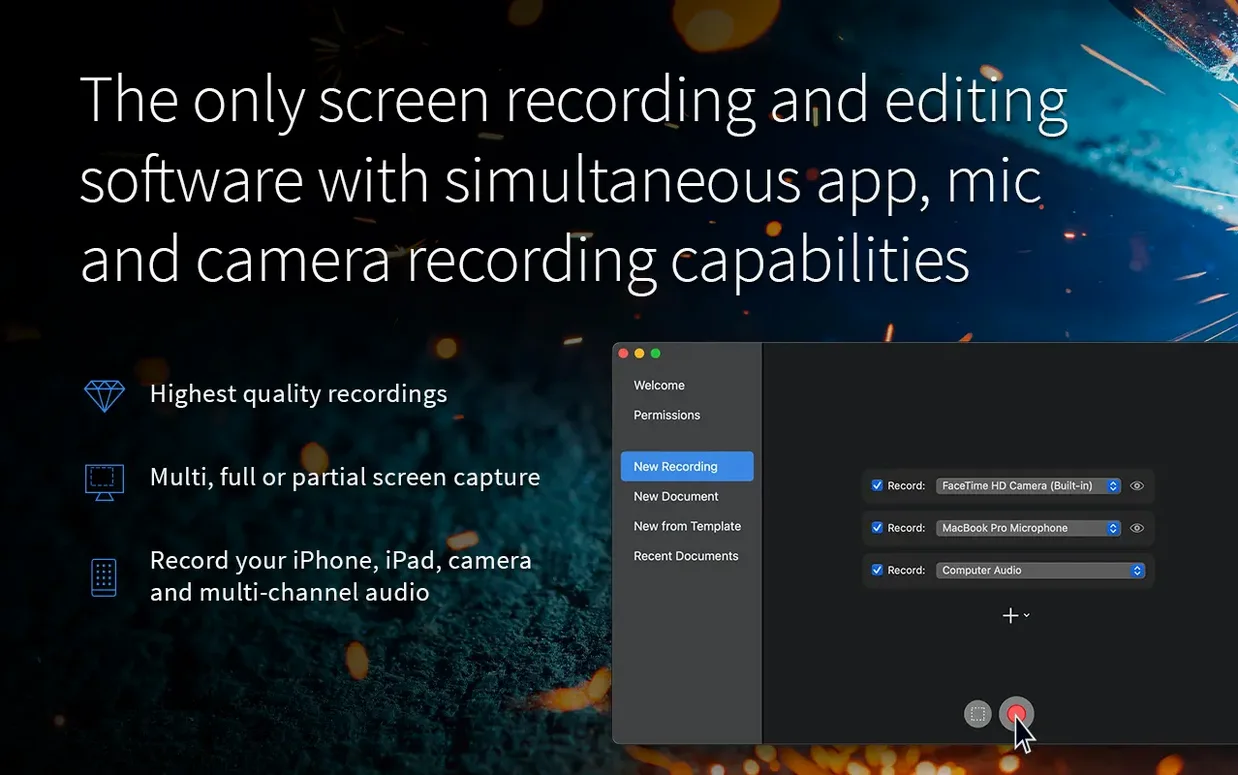
It records them simultaneously. You can capture your computer audio, a multichannel interface, a connected camera, and an iPhone or iPad screen in one pass, each landing on its own track for independent editing.
What are the export options beyond standard MP4?
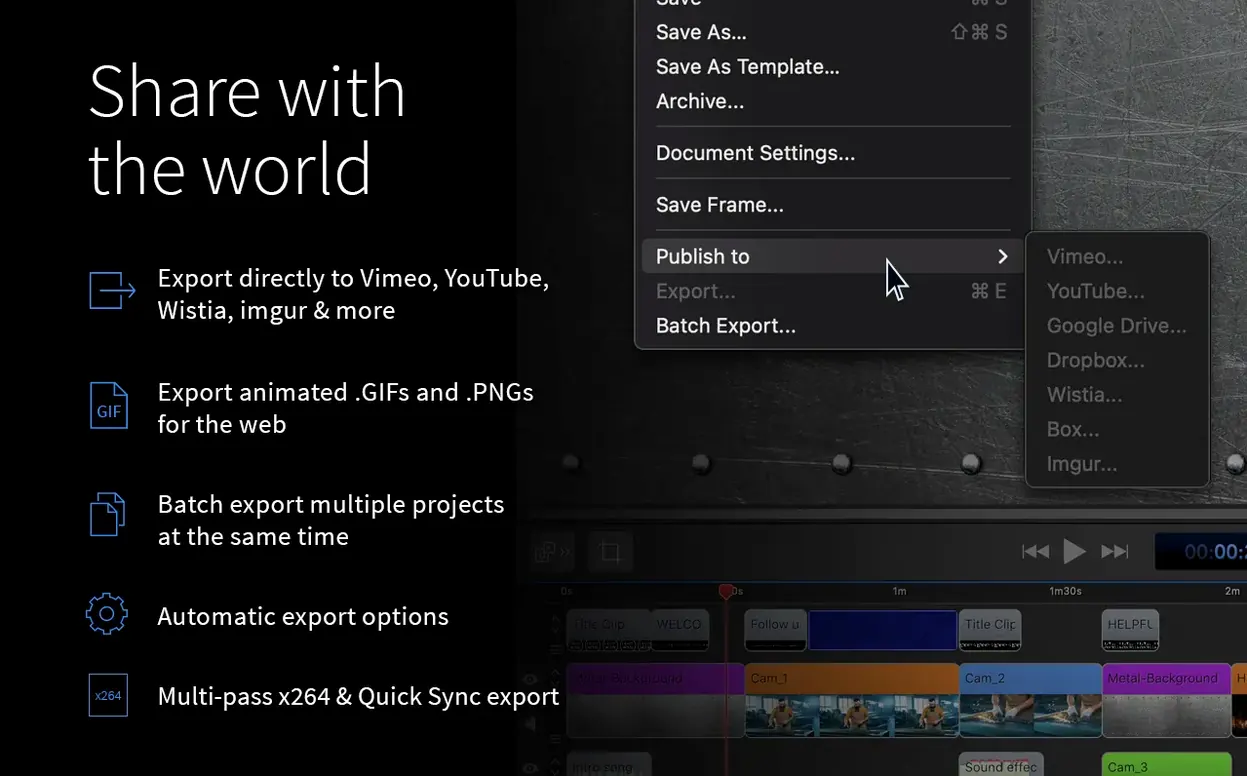
ProRes is fully supported for high-fidelity finishing, alongside direct publishing to Vimeo, YouTube, Wistia, and others. For quick, looping demos, you can also create animated GIF and APNG files straight from the timeline.
What got fixed under the hood in 10.5.2?
This update resolves a crash with macOS 26.2 and above, corrects Chroma Key exports for certain recordings, and fixes the broken license management button. It’s clean maintenance for a deep toolset.
First hours with ScreenFlow: a few quiet adjustments
Fresh installs have a way of feeling a little raw, and ScreenFlow is no exception. The recording engine is powerful out of the box, but the editing half rewards a handful of small tweaks early on. Give yourself a quiet afternoon to poke around before a real project lands on your desk.
Start with the canvas. Under ScreenFlow > Settings > Canvas, switch the background from the default checkerboard to solid black or a dark gray. It’s easier on the eyes during long trimming sessions, and it makes judging exposure on a facecam track feel more natural. While you’re there, bump the timeline thumbnail size up one notch—the extra pixel real estate helps when you’re skimming through a forty-minute lecture recording looking for a single misstep.
Next, visit the recording presets. ScreenFlow ships with sensible defaults, but they lean conservative on frame rate for screen-only captures. If you regularly record software demos where smooth cursor motion matters, create a custom preset at 30 fps with the “Show mouse clicks” callout enabled. Give it a name you’ll recognize six months from now, like “App walkthrough — 30 fps.”
One more thing before you close the preferences window: check the Recording > Record Computer Audio driver. On Apple Silicon Macs, the helper component sometimes needs a trip through Privacy & Security after the first launch. If your system audio track comes up silent on a test recording, that’s almost always the culprit.
Built for people who teach, demonstrate, or explain on camera
ScreenFlow isn’t trying to be everything to everyone. It has a distinct gravitational pull toward people who teach, demonstrate, or explain on camera, and the further you lean into that world, the more the tool seems to anticipate your next move.
Course creators and online instructors get the deepest value. The simultaneous capture of screen, camera, and external audio means a single recording session produces a fully layered timeline. There is no syncing step, no importing a separate voiceover file. You finish recording, and your lesson is already in pieces you can rearrange. Add the built-in annotation tools—arrows, shapes, text overlays that snap to a click or a keystroke—and you have a workflow that respects how quickly course modules need to ship.
Software teams shipping release notes and internal documentation also benefit. Grabbing a clean screen recording with system audio, dropping in a quick title card, and exporting as an MP4 for Slack or Notion takes under five minutes once the muscle memory sets in. The direct upload to Vimeo and YouTube removes the extra step of bouncing through a browser tab when the audience is external.
Livestreamers and podcasters who repurpose content find a comfortable editing bay here too. Pulling a long Twitch VOD or a multi-track podcast recording into ScreenFlow for trimming, chapter markers, and export as a tighter highlight reel is straightforward. The chroma key fix in 10.5.2 matters more than it sounds: if you record yourself against a green screen, you can now export without that occasional fringe artifact that crept into certain encodes.
If your work is mostly narrative short films or heavily composited motion graphics, you will eventually hit the ceiling. ScreenFlow does not try to replace dedicated NLEs on that front. But for the person whose day revolves around showing a screen, explaining a concept, and delivering a clean result quickly, it fits like a familiar jacket.
Recording a compressor review with screen and shoulder camera
Consider someone we will call Marcus. He maintains a modest YouTube channel covering audio plug-in reviews, and his recording sessions are tight: a quarter-hour of screen capture walking through a compressor’s settings, plus a camera feed over his shoulder showing the hardware controller. He used to record these in two separate apps, then spend twenty minutes aligning waveforms in a third.
With ScreenFlow, Marcus opens a new recording, checks the boxes for “Record Screen,” “Record Camera,” and “Record Computer Audio,” then hits the red button. He narrates as he tweaks the plug-in, and the whole thing lands on the timeline as three perfectly synchronized tracks. During editing, he trims the intro where he fumbled his words, drops a text callout naming the frequency he adjusted, and applies a subtle zoom-and-pan to the plug-in window so viewers can read the labels on a phone screen. He exports a ProRes master for his archive and sends an MP4 straight to YouTube. What used to take an hour of assembly now wraps up in the time it takes his coffee to cool.
That is not a power-user fantasy. It is the ordinary cadence ScreenFlow encourages: capture everything at once, then sculpt the result without ever leaving the timeline.
Ripple delete a clip with one keystroke
Every tool has its quiet shortcuts, the ones that do not make the feature list but change how the work feels day to day. A few worth finding early:
- Ripple delete with a single keystroke. Select a clip or a gap on the timeline and press Shift-Delete. The surrounding media slides together without leaving a hole. Once you internalize this, trimming dead air becomes a reflex.
- Action labels during recording. In the recording window, you can toggle an overlay that shows keystrokes, mouse clicks, and even a countdown timer before capture begins. Presenters who forget to announce shortcuts out loud will find this especially useful.
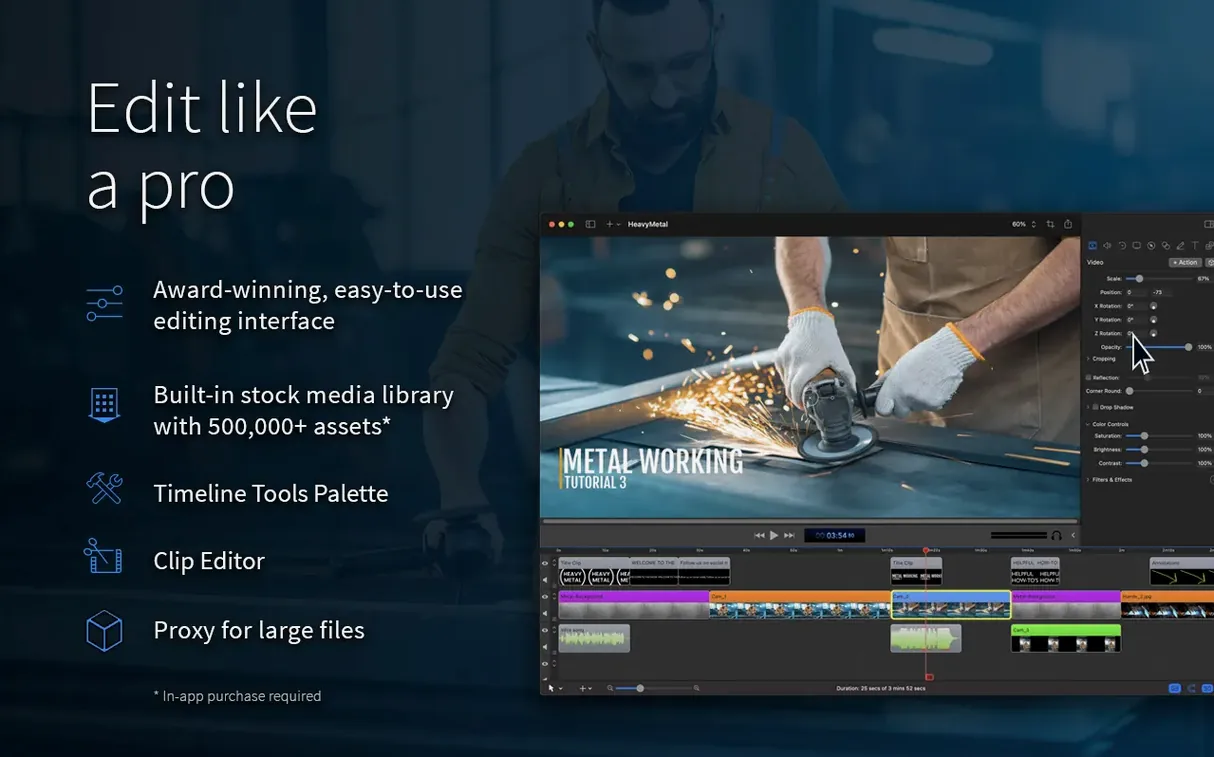
- Stock media library. ScreenFlow ships with a modest collection of royalty-free audio clips, backgrounds, and text title templates accessible right from the media bin. They are not flashy, but dropping in a subtle fade-to-black transition or a quiet bed of background music often saves a trip to an external library.
- Partial export of the timeline. You can set an in-point and out-point on the timeline ruler and export only that range. For someone who records a two-hour workshop and needs to send a three-minute segment to a colleague, this avoids rendering the entire file.
- Touch Bar support on older MacBook Pro models. If you still have a machine with a Touch Bar, ScreenFlow surfaces timeline navigation and recording controls there. It is a small thing, but scrubbing with a fingertip while the canvas fills the screen feels surprisingly natural.
- Duplicate a project with media. Under File > Duplicate Project As, you can create a self-contained copy that bundles all assets. Useful when you want to experiment with a radical edit without touching the original arrangement.
None of these will headline a changelog, but together they sand down the friction points that accumulate during a long editing session. Learn three of them in your first week, and the software starts to feel less like a tool you operate and more like a desk you have organized to your own liking.
Version 10.5.2 is a stability release, tidying up a few rough edges for the latest macOS. Here’s what changed:
- Fixed a crash that occurred on macOS 26.2 or higher.
- Resolved an issue where exports with Chroma Key would fail on certain screen recordings.
- Corrected the Manage button under licenses, which previously pointed to a dead URL.
- macOS 10.15 or later
- Apple Silicon and Intel Macs
Questions I actually get
Is ScreenFlow available on Windows?
No, Telestream designs it exclusively for macOS. It requires macOS 10.15 or later.
Can I record my iPad screen with it?
Yes, it can capture video directly from a connected iPhone or iPad alongside your Mac screen and other sources.
What video formats can I export?
You can export standard MP4 files, high-quality ProRes files, and even create animated GIFs or APNGs.
Porch talk 0
Come in or pull up a chair to leave a comment.
Nobody has pulled up a chair yet. If you used it on a real Saturday, say what the hour was.