
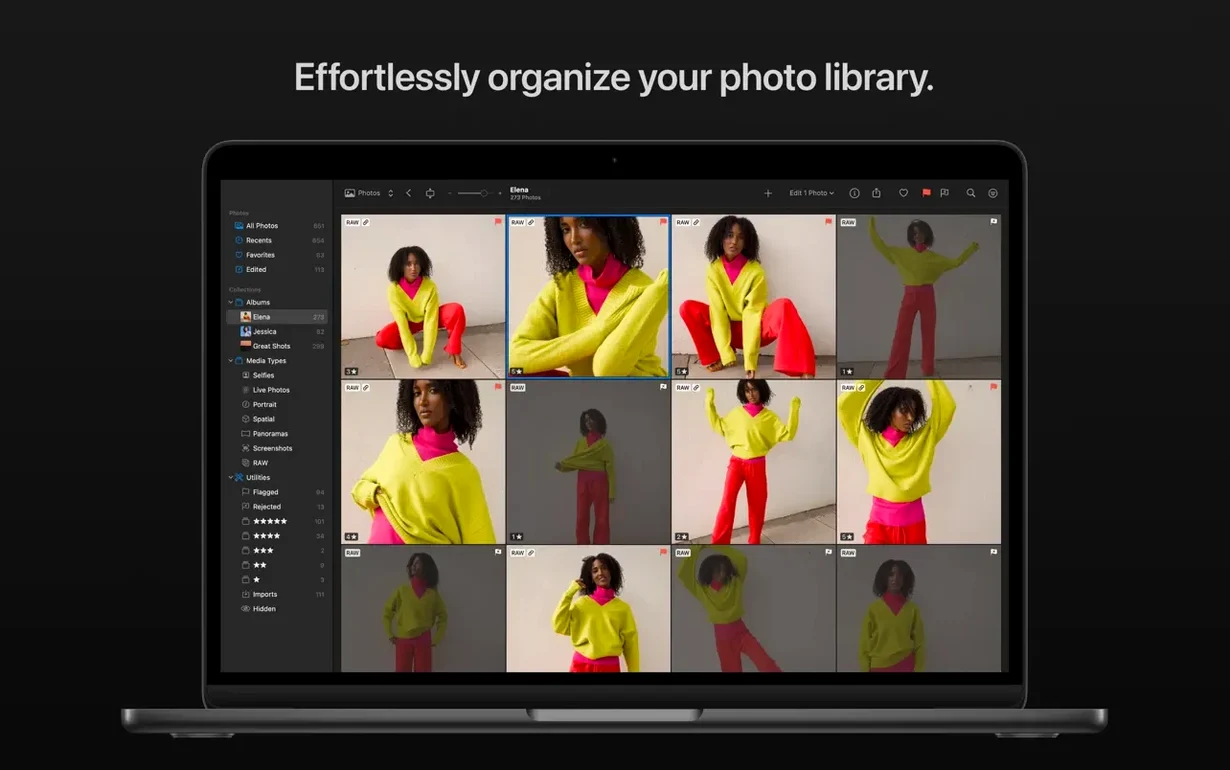
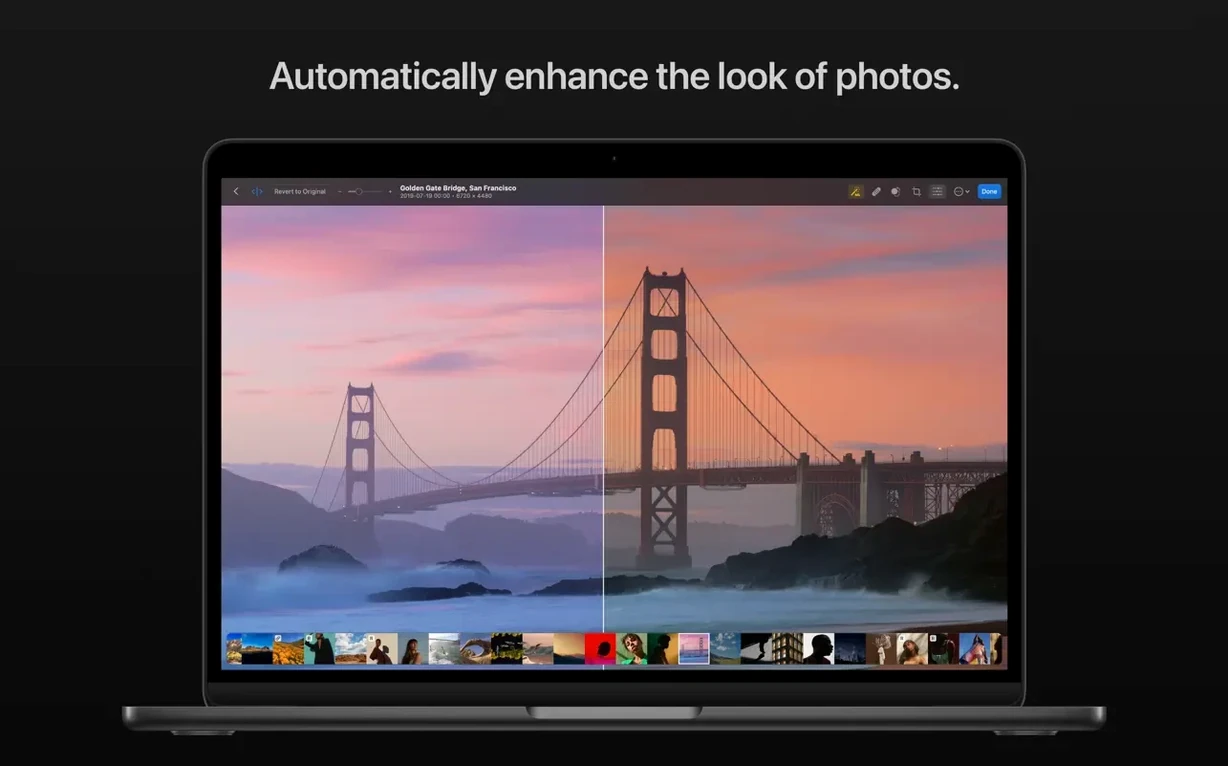
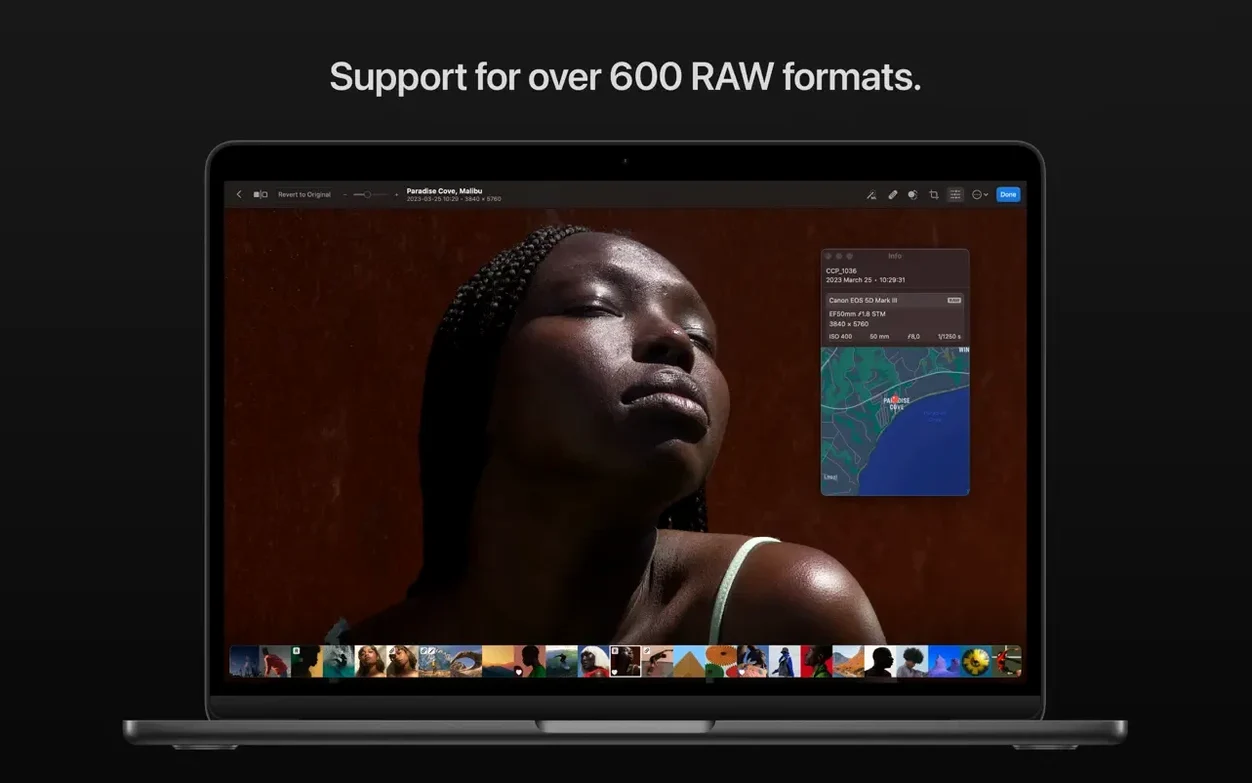
Photomator is a Mac photo editor that puts AI-assisted adjustments and deep color control into a single window. The latest version, 3.4.15, doesn't shake up the interface or add flashy marquee features. It's a maintenance update that extends RAW compatibility and tidies up what was already there, which honestly suits the way most of us work. You open a batch of shots from a weekend walk, and you want the software to recognize the camera that took them without a hiccup.
What's new under the hood is support for compressed RAW files from the Sony Alpha ILCE-7M5, plus FUJIFILM's GFX 100S II and GFX 100RF. The team also added handling for High Efficiency and High Efficiency Star RAW images from the Nikon Z5II and Nikon Z50II, along with high-resolution mode RAWs from the Panasonic LUMIX DC-S1RM2. If you've picked up one of those bodies recently, the app now sees your files correctly on the first import.
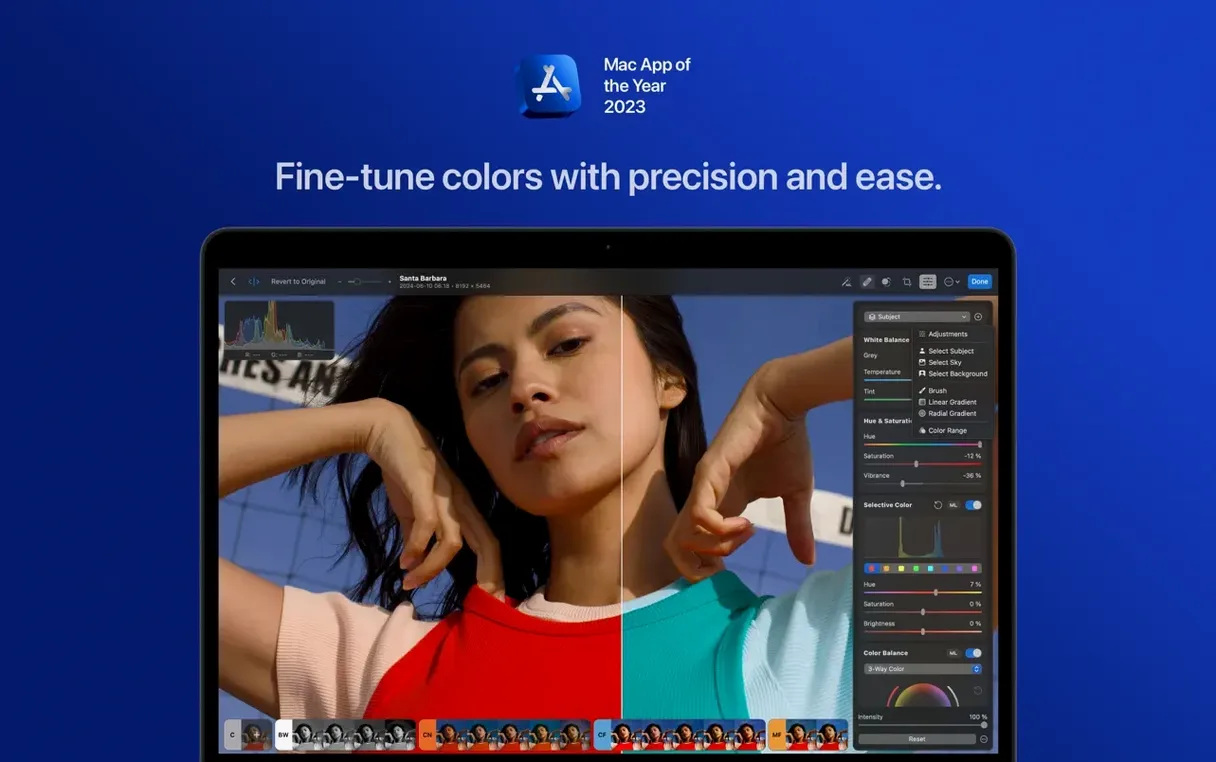
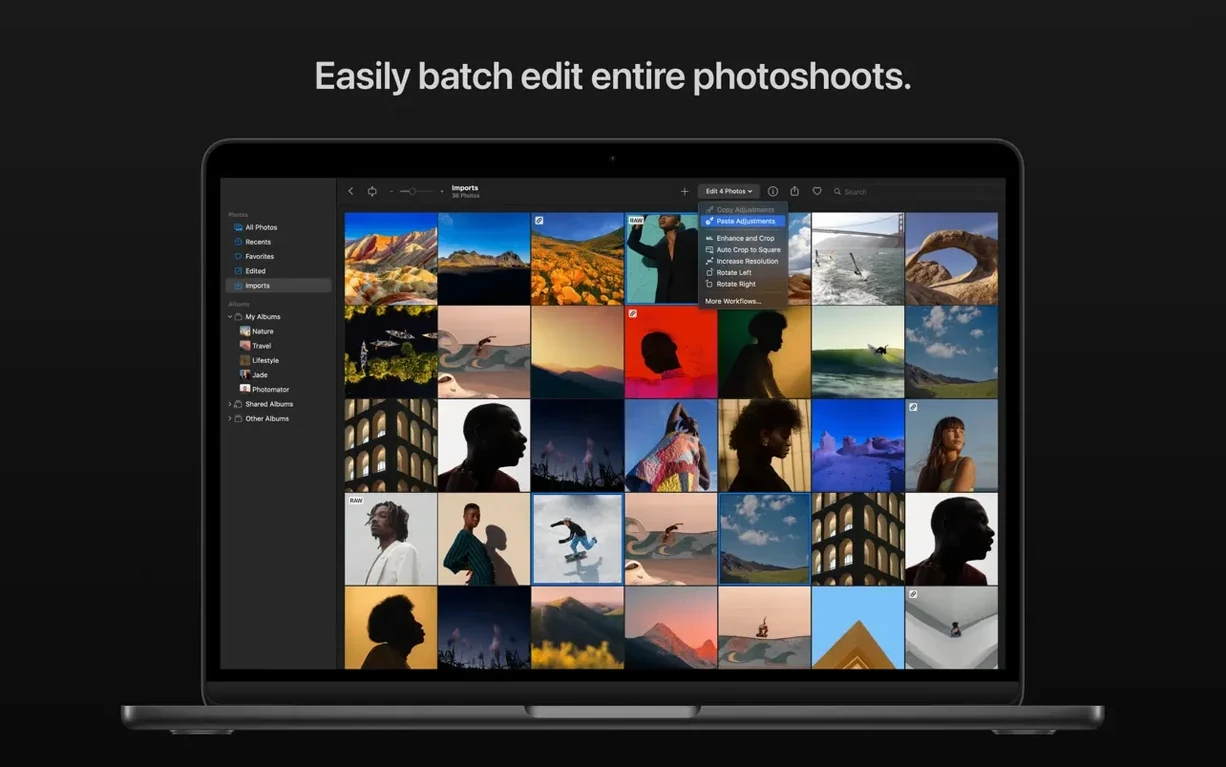
The toolbox that surrounds that RAW engine remains the same generous set. You can let the AI automatically pick out a subject, sky, or background for masking, then pull color and tone with the full adjustment panel. Smart Deband smooths out patchy gradients in skies, and the Core ML-powered Denoise tackles grain without turning details to mush. There's also a match-colors feature that lets you grab the look from one photo and apply it to another, plus batch editing and a straightforward copy-and-paste for edits between images.
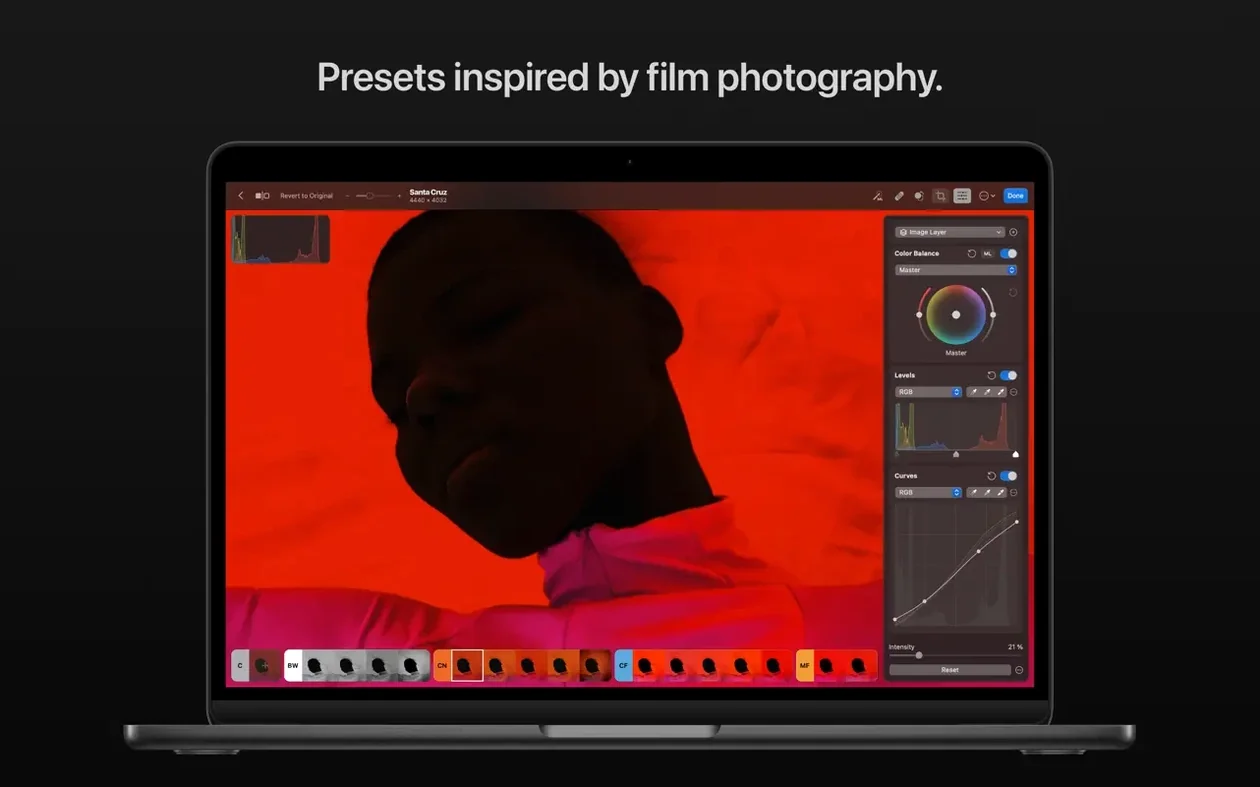
Landscape, black-and-white, and other preset styles give you a quick starting point, and the upscaling tool is handy when a crop leaves you short on pixels. Everything runs on Apple's Metal, Core ML, and Core Image frameworks, so the processing feels snappy on Apple Silicon and older Intel machines alike. If you're shooting with one of the newly supported cameras or just want an editor that leans hard on your Mac's hardware, it's a solid time to take a look.
Sony Compressed RAW Drops Straight In
Point releases like 3.4.15 rarely make headlines, but they change what you actually see on screen. The big shift here is that a Sony shooter can now pull compressed RAW files straight into the editing window without a conversion step. That's a real time-saver when you come home with a card full of images from an ILCE-7M5 and want to start culling immediately. The same goes for medium-format Fujifilm users: the GFX 100S II and the rangefinder-style GFX 100RF both write compressed RAW files that previous Photomator versions would have shrugged at.
Nikon's High Efficiency RAW formats have also been a sticking point. The Z5II and Z50II write these smaller files by default, and until this update you'd need to switch to uncompressed RAW in-camera or use a separate converter. Now Photomator reads them natively. Panasonic's high-resolution multishot mode on the DC-S1RM2 gets the same treatment. Bug fixes and performance improvements tagged onto the update notes are their usual quiet selves, but opening and scrubbing through a folder of large RAW files feels a tick smoother than it did in the previous build.
Point It at Your Photo Folder First
The most useful thing you can do on day one is teach Photomator where your photos live. Point it at a folder or connect it to the Photos app library and let it build its thumbnail cache while you make coffee. After that, the editor opens files with almost no waiting. If you shoot RAW and JPEG side by side, the app shows both but defaults to the RAW for editing. You can switch in the sidebar, but most people leave it alone.
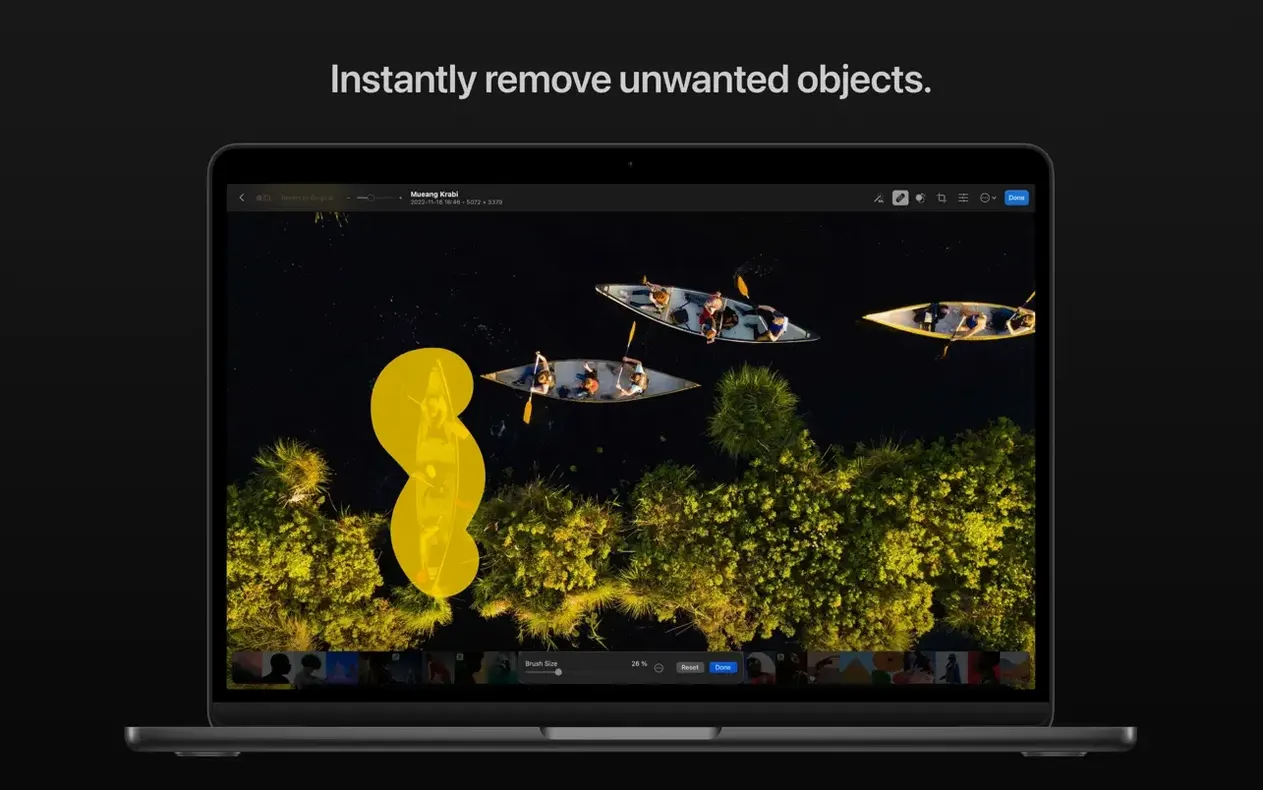
Spend ten minutes with the AI selection tools. Click the subject, sky, or background button and watch the mask appear. It's not perfect on every image, but on a portrait against a bright window or a tree line against an overcast sky, the mask lands remarkably close. From there, drag a gradient into the sky for a bit of drama or lift the shadows under the subject without touching anything else. The repair tool is worth learning early too: option-click to sample, then paint over a sensor spot or a stray power line. It works the same way as the clone stamp in half a dozen other editors, so the muscle memory transfers.
Batch editing rewards a little setup. Edit one photo from a set, then select the rest in the filmstrip, right-click, and paste the adjustments. The app asks which properties to copy: exposure, color, white balance, cropping. Uncheck the ones that don't apply. If you shot a series in the same light, this cuts an hour of repetitive slider work down to a few clicks. Presets are another quick win. Flip through the landscape and black-and-white options with the arrow keys to find a base look, then tweak it. Save your own preset once you land on something you like.
Where Photomator fits with other apps
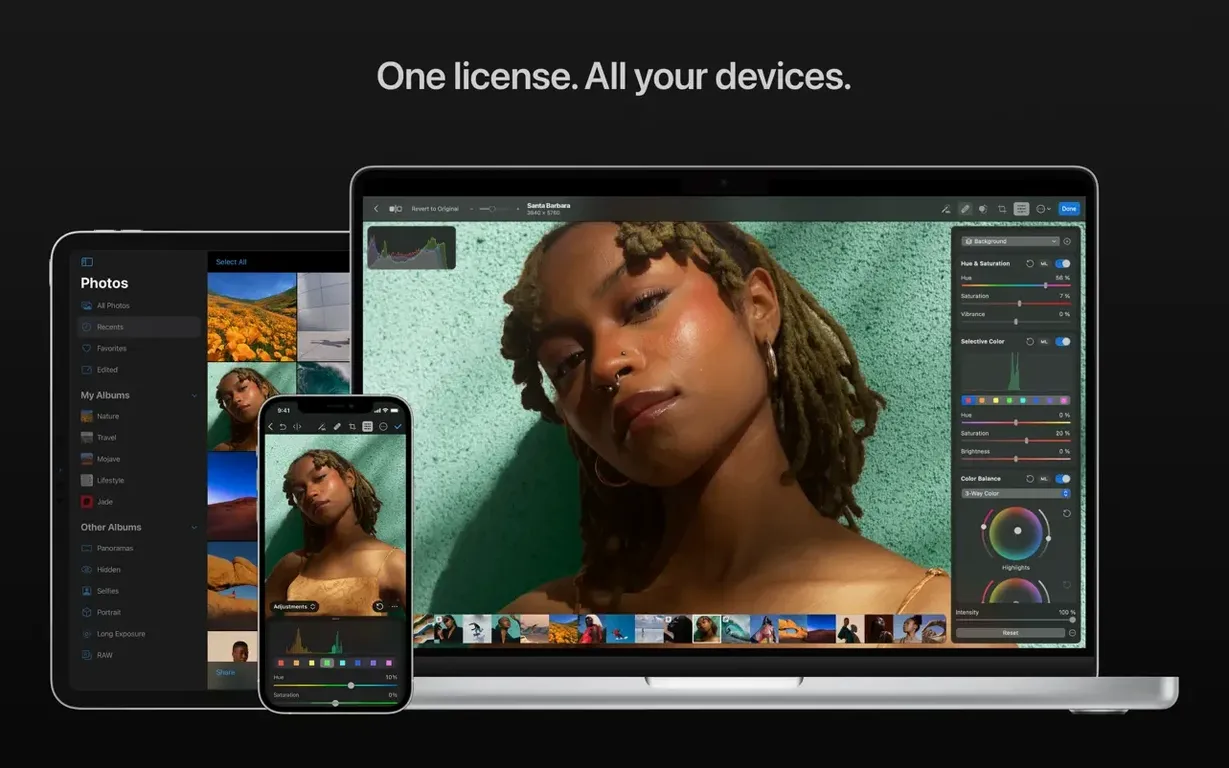
Photomator doesn't try to replace a library manager. It works best when your photos already live somewhere organized: the Apple Photos app, a Finder folder structure, or an external drive. Edits sync back to Photos and iCloud Drive without exporting, so you can start on a MacBook, see the adjusted image on an iPad, and hand off to another editor later without duplicating files. If you use Finder-based storage, the app saves nondestructive edits as sidecar files, which keeps the original RAW untouched.
For people who do heavy retouching elsewhere, Photomator handles the color and tone groundwork. Pull a high-resolution RAW into the app, get the exposure and white balance right, run Denoise if needed, then export a 16-bit TIFF for finishing work in another tool. The upscaling feature fits into that pipeline too: if a crop turns a 24-megapixel file into something too small for print, upscale before you hand it off. The match-colors feature is less obvious but surprisingly handy when you need a series of product shots or a set of outdoor portraits to share a consistent palette. Open the reference image in one window, the target in another, and let the app do the heavy lifting.
macOS integration runs deeper than the obvious Ventura support. Photomator taps Metal for live preview rendering, so dragging a temperature slider feels immediate even on a fanless MacBook Air. Core ML handles the AI masking and Denoise, which means the work stays on-device and doesn't phone home. Core Image accelerates the standard adjustments. The upshot is that the app doesn't bog down when you stack five or six adjustment layers, and the battery hit stays reasonable during a long editing session. If you're looking for a photomator download that leans on Apple's frameworks instead of a cross-platform toolkit, this is that editor. It's also one of the few Mac-native RAW processors where a photomator free download search leads to a real, working app rather than a hollow trial.
Version 3.4.15 is a quiet one, focused on camera compatibility and under-the-hood polish. Here's what arrived:
- Compressed RAW support for Sony Alpha ILCE-7M5, FUJIFILM GFX 100S II, and FUJIFILM GFX 100RF.
- High Efficiency and High Efficiency Star RAW support for Nikon Z5II and Nikon Z50II.
- RAW support for Panasonic LUMIX DC-S1RM2 images captured in High Resolution mode.
- General bug fixes and performance improvements.
- macOS 13 or later
- Works on Apple Silicon and Intel 64-bit Macs
Questions I actually get
What new cameras does Photomator 3.4.15 support?
The update adds RAW support for the Nikon Z5II, Nikon Z50II, Panasonic LUMIX DC-S1RM2 in High Resolution mode, Sony Alpha ILCE-7M5, FUJIFILM GFX 100S II, and FUJIFILM GFX 100RF.
Does Photomator use AI for editing?
Yes, it includes AI-based automatic selection for subject, sky, and background, plus a Core ML-driven Denoise feature for reducing grain.
Porch talk 0
Come in or pull up a chair to leave a comment.
Nobody has pulled up a chair yet. If you used it on a real Saturday, say what the hour was.
More for the same hour
Everything in Mac Apps
 PhotoScape X Pro
4.3 Mac Apps
452 MB
PhotoScape X Pro
4.3 Mac Apps
452 MB
 Photo Mechanic
2025.1.8239 Mac Apps
64 MB
Photo Mechanic
2025.1.8239 Mac Apps
64 MB
 PhotosRevive
3.1.0 Mac Apps
478 MB
PhotosRevive
3.1.0 Mac Apps
478 MB
 Permute
4.0.11 Mac Apps
84 MB
Permute
4.0.11 Mac Apps
84 MB
 Perfectly Clear WorkBench
4.8.0.2871 Mac Apps
200 MB
Perfectly Clear WorkBench
4.8.0.2871 Mac Apps
200 MB

 Pixea Plus
8.4.0 Mac Apps
Updated 193 MB
Pixea Plus
8.4.0 Mac Apps
Updated 193 MB
 Pixelmator Pro
4.3 Mac Apps
641 MB
Pixelmator Pro
4.3 Mac Apps
641 MB
 PDF Squeezer
4.9 Mac Apps
20 MB
PDF Squeezer
4.9 Mac Apps
20 MB