
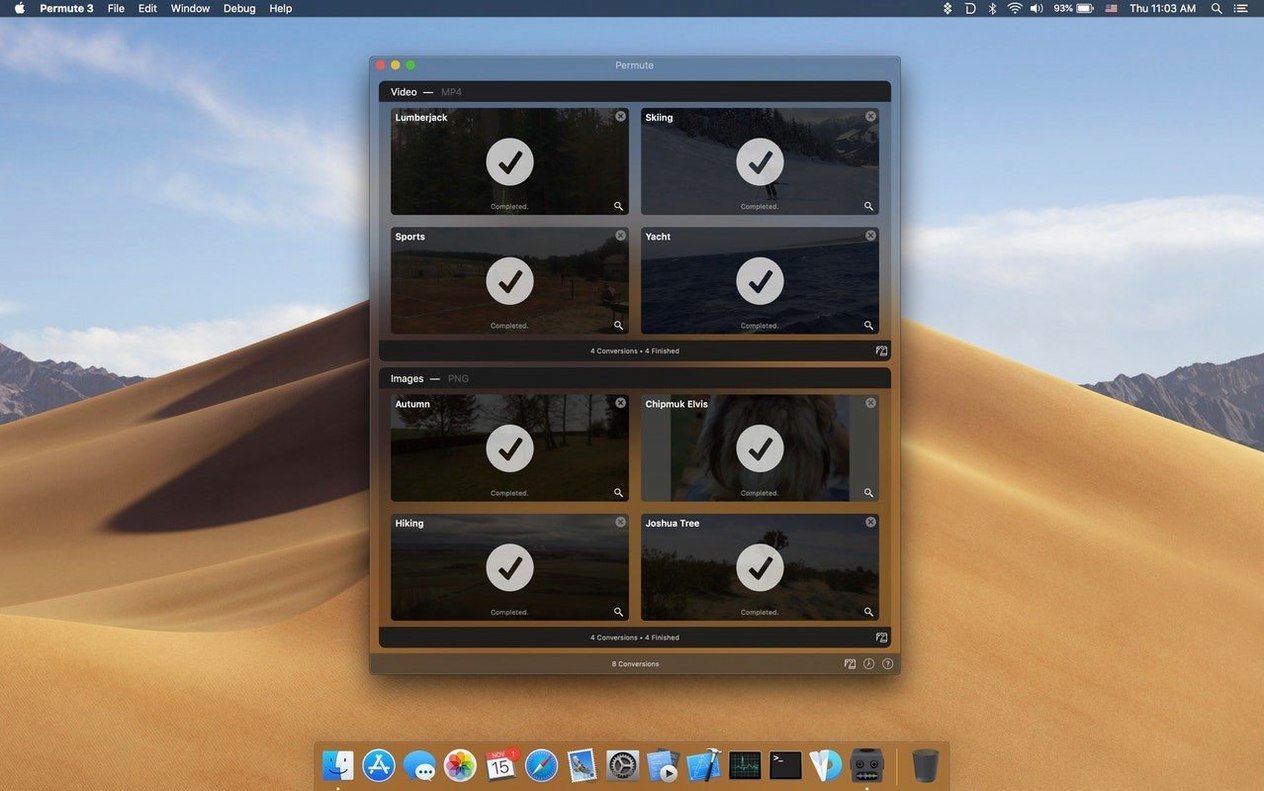
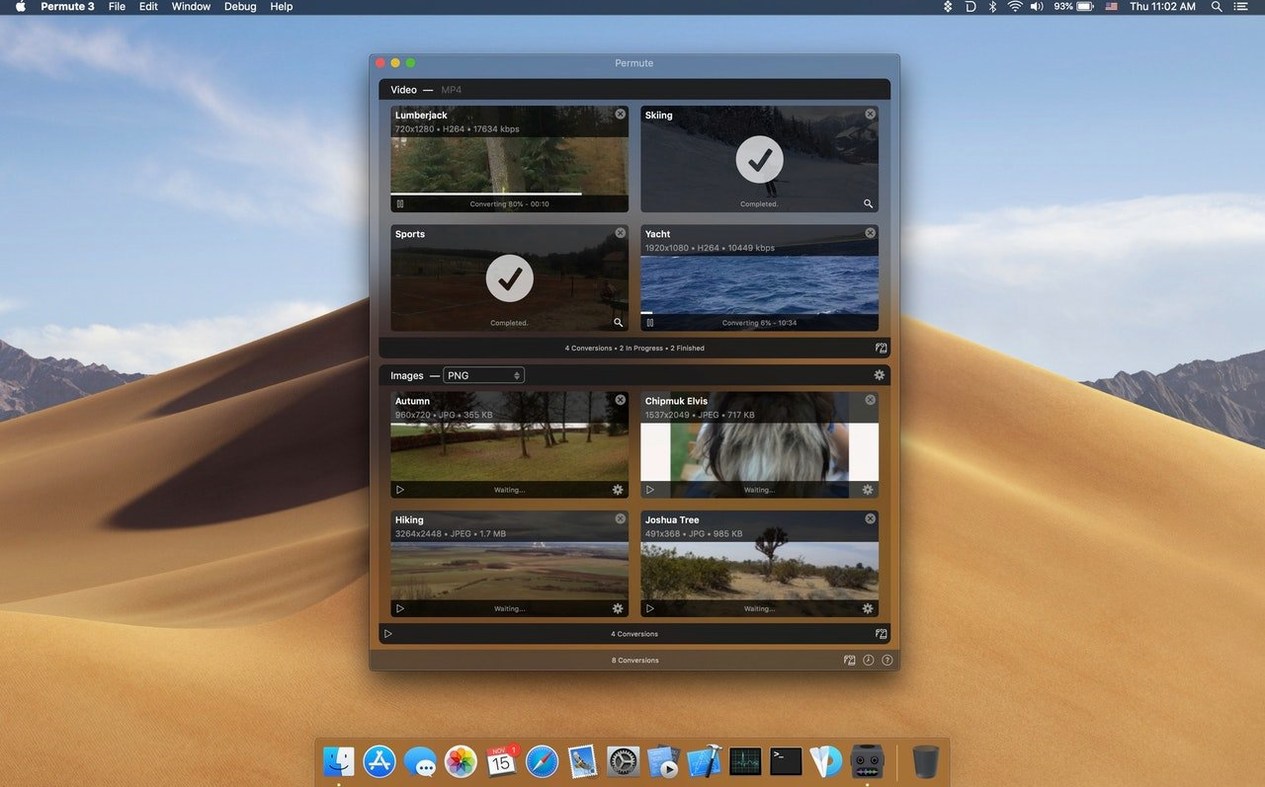
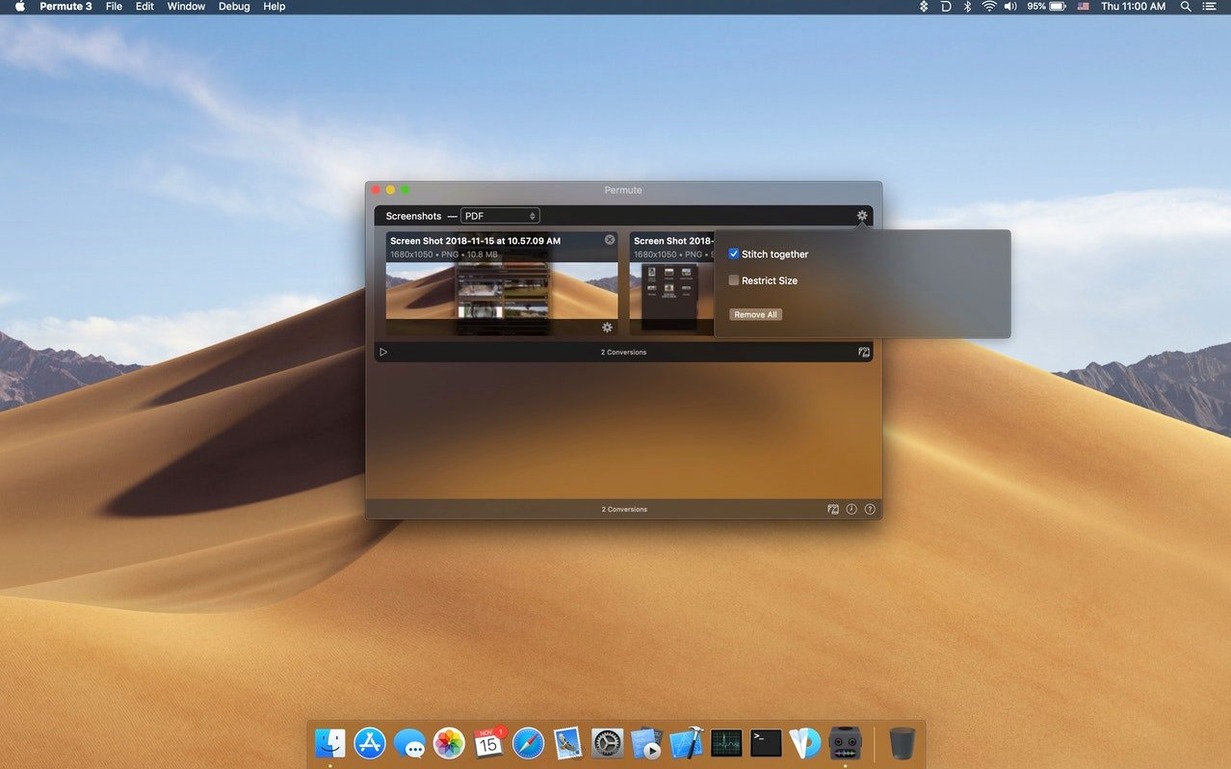
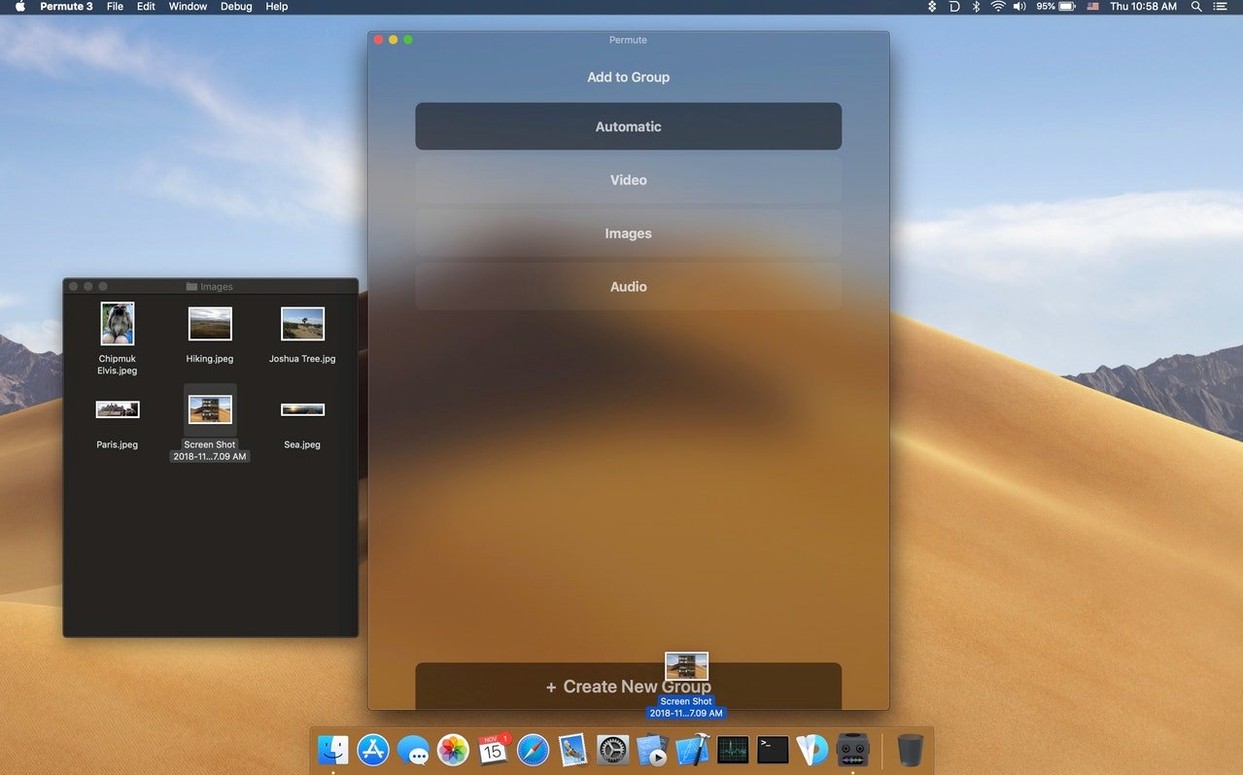
Over two dozen interface languages, from Afrikaans to Ukrainian, and a file-format list that stretches from everyday MP4s to ISO disc images. Permute keeps its scope wide while staying the work of a single developer. The latest version lands on Apple Silicon Macs running macOS 26 or later, still doing what it has always done well: turning one kind of media file into another without fuss.
- Converts video, audio, and image files between a long list of formats
- Merges two video files into a single clip
- Outputs ISO files for burning or archiving disc content
- Built and maintained by one developer — Charlie Monroe Software
- Runs natively on Apple Silicon and requires macOS 26 or later
- Interface localized into 15 languages, including Chinese, Persian, and Czech
If you regularly need to re-wrap a video for an older device, stitch two clips together, or turn a folder of images into a disc image, Permute keeps the steps short. Nothing is buried in menus, and the single-developer origin shows in how focused the tool remains.
Will It Convert Your Exact File Types?
Every time I mention Permute to someone who hasn't used it, the same handful of questions surface. Fair ones, too — nobody wants a converter that gets tripped up by half their library.
Does it handle the formats I actually use? The short answer is almost certainly yes. Under the hood, Permute leans on FFmpeg libraries, which means it inherits support for a vast range of video and audio codecs. H.264, H.265, ProRes, VP9, MP3, AAC, FLAC — they're all there. On the image side, it reads and writes the usual suspects: JPEG, PNG, HEIC, TIFF, WebP. The ISO output option is less common in a general media converter, but it's genuinely useful if you need to archive a folder as a disc image without hunting down a separate utility. If you're wondering about a specific format, the app lets you drop a file in and immediately shows which output presets are available for it.
Is it going to sit in my menu bar eating resources? Nope. Permute is a windowed app that you open, use, and close. It doesn't install a menu bar helper, doesn't run background processes when the window is shut, and doesn't phone home with usage data. On an Apple Silicon Mac, the native build keeps CPU and energy use modest during conversions — noticeable, but not the kind of thing that spins up fans on a cool afternoon.
Will it work with subtitles, or am I stuck burning them in? You can add a subtitle track as a separate stream. That means the viewer can toggle it on or off in their player, which is the cleaner approach compared to hard-coding text into the video frame. The app supports common subtitle formats, so if you have an SRT or ASS file alongside your video, you're covered.
What if I just want audio from a video file? That's one of the quickest things Permute does. Drop in a video, pick an audio preset — MP3, AAC, whatever suits your use — and you get a clean audio file in seconds. No need to open a separate extraction tool.
A Wedding Videographer's Sunday Evening
Imagine someone who shoots weddings on weekends. By Sunday night, they've got a stack of clips from two cameras, a folder of highlight photos, and a couple of subtitle files with the couple's vows transcribed. The deliverables aren't complicated, but the formats need to match what the client can actually open.
They drag the ceremony video into Permute, pick an H.264 preset sized for sharing, and add the vows subtitle track. The toast clips get merged into a single file — two cameras, one angle cut short when the battery died — and converted to the same format. The photo highlights go to JPEG, because the client's parents mentioned they can't open HEIC on their Windows laptop. By the time the kettle boils, the queue has finished, and the files are ready to upload. That kind of evening doesn't need a heavyweight editing suite; it just needs a converter that stays out of the way.
Turning a Lecture Recording Into a Podcast Episode
Here's a workflow I've seen work well for anyone who records talks, panels, or presentations and wants an audio-only version.
Start with the video file — maybe an MP4 from a screen recording or a camera. Drag it onto the Permute window. The app recognizes it's a video and shows the relevant output presets. Choose an audio format: AAC at 192 kbps is a safe bet for spoken word, keeping quality high without bloating the file size. If the recording has long silences at the start or end, trim those before converting — Permute doesn't include a built-in editor, so a quick trim in QuickTime or a separate tool beforehand keeps the final file tight.
Hit the convert button. The progress bar moves quickly on Apple Silicon, and when it finishes, you have a standalone audio file ready for a podcast host or a voice memo share. If you need to batch-process a whole semester's worth of lectures, drop them all in at once, set the same preset, and walk away. The queue runs sequentially without mixing up outputs.
Fix an Unexpectedly Large Output File
No converter is magic, and a few things can trip you up. Most have straightforward fixes.
Output file is larger than expected. This usually means you picked a preset with a higher bitrate or a less compressed codec than the source. If you're going from a highly compressed H.265 file to an older H.264 preset at a fixed high bitrate, the numbers climb. Try a preset labeled for web or device playback — those tend to prioritize size. You can also tweak the quality slider in the preset settings if the destination format allows it.
Subtitle track doesn't show up in the player. Permute adds subtitles as a separate stream, not burned into the image. That means the player needs to support selecting subtitle tracks — VLC and IINA handle this without issue, but some basic players don't. If your recipient uses a player that ignores subtitle streams, you may need to look for a preset that burns them in, or test with a short clip first.
Merge fails on two videos that seem similar. Merging works best when the two files share the same resolution, frame rate, and codec. If one clip is 4K at 30 fps and the other is 1080p at 24 fps, the result can be unpredictable. Convert the odd clip to match the other one first, then merge the two matching files. A small extra step, but it avoids sync issues and garbled frames.
ISO conversion takes a while or produces a huge file. ISO output creates a bit-for-bit disc image of whatever folder you feed it. If that folder contains uncompressed video or thousands of images, the ISO will be exactly as large as the source data. There's no compression step — it's a straight container format. For archiving, that's exactly what you want. For sharing, it might not be the right tool.
App doesn't recognize a file. Drag it in anyway. Permute relies on FFmpeg for most decoding, and sometimes the file's extension doesn't match its actual codec. If the underlying stream is supported, the app often figures it out regardless of the file name. If it truly can't read the file, converting it with a tool that specializes in that format before bringing the result into Permute does the trick.
If you've been hunting around for a straight answer on a permute 3 mac workflow versus what version 4 brings, the biggest shift is the Apple Silicon requirement and the interface refresh that came with it. The core conversion engine matured, but the philosophy didn't change. Those looking for a permute 3 download from older macOS days will find version 4 the natural successor — same developer, same focus, built for
- macOS 26 or later
- Apple Silicon Mac
Questions I actually get
What file types can Permute convert?
It handles video, audio, images, and more — the developer describes it as converting between any format in those categories, plus it can create ISO files.
Does Permute run on Intel Macs?
The current version requires an Apple Silicon Mac. The developer page specifies macOS 26 or later, which is exclusive to Apple Silicon hardware.
Can Permute combine videos?
Yes, one of its features is merging two video files into one.
Porch talk 0
Come in or pull up a chair to leave a comment.
Nobody has pulled up a chair yet. If you used it on a real Saturday, say what the hour was.
More for the same hour
Everything in Mac Apps
 Perfectly Clear WorkBench
4.8.0.2871 Mac Apps
200 MB
Perfectly Clear WorkBench
4.8.0.2871 Mac Apps
200 MB

 Photo Mechanic
2025.1.8239 Mac Apps
64 MB
Photo Mechanic
2025.1.8239 Mac Apps
64 MB
 Photomator
3.4.15 Mac Apps
662 MB
Photomator
3.4.15 Mac Apps
662 MB
 PhotoScape X Pro
4.3 Mac Apps
452 MB
PhotoScape X Pro
4.3 Mac Apps
452 MB
 PDF Squeezer
4.9 Mac Apps
20 MB
PDF Squeezer
4.9 Mac Apps
20 MB

 PhotosRevive
3.1.0 Mac Apps
478 MB
PhotosRevive
3.1.0 Mac Apps
478 MB

 Pixea Plus
8.4.0 Mac Apps
Updated 193 MB
Pixea Plus
8.4.0 Mac Apps
Updated 193 MB
 Path Finder
26.1.10 Mac Apps
Updated 26 MB
Path Finder
26.1.10 Mac Apps
Updated 26 MB