

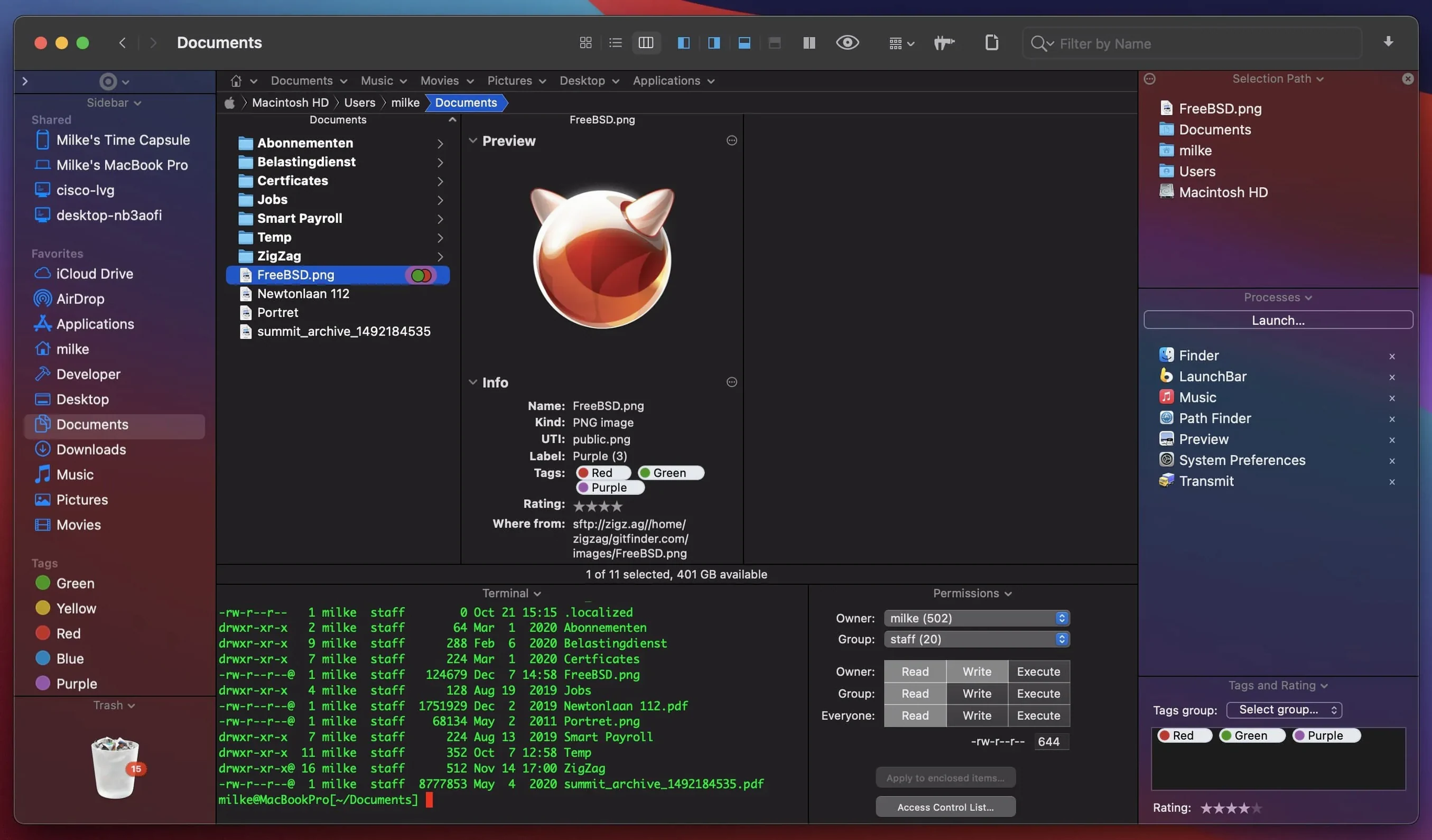
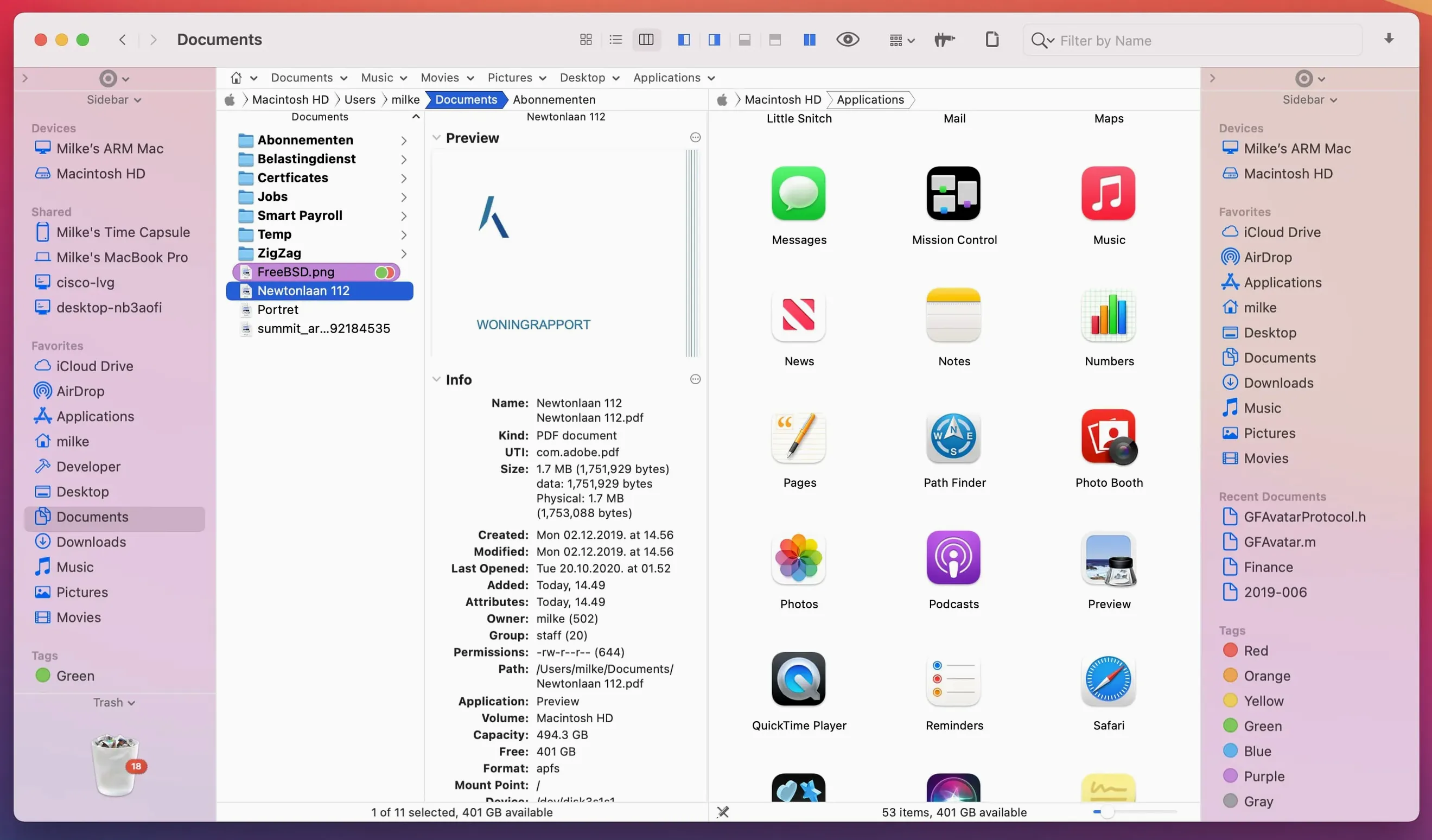
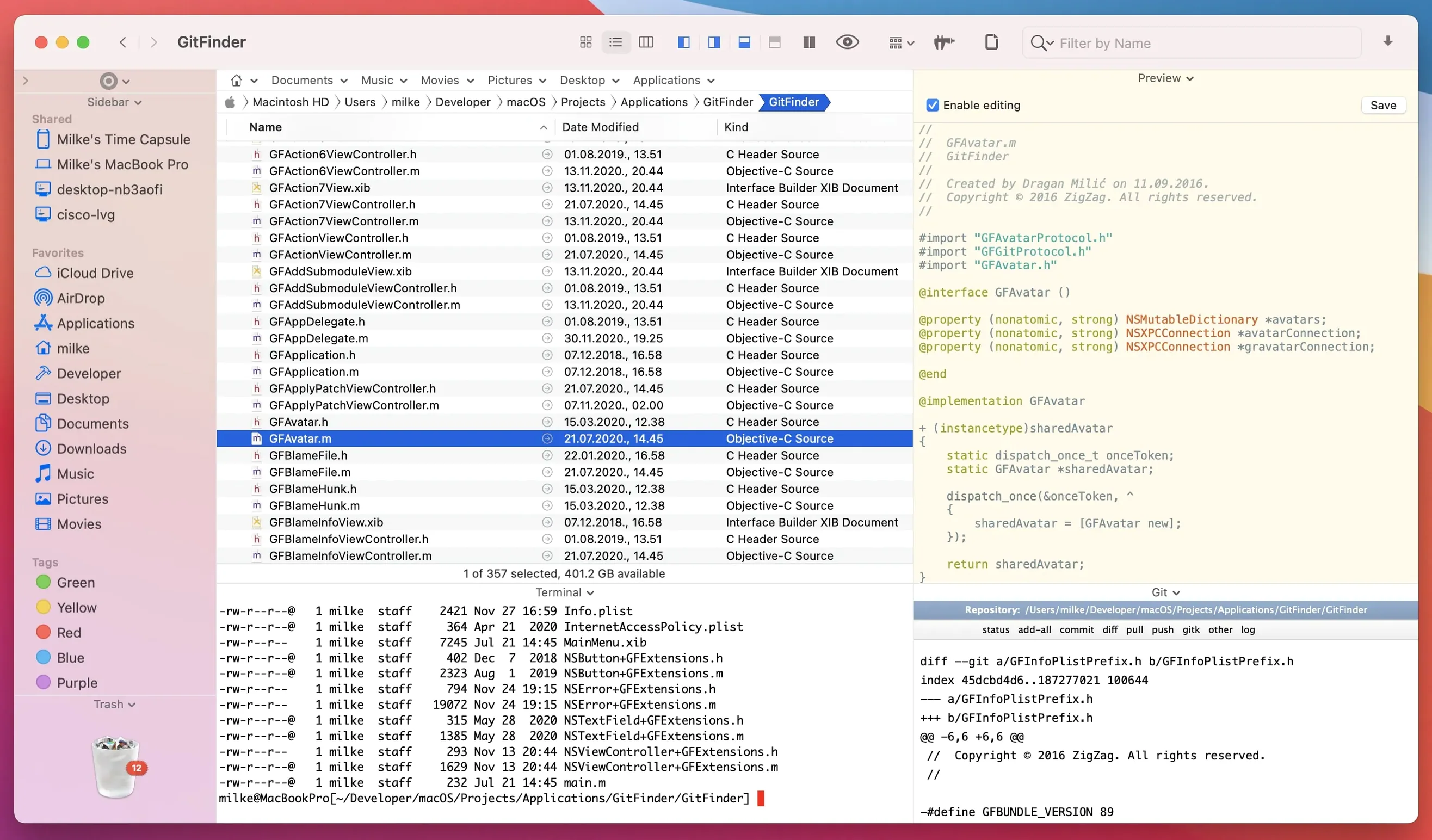
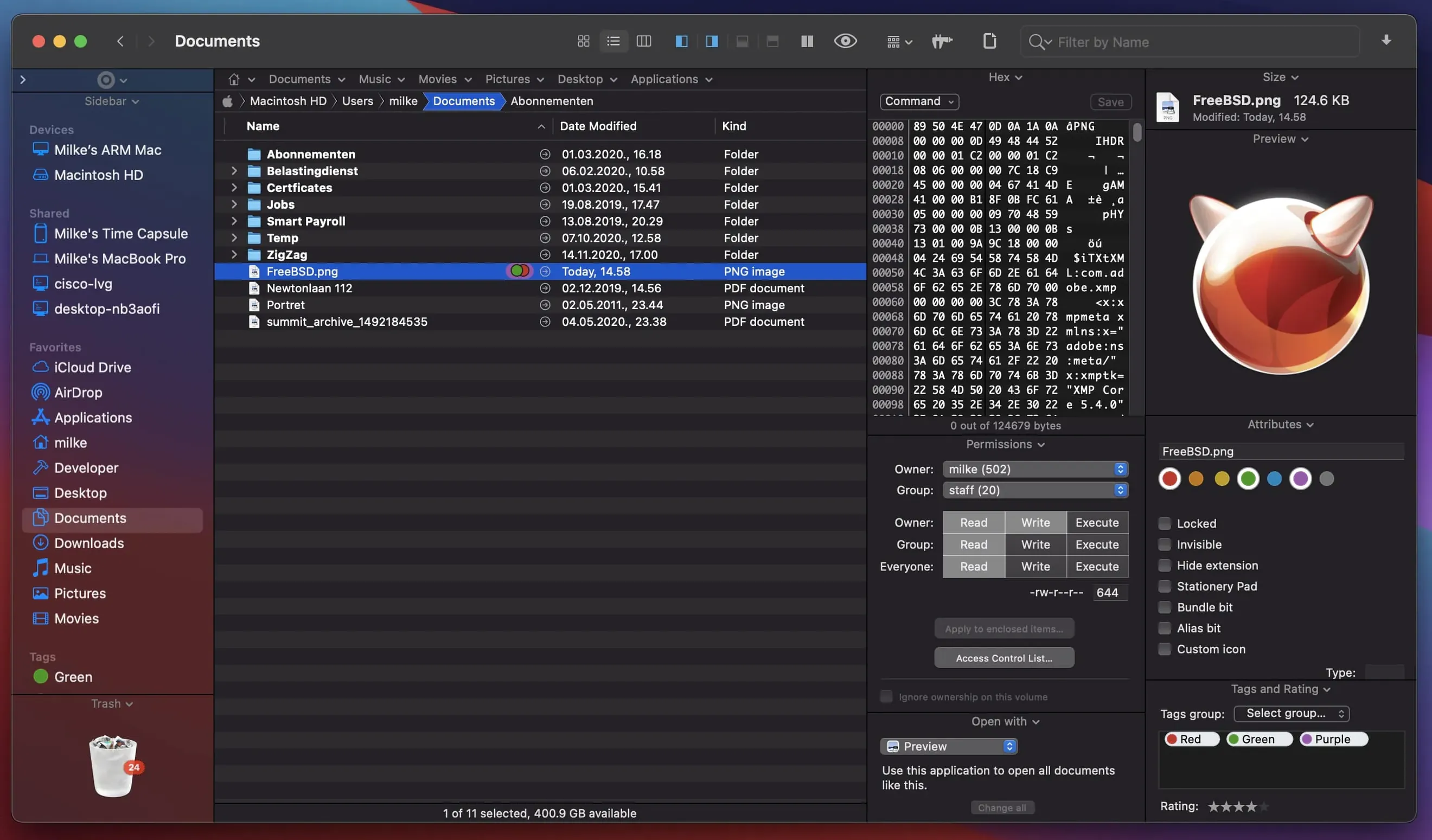
Anyone who shuffles files between a dozen Finder windows knows the feeling: the desktop becomes a digital pile of loose papers. Path Finder steps in as a full replacement for the standard macOS file browser, bringing order with a dual-pane view, tabs, and a collection of tools that keep you from opening other apps just to get a small job done.
- Dual-pane browsing and tabs put two folders side by side, making drag-and-drop organization feel natural, while tabs keep related projects grouped in a single window instead of scattered across the screen.
- Keyboard-driven navigation lets you browse, select, and open files without lifting your hands from the keys—handy when you are in a flow and the mouse feels like a speed bump.
- Built-in modules fold a text editor, image editor, app launcher, and archive tool right into the file manager, so a quick edit or a compressed folder does not need a separate application.
- Application management handles installing and uninstalling software from one place, giving you a cleaner view of what is on your Mac than dragging icons into the Trash.
- Process management shows what is running and lets you stop frozen or misbehaving tasks directly from the file browser.
- Disc image conversion works with CD, DVD, and Blu-ray formats, saving a step when you need to repurpose old media or archive a disc-based project.
If the default Finder leaves you clicking through too many windows or reaching for extra utilities, Path Finder wraps those repeated tasks into one place. It is the kind of tool that rewards anyone who handles a lot of files and would rather spend that energy on the work itself.
First days: tweaks worth making right away
Fresh out of the gate, Path Finder shows you a lot—maybe more than you need on a Tuesday afternoon. Spend twenty minutes dialing it back, and the app settles into a rhythm that feels like your own. Start by hiding the sidebar panels you rarely touch. The Modules section is powerful, but having the text editor, terminal, and hex viewer all visible at once clutters the workspace. Tuck them behind a hotkey or a toolbar button instead.
Next, visit the View menu and lock in your default layout. Pick dual-pane if you spend half your day dragging files between folders; stick with a single pane and lean on tabs if you prefer a cleaner look. Either way, set your preferred sort order and column widths, then save the setup as the default via the Window > Save Default Window command. Every new window after that opens exactly how you left it.
One small move that pays off fast: right-click the toolbar, choose Customize Toolbar, and drag the Drop Stack button up top. Drop Stack acts like a temporary holding tray—you toss files into it from different folders, navigate to the destination, and drop them all at once. It sounds minor, yet after a week you wonder why every file manager does not have one.
Where Path Finder fits alongside other apps and macOS features
Path Finder does not lock you out of the Mac ecosystem. It sits alongside Finder rather than fighting it. You can still use Quick Look with the spacebar, invoke Spotlight or Alfred with their usual shortcuts, and send files to Preview or Photoshop from the right-click menu. The difference is you are doing it all from a window that gives you two panes, a folder list that actually remembers where you were, and a search bar that finds files by extension, keyword, or type without building a Spotlight index first.
The built-in FTP client is where things click for anyone who shuffles files to a server, a NAS, or a retro gaming handheld. Instead of firing up a standalone FTP app, you open a remote connection in a pane right next to your local folder and drag files across. It handles plain FTP and SFTP, and the connection sits in a tab that you can leave open all day. Photographers who drop RAW files onto a network drive, developers pushing builds to a test server, and people who maintain media libraries on a home server all find this cuts out a step.
Archive handling ties into the same workflow. Zip, unzip, browse inside archives without extracting—Path Finder treats a compressed folder like any other directory. Combine that with the dual-pane view, and pulling a single file out of a downloaded .tar.gz and dropping it into a project folder takes seconds. Nothing launches. No extra window appears.
Breadcrumb clicks that skip the menus
A handful of Path Finder tricks hide in plain sight. The path navigator bar above each pane works like Finder's path bar, but clicking any folder in the breadcrumb jumps you straight there without a menu dive. Option-click a folder in that same bar, and you open it in the opposite pane—tiny motion, big time saver when you are mirroring folder structures.
Batch rename lives under the File menu and handles sequential numbering, find-and-replace, and case changes across a selected group. The recent fix for the 31-file limitation means you can throw a full shoot or a season of episodes at it without the tool giving up halfway. Pair batch rename with the Select by extension command, and you can rename every .png in a folder without accidentally touching the .jpg files beside them.
For keyboard-first users, the Quick Search field responds to a tap of Command-Shift-F. Type a few letters, and the file list filters instantly—no dialog box, no waiting. It works on the open folder only, so it feels faster than a full Spotlight query when you know roughly where the file lives.
The Size Browser tool, accessible from the Window menu, scans a folder and draws a visual map of what is eating your disk space. Click a block to drill down, and you spot the stray .iso or forgotten cache folder inside thirty seconds. Third-party disk analyzers exist, but having one wired into your file manager means you act on the results right there—delete, move, or archive without switching context.
Finally, the system hotkey integration deserves a look. Path Finder can override the default Finder shortcut for new windows, so pressing Command-N spawns a Path Finder window system-wide. Set it up once in Preferences > General, and the muscle memory you already have points to the more capable tool.
Version 26.1.10 has arrived with the developer's latest fixes and improvements — the full breakdown lives in the official release notes.
- macOS 13 or later
- Apple Silicon or Intel 64-bit Mac
Questions I actually get
What makes Path Finder different from the regular macOS Finder?
Path Finder adds dual-pane browsing, tabs, keyboard file navigation, and built-in modules like a text editor and archive tool—all replacing the standard Finder with a single, deeper workspace.
Porch talk 0
Come in or pull up a chair to leave a comment.
Nobody has pulled up a chair yet. If you used it on a real Saturday, say what the hour was.
More for the same hour
Everything in Mac Apps
 Paste
6.6.2 Mac Apps
28 MB
Paste
6.6.2 Mac Apps
28 MB
 Parallels Desktop
27.0.3-58680 Mac Apps
Updated 186 MB
Parallels Desktop
27.0.3-58680 Mac Apps
Updated 186 MB
 PDF Squeezer
4.9 Mac Apps
20 MB
PDF Squeezer
4.9 Mac Apps
20 MB

 Paragon NTFS
LAST Mac Apps
70 MB
Paragon NTFS
LAST Mac Apps
70 MB

 Perfectly Clear WorkBench
4.8.0.2871 Mac Apps
200 MB
Perfectly Clear WorkBench
4.8.0.2871 Mac Apps
200 MB

 Permute
4.0.11 Mac Apps
84 MB
Permute
4.0.11 Mac Apps
84 MB

 Pacifist
4.1.4 Mac Apps
38 MB
Pacifist
4.1.4 Mac Apps
38 MB

 Photo Mechanic
2025.1.8239 Mac Apps
64 MB
Photo Mechanic
2025.1.8239 Mac Apps
64 MB