

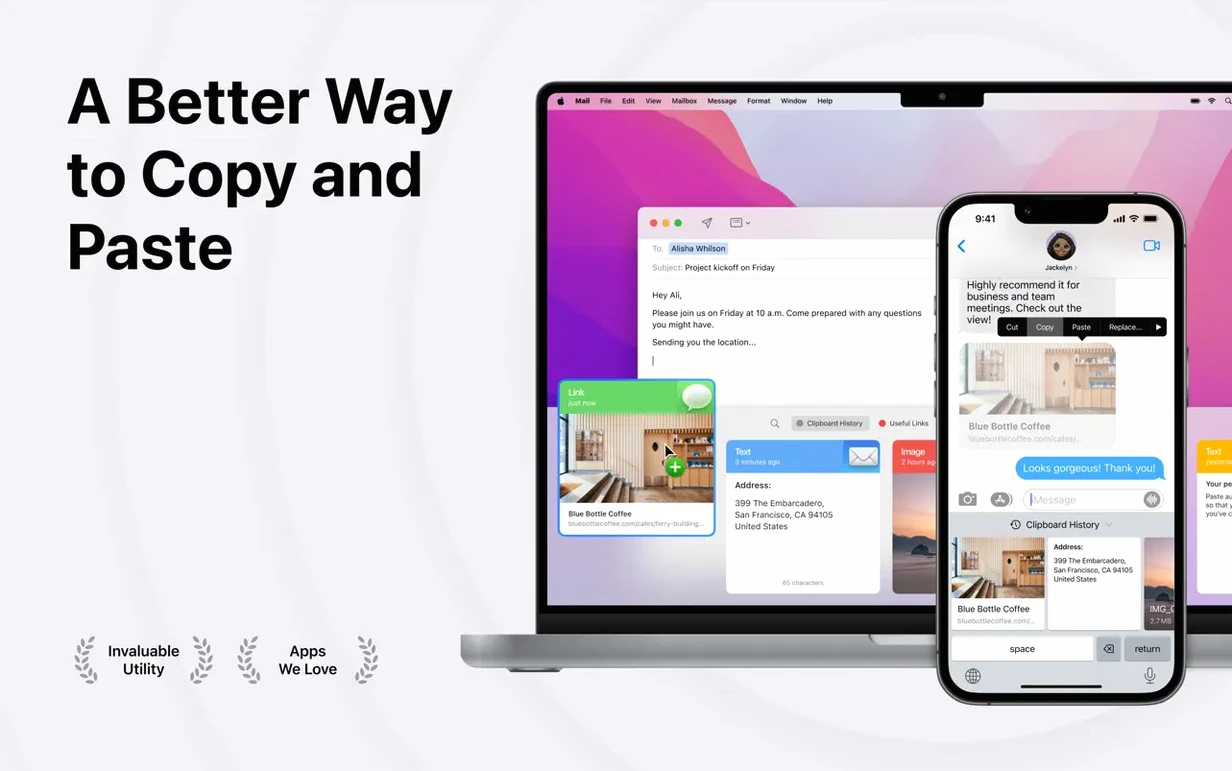
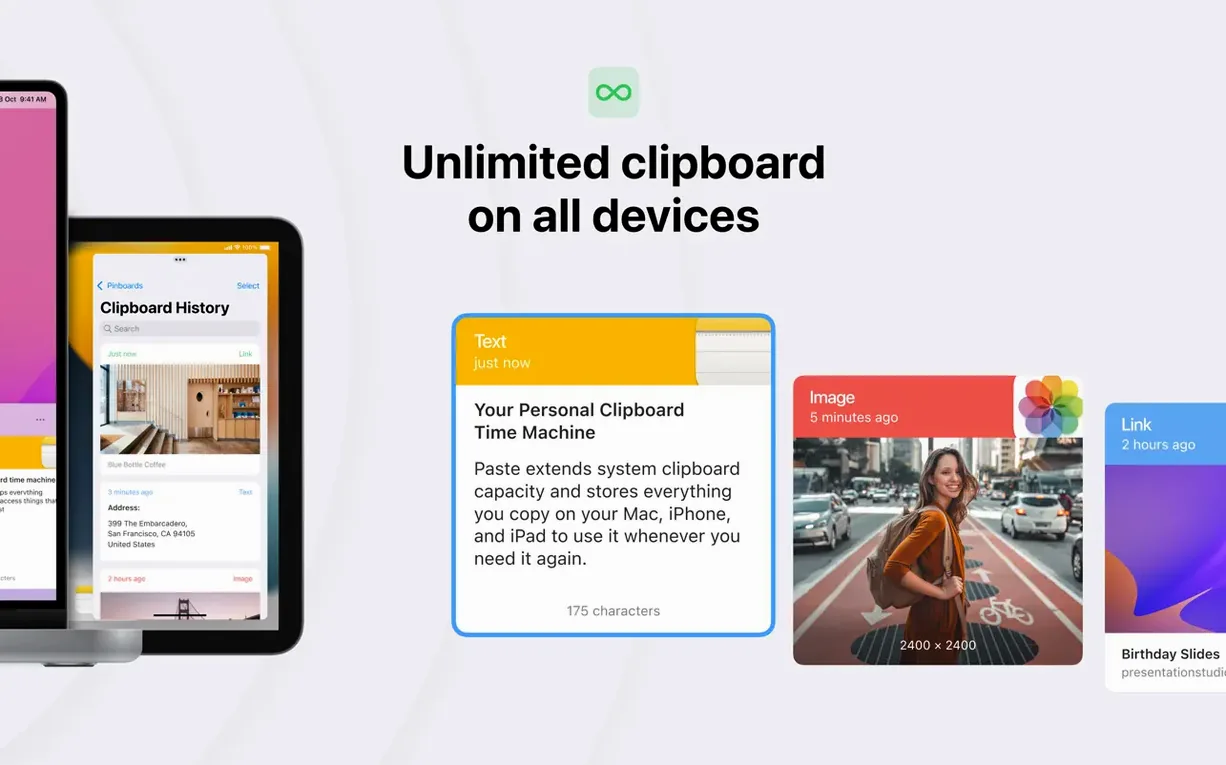
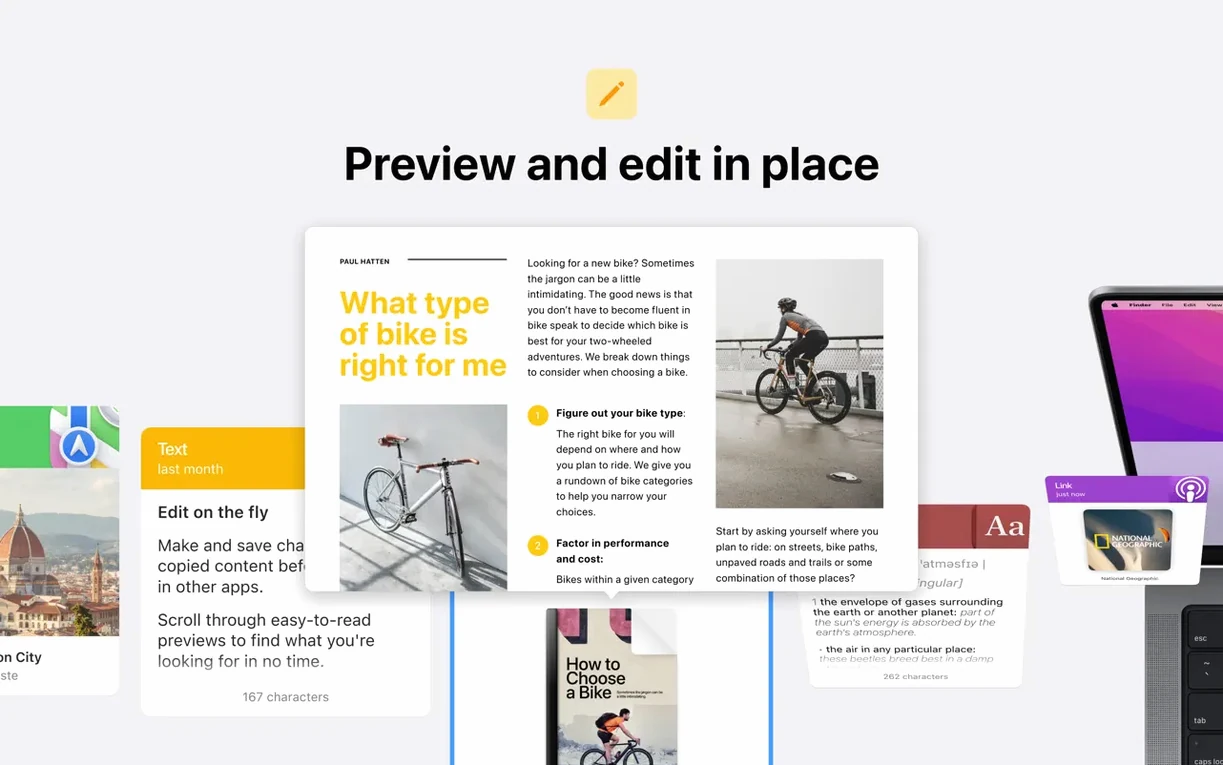
You copy a tracking number, an address snippet, and a product code in quick succession. A few minutes later, you need all three. The built-in clipboard only remembers the last one. Paste keeps the whole thread intact, ready when you are.
Searchable history that travels with you
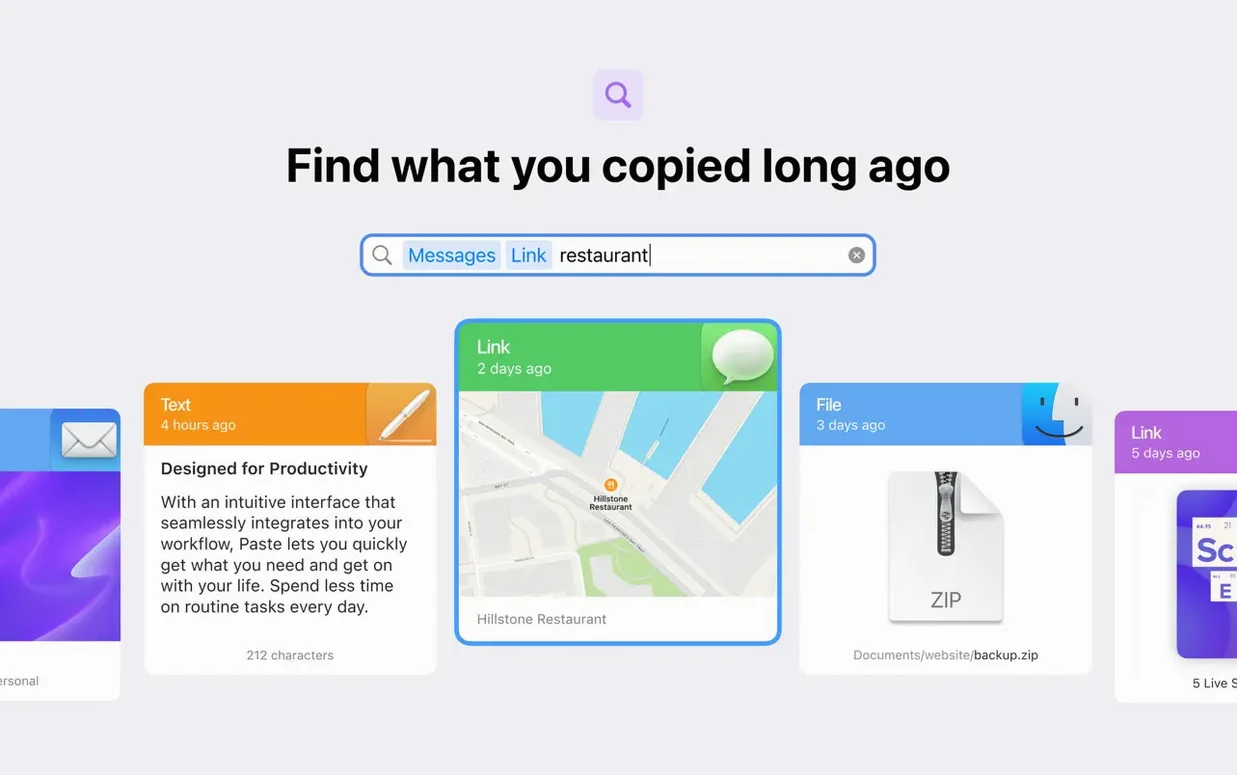
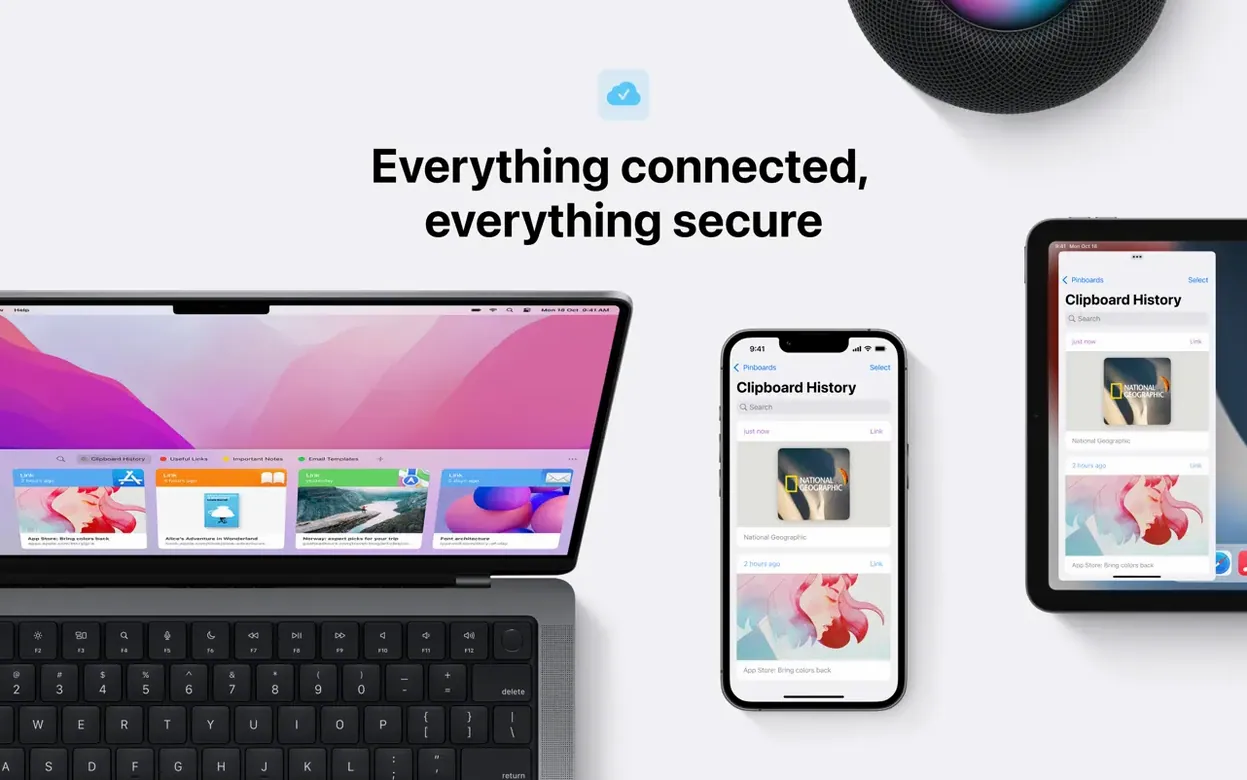
Paste captures everything you copy and stores it in a visual timeline. You scroll back through fragments, tap return to paste the one you need, or search by keyword. Because the history syncs through iCloud, that same trail of copied items appears on your iPhone and iPad. You can also share a clipboard record with someone else directly from the app, or send it to a nearby Apple device using AirDrop. It turns copying into a persistent resource instead of a single-use act.
Pinboards and multi-item pasting
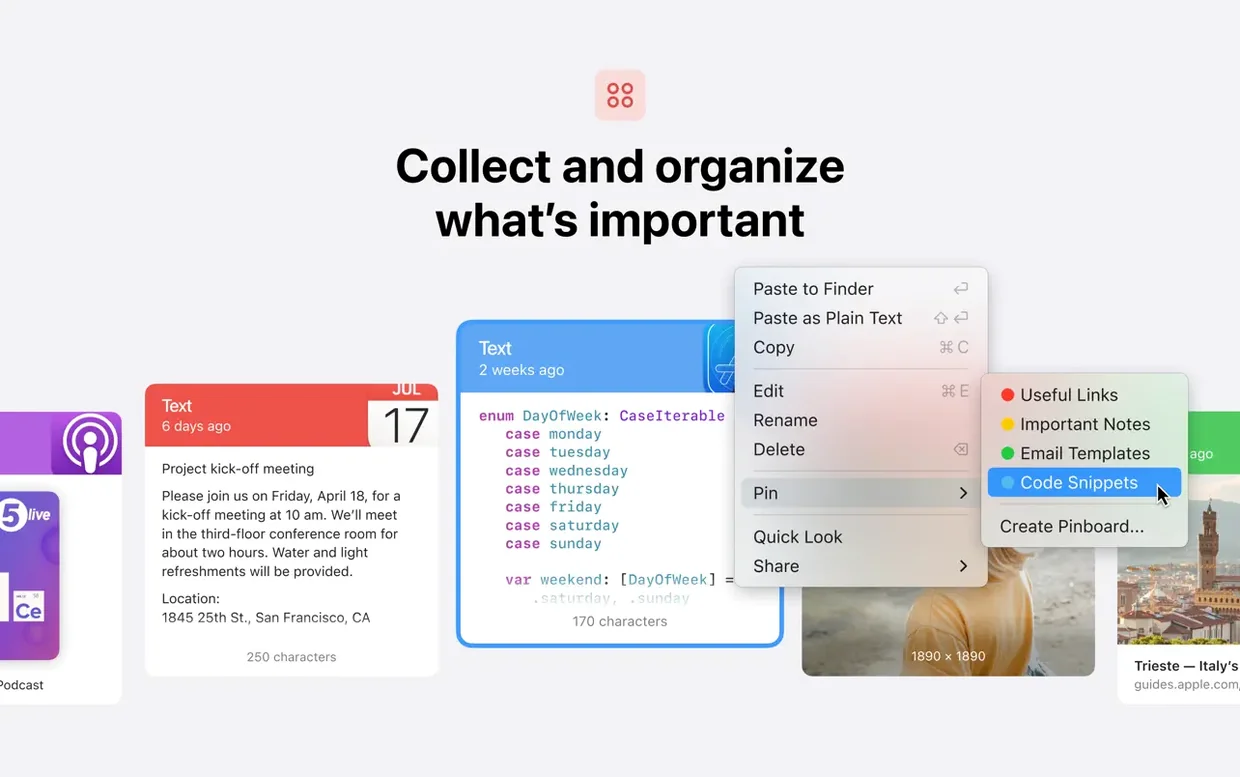
Some snippets you need over and over—bank details, a standard email reply, a set of hashtags. Paste lets you pin these to a dedicated board so they sit outside the main history and never scroll away. On the flip side, the app can paste several items at once, dropping them in sequence without repeated copy-paste trips. It's a small efficiency that adds up fast.
When customer support needs a memory upgrade
Miriam works the chat queue for a mid-sized SaaS company. A typical ticket has her copying an order ID, a shipping address, a tracking link, and a troubleshooting snippet from the knowledge base—all within thirty seconds. Before she found Paste, she was losing half of those to the single-slot clipboard and retyping the rest. The frustration wasn't just the extra keystrokes; it was the mental gear-shifting, the break in her rhythm while she hunted down the same information twice.
Now she keeps the Paste panel pinned to the right edge of her screen. As she works through a refund request, every copied fragment lands in the timeline automatically. She grabs the order number, copies the customer's reply email, snags the warehouse note, and the whole trail sits there—color-coded by app source, timestamped, waiting. When the refund form asks for the original transaction ID five fields deep, she scrolls back two minutes and pastes it without leaving the keyboard. The history isn't just a convenience; it's the difference between finishing a ticket in four minutes versus eight.
Building a newsletter from scattered sources
Let's walk through a real task: assembling a weekly community newsletter. You have bits coming from a Slack thread, a Notion doc, three browser tabs, and a screenshot of a flyer someone texted you.
Start by opening your draft in whatever you use to write. Copy the event date from Slack, then the venue name, then the ticket link. Each one slides into Paste's timeline. Jump to Notion and grab the blurb the team wrote. Switch to the browser and copy a speaker bio, a headshot, and a pull quote from last year's recap. The headshot appears as a thumbnail right in the history—you can spot it without reading a filename.
Now, back in your draft, open the Paste panel with ⌘⇧V. The items sit in reverse chronological order. Drag the ones you need into a temporary pinboard labeled "Friday send." With the pinboard up, select all three text fragments and hit paste—they drop into your document in the order you selected, formatted as plain text so they match your newsletter style. Drop the headshot in afterward. The whole assembly takes half the time it used to, and you never once opened a second window to hunt for something you copied ten minutes ago.
Small snags and fast fixes
One common stumble: you copy something and it doesn't show up in Paste. Nine times out of ten, the app hasn't been granted Accessibility permissions. Head into System Settings, find Privacy & Security, then Accessibility, and make sure Paste is toggled on. Without that, macOS won't let it watch the clipboard.
Another hiccup comes when people paste and get styled text—bold, weird fonts, large point sizes—when they wanted plain text. Paste has a setting for that. Right-click an item in the history and choose "Paste as Plain Text," or set a keyboard shortcut for it. If you always want plain text from certain apps, you can create a rule that strips formatting automatically whenever you copy from, say, Mail or Safari. The rule sits quietly in Preferences under "Formatting" and you'll forget it's there until you realize your pastes are suddenly clean.
Some folks download Paste for Mac and notice the iCloud sync isn't firing. The fix is usually simple: sign out of iCloud inside Paste's preferences, quit the app, relaunch, and sign back in. Give it a minute to rebuild the index. Also check that iCloud Drive is enabled system-wide—Paste relies on it for the sync engine, not just the clipboard database. If you're using a Mac that stays on a VPN all day, try pausing it briefly during the first sync; some VPN configurations slow the initial handshake.
And if you've grabbed Paste 6.6.2 and the search bar isn't finding something you know you copied, switch from the default text search to image or link search using the filter buttons at the top of the panel. Sometimes an item was stored as a rich media object rather than a string of text, and the keyword match needs a different index. The filter buttons are easy to overlook because they're small, but they change what gets returned.
An hour with Paste, from first copy to clear-out
You sit down on a Wednesday morning with coffee and a list of errands. The Paste menu bar icon is there, a small dot that turns blue when something new lands. You copy your gym locker code from Notes—it appears in the panel. You copy a tracking number from an email, then a street address from Maps, then a promo code from a text ad. By 9:15, you have eight items in the timeline.
Around 10, you need that promo code. You hit ⌘⇧V, type "promo" into the search bar, and the snippet surfaces instantly. You hit return and paste it into the checkout field. You keep the panel open and notice a screenshot you took of a receipt three days ago—it's still there, scrolling just above the fold. You drag it to the desktop and it exports as a PNG without opening Preview.
By noon, the timeline has grown to maybe forty items. You select a batch of old ones—shipping notifications, one-off links—and hit delete. The rest you leave alone; Paste auto-purges after a timeframe you set in preferences, but you like doing a manual sweep once a day. You pin a recurring Zoom link and a standard "out of office" reply to a board called "daily grabs." They'll survive the purge and stay pinned across your iPhone and iPad through iCloud.
At the end of the hour, the app has faded into the background the way a good tool does. You copied and pasted freely, without pausing to think about what you might lose. The clipboard stopped being a leaky bucket and became a searchable workbench, one that follows you from device to device without ceremony.
- Requires macOS 13 or later
- Apple Silicon and Intel 64-bit support
Questions I actually get
What version of macOS does Paste require?
Paste requires macOS 13 or later on both Apple Silicon and Intel 64-bit Macs.
Porch talk 0
Come in or pull up a chair to leave a comment.
Nobody has pulled up a chair yet. If you used it on a real Saturday, say what the hour was.
More for the same hour
Everything in Mac Apps
 Path Finder
26.1.10 Mac Apps
Updated 26 MB
Path Finder
26.1.10 Mac Apps
Updated 26 MB
 Parallels Desktop
27.0.3-58680 Mac Apps
Updated 186 MB
Parallels Desktop
27.0.3-58680 Mac Apps
Updated 186 MB

 Paragon NTFS
LAST Mac Apps
70 MB
Paragon NTFS
LAST Mac Apps
70 MB
 PDF Squeezer
4.9 Mac Apps
20 MB
PDF Squeezer
4.9 Mac Apps
20 MB
 Pacifist
4.1.4 Mac Apps
38 MB
Pacifist
4.1.4 Mac Apps
38 MB

 Perfectly Clear WorkBench
4.8.0.2871 Mac Apps
200 MB
Perfectly Clear WorkBench
4.8.0.2871 Mac Apps
200 MB

 Permute
4.0.11 Mac Apps
84 MB
Permute
4.0.11 Mac Apps
84 MB

 Photo Mechanic
2025.1.8239 Mac Apps
64 MB
Photo Mechanic
2025.1.8239 Mac Apps
64 MB