
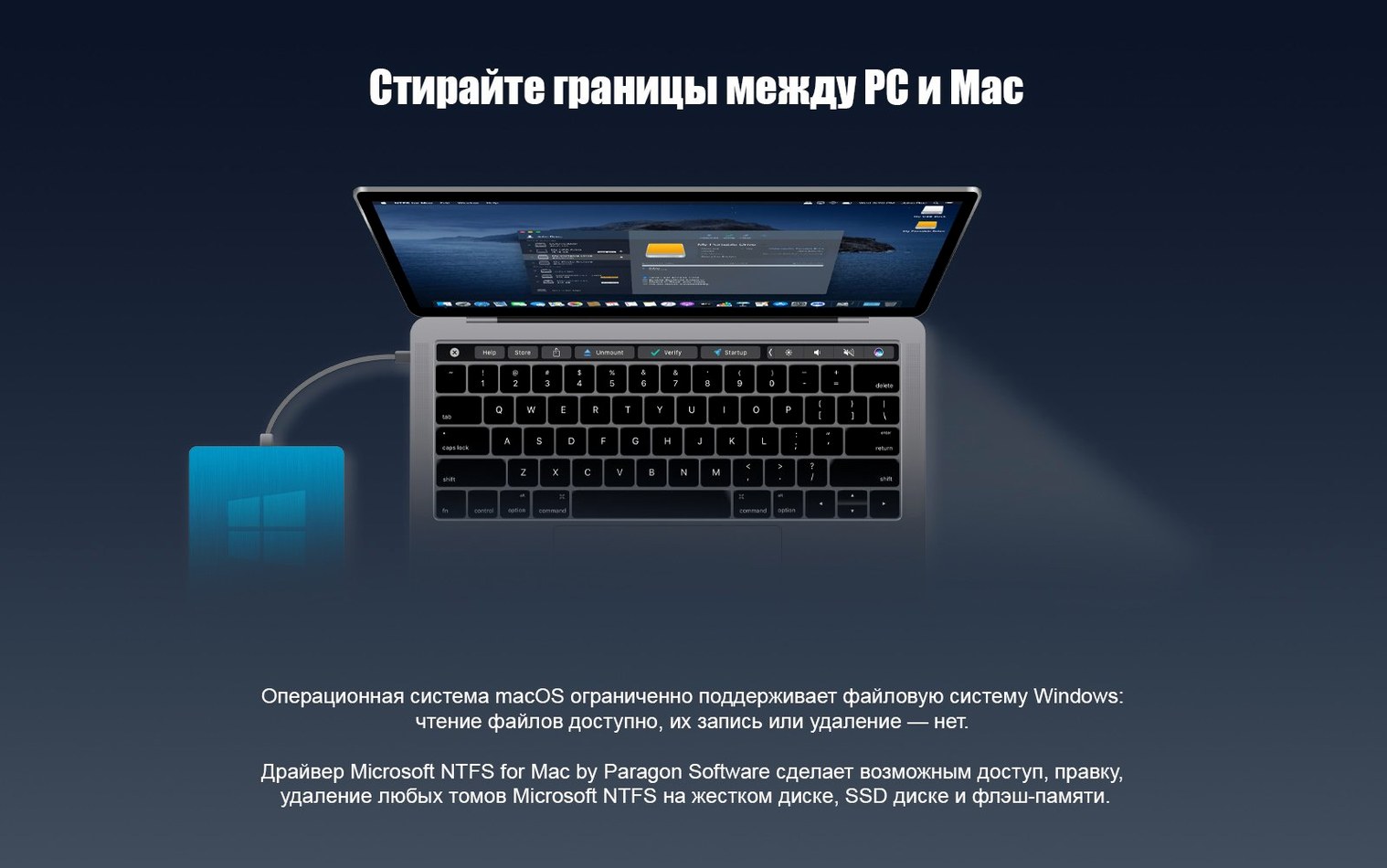
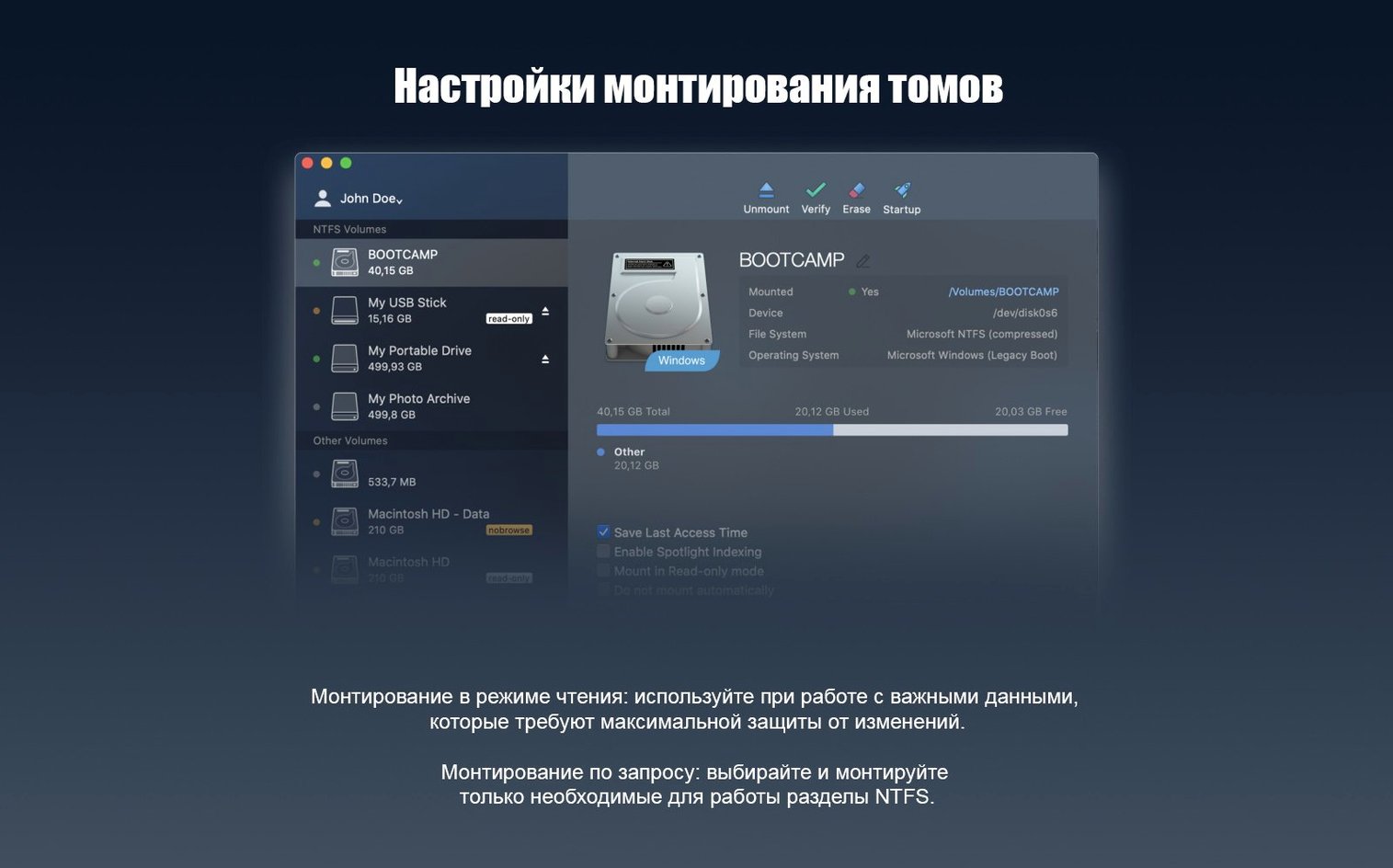
macOS knows how to peek inside a Windows drive. It can read files, pull photos off an old disk, but the moment you try to rename a folder or drop a new file onto it, the system shrugs. That read-only limit is where Paragon NTFS picks up the slack.
Version 15 slips a new driver core under the hood, one built to make working with NTFS volumes feel less like a workaround and more like a native part of Finder. You plug in a drive, and it simply appears, ready for full editing, copying, and creating, no extra steps.
Boot Camp and NTFS Media Libraries Without the Shuffle
- Working directly with Windows boot camp partitions or external drives formatted on a PC
- Managing media libraries stored on NTFS disks without shuffling files to a Mac-formatted drive first
- A cleaner workflow when you move between a Mac at home and a Windows machine at work
macOS Security Prompts and Update-Cycle Lag
- The driver is a system extension, so you’ll need to allow it in Security & Privacy settings after installation
- Native support for the very latest macOS releases may lag behind Apple’s yearly update cycle
Culling 90 GB of RAWs Straight from an NTFS SSD
Imagine a wedding photographer who shot 90 GB of RAW files on a Windows laptop at the venue. Back home, she plugs the portable SSD into her Mac mini, fires up Lightroom, and starts culling. Halfway through, she realizes she needs to rename a folder of ceremony shots and delete a handful of test frames right on the drive. With the built-in macOS driver, she’d be stuck copying everything to her internal disk first. Paragon NTFS lets her tidy up the drive in place, so the folder structure matches her catalog before she ever imports a single image. By lunch, the drive is organized, the rejects are gone, and the keepers are already syncing to her NAS.
Finder Tags and Quick Look on NTFS Drives
Paragon NTFS isn’t an island. It slides into the macOS file layer quietly, which means every app that uses the standard open and save dialogs gets the benefit without a second thought.
- Finder tags and Quick Look. Tag NTFS files with colors, press the spacebar to preview a document or a video, and the drive behaves like any APFS volume. Spotlight indexes the contents too, as long as the drive is connected.
- Time Machine awareness. You won’t back up to an NTFS drive, but if you’re juggling multiple externals, Time Machine won’t trip over a Windows disk sitting on the desktop. The driver keeps the mount clean so macOS doesn’t throw up “disk not ejected properly” warnings when you step away.
- Virtualization handoff. If you run Windows in Parallels or VMware Fusion, you can point the VM at a physical NTFS partition and bounce files between the guest OS and Finder without shared-folder gymnastics. Boot Camp users get the same two-way street.
- Automator and shell scripts. Since the volume is a regular POSIX mount point under
/Volumes, anycp,mv, orrsynccommand works. A folder action that renames invoices on a thumb drive? Fair game.
Disable Auto-Mount for Windows Recovery Partitions
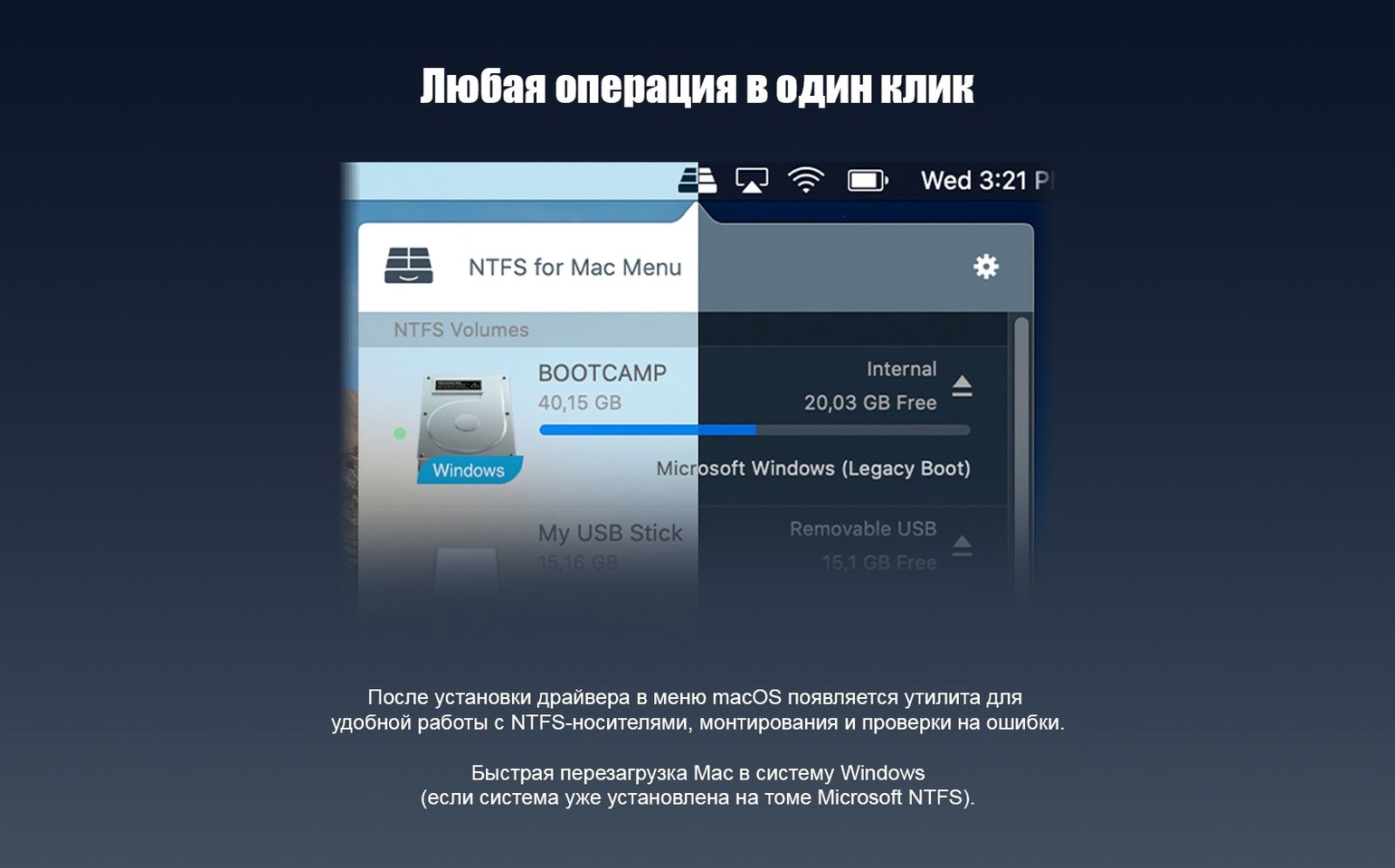
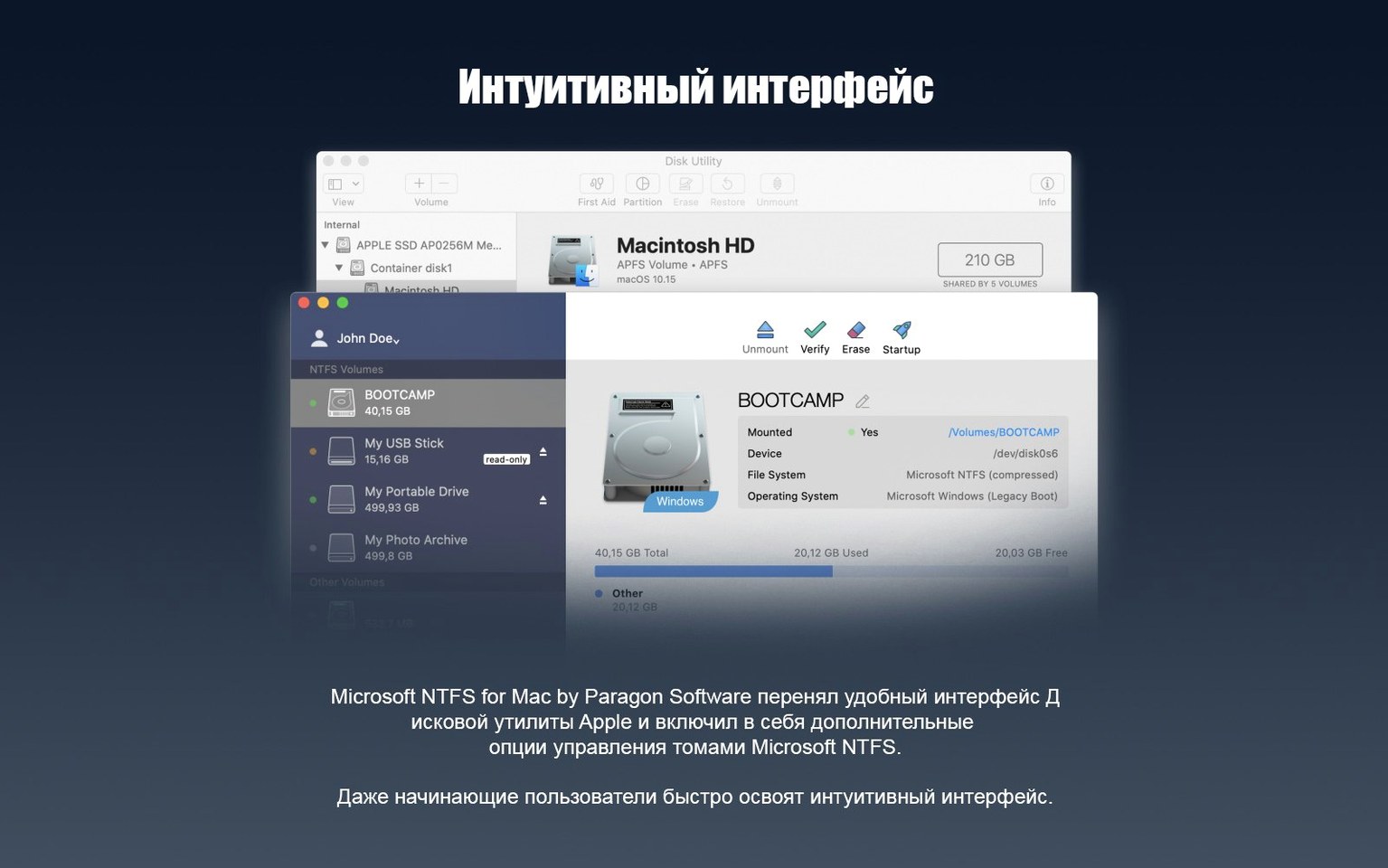
The installer puts a small preference pane in System Settings (or System Preferences, depending on your macOS version). A few clicks there make a real difference.
- Disable automatic mounting for specific drives. If you have a Windows recovery partition or a scratch disk you’d rather not see in Finder, uncheck it in the volume list. Less clutter, fewer accidental writes.
- Toggle the “Enable Spotlight indexing” checkbox. On a slow external drive with a million tiny files, indexing can hog the bus for a while. Turn it off for archival disks you search by hand.
- Adjust the write caching policy. The preference pane lets you favor speed or data safety. For an SSD you unmount often, lean toward safety; for a stationary backup drive, the faster cache makes big transfers brisk.
- Grant full disk access early. Open Security & Privacy, add the Paragon extension, and reboot. Doing it upfront avoids the “disk is read-only” surprise when you’re already in the middle of a project.
Editing ProRes Timelines on a 2 TB NTFS G-Drive
A video editor walks in with a 2 TB G-Drive, NTFS-formatted, full of ProRes timelines from a Windows workstation. Here’s how the next half hour plays out.
1. Plug and wait five seconds. The drive spins up, the Paragon driver mounts it, and a familiar orange external-disk icon lands on the desktop. No error dialogs, no format nag.
2. Open Final Cut Pro. He creates a new library on his Mac’s internal SSD but points the media import window straight to the NTFS drive. The folders show up with full read and write privileges. He ticks “copy to library” on a few essential clips but leaves the bulk of the footage in place, referencing it directly from the external.
3. Bounce to Finder for housekeeping. While Final Cut chews on waveform renders, he opens the drive in column view, drags a “_ARCHIVE” folder into a “2024_Winter” parent, and renames three clip folders that had typos. Each rename finishes as fast as it would on his internal drive. No beachball.
4. Pull a still frame into Preview. He spots a frame he wants to email the client, opens the clip directly from the NTFS volume in Preview, grabs a still, and saves the PNG back to the same folder. The save dialog offers NTFS as a destination without a second prompt.
5. Eject cleanly. When he drags the disk to the trash, the Paragon driver flushes its cache and unmounts the volume cleanly. The drive goes back in his bag, ready to plug into a Windows machine at the next studio session without a chkdsk in sight.
If you have ever typed paragon ntfs torrent into a search bar looking for a way to break free of read-only NTFS on your Mac, this is the kind of frictionless workflow you were chasing. The driver handles the translation layer, and you handle the actual work.
The version 15 update zeroes in on speed and compatibility with a reworked driver core. Here's what changed:
- A new driver core brings faster, more consistent handling of NTFS volumes
- Added support for Windows 10 system compression, so compressed files open without a fuss
- macOS 10.12 or later
- Runs on Intel and Apple Silicon Macs
Questions I actually get
Can Paragon NTFS work with Apple Silicon Macs?
Yes, Paragon Software has updated the product to support Apple Silicon Macs, so it runs on both Intel and M-series machines.
What languages does the utility support?
The interface is multilingual, offering Russian, English, German, Hungarian, Spanish, Italian, Traditional Chinese, Simplified Chinese, Korean, Polish, Portuguese, Finnish, French, Czech, and Swedish.
Does version 15 handle compressed Windows files?
It does. The update added support for Windows 10 system compression, letting you work with those files on your Mac without a hitch.
Porch talk 0
Come in or pull up a chair to leave a comment.
Nobody has pulled up a chair yet. If you used it on a real Saturday, say what the hour was.
More for the same hour
Everything in Mac Apps
 Parallels Desktop
27.0.3-58680 Mac Apps
Updated 186 MB
Parallels Desktop
27.0.3-58680 Mac Apps
Updated 186 MB
 Pacifist
4.1.4 Mac Apps
38 MB
Pacifist
4.1.4 Mac Apps
38 MB

 Paste
6.6.2 Mac Apps
28 MB
Paste
6.6.2 Mac Apps
28 MB
 Path Finder
26.1.10 Mac Apps
Updated 26 MB
Path Finder
26.1.10 Mac Apps
Updated 26 MB

 OpenIn - Advanced Link Handler
4.5.1 Mac Apps
16 MB
OpenIn - Advanced Link Handler
4.5.1 Mac Apps
16 MB
 PDF Squeezer
4.9 Mac Apps
20 MB
PDF Squeezer
4.9 Mac Apps
20 MB
 One Switch
1.35.4 Mac Apps
7 MB
One Switch
1.35.4 Mac Apps
7 MB

 ON1 Photo RAW
2026.5.2 v20.5.2.19304 Mac Apps
1.1 GB
ON1 Photo RAW
2026.5.2 v20.5.2.19304 Mac Apps
1.1 GB