Cosmic Apps built Astro Gold as a native Mac app that runs on both Apple Silicon and Intel 64-bit machines, all the way back to macOS 10.13 High Sierra. If you have an older Mac still doing faithful work or a brand-new M-series machine, you are covered.
What kind of charts does it draw?
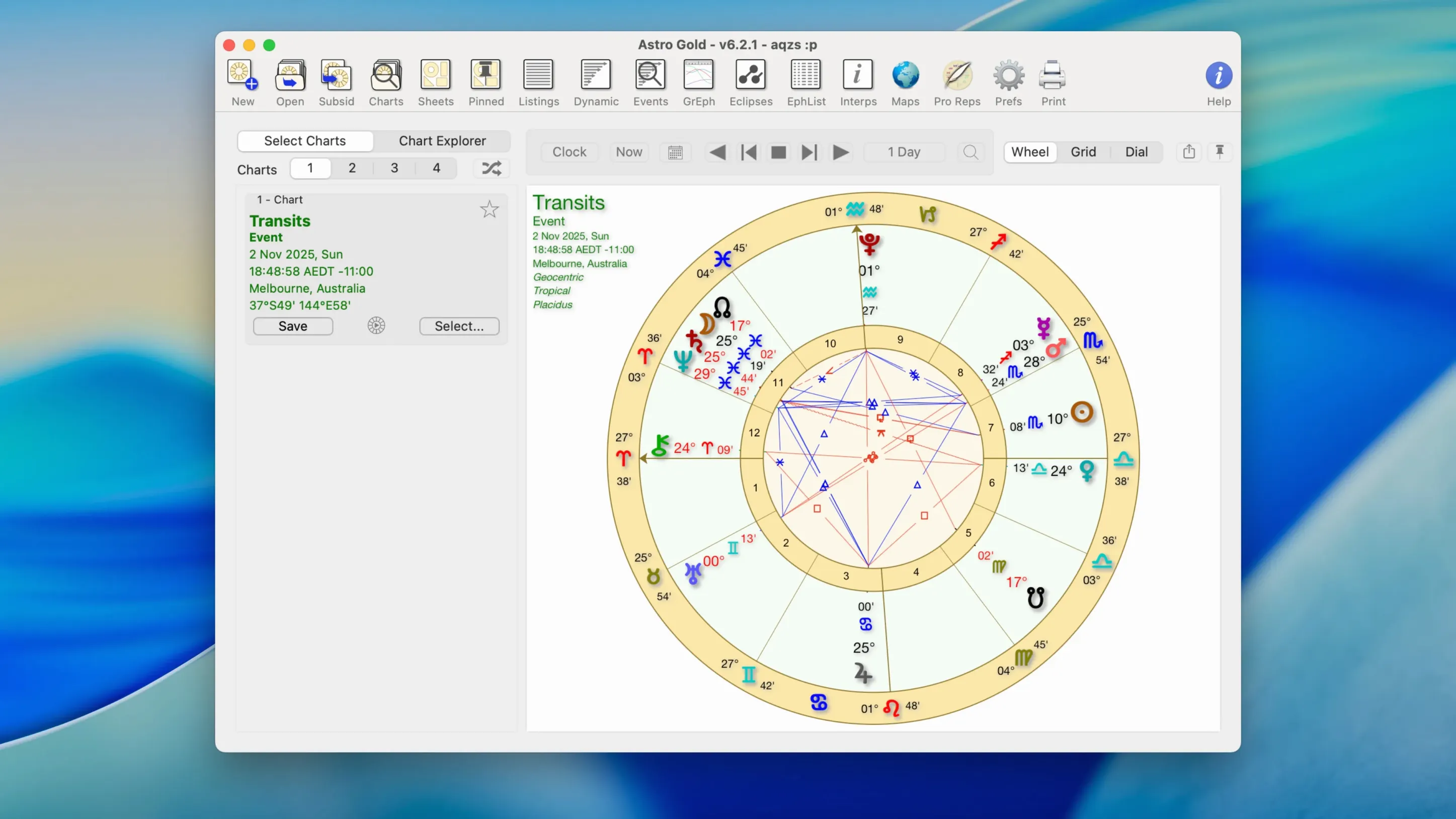
Natal charts are the core, but you can also pull up composite and Davison relationship charts. The app gives you a choice between round and square wheel styles, and you can switch between tropical and sidereal zodiacs depending on the tradition you follow.
Can I compare two charts with it?
Yes — the synastry tool overlays two charts so you can study how they interact. You get control over orbs, aspects, and which planets appear, which keeps the view clean when you want to focus on a few tight connections.
What predictive tools are included?
You can cast transits against a natal chart and work with solar, lunar, Saturn, and other planetary returns. For timing work, secondary progressions and solar arc directions are both in the toolbox.
Who would feel at home here?
Students who want to move past web calculators without spending weeks learning a complex interface, and practicing astrologers who need a straightforward desktop app that handles synastry, returns, and progressions in one place.
When a chart appears blank or switches zodiacs unexpectedly
A new chart comes up blank or the wheel looks wildly different from what you expected. Nine times out of ten, the zodiac setting has flipped to sidereal when you normally work in tropical — or the other way around. The toggle sits in the chart preferences panel, and Astro Gold remembers your last choice, so once you set it, new charts follow your lead.
Another head-scratcher: transits appear but nothing lines up with the natal positions you know by heart. Check the transit date. The default is often today's date, and if you meant to cast for a specific event six months ago, the aspect lines will look off. Double-click the transit date in the sidebar and type or scroll to the moment you want.
Orb settings cause quiet confusion too. A tight conjunction you expect to see might not draw because the default orb for that planet pair is narrower than you are used to. Head into the aspect settings and widen the orb for the planets that matter to your reading. You can set different orbs for luminaries, personal planets, and outer planets, which keeps a lunar return from turning into a spiderweb of lines.
If you install the app and it refuses to open with a gatekeeper warning, the disk image came from outside the App Store. Right-click the app icon and choose Open from the shortcut menu, then confirm in the dialog. You only need to do this once.
Overlay fixed stars onto any chart instantly
The fixed star catalog sits quietly in a submenu, but it is more useful than its placement suggests. You can overlay major stars onto any chart with a single click, and the list includes names and positions you would otherwise look up in a separate reference. Spica, Regulus, and Algol appear right on the wheel at their current longitude.
Asteroids go beyond the usual Chiron. Proserpina is in there, and a handful of others that medieval and modern practitioners reach for. You enable them from the planet filter, and they draw as additional points on the wheel without cluttering the aspect table unless you ask for aspects to them.
Relocation charts take about five seconds. Type a city name, pick from the suggested coordinates that pop up, and the app redraws the natal chart with the new location's angles. House cusps shift, planetary positions stay put, and you can compare the relocated ascendant against the birth ascendant side by side.
Astrocartography lines plot on a simple world map. You see where your Jupiter line crosses a coastline or where Saturn's line runs through a city you are considering. It is not a full mapping suite, but it gives you enough to spot the major influences at a glance.
Ephemeris tables generate for any month you choose. The printout is clean and readable, and you can jump between geocentric and heliocentric views without digging through preferences.
Tracking a friend's Saturn return with transits and natal charts
You open Astro Gold on a quiet Tuesday evening. A friend asked about her upcoming Saturn return, and you want to look at the transits alongside her natal chart before you call her back.
You already have her birth data saved, so you select her name from the chart list on the left. The natal wheel draws instantly — round style, tropical zodiac, the aspect lines colored by type. You take a moment to check the ascendant and Moon sign, nodding at what you already know about her.
Next you open the transits panel. You set the date to her birthday next March, when Saturn will station within two degrees of her natal Saturn. The transit wheel appears next to the natal wheel, and the aspect grid below lights up with the Saturn-Saturn conjunction highlighted. You widen the orb for transiting Saturn slightly so the approaching square to her Mercury shows up too.
You want to see how the relocation might play out because she is thinking of moving later that year. You pull up a relocation chart for Portland, type the city, and let the app snap the coordinates from its atlas. The relocated ascendant shifts from late Virgo to early Libra, and you make a mental note about how that changes the house placement of the transiting Saturn.
Before you wrap up, you cast a solar return for the same birthday. The return chart appears in a third tab, and you compare its ascendant ruler against her natal tenth house. You grab a screenshot of the three-chart view — natal, transit, and solar return — and drop it into a folder you will share with her later.
The whole session takes maybe fifteen minutes. You never opened a web browser, never waited for a server to calculate, and never fought with an interface that wanted you to think like a database. If you have been using online calculators and want a proper desktop tool that stays out of your way, this is the kind of workflow astro gold for mac was built for.
- macOS 10.13 or later
- Apple Silicon or Intel 64-bit Mac
Porch talk 0
Come in or pull up a chair to leave a comment.
Nobody has pulled up a chair yet. If you used it on a real Saturday, say what the hour was.