If you’ve ever used the built-in option to rearrange menu bar icons by holding Command and dragging, you know it’s a start — but it stops there. Bartender picks up where that leaves off, turning a quick drag into full-blown organization for everything living up in your menu bar.
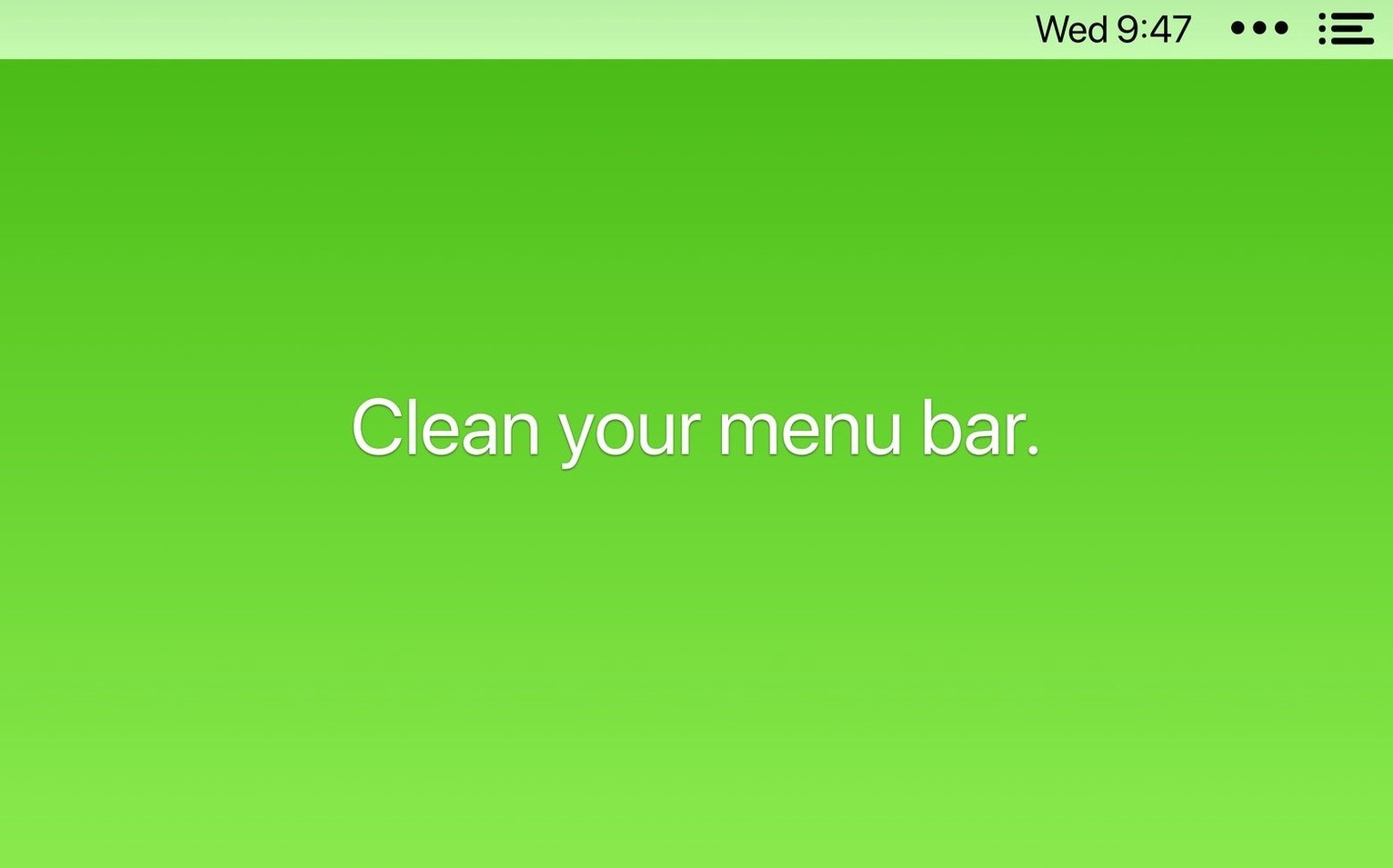
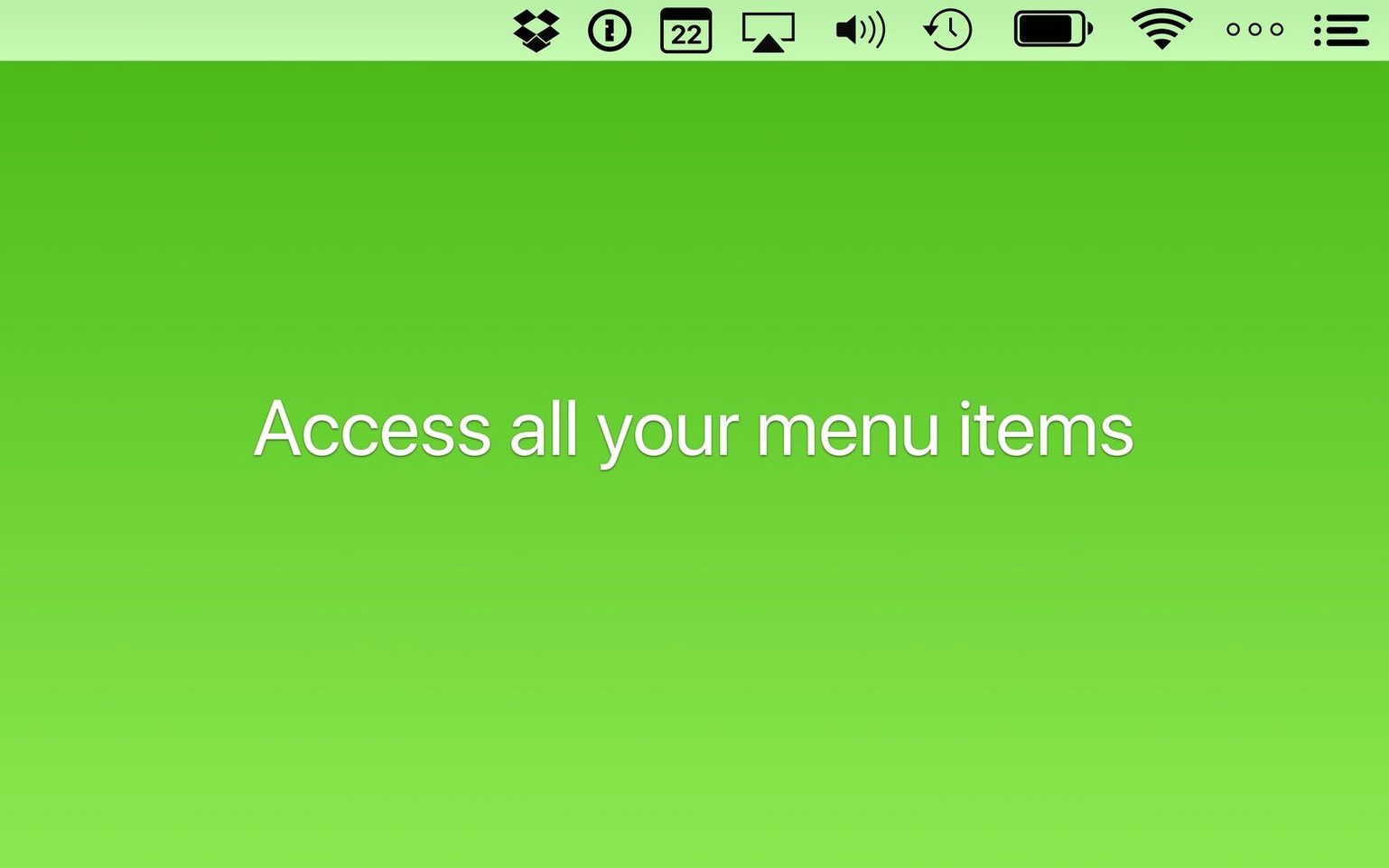
Hide rarely used icons, then summon them on command
- Hiding the icons you rarely need to see, then bringing them back with a click or keyboard shortcut
- Keeping an eye on app status — updates, syncs, errors — without permanent clutter
- Rearranging items into an order that matches how you work
- Navigating the whole bar by keyboard alone, arrow keys and Enter included
- Finding a buried icon fast with the built-in search
- Setting triggers so icons appear only when something changes
Requires macOS 27, power features stay tucked away
- Built for macOS 27, so older systems won’t get this version
- The interface stays minimal, which means some power features take a moment to discover
Launch at login for an instantly cleaner bar
The out-of-the-box setup works, but a few quick tweaks make Bartender feel like it’s reading your mind. Head into preferences before you load up the bar with icons.
First stop: General. Turn on Launch Bartender at login if you haven’t already — obvious, but easy to skip during setup. Right below it, check Hide Bartender icon only if you’re comfortable summoning the bar by hotkey or click on an empty spot. New users often hide the icon too soon and then can’t figure out where everything went.
Next, open Appearance and decide how you want items to show in the Bartender Bar. By default they appear in a strip below the menu bar, but you can switch to a compact inline view that tucks them into the same row as your clock. If screen real estate matters, the inline option reclaims a surprising amount of space on a 13-inch display.
Finally, spend two minutes on Triggers. Set a few apps to reveal themselves only when they’re actively doing something — Dropbox while syncing, a backup utility during its nightly run, your VPN when the connection drops. Without triggers, Bartender is just a drawer. With them, it’s a notification system that doesn’t interrupt you.
Fix icons that vanish after a restart
Even a utility this polished has a few rough edges. Here’s what trips people up.
Items disappearing after a restart. Version 7.0.4 specifically addressed spacers shifting around and icons failing to appear after reboot. If you’re on this version and it still happens, try toggling the affected item’s visibility rule off and back on — that forces Bartender to re-sync its layout with macOS. Failing that, drag the stubborn icon to a different position, restart, and move it back.
Icons getting stuck mid-drag. Another fix packed into 7.0.4. If you still hit this on an older macOS beta or with a particular app that doesn’t play nice, hold Option and click the Bartender icon (or use the keyboard shortcut you’ve set) to reset the bar state without quitting the app entirely.
Bartender’s own icon vanishing when you hide it. You ticked that box and now you can’t find the app. The fix is built in: open Bartender from your Applications folder or via Spotlight while holding the Control key. That forces the preferences window to open, and you can uncheck Hide Bartender icon from there. Set a keyboard shortcut first next time — muscle memory beats a hidden icon every time.
Some apps won’t stay hidden. A handful of utilities insist on showing their menu bar presence. If an icon keeps popping back, check whether the app itself has a “show in menu bar” preference that’s overriding Bartender’s instructions. Flipping that off usually settles the tug-of-war.
Thirty invisible icons and zero idea what they do
The biggest one is treating Bartender like a junk drawer. People install it, shove everything they don’t recognize into the hidden bar, and call it a day. A month later, they’ve got thirty invisible icons and no idea what half of them do. Take fifteen minutes to name the items you actually use, hide the rest, and uninstall the background processes you genuinely don’t need. Bartender reveals clutter — it doesn’t fix it.
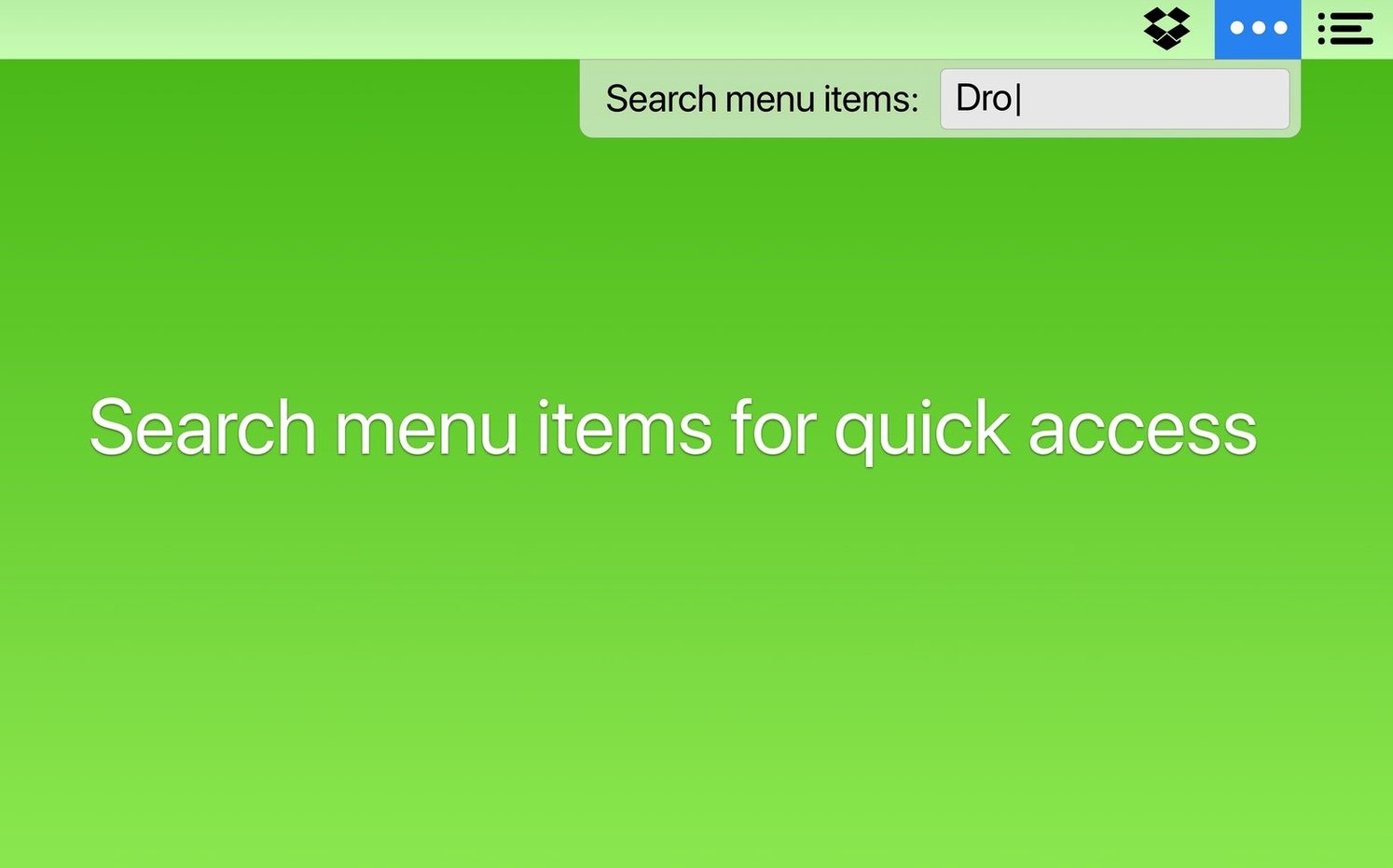
Another classic: forgetting that the Command Bar exists. You can invoke it with a keyboard shortcut (set one in preferences) and type the name of any menu bar item to open it instantly. No mousing, no hunting through a secondary bar. Users coming from an older bartender 6 download often miss this entirely because the feature wasn’t there before version 7.
Newcomers also overlook that you can reorder items inside the Bartender Bar independently of the main menu bar. Drag icons around while the bar is open and they’ll stick. What you arrange in the main bar stays separate from the hidden bar’s order — two layouts, one app.
A subtler mistake: setting triggers that fire constantly. If you tell a cloud sync app to appear every time it syncs, and it syncs every two minutes, you’ve traded clutter for a strobe light. Reserve triggers for apps that change state a few times a day, not a few times a minute.
Juggling Figma, OBS, and a menu bar telling twelve stories
Consider someone who splits their day between design work and live-streaming — a layout in Figma on the left screen, OBS and a chat window on the right, and a menu bar that tells twelve different stories at once. WiFi status, battery percentage, a calendar peek, two cloud sync indicators, a clipboard manager, screen recording permissions, audio routing, and a time zone clock for a remote team.
Before Bartender, half those icons scrolled off behind the notch on a MacBook Pro. During a stream, every sync badge and notification dot was visible to viewers on the display capture. After setting up Bartender, the main bar shows only the clock, battery, WiFi, and a Stream Deck indicator. Everything else lives in the Bartender Bar. Triggers pull the audio router into view when the interface changes and surface the calendar only during the hour before a scheduled meeting. During a stream, the bar stays clean — nothing blinks, nothing distracts. Between sessions, one keyboard shortcut reveals the full set, and the Command Bar finds any specific tool faster than mousing through a crowded strip ever did.
- macOS 27 or later
- Works on both Intel and Apple Silicon Macs
Questions I actually get
Does Bartender 7 require screen recording permissions?
No. Unlike some earlier approaches, version 7 works without asking for screen recording access.
Can I open the menu bar with a keyboard shortcut?
Yes. Bartender supports keyboard shortcuts for opening the menu, plus arrow-key navigation through your items.
What happens when an app needs my attention?
Bartender can show an app’s icon temporarily during updates, syncing, or errors, then tuck it away again once things settle.
Porch talk 0
Come in or pull up a chair to leave a comment.
Nobody has pulled up a chair yet. If you used it on a real Saturday, say what the hour was.