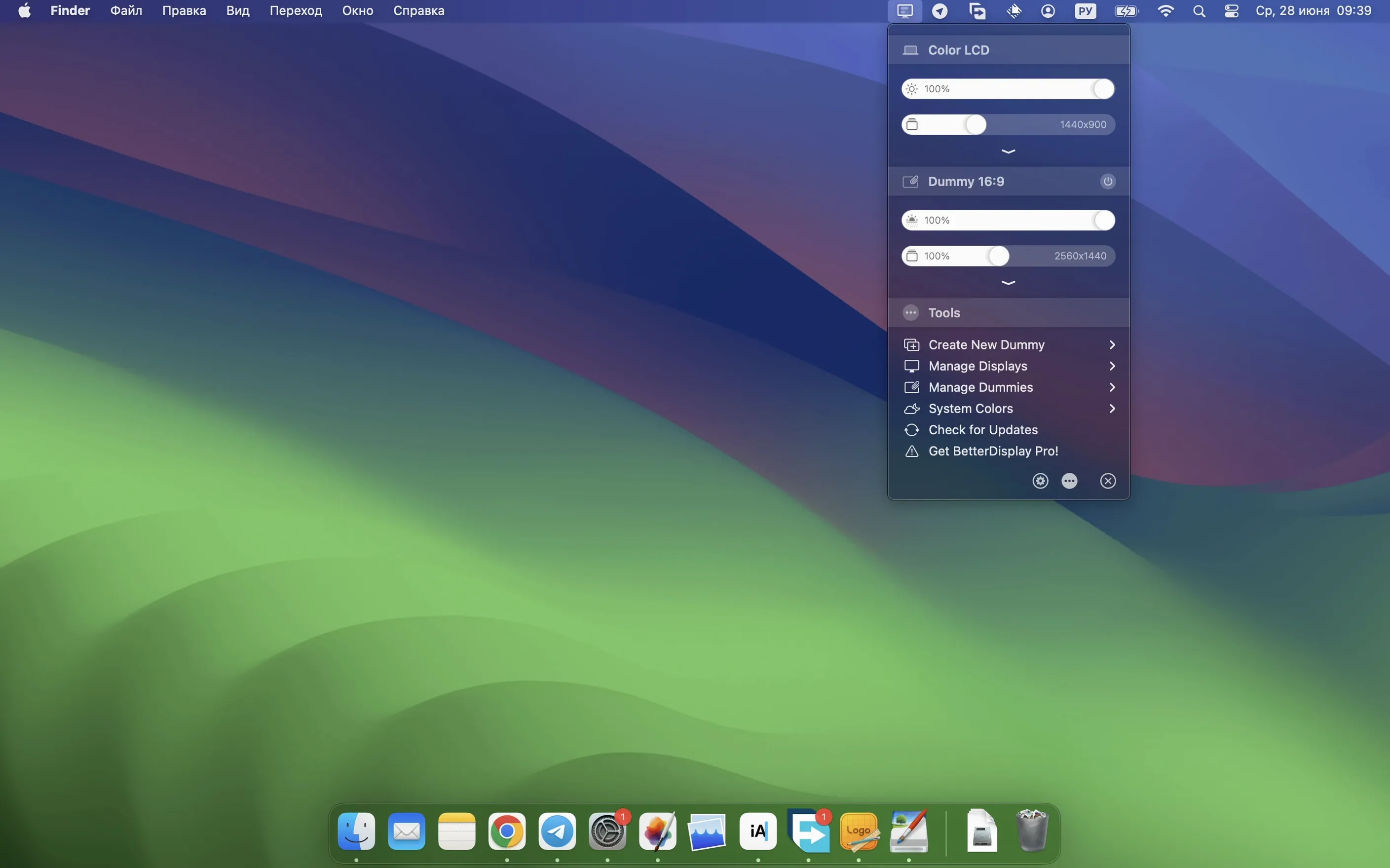
It starts the moment you add a second screen and the colors don't quite match, or you wish your 4K monitor offered a scaling option that actually looks sharp. Photographers, coders, and anyone juggling multiple monitors often turn to BetterDisplay Pro to bend their displays to their will.
Unlock Scaled Resolutions Your System Settings Hide
- Turning standard monitors into fully scalable screens, with resolution choices far beyond what System Settings gives you.
- Creating virtual displays and picture-in-picture windows — handy for testing layouts or keeping a surveillance feed visible.
- Managing brightness, contrast, and volume directly through DDC and HDMI-CEC from the menu bar.
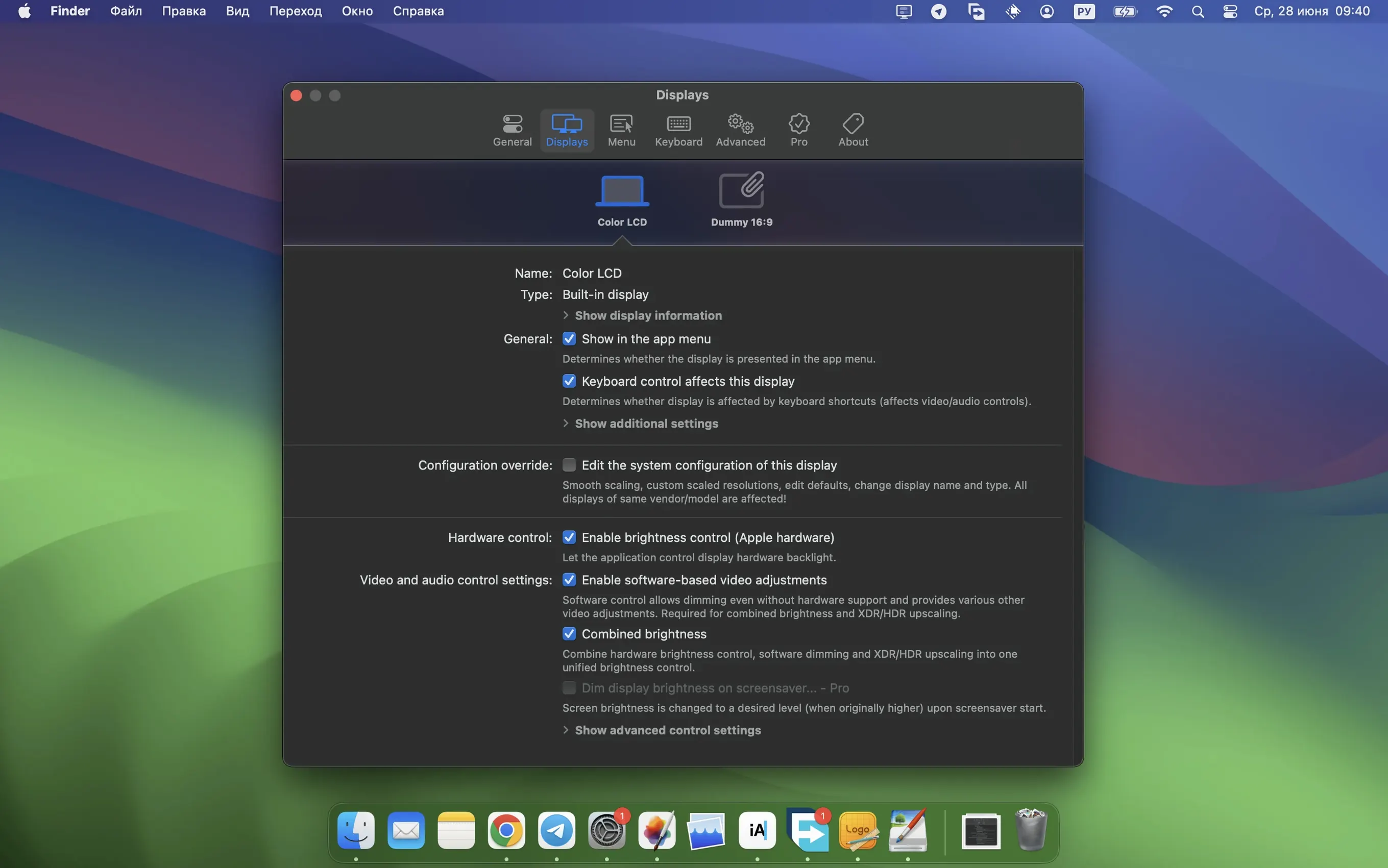
- Applying and saving display configuration overrides so your setup stays consistent between connections.
Runs on Apple Silicon and Intel, Adds Sharper Text
- The app runs on macOS 26; both Intel and Apple Silicon Macs are supported.
- Version 5.0.6 brings simplified device control setup and stronger sharpening effects, which can give text and UI elements a crisper look.
- Interface support covers seventeen languages, including Russian, German, Japanese, Korean, and several others.
You might wonder how BetterDisplay Pro stacks up against apps like Lunar, MonitorControl, and DisplayBuddy. They all orbit the same problem — Apple hands you a handful of display settings and calls it a day — but they solve it at different altitudes. MonitorControl is the lightweight sibling. It lives in your menu bar and gives you DDC brightness and contrast control for external monitors, plus a software dimming fallback for displays that don't speak DDC. It is free, it is simple, and it stops there. No HiDPI scaling tricks, no virtual displays, no color adjustments. If all you need is to stop hunting for the physical buttons on three different monitors, MonitorControl nails it. BetterDisplay Pro swallows that whole use case and then adds everything else — scaling overrides, HDR brightness upscaling on XDR-capable Macs, full black dimming, and virtual screens. The menu bar brightness sliders are just one drawer in a much larger cabinet.
Lunar goes further than MonitorControl and overlaps more with BetterDisplay Pro. It uses DDC, it syncs brightness to ambient light sensors, and it can even control display inputs. Lunar's signature move is adaptive brightness that reacts to sunrise, sunset, or a sensor clipped to your Mac. It also has a mode called Sub-zero that dims below the hardware minimum by overlaying a dark software layer. BetterDisplay Pro counters with XDR/HDR brightness upscaling and stream video filter automation in version 5.0.6, which feels more suited to color-critical work than to general eye comfort. DisplayBuddy is closer to BetterDisplay Pro in ambition — it handles DDC, color profiles, and software dimming — but it is built around the idea of a clean, single-window interface rather than a menu bar command center. Where BetterDisplay Pro scatters controls across the menu bar, the System Settings pane, and its own configuration window, DisplayBuddy pulls everything into one place. The tradeoff is depth. DisplayBuddy does not create virtual displays or picture-in-picture windows, and its scaling options are limited compared to the surgical HiDPI overrides BetterDisplay Pro offers. If you want a straightforward control panel, DisplayBuddy feels immediate. If you want to reshape what macOS thinks your monitor is capable of, BetterDisplay Pro is the tool that gives you the levers.
Cranking Every Slider Before Understanding HiDPI
The most common fumble is diving straight into the scaling overrides without understanding what macOS already does with HiDPI. Someone hears "make your 1080p monitor look like a Retina display" and immediately cranks every slider to the right. What they get is a desktop where UI elements are so large that a dialog box covers half the screen, or text so tiny it requires a magnifying glass. The trick is to match the logical resolution to something that sits comfortably between native pixels and the rendering resolution your GPU can push. Think of it as choosing a canvas size, not zooming in on a photograph. Start with one of the HiDPI presets, live with it for an afternoon, and then nudge it up or down.
Another early mistake is enabling DDC controls for a display that does not support them, then concluding the app is broken. The menu bar brightness slider simply sits there, unmoving, because the monitor's firmware never implemented the DDC protocol over the cable you are using. HDMI-CEC can be similarly fussy — it works on some televisions and refuses to shake hands with others. The app does its best to detect capabilities, but checking the display's specifications beforehand saves a half hour of frustrated clicking. Finally, people sometimes create a virtual display assuming it will mirror a physical screen without understanding that a virtual display is its own framebuffer. It shows up in System Settings as a separate monitor. Dragging a window onto it and expecting it to appear on your iPad over Sidecar, for instance, does not work unless you configure the routing yourself. Virtual displays are for testing resolutions, capturing clean screenshots at odd aspect ratios, or tricking apps into thinking a display is attached — not for wireless mirroring out of the box.
Trigger Display Overrides from a Shortcut
BetterDisplay Pro does not demand to be the center of attention. It slides into a setup alongside Shortcuts, Automator, and the built-in display features of macOS without much friction. You can trigger display configuration overrides from a Shortcut, which means plugging in a monitor can automatically apply a saved scaling preset, dim the menu bar, and switch to a specific color profile. The app's virtual displays play nicely with OBS for streamers who need a clean, predictable canvas that never changes resolution mid-broadcast. Combine that with the picture-in-picture window — say, a small floating preview of a second display tucked into the corner of your main screen — and you have a monitoring station without needing a separate hardware monitor controller.
The stream video filter automation introduced in version 5.0.6 opens a door for video editors who use apps like Final Cut Pro or DaVinci Resolve. You can set filters that engage only when a video stream is detected, which means grading work gets the full color pipeline while your desktop browsing stays untouched. macOS handles color management at a system level, but BetterDisplay Pro gives you per-display 3D LUTs that sit above Apple's color engine — useful if you own a calibration puck and want to load correction tables directly rather than relying on ICC profiles alone. The app does not replace ColorSync; it layers on top of it, and the two coexist without stepping on each other's feet as long as you do not double-correct the same signal.
Won't Hijack Your Liquid Retina XDR Panel
People often ask whether BetterDisplay Pro will mess with the built-in Liquid Retina XDR settings on a MacBook Pro. The short answer is no — it adds controls, but it does not override Apple's panel management unless you explicitly tell it to. The XDR brightness upscaling feature works on compatible Apple Silicon Macs and pushes brightness past the standard ceiling for HDR content, but it does not alter the display's native calibration or burn pixel-level adjustments into firmware. Another frequent concern is whether the app adds noticeable CPU overhead. On Apple Silicon Macs, the overhead for scaling and virtual displays is minimal because the media engine handles a lot of the compositing. On older Intel machines, running multiple virtual displays with HiDPI scaling enabled will warm up the fans, so it is worth starting with one virtual screen and checking Activity Monitor before adding more.
The question about cracking or activation also floats around — people searching for better display pro crack or betterdisplay pro crack mac often land here wondering if they need a license key. This build does not require activation of any kind. You install it, you open it, and everything works. That also means the features tied to the Pro label — HiDPI scaling, virtual displays, 3D LUT loading, and the full set of DDC controls — are present from the moment the app launches. There is no tiered menu with grayed-out options waiting for a code. Finally, users with mixed monitor setups ask whether it can tame a Dell sitting next to an LG sitting next to a built-in Mac display. It can, and the multi-display DDC control that got faster in version 5.0.6 means brightness changes happen in near-lockstep across screens instead of the staggered domino effect that older DDC implementations sometimes produce.
- macOS 13.3 or later
- Apple Silicon or Intel 64-bit Mac
Questions I actually get
Can BetterDisplay Pro create virtual monitors on my Mac?
Yes, it can create and manage virtual displays, along with picture-in-picture windows and fully scalable screens.
Porch talk 0
Come in or pull up a chair to leave a comment.
Nobody has pulled up a chair yet. If you used it on a real Saturday, say what the hour was.