
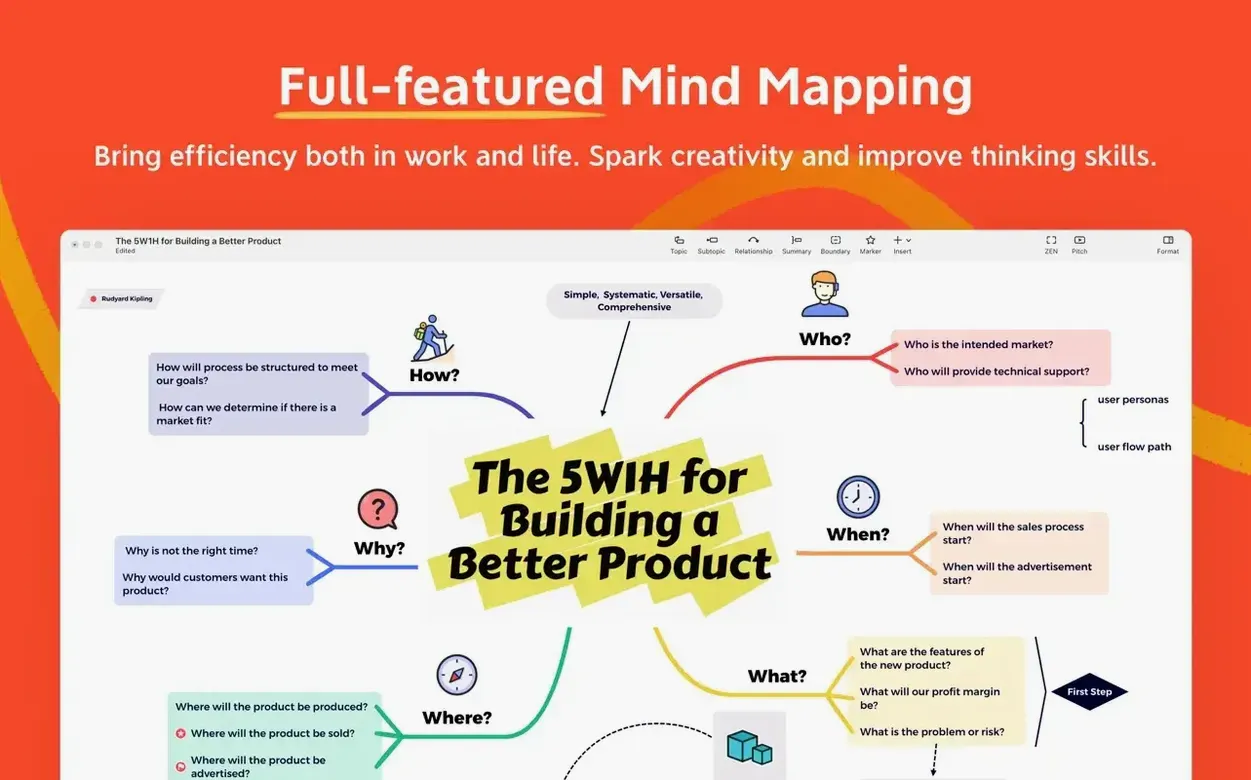
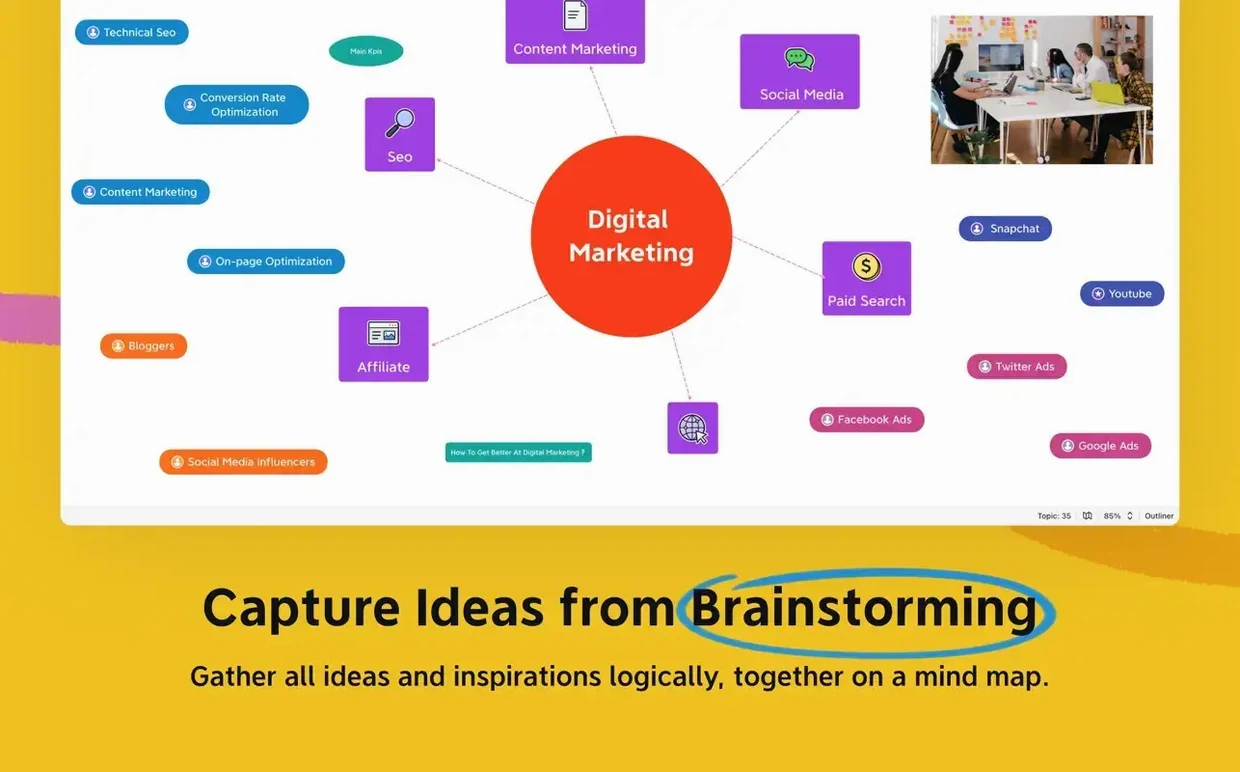
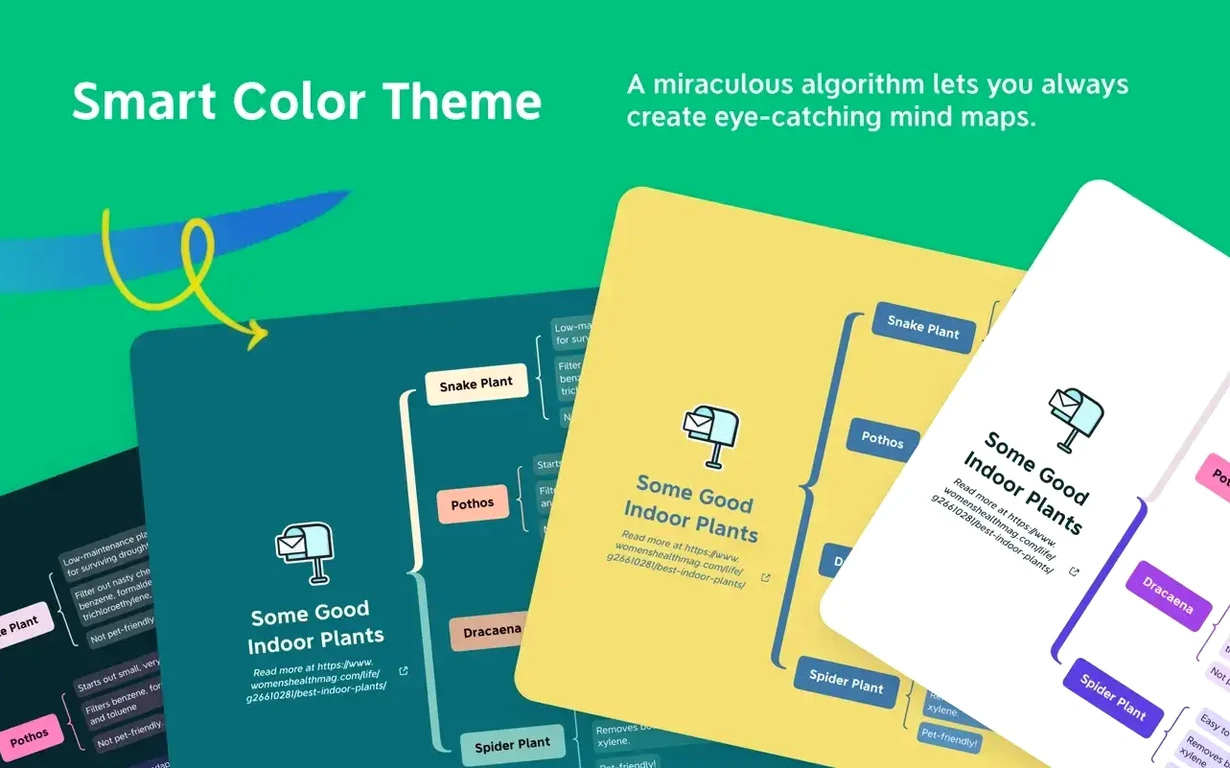

Xmind is a full-featured mind mapping and brainstorming tool for macOS that covers a lot of ground without forcing a particular way of working.
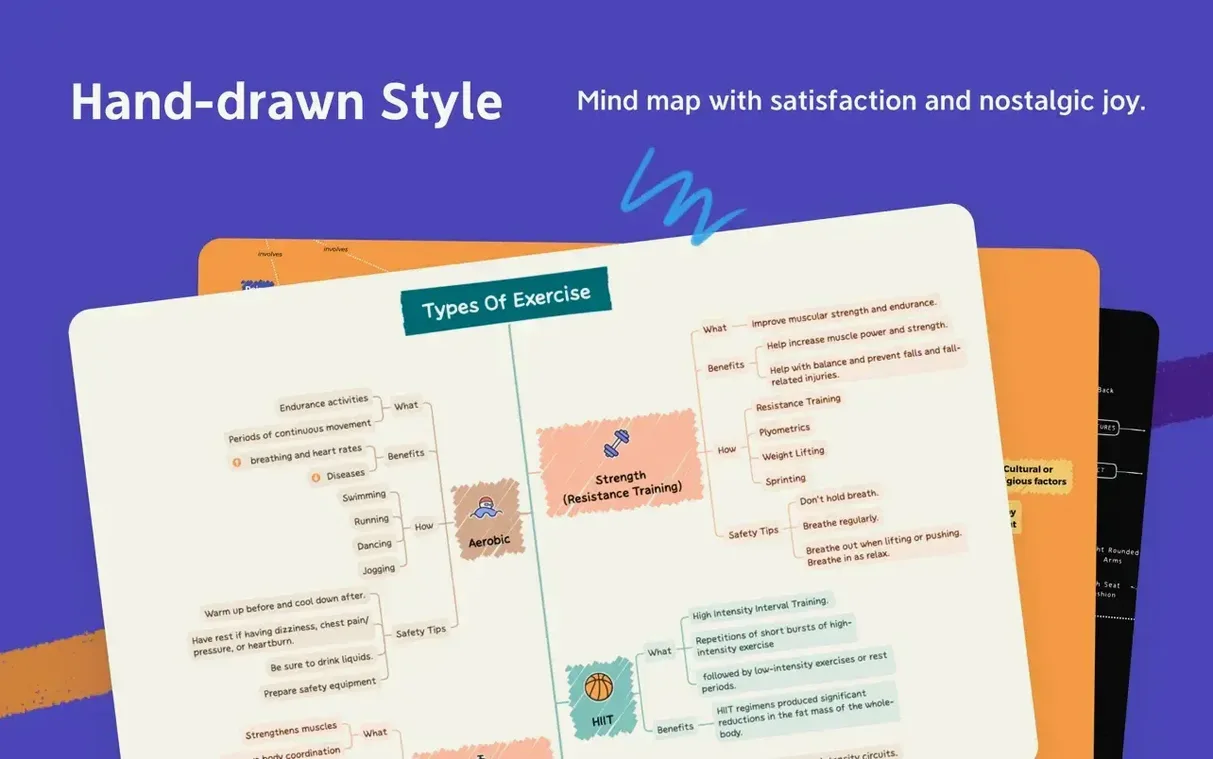
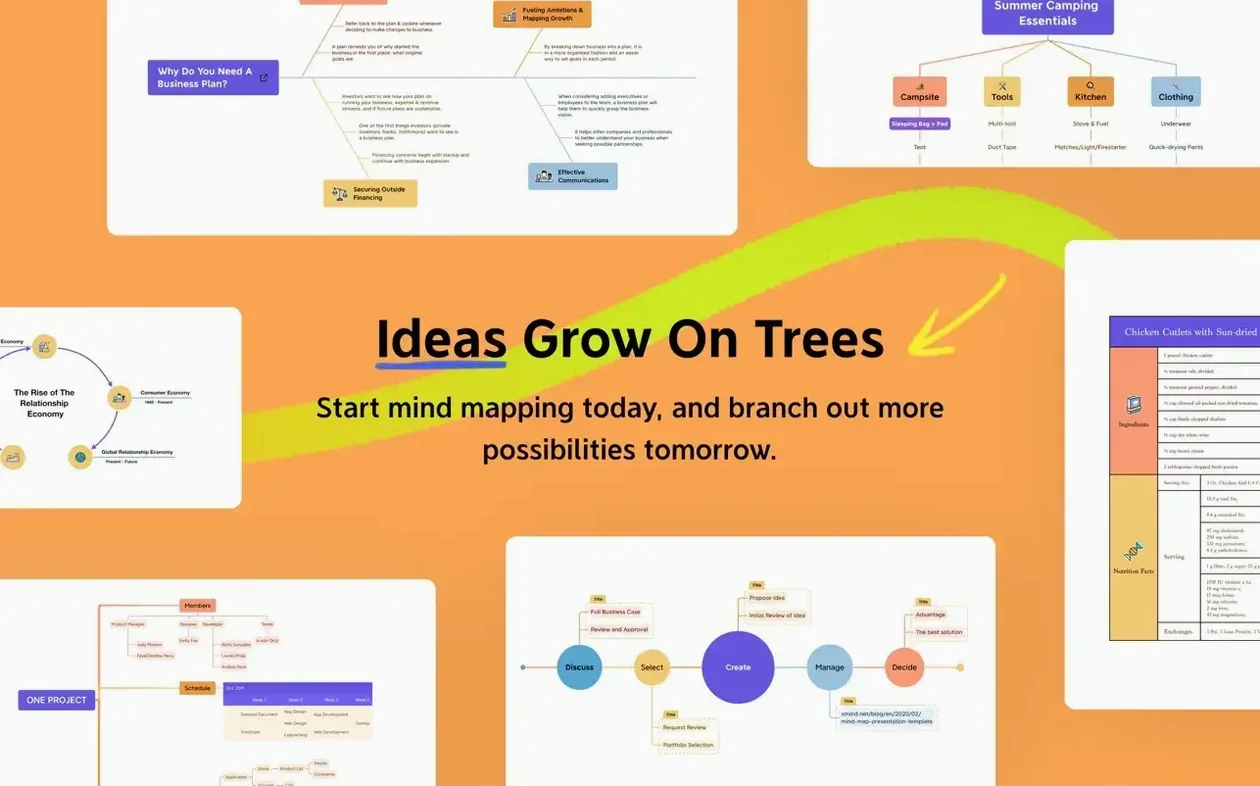
If you are just getting started, skip the template browser for a few minutes and simply press Tab. That creates a child topic, while Enter adds a sibling. Once you have a small map going, try switching between the supported structures: mind maps, Ishikawa diagrams, tree diagrams, logic charts, and tables.
Break Ideas into Branches and Diagrams
- Breaking a loose idea into branches and subtopics
- Laying out cause-and-effect thinking with Ishikawa diagrams
- Quickly rearranging a plan using tree diagrams or tables
Runs Natively on Apple Silicon and Intel Macs
- Proprietary software from Xmind Ltd
- Runs on Apple Silicon and Intel 64-bit Macs
- Requires macOS 11 or later
A half-hour session with XMind, step by step
I'll walk you through what a relaxed planning session often looks like. You open the app, press Cmd+N, and start with a central topic called "Summer Road Trip." No templates, no fuss. Two seconds in, you hit Tab to add "Route Options" as a child, then Enter twice to give it siblings: "Budget" and "Must-See Stops." The map already looks like a real plan, not a blank-page stare-down.
Now you select "Route Options" and press Tab four times fast: "Pacific Coast Highway," "Blue Ridge Parkway," "Natchez Trace," "I-40 cross-country." Each is a child topic, and the map grows sideways, natural as conversation. You realize "Budget" needs numbers, so you right-click it and choose Insert > Notes. A small panel slides open where you type "Aim for under $2,000 including gas and lodging." The note icon appears as a tiny cue that more detail lives there, but the map itself stays clean.
Halfway through, the structure feels wrong. The map is a radial mind map, but the budget branch is essentially a list of line items. You click the "Budget" topic, open the format panel on the right, and switch just that branch to a Tree Diagram. The children snap into a left-to-right hierarchy, and the rest of the map stays radial. That kind of mixed-structure document is something XMind handles without complaint.
By minute twenty, you have twenty-eight topics. The canvas is getting wide, so you grab a few branches with Cmd+Click and drag them closer together. Then you tap F4 to open the outline view, scan for duplicates, and delete a stray "Lodging" topic that somehow ended up under "Route Options." A final press of Cmd+Shift+E exports the whole thing as a PDF to share with the friend you're traveling with, and you close the lid.
Planning a workshop agenda from scratch
Say you need to run a half-day workshop on user research methods. You know the broad strokes, but the sequence is still fuzzy. Here's a workflow that gets you from blank canvas to printed handout in under an hour.
Create a central topic named "User Research Workshop." Press Tab to add six main branches: "Intro & Icebreaker," "Method Overview," "Hands-On Session," "Lunch," "Analysis Sprint," and "Wrap-Up." Select all six, open the Task Info panel from the right toolbar, and assign rough durations: 30 minutes for the intro, 90 for the hands-on session, and so on. The durations appear as small labels under each topic, and suddenly the timeline feels tangible.
Now flesh out "Method Overview." Under it, add children for "Contextual Inquiry," "Diary Studies," and "Usability Testing." For each method, use Insert > Label to tag difficulty: "Easy," "Moderate," "Advanced." The labels render as colored chips, and you can filter the entire map later to show only moderate-difficulty items when you're deciding what to emphasize.
Here's where the relationship lines come in handy. Select "Usability Testing" under "Method Overview," hold Shift, and click "Hands-On Session." Choose Insert > Relationship. A curved arrow with a text label appears; type "Practice this first." Now anyone reading the map sees the dependency instantly. Add another relationship from "Analysis Sprint" back to "Diary Studies" labeled "Use sample diaries here."
Before exporting, open View > Gantt Chart. The topics with durations line up on a timeline. You spot that "Lunch" is floating too late, so you drag it earlier in the map, and the Gantt bar shifts accordingly. Export the map as an image for the workshop page, then export a separate Outline as a text file for your notes during the session. Two formats, same source map, no rework.
Option-Drag to Duplicate Any Topic Instantly
Some features hide in plain sight, and missing them makes the app feel thinner than it really is. Here are a few I keep coming back to.
- Quick copy with Option+drag. Hold Option while dragging any topic to duplicate it instantly. Faster than copy-paste when you are building repetitive branches like quarterly goals or menu items.
- F3 for the marker panel. Markers are the little emoji, flag, and priority icons you sprinkle on topics. Tapping F3 opens the full panel instead of hunting through the top toolbar. You can assign a red flag to action items and a green checkmark to completed ones, then filter the map to show only flagged topics.
- Boundary groups. Select a parent and its children, then press Cmd+Shift+B. A shaded boundary wraps around them, visually grouping related ideas without adding a new topic. Perfect for clustering "Phase 1" items inside a larger map.
- Audio notes. Right-click any topic and choose Insert > Audio Note. The app records through your Mac's microphone and attaches the clip directly. I use this for verbal reminders when typing feels slow—"call the venue about the projector" takes three seconds to speak and gets attached to the "Venue" topic.
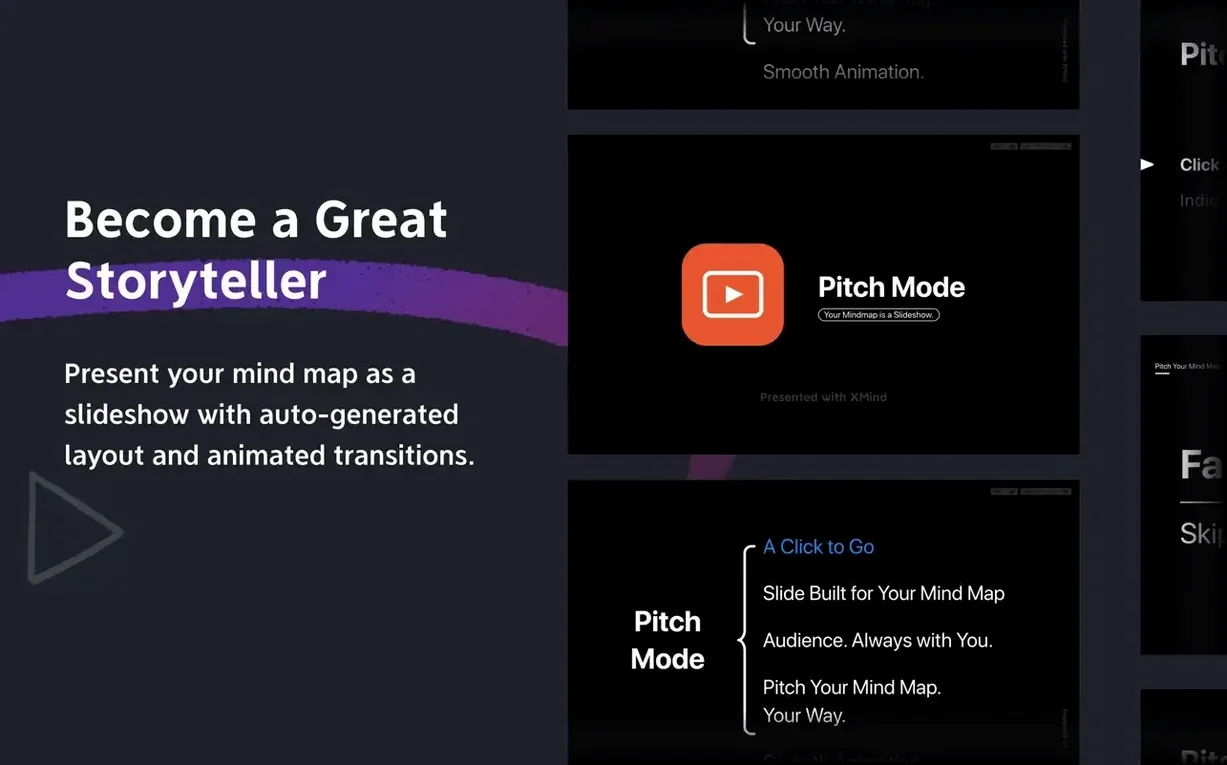
- Pitch mode. Found under View > Pitch Mode, this turns the map into a slide-by-slide walkthrough based on the topic hierarchy. Each branch becomes a step. It is not Keynote, but for a quick internal walkthrough, it saves the export-import shuffle.
- Keyboard reset. I see people fumble with alignment after heavy dragging. Cmd+Shift+R resets the selected branch to automatic layout. No more crooked maps after a long brainstorming session.
A researcher's real-world scenario
Consider a graduate student organizing thesis literature. She installed XMind to tame sixty-odd papers spread across Zotero, sticky notes, and a bullet journal. Her central topic is "Climate Fiction & Affect Theory." The first week, she builds a mind map with three main branches: "Primary Texts," "Theoretical Framework," and "Key Arguments." Under "Primary Texts," each novel gets a child topic with a note containing full citation details and a two-sentence summary.
By week three, the map has over a hundred topics. The Drill Down feature becomes her best tool: she double-clicks "Theoretical Framework," and XMind isolates that branch in a focused view, hiding everything else. Inside that view, she creates a table structure for comparing six theorists across columns like "View on Empathy," "Key Term," and "Relevant Chapter." The table lives inside the mind map, not in a separate document, so the context stays intact.
When her advisor asks for an outline of the literature review chapter, she selects the whole "Key Arguments" branch, exports only that as a Markdown outline, and pastes it into her writing app. The hierarchy is already there—no retyping. She later uses markers to tag twenty-three topics as "Needs Reread," then filters by that marker before a library visit
- macOS 11 or later
- Apple Silicon or Intel 64-bit Mac
Questions I actually get
Which platforms does Xmind support?
Xmind is available on macOS, Windows, Linux, iOS/iPadOS, and Android.
Porch talk 0
Come in or pull up a chair to leave a comment.
Nobody has pulled up a chair yet. If you used it on a real Saturday, say what the hour was.