

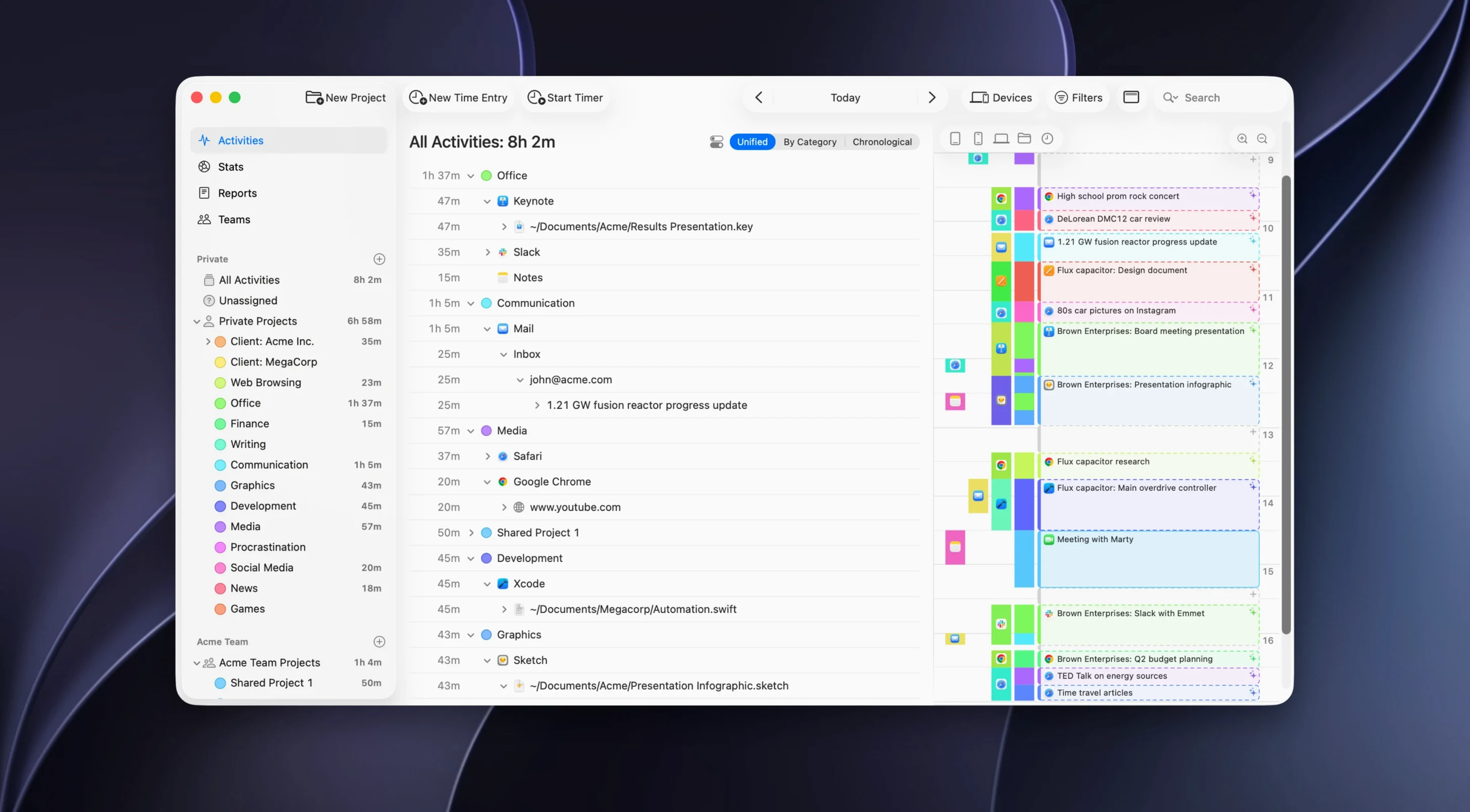
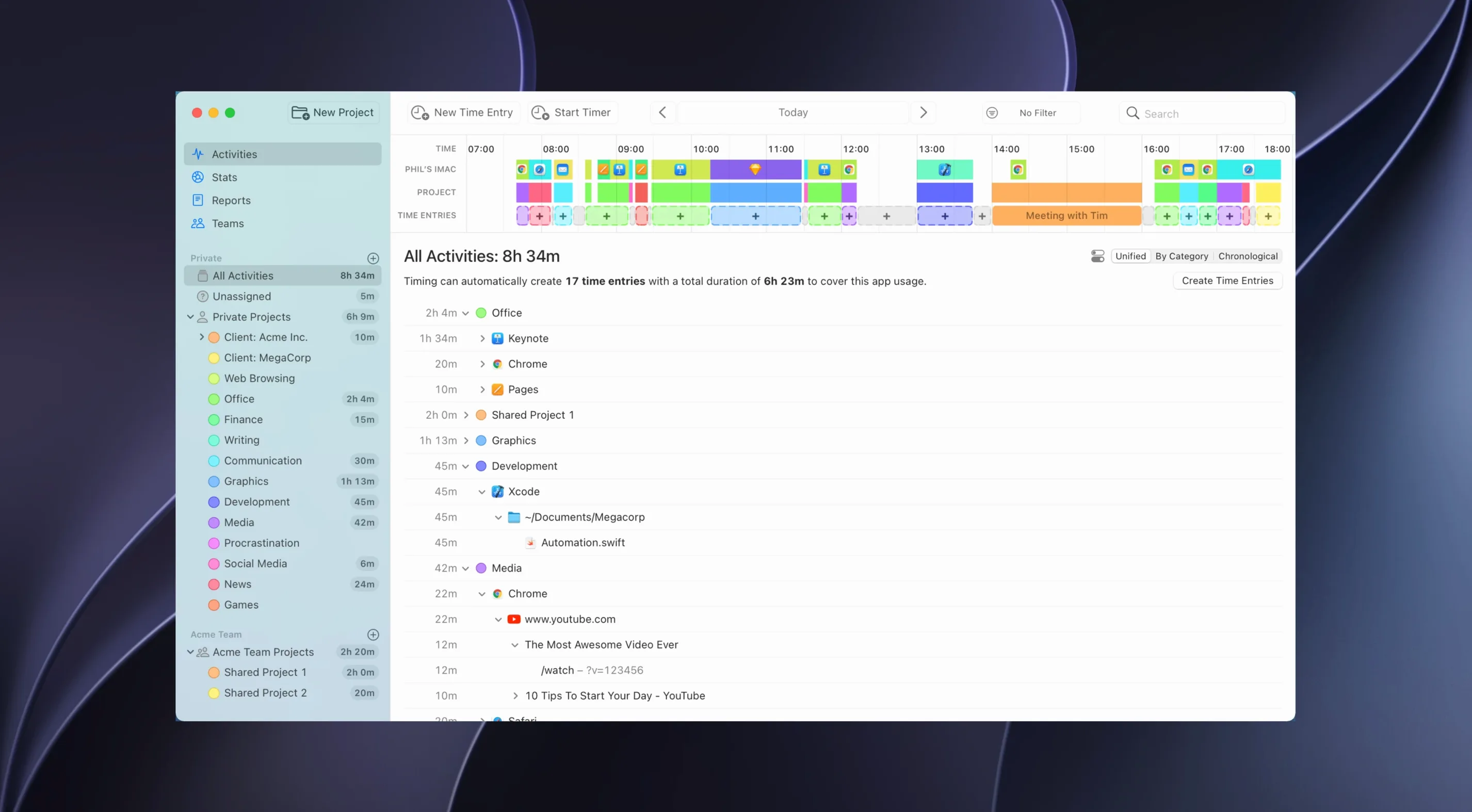
Every day, Timing quietly records which applications, documents, and websites you use — no manual timers required. It sits alongside your existing Mac tools and makes sense of the time you spend in them.
Passive tracking across Sketch, Mail, and Safari
Timing watches activity in the background. If you spend an hour in Sketch, forty minutes in Mail, and twenty reading a site in Safari, it logs that automatically. Nothing changes about how you work; it just keeps the record.
Can I hide private or personal activity?
Yes. You can exclude selected activities from tracking, so a folder of personal documents or a particular website never shows up in your reports. Your data stays stored locally by default, which keeps things simple.
What if I want to log time away from my desk?
The web app lets you start and stop timers on the go. Back at your Mac, the cloud sync option can bring that manual entry together with your automatic tracking data.
AI digests and a web API for raw time data
AI summaries help condense long stretches of activity into readable overviews. For teams or developers, there is also a web API to pull data into other tools you may already rely on.
Picture a Wednesday morning. You sit down with coffee, open Xcode and Safari, and don’t think about Timing at all. Around noon you check the menu bar icon and see a tidy breakdown: two hours in Xcode, forty-five minutes in Terminal, thirty minutes split across GitHub in Safari and Slack. You drag the Xcode block onto a client project, label the Terminal chunk “server maintenance,” and leave the Slack time unbilled. That’s a typical session — the app gathers the raw material, and you spend five minutes giving it meaning.
Next, you open the calendar integration. Timing pulls in your meetings from Calendar.app, so the 10 a.m. standup already has a time block waiting. You merge the standup entry with the Slack activity from that window, and the picture sharpens. If you need to bill, the export panel turns your annotated day into a PDF or CSV in seconds.
Filter unfamiliar helper apps with rule edits
One of the first surprises people hit is seeing unfamiliar app names in the timeline. A helper tool, a background updater, or a launcher you never open directly still counts as activity. The fix is simple: open the rule editor in Timing’s preferences, find the app, and set it to “always ignore.” From that moment on, it vanishes from your reports.
Another frequent stumble involves browsing sessions that mix work and personal tabs. Timing tracks the active tab’s URL, not the whole window. If you hop between a project dashboard and a news site, those minutes split into separate entries. The best habit is to use a dedicated browser or profile for work, then let Timing’s path-based rules route everything neatly into the right project. And if you forget and a personal tab sneaks into a client report, you can drag it out of the project afterward.
Users who rely on the web app sometimes notice a delay before manual entries appear on the Mac. Timing syncs on its own schedule, but you can nudge it: click the sync button in the menu bar drop-down, and the web entry lands within seconds. Timing’s not a timing torrent mac utility that floods your disk with constant writes — it syncs in sensible intervals and stays quiet otherwise.
Workflow: tracking a freelance design project end to end
Let’s walk through a common task — a freelance designer building a landing page for a client. On Monday, you create a project inside Timing called “Acme Landing Page.” You set three rules: any time spent in Figma, any Safari tab whose URL contains acme.mocksite, and any file opened from the folder ~/Projects/Acme gets assigned to that project automatically.
Tuesday morning you open Figma and pull up the mockup. Timing catches the application and the file path. After lunch, you browse the staging site in Safari — Timing routes those URLs to the Acme project because of your rule. Mid-afternoon you hop into Slack to discuss font choices with the client; that doesn’t match the project rules, so it lands in the general timeline. At day’s end, you open the project view, which now shows activities from Figma, Safari, and even sub-projects if you’ve nested them. You drag the relevant Slack discussion into the Acme project manually, and the total hours update.
By Friday, you’ve built up a full record. You open the export panel, select XLSX, pick the Acme project and the week’s date range, and hand the spreadsheet to the client alongside the invoice. The whole tracking process required no timers, no stopwatch — just a few rules at the start and occasional cleanup. If you’ve ever explored a timing torrent mac download to test the waters, the real app’s local-first storage and rule system make that initial setup repay itself within the first project.
Version 2026.4 brings a few practical improvements for anyone tracking work across multiple tools.
- The project view now includes activities from all sub-projects when a parent project is selected.
- File paths in the rule editor show with a tilde, so they read more naturally.
- Tracking support improved for Claude, Codex, and Cursor desktop apps.
- URLs in the Helium browser are now tracked.
- Added support for the new Microsoft Outlook.
- macOS 10.15 or later
- Apple Silicon and Intel Macs
- Interface languages: English, German, Spanish, Simplified Chinese, French
Porch talk 0
Come in or pull up a chair to leave a comment.
Nobody has pulled up a chair yet. If you used it on a real Saturday, say what the hour was.
More for the same hour
Everything in Office
 Things
3.24.1 Office
37 MB
Things
3.24.1 Office
37 MB

 Typora
1.14.15 Office
Updated 15 MB
Typora
1.14.15 Office
Updated 15 MB

 UPDF 2 - AI-Powered PDF Editor
2.5.6 Office
90 MB
UPDF 2 - AI-Powered PDF Editor
2.5.6 Office
90 MB

 Vellum
4.1.7 Office
Updated 95 MB
Vellum
4.1.7 Office
Updated 95 MB

 VueScan Pro
9.8.59 Office
60 MB
VueScan Pro
9.8.59 Office
60 MB

 Soulver 3
3.16.3 Office
20 MB
Soulver 3
3.16.3 Office
20 MB

 Wolfram Mathematica
15.0 Office
Updated 3.3 GB
Wolfram Mathematica
15.0 Office
Updated 3.3 GB

 XMind Pro
26.04.01337-2026-07-11 Office
301 MB
XMind Pro
26.04.01337-2026-07-11 Office
301 MB