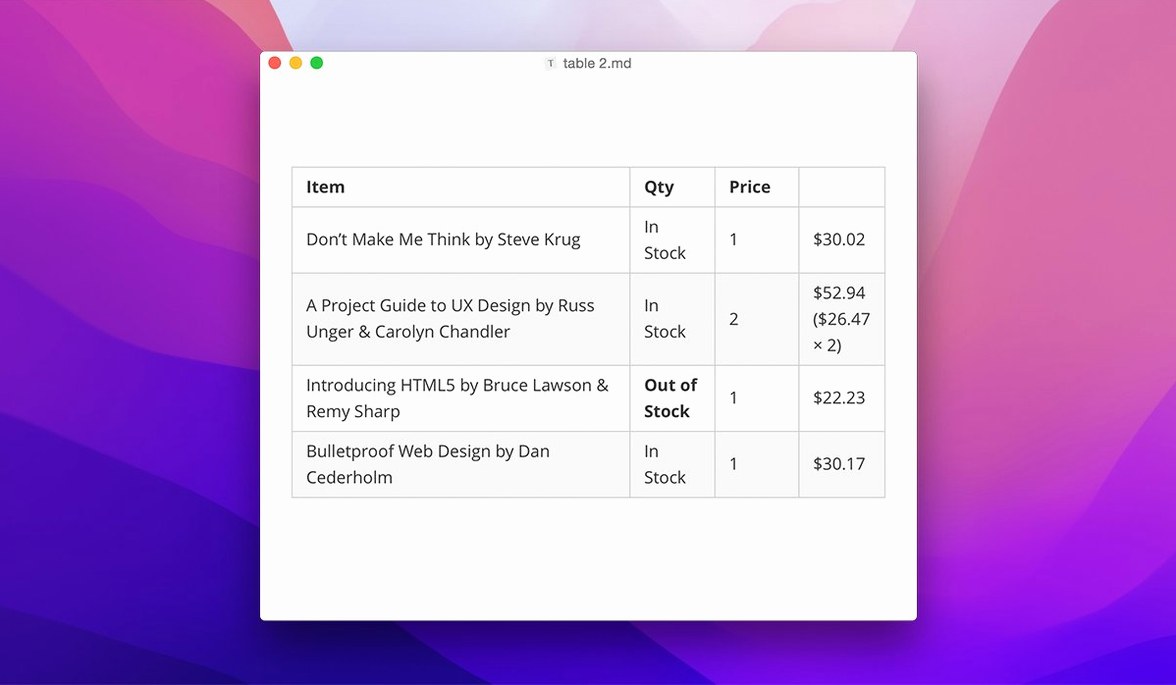
Most Markdown editors split your screen in two: raw text on one side, a rendered preview on the other. Typora came along seven years ago and removed that divide entirely. You type in Markdown, and the formatting appears around you as you work — no mode switches, no source symbols flickering in the margins. It's a small shift in how the software behaves, but it changes the way you settle into a writing session. Version 1.14.10 keeps that philosophy intact while adding a floating editor toolbar when you need quick access to formatting, plus keyboard navigation through the file tree so you can move between notes without reaching for the mouse.
| Detail | Note |
|---|---|
| Current version | 1.14.10 |
| Architecture | Apple Silicon and Intel (64-bit) |
| File tree update | Can show hidden and non-Markdown files |
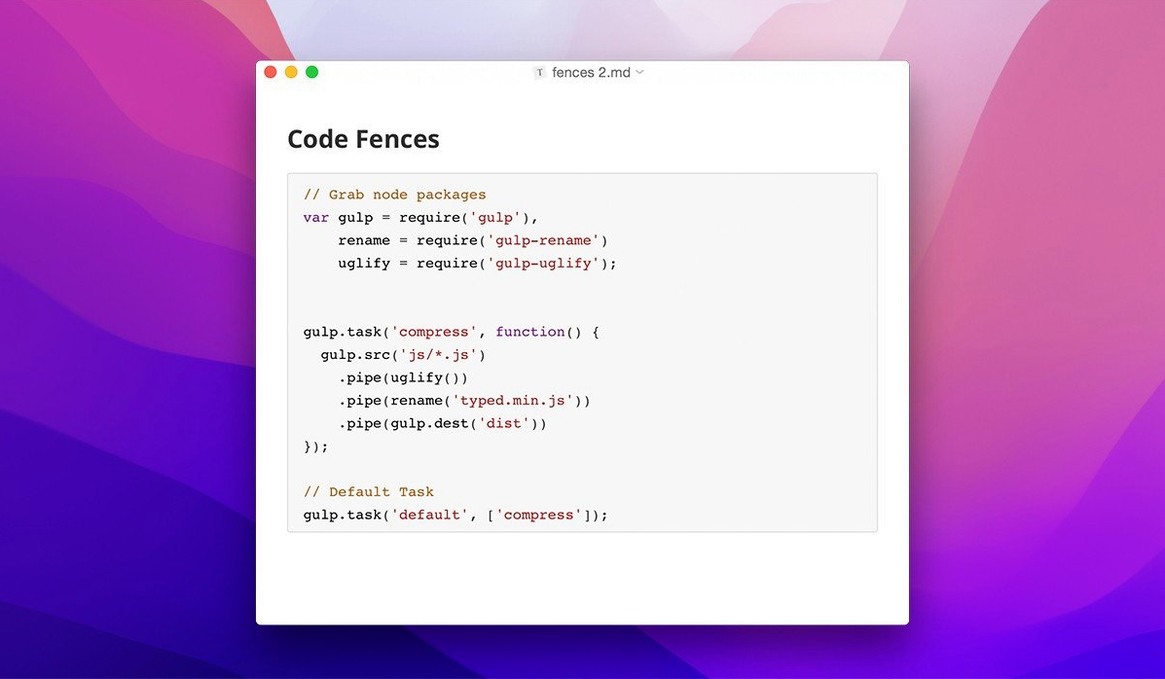
The sidebar now optionally surfaces hidden folders and non-Markdown files, which is a quiet but practical addition for anyone who keeps project notes alongside images or data. Under the hood, the update fixes a clipped welcome panel and a pandoc export issue from source mode. You still get the full Markdown toolkit: tables, syntax-highlighted code fences, LaTeX for equations, and a table of contents that builds itself as you add headings. Export is lightweight — clean HTML or PDF without fussing with templates. If you've been looking for a Mac Markdown editor that treats writing as the main event rather than a configuration puzzle, Typora clicks into place quickly and then gets out of your sightline.
Floating toolbar now cuts ribbon trips
The jump to Typora 1.14 didn't shout about itself, but a few additions shift how the app feels during a long work session. The floating editor toolbar is the most visible one. Select any text and a compact formatting bar appears right above it — bold, italic, inline code, link insertion, all within a few pixels of where your eyes already are. It's the kind of thing you might not think about until you're three hours into editing a documentation draft and realize you haven't touched the menu bar once.
Keyboard navigation in the file tree landed in the same release. Arrow keys now move you through folders and files in the sidebar, and hitting Return opens the selected note. For writers who keep a dozen or more Markdown files open in a project folder — blog drafts, meeting notes, readme fragments — this turns file switching into a quick two-handed rhythm instead of a constant reach for the trackpad.
The sidebar itself grew a little more transparent about what's on disk: you can now choose to show hidden files and folders, plus non-Markdown files like images or CSV data that live alongside your notes. It's a small checkbox in preferences, but it means the sidebar can finally mirror what Finder sees, which helps when you're cross-referencing exported charts or checking a data file you referenced in a report.
Version 1.14.10 tidied up two rough edges. The welcome panel no longer clips its content on certain display sizes, and pandoc export from source mode works correctly again — important if you rely on pandoc for formats beyond Typora's built-in export options. Neither fix is glamorous, but both prevent the kind of friction that breaks concentration mid-task.
An academic's morning with Typora
Picture a linguistics grad student in Kraków who writes lecture notes in Markdown because they're fast to search and export cleanly to PDF. She keeps a folder per course, each filled with .md files, some reference PDFs, and the occasional dataset in CSV. Before version 1.14, those CSV files were invisible in Typora's sidebar, so she'd switch to Finder whenever she needed to cross-check a data table against her notes. Now she flips the "show non-Markdown files" toggle once and everything lives in the same tree.
Her Monday workflow starts by opening the course folder in Typora. The sidebar shows phonology-notes.md, vowel-formants.csv, and three PDF readings. She arrows down to the notes file, hits Return, and picks up where she left off. When she needs to insert a quick table of formant values, she types the pipe characters and Typora renders the table inline — no preview toggle needed. The floating toolbar appears when she highlights a term for emphasis, and she can drop a LaTeX formula for a spectrogram equation right into the paragraph without opening a math panel. By the time she exports to PDF for her advisor, the document looks like a clean typeset paper, and she never left the single window.
From blank page to exported draft: a workflow walkthrough
Here's a start-to-finish path for someone writing a software tutorial with screenshots and code samples — the kind of document that would feel cluttered in a traditional code editor but underpowered in a word processor.
Start by creating a new file and saving it into a project folder. Open the sidebar (the new file tree keyboard support means you can navigate to the right folder with arrow keys). Give the document a title heading and hit Return. Typora hides the hash marks immediately and shows you a large, bold title.
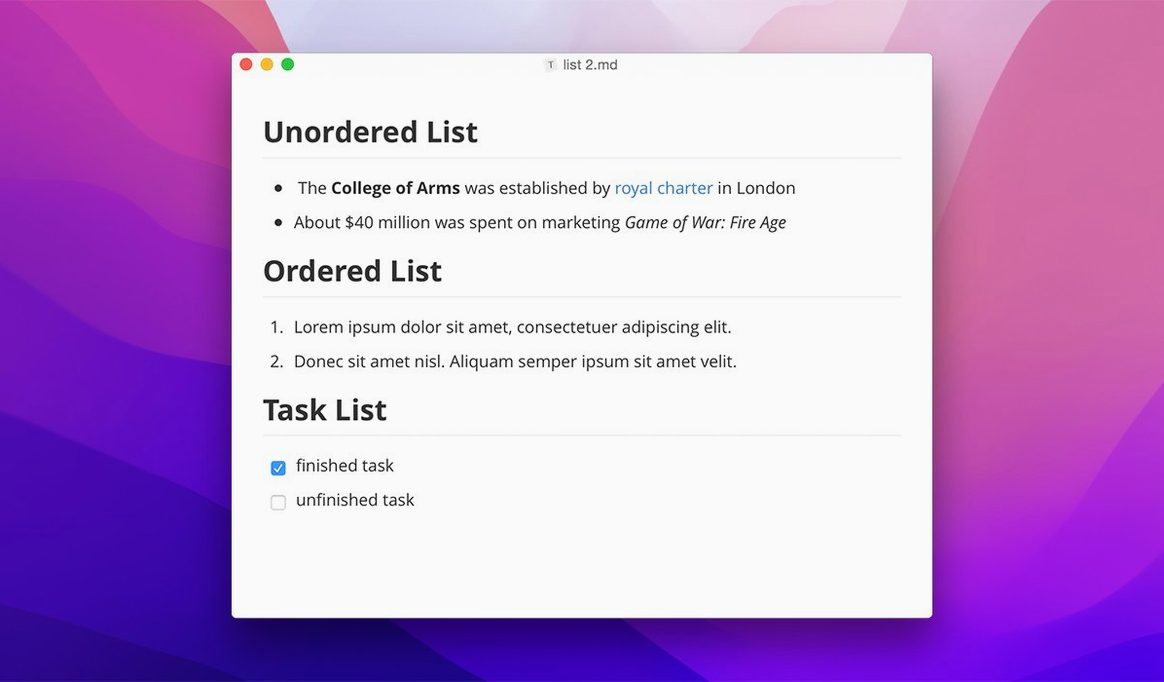
Write your introductory paragraph, then add a second-level heading for the first section. As soon as you type ## Installation and press Return, the heading snaps into place. The table of contents panel — if you've enabled it — already lists it. Next, add a numbered step. Type 1. and a space; Typora starts the list. Hit Return for the second step without thinking about formatting.
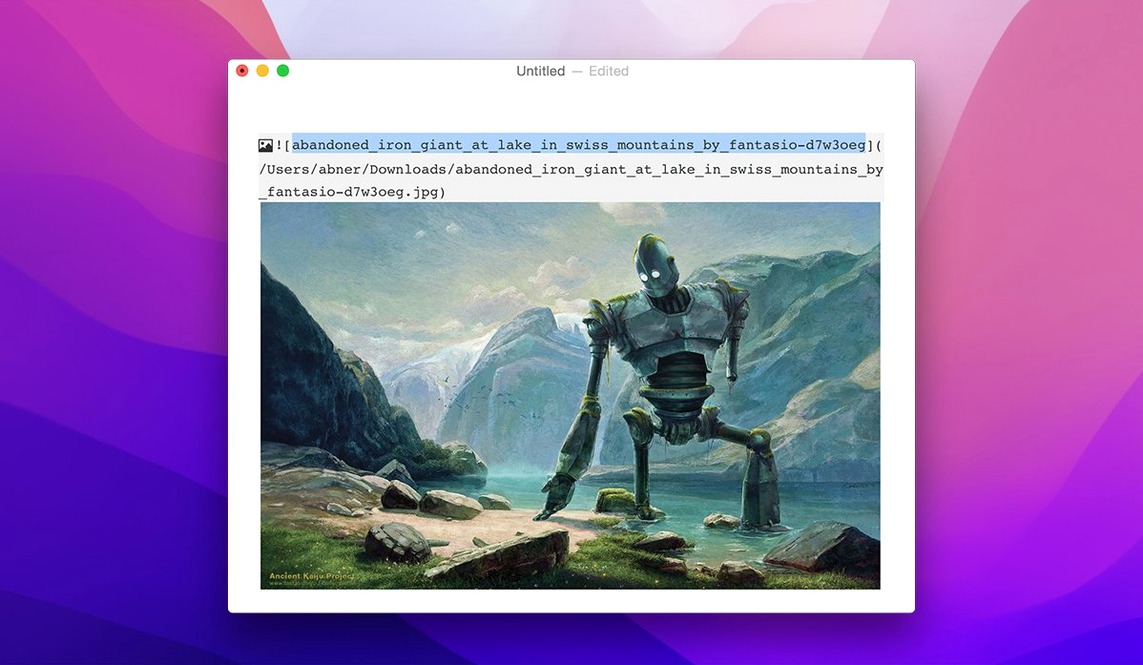
When you reach the part that needs a code block, type three backticks, specify the language — say bash — and paste the commands. Syntax highlighting colors the keywords while you scroll past them. Need to drop in a screenshot? Drag the PNG from Finder directly into the document. With hidden files now optionally visible in the sidebar, you can check that the image landed in the right subfolder without leaving the app.
Once the draft is complete, go to File > Export and choose PDF. Typora generates a clean document with your headings, code blocks, and embedded images. No template tweaking, no CSS fiddling — just a finished draft that looks consistent. If you prefer HTML, the export path is the same short menu. The whole cycle — from empty file to shareable document — stays inside one app, one window, and one mental space.
- macOS 10.13.6 or later
- Apple Silicon or Intel 64-bit Mac
Questions I actually get
Can Typora open plain text files that aren't Markdown?
Yes. Version 1.14 adds an option to show non-Markdown files in the sidebar, so you can browse and open .txt files or other formats alongside your Markdown notes.
Does Typora still work on older Intel Macs?
It does. Typora supports 64-bit Intel Macs and Apple Silicon machines running macOS 10.13.6 or later.
Porch talk 0
Come in or pull up a chair to leave a comment.
Nobody has pulled up a chair yet. If you used it on a real Saturday, say what the hour was.