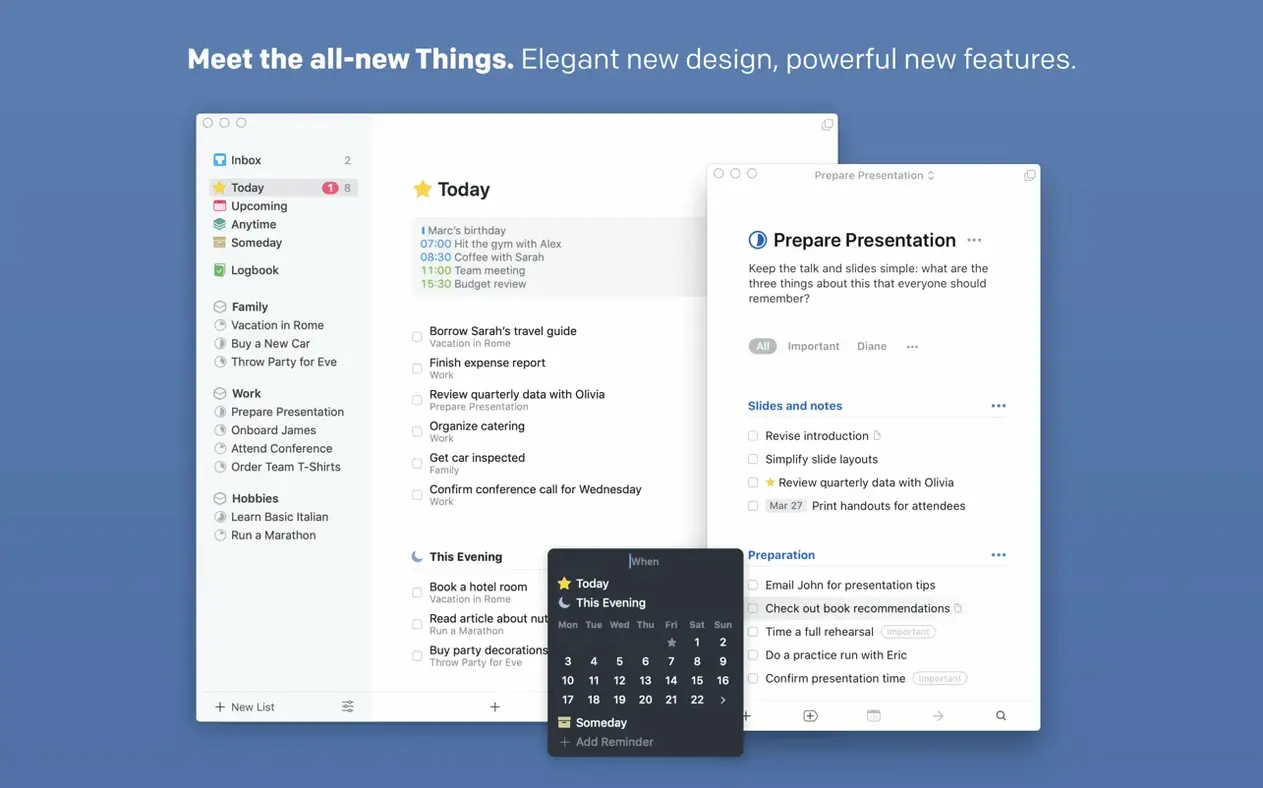
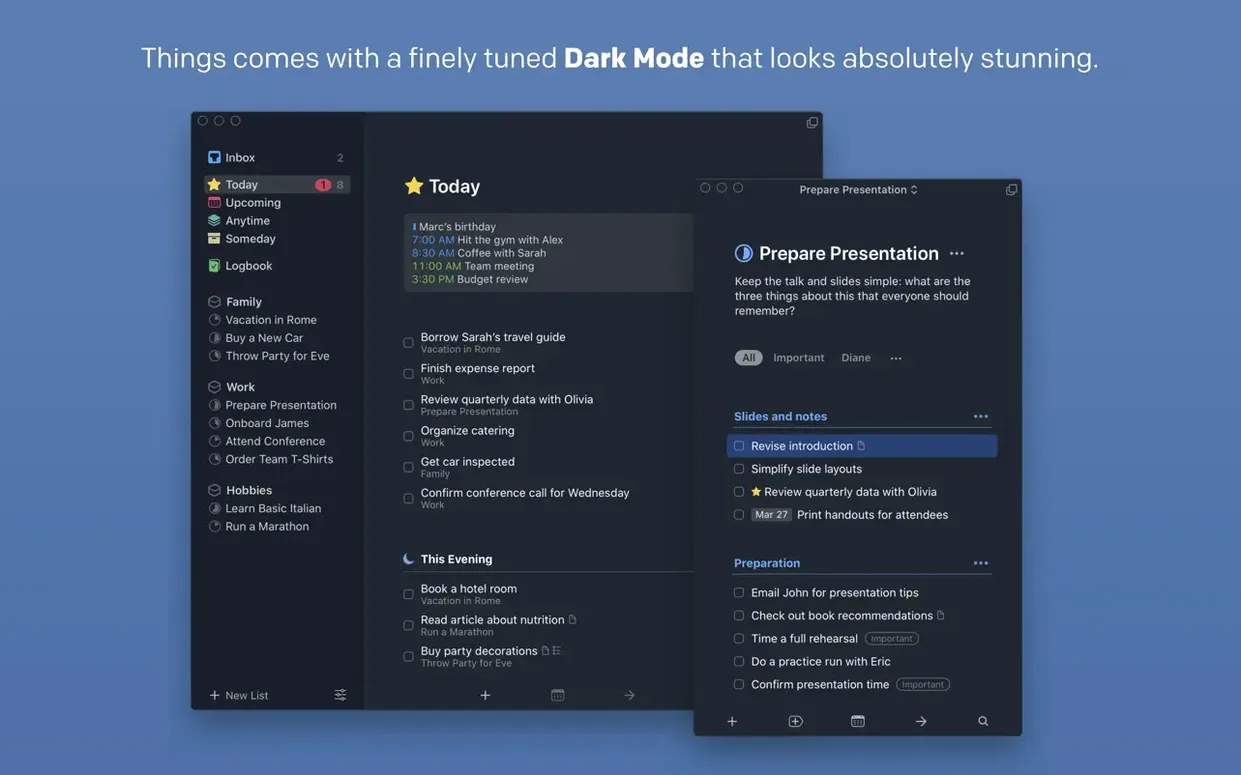
If OmniFocus feels like mission control and Reminders is a sticky note, Things sits in the middle. It is a task manager built around projects, repeating tasks, and a quick entry window that pops up from any app with a keyboard shortcut.
Runs natively on Intel and Apple Silicon
Things 3.24.0 needs macOS 10.15 Catalina or newer, and it runs natively on both Intel and Apple Silicon Macs.
Free sync across Mac, iPhone, and iPad
Only if you want sync. A free Things Cloud account keeps your tasks in step across Mac, iPhone, and iPad.
What does 3.24 add to the Mac version?
The update brings full Spotlight integration, so your to-dos appear in system search, plus support for the new Siri AI on OS 27, better snooze options, and an extra-tall widget for Notification Center.
What can I automate?
Things supports AppleScript, Share actions, and Touch Bar controls. You can hand tasks off from other apps or bind quick entry to a shortcut you will actually remember.
Who clicks with Things right away
There is a particular kind of Mac user who opens Things and just nods. Not the person juggling fifty shared projects with dependencies and Gantt charts — that calls for something heavier. Things lands best with the solo planner who wants structure without friction: freelancers tracking client deliverables, students mapping a semester’s assignments, or anyone who has tried keeping a to-do list in a text file and watched it grow stale.
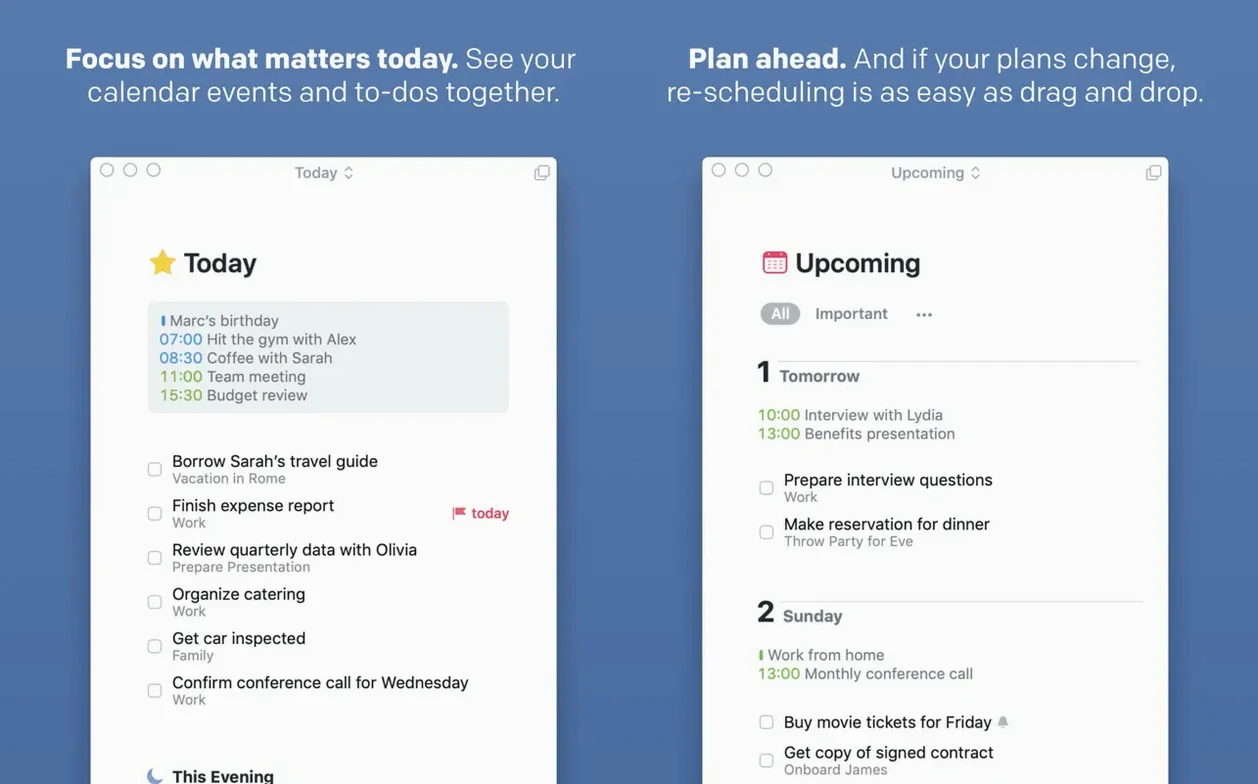
People who think in weeks rather than hours tend to love the Upcoming view. If you already block out your calendar and need your tasks sitting right alongside those events, the integration feels obvious. Likewise, if you bounce between Mac, iPhone, and iPad throughout the day, the sync is quiet and reliable — nothing to manage, just a list that follows you. Power users who lean heavily on keyboard shortcuts also take to it quickly; the quick-entry hotkey means a thought lands in the Inbox before you forget why you opened your laptop.
On the flip side, someone who needs collaboration features or shared task lists will hit a wall. Things is a solo instrument. It does not assign tasks to other people, and there is no web interface. Accept that boundary and the app feels focused; fight it and you will be frustrated.
Set a global hotkey for Quick Entry
The default setup is clean but a little quiet. A few tweaks make the app feel more like yours.
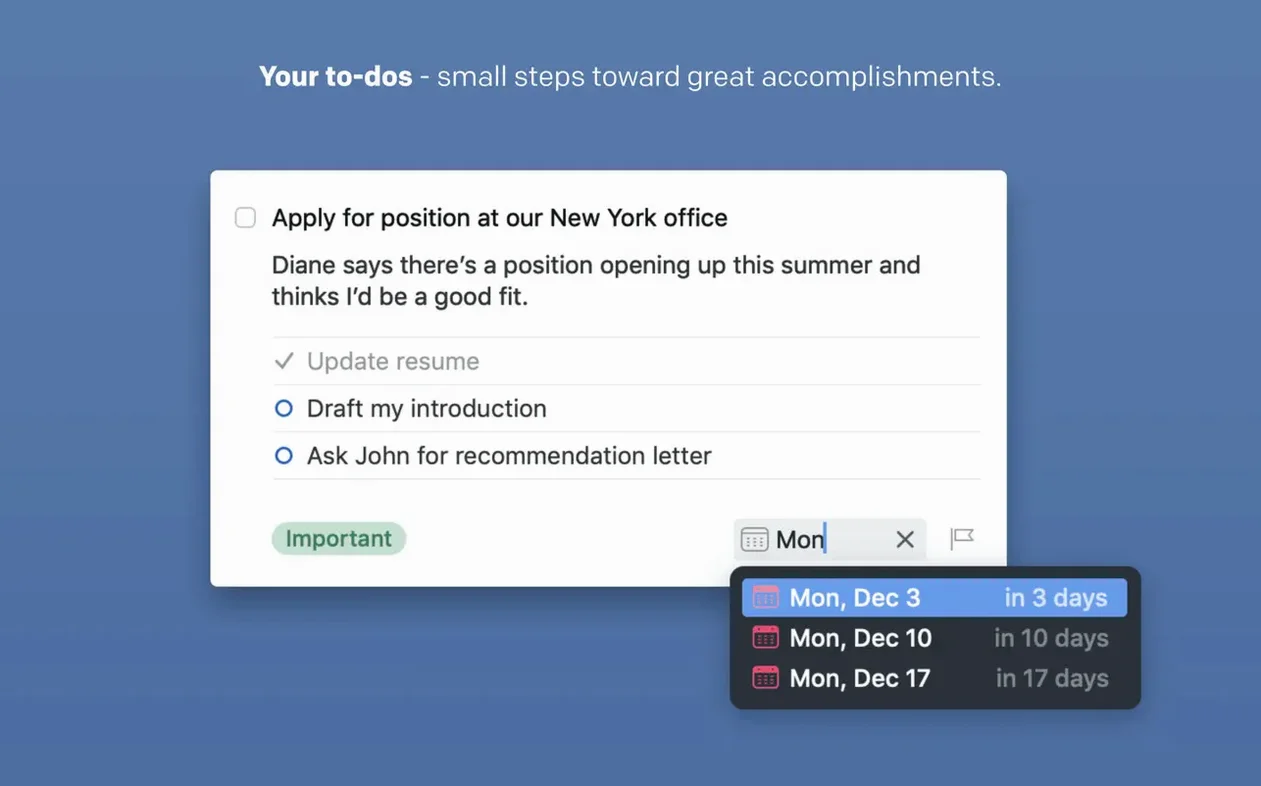
- Enable the quick entry shortcut. Go to Things > Settings > Quick Entry and pick a global hotkey you will not clash with other apps. Control-Space is popular, but if Spotlight already owns that, try Control-Option-Space. Once this is muscle memory, you will capture stray thoughts without leaving whatever you are doing.
- Turn on calendar integration. Under Settings > Calendar, check the box to show calendar events in Today and Upcoming. You get a single timeline of appointments and tasks, which makes scheduling far more realistic.
- Adjust the Today list behavior. In Settings > General, you can decide whether items due in the future appear in Today. Some people want only what is actually due today; others like seeing tomorrow’s deadline peeking through. Try both for a week and see which keeps you calmer.
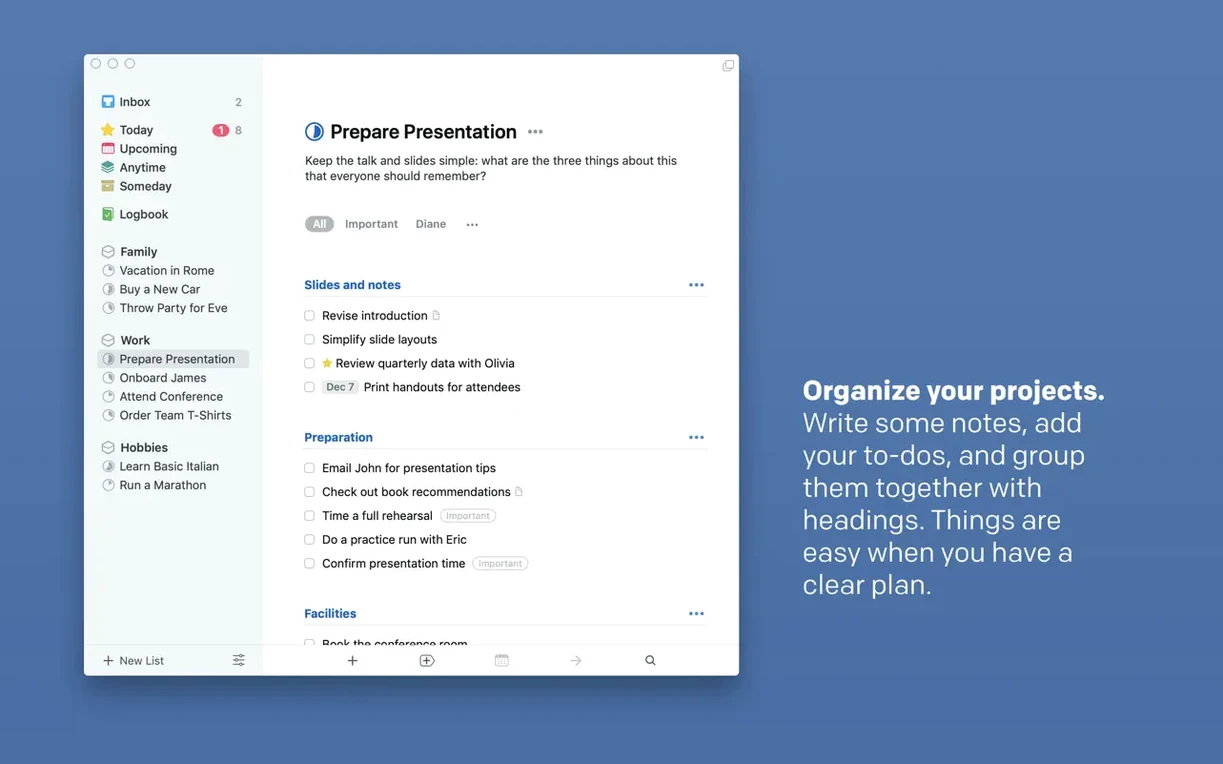
- Set up Areas for the big buckets. Work, Personal, Health, Side Projects — whatever your life splits into. Areas are not projects; they are containers that hold related projects, and they keep the sidebar from turning into a long, flat list.
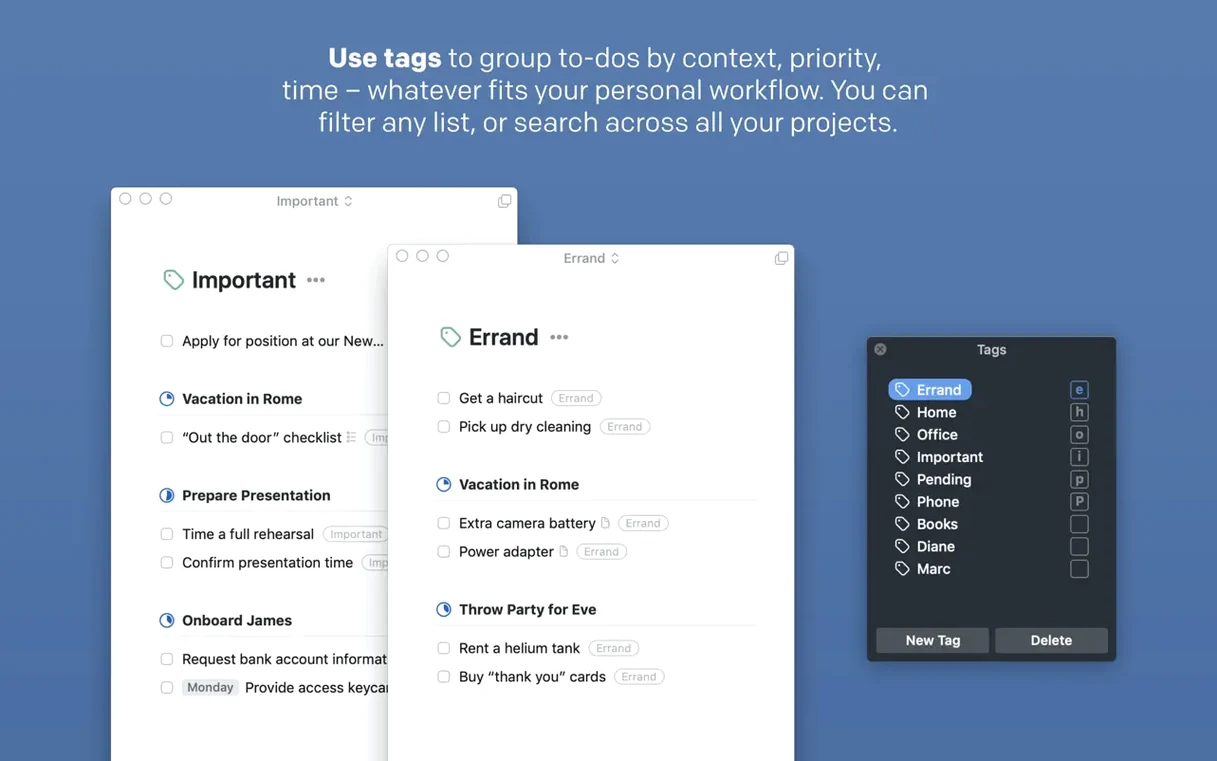
- Pick a few tags you will actually use. Resist the urge to build a taxonomy. Start with three or four:
Errand,Phone,Waiting, maybeLow Energyfor tasks you can tackle when you are running on fumes. Tags become filtering levers later.
How Things compares to similar Mac task managers
Three apps tend to come up in the same conversation as Things, and each pulls in a different direction.
Things vs. OmniFocus. OmniFocus is the power tool. It has custom perspectives, review cycles, and a level of granularity that can model almost any workflow. The trade-off is weight: more fields, more decisions, more interface. Things strips that back to projects, headings, and tags. If you need to see a filtered list of every task tagged invoice across three Areas sorted by deadline, OmniFocus will build that view. Things will not, but it will get you from idea to organized list faster. Some people keep both — OmniFocus for work, Things for personal life — but that is a lot of upkeep.
Things vs. Apple Reminders. Reminders has grown up. It now has tags, smart lists, and deep system integration that Things cannot match, like location-based triggers and shared lists. The gap is in project structure. Reminders treats everything as a flat list with subtasks; Things gives you projects with headings, notes, and a sense of progression. For grocery lists and quick one-offs, Reminders is fine. For something like planning a move or launching a website, the lack of project scaffolding starts to show.
Things vs. Todoist. Todoist lives everywhere — web, Windows, Android, browser extensions — and adds natural language date parsing and collaboration features Things simply lacks. The trade-off is in the Mac-native feel. Things is a Cocoa app with proper keyboard navigation, drag-and-drop from Mail, and the kind of animation polish that makes daily use pleasant. Todoist feels like a web wrapper on every platform. If you work solely inside the Apple ecosystem and care about the tactile quality of the software, the choice tilts toward Things. If you collaborate with a team or switch platforms, Todoist covers more ground. Looking for a direct download without subscriptions sometimes leads people to search for things torrent or things 3 torrent, and the app’s standalone nature means it runs entirely offline once you have it installed and set up correctly.
A workflow: planning a weekend workshop from scratch
Say you are organizing a small Saturday workshop — ten attendees, a rented space, some catering. Here is how Things carries it from vague idea to a calm Friday evening.
- Capture everything. Hit the quick-entry shortcut and dump every loose thought into the Inbox: book venue, send invites, print handouts, order coffee and snacks, charge the presentation clicker. Do not sort, do not tag. Just empty your head.
- Create a project. Select the related tasks in the Inbox, right-click, and choose “Move to Project.” Name it Saturday Workshop. Instantly those scattered items become a container with its own progress pie.
- Add headings for structure. Inside the project, insert headings like Venue & Logistics, Materials, and Follow-up. Drag tasks under the right headings. Now the project has shape.
- Set deadlines and reminders. The venue needs booking by Tuesday; add a deadline. The handouts should be printed by Thursday evening; set a reminder for Thursday morning. Things will surface these in Today when the time comes, and the deadline badge turns orange if you cut it close.
- Tag for context. Tag the venue and catering tasks with
Errand. Tag the invite task withEmail. When you are out running errands on Wednesday, filter by the Errand tag and you see only the stops you need to make. - Use the Upcoming view for the final check. On Friday, switch to Upcoming. You will see the workshop itself from your calendar sitting next to any remaining tasks due that day — a quick scan confirms nothing slipped.
- Mark it complete. After the workshop, check off the last task. The project pie fills, and the whole thing tucks itself into the Logbook. Gone from view but still searchable, which is useful when you run the workshop again next
Things 3.24.1 rolls out the developer’s latest round of polish, small corrections, and behind-the-scenes stability work for macOS.
- macOS 10.15 (Catalina) or later
- Apple Silicon or Intel 64-bit Mac
Questions I actually get
Which languages does Things support?
The interface is available in English, German, French, Spanish, Italian, Russian, Japanese, Traditional Chinese, and Simplified Chinese.
Does Things work without an internet connection?
Yes, you can manage tasks offline. A Things Cloud account is only required when you want to sync across devices.
Does the Mac version support widgets?
It does. Things includes Notification Center widgets, and version 3.24 added a new extra-tall widget.
Porch talk 0
Come in or pull up a chair to leave a comment.
Nobody has pulled up a chair yet. If you used it on a real Saturday, say what the hour was.