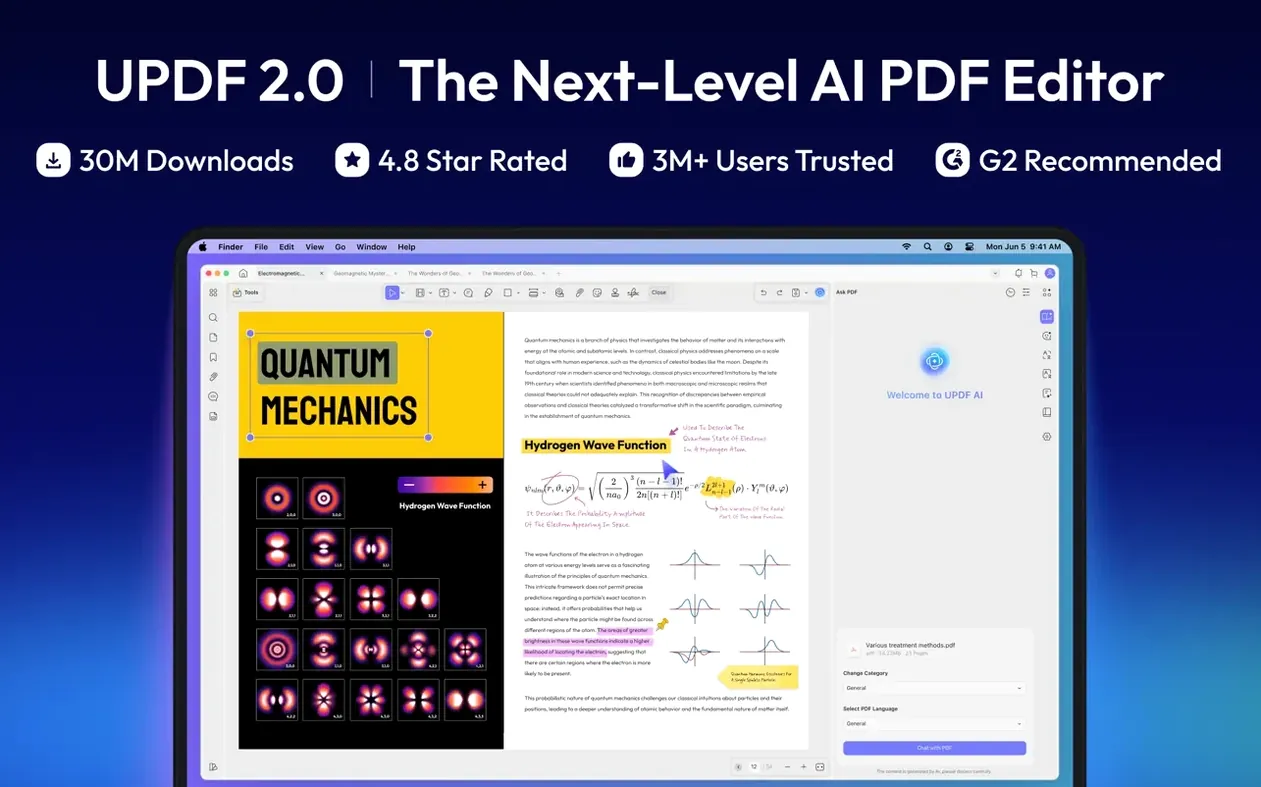
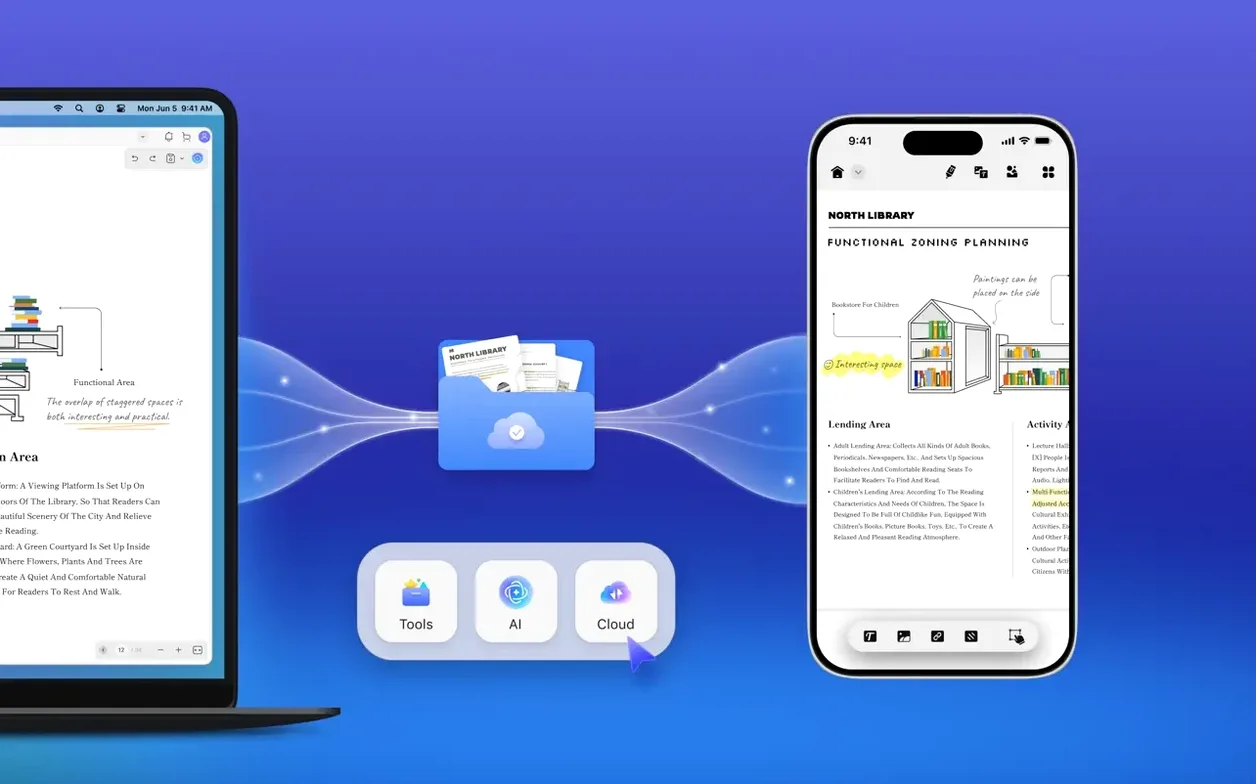
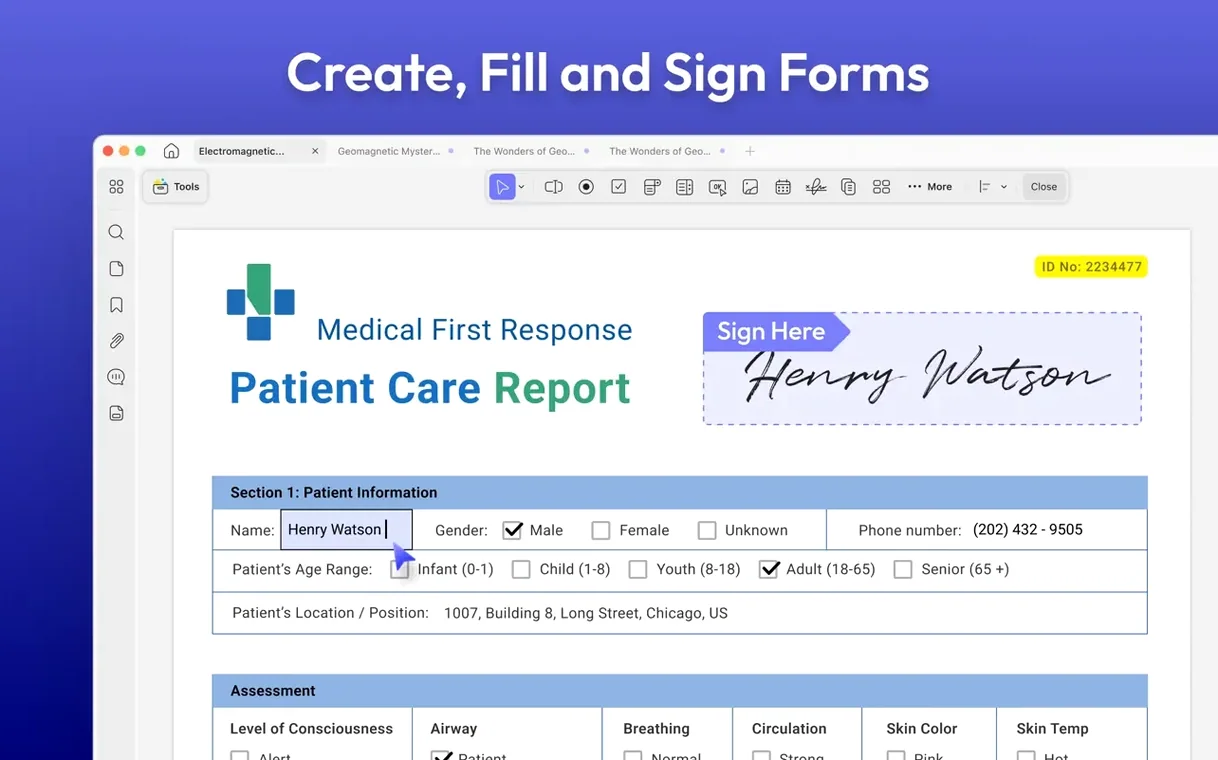
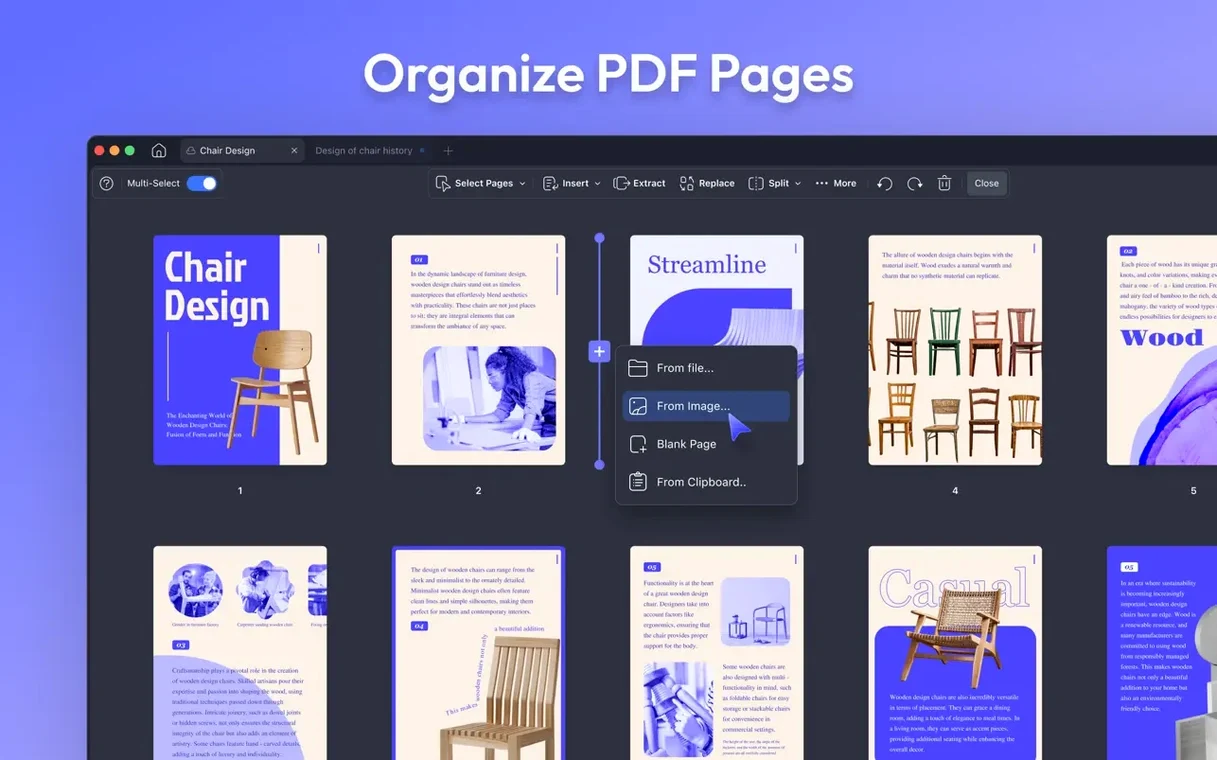
Students pulling lecture slides into shape, office workers tidying reports, and anyone who signs forms digitally will find a lot to like in UPDF 2. It handles the everyday PDF chores without burying you in menus.
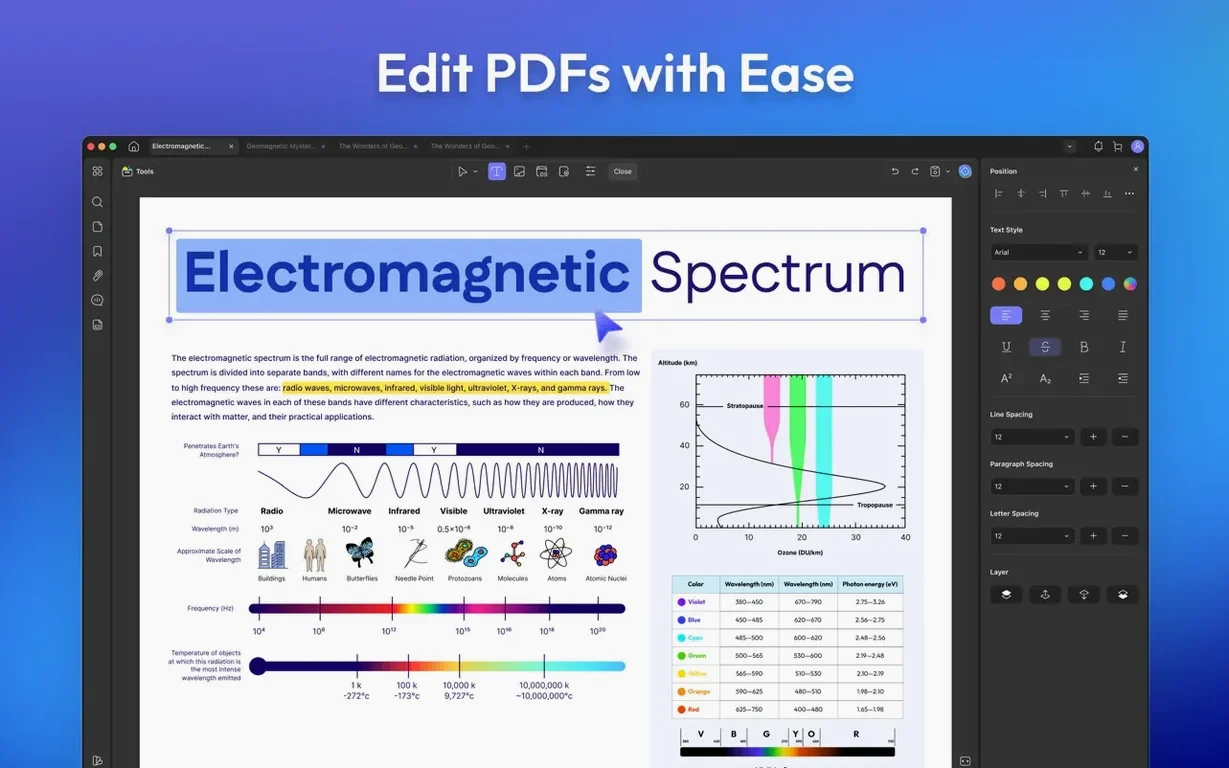
Editing text and images
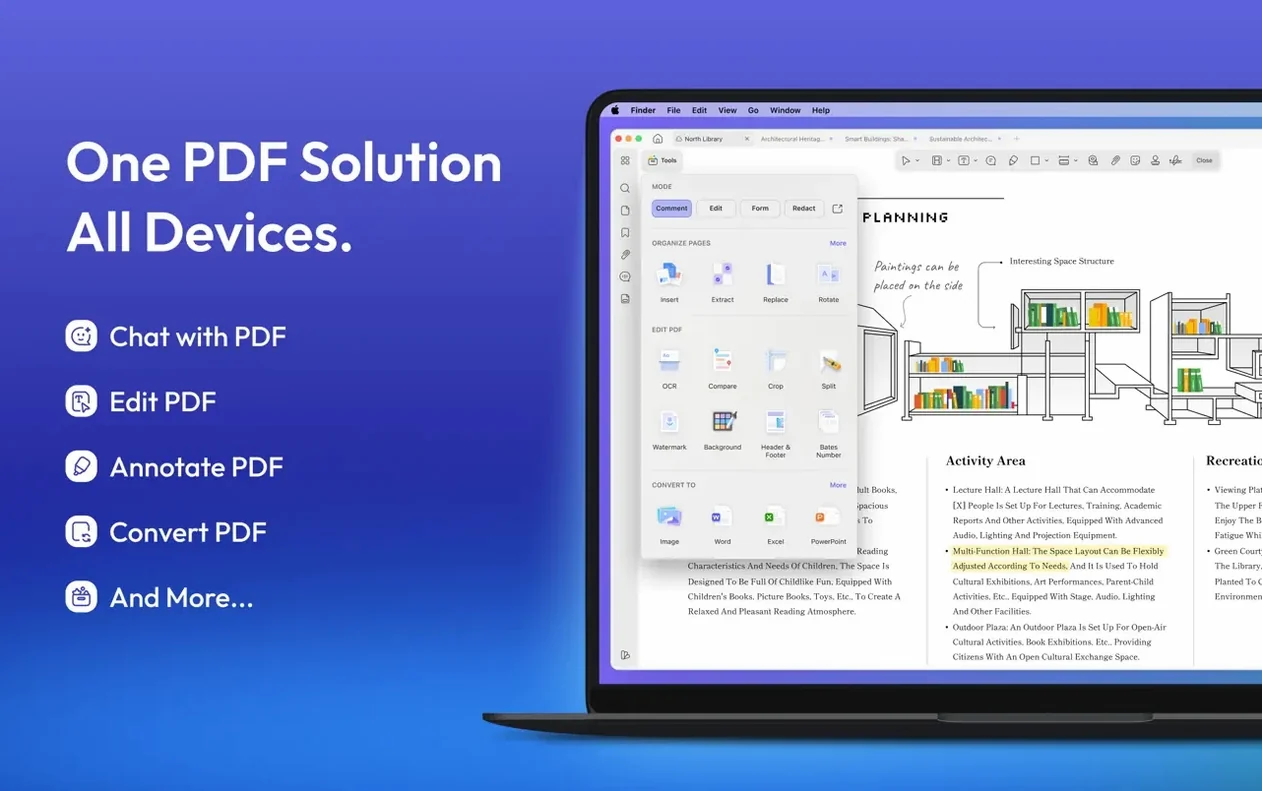
You can tap into a paragraph to fix a typo, change a font, or swap out a product photo without rebuilding the file. Version 2.5.6 now lets you rotate images and text to a custom angle instead of just 90-degree jumps.
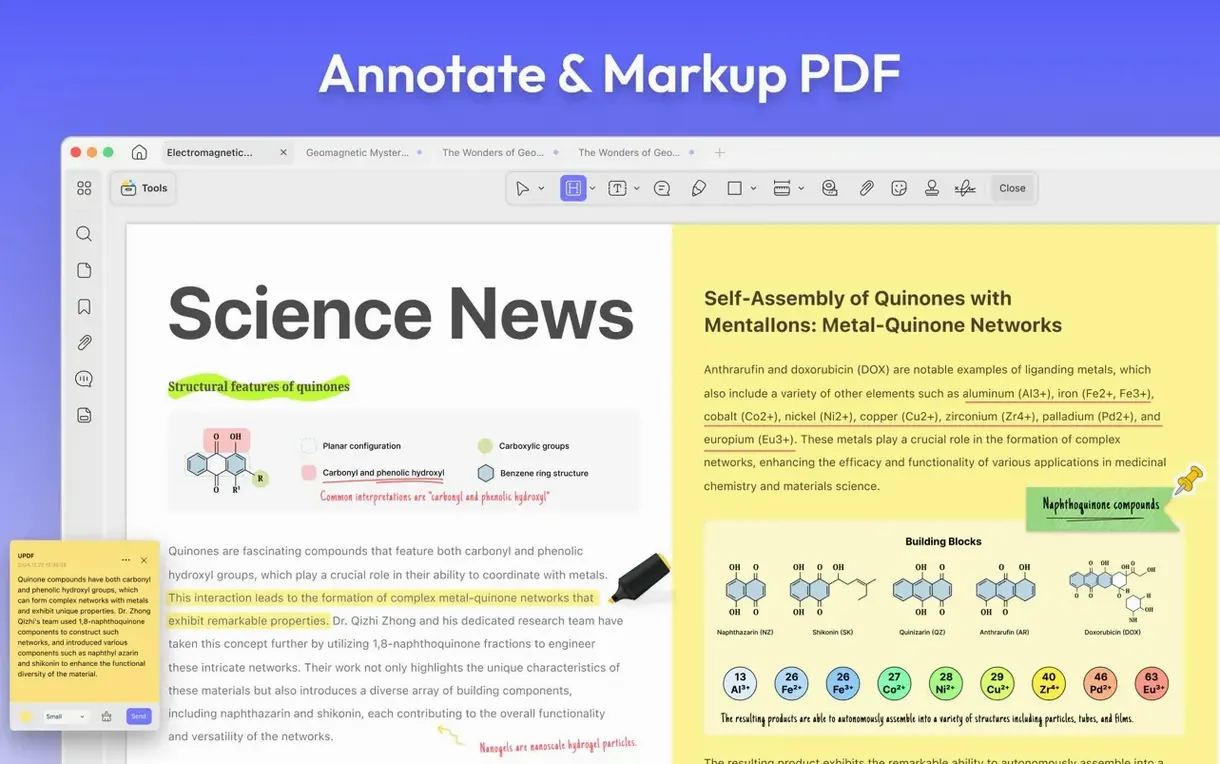
Marking up and securing
Notes, callouts, stamps, and signatures sit alongside password controls that lock opening, copying, or printing. The new release also tidies up the workspace with multi-select delete in comment and form lists.
Converting and batch work
Creating PDFs from Word, Excel, or a screen capture is straightforward, and batch tools handle merging, OCR, and compression across several files at once. A small but welcome tweak in 2.5.6 adds manual crop-box adjustment when removing white margins, plus the ability to split double-sided print jobs across documents.
When you spend a few afternoons with UPDF 2, a handful of small touches start to surface that you might not spot on day one. Holding the Option key while dragging a page thumbnail in the sidebar duplicates it instantly instead of moving it — handy when you need two slightly different versions of a cover sheet. The search bar accepts partial words and jumps straight to results even in a scanned document if you’ve run OCR first, so rifling through a 60-page contract feels more like a quick Command-F in a text file. A quieter one: right-clicking a highlight in the annotations panel lets you set a specific color as the default for all future highlights, which keeps a multi-reviewer markup session from turning into a crayon box.
There’s also a thin gray slider tucked into the bottom-right corner of the page view that controls zoom in single-page mode — barely noticeable until you start leaning on it to get a column of numbers exactly frame-sized. And if you often bounce between two-page spreads for layout checks and single-page views for reading, the mode toggle remembers where you left off per document rather than resetting globally.
Questions that usually come up
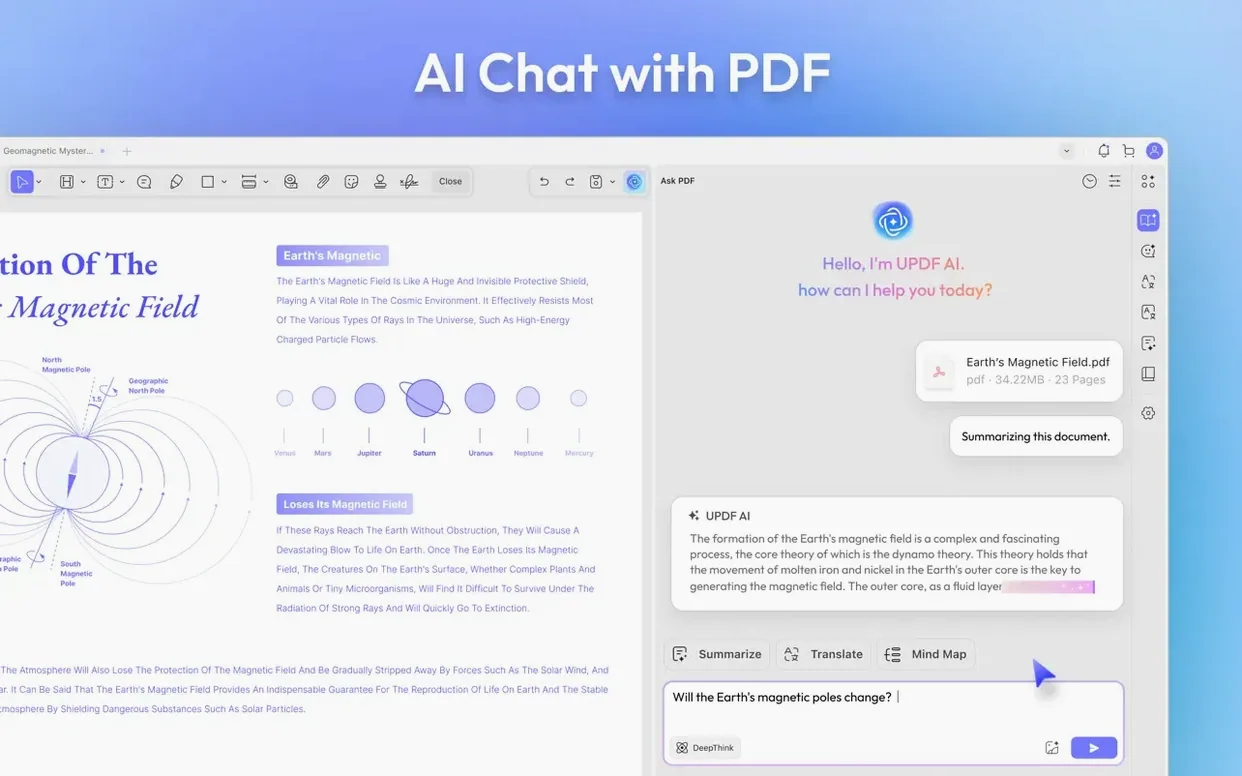
Does the AI chat feature need a separate download or account? It’s built right in — no extra installer. You do need an internet connection for the AI calls, but there’s no second sign-in beyond the app itself.
Will it feel sluggish on an older Intel Mac? On a 2018 MacBook Air with 8 GB of RAM, page scrolling stays smooth even with a few hundred annotations layered on. Batch OCR is where you’ll notice the fan, which is expected, but the app doesn’t lock up while it churns through a queue.
Can I trust the DOCX conversion for a heavily formatted report? Tables, indented lists, and mixed fonts typically survive intact. The converter keeps paragraph styles mapped to Word styles, so a legal brief with numbered clauses lands in Word ready to edit, not as a pile of text boxes. Complex drop caps or decorative chapter headers sometimes need a minor nudge afterward, but that’s par for the course with any PDF-to-DOCX engine.
Swapping mockups and fixing sticky-note comments
Picture a freelance graphic designer who just wrapped a branding proposal. A client sends back a 22-page PDF with sticky-note comments, a few typos, and a request to replace two product mockups. She opens the file in UPDF 2, corrects the spelling in the body copy, and uses the image replace tool to drop in the updated mockups — no detour through InDesign needed. She rotates one of the new images three degrees to match the layout grid, a tweak the latest version handles natively. Before emailing the revision, she strips the client’s markup comments with a multi-select delete from the comment list, adds a password to restrict printing, and converts the final spreads to PNGs for a quick social-media teaser. The whole round trip takes under fifteen minutes, and none of it required exporting to another program. For someone who doesn’t live inside Acrobat, that’s the kind of morning that makes the download updf 2 - ai-powered pdf editor for mac choice feel obvious.
Version 2.5.6 brings a handful of refinements that make daily work smoother:
- Custom rotation for images and text—no longer limited to preset angles.
- Split across documents when batch printing double-sided PDFs.
- Toggles for PDF/A and digital signature detection.
- Multi-select delete in the Comment and Form lists.
- Manual crop-box adjustment in Remove White Margins mode.
- macOS 11 or later
- Apple Silicon and Intel Macs
Questions I actually get
Does UPDF 2 include AI features?
Yes, it includes an AI chat that can summarize PDFs and translate content directly from your files.
Porch talk 0
Come in or pull up a chair to leave a comment.
Nobody has pulled up a chair yet. If you used it on a real Saturday, say what the hour was.