

When a writing project outgrows a single document, things get messy. Notes scatter across folders, research piles up, and holding the whole structure in your head becomes a job of its own. Scrivener is built for exactly that moment — it gives you a place to write, organize, and keep everything that belongs to the project together.
Writing and organizing in one window
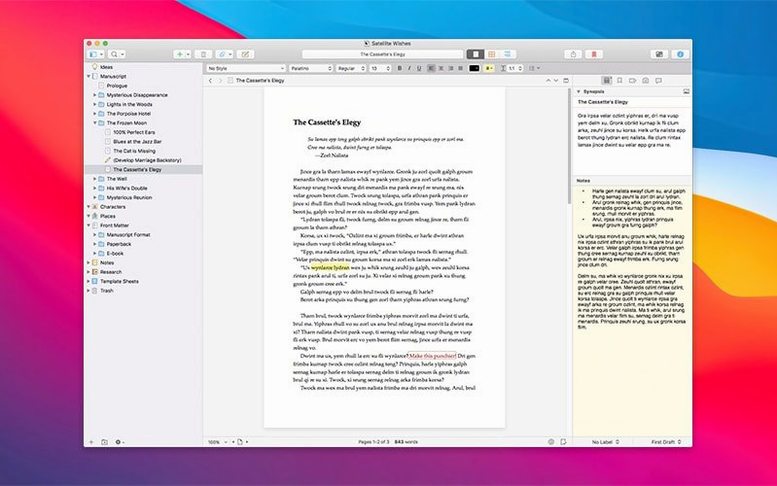
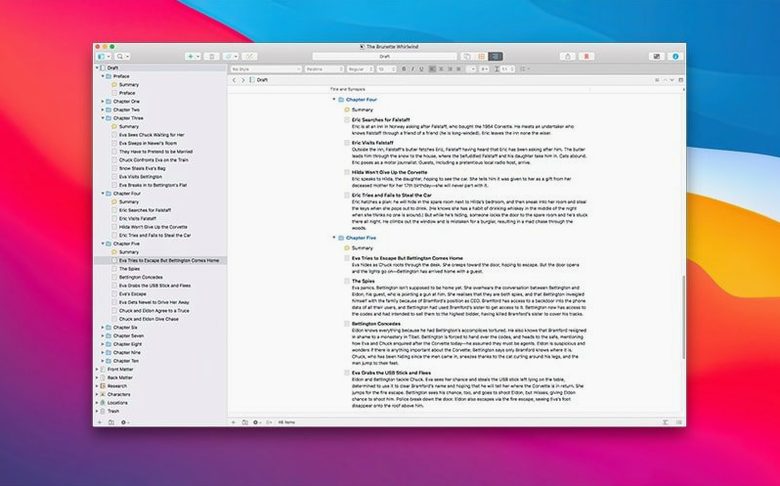
Scrivener treats your project as a binder of documents, not one endless file. You can break a draft into scenes or chapters, reorder them, and jump between sections without scrolling through hundreds of pages. The Research folder sits right in the sidebar, ready to hold PDFs, images, audio clips, or text notes alongside your manuscript.
Keeping versions without the clutter
Before a big edit, take a snapshot. Scrivener saves the current state of a document so you can compare or roll back later — no need to save duplicate files. Automatic saving runs in the background, so you focus on the words, not the keyboard shortcut.
Runs on Intel and Apple Silicon Macs
Scrivener 3.5.2 asks for macOS 10.13 or later and runs natively on both Intel and Apple Silicon Macs. The interface is in English, and the update is a maintenance release that tidies up a few rough edges.
When the laptop is your only studio
A college senior with a thesis deadline and a part-time job doesn't have the luxury of a dedicated writing desk. They're on a MacBook Air at the campus library, then a cramped kitchen table, then a train seat. Scrivener suits that rhythm because the whole project lives in one file. The binder holds chapter drafts, the Research folder keeps scanned PDF articles and photos of whiteboard notes, and the word count target for the day sits in the corner. No hunting through folders named "thesis_final_v2_real." Just open the project and pick up where you left off, even if it's a note card you scribbled last Thursday.
First days: settle in before you type a word
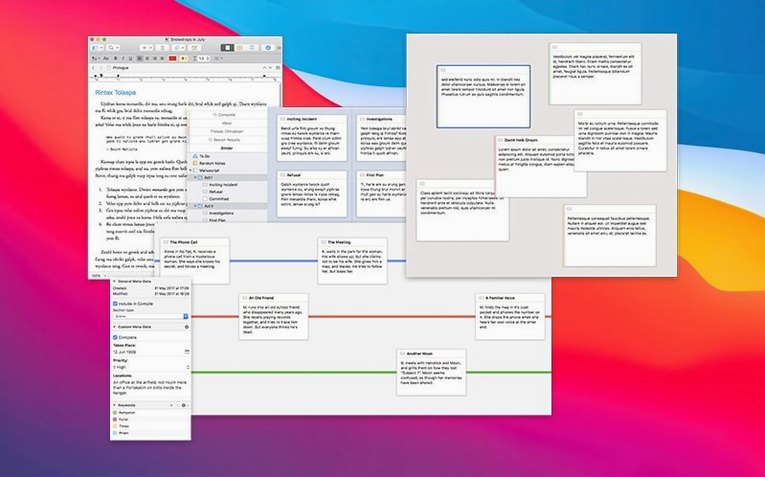
Right after you drag the app to the Applications folder, spend half an hour on the template picker. Blank project is fine, but the novel or research paper template already sets up folders for manuscript, character sketches, and places — scaffolding that saves you organizing later. Drop a few PDFs and images straight into the Research folder. Scribble a couple of index cards in the corkboard view. The point isn't to be productive yet; it's to learn the lay of the land so the software feels familiar when the real work starts.
One binder, one week
Keep your first project small. A short story or a blog post series works better than a novel. Use the split editor — text on top, research on the bottom — and get comfortable dragging snippets between panes. After a week, the muscle memory for switching between scrivenings mode (where multiple documents scroll as one) and single-document view will be there, and you won't think about the interface anymore.
Let the inspector earn its space
Many new users close the inspector to reclaim screen real estate. Leave it open for the first few sessions. The synopsis card at the top is where you summarize what a scene is supposed to accomplish, and that small habit changes how you revise. The document notes pane on the side holds reminders like "check the timeline on this paragraph" — things you'd otherwise scribble on a sticky note and lose. If you're someone who likes a Scrivener torrent to try before committing, the inspector is the part that rewards poking around early.
Fade the full-screen black to paper
Scrivener ships with sensible defaults, but a few tweaks make it feel like your own workspace.
- Full-screen mode background. Under Preferences > Appearance > Full Screen, swap the default black background for a soft gray or a muted paper texture. Black creates too much contrast for long sessions. Many writers dial the page width down to about 80 characters so the line length stays comfortable on a large display.
- Automatic backups. Go to Preferences > Backups and turn on automatic backup on project close, then point it to a folder that syncs to an external drive or cloud storage. Snapshots are great for in-project versioning, but they live inside the project file. A separate zipped backup is your insurance if the main file ever gets corrupted — rare, but not something you want to learn about at page 300.
- Default new document type. In Preferences > Editing, set new documents to start as blank text rather than rich text if you write in Markdown or plain prose. It strips out the invisible formatting that can trip up export later.
- Project targets. Open Project > Project Targets and set a session word count. Seeing the progress bar turn green is a small dopamine hit that works. Disable the sound effect unless you enjoy being startled mid-sentence.
Project folders versus Ulysses' unified library
Ulysses shares the same neighborhood — both apps break a project into sheets and store research alongside text. The difference shows up in structure. Ulysses keeps a unified library of everything you write; Scrivener gives each project its own self-contained world. That makes Ulysses faster for daily blog posts and short pieces, while Scrivener feels more at home when you're juggling 200 pages of manuscript and fifty research items. If you've ever searched for a Scrivener Mac crack just to see whether the binder workflow clicks, it's usually the structural depth that wins people over — or sends them back to something lighter.
Highland 2 and the free Bean app shoot for something closer to a blank sheet of paper. Highland strips away almost everything except the text, which is wonderful for a screenplay or a first draft when you want zero friction. Bean does the same for short documents, with a word count and not much else. But neither app helps you shuffle chapters, tag scenes by point of view, or pull up a PDF of a floor plan while you describe the room. Scrivener carries weight those apps don't try to lift. The trade-off is a learning curve: the toolbar alone has more buttons than Highland's entire window. If you spend your first afternoon with a Scrivener Mac torrent just clicking around, you might feel overwhelmed. Give it three writing sessions before deciding.
For research-heavy work, some people keep DevonThink in the conversation. DevonThink is a document warehouse with powerful search and classification; Scrivener is a writing desk. You can store the same PDFs in both, but Scrivener keeps them next to the paragraph they're informing, not in a database five clicks away. Writers who need deep archival search often run both side by side — research in DevonThink, drafting in Scrivener — and drag files between them as the project evolves.
A tidy-up release. Scrivener 3.5.2 irons out bugs reported in earlier versions.
- macOS 10.13 or later
- Runs on Intel and Apple Silicon Macs
Questions I actually get
Can Scrivener handle research material like PDFs and images?
Yes. Every project includes a Research folder where you can store PDF files, images, audio, and text notes right alongside your writing.
What changed in Scrivener 3.5.2?
Scrivener 3.5.2 is a bug-fix release that improves stability without adding new features.
Porch talk 0
Come in or pull up a chair to leave a comment.
Nobody has pulled up a chair yet. If you used it on a real Saturday, say what the hour was.
More for the same hour
Everything in Office
 QuickBooks Mac Plus
23.1.9.R10 Plus Office
169 MB
QuickBooks Mac Plus
23.1.9.R10 Plus Office
169 MB
 Soulver 3
3.16.3 Office
20 MB
Soulver 3
3.16.3 Office
20 MB

 PDFelement Pro
12.1.28 Office
807 MB
PDFelement Pro
12.1.28 Office
807 MB
 PDF Reader Pro
6.5.0 Office
Updated 326 MB
PDF Reader Pro
6.5.0 Office
Updated 326 MB
 PDF Expert
3.13.4 Office
128 MB
PDF Expert
3.13.4 Office
128 MB

 Pages Creator Studio
15.3.1 Office
292 MB
Pages Creator Studio
15.3.1 Office
292 MB

 OmniReader Pro
3.4.4 Office
33 MB
OmniReader Pro
3.4.4 Office
33 MB
 OmniPlan Pro
4.11.0 Office
100 MB
OmniPlan Pro
4.11.0 Office
100 MB