Version 4.11 focuses on fit and finish. Editing a task that has a long list of assigned resources now feels snappier, and the app plays more smoothly with recent macOS updates. It's a maintenance release that keeps the planning engine humming.
Spotting overloaded team members at a glance
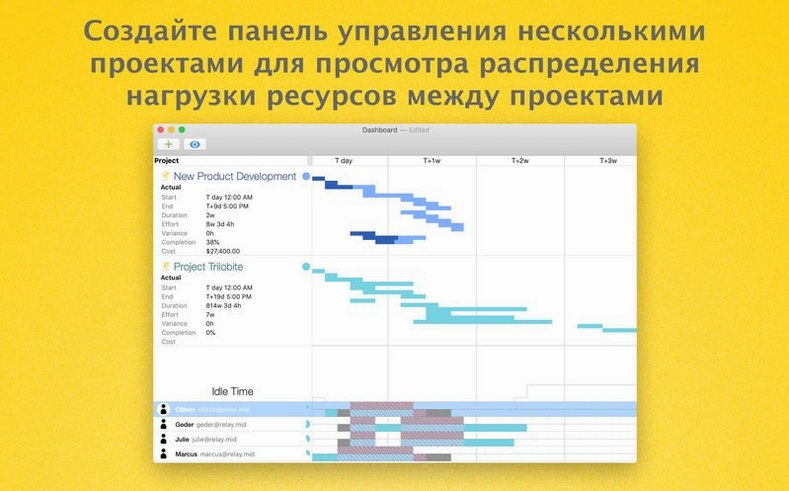
OmniPlan lets you combine available time and resources so you can see who's overloaded at a glance. Adjust assignments and the schedule recalculates, keeping the whole project grounded in real capacity.
What makes the Gantt chart useful beyond a timeline?
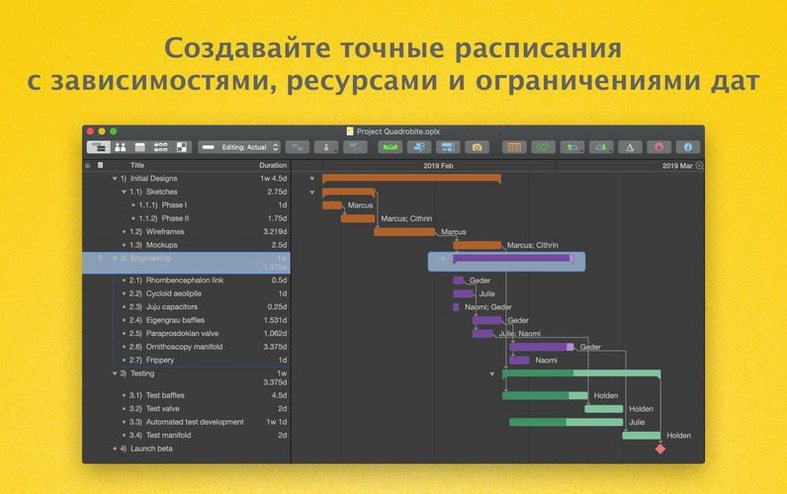
It's a living map of dependencies and milestones. Drag a bar, connect tasks, or drop a milestone marker, and the rest of the plan reshuffles to match. The visualization makes bottlenecks hard to miss.
Monte Carlo confidence intervals for milestones
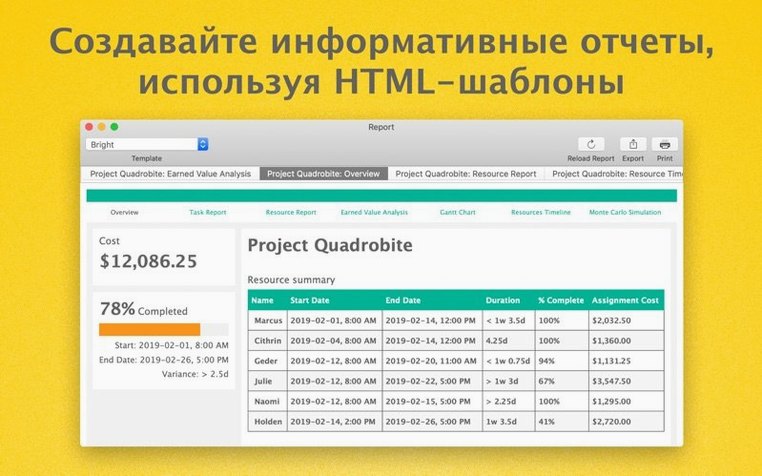
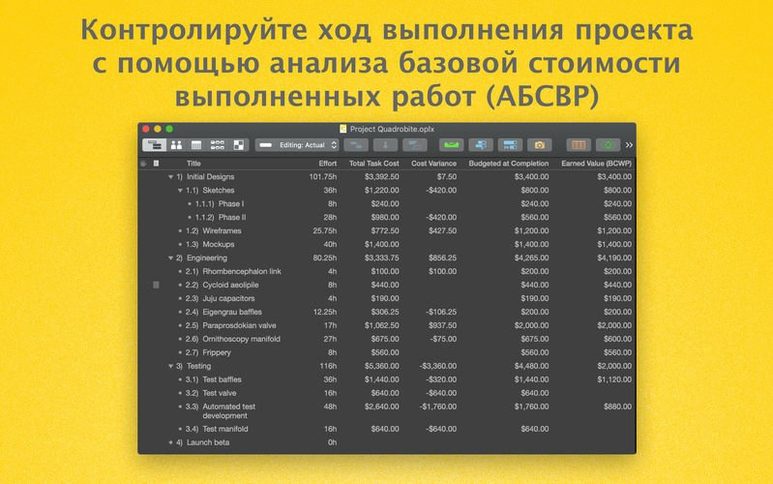
Monte Carlo simulation runs thousands of what-if scenarios against your schedule, giving you confidence intervals for milestones. Earned value analysis then measures progress in dollars and days, so you know if the project is on budget as well as on time.
Accepting or rejecting each change individually
When a colleague sends back an updated project file, you can accept or reject each change individually—or all at once. It turns a messy back-and-forth into a clean review pass.
How OmniPlan fits into a larger Mac workflow
The Omni Group built its apps to talk to each other, and OmniPlan Pro leans into that. When a project starts as a loose brainstorm in OmniOutliner, you can export that outline straight into OmniPlan and watch rows become tasks with estimated durations. The reverse is handy too: send a work breakdown back to OmniOutliner for a stakeholder review that doesn't need Gantt bars.
For diagrams, an export to OmniGraffle turns task dependencies into a network diagram with a single command. It's not a live sync, but it saves the hour you'd spend redrawing boxes and arrows. Outside the Omni ecosystem, ICS export drops milestones and deadlines into Apple Calendar, so a project's key dates show up alongside your dentist appointments. And if your workflow still touches Microsoft Project, the Pro tier's MPP import and export is solid enough that a roundtrip rarely loses the details that matter.
On the macOS side, OmniPlan respects the system-wide Share menu, so you can fire off a PDF snapshot of the current view to Mail or Messages without leaving the app. The Omni Sync Server integration keeps a published project accessible from another Mac running OmniPlan, and because it's WebDAV under the hood, you can point it at a private server if your team keeps things in-house.
Switching effort estimation from fixed duration to hours
A few defaults in OmniPlan are sensible but not everyone's speed. Open the Project Inspector and look under Effort & Duration. The effort estimation method defaults to a middle ground, but if your team quotes work in hours while the schedule speaks in days, switching to a fixed conversion rate keeps the math transparent.
In the Calendar view, add your company's holidays and any team member's planned absence before a single task gets assigned. OmniPlan won't level resources around days it doesn't know about, and retrofitting a calendar after tasks are scheduled creates a cleanup job you didn't need. The Pro version's automatic effort estimation gets smarter with a calendar that reflects reality.
Under Display preferences, turn on the critical path highlighting. It's off by default, but seeing the chain of tasks that directly threaten your finish date changes how you negotiate scope creep. While you're there, adjust the timescale on the Gantt chart to weeks instead of days if your project spans months—the default zoom can make a long project look like confetti.
Connecting dependencies before you assign dates
The biggest stumble is treating OmniPlan like a fancy to-do list. Dragging tasks onto a timeline without setting dependencies first gives you a pretty picture that falls apart the moment something slips. Connect tasks before you assign dates. Let the scheduling engine do its job.
Another common misstep: ignoring the resource allocation view until somebody is booked for 140% of their week. The leveling button is not a magic fix. It can spread work, but only if each task has a realistic effort estimate and each resource has a calendar that says when they're actually available. Leveling without those inputs just shuffles the overload around.
Beginners sometimes publish a project via Omni Sync Server without realizing that change tracking is a separate toggle. If you want to review what a collaborator altered, turn on change tracking in the Project menu before sharing the file. Retroactive tracking doesn't exist—the edit history starts when the feature does.
A subtler trap: relying on the multi-project dashboard without normalizing how each sub-project defines a workday. One plan might assume six-hour days while another uses eight. The dashboard aggregates numbers faithfully, but the totals won't mean what you think they mean. Spend ten minutes aligning those definitions across files, and the Monte Carlo simulation's confidence intervals become genuinely useful instead of just impressive-looking.
Version 4.11 is a polish pass. Performance improves when you edit a task that carries a crowd of assigned resources, and the app updates its compatibility layer for newer versions of macOS.
- macOS 12 or later
- Apple Silicon or Intel (64-bit)
Questions I actually get
Does OmniPlan Pro work on Apple Silicon Macs?
Yes, it supports both ARM and x86 64-bit architectures natively, so it runs well on Apple Silicon and Intel Macs.
Which macOS versions does version 4.11 require?
It requires macOS 12 or later.
What languages is the interface available in?
The app speaks Russian, English, German, Spanish, Italian, Simplified Chinese, Korean, Dutch, Portuguese, French, and Japanese.
Porch talk 0
Come in or pull up a chair to leave a comment.
Nobody has pulled up a chair yet. If you used it on a real Saturday, say what the hour was.