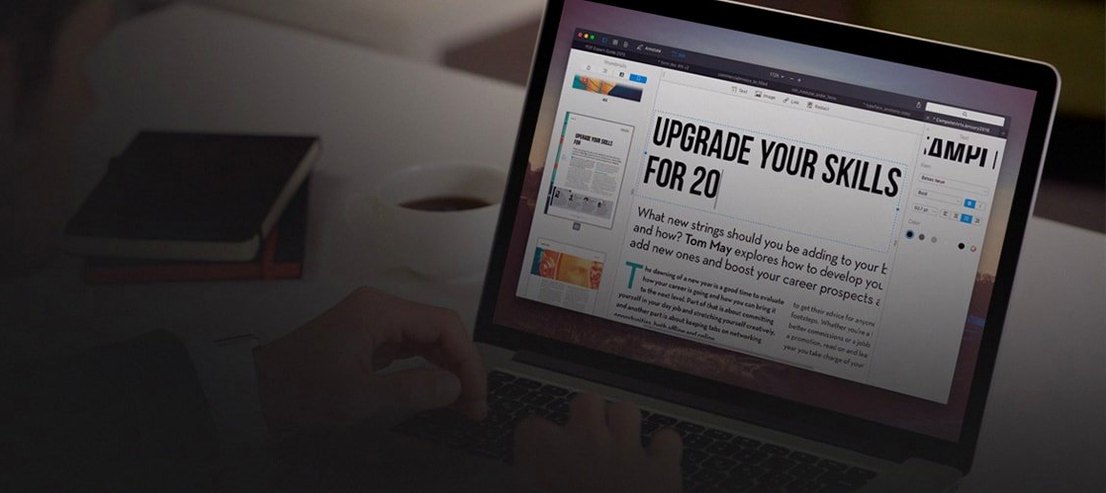
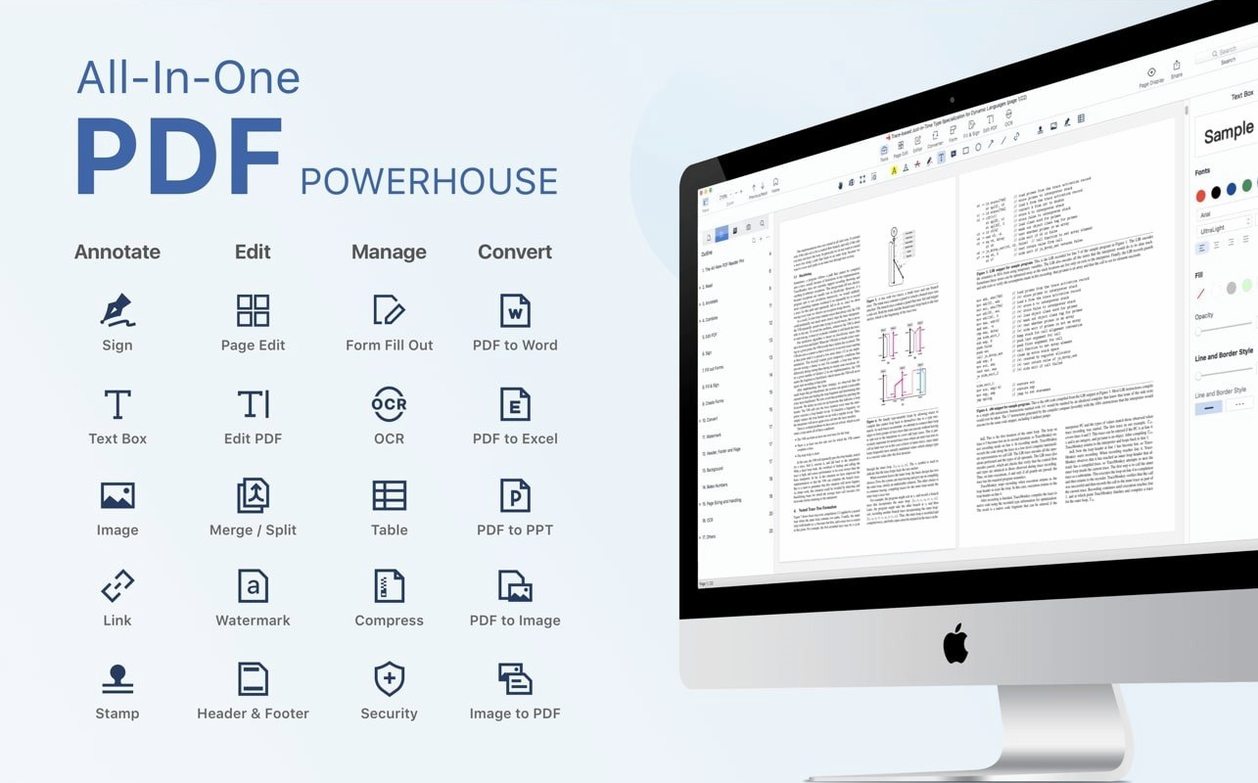
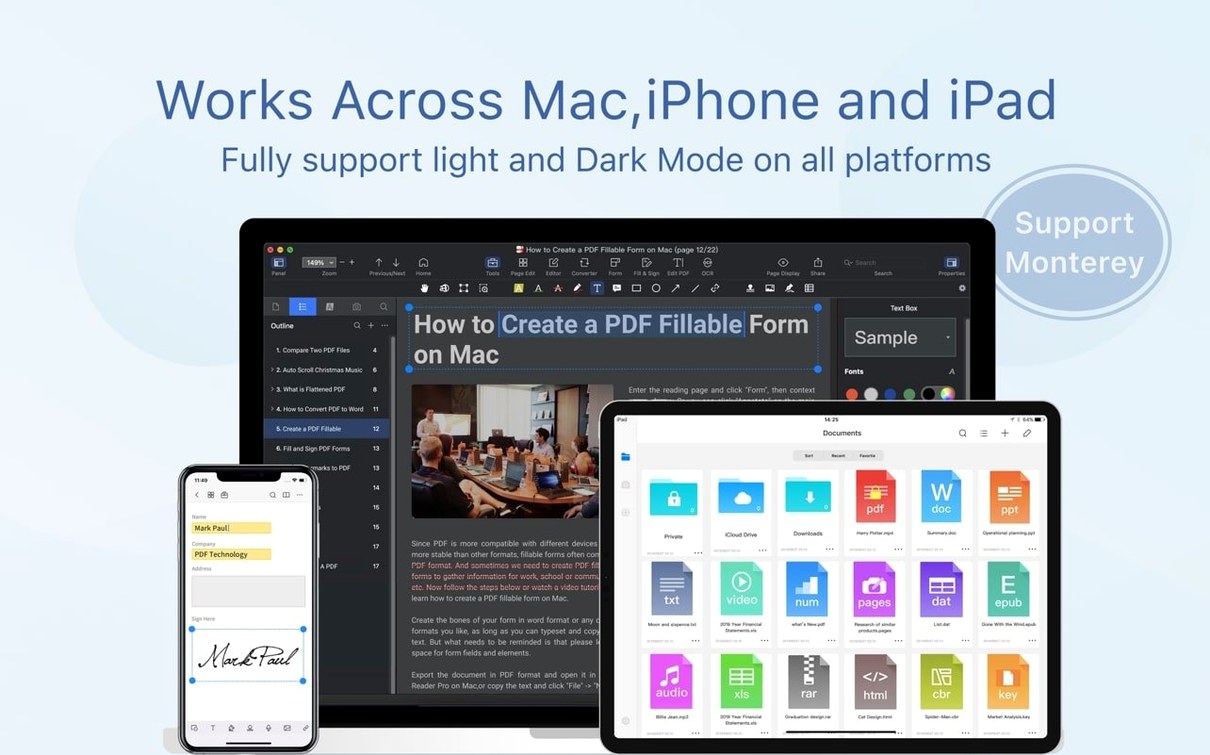
Export to CSV. That’s one of the first things that catches my eye—it handles the usual Office formats, sure, but it can also pull table data straight into a spreadsheet-ready file. That’s a small detail that hints at who PDF Reader Pro is really for: folks who live in their documents and need a tool that doesn’t stop at just reading.
Fluid Markup and Multi-Format Export
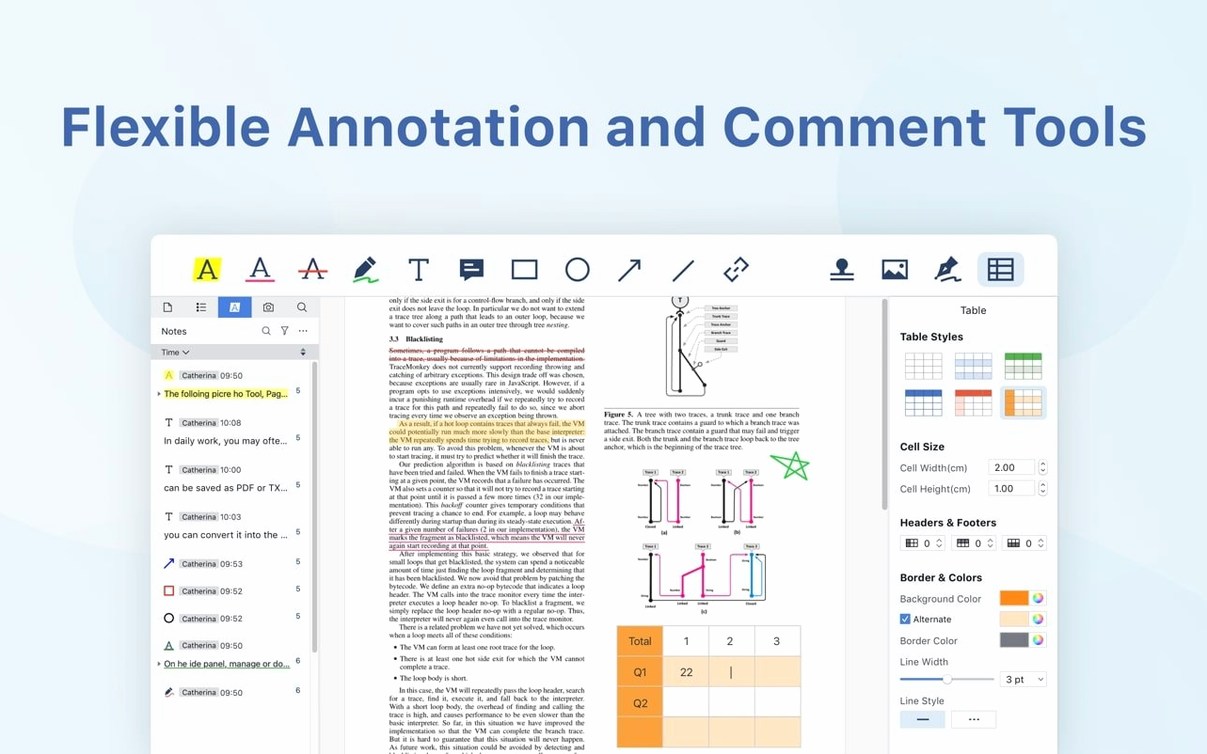
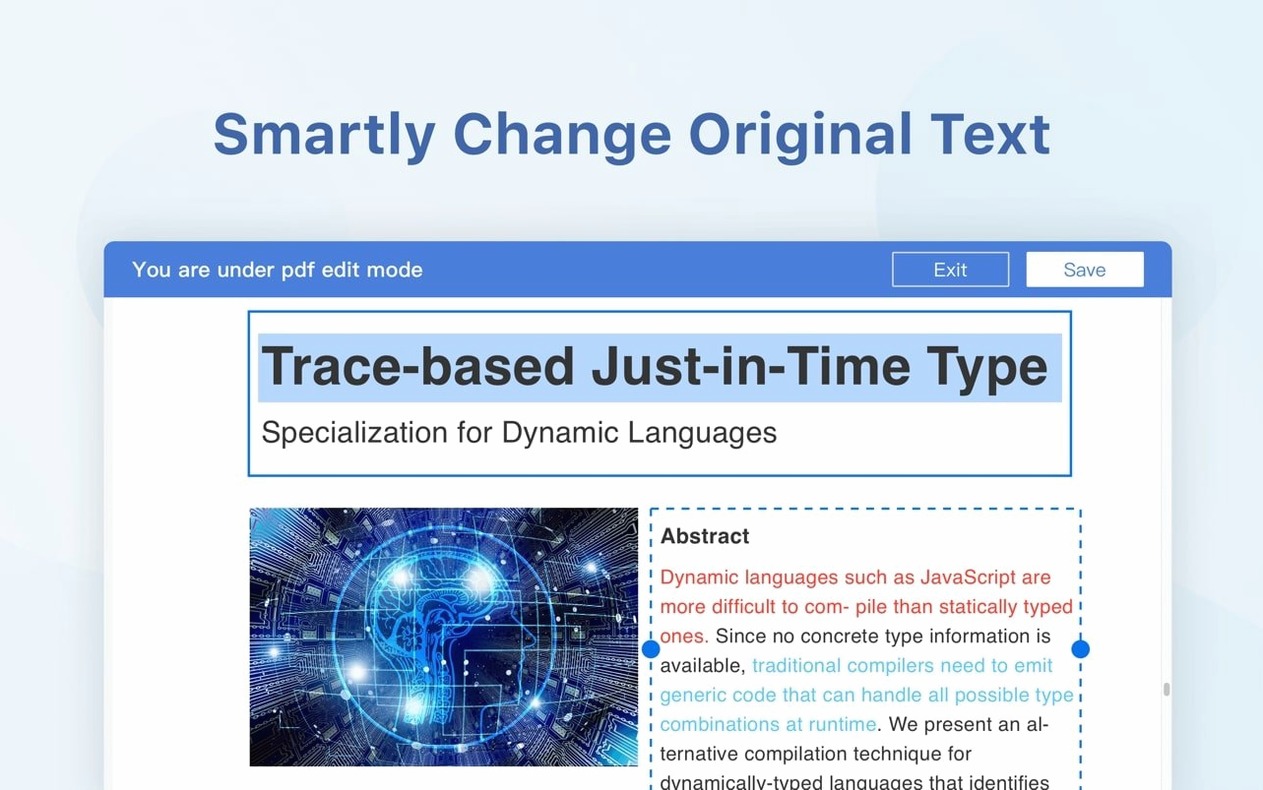
- Annotation and markup. Highlight, underline, strike through, and add sticky notes. The core reading-and-marking workflow feels responsive on both Intel and Apple Silicon Macs.
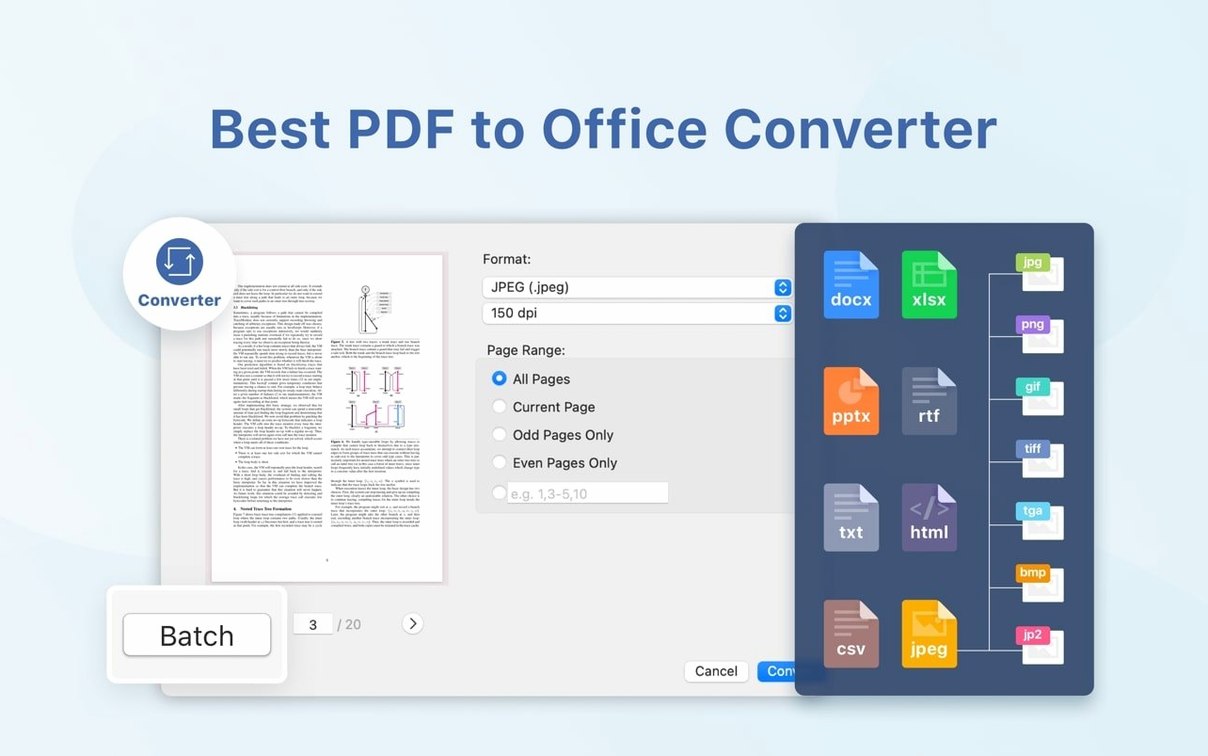
- File conversion. Export PDFs to Word, PowerPoint, Excel, RTF, HTML, plain text, images, and CSV. The range of output formats covers most practical needs.
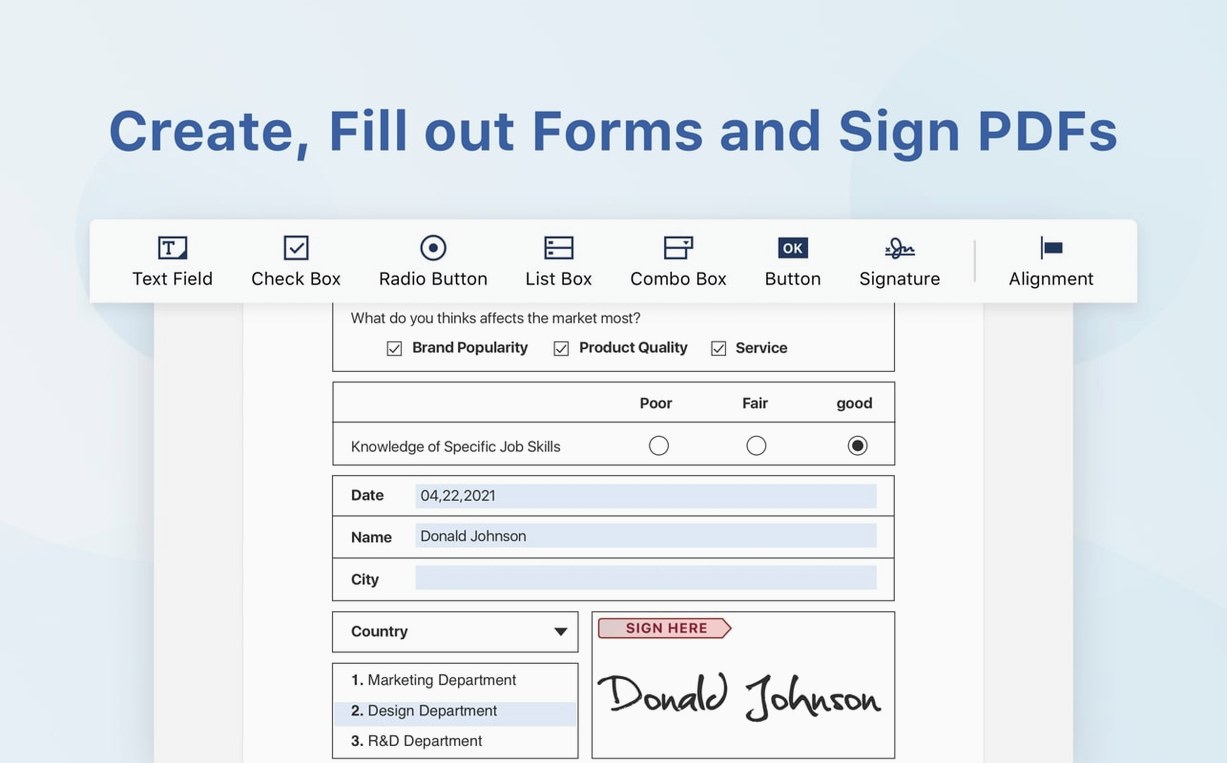
- Form filling and signing. Fill in interactive forms and use the eSign workflow for digital signatures. Version 5.3.0 added signature fields and online signing support.
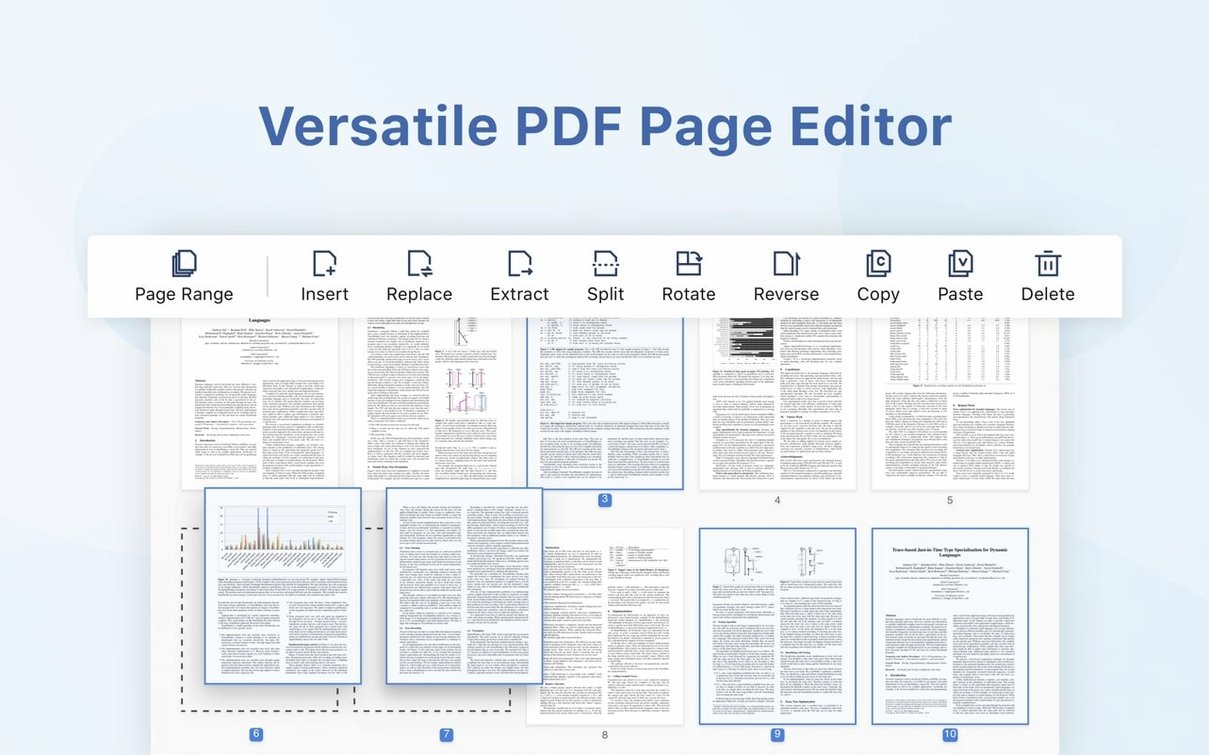
- Page manipulation. Insert pages from another PDF file, rearrange content, and keep bookmarks organized for longer documents.
- Cloud sync. Dropbox integration keeps files available across devices without a fussy setup process.
Practical Editing Tools Over AI Flash
- The marketing mentions AI-powered features, but the daily use centers on practical editing and conversion tools rather than flashy automation.
- Interface languages cover Russian, English, German, Spanish, Italian, Traditional and Simplified Chinese, Dutch, Polish, French, and Japanese—broad, though not exhaustive.
- Requires macOS 11 or later, so older Macs stuck on previous versions won’t make the cut.
Swap the Default View Mode First
Fresh out of the disk image, PDF Reader Pro leans toward a default setup that works but doesn't quite feel like yours. A few quick stops in preferences can change that.
- Default view mode. Head into the View preferences and switch from Continuous Scroll to Single Page if you prefer flipping through pages like a book. It's a small change that makes longer reading sessions feel less like scrolling through a website.
- Export quality for images. When you convert a PDF to JPEG or PNG, the app defaults to a medium resolution that's fine for quick sharing but soft for anything destined for print. Bump it up to 300 DPI under the Convert settings and you'll notice the difference immediately in graphic-heavy documents.
- Text-to-speech voice and speed. The speech engine ships with a fast default that can feel rushed. Slow it down to about 70% and pick a voice that doesn't grate after two paragraphs. If you commute or proofread by ear, this is the difference between a feature you tolerate and one you actually rely on.
- Annotation author name. The first time you drop a sticky note or a highlight, the app stamps it with a generic label. Change that to your name under the Comments settings so collaborators know whose notes they're reading without having to guess.
Seamless Finder Drag-and-Drop
PDF Reader Pro doesn't try to be an island. It slots into a Mac workflow in ways that aren't shouted about but matter once you settle in.
- Drag and drop from Finder. You can pull a PDF straight from a Finder window onto the dock icon or the open window. It sounds obvious, but plenty of PDF editors trip over this with sandboxed file access. Not here—it opens without a dialog in the way.
- Services menu integration. Highlight text in Safari, Mail, or Notes, right-click, and look under Services. The app registers a shortcut to create a new PDF from the selection. It's not flashy, but it's the kind of thing that shaves seconds off a repeated task.
- Export to Word and Excel. The conversions hold up better than many free online tools. Tables come through with borders and alignment intact, and paragraph spacing doesn't collapse into a mess. If you're pulling data from a pdf reader pro for mac premium setup into a spreadsheet, the CSV export is the quiet standout—clean delimiters, no stray line breaks.
- Dropbox sync as a bridge. The Dropbox connection works both ways: annotate on your Mac, pick up the same file on an iPad with your changes in place. It's not real-time collaborative editing, but for solo work across devices it removes the email-it-to-yourself step entirely.
Quick Look and Spotlight
Files opened in PDF Reader Pro remain fully indexed by Spotlight, so searching for a phrase inside a PDF from the menu bar still works. Quick Look also behaves as expected—tap the spacebar on a file in Finder and you get an instant preview without launching the full editor. Both sound like table stakes, but some third-party PDF tools hijack file associations and break these system-level conveniences. This one stays out of the way.
Hidden Bookmark Panel for Instant Navigation
Some of the best features aren't on the toolbar. They're tucked into right-click menus or key combinations you'd only stumble across by accident.
- Bookmark navigation panel. If a PDF has a proper table of contents, the bookmarks sidebar mirrors it exactly. Tap
Cmd + Bto toggle it open. You'll wonder why you ever scrolled through a 200-page report the hard way. - Merge and split without wizards. Dragging one PDF thumbnail from the sidebar into another open document drops the pages straight in. No import dialog, no multi-step merge tool. To split, select the pages you want, right-click, and choose Extract. The whole operation takes under ten seconds.
- Presentation mode. It's not just for conference rooms. Toggling into full-screen presentation strips away toolbars and side panels, leaving nothing but the page content on a dark background. Useful when you're reviewing a layout and want to see it without visual clutter, not just when a projector is involved.
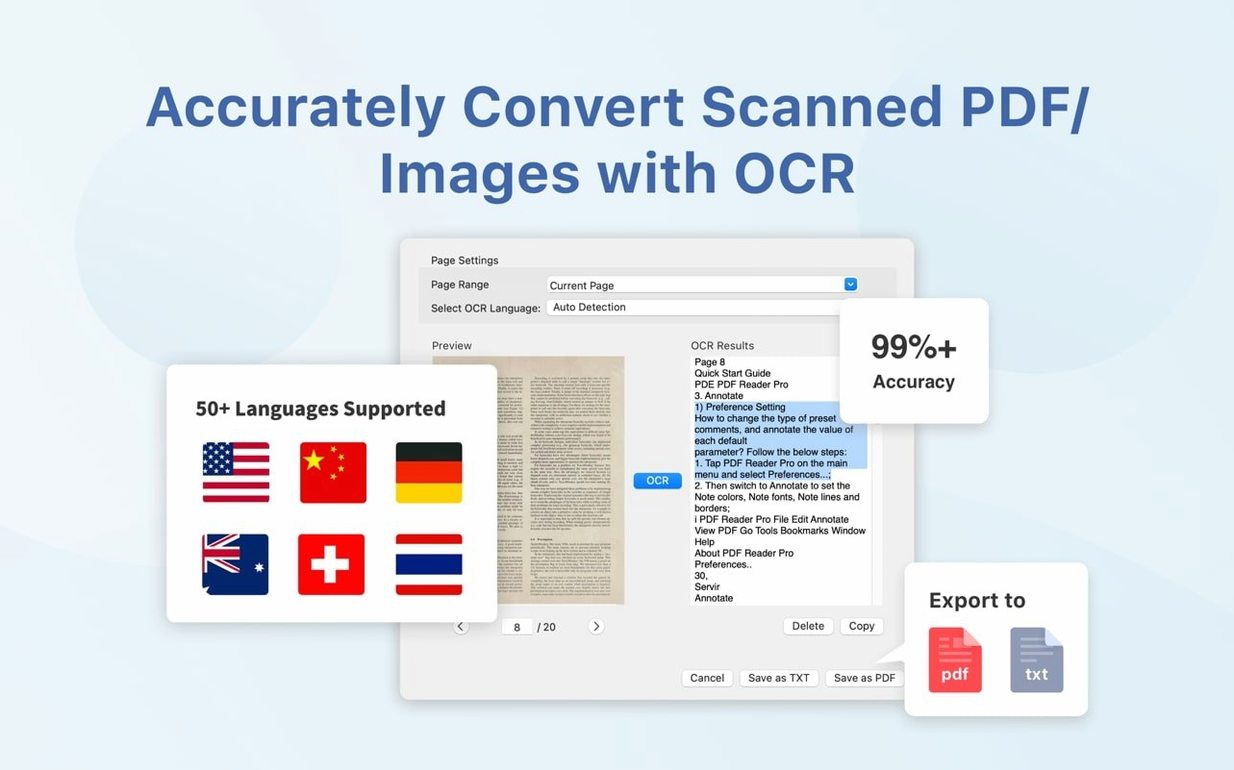
- OCR as you go. The text recognition doesn't force you to run it on the whole document at once. Select a scanned page or a small region, right-click, and OCR just that area. It's faster than processing everything and keeps the file size from ballooning unnecessarily.
- Tabbed document handling. Multiple PDFs open in tabs by default, just like browser tabs. Drag a tab out to make it its own window, or drop one onto an existing window to combine workspaces. If you've ever used a pdf editor mac torrent that forced every file into a separate window, the difference is immediate relief.
These aren't marquee features. They won't show up on a comparison chart against other readers. But they're the kind of thoughtful touches that accumulate over weeks of use, turning a decent tool into the one you reach for without thinking.
- macOS 11 or later
- Works on Apple Silicon and Intel 64-bit Macs
Questions I actually get
Can PDF Reader Pro fill and sign PDF forms on a Mac?
Yes. It handles form filling and includes an eSign workflow with signature fields and online signing, added in version 5.3.0.
What file formats can PDF Reader Pro export to?
It exports PDF content to Word, PowerPoint, Excel, RTF, HTML, plain text, images, and CSV.
Porch talk 0
Come in or pull up a chair to leave a comment.
Nobody has pulled up a chair yet. If you used it on a real Saturday, say what the hour was.