If your desktop is a mix of Kindle purchases, old CHM manuals, and DRM-free EPUBs, you know the drill — each format wants its own app. OmniReader Pro steps in as a single bookshelf for all three, keeping things straightforward without asking you to reorganize your library.
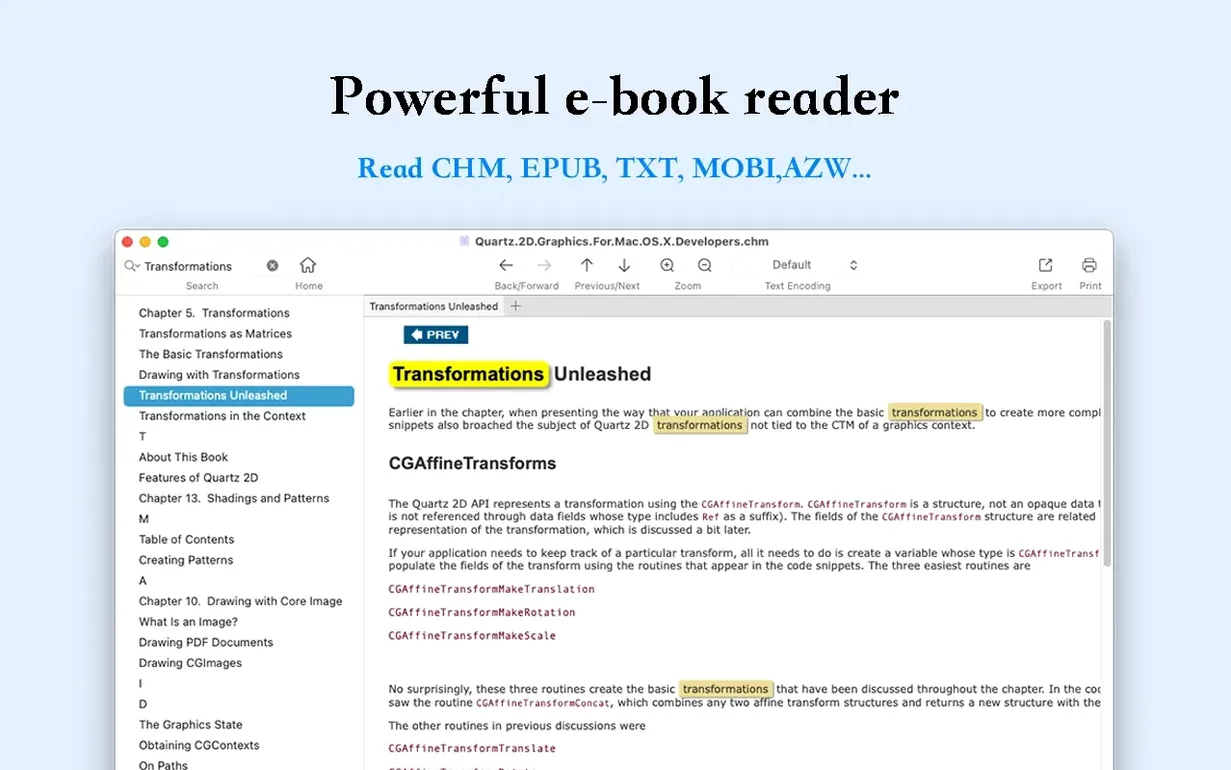
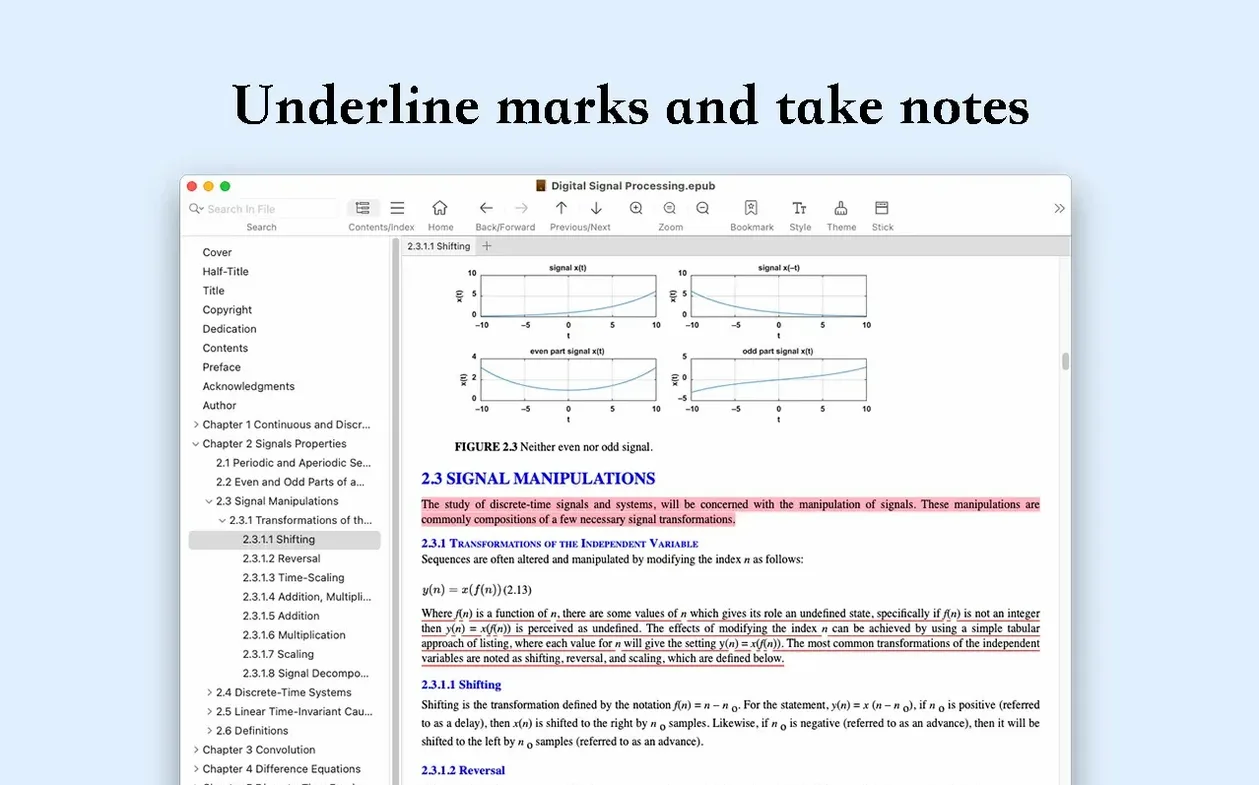
It lives comfortably next to your other Mac tools. Highlight a passage and the app marks it clearly. Search for a phrase, and it scans the entire book, not just the current page. The sidebar collapses when you want nothing but text on screen, and you can print a page or zoom in on a diagram without fuss.
Basic file information sits right where you expect it, and images resize themselves to fit the window. Page turning feels natural — keyboard, trackpad, or click — whatever rhythm you already use on your Mac.
It won't replace Preview or your note-taking app, but for anyone who juggles multiple ebook formats and wants a quiet, capable reader that doesn't get in the way, OmniReader Pro fills that spot nicely.
When you bounce between a PDF manual, a Kindle cookbook, and a CHM reference guide in a single afternoon, OmniReader Pro works best if you let it lean on what macOS already does well. Drag an EPUB straight from Finder into the app window and it opens without a file-picker dialog. The Share menu ties into Mail and Messages, so you can send a snippet or an exported PDF to someone without leaving your reading view. Spotlight won't index the books themselves — that's on the app's internal search — but the app plays nicely with Mission Control and full-screen spaces. I keep a CHM programming reference open in its own space, swiping between it and Xcode without either window fighting for attention.
One underused trick: the image extraction feature pairs well with the Finder's column view. Pull all the illustrations from a graphic-heavy EPUB, drop them into a folder, and you can skim thumbnails right in the Finder without opening each image individually. Combine that with Quick Look, and you have a fast way to locate a diagram you remember seeing three chapters ago.
A practical workflow: cleaning up a garbled Chinese novel
Say you grab an older Chinese EPUB that renders as nonsense characters — mismatched encoding is the usual culprit. Here's a walk-through that takes about three minutes.
Open the file in OmniReader Pro. If the text is scrambled, head to the file encoding options and cycle through the common Chinese encodings — GB 2312 or GB 18030 usually fix it on the first try. Once the characters settle, do a full-text search for a phrase you remember from the summary, just to confirm the text is intact. Highlight a few key passages so you have markers for later. Now export the cleaned-up version as a new EPUB. The exported file carries the corrected encoding, and you can toss the garbled original. Open the fresh EPUB in the app one more time to confirm, then print the first page as a test — if the printed copy looks crisp, the whole book is solid.
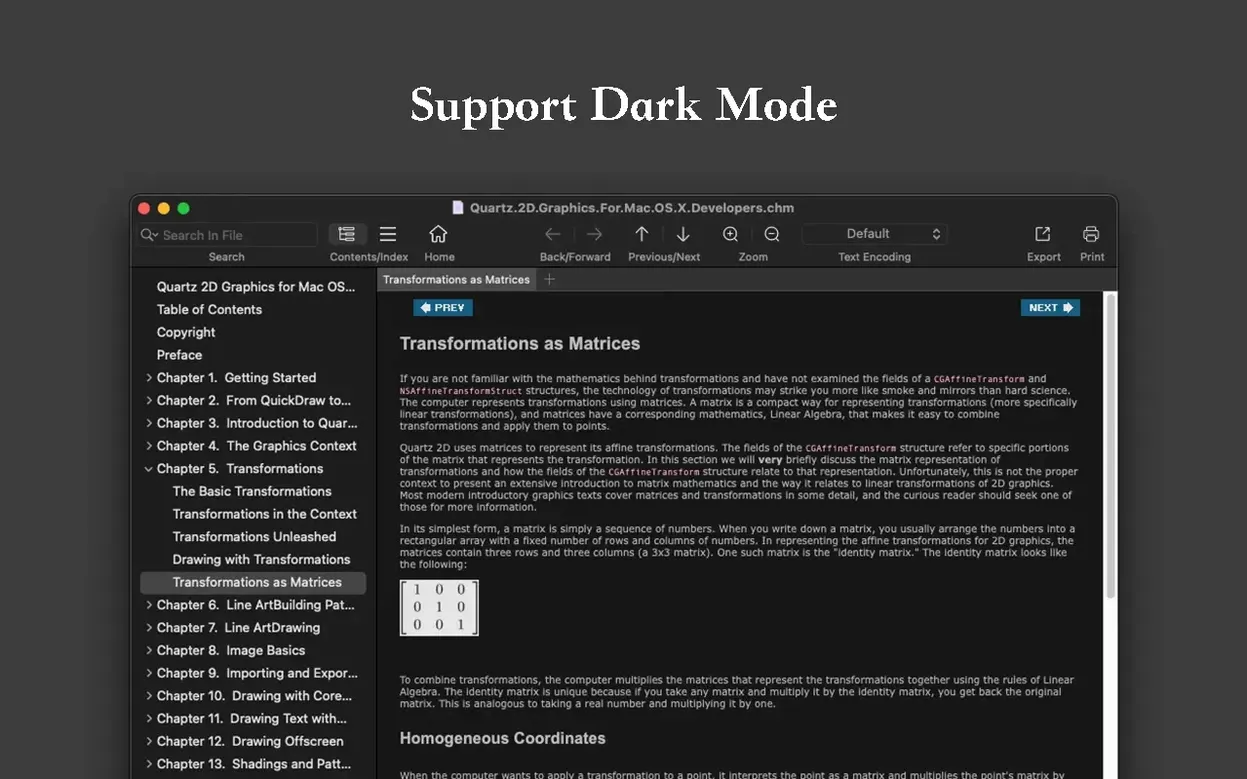
That same encoding fix works for old CHM files from documentation archives, where Russian or Japanese text sometimes shows up as mojibake. The app remembers your last encoding choice per session, which saves a few clicks when you're working through a batch.
Leaves Library Management to Yomu
Next to Yomu, OmniReader Pro feels more focused. Yomu leans into its library-management side — shelves, collections, reading progress synced across devices. OmniReader Pro keeps the interface lighter and skips the library ambitions; it assumes you know where your files live and just want to open them. Yomu handles PDFs and CBZ comics; OmniReader Pro doesn't bother with those, which means fewer menu items to ignore if your collection is EPUB, CHM, and Kindle only.
Against Clearview, the difference is annotation depth. Clearview gives you margin notes, bookmarks with labels, and tabbed reading — closer to a study tool. OmniReader Pro's highlighting and search-highlighting are simpler, but the image extraction and encoding handling are things Clearview doesn't offer. If you're underlining passages for pleasure, the distinction barely matters. If you're researching across ten books, Clearview's tab system wins. If you're rescuing a garbled file or pulling images, OmniReader Pro has the edge.
FBReader shares the cross-format idea — EPUB, MOBI, FB2 — and adds network library support. It's been around forever and feels like it. OmniReader Pro's interface is cleaner, and the full-text search highlights results in context, which FBReader doesn't always do as smoothly. FBReader's strength is its plugin system and broad format list; OmniReader Pro's strength is that it handles its three formats with less clutter between you and the page.
Dragging a Folder Expecting a Shelf View
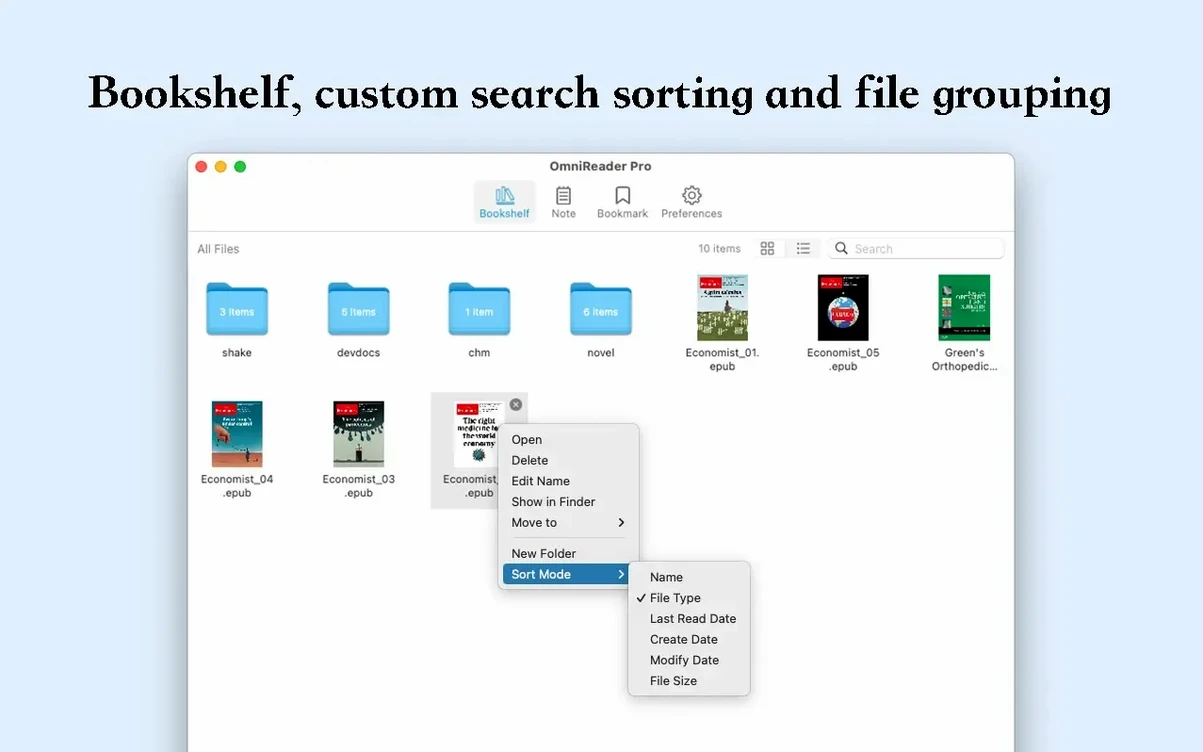
The most common slip is expecting the app to manage a library. People drag in a folder of fifty EPUBs and look for a shelf view. OmniReader Pro opens one book at a time and keeps your reading history for going back and forth, but it won't scan a directory and build a catalog. Keep your books organized in Finder folders and treat the app as the reader, not the librarian.
Another early mistake: ignoring the encoding menu when a file looks broken. Beginners often assume the EPUB is corrupt and delete it. Before giving up, check the encoding settings — the fix takes seconds and has saved more than a few books I'd have otherwise lost.
Some folks discover the export-to-PDF feature and use it on every file, thinking they're future-proofing their library. That works, but exported PDFs lose the reflowable text that makes EPUBs comfortable to read on different window sizes. Export to PDF when you need to print or share, not as your default backup strategy.
Finally, the image extraction dumps every image at once — there's no selective export. Beginners click it, get a folder of sixty files, and feel overwhelmed. Naming the folder after the book title and chapter helps, or extract images chapter by chapter if the book is split into individual files. A little Finder hygiene up front keeps the image dump useful rather than chaotic.
- macOS: 10.13 or later
- Architecture: Apple Silicon, Intel 64-bit
Questions I actually get
Which file formats does OmniReader Pro support?
It opens EPUB, CHM, and Kindle files, so you can read most common book and document formats in one place.
Does the app have a search function?
Yes, it offers both page search and full-text search, and it highlights all matching results so you can spot them quickly.
Can I print directly from OmniReader Pro?
Absolutely. The app supports page printing, so sending a chapter or a document to your printer is straightforward.
Porch talk 0
Come in or pull up a chair to leave a comment.
Nobody has pulled up a chair yet. If you used it on a real Saturday, say what the hour was.