

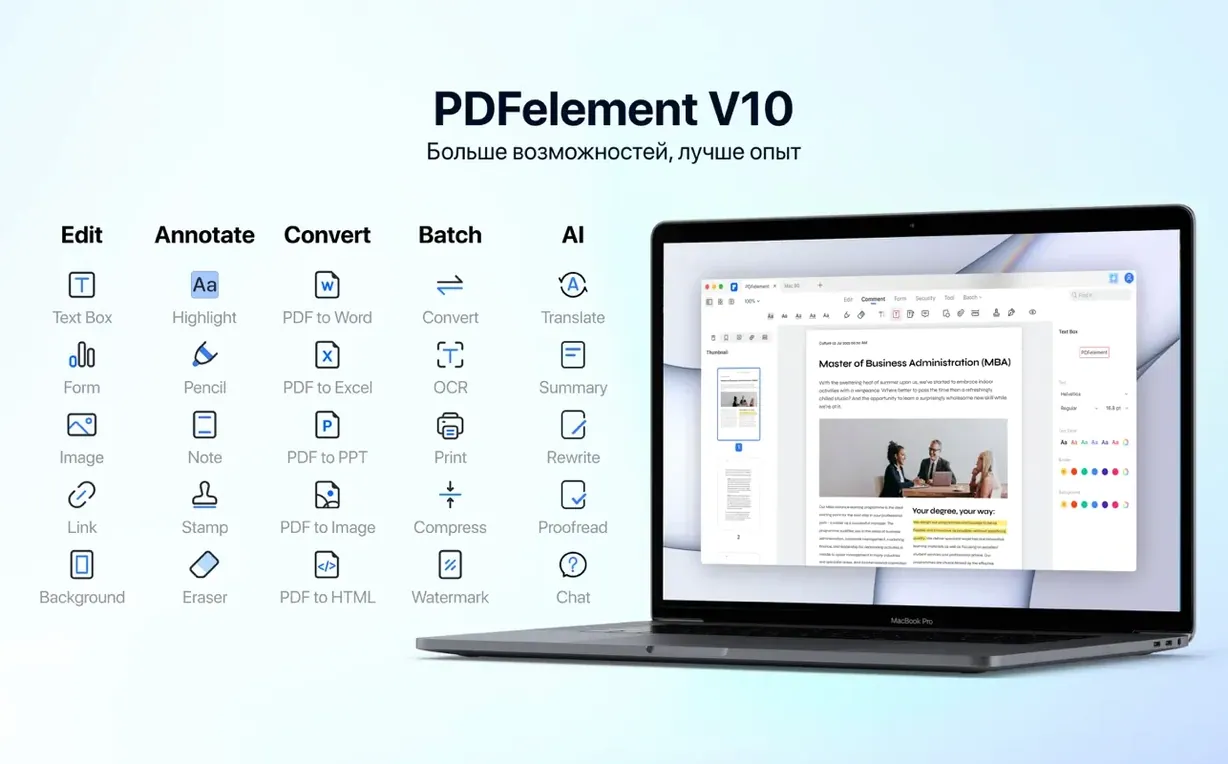
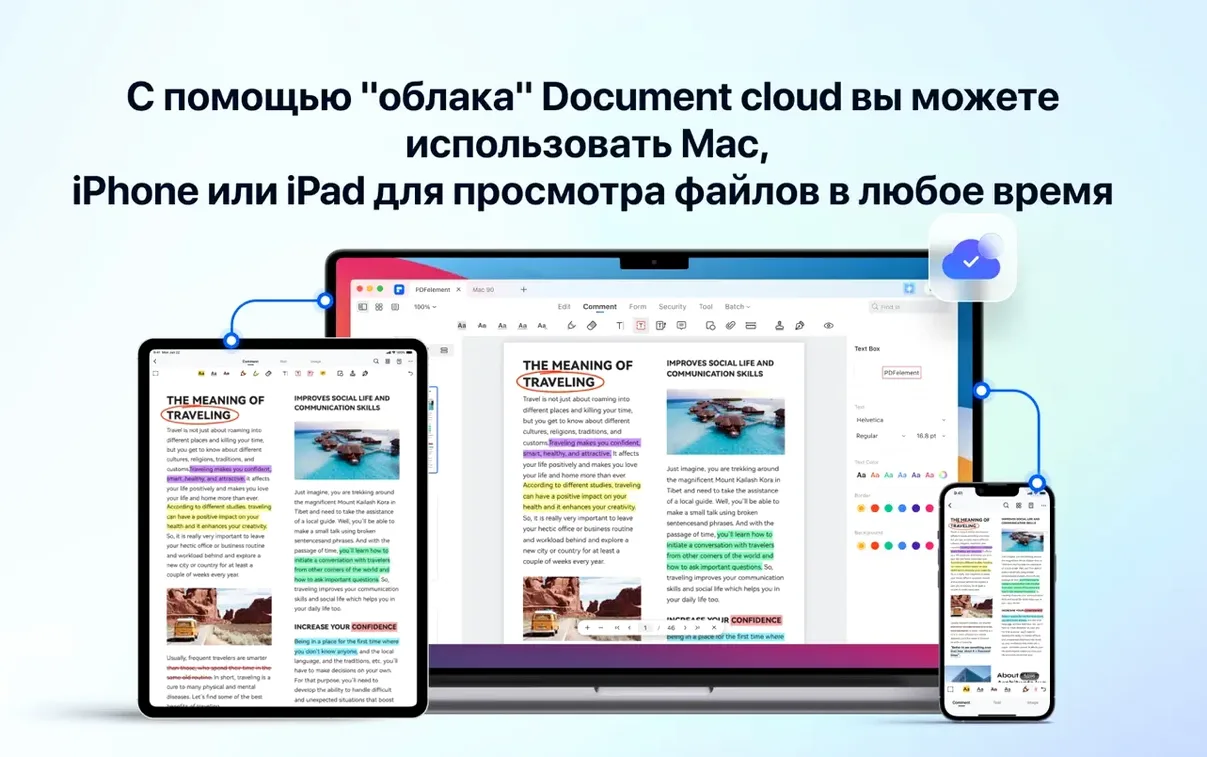
If you’ve spent any time in Preview stitching pages together or scribbling a signature with a trackpad, you know where it shines — and where it just runs out of road. That’s where Wondershare’s PDFelement steps in. Think of it as what you reach for when a document needs actual editing, not just a quick markup.
| Key detail | What you get |
|---|---|
| Core tasks | Edit, annotate, convert, sign, merge, and print PDFs |
| OCR languages | 29, for turning scans into searchable text |
| Mac support | macOS 11 and later, including Apple M1 and M2 chips |
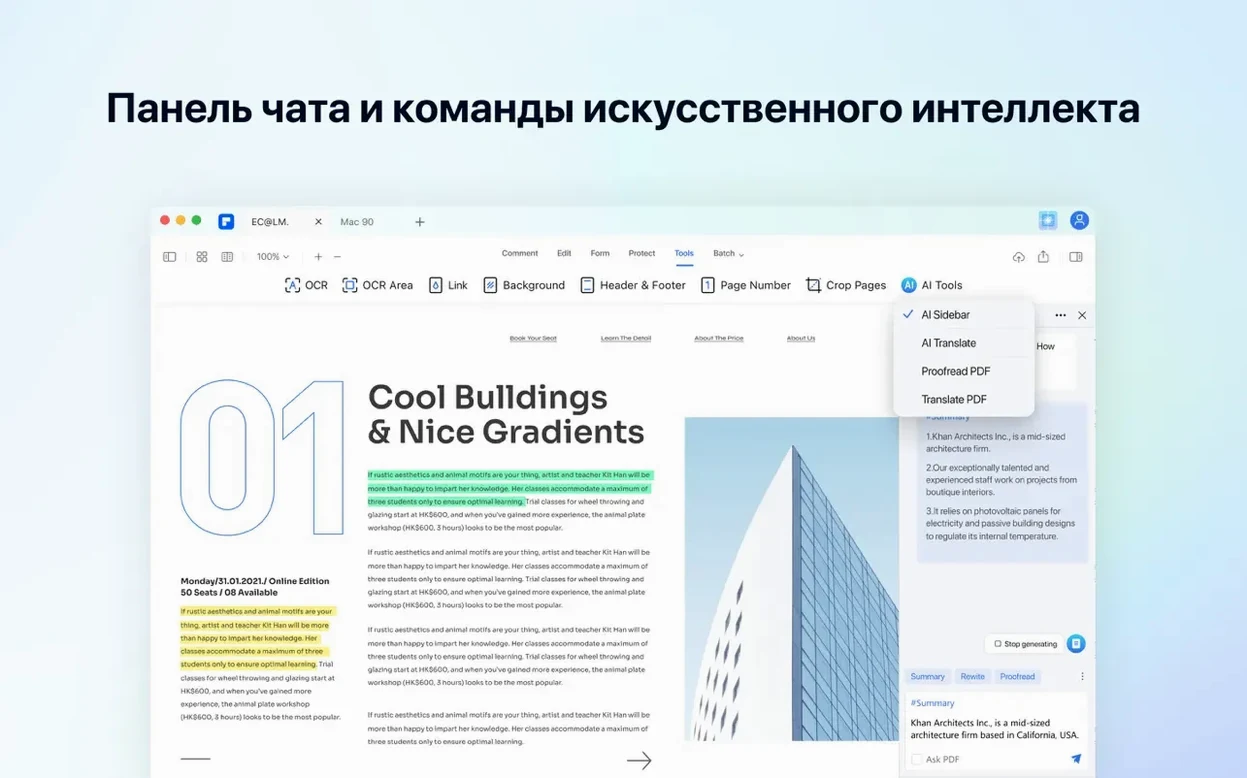
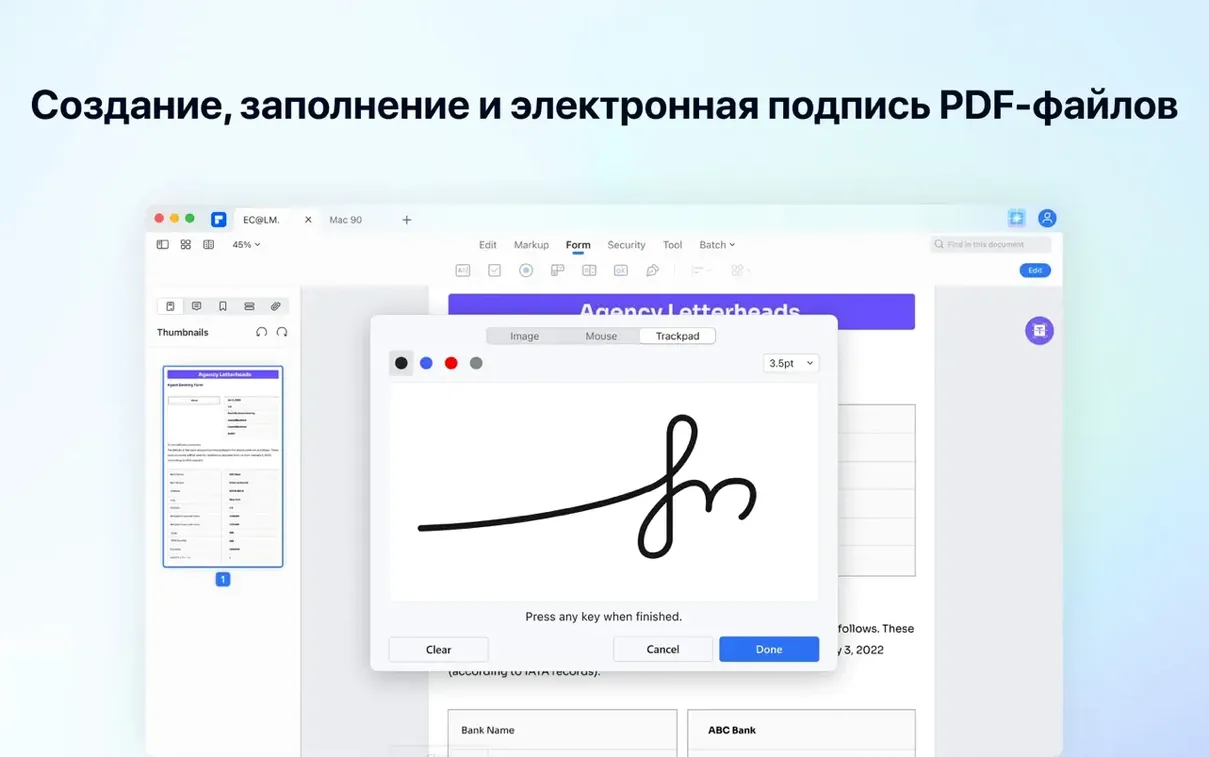
The built-in AI tools can summarize or translate a document, which is handy when you are wading through a dense report. You get real redaction that scrubs sensitive details clean, PDF/A output for archiving, and a straightforward way to drop digital signatures onto forms. It is a practical set of tools for anyone who regularly wrestles with contracts, application forms, or stacks of scanned paper that need to become usable text.
Treating It as a Viewer Instead of an Editor
Most people open PDFelement the same way they open Preview, then wonder why everything feels unfamiliar. The first mistake is treating it as a viewer. This is an editor, and some of the best buttons sit in places you might not check on day one. The toolbar can be customized, but a surprising number of newcomers never drag the tools they actually need into view — they just click around the defaults for weeks.
Another common slip is skipping the OCR step entirely. You drop in a scanned contract, start highlighting text, and nothing happens because the page is still just a picture. You have to tell PDFelement to recognize the text first. The tool is in the OCR section, and once you run it, the document becomes genuinely searchable and editable. With 29 languages supported, it is worth checking the recognition language before you run a batch of scans in, say, Portuguese or Dutch. Wrong language, messy results.
Some users also overdo the redaction. PDFelement removes content permanently, which is exactly what you want for a social security number — but if you redact a paragraph and then save over the original, there is no undo. Work on a copy until you trust your workflow. The same goes for batch operations. Merging fifty PDFs at once is satisfying, but a bad page order or a missing blank page between documents is harder to fix after the fact than before.
Finally, beginners sometimes forget that fillable forms need a little setup. The form tools are there to create buttons, checkboxes, radio buttons, and drop-down lists, but they do not magically become interactive. You place the fields, set their properties, and test the form before sending it out. A quick run-through of your own form takes two minutes and saves the recipient from a broken dropdown.
First days with PDFelement
Give yourself a short project on day one, something low-stakes, like converting a stack of old scans into searchable PDFs. It teaches you the OCR flow without risking an important document. Once you see how the recognized text behaves in edit mode, the rest of the app starts to make sense.
A few habits worth building early:
- Pin your frequent tools. Right-click the toolbar and keep OCR, convert, and redact within reach.
- Set the OCR language deliberately. The default is English, but the app handles 29 languages. Check before running a batch.
- Keep PDF/A in mind for anything you archive. Long-term storage in that format is one of those things you do not need until you do.
- Use the AI tools for dense reading. Summarize a report first, then read the full text. It orients you.
Bates numbering is another feature worth a test run early. If you handle legal documents or discovery files, the numbering options are more flexible than you expect, and learning them once saves a lot of head-scratching later. Digital signatures are straightforward too — try them on a blank form before a real deadline looms.
OCR Engine Now Bundled, Not a Separate Download
The current build, 12.1.28 (OCR), bundles the OCR engine right into the package. That matters if you have been juggling separate downloads or a helper app in the past. The recognition tools are ready immediately after installation, which changes what the first hour with the app feels like. You install, you open a scan, you OCR it. No extra steps.
The build also keeps Intel Macs in the loop. With macOS 11 as the floor, older machines are still welcome, and the app runs on x86 64-bit hardware. That is a quiet but meaningful detail for people holding onto an older iMac or MacBook. Meanwhile, Apple M1 and M2 owners are natively supported too, so the app does not lean on Rosetta.
Everyday use with this build is a little more direct. The OCR tools are no longer treated as a side module; they are part of the core workflow. You notice it most in batch jobs, where a folder of old scans can be fed through recognition and conversion without leaving the app. The interface languages also cover Russian, Arabic, Spanish, Italian, Simplified Chinese, Dutch, Portuguese, French, Japanese, German, and English, which makes it easier to hand the app to a colleague who works in a different language.
How PDFelement compares
PDFelement vs. Preview
Preview is free and fine for quick looks, but it is not a PDF editor in the same sense. It can mark up pages and fill basic form fields, yet it cannot redact reliably, convert a scanned page into editable text, or create interactive form fields from scratch. PDFelement does all of those. If your PDF work stops at reading and light annotation, Preview is enough. If you are editing contracts, redacting financial documents, or building forms, PDFelement is the more honest tool. The AI features and batch tools push it further beyond what Apple ships.
PDFelement vs. Adobe Acrobat
Acrobat is the name everyone knows, and its feature set is deep, especially for enterprise workflows and shared reviews. PDFelement covers a lot of the same ground — editing, OCR, form creation, signing, redaction, PDF/A — in a package that feels less heavy. For an office worker or student, the difference often comes down to how much ceremony you want around a simple task. PDFelement gets to the point faster, and its AI summary tools are built into the reading experience, not bolted on. Acrobat still owns some advanced prepress and collaboration territory, but for everyday document work, the gap is smaller than many assume.
PDFelement vs. PDF Expert
PDF Expert is a Mac-first app with a clean reading view and solid annotation tools. It is fast and pleasant for marking up documents and filling forms. Where PDFelement stretches ahead is in the heavier lifting: OCR with 29 languages, batch processing, Bates numbering, redaction, and PDF/A output. PDF Expert handles basic tasks with elegance; PDFelement handles messy, multi-step jobs without needing a second app. If your work involves scanned archives, legal numbering, or large conversion batches, PDFelement is the more capable companion. If you mostly highlight and sign, both work, and the choice tilts toward whichever interface feels better to you.
Version 12.1.28 ships with OCR included in the build.
- macOS 11 or later
- Intel processor
Questions I actually get
Can PDFelement recognize text in scanned documents?
Yes, the current version includes OCR that can recognize text in scanned PDFs and images across 29 languages.
Does PDFelement work on Apple Silicon Macs?
It does. Wondershare states that PDFelement 9 and later natively supports Macs with Apple M1 and M2 chips.
Porch talk 0
Come in or pull up a chair to leave a comment.
Nobody has pulled up a chair yet. If you used it on a real Saturday, say what the hour was.
More for the same hour
Everything in Office
 PDF Reader Pro
6.5.0 Office
Updated 326 MB
PDF Reader Pro
6.5.0 Office
Updated 326 MB
 PDF Expert
3.13.4 Office
128 MB
PDF Expert
3.13.4 Office
128 MB

 Pages Creator Studio
15.3.1 Office
292 MB
Pages Creator Studio
15.3.1 Office
292 MB

 OmniReader Pro
3.4.4 Office
33 MB
OmniReader Pro
3.4.4 Office
33 MB
 OmniPlan Pro
4.11.0 Office
100 MB
OmniPlan Pro
4.11.0 Office
100 MB
 OmniOutliner Pro
6.2.1 Office
47 MB
OmniOutliner Pro
6.2.1 Office
47 MB
 OmniFocus Pro
4.9.1 Office
52 MB
OmniFocus Pro
4.9.1 Office
52 MB
 QuickBooks Mac Plus
23.1.9.R10 Plus Office
169 MB
QuickBooks Mac Plus
23.1.9.R10 Plus Office
169 MB