
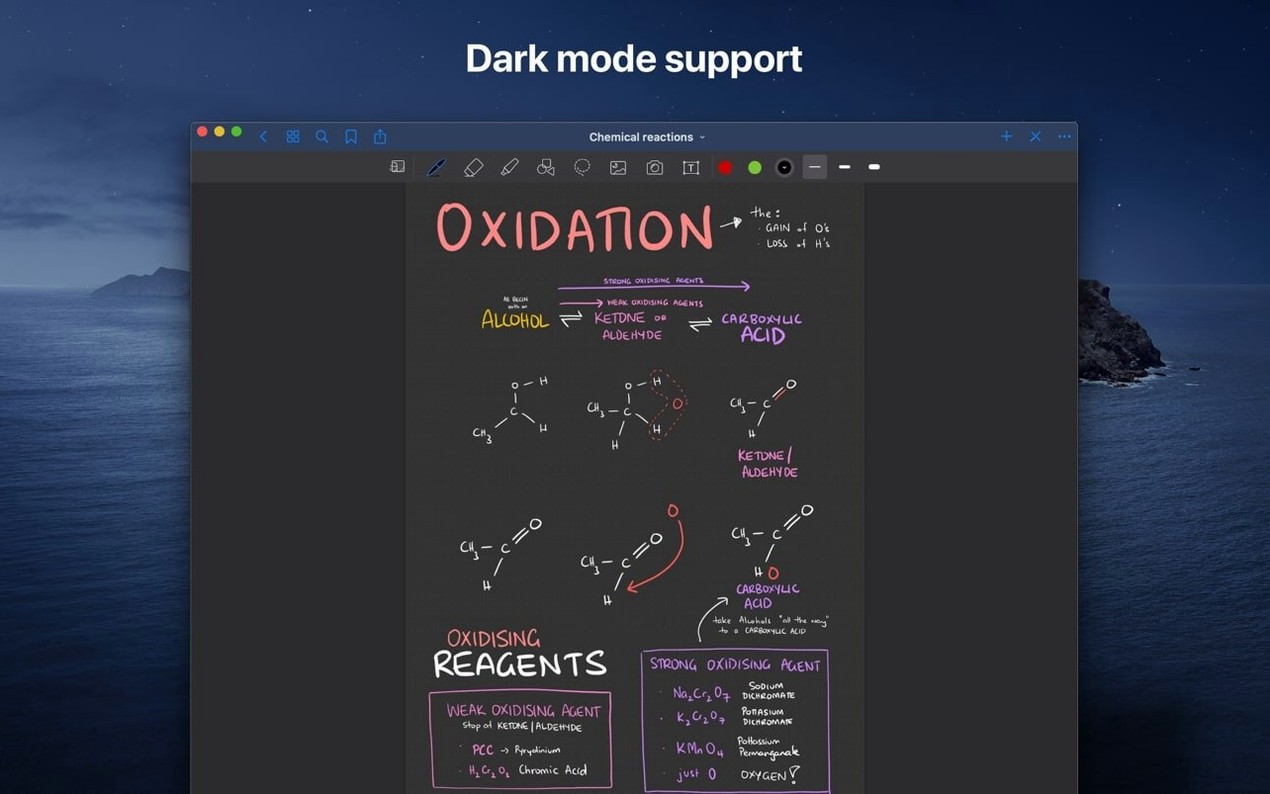
GoodNotes 5 runs on any Mac with macOS 10.15 Catalina or newer — Intel and Apple Silicon machines are both supported. The interface is the same one iPad users know, just adapted for a larger screen and keyboard.
Refine handwritten notes after the fact
Handwriting doesn't have to stay where it lands. Select any stroke and move it, rotate it, resize it, or change its color. The eraser gives you two modes: remove an entire stroke in one tap, or switch to pixel-level control and erase only the part that went wide.
Keep a clean notebook while marking up documents
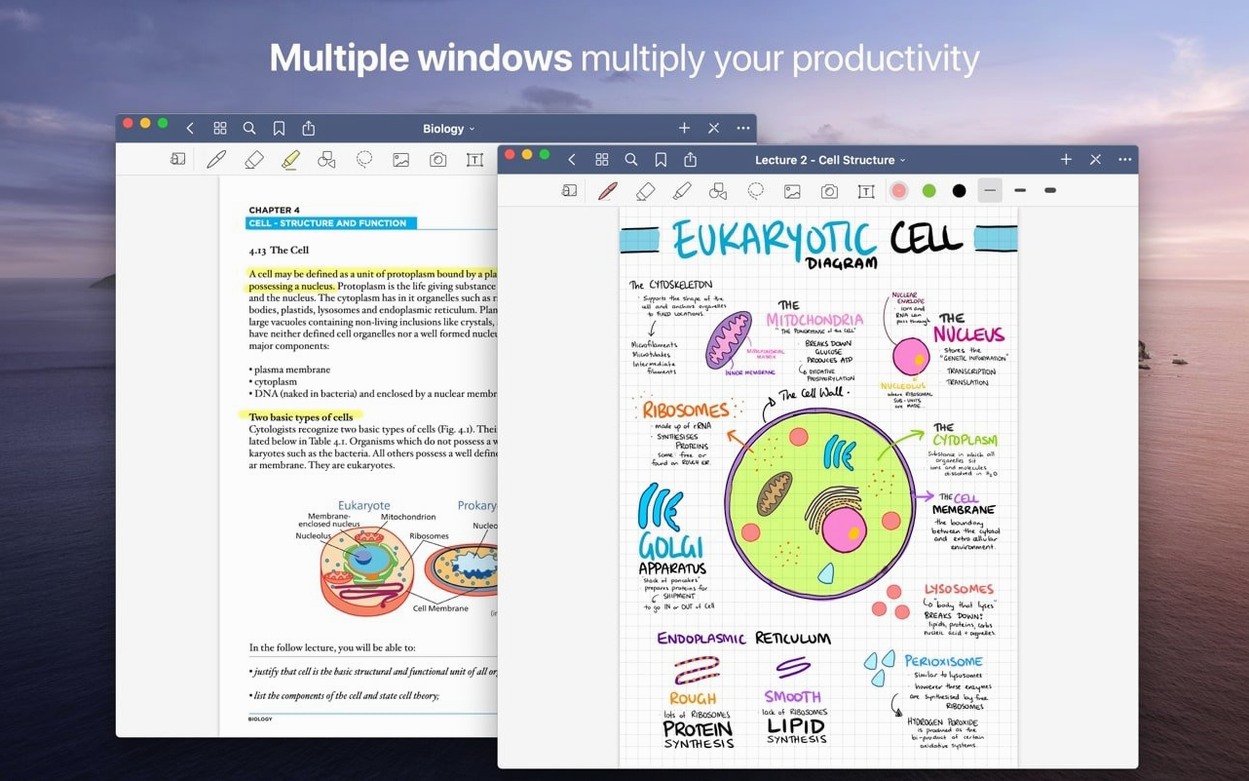
Import a PDF or image, then annotate with text, drawings, and highlights. The Shapes tool snaps rough lines into clean polygons and straight edges so callouts stay readable. If you use a marker for emphasis, there's an option that limits the eraser to marker ink — everything else stays untouched.
Build a filing system that actually helps you find things
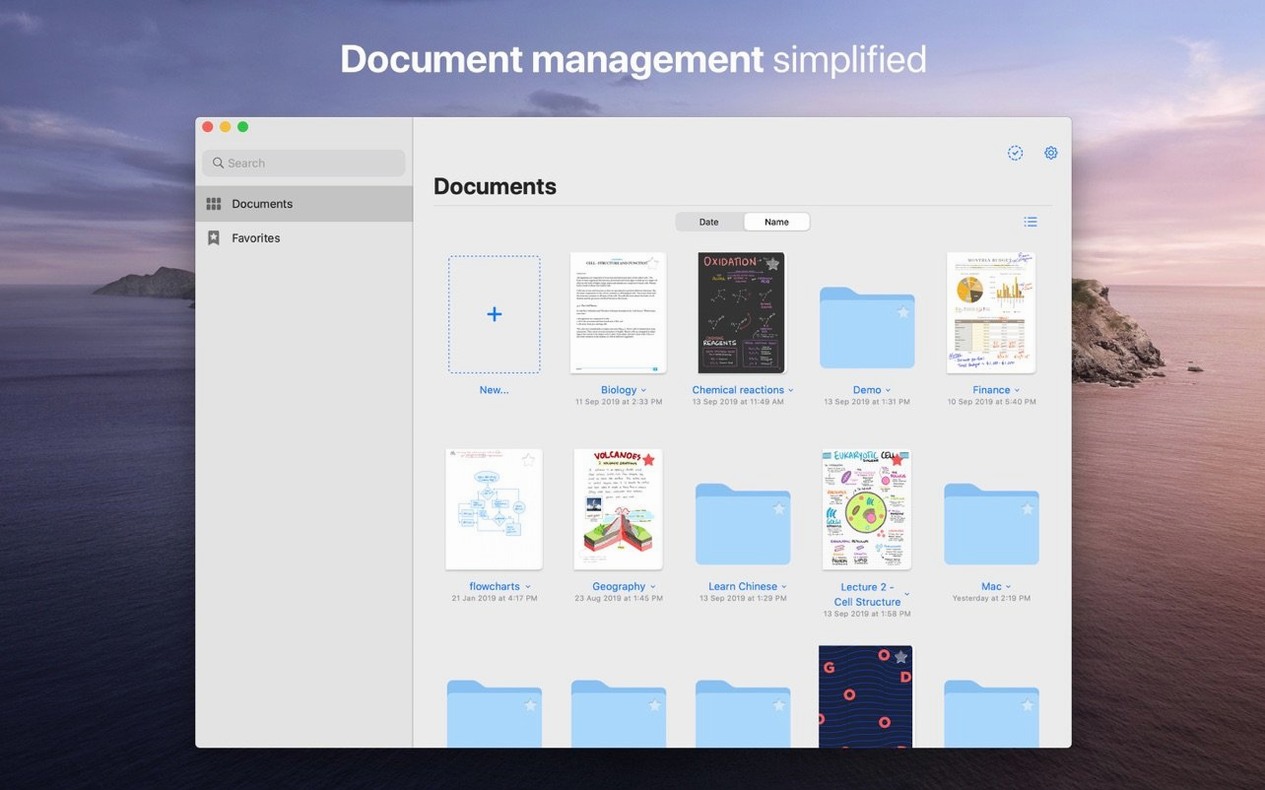
Folders and subfolders keep documents organized, and you can drag files straight from the Mac hard drive into the app. Mark the pages, files, and folders you return to most as Favorites so they sit at the top level instead of buried three folders deep.
GoodNotes doesn't need to live alone on your Mac. It plays well with the rest of the system, and once you see where the connections are, the app stops feeling like a separate island.
Working with Finder, iCloud, and other Mac tools
Drag a PDF or image straight from Finder into an open notebook and GoodNotes imports it as a page. From the other direction, select any page or a whole document and drag it out to the Desktop — macOS writes it as a PDF without a second prompt. If you keep a scans folder on your hard drive, this is the fastest way to turn loose files into a bound, organized notebook.
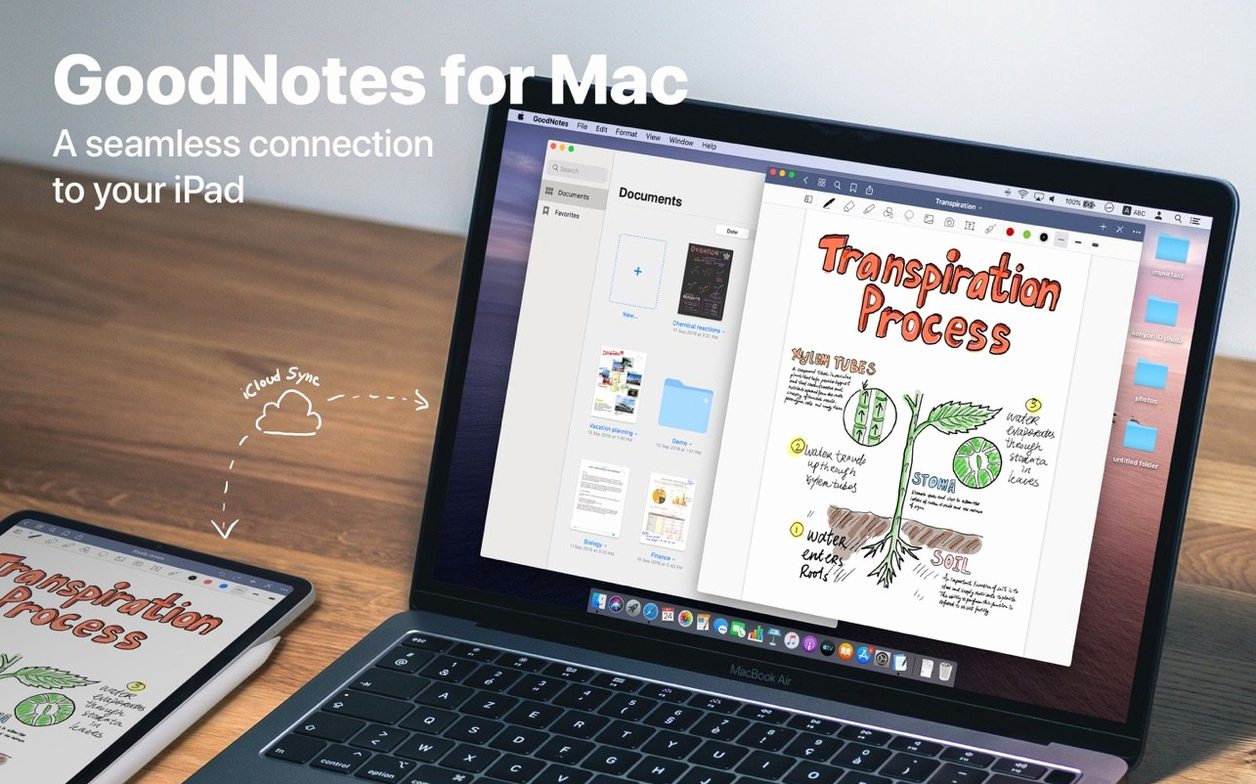
iCloud handles the quiet work. Start a note on your iPad during a lecture, then open the same document on your Mac an hour later. The sync runs through your Apple ID, so there's no separate account to manage. It's particularly useful when you want to type longer text on the Mac version, where the keyboard and larger display make editing more comfortable than on an iPhone.
Spotlight also finds notebooks and pages by title, which pairs well with the Favorites system. Mark something as a favorite inside GoodNotes, and you already know what to search for when you need it again.
Mistakes that slow people down at first
One common misstep is treating GoodNotes like a PDF editor. It can annotate imported files beautifully, but the original PDF stays a separate layer of content — if you want a clean, edited copy, export the annotated version as a new PDF instead of expecting the imported file to change in place.
Another is over-building the folder structure on day one. A tree with fourteen subfolders is satisfying to create and miserable to maintain. Start with three or four broad categories and let the search bar and Favorites do the retrieval work.
People also forget that the eraser has two modes. The default removes an entire stroke with one tap, which feels aggressive if you only wanted to fix a corner of a letter. Before erasing anything, check whether you're in whole-stroke or partial mode — it changes how carefully you need to aim.
Finally, don't leave everything in iCloud and assume that's a backup. Sync keeps devices current, but it won't restore a notebook you deleted on purpose. If a document matters, drag a PDF copy to an external drive now and then.
More Handwriting Control Than Apple Notes
GoodNotes vs. Apple Notes: Apple Notes is built into macOS and syncs instantly, but its drawing tools are minimal. GoodNotes gives you real notebook structure, page-based documents, and far more control over handwriting and shapes. If you mostly jot quick text notes, Apple Notes is fine. If you want a digital notebook with hand-drawn diagrams and annotated PDFs, GoodNotes is the stronger tool.
GoodNotes vs. Notability: Notability has long been the other big name in handwritten notes, and it includes audio recording synced to your ink — a feature GoodNotes doesn't offer in the same way. GoodNotes answers with better document organization, a more flexible page system, and handwriting that's easier to edit after the fact. The choice usually comes down to whether you need audio or prefer to structure everything like a real notebook.
GoodNotes vs. OneNote: OneNote is free and cross-platform, which is hard to ignore. But its infinite canvas feels less like paper and more like a whiteboard, and its PDF handling is clunkier. GoodNotes keeps pages at standard paper sizes, which matters when you export to PDF or print. If you live inside the Microsoft ecosystem, OneNote is the natural fit; if you want a Mac-and-iPad notebook that feels like paper, GoodNotes wins.
Start With One Real Project Notebook
Don't try to migrate everything at once. Pick one real project — a course, a manual you're reading, a home renovation — and build a single notebook for it during the first week.
- Day one: Create one notebook and import two or three existing PDFs by dragging them in. Add a folder, mark one page as a favorite, and try the Shapes tool on a quick diagram.
- Day two: Write by hand with a stylus if you have one, or use a mouse with the pen tool. Select a stroke, resize it, and test both eraser modes so the difference becomes muscle memory.
- Day three: Set up iCloud sync with one other device if you have an iPad or iPhone. Make a change on one device and watch it appear on the Mac — that's the moment the workflow clicks.
Students who want the GoodNotes experience on iPad can look for a goodnotes 5 download ipad build, and the same version syncs back to the Mac through the same Apple ID. A goodnotes mac download with version 5.9.8 keeps everything in step.
- macOS 10.15 (Catalina) or newer
- Apple Silicon and Intel 64-bit Macs
Questions I actually get
Can I erase only part of a handwritten stroke in GoodNotes?
Yes, the eraser includes a partial-erase mode that lets you remove a section of a stroke without deleting the entire line.
Does GoodNotes let me organize documents into folders?
Yes, you can create folders and subfolders to organize your notebooks, and you can add documents by dragging them from the Mac hard drive into the app.
Can I import and mark up PDFs in GoodNotes for Mac?
Yes, you can import PDF files and images, then annotate them with text, handwriting, drawings, and highlights.
Porch talk 0
Come in or pull up a chair to leave a comment.
Nobody has pulled up a chair yet. If you used it on a real Saturday, say what the hour was.
More for the same hour
Everything in Office
 GraphPad Prism
11.1.0 Office
68 MB
GraphPad Prism
11.1.0 Office
68 MB
 FSNotes
7.3.6 Office
Updated 24 MB
FSNotes
7.3.6 Office
Updated 24 MB
 iA Writer
8.1.1 Office
Updated 23 MB
iA Writer
8.1.1 Office
Updated 23 MB
 Final Draft
13.5.0 Office
Updated 111 MB
Final Draft
13.5.0 Office
Updated 111 MB
 EndNote
2025.4 Office
Updated 112 MB
EndNote
2025.4 Office
Updated 112 MB
 DjVu Reader Pro
2.7.2 Office
26 MB
DjVu Reader Pro
2.7.2 Office
26 MB
 Complete Anatomy
12.6.0 Office
Updated 867 MB
Complete Anatomy
12.6.0 Office
Updated 867 MB
 Matlab R2025b
R2025b ARM only Office
6.5 GB
Matlab R2025b
R2025b ARM only Office
6.5 GB