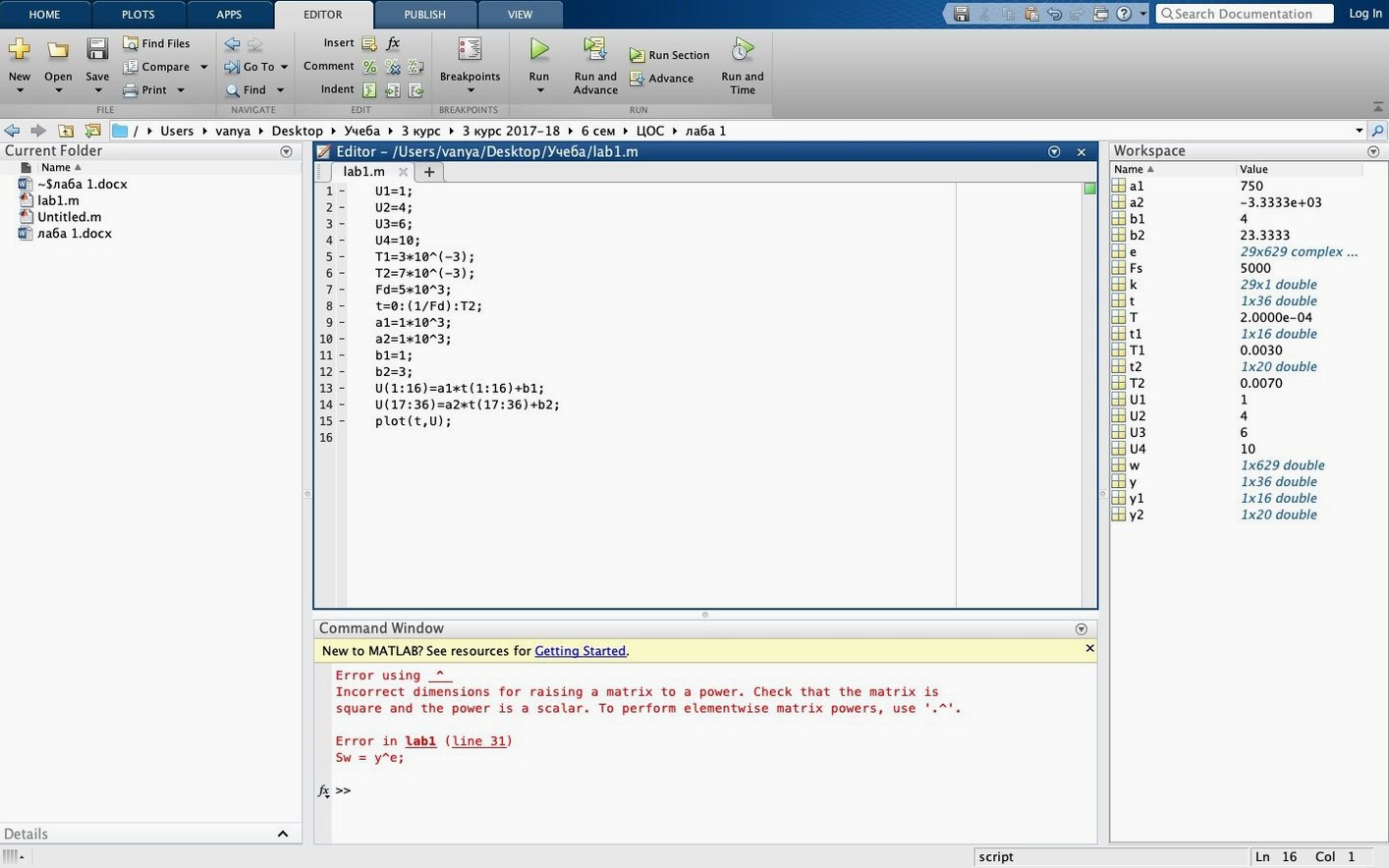
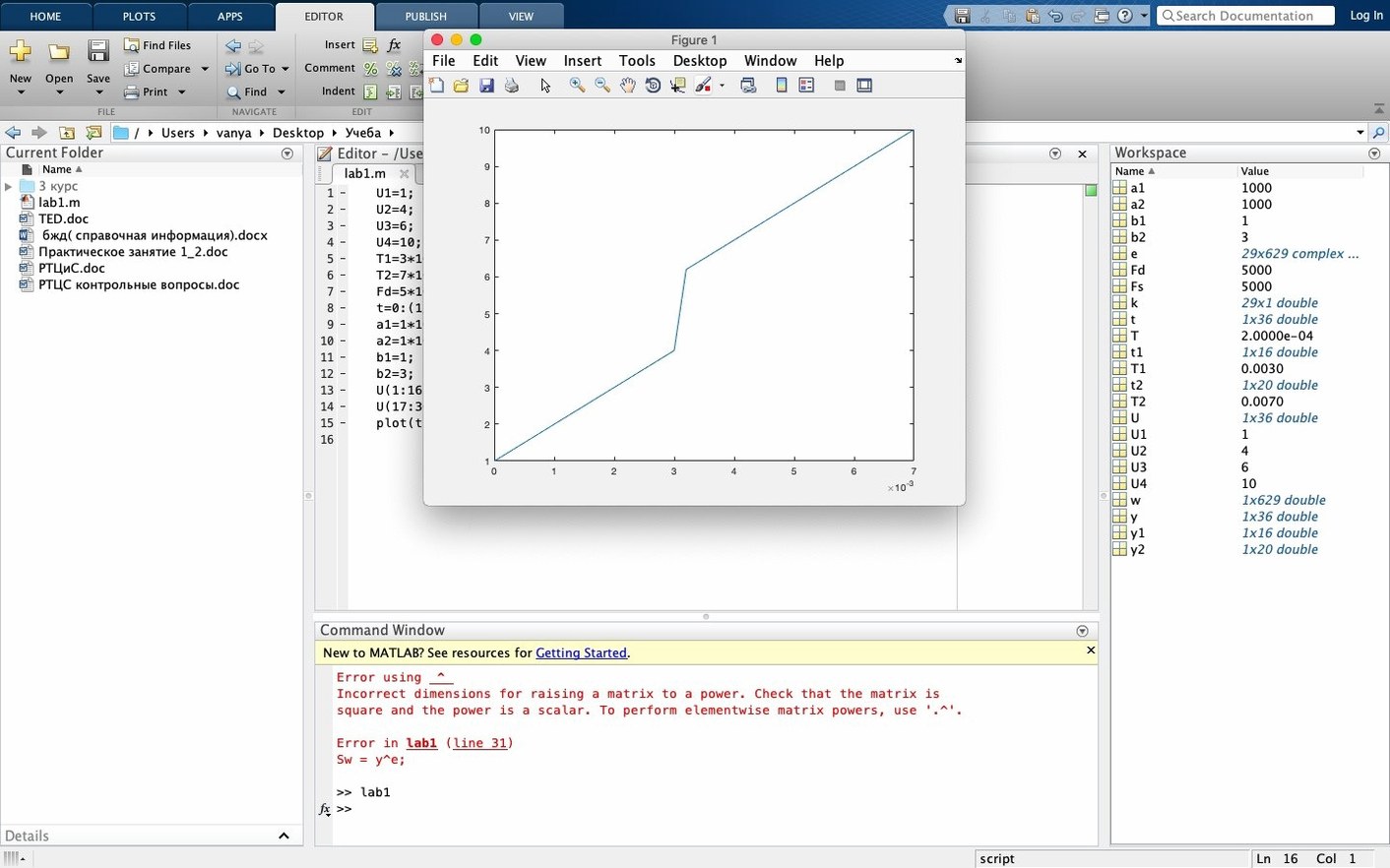
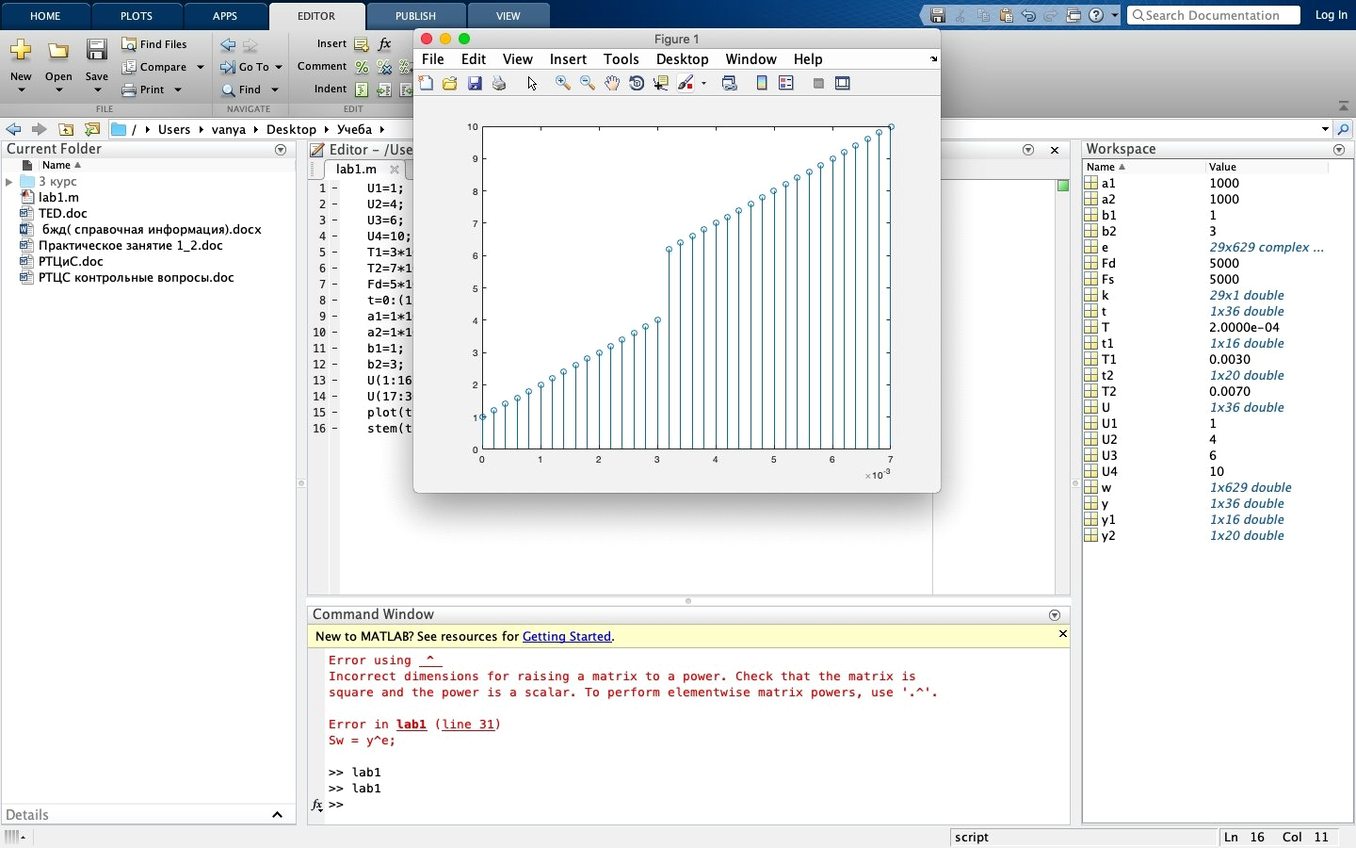
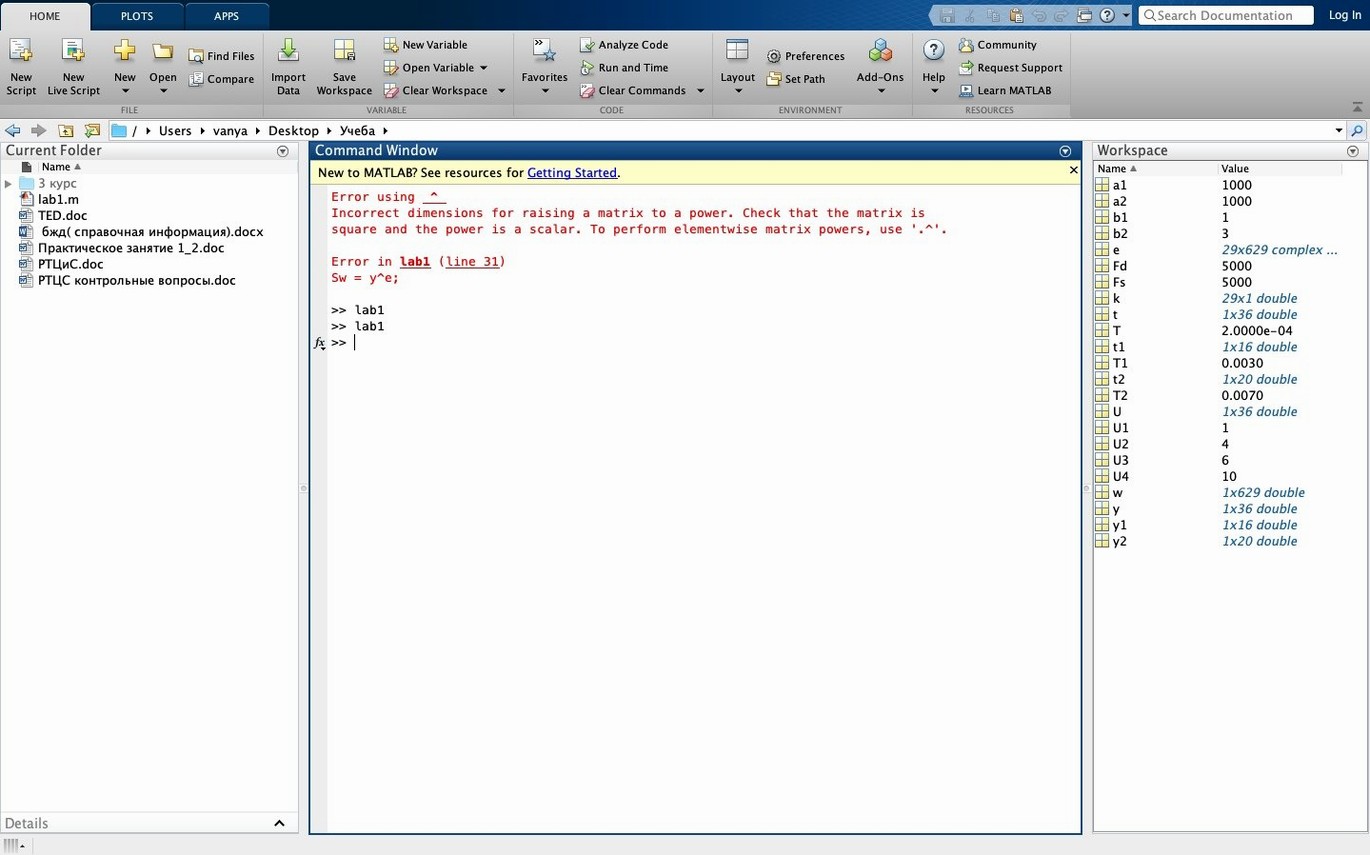
The most immediate change in R2025b is one you’ll see the moment the desktop opens. Light and dark themes have arrived for the desktop, figure windows, and apps. It’s a straightforward addition, but if you spend long hours staring at spectral plots or debugging control logic, the darker interface is a welcome relief that feels overdue.
Alongside the visual refresh, the workspace has been reorganized. New side panels now give you direct access to the Debugger, Projects, Source Control, the Test Browser, Code Issues, and Code Outline. Instead of hunting through menus or remembering keyboard shortcuts, the tools you need for a given moment live in collapsible panels at the edge of the screen. It makes the environment feel less like a sprawling toolbox and more like a workspace you can arrange for the task at hand.
Underneath the interface, R2025b is a quality and stability release. MathWorks hasn’t rewritten the core linear algebra functions or the differential equation solvers this time around. The engine that handles image processing, control systems, and test automation is the same one you rely on, just tuned to run a little smoother. For anyone mid-project, that stability matters more than a list of new features.
What you’re really getting is the same high-level language and interactive environment for numerical computation and visualization, now easier on the eyes and with fewer speed bumps. If you’ve been holding off on an update because your current setup works, this one is about comfort, not upheaval.
From vibration data to live plots in the dark-themed editor
Say it’s late morning and you’re staring at vibration data from a sensor array that’s been acting up. You launch R2025b. The dark theme greets you first — the editor, the command window, the workspace browser all settle into a muted charcoal that makes the orange warning highlights in your script pop.
You click the Projects panel on the left. Your structural analysis project opens with its folder structure intact, dependencies mapped, and the last three scripts you touched listed right where you left them. No digging through Finder.
A quick load('sensor_run_04.mat') pulls the data into the workspace. You glance at the Code Issues panel. Three orange dots — nothing critical, just a couple of preallocations you’ve been meaning to clean up. You leave them for now.
The Source Control panel shows your colleague pushed a change to the FFT preprocessing function an hour ago. You pull it, run the script again, and the updated spectrogram fills the figure container. You drag it to the second monitor, resize a few subplots, and the dark theme carries over to the figure window without a flicker. Thirty minutes in, you’ve loaded, analyzed, and version-controlled the morning’s dataset without once leaving the environment or reaching for a menu.
A signal processing workflow, start to finish
Let’s walk through a concrete task: isolating a narrowband signal buried in noisy telemetry. You’ve got a two-minute recording sampled at 48 kHz, and you need to pull out a tone that shouldn’t be there.
You start in the editor with a blank script. The Code Outline panel on the right gives you a running map of sections as you type — helpful when the script grows past a hundred lines. You load the audio with audioread, plot the raw waveform in a figure, and immediately notice the figure container keeps the plot, the property inspector, and the zoom controls grouped in one window. No floating toolbars drifting off-screen.
The Debugger panel sits open on the left. You set a breakpoint just before the FFT, run the section, and step through the windowing line by line. When a variable spills out with the wrong dimensions, the panel shows the call stack at a glance. You fix the reshape call, clear the breakpoint, and move on.
A bandpass filter designed with designfilt isolates the tone. You toggle to the Test Browser panel, run the small suite of validation checks you wrote last week, and watch four green checkmarks appear. The filtered result gets written to a MAT file, and the figure — dark-themed, properly labeled — gets exported as a PDF right from the figure container. Forty lines of code, one environment, no add-ons needed.
The R2025b release focuses on a refreshed desktop experience and under-the-hood polish.
- Light and dark themes for the desktop, figure windows, and apps.
- New side panels for the Debugger, Project, Source Control, Test Browser, Code Issues, and Code Outline.
- Quality and stability improvements throughout the environment.
- macOS 12.6 or later
- Apple Silicon (native) or Intel Mac
- English interface
Porch talk 0
Come in or pull up a chair to leave a comment.
Nobody has pulled up a chair yet. If you used it on a real Saturday, say what the hour was.