
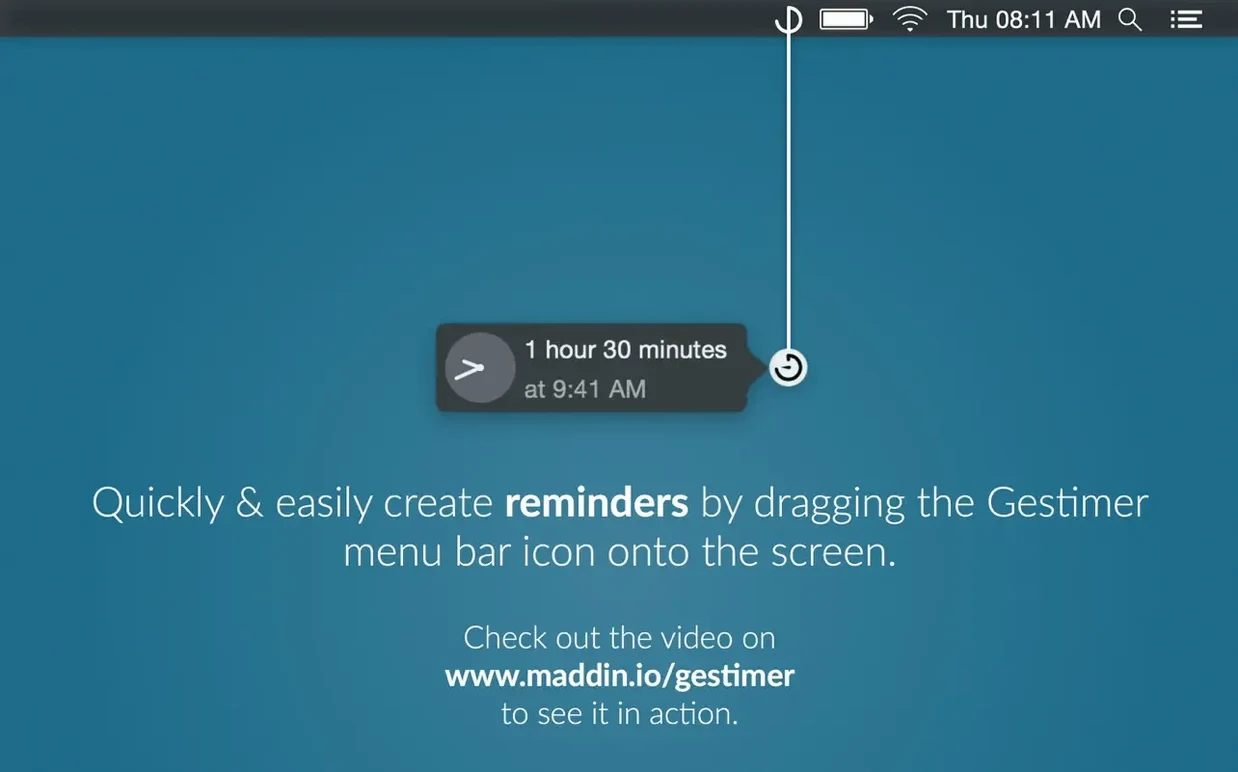
Gestimer 1.2.8 runs on any Mac from 2014 onward — anything that can run OS X 10.10 Yosemite or later, Intel or Apple Silicon. It lives in your menu bar, ready for the small reminders that pile up during the day.
Menu bar app — sits out of the way until you need a quick timer or reminder.
Apple Reminders sync — reminders you set in Gestimer appear in the built-in Reminders app.
Postpone option — snooze a reminder if you can’t act on it right away.
17 interface languages — English, Russian, German, French, Spanish, Italian, Japanese, Chinese (simplified and traditional), Korean, Polish, Portuguese, Ukrainian, Finnish, Danish, Greek, and Hebrew.
Show Countdown in the Menu Bar
Once Gestimer is in your menu bar, a few quick tweaks make it behave the way you actually work. Open Preferences from the Gestimer icon in the menu bar.
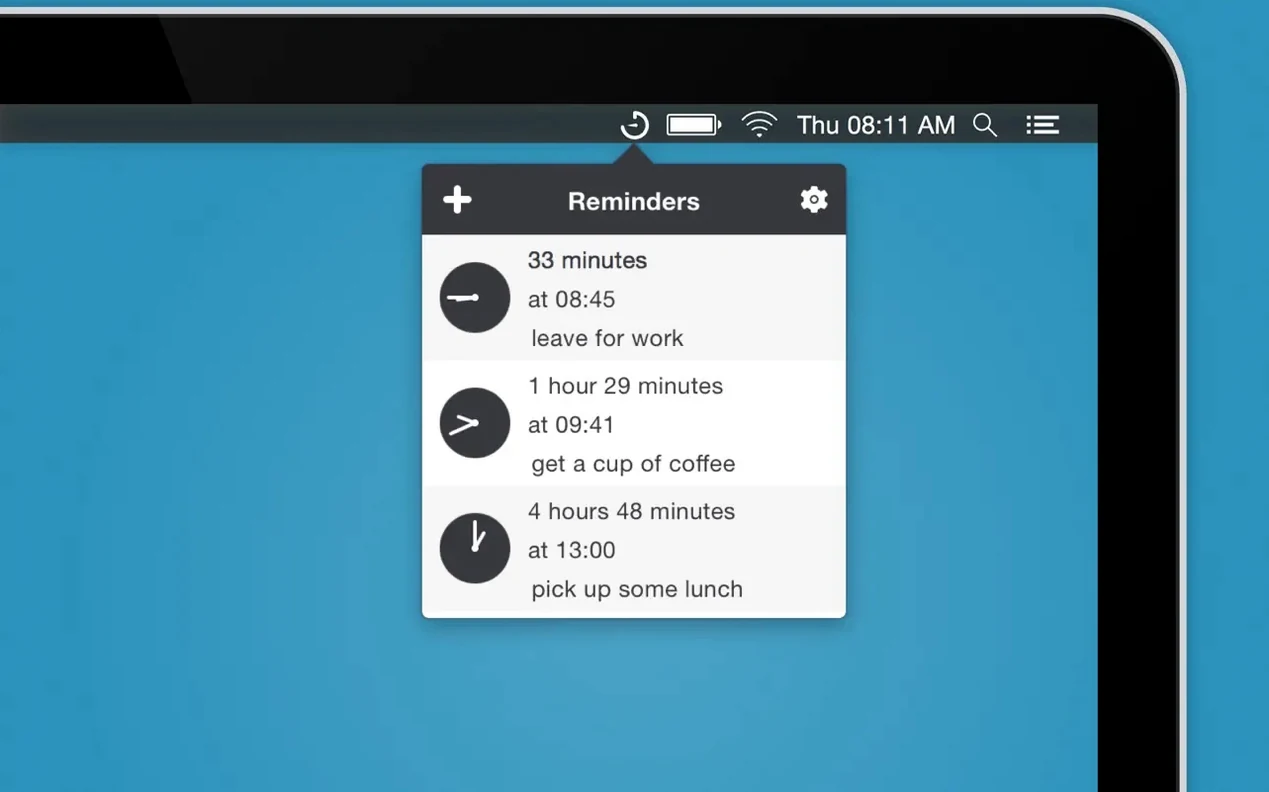
Turn on countdown in the menu bar. This option shows how much time is left until your next reminder right in the top bar. Without it, you have to click the icon to check. It’s a small change, but it saves you from opening the window just to see if your tea is done steeping or your parking meter is about to run out.
Set your default reminder duration. Gestimer remembers the last duration you used, but if you always set 10-minute reminders, typing or dragging every time gets old. Pick a default that matches your common tasks — 5 minutes for quick stretch breaks, 15 for laundry cycles, something in between.
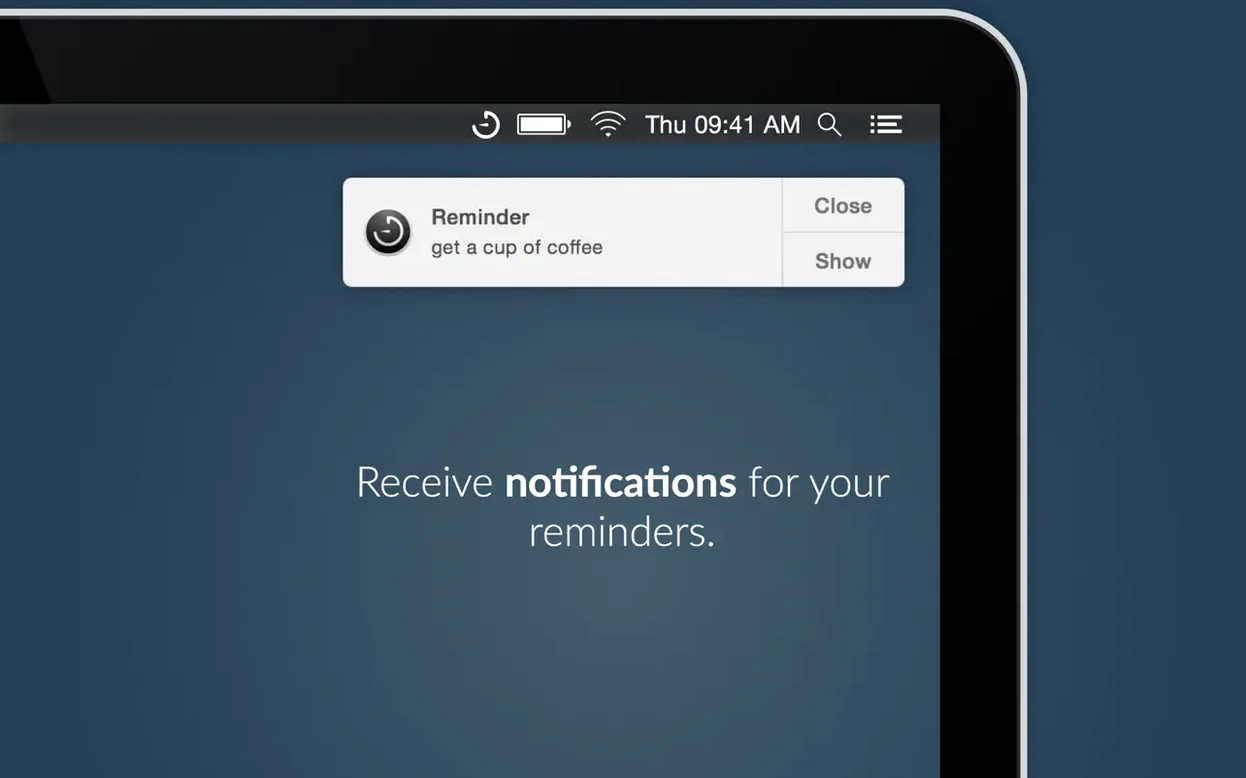
Adjust notification style. The app can send a standard macOS notification or a more noticeable alert. If you tend to miss reminders when you’re deep in a full-screen app, switch to the persistent notification. If you get too many pings already, the standard one is fine.
Change the postpone interval. The default snooze is 5 minutes. If you know you’ll need 10 minutes to finish what you’re doing before dealing with a reminder, bump it up. Less tapping later.
Common Snags People Hit
Gestimer is straightforward, but a couple of things trip people up early on.
Reminders not showing up in Apple Reminders. This happens when Gestimer doesn’t have permission to access the Reminders app. Open System Preferences, go to Privacy & Security, then Reminders, and make sure Gestimer is checked. After that, any new reminder you create in Gestimer syncs to Reminders automatically.
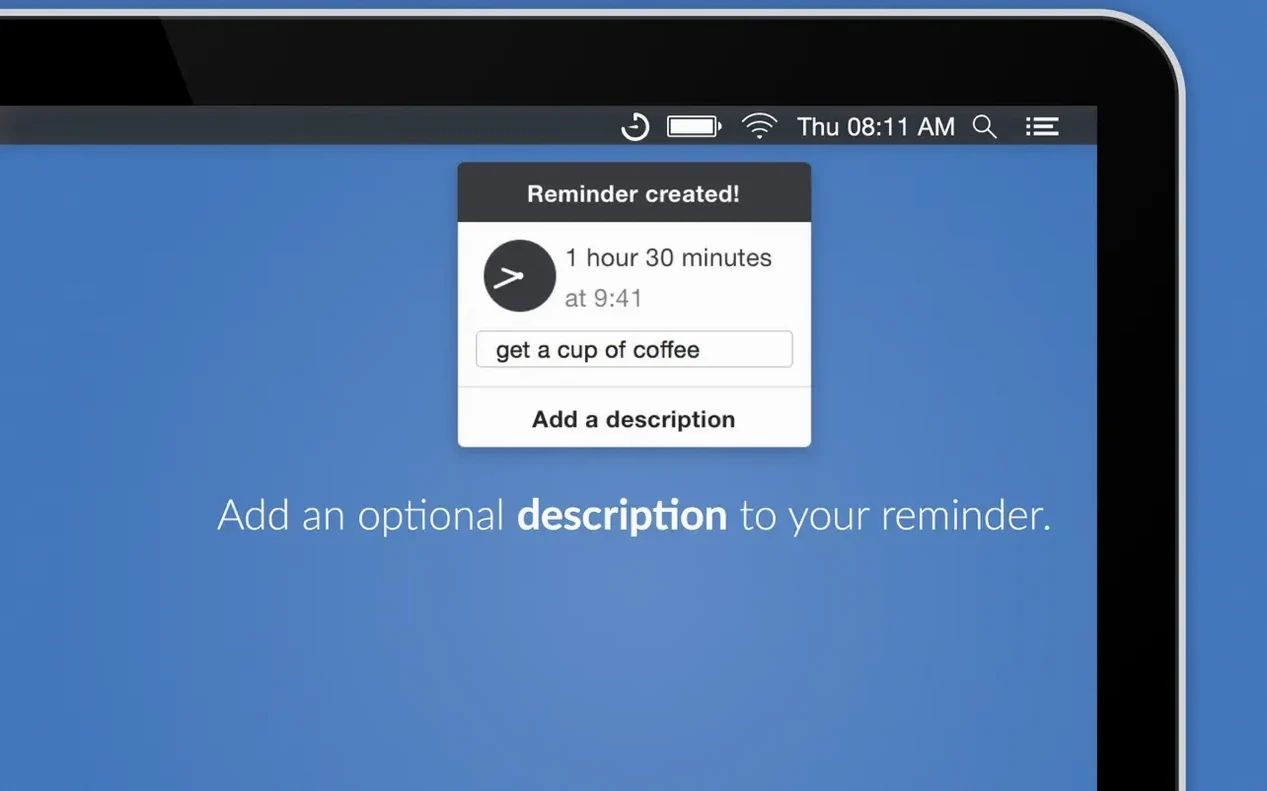
Dragging doesn’t create a reminder. The drag-and-drop gesture is the signature feature, but it works only when you drag the Gestimer icon from the menu bar down onto the screen. If you try dragging from the preference window or from the app icon in the dock, nothing happens. Drag from the menu bar icon itself, and a small window appears where you type the reminder text and the time appears automatically.
Notifications don’t pop up. If your Mac is in Do Not Disturb mode or Focus mode, macOS suppresses notifications by default. Gestimer’s reminder still goes off, but you won’t see the notification until you turn that mode off. Check your Notification Center for a backlog of missed reminders if things seem quiet.
The countdown on the icon shows “0”. This usually means no reminder is set. Create one, and the countdown appears. If it stays at zero even after you set a reminder, quit Gestimer and relaunch it. That clears any small state glitch.
Fills the Gap for Short Timed Nudges
Does Gestimer replace Apple’s built-in timer? Not exactly. Apple Reminders handles longer-term to-dos. Gestimer fills the gap for the five-minute, ten-minute, half-hour spans where you need a nudge but don’t want to open a full app. It also syncs with Apple Reminders, so nothing gets lost.
Can I set repeating reminders? Gestimer focuses on one-shot reminders. If you need a daily 2 p.m. pill reminder, you’re better off with a recurring task in Apple Reminders or another tool. But for single-use timers — when to take the bread out of the oven, when to leave for an appointment — it’s perfect.
Is Gestimer 1.2.8 the same as Gestimer 2? No. Gestimer 2 is a separate, newer version with a different feature set. If you have an older Mac on macOS 10.10 through maybe 10.14, 1.2.8 is the version that runs. If you’re on a newer macOS, either version works.
Does it work with multiple monitors? Yes. The menu bar icon appears on your primary monitor. Drag it from there to create a reminder. The countdown shows on that same screen. No special setup needed.
Uses a Few Megabytes Idling in the Menu Bar
Gestimer is about as light as a utility gets. It uses a few megabytes of RAM sitting idle in the menu bar. When you drag to set a reminder, the window pops up instantly — no lag, no stutter. On both Intel and Apple Silicon Macs, it feels the same.
Stability is solid. Gestimer 1.2.8 has been around long enough that the rough edges are smoothed out. It doesn’t crash, doesn’t freeze. The only time it might act odd is if your system clock jumps — like after a time zone change — and then it just picks up from the new time. A restart clears any hiccup.
It sits there, shows a number when you have a reminder set, and sends a notification when the time comes. That’s it.
- macOS OS X 10.10 or later
- Intel or Apple Silicon
Porch talk 0
Come in or pull up a chair to leave a comment.
Nobody has pulled up a chair yet. If you used it on a real Saturday, say what the hour was.