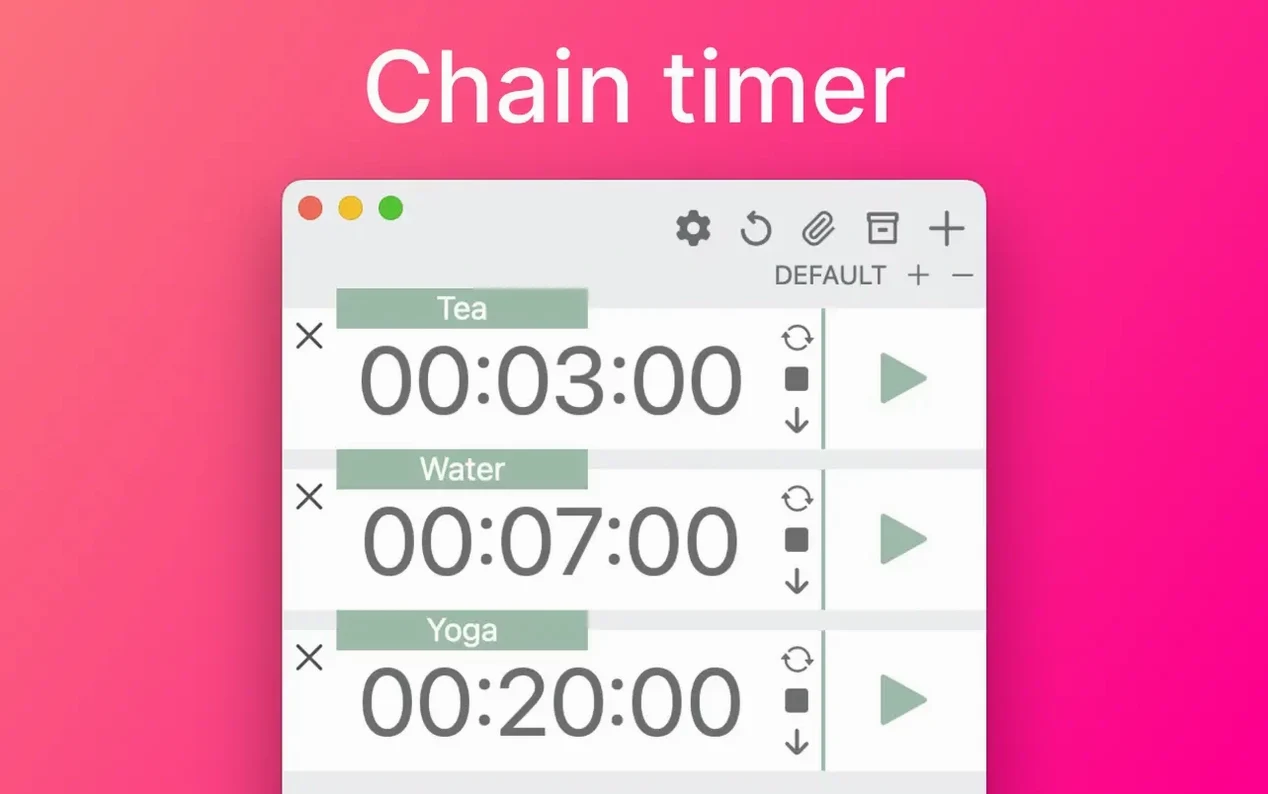
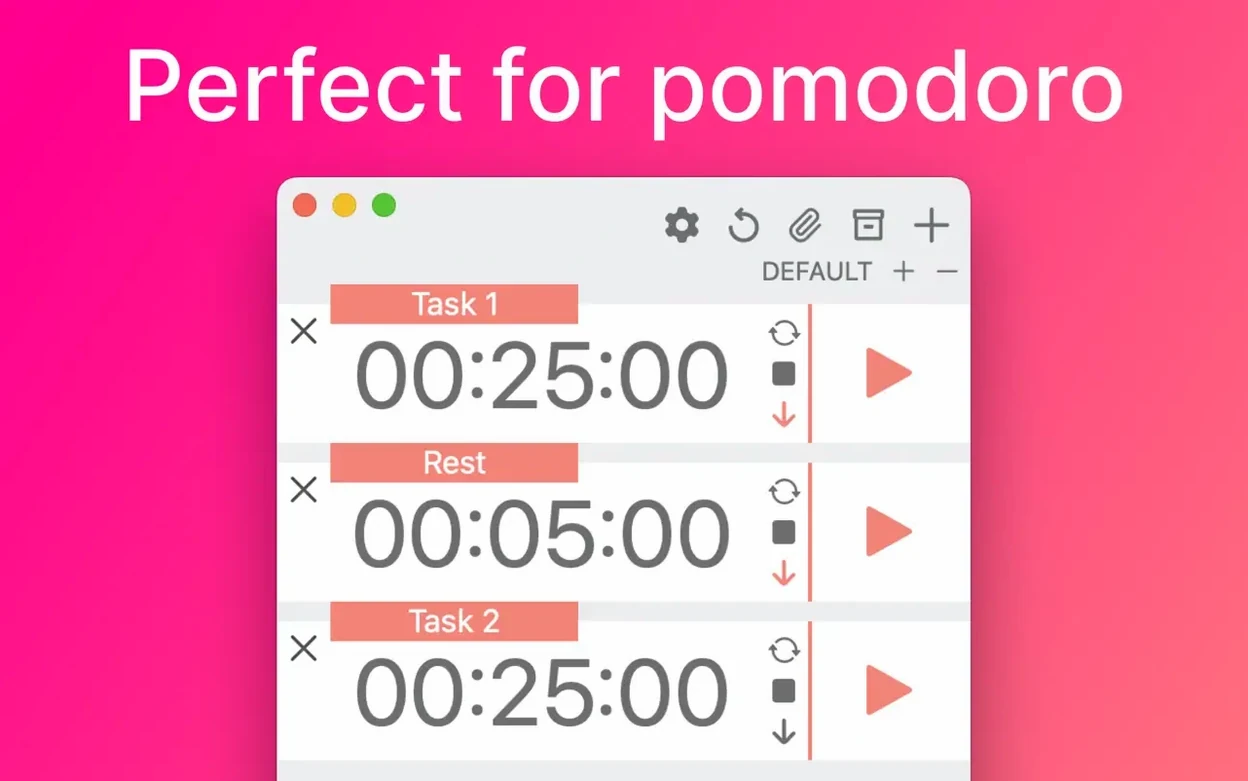
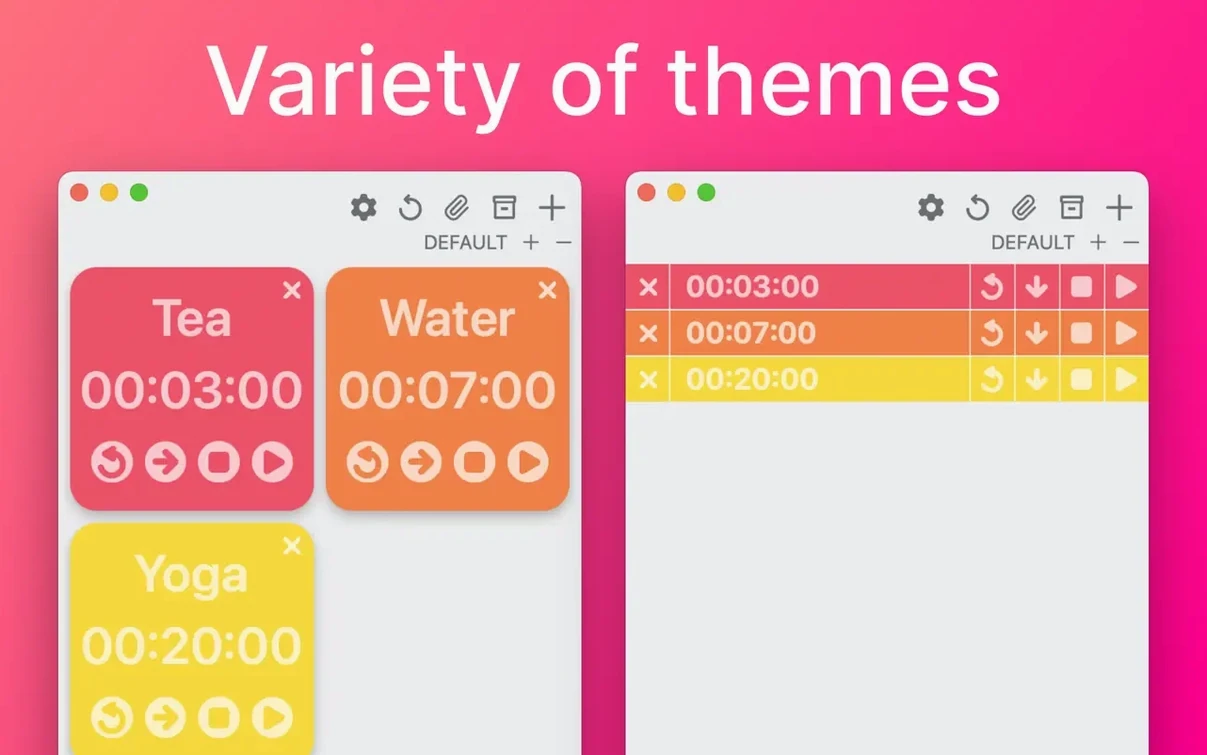
Some days you need more than one timer running at once — whether it’s for cooking, work intervals, or keeping track of multiple tasks. Chain Timer is a straightforward multi-timer app that handles that without fuss.
What Version 10.8 Brings
Version 10.8 is a maintenance update. There are no new features to learn — the app stays focused on its core job: running multiple timers simultaneously. It supports both Apple Silicon and Intel Macs, and requires macOS 11 or later.
What Stayed the Same
The interface remains clean and uncluttered, with support for fifteen languages including English, German, French, Japanese, and others. You set a timer, name it if you want, and let it run. It’s a simple tool for people who just need timers to work.
Run Dozens of Timers at Once
One of the first things you might wonder is whether Chain Timer can handle more than two or three timers at once. The answer is yes — you can run as many simultaneous timers as your screen can comfortably display, and the app doesn’t slow down or lag when you add more. Another common question is whether the timers keep running when you switch to another application. They do. Each timer runs independently in the background, and you’ll see the time update in the app window whether it’s in the foreground or tucked behind other windows.
People also ask about notifications. Chain Timer uses your Mac’s built-in notification system, so when a timer finishes, you’ll see a standard macOS alert. You won’t miss the end of a timed session even if you’re deep in another app. There is no custom sound or music file support — it uses the system alert tone, which is consistent and reliable.
A few users have asked about exporting or saving timer presets. Chain Timer doesn’t include a preset library or export function. You set each timer fresh each time, or you can duplicate a running timer if you want the same duration again. It’s a deliberate simplicity — nothing to manage, nothing to lose.
Name Each Timer to Track Tasks
The most common mistake is not giving timers a name. When you have four timers running, it’s easy to lose track of which one belongs to the pasta, which to the laundry, and which to a work break. Naming each timer takes two seconds and saves you from staring at a row of identical countdowns wondering what each one is for.
Another slip is starting a timer and then forgetting to check what happens when it finishes. Chain Timer does not auto-repeat or loop timers. When a countdown reaches zero, it stops and shows a notification. If you need a repeating interval, you have to start a new timer each time. A few beginners expect a “repeat” toggle, so it’s worth knowing upfront that this isn’t that kind of app.
Some users also try to drag the app window to resize it and are surprised that it doesn’t scale freely. The window has a fixed minimum size, and resizing is limited. That’s by design — the layout stays readable at any supported size. If you want more timers visible at once, you’re better off making the window taller rather than wider.
Finally, beginners sometimes close the app thinking it will save their running timers for later. It does not. If you quit Chain Timer, all active timers stop. There is no suspend or resume feature. Plan your timer sessions so you don’t accidentally lose progress.
Switch Notification Style for Clearer Alerts
Before you start using Chain Timer regularly, there are a couple of settings that make the experience smoother. The first is the notification style. By default, the app uses macOS notifications, which appear as a banner and then fade. If you prefer a more persistent alert, you can adjust how long the notification stays visible in your system settings. It’s not a Chain Timer setting, but it’s worth knowing because it affects how you notice timer completions.
The second thing to set is your preferred display format. Chain Timer offers both countdown and elapsed time modes. If you’re timing a work session and want to see how long you’ve been at it rather than how much time is left, switch to elapsed. The option is a simple toggle, and it applies per timer, so you can mix countdown and elapsed timers in the same session.
If you use the app in a language other than English, check the interface language setting early. With fifteen languages available, the app switches cleanly, but the setting is slightly hidden — look under preferences, not the main window. Once you set it, all labels and buttons update immediately.
Small Conveniences and Shortcuts
Chain Timer has a few small touches that make daily use easier. One is the ability to duplicate a timer. If you need the same duration again — say, another twenty-minute work block — right-click or use the menu to duplicate it instead of typing the time from scratch. It’s a small time saver that adds up over a day.
Another convenience is the keyboard shortcut to start and stop timers. You can use the spacebar to start the selected timer, and pressing it again pauses it. This works even when the app isn’t in focus, as long as it’s the active window. For people who run multiple timed sessions in a row, this cuts down on mouse clicks.
The app also remembers the last few durations you used, so you don’t have to re-enter common times. If you often set a five-minute egg timer and a thirty-minute work block, those durations appear in a dropdown when you create a new timer. It’s not a full preset system, but it’s practical for everyday patterns.
One feature that’s easy to miss is the ability to reorder timers. You can drag timers up and down in the list to group them by importance or by task. This is useful when you have a long list and want the most urgent timer at the top. It’s not obvious from the static interface, but try dragging a timer’s handle — it’s there.
For people who run Chain Timer alongside other productivity tools, the fact that it doesn’t steal keyboard focus is a relief. It sits quietly in its window, and you can start a timer without interrupting your typing or your music. It’s the kind of behavior you notice only when another app doesn’t do it.
If you’ve ever searched for a way to manage multiple timers on a Mac without the bloat of a full task manager or the limitations of a single kitchen timer, Chain Timer hits that middle ground well. It’s worth trying if you find yourself juggling two or three timed tasks in a typical day — whether that’s cooking, studying, or keeping work sessions on track.
- macOS 11 or later
- Apple Silicon or Intel 64-bit Mac
Questions I actually get
Does Chain Timer work on Apple Silicon Macs?
Yes, version 10.8 supports both Apple Silicon and Intel 64-bit Macs.
What languages does the app support?
Chain Timer is available in fifteen languages, including English, German, French, Spanish, Japanese, and Traditional Chinese.
Porch talk 0
Come in or pull up a chair to leave a comment.
Nobody has pulled up a chair yet. If you used it on a real Saturday, say what the hour was.