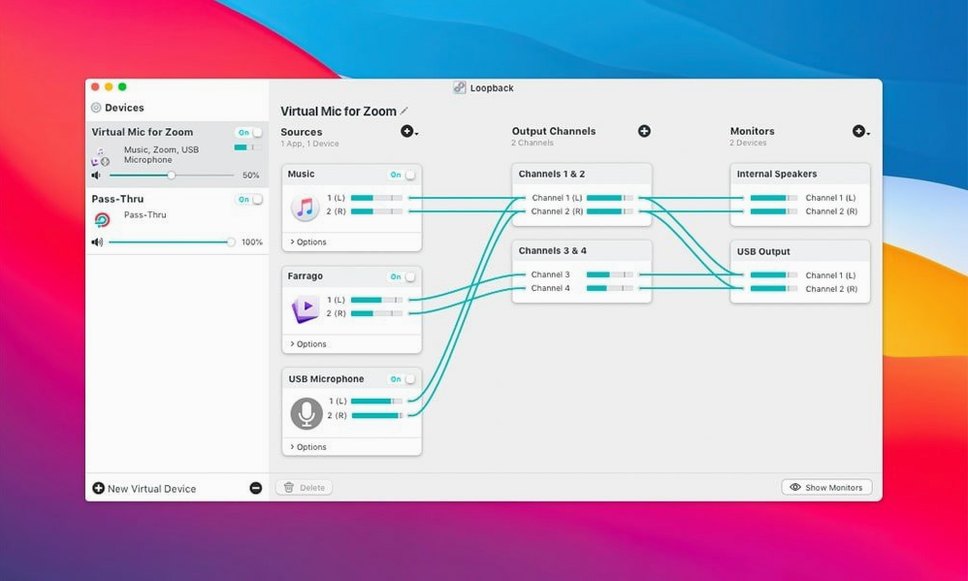
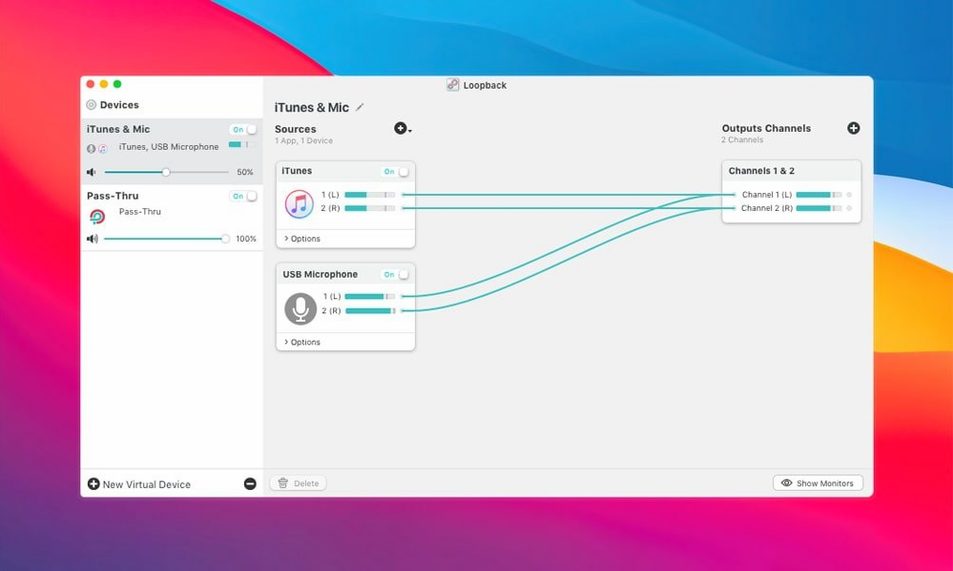
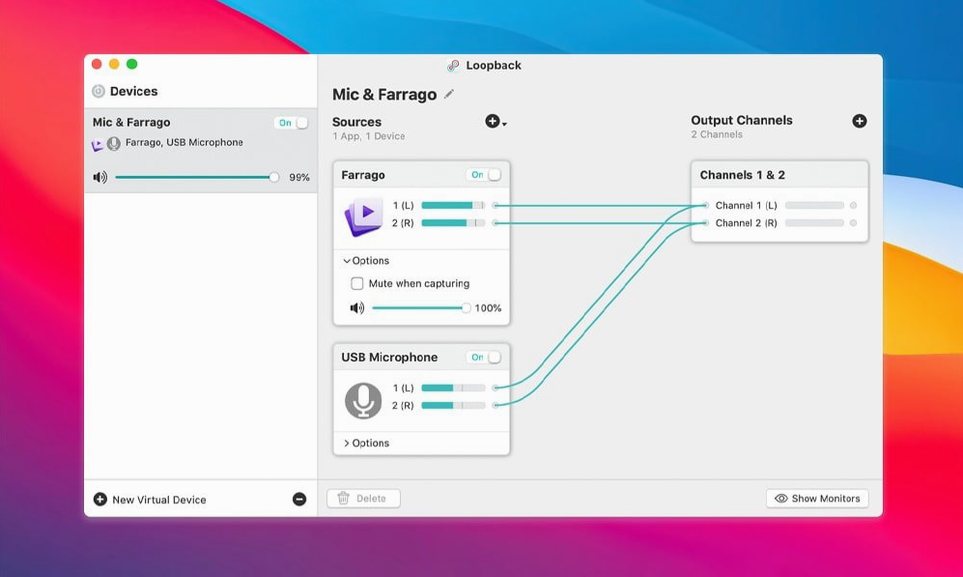
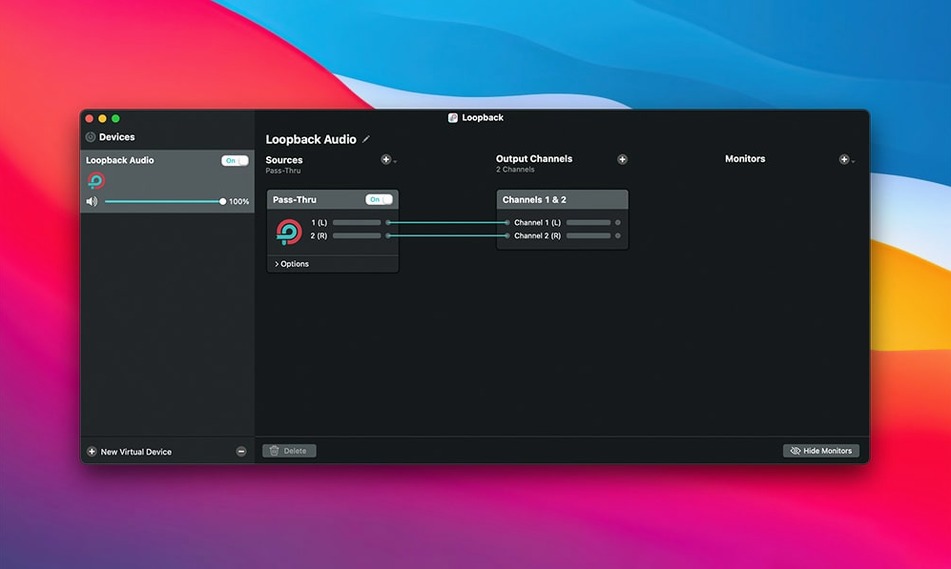
Two dozen channels can flow into one virtual device. That's the kind of headroom that turns Loopback from a handy utility into the central patchbay for a Mac studio. The wired interface shows you exactly where audio enters and exits, letting you pull a microphone, a music app, and system alerts into a single output that every other application sees as a hardware input.
Pair a podcast mic with a soundboard app and send the blend straight to your voice chat platform. Route Elgato Game Capture hardware so it hears both the game audio and your commentary track simultaneously. The combined feed appears anywhere macOS looks for a microphone, no per-app fiddling required once the virtual device is built.
Under the hood, the updated ARK plugin (version 13.5) handles the real-time processing, and version 2.5.0 no longer throws a warning when you launch it on macOS 27. That quiet polish matters when the tool sits in your menu bar day after day, working alongside Audio Hijack for the times you need to record what the patchbay is passing around.
If you already map signal chains in your head and find the built-in audio routing too rigid, this is your sandbox. Build the device once, then forget it's there.
Approving the plug-in once in System Settings
People want to know whether Loopback installs system-level files that tangle with macOS security. It does use a plug-in component for audio handling, but the installer puts it exactly where it belongs. You approve it once in System Settings and move on. No kexts lingering around, no startup items you didn't ask for.
Another frequent one: does it add latency to audio? The ARK processing runs close to real time, so you won't hear a slap-back echo in your headphones or see lips drift out of sync on a recording. A few milliseconds pass through the virtual device, but it's low enough that musical instruments and live commentary stay tight.
Folks also ask about multiple Macs on the same network. Loopback works locally on one machine. It doesn't pipe audio over Wi-Fi to another Mac, but you can combine it with something like Audio Hijack if you need to broadcast a stream elsewhere.
And yes, it plays nicely with aggregate devices you've already set up in Audio MIDI Setup. Loopback sees them as ordinary inputs, so you can nest a virtual device inside another virtual device if the routing calls for it.
Interface versus Audio MIDI Setup
Compared to BlackHole, an open-source loopback driver, the difference comes down to interface and flexibility. BlackHole gives you a straightforward pipe from one app to another, but you configure everything through Audio MIDI Setup and individual app preferences. Loopback puts every source on a visual canvas where you drag wires between blocks. For a simple one-to-one pass-through, BlackHole does the job. The moment you need to blend a USB mic, a Safari tab, and a desktop audio feed into a single stereo channel, Loopback saves you from stitching together three workarounds.
Soundflower, which many Mac users relied on for years, hasn't seen an update in a long stretch. On modern macOS releases it often requires disabling System Integrity Protection or other gymnastics. Loopback stays current with each macOS version and doesn't ask you to weaken security. If you're coming from a Soundflower setup that finally broke, the migration feels like stepping out of a dark utility closet into a room with actual labels on the knobs.
Audio Hijack itself, from the same developer, records audio from apps and devices. Loopback routes it before the recording step. The two complement each other: build a virtual device in Loopback that merges a microphone and a music player, then point Audio Hijack at that device to capture the mix. You're not choosing one over the other; they handle different parts of the signal chain.
Drag one source to one output first
Start with a dead-simple pass-through. Pick one application source and one output channel. Listen to the result in another app before you add a second source. That ten-minute exercise teaches you how the wiring panel reacts when you drag a new block into place and where the level meters show up.
Name your virtual devices something you'll recognize six months later. "MicPlusSafari" beats "Virtual Device 3" when you're picking an input in ScreenFlow or OBS. Loopback keeps the names you give it, and those names appear in every app's audio preferences.
Once the first device works, try the volume sliders built into each source block. They're pre-fader, meaning you set the balance between sources before the combined signal hits the rest of the system. If your browser audio overpowers the microphone, drop the browser slider a few decibels and leave the recording app's gain alone.
Monitor through a physical output at first. Route the virtual device to your headphones or desktop speakers so you hear exactly what other applications will receive. It's faster than recording a test clip and playing it back every time you tweak a level.
Quit the app that grabbed the wrong input
Some apps grab the default input device at launch and won't let go. If Zoom or Discord ignores the Loopback device you selected, quit the app entirely, set the virtual device as your system input in Sound preferences, then relaunch. The stubborn ones usually respect the system-wide setting when no other input is available.
Silence from an application source often traces back to that app's own output routing. Music or browser tabs might be muted, or their volume might be pulled all the way down inside the app. Check the source app's output level before you start troubleshooting Loopback itself.
If the virtual device doesn't appear in your target app's audio list, give macOS a moment to notice it. New devices sometimes need ten or fifteen seconds to propagate. Switching to another input and back usually forces a refresh. Restarting the target app works, too.
When you're chasing a loopback torrent or a loopback crack search result online, you might end up with an installer that doesn't match the current version. An outdated ARK plug-in will trip and stutter on recent macOS builds. To get things running smoothly with the 2.5.0 release, just double-check that all components are from the same build so everything stays in sync.
Audio dropouts during screen recordings often come from the screen capture app, not from Loopback. QuickTime Player, for example, sometimes loses its grip on a virtual device after the Mac wakes from sleep. Unplugging and re-plugging the virtual device—just delete it and rebuild it from the same sources—clears the connection in under a minute.
Voice, app demo, and browser effects at once
You sit down to record a tutorial that captures your voice, the app you're demonstrating, and a few sound effects from a browser tab. Loopback is already running in the menu bar. You click its icon and open the main window, where last week's podcast setup still sits.
You click the plus button in the sidebar and name the new device "Tutorial Mix." The canvas appears, blank except for the output block on the right. From the Sources column, you drag in your USB microphone. A new block appears with a level meter already twitching as you speak. Next you drag the target application—let's say Xcode—straight onto the canvas. A third drag pulls in Safari, which has your soundboard tab loaded.
The three source blocks sit side by side. You wire each one to the output block by dragging the little connection dots, and the patch cables snap into place. The output meter shows the combined signal. You notice Safari's sound effects are hot, so you pull its slider down to around sixty percent.
Over in ScreenFlow, you open audio preferences and set the input to "Tutorial Mix." You arm a test recording, hit the sound effect button in Safari, talk a few sentences, and click around in Xcode. The resulting clip plays back with all three sources balanced exactly as you set them. You don't touch the routing again for the rest of the afternoon—just record take after take while Loopback quietly passes audio in the background.
When the session wraps, the virtual device stays saved. Tomorrow morning you'll open the same "Tutorial Mix" and pick up right where you left off, no rebuilding, no recalibrating.
- macOS 11 or later
- Runs natively on Intel and Apple Silicon Macs
Porch talk 0
Come in or pull up a chair to leave a comment.
Nobody has pulled up a chair yet. If you used it on a real Saturday, say what the hour was.