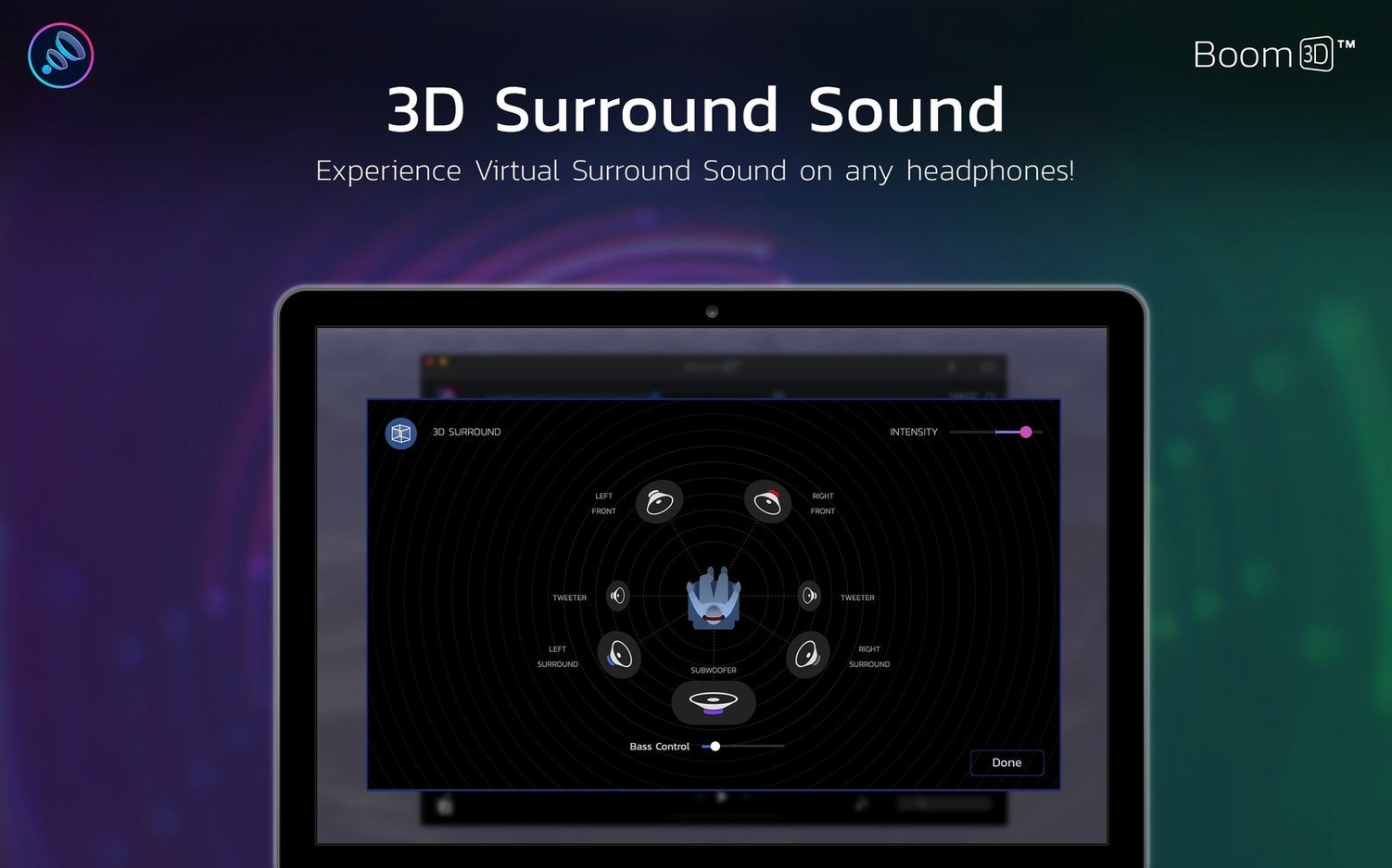
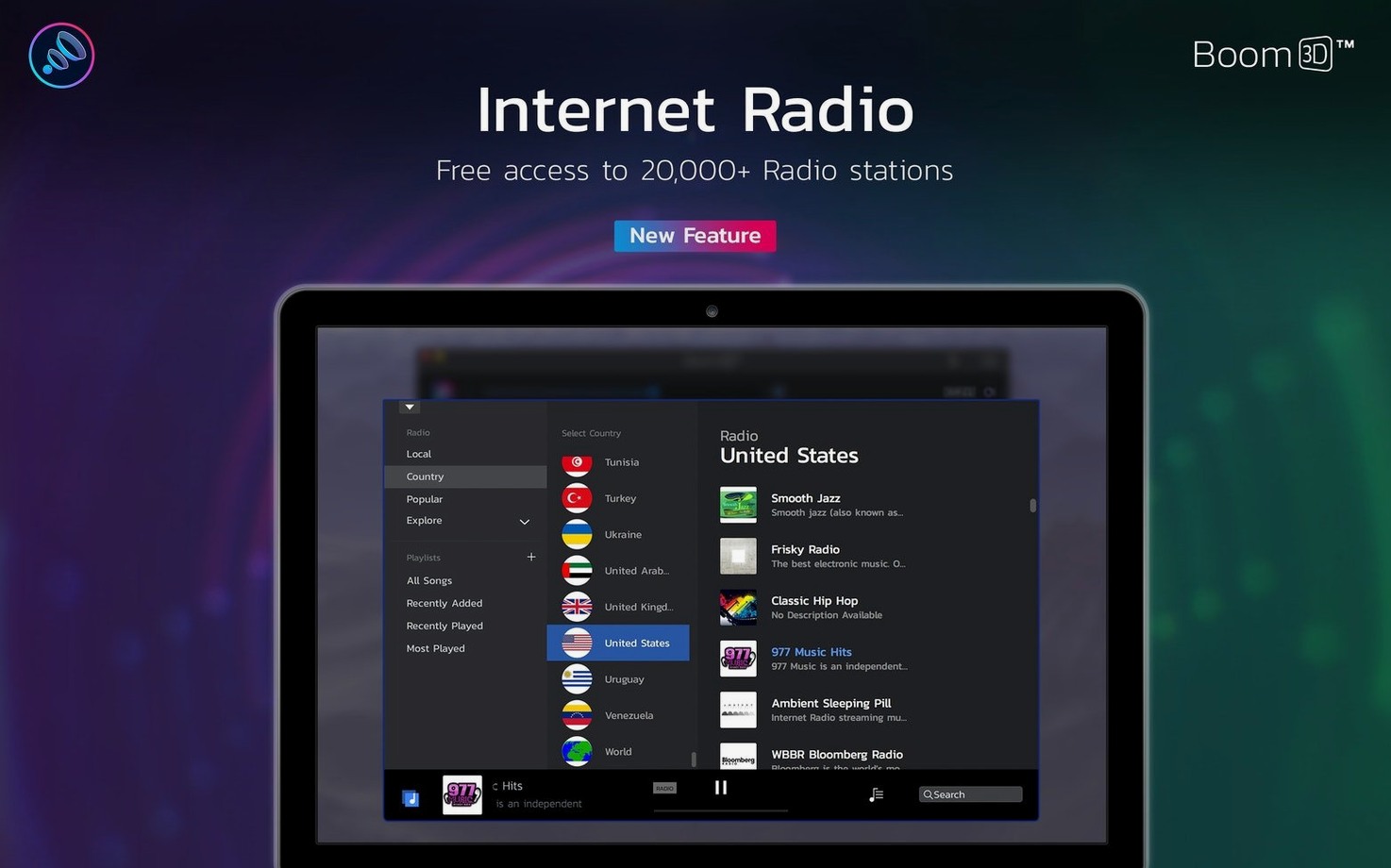
Twelve interface languages ship with the installer, from Russian to Japanese. That's a hint this is not a small utility. Boom 3D wants to reshape how everything sounds on your Mac, not just one player.
Quiet laptop speakers that finally fill a room
- Lifting quiet laptops or weak speakers above the room noise
- Adding a sense of space to headphones with 3D surround
- Shaping tone with the precision equalizer across all apps
- Anyone on macOS 10.14 or later, Intel or Apple Silicon
Alerts and notifications get the same audio treatment
- It is a separate app from Boom 2, so old presets don't carry over
- System-wide processing means every alert and notification gets the same treatment
- The older download page lists support back to macOS 10.10, but the app's current compatibility starts at 10.14
If you have a quiet MacBook or headphones that feel flat, start with a small volume lift and one surround preset. See how it sits before you reach for the equalizer.
Slide the volume booster to 100% and regret it
Install, launch, and immediately slide the volume booster to 100%. That's the instinct, and it's the fastest way to make a bad first impression. The real work in the first few days is finding your baseline — the settings that lift everything without making it sound like a cheap car stereo.
On day one, keep the 3D surround off. Just use the booster slider in small increments. If your MacBook speakers normally sit at 60% system volume and still sound thin, try Boom's booster at 20–30%. Let your ears settle for an afternoon. You're not aiming for loud; you're aiming for present — vocals that don't get swallowed by room noise, dialogue that stays clear over a running fan.
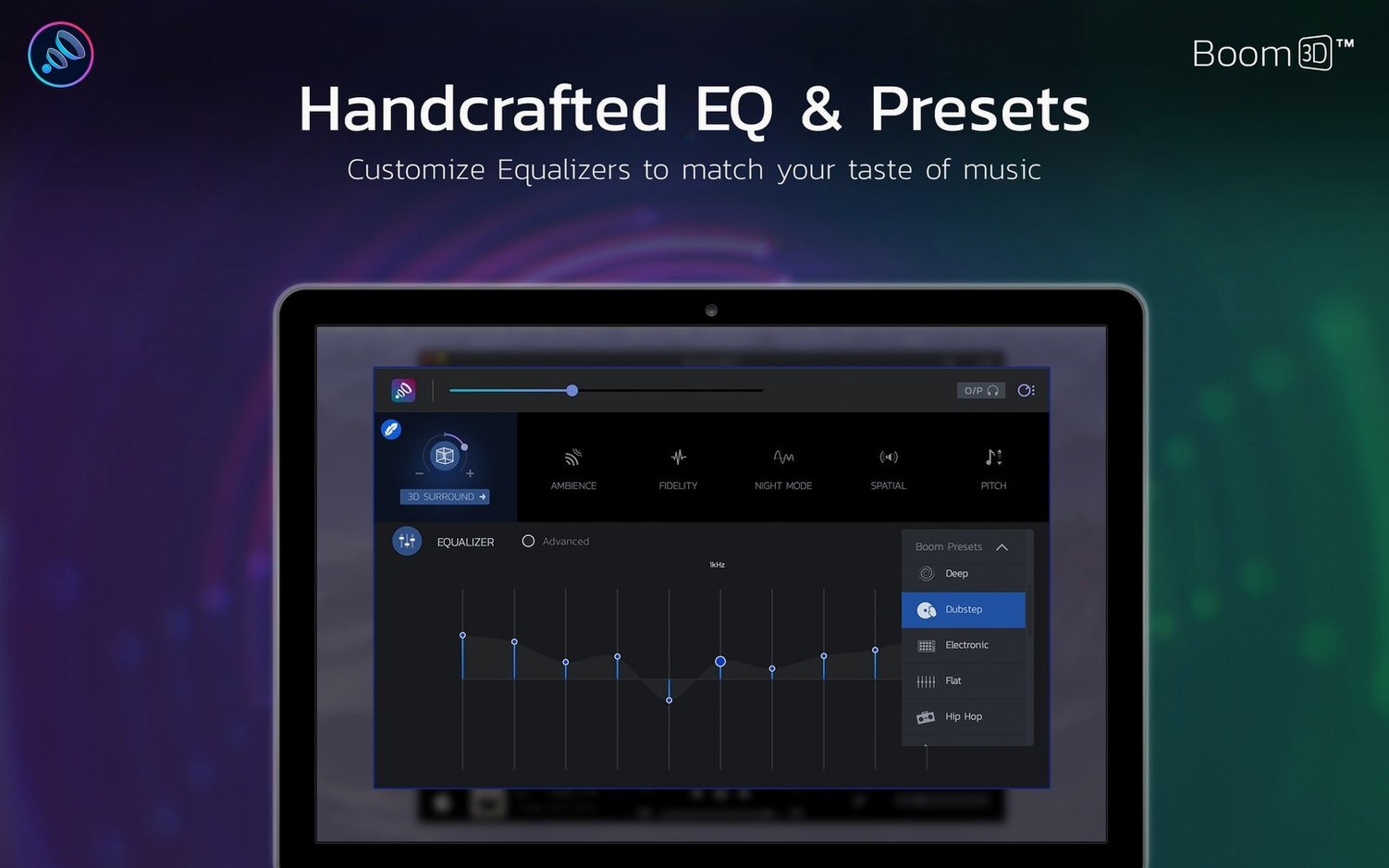
Day two is for headphones. Plug them in, then open the equalizer. Don't build a custom curve yet. Cycle through the presets first — Bass Booster, Jazz, Pop — and notice what they actually change. Most beginners crank the low end and lose the midrange. A small 2–3 dB nudge around 80 Hz is often enough to give body to open-back headphones without mud. Drop the 4 kHz band by a single decibel if strings or cymbals feel sharp. That restraint is what separates a useful setup from a boomy mess.
By day three, you're ready to try 3D surround on a familiar playlist. Sit with it for twenty minutes, then bypass the effect. If the bypassed sound suddenly feels flat and narrow, the setting is working. If you feel relief when it's off, the intensity is too high. Pull the 3D slider back to about 40% and test again. Small adjustments, spread over days, stick better than a marathon tweaking session.
Friday night headphones with an album you know inside out
It's Friday evening. You've just sat down with headphones after a week of laptop speakers and video calls. Music is the plan — an album you know inside out, something recorded live. Boom 3D is already running in the menu bar, its icon barely noticeable next to the clock.
You click the icon and the interface drops open. The volume booster sits at 15%, right where you left it after last weekend's movie. You bump it to 25% — enough for a little headroom. The 3D surround toggle is off. You switch it on, and the spatial effect spreads the soundstage outward. The live recording, which always felt a bit cramped in the center of your skull, now has width. The crowd noise reaches further left and right; the piano sits slightly behind the vocal.
After two tracks, you open the per-app volume panel. Your chat app is still chiming at full strength over the music. You drop it to 30% of the system level. Now the notification sound doesn't clobber the quiet bridge of a song. You switch to the equalizer and load the Jazz preset — it rolls off a little high-end sharpness and lets the double bass breathe. You save it as a custom preset named "Late Night Headphones."
The session runs three hours. You never open System Preferences. You never touch the physical volume keys. Everything happens in the Boom panel, and when you close the lid at midnight, the app's state is waiting for tomorrow exactly as you left it.
Boosting volume before lowering system output
Some patterns show up again and again with new users. Here are the ones worth avoiding early.
Boosting volume before lowering system output. If your Mac's system volume is already at 90% and you add Boom's booster on top, you're pushing the signal chain into distortion. Drop the system volume to 70%, then raise the booster. You get the same perceived loudness with less strain on the output stage.
Forgetting that notifications get the treatment too. System-wide processing means every ping, every calendar alert, every screenshot sound effect runs through the same equalizer and 3D engine. A bass-heavy EQ curve that makes music feel rich can make a system alert sound like a door slamming. Use the per-app volume panel to quiet anything that isn't your main audio source.
Leaving 3D surround on for mono sources. Podcasts, voice memos, old recordings — applying spatial processing to a single-channel source just smears it across a fake stereo field. The voice loses focus. Toggle surround off for spoken word; your ears will thank you.
Ignoring the bypass button while tweaking. Every adjustment you make sounds correct in the moment. The bypass button (that little power icon in the Boom window) is your reality check. Click it every few minutes. If the enhanced version doesn't clearly improve on the raw signal, you've drifted too far.
Stacking other audio utilities. Boom 3D installs its own audio driver. If another system-wide enhancer or a third-party equalizer is running at the same time, the two processors fight. You get phasing, dropouts, or just a strange, hollow tone. Disable anything else that touches the system audio path.
A compact control strip tucked in the menu bar
Some of the best bits of Boom 3D aren't on the main panel. They're tucked into corners, waiting for a habitual user to stumble across them.
The menu bar mini-controller. Click the Boom icon and a compact strip drops down with booster, surround toggle, and a mini equalizer. You can adjust volume with a horizontal drag on the slider — no need to open the full window. Right-click the icon and you get a list of your saved presets, switchable in one motion.
Keyboard shortcuts for everything. Boom responds to media keys by default, but the preferences panel lets you assign custom shortcuts to toggle surround, cycle presets, or mute the booster entirely. If you switch between speaker and headphone modes multiple times a day, binding a key to your "Speakers Flat" and "Headphones Spatial" presets saves dozens of clicks per week.
The per-app volume list updates live. Open a new app that makes sound, and it appears in the panel without a restart. You can adjust its relative level immediately. This is especially useful during video calls — lower the browser volume while keeping your music player strong, all from one list.
Preset export and portability. Those custom EQ curves you spent an evening tuning can be exported as files. If you set up Boom 3D on another Mac, or if you're sharing a curve with someone who found a boom3d torrent and wants a starting point, you just import the file. No rebuilding from memory.
Night mode in the equalizer. One of the built-in presets is a gentle dynamic range compressor disguised as a listening mode. It lifts quiet passages and tames sudden loud peaks — ideal for apartment listening at midnight or watching action movies without riding the volume knob. It lives in the preset list, not in a separate menu, so many people scroll right past it.
- macOS 10.14 or later
- Works on Intel and Apple Silicon Macs
Questions I actually get
Is Boom 3D the same as Boom 2?
No. Boom 3D is a separate app from Global Delight with its own surround sound and equalizer features.
Which macOS versions does Boom 3D support?
The listed compatibility is macOS 10.14 and later. It supports macOS 11 or later for current downloads.
Porch talk 0
Come in or pull up a chair to leave a comment.
Nobody has pulled up a chair yet. If you used it on a real Saturday, say what the hour was.