Master-page layouts are one of those things that sound technical until you see them work. Here’s what makes Swift Publisher 5 tick, one feature at a time.
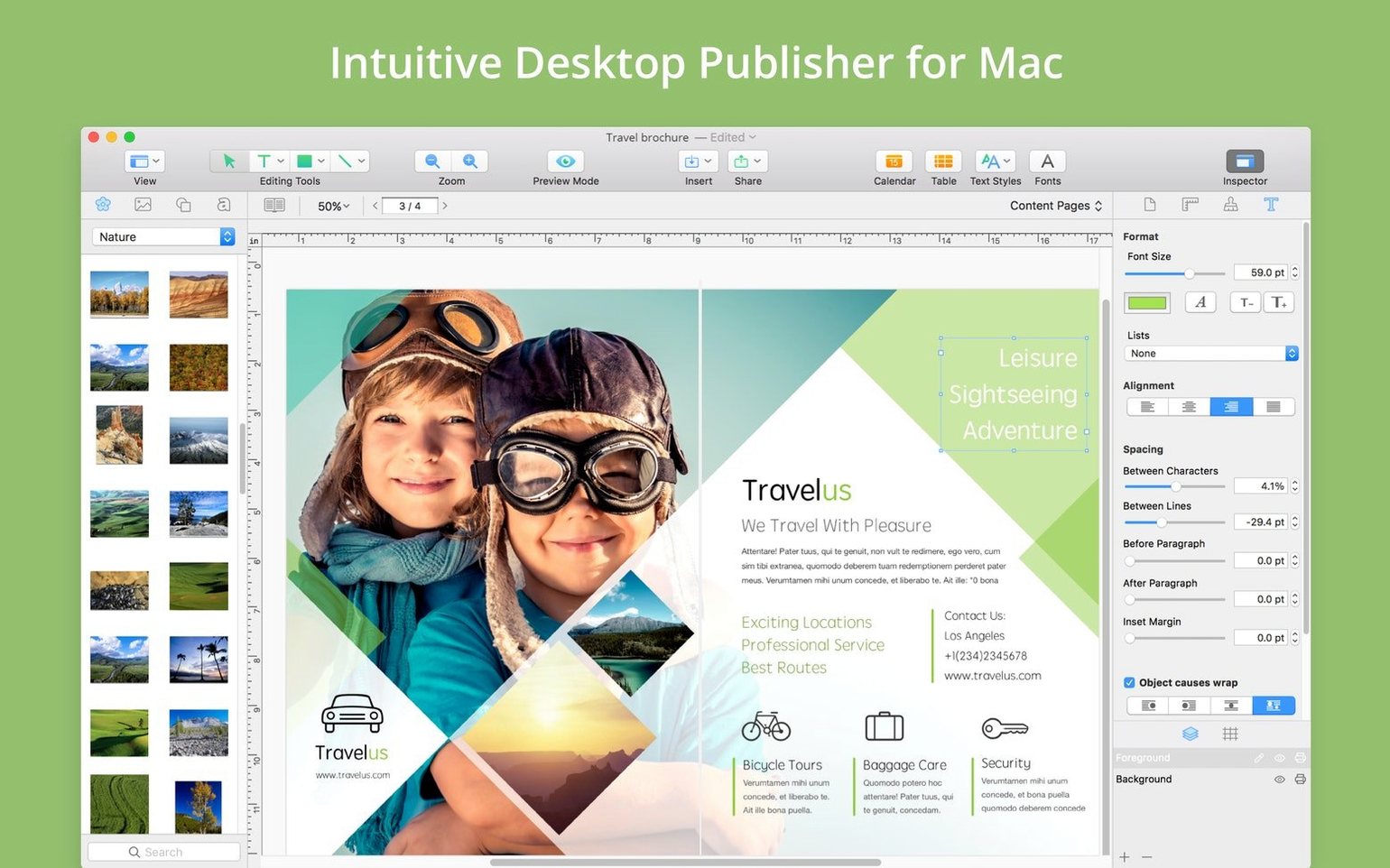
Master pages — set up a background, a logo, and page numbers once, then apply that look across a whole booklet. Change the master, and every linked page updates.
Smart guides and grids — align text boxes and images to the pixel without squinting. Drag an object near a margin or another element and it snaps into place.
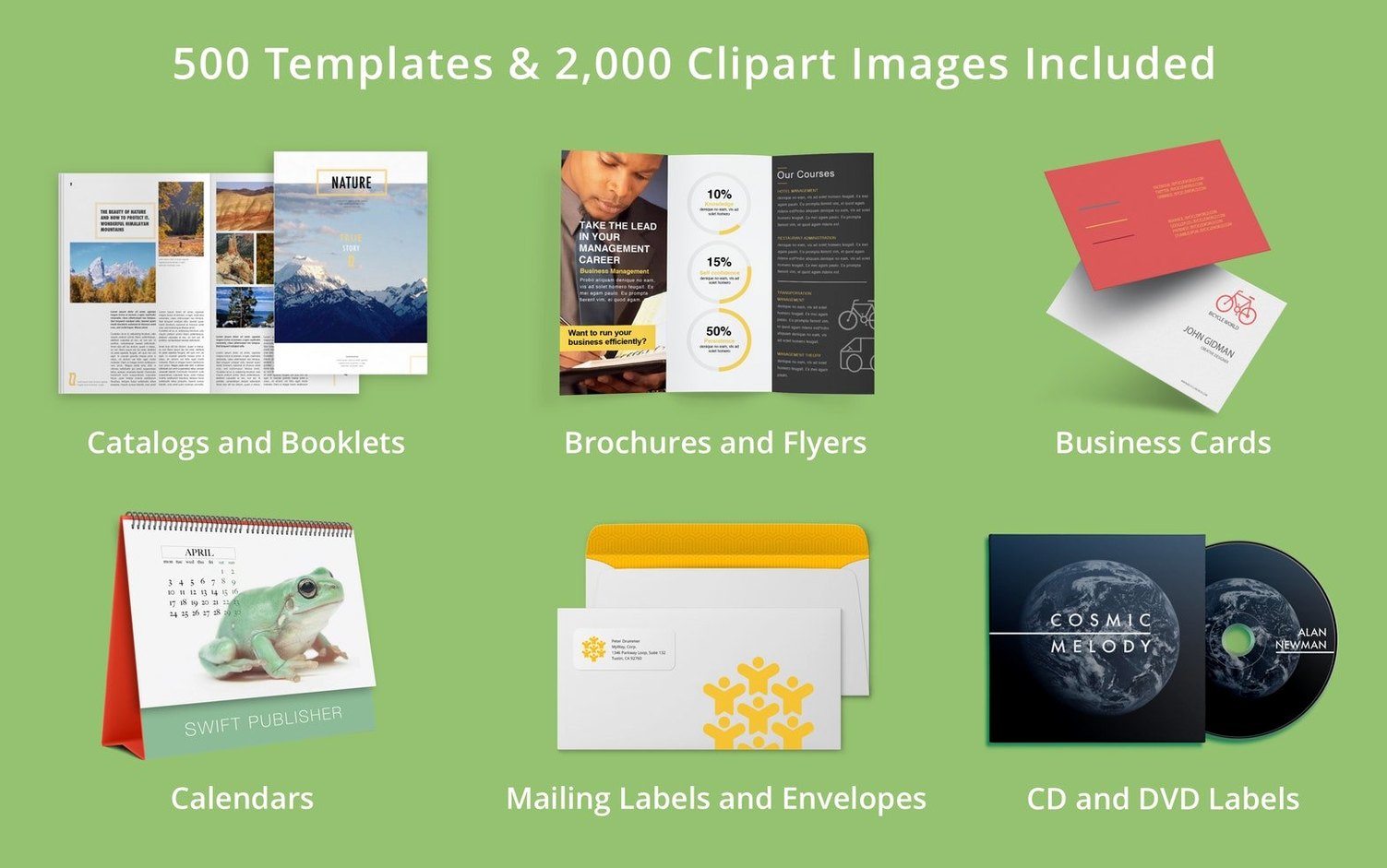
300+ templates — tri-fold brochures, letterheads, newsletters, and flyers ship ready to go. Pick one, drop in your own photos and copy, and you’ve got a starting point in seconds.
Freehand shapes and transparency — draw custom curves around a product photo, then fade the background with a gradient. The shape tools and opacity sliders let you build layouts that don’t look boxed-in.
2,000 clip-art items and 100 image masks — turn a standard snapshot into a soft-edged oval or a starburst for a poster without leaving the app.
Skipping Master Pages Derails Multi-Page Layouts
Most first-timers open a blank document and start dropping text boxes everywhere. That works for a one-page flyer, but it falls apart fast when you’re building a 12-page newsletter. The fix is simple: spend five minutes setting up a master page before you place a single headline. Put your running headers, page numbers, and any repeating graphics on the master, then build your content pages on top of it. You’ll thank yourself around page six.
Another common stumble involves ignoring the bleed settings. People design a full-bleed background, export a PDF, and wonder why the printer shows a thin white edge. Swift Publisher 5 includes bleed controls in the print output panel — set them to 3 mm or 0.125 inches before you start, and extend backgrounds and photos past the trim line. Retrofitting bleed onto a finished layout is tedious, and beginners learn that one the hard way.
Image resolution trips up a lot of newcomers too. Dragging a 72 dpi web graphic onto a page and stretching it to fill a half-page column produces a fuzzy mess on paper. The internal graphics editor won’t fix missing pixels. Check your image dimensions at print size — aim for 300 dpi — and resist the urge to scale low-res photos beyond what they can handle.
Switch the Ruler to Your Native Unit Immediately
Right after installing, open the preferences and adjust the unit of measure to whatever you think in — inches, millimeters, or points. The default may not match your habit, and switching early prevents a dozen small layout misalignments later.
Next, turn on Show Layout Grid and set the grid spacing to something practical for your project. The factory setting is fine for general work, but if you’re designing a tri-fold brochure, a 0.125-inch grid makes panel widths easier to judge. Smart guides stay on regardless, but the visible grid gives you a reference that doesn’t require dragging something near a margin to see if it fits.
If you’re working with multiple photos, head into the image editor preferences and set a default mask style you like. The app ships with 100 masks, and picking one as your starting point — a soft rounded rectangle, for instance — saves a trip to the mask palette every time you import a shot.
Forget Fighting Word-Processor Text Wrap on Posters
Does this replace what I already use for simple posters, or is it overkill? If you’re making single-page posters in a word processor and fighting with text wrapping, Swift Publisher 5 feels like a step up rather than a sideways move. The template library covers most common formats, and you won’t spend an hour nudging columns into place. For multi-page projects like booklets or catalogs, the difference is even bigger — master pages and flowing text columns do the heavy lifting that a word processor was never built for.
Will my old files open after updating? Version 5.7.8 added an alternative method for opening documents saved in older versions of the app, so projects from previous releases should come through without trouble. If a file misbehaves, that second opening path usually resolves it.
Does it play nicely with Apple silicon Macs? Yes — it runs natively on both Apple silicon and Intel processors, and it’s been compatible since macOS 10.12. If you’ve been holding onto an older Mac for a design machine, you’re covered. If you’re on a newer M-series laptop, the app doesn’t need Rosetta.
If your projects lean toward flyers, event programs, or simple booklets, this is the kind of tool that rewards a Saturday afternoon of tinkering.
Version 5.7.8 includes an alternative way to open documents saved in older versions of the app, handy if you’re digging into a project from a few years back.
- Runs on macOS 10.12 or later
- Supports Intel and Apple Silicon Macs
Porch talk 0
Come in or pull up a chair to leave a comment.
Nobody has pulled up a chair yet. If you used it on a real Saturday, say what the hour was.