

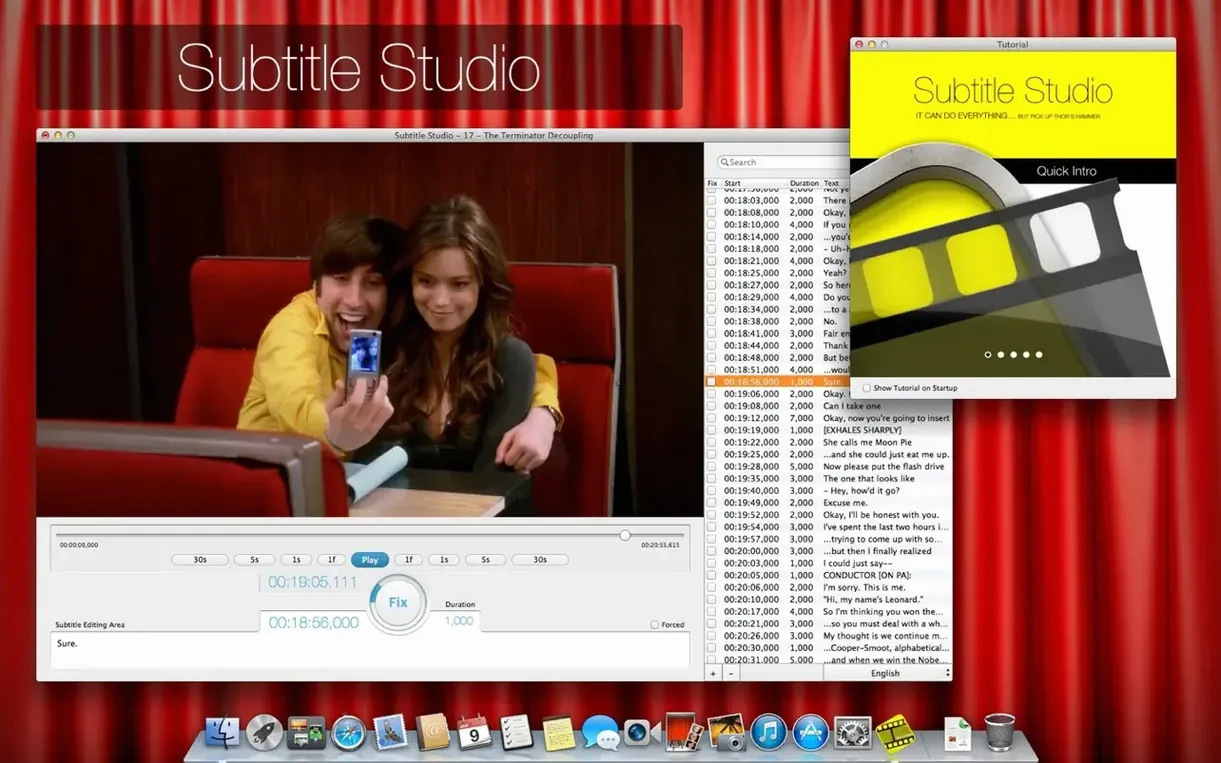
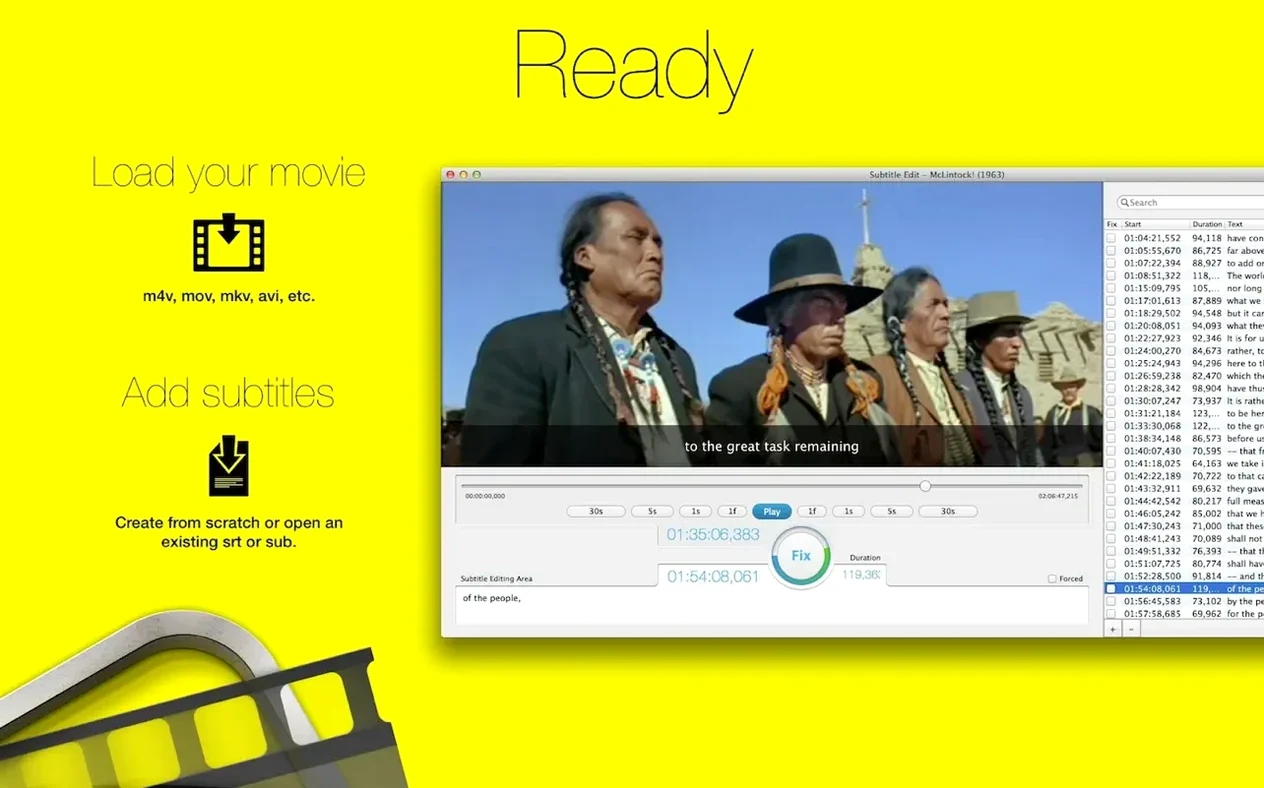
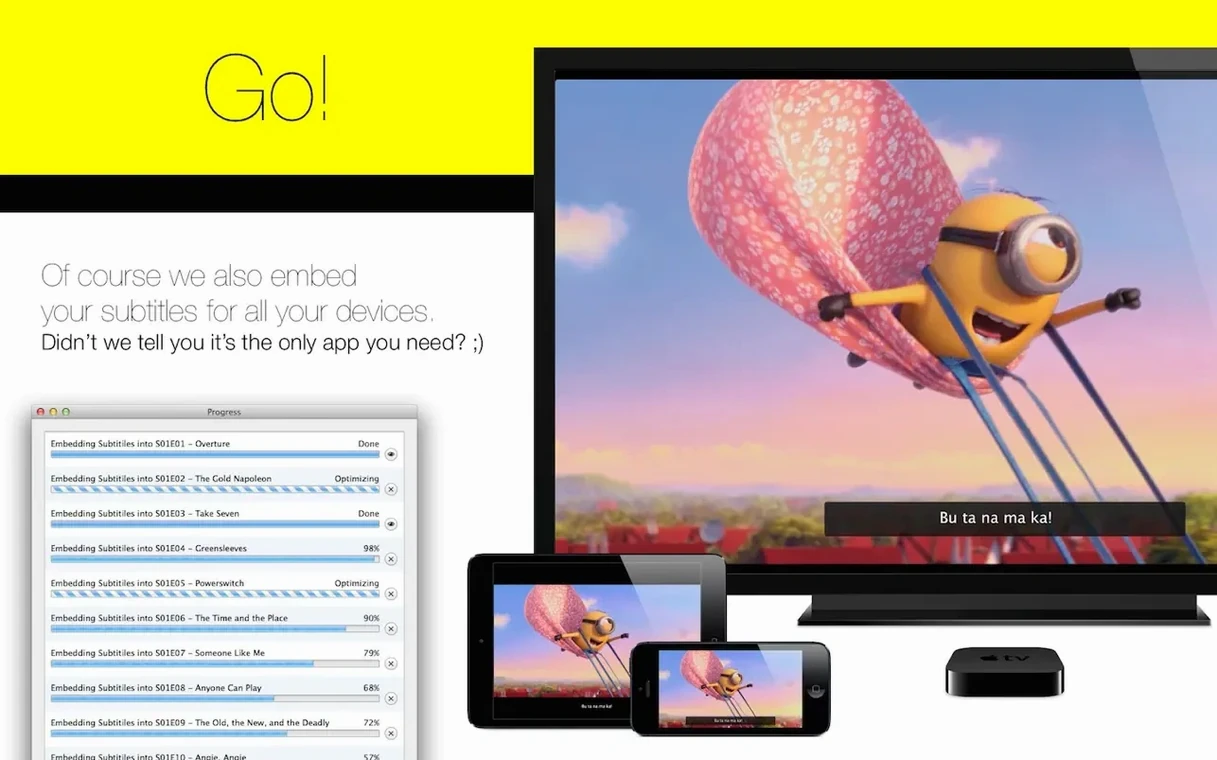
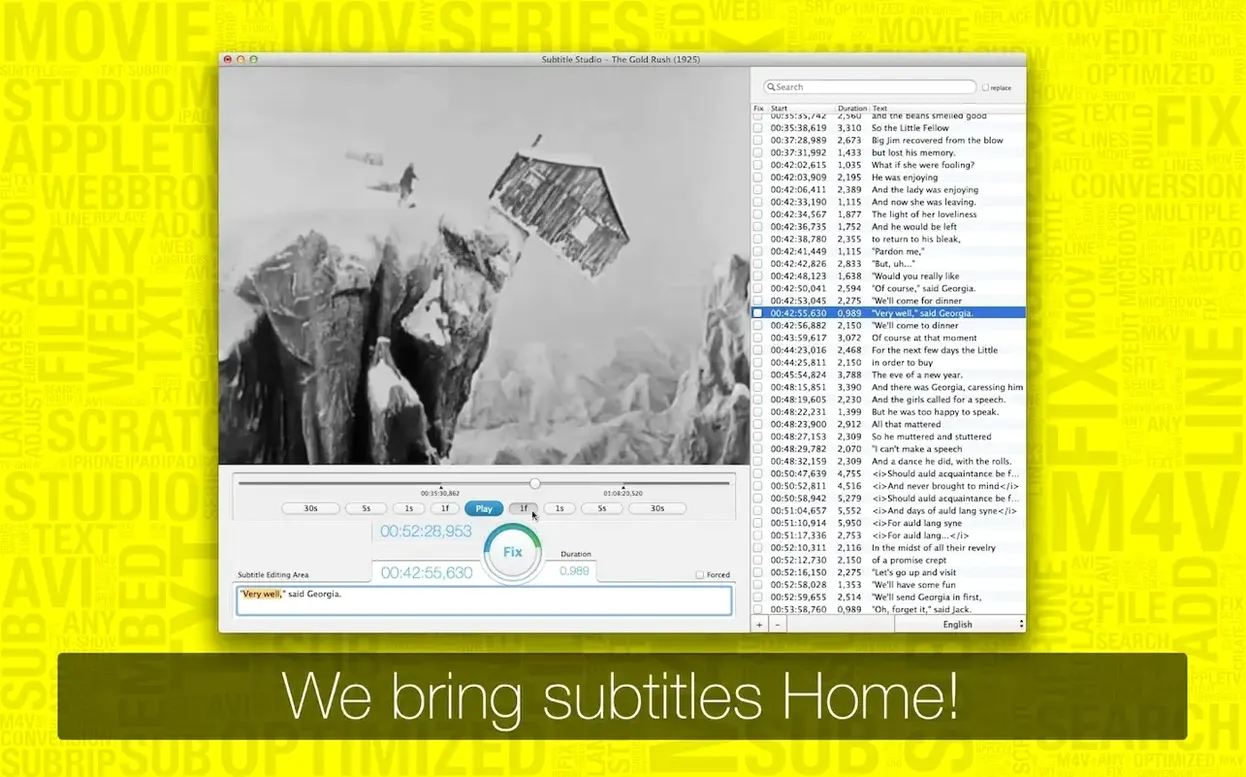
The Encode to M4V function is where a lot of the work gets done. You’ve probably got a folder of movies and a matching set of SRT files, and you want them to actually play together on an iPad or an Apple TV without fuss. That’s the job this feature tackles head-on.
A few features that earn their keep
- Burn-in to a new file. The app encodes the video and subtitles into a single, optimized M4V. You get a clean copy that plays on typical Apple hardware without extra configuration.
- Multiple language support. You can add several subtitle tracks to a project—or even multiple versions of the same language—and switch between them during playback.
- Format handling. It opens MOV, AVI, MKV and more, while importing SubRip, SubViewer and MicroDVD subtitle files so you rarely have to convert outside the app.
Organizing the chaos
Subtitle Studio also acts as a librarian for your caption files. Instead of hunting through folders, you can keep things grouped by project or language. It’s a small organizational touch that makes revisiting a project six months later far less frustrating. If you need hard-coded captions on an Intel Mac running High Sierra or newer, this fills the gap nicely.
Dropping video in won't sync subtitles
Most of the trouble I see comes from people treating Subtitle Studio like a media player. It’s not. Dropping a video in and hitting play won’t magically sync everything — you need to actually load the subtitle file, and the app won’t guess which one you meant. Another classic slip: importing a ZIP full of subtitles without extracting it first. The built-in web search can handle that, but drag-and-drop from Finder expects an unzipped SRT or SUB file.
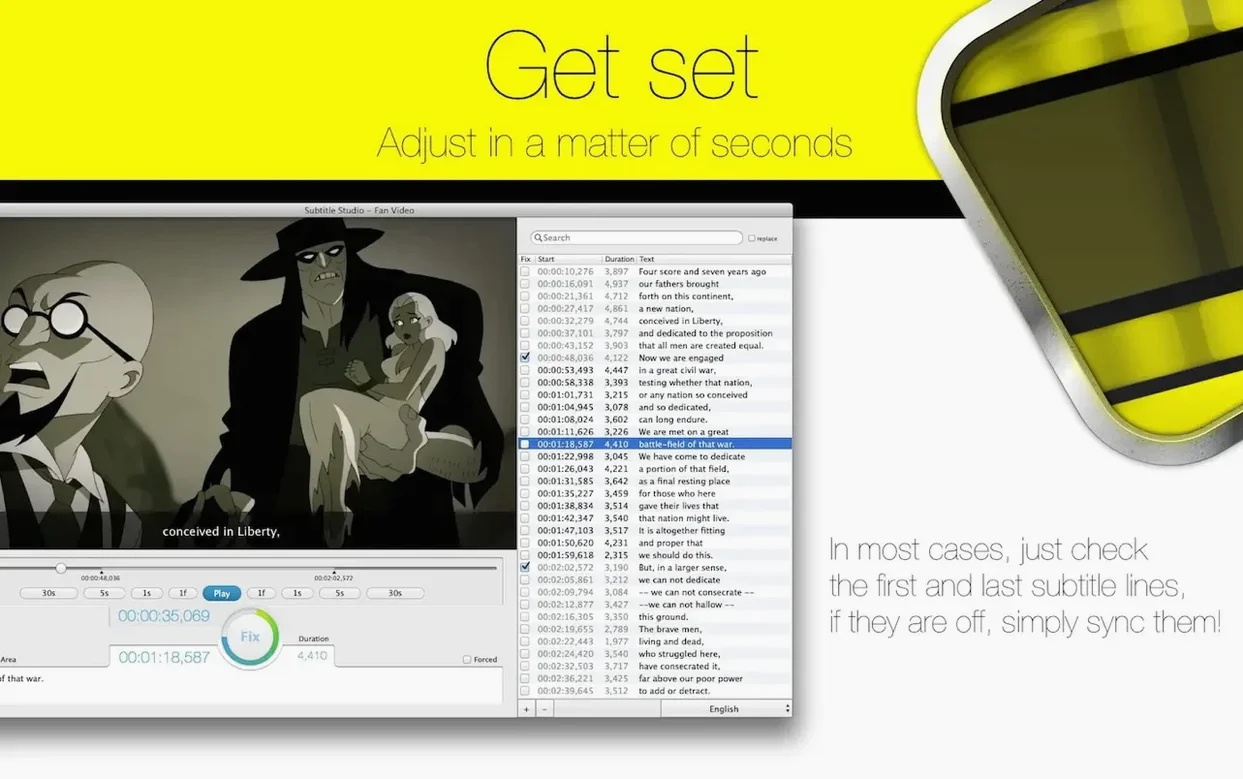
Timing drift is the other big one. Beginners often run the Encode to M4V step before scrubbing through the timeline to check sync at the middle and end of the film. A subtitle track that looks perfect at the opening credits can wander by the third act, especially with older DVD rips. Spend three minutes checking key scenes before you burn anything in — you’ll save yourself a re-encode.
First settings worth your attention
Right after you grab a fresh download subtitle studio for mac and launch it, hop into the preferences pane. Two things make an immediate difference:
- Default language. Set your most-used subtitle language here, and new projects will pre-select it. Saves a click every single time, and those clicks add up across a batch of files.
- Font sizing for the editor. The default is small enough to strain your eyes on a Retina display. Bump it up to 14 or 16 points — your future self at hour three of a captioning session will thank you.
The Tap2Sync feature also benefits from a quick calibration run. Tap along with a few dialogue lines on a short clip until you get a feel for the response. Once the rhythm clicks, it turns what used to be a tedious manual adjustment into something almost musical.
- macOS 10.13 or later
- Intel processor (x86 64-bit)
Questions I actually get
Can I add more than one language to a single video?
Yes, the app supports multiple subtitle languages and even multiple versions of the same language in one project.
Porch talk 0
Come in or pull up a chair to leave a comment.
Nobody has pulled up a chair yet. If you used it on a real Saturday, say what the hour was.
More for the same hour
Everything in Mac Apps
 Sublime Text
4.0 Build 4215 Mac Apps
54 MB
Sublime Text
4.0 Build 4215 Mac Apps
54 MB

 Super Vectorizer Pro
2.3.3 Mac Apps
8 MB
Super Vectorizer Pro
2.3.3 Mac Apps
8 MB

 SuperDuper!
4.0.7 Mac Apps
10 MB
SuperDuper!
4.0.7 Mac Apps
10 MB

 Sweet Home
7.5.7 Mac Apps
356 MB
Sweet Home
7.5.7 Mac Apps
356 MB

 Swift Publisher 5
5.7.8 Mac Apps
478 MB
Swift Publisher 5
5.7.8 Mac Apps
478 MB

 SwitchResX
4.14.2 Mac Apps
6 MB
SwitchResX
4.14.2 Mac Apps
6 MB

 TablePlus
6.8.0 Mac Apps
91 MB
TablePlus
6.8.0 Mac Apps
91 MB
 TechSmith Snagit
2026.4.3 Mac Apps
Updated 195 MB
TechSmith Snagit
2026.4.3 Mac Apps
Updated 195 MB