

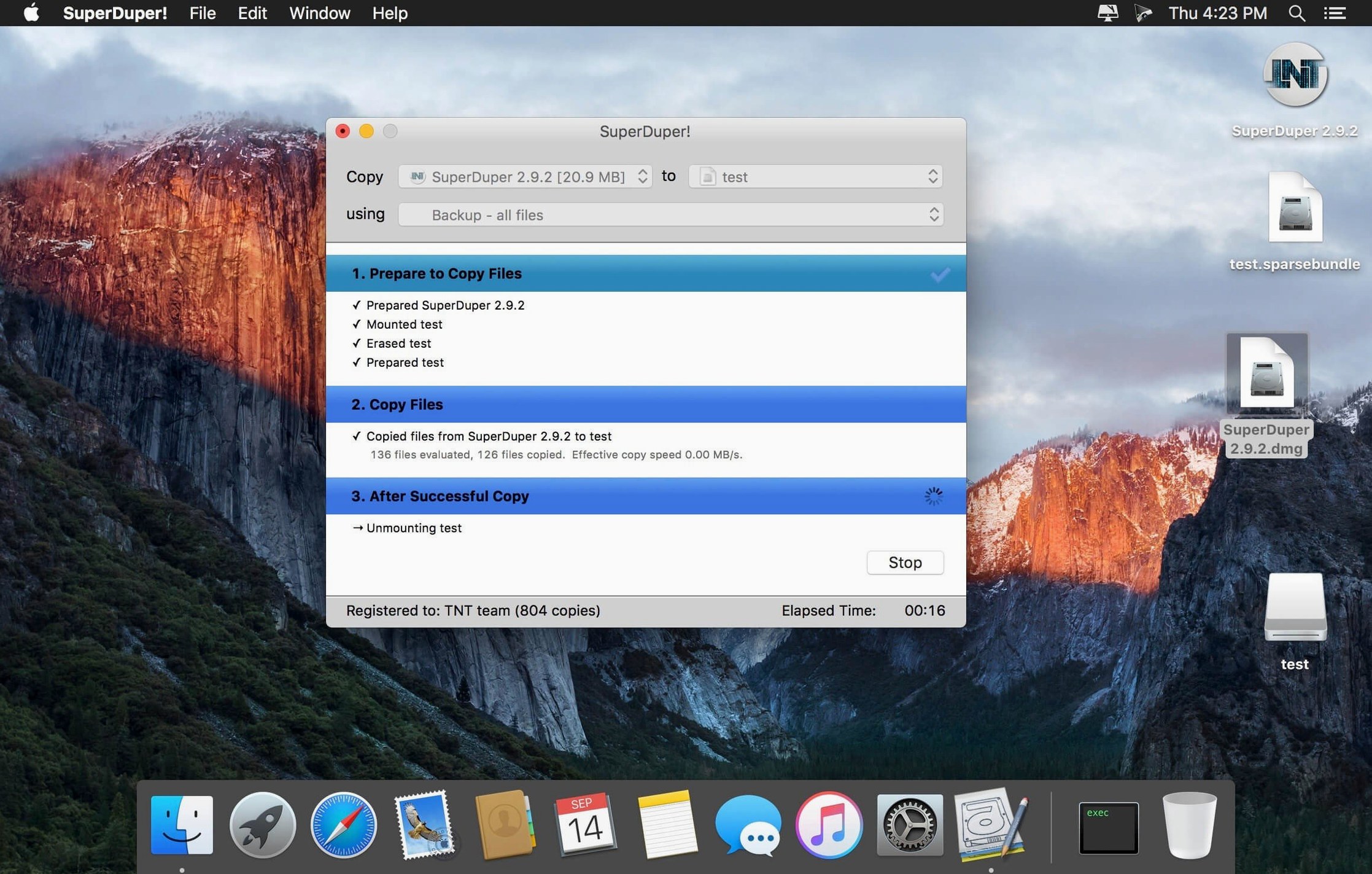
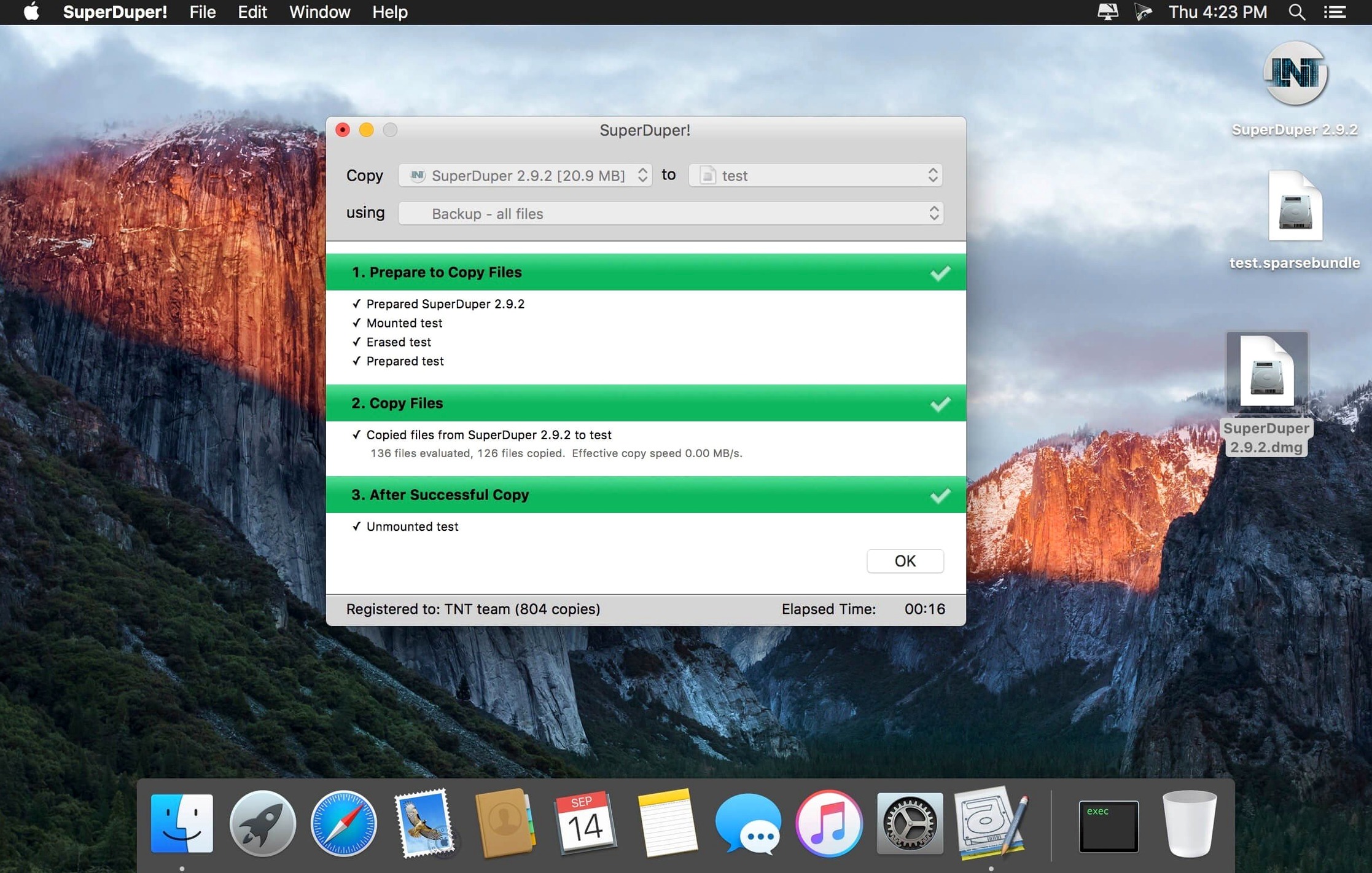
Experienced Mac users who have settled on a backup strategy often land on SuperDuper! for one reason: control. It doesn't push a subscription, doesn't hide its logic behind a simplified interface, and doesn't assume you want everything decided for you. You get a straightforward path to a bootable clone, plus the deeper tools that let you shape exactly how that clone gets made.
Where the power tools live
- Smart Update — copies only what changed since the last run, turning a full-clone routine into a quick sync instead of starting from scratch.
- Scripting support — you can run shell scripts before or after a copy job, which means hooking into custom pre-flight checks or post-clone notifications.
- Manual folder copying — bypass the clone logic and mirror a source folder to external media, with or without a schedule.
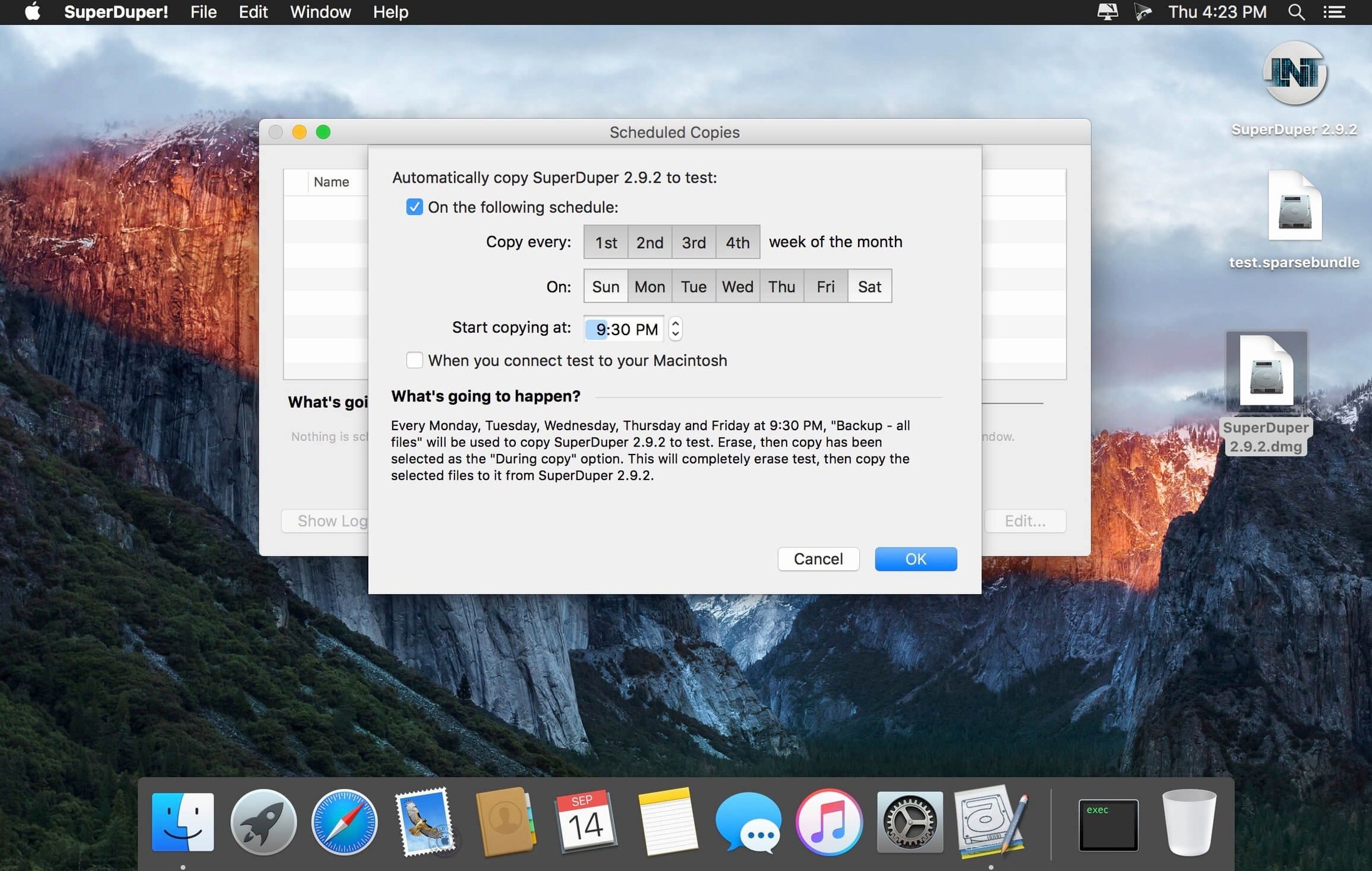
- Scheduler — set a recurring time and let it run unattended; the app handles the rest without nagging for attention.
Cloning that matches your hardware
SuperDuper! runs on both Intel and Apple Silicon Macs with macOS 10.13 or later. It creates a bootable copy of your startup drive, a secondary volume, or even an image file. Restoring is just as direct — select your backup as the source, pick the target, and let the copy run. The app doesn't lock you into a proprietary format; the clone is a standard bootable volume you can use immediately.
SuperDuper! doesn't yell about system integration the way some utilities do, but it slips into macOS routines more naturally than you might expect. The scheduler writes its jobs through launchd, so even if nobody is logged in, a scheduled clone can still fire on time. That's the difference between a backup that waits for you to remember and one that happens while you're making coffee.
Disk images created by SuperDuper! mount like any other read-write or read-only volume. You can store them on a NAS, archive them on a flash drive, or open them on another Mac for quick file extraction without launching the app. And if you use Time Machine alongside a bootable clone, the two complement each other — Time Machine handles version history, while SuperDuper! gives you an instantly bootable fallback that doesn't require reinstalling macOS before you get back to work.
System Migrators and Bootable Safety Nets
The people who get the most out of SuperDuper! tend to fall into three groups. System migrators — the folks who move from an old Mac to a new one every few years — appreciate that the clone lands exactly as the source left it. No migration assistant quirks, no re-authorizing every app. Tinkerers and beta testers run a full bootable backup before installing a macOS beta or experimenting with system extensions, knowing they can be back to a clean state in the time it takes to reboot and select the clone. And small-office Mac admins keep a known-good image of a configured machine so they can deploy a replacement workstation without spending an afternoon on setup.
Lighter users sometimes grab a superduper download for one-off jobs — cloning a family member's drive before a repair, or making a safety copy of a Mac that's about to be wiped and sold. It works for that, too, though the scheduler and scripting features will sit unused in those cases.
Ways people trip up at the start
The most common beginner confusion is assuming the app can back up to the same drive it's cloning from. It can't — and shouldn't. You need a separate destination, preferably external. The second mistake is picking a destination that already holds important data without realizing the first clone will erase whatever is on the target. SuperDuper! warns about this, but the warning is easy to click past if you're moving fast.
Another stumble: not reading the Smart Update description closely. Smart Update compares files and copies only what changed, which is fast and safe in most cases. But if you've manually deleted files on the destination to free space, Smart Update might put them right back because they're still present on the source. That's not a bug; it's the tool doing exactly what you told it to do. Users who want a one-way mirror with deletions should look at the erase-then-copy option instead.
Finally, some folks search for a superduper mac full setup guide expecting the app to manage retention and versioning like Time Machine. It doesn't. It gives you an exact snapshot. If you want yesterday's version of a file, you pull it from Time Machine, not from your SuperDuper! clone. Mixing up those roles leads to frustration that has nothing to do with the software itself.
Where CCC Leans Into Task Sequencing
Carbon Copy Cloner is the name that comes up most often in the same sentence. Both apps make bootable clones, both support scheduling and scripts, and both have been around long enough to earn trust. CCC leans further into task chaining, snapshots, and a more visually dense interface. SuperDuper! stays simpler — fewer knobs, less visual noise, and a workflow that rarely asks you to leave the main window. If you want a guided tour of every backup variable, CCC is your pick. If you want to choose source and destination, hit a button, and walk away, SuperDuper! fits that rhythm better.
Disk Utility can restore volumes and create disk images, which covers the bare-bones cloning need. But it lacks scheduling, scripting, and Smart Update. You can't set Disk Utility to run a differential clone every Tuesday at 2 a.m. It's a repair tool first, not a backup companion. People hunting for a superduper mac download usually want those automation pieces that Disk Utility simply doesn't offer.
Then there are the file-level sync utilities — tools that copy folders efficiently but don't produce a bootable system. SuperDuper! plays at a different level because the result is a drive you can hold down Option and boot from immediately. That matters when your internal SSD dies on a deadline and you need to be working again in five minutes, not after a macOS reinstall and a cloud restore.
Version 4.0.7 ships with a practical fix: a workaround for a startup-drive visibility issue that appeared under macOS 27 Golden Gate. If your boot drive wasn't showing up as expected, this update should sort it out.
- macOS 10.13 or later
- Intel or Apple Silicon Mac
Questions I actually get
Does SuperDuper! work with Apple Silicon Macs?
Yes, the current version runs natively on both Intel and Apple Silicon machines and can create bootable clones on compatible macOS releases.
Can I schedule backups to run automatically?
Yes, SuperDuper! includes a scheduler that lets you set a recurring time for automatic backups without needing to launch the app manually.
Porch talk 0
Come in or pull up a chair to leave a comment.
Nobody has pulled up a chair yet. If you used it on a real Saturday, say what the hour was.
More for the same hour
Everything in Mac Apps
 Super Vectorizer Pro
2.3.3 Mac Apps
8 MB
Super Vectorizer Pro
2.3.3 Mac Apps
8 MB

 Subtitle Studio
1.5.11 Mac Apps
31 MB
Subtitle Studio
1.5.11 Mac Apps
31 MB

 Sublime Text
4.0 Build 4215 Mac Apps
54 MB
Sublime Text
4.0 Build 4215 Mac Apps
54 MB

 Sweet Home
7.5.7 Mac Apps
356 MB
Sweet Home
7.5.7 Mac Apps
356 MB

 Swift Publisher 5
5.7.8 Mac Apps
478 MB
Swift Publisher 5
5.7.8 Mac Apps
478 MB

 SwitchResX
4.14.2 Mac Apps
6 MB
SwitchResX
4.14.2 Mac Apps
6 MB

 TablePlus
6.8.0 Mac Apps
91 MB
TablePlus
6.8.0 Mac Apps
91 MB
 TechSmith Snagit
2026.4.3 Mac Apps
Updated 195 MB
TechSmith Snagit
2026.4.3 Mac Apps
Updated 195 MB