
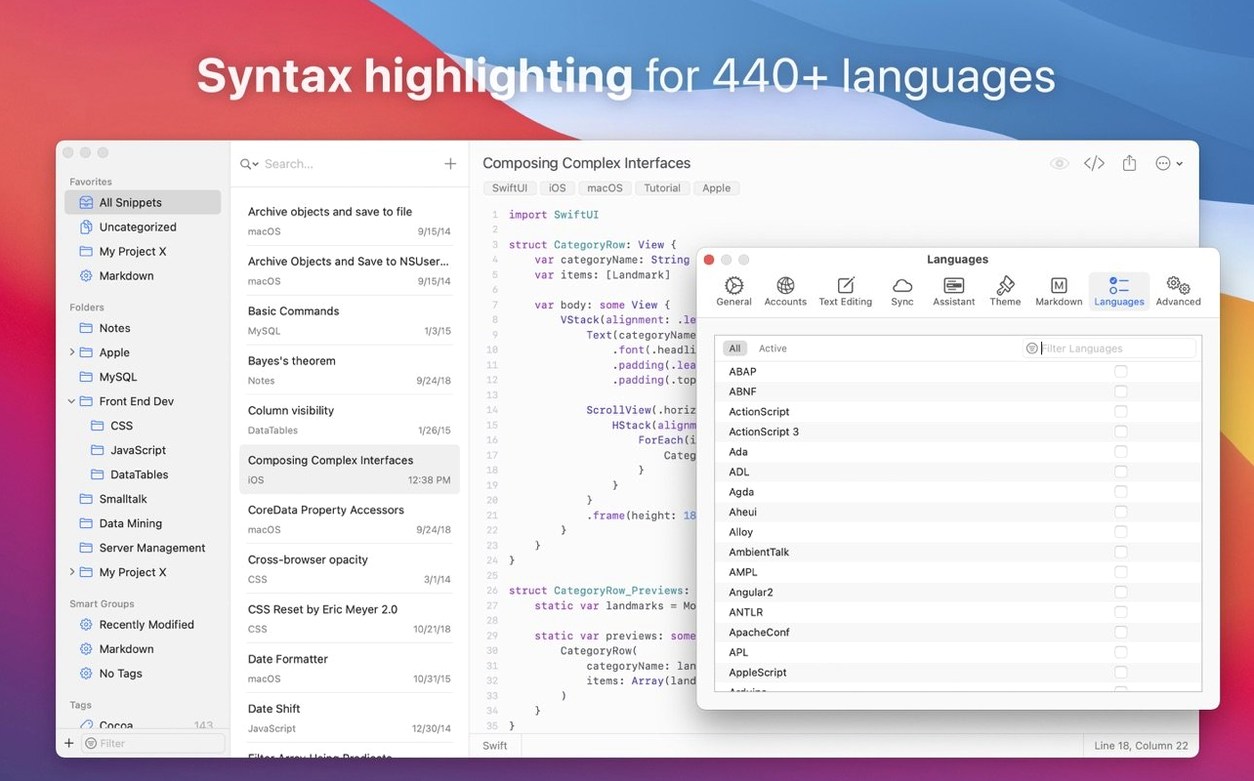
If you’ve ever leaned on TextEdit or a sprawling Notes file to keep code bits handy, you know the friction — no formatting, no search, just a wall of plain text. SnippetsLab steps in as the proper toolbox for those scraps, turning a loose collection into a searchable, organized library right on your Mac.
Getting snippets under control, step by step
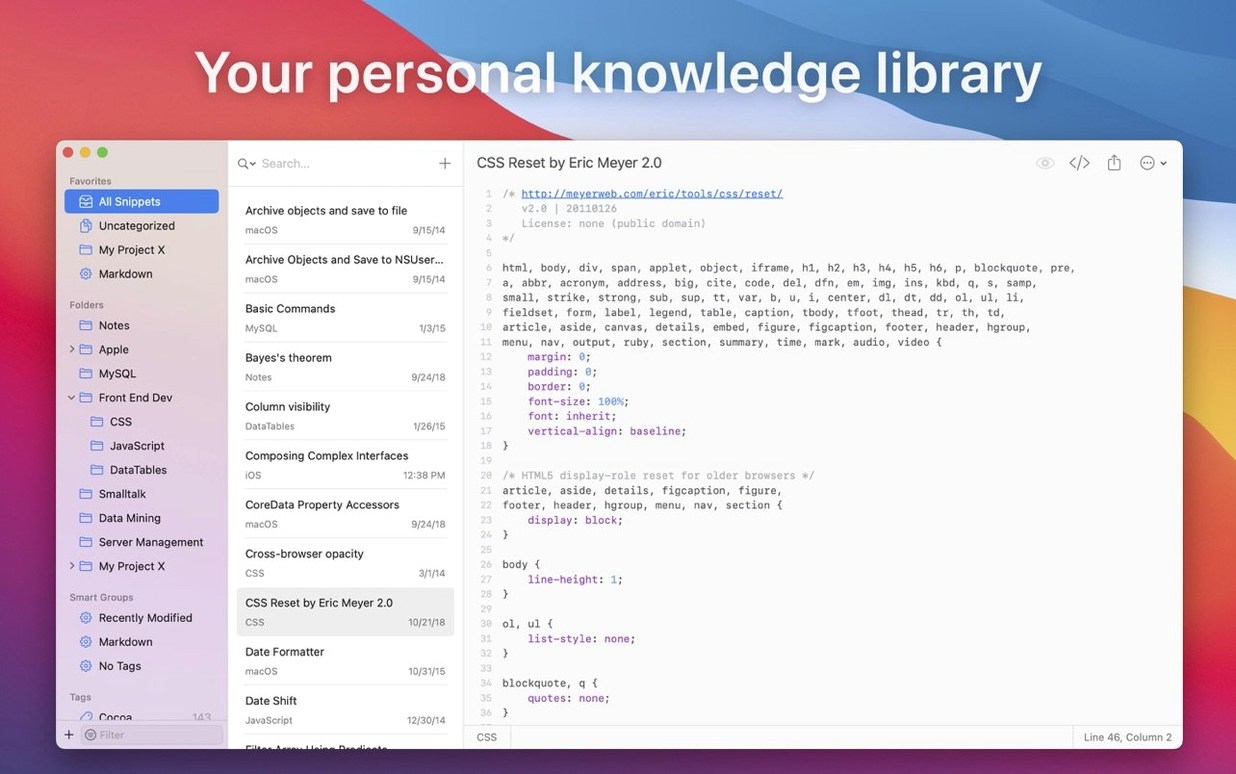
- Capture from anywhere: Grab a snippet from your editor or the web and drop it in. Syntax highlighting kicks in immediately for over 420 languages — including newer additions like PureScript, Caddyfile, and Verilog — so a function reads like a function, not a jumble of words.
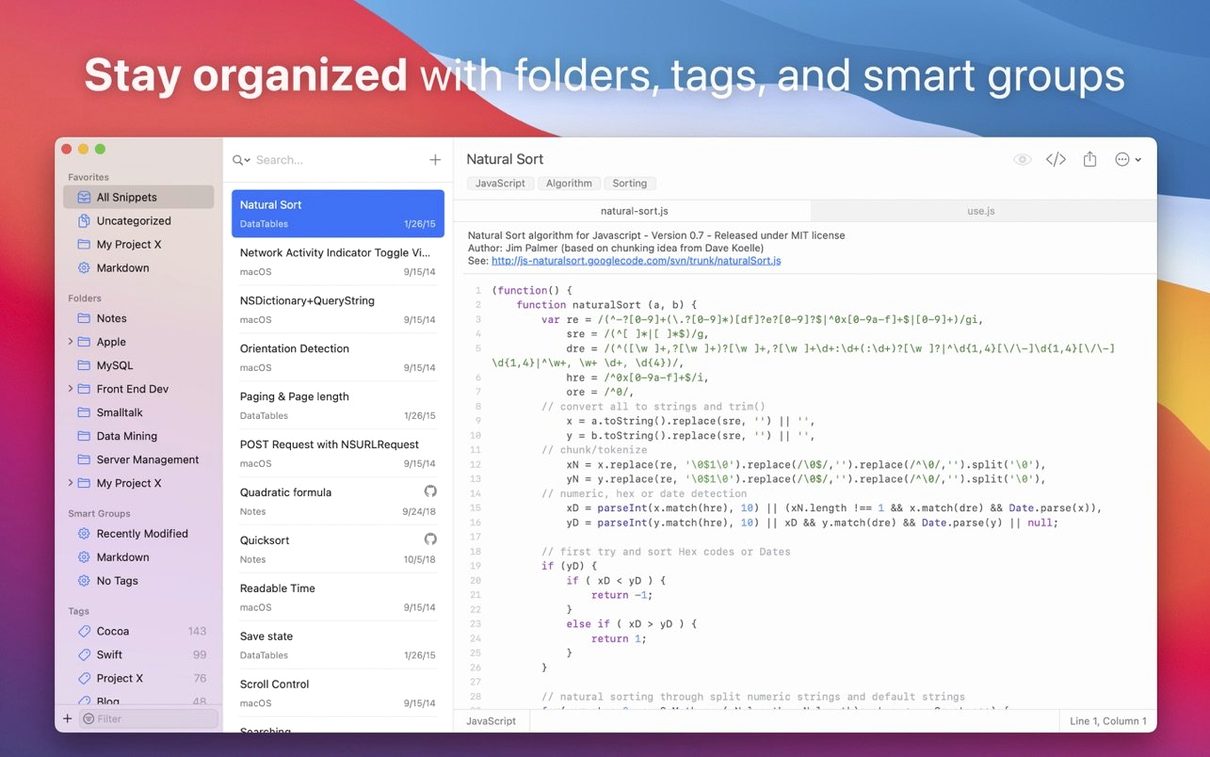
- Make it findable: Tag each snippet and let Smart Groups do the sorting. A bash one-liner, a CSS grid trick, a fiddly SQL join — they each land in the right bucket without manual folder work.
- Pull from your shell: The command-line tool now has a
createsubcommand. Pipe output or type a quick snippet straight from the terminal and it lands in your library, no window switching required. - Reach it fast: The menu bar assistant stays out of the way until you need it. Type a few characters, preview the snippet, and copy it back to your editor. It feels like Spotlight for your own code.
- Share when you’re ready: Export to a GitHub Gist or bring public gists in. It’s a clean handoff when you want to share a solution with a colleague or save a backup outside your Mac.
Behind the scenes, daily backups keep your collection safe, and the new built-in MCP server lets compatible AI coding agents tap into your snippets directly. It runs natively on both Apple Silicon and Intel Macs, requiring macOS 13.5 or later. If your code scraps have outgrown sticky notes and loose text files, this is the quiet upgrade that makes them useful again.
The Menu Bar Assistant Is Easy to Miss
Every tool has a couple of friction points that only surface after a week of use. Here are the ones worth knowing about early.
- The menu bar assistant feels invisible at first. It launches into your menu bar but doesn’t announce itself with a dock icon. If you close the main window and wonder where the app went, look up — the tiny snippet icon is sitting next to your clock. Click it, or set a global hotkey under Preferences to summon it on demand. Without a shortcut, retraining your muscle memory takes longer than it should.
- Smart Groups need a moment to click. They work on conditions — language, tags, creation date — not manual dragging. New users sometimes hunt for a “Create folder” button that isn’t there. Instead, hit the plus sign in the Smart Groups sidebar, name your group, then add rules. A group that catches “language is Python AND tag is debugging” saves more time than dumping everything into one bucket.
- iCloud sync can lag. SnippetsLab writes to iCloud when the app is active, but background sync depends on macOS’s own iCloud rhythm — which isn’t always eager. If a snippet added on your desktop hasn’t appeared on your laptop after a minute, switching to the app on the second Mac usually nudges it awake. For more predictable sync, a lightweight Dropbox folder works with less foot-dragging.
- Large imports from a Gist can stall. Pulling in a gist with 40 or 50 files sometimes hangs on the progress bar. Cancel it, break the import into smaller chunks, and the importer handles them without complaint. The same applies to exports — bundling a huge library into one gist is slower than exporting a few Smart Groups at a time.
AI Agents Can Now Tap Your Snippets
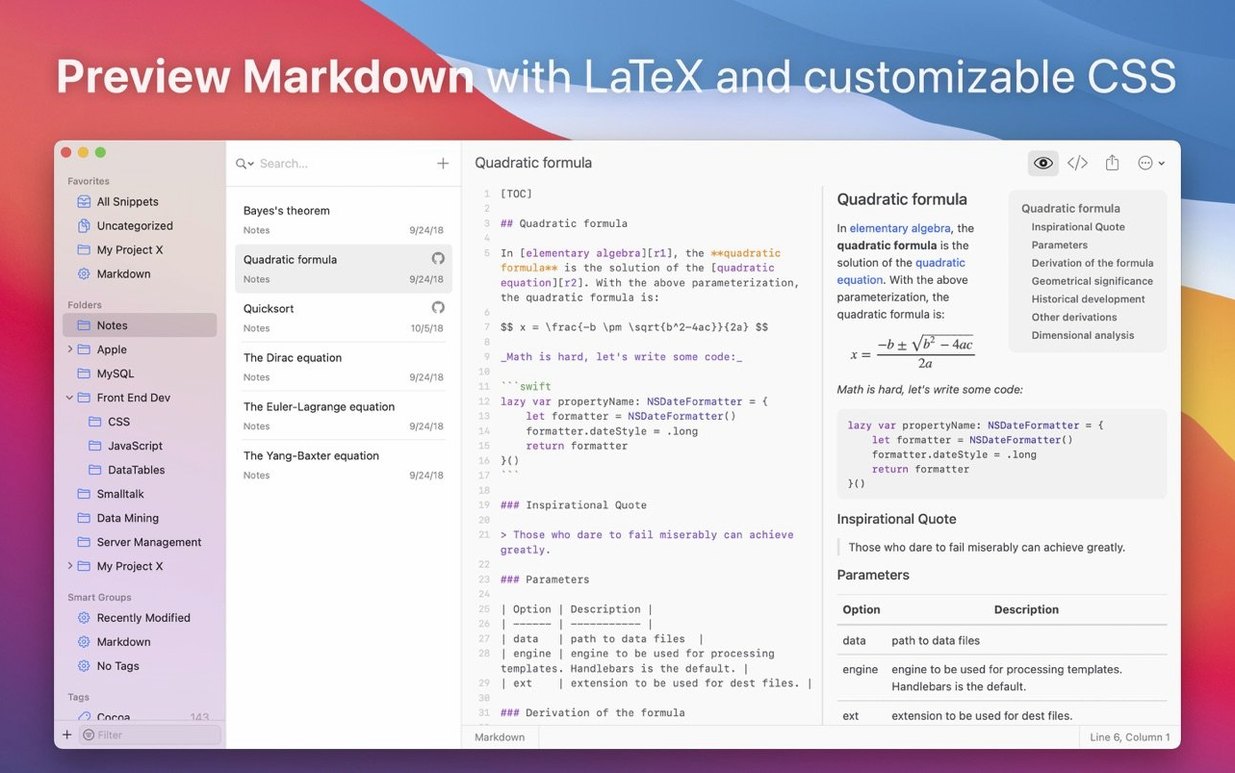
SnippetsLab doesn’t try to replace a full IDE or a Git client. It sits in the gaps between them, and the integration points are small but deliberate. The built-in MCP server in version 2.7 means compatible AI coding agents can query your snippet library directly — you don’t need to copy-paste boilerplate into a chat window. On the lighter end, the Markdown preview with its four new themes (Modern, Compact, Mono, Paper) plays nicely with Alfred or Raycast: drop a rendered snippet into a note, a documentation draft, or a README without reformatting.
The lab create subcommand slots into shell scripts and automation chains without ceremony. Pipe the output of a command, flag it with a tag, and your terminal workflow gains a memory — useful when you’re iterating on a tricky ffmpeg incantation or a curl one-liner you’ll need again next month. And because the app supports both Apple Silicon and Intel Macs natively, it runs happily alongside older tools and Rosetta-dependent utilities on the same machine.
Wire Up the Menu Bar Hotkey First
The defaults are sensible, but a few tweaks make the app feel more like yours.
- Set a global hotkey for the menu bar assistant. Preferences → General → Show SnippetsLab Assistant. Pick something you won’t clash with — Option-Space or Control-Shift-S work. Once it’s muscle memory, you’ll reach for snippets without breaking focus.
- Turn on automatic backups and pick a folder you’ll remember. Preferences → Backup → Enable automatic daily backup. Point it to a folder inside your iCloud Drive or Dropbox, not buried six levels deep in Library. A backup you can’t find isn’t a backup.
- Pick a Markdown preview theme that matches your editor. If your code editor uses a dark theme, switch the preview to Mono or Modern under Preferences → Editor → Markdown Theme. The mismatch between a light preview and a dark workspace grates more than you’d expect during long sessions.
- Adjust the font size for the snippet editor. Preferences → Editor → Font Size. The default is comfortable on a laptop, but on a 27-inch display it can feel cramped — bumping it by two points makes a noticeable difference without rewrapping lines awkwardly.
Version 2.7 focuses on connecting your snippet library to the tools around it.
- A built-in MCP server lets compatible AI coding agents pull from your collection.
- The
labcommand-line tool gained acreatesubcommand for saving snippets directly from the shell. - Four new Markdown preview themes give you more ways to view your notes and documentation.
- macOS 13.5 or later
- Apple Silicon or Intel 64-bit Mac
Questions I actually get
How does SnippetsLab handle syntax highlighting for less common languages?
It supports over 420 languages out of the box, including recent additions like BitBake, CEL, Protocol Buffer, and TableGen, so niche file types get proper formatting immediately.
Can I save a snippet without leaving the terminal?
lab command-line tool now includes a create subcommand, letting you pipe text or write a snippet directly into your library from the shell.Does the app work with AI coding tools?
The latest version adds a built-in MCP server, which allows compatible AI coding agents to access your snippet library during a session.
Porch talk 0
Come in or pull up a chair to leave a comment.
Nobody has pulled up a chair yet. If you used it on a real Saturday, say what the hour was.
More for the same hour
Everything in Mac Apps
 SketchUp Pro
27.0.267 Mac Apps
Updated 1.6 GB
SketchUp Pro
27.0.267 Mac Apps
Updated 1.6 GB

 SponsorBlock for YouTube
6.1.6 Mac Apps
6 MB
SponsorBlock for YouTube
6.1.6 Mac Apps
6 MB

 Sketch
2026.3.1 Mac Apps
103 MB
Sketch
2026.3.1 Mac Apps
103 MB

 SiteSucker Pro
6.2.2 Mac Apps
6 MB
SiteSucker Pro
6.2.2 Mac Apps
6 MB

 Shadowrocket
2.2.92 Mac Apps
36 MB
Shadowrocket
2.2.92 Mac Apps
36 MB
 Sensei
2.1.2 Mac Apps
30 MB
Sensei
2.1.2 Mac Apps
30 MB

 Sublime Text
4.0 Build 4215 Mac Apps
54 MB
Sublime Text
4.0 Build 4215 Mac Apps
54 MB

 Subtitle Studio
1.5.11 Mac Apps
31 MB
Subtitle Studio
1.5.11 Mac Apps
31 MB