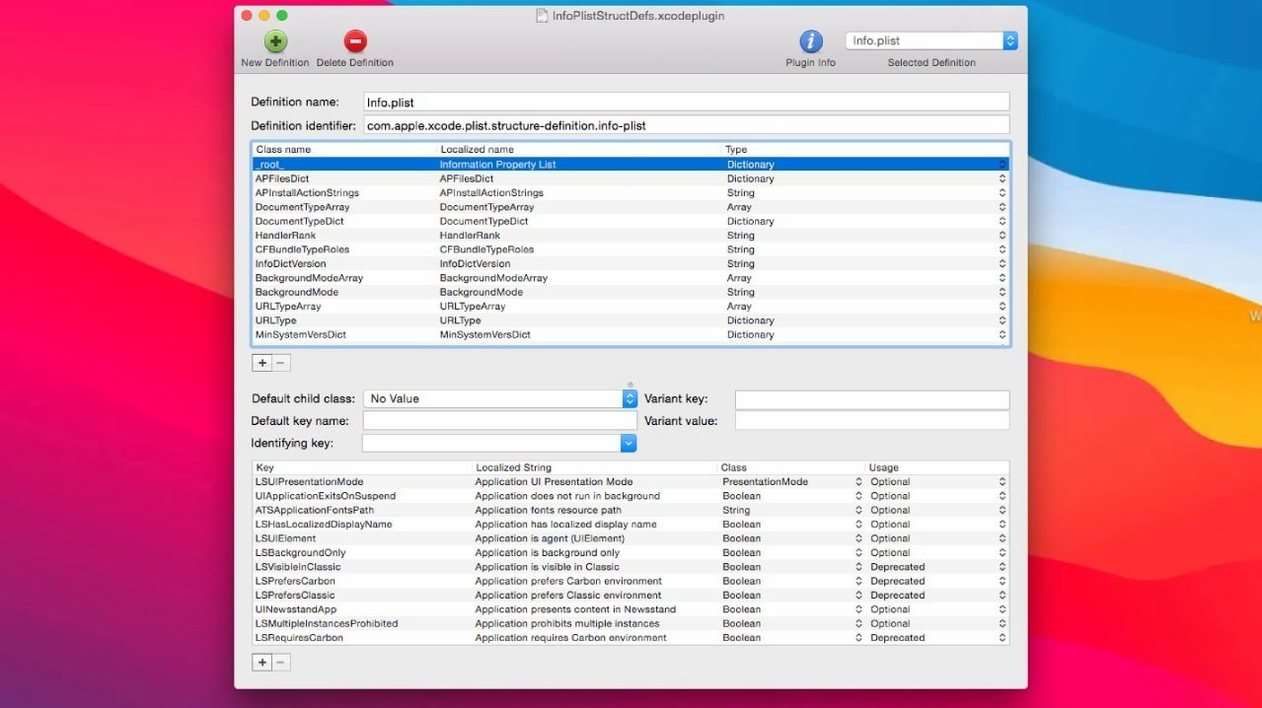
Most Mac users bump into a .plist file the moment they start poking around the Library folder, often armed with nothing but TextEdit and a healthy dose of uncertainty. PlistEdit Pro steps in as the tool that makes those files readable, structured, and genuinely easy to work with—without taking you out of the environment you already know.
Why reach for a dedicated editor?
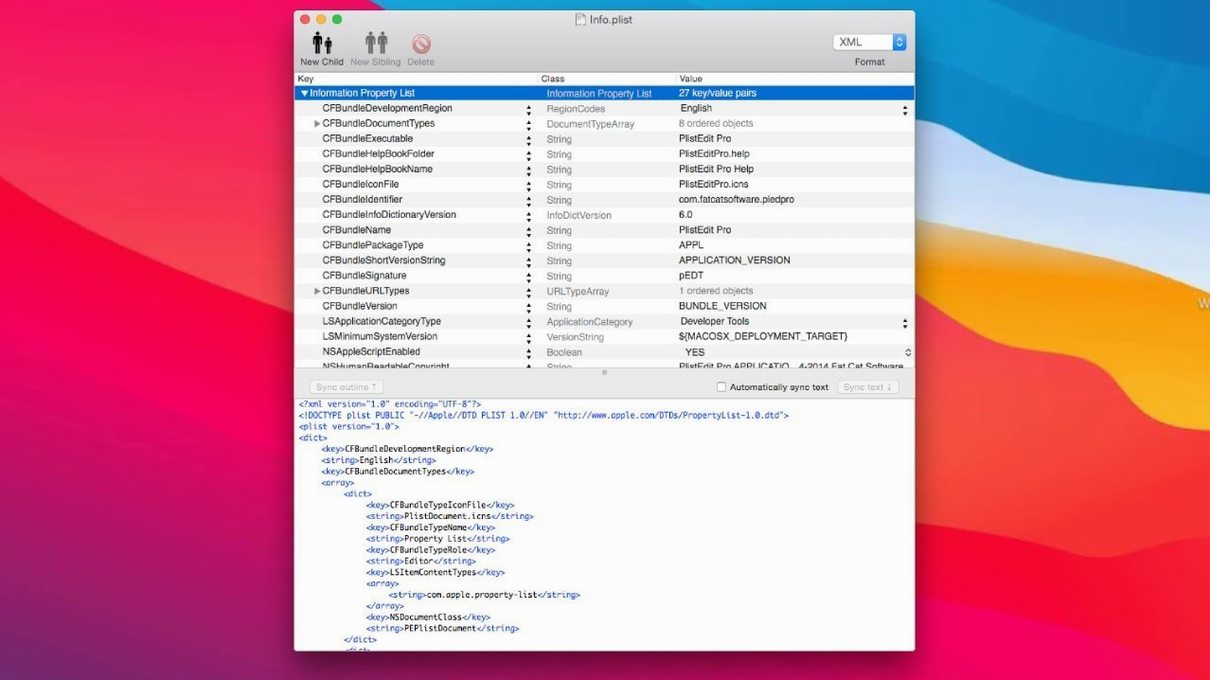
Xcode can handle property lists, but it is a heavyweight for quick edits. TextEdit shows raw XML and nothing else. PlistEdit Pro splits the difference. It gives you two views: a clean outline that shows keys, types, and values in a browser-style hierarchy, and a plain text mode when you need to see the markup directly. Copy and paste works between files and even across different data types, and multi-level undo means you can backtrack without breaking a sweat. For anyone who tweaks macOS preferences, the built-in preferences browser surfaces system .plist files so you are not hunting through hidden folders.
More than property lists
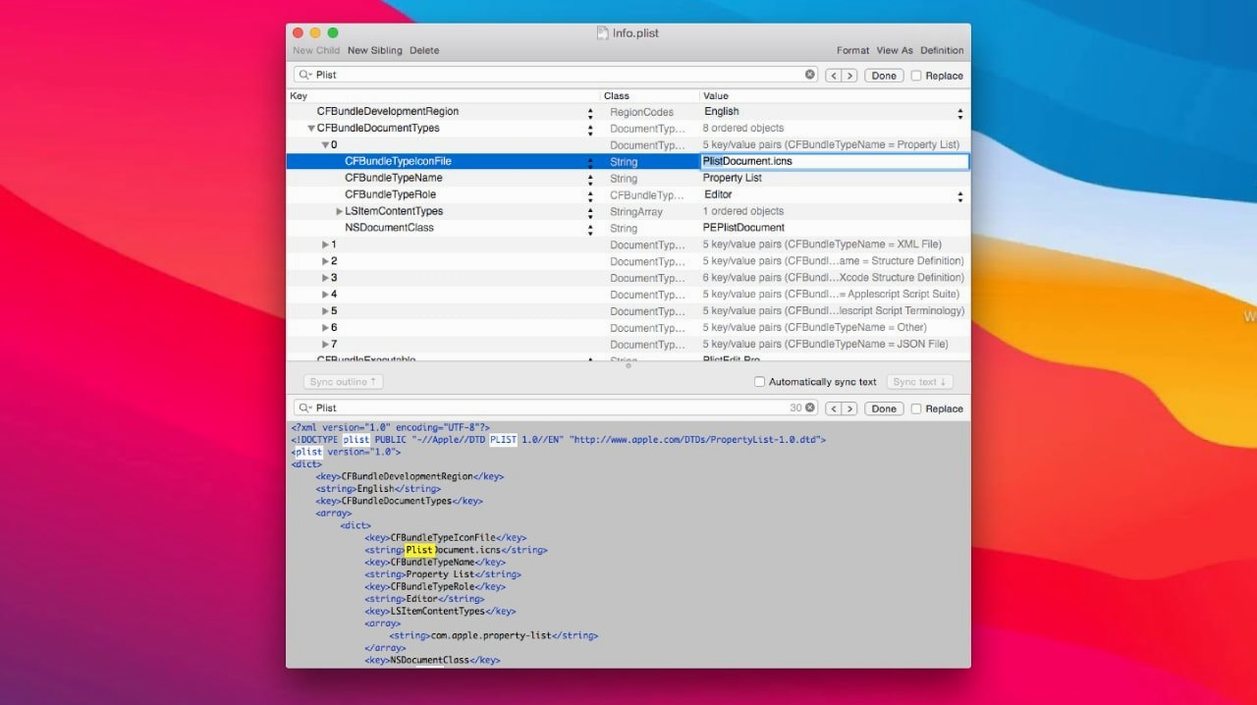
JSON support makes the app useful beyond macOS internals. Whether you are adjusting a config file for a web project or inspecting an export from another tool, the same outline view and keyboard navigation apply. AppleScript automation ties it into larger workflows, so you can script repetitive edits instead of clicking through them. Find and replace rounds out the feature set, letting you update values across a file without scrolling line by line.
Who clicks with PlistEdit Pro immediately
Mac and iOS developers live here, no question. When you are iterating on an app and need to adjust a settings bundle, tweak Info.plist keys, or debug a preference that refuses to stick, the outline view saves you from counting angle brackets. But the tool also clicks for the kind of tinkerer who customizes macOS behavior—disabling animations, changing default save formats, or enabling hidden Dock options. Those edits almost always land you in a .plist file, and PlistEdit Pro shows you exactly what each key does instead of leaving you to interpret raw XML.
Less obvious but just as real: people maintaining JSON-based configs for static site generators, Alfred workflows, or command-line utilities find themselves reaching for it. The drag-and-drop reordering of keys and values feels natural when you are restructuring a settings file, and the same keyboard shortcuts work whether you are editing a plist or a JSON document. If you have ever wished Finder-level drag-and-drop existed inside a structured file editor, you will understand the appeal within minutes.
Scrolling 500-line system plists without lag
PlistEdit Pro stays quick on Apple Silicon and Intel Macs alike. Opening a 500-line plist from a system preference file takes under a second on a MacBook Air, and scrolling through nested dictionaries in the outline view stays smooth even with several files open side by side. Memory use sits around 40 to 60 MB during typical edits—noticeably leaner than firing up a full IDE for a quick property list tweak.
Stability has earned it a quiet reputation among developers who use it daily. Crashes are rare enough that many users forget the app even has an autosave routine; it just quietly restores your last session on relaunch. The multi-level undo chain holds reliably through cut-and-paste operations between files, and the app handles external file changes gracefully—you get a small popover asking whether to revert, rather than an overwrite surprise.
When you point the folder search function at a directory with hundreds of plist files, there is a brief pause while it scans, but results populate incrementally and the interface never locks up. That is the kind of practical engineering that makes it a tool you trust for production work instead of something you baby along.
Mistakes beginners make—and how to sidestep them
The most common slip comes from editing system plist files without understanding the consequences. PlistEdit Pro does not gate you out of anything, and the preferences browser shows you files like com.apple.finder.plist with the same access as any other. Beginners sometimes change a boolean or delete a key, restart the Mac, and wonder why Finder behaves oddly. The fix is simple: make a copy before editing, or stick to documented preference keys until you learn what each file controls.
Another trap: ignoring the type column in outline view. PlistEdit Pro infers types automatically when you paste values, but pasting a number into a field that expects a string can silently break whatever reads that file. Check the type indicator after any paste—it takes a second and saves debugging later. Similarly, beginners occasionally work in plain text mode on a large file and introduce a syntax error that breaks the plist structure entirely. The outline view catches structural mistakes before you save, so start there and switch to text mode only when you need to search for raw markup patterns.
Last one worth mentioning: not using the folder search feature soon enough. People dig through their Library folder manually for a preference file when all they remember is a key name like "NSWindow Frame." Drop the Library folder into PlistEdit Pro's search, type the key, and it finds the file in seconds. Once you get into that habit, you stop guessing which plist holds the setting you need to change.
Version 1.10.0 tidies up the interface for macOS 14 and later, with several controls relocated to keep things within easy reach.
- The preferences browser options now live in a toolbar menu instead of occupying window space.
- The file-change revert prompt appears as a compact popover rather than a full alert.
- Interface elements have been refreshed for macOS Tahoe.
- macOS 14 or later
- Apple Silicon and Intel Macs
Porch talk 0
Come in or pull up a chair to leave a comment.
Nobody has pulled up a chair yet. If you used it on a real Saturday, say what the hour was.