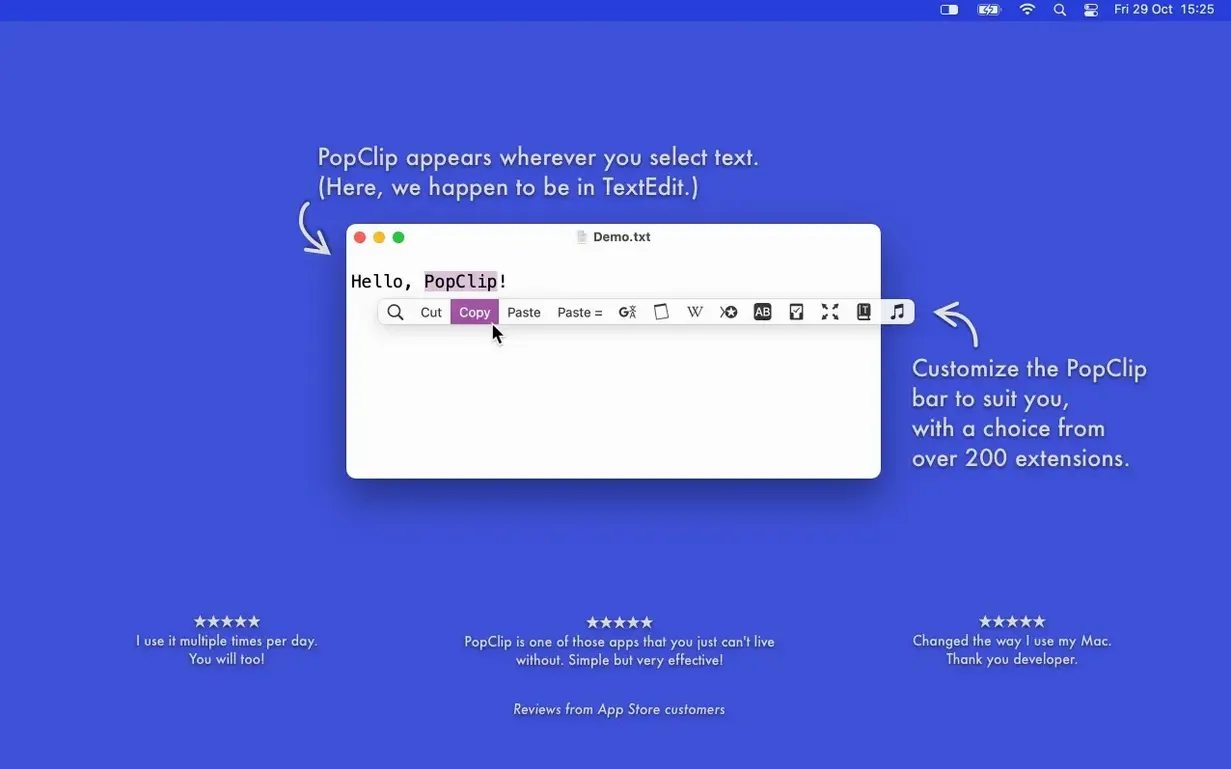
You probably know the feeling when the Paste and Match Style shortcut in an app is buried three menus deep. PopClip is like giving that command, and dozens more, a permanent home right at your cursor. For experienced users, its value isn't just copy and paste—it's how it interprets what you've selected.
Turn Plain Text into Instant Launch Commands
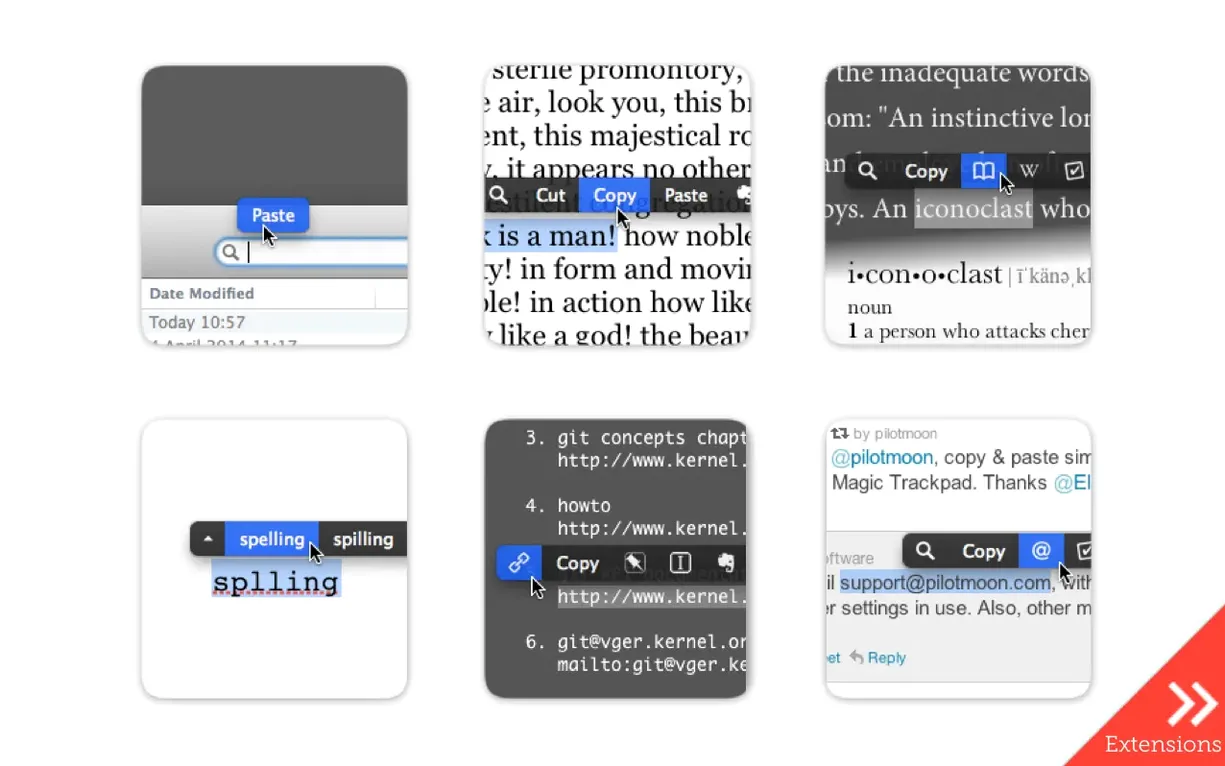
Select a URL, an email address, or a plain-text file path, and the action bar instantly offers to open it. It turns static text into a launch command, saving you from the extra step of copying it into a browser or Finder's Go to Folder dialog.
Can it fix a quick typo without the right-click menu?
Yes. When you highlight a misspelled word, PopClip offers spelling corrections directly in its pop-up bar. For a word you don't know, a single tap can open the built-in macOS dictionary lookup to save you the trip to Spotlight or a search engine.
What about working with text case and counts?
Beyond basic web searches, the extension catalog is where things get practical. You can trigger case conversion, get a quick word and character count, or send a block of text straight to Evernote or a translation service without opening another window.
Morning Readme Edits Become Muscle Memory
Let me walk you through a morning spent cleaning up a readme file and answering a couple of emails. It's the kind of session where PopClip stops feeling like a utility and starts feeling like muscle memory.
I open the markdown file and spot a link I pasted last week. I drag across the full URL with the mouse — no keyboard shortcut, just a quick drag. The bar appears above the selection. I tap Open Link and the page loads in my default browser. No copying, no pasting, no waiting.
A few lines down, a file path points to an old screenshot. I select the path, hit Open Path, and Finder opens the folder. The image is still there. Ten seconds, two selections, zero context switches.
Now I scan the prose. A misspelled word catches my eye. I double-click it and PopClip offers two spelling suggestions. I tap the correct one and the fix is in place. A moment later I pause on a term I want to define — same double-click, tap Lookup, and the dictionary panel slides in from the side.
Before sending the finished draft, I highlight a dense paragraph. The extensions I've enabled show a Word Count chip. I tap it and see the character and word totals. Finally, I copy the whole thing with a tap on the Copy action, then paste it into an email client using the Paste and Match Style button that appears when I select the placeholder text in the message body.
Every action is a single tap, never more than an inch from where my eyes already are.
Hold the Mouse Button to Suppress the Bar
New users often overlook the quiet polish sitting just beneath the surface. A handful of details reward the attentive.
- Hold to suppress. If you select text and immediately hold the mouse button for a beat before releasing, PopClip won't appear. It's the fastest way to override it when you're just selecting to drag or copy the old-fashioned way.
- Reorder extensions by dragging. Open the extension preferences pane and you can drag action chips into any sequence. The order you set here is exactly the order they appear in the pop-up bar, so your most-used actions sit leftmost.
- iCloud sync of settings. Enable an extension on one Mac, rearrange the action layout on another, and iCloud quietly reconciles everything between them. You don't configure twice.
- Paste and Match Style as a first-class action. It lives in the default bar, but many users skim past it. Selecting text in a rich-text environment and tapping it strips formatting cleanly, saving the usual Option‑Shift‑Command‑V dance.
Custom Text Views Block Selection Detection
The biggest early frustration comes from expecting PopClip to appear in places it can't. Not every Mac app plays along — some custom text views in older Java apps or certain Electron-based editors block the selection detection PopClip relies on. If the bar doesn't show, it's almost never a bug you can fix; the app simply sits outside the supported territory.
Another common misstep is overlooking the extension catalog entirely. The default bar does copy, paste, open links, and spell check, but the hundred-plus free extensions cover translation, case conversion, Evernote sending, and more. Beginners sometimes hunt for a feature that's already available behind one click in the extension gallery.
Finally, some users treat the pop-up as a replacement for every keyboard shortcut they know. It works best as a companion to the keyboard, not a substitute. When your hands are already on the home row, a shortcut is faster; when your right hand is on the mouse selecting text, tapping an action chip keeps you in flow.
The 2026.8.1 release, out September 7, 2026, is a quiet one—a maintenance and cleanup pass after PopClip 2026.7.
- macOS 13.5 Ventura or later
- Apple Silicon or Intel (64-bit) Mac
Porch talk 0
Come in or pull up a chair to leave a comment.
Nobody has pulled up a chair yet. If you used it on a real Saturday, say what the hour was.