If you're wondering whether your Mac can handle PowerPhotos, the news is pretty straightforward. The current version asks for macOS 14 (Sonoma) or newer, and it runs natively on both Apple Silicon and Intel 64-bit machines. No special graphics cards or extra hardware to worry about—just a reasonably recent operating system.
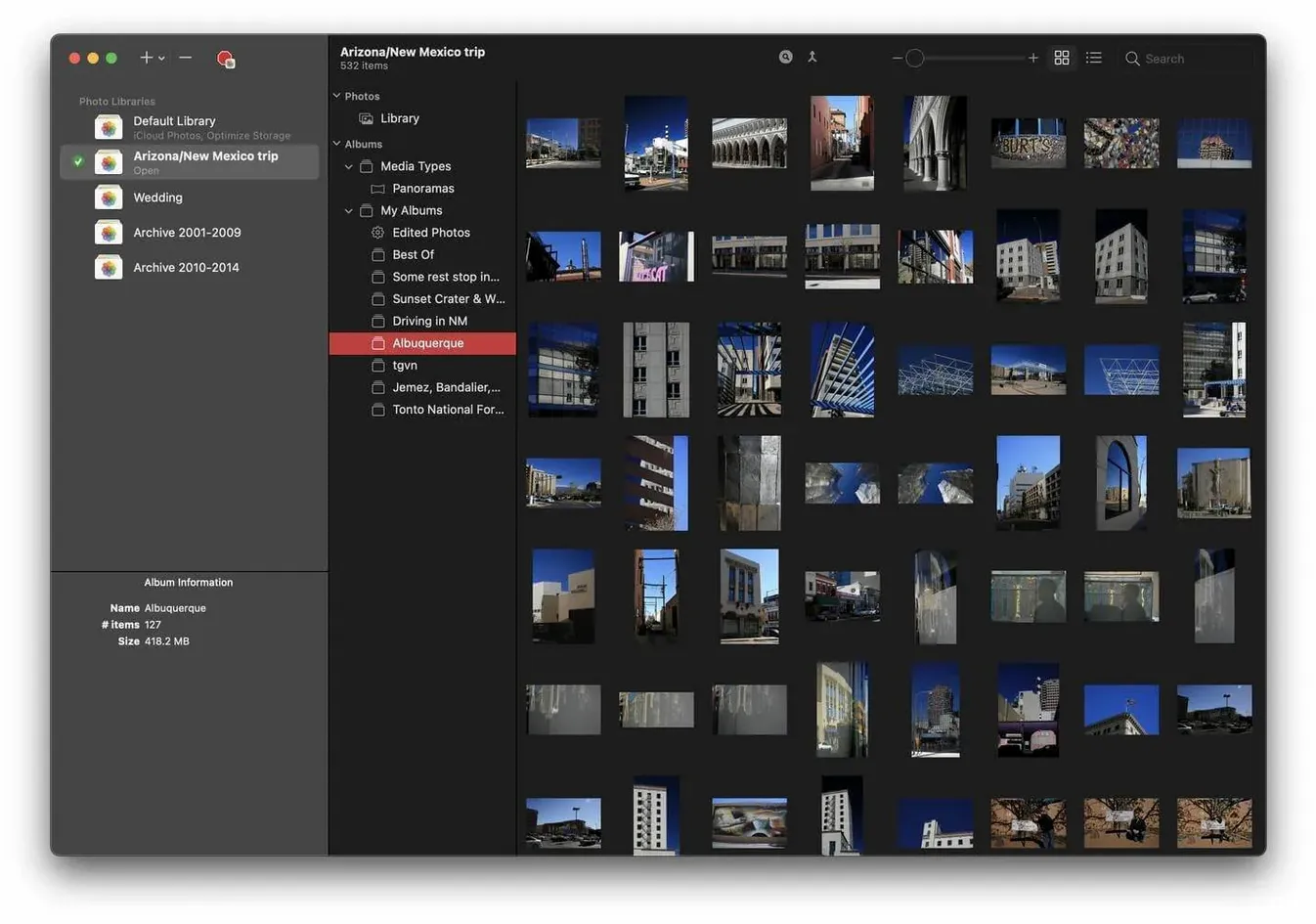
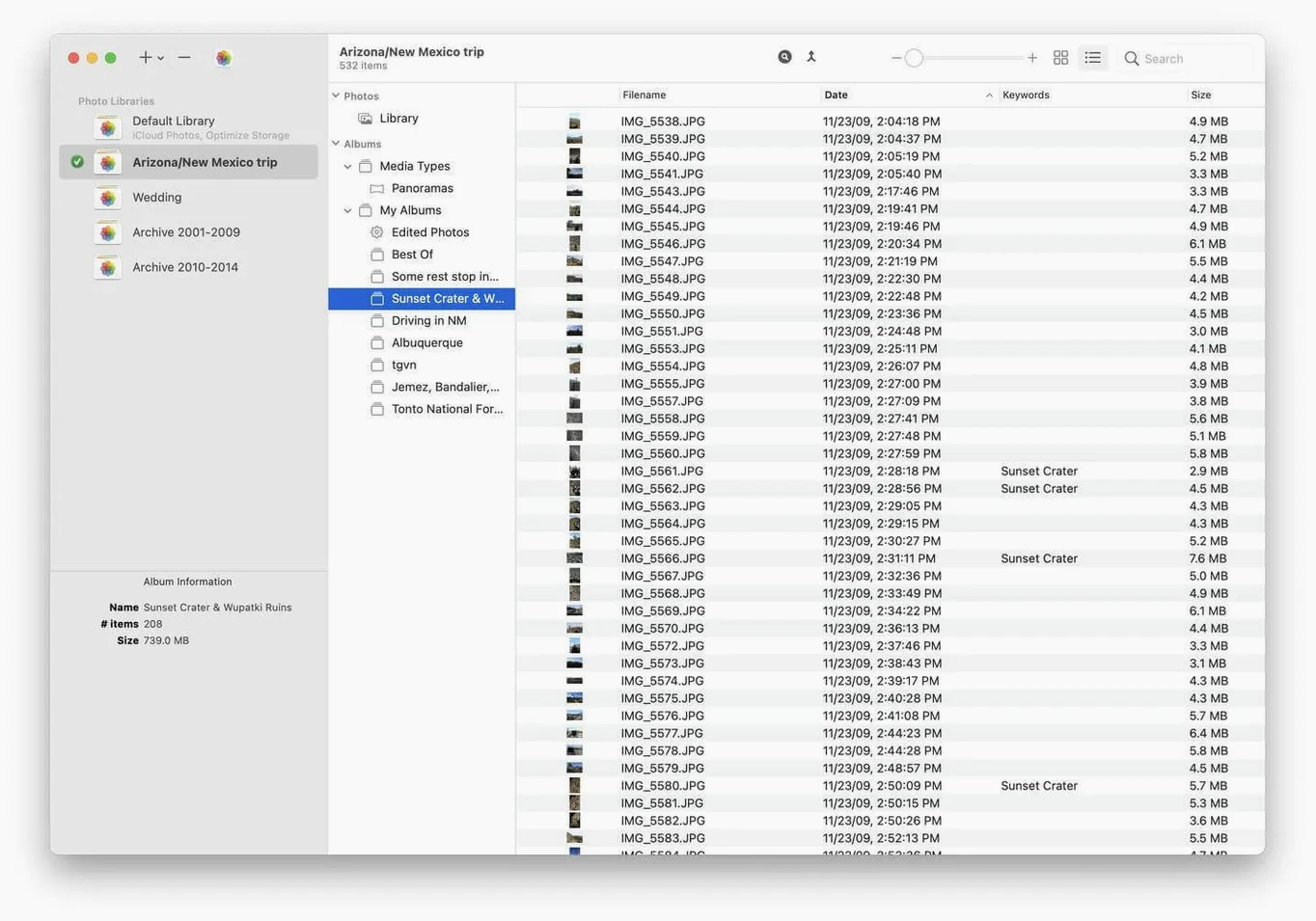
Browse Multiple Libraries Without Quitting
After you sort out the requirements, PowerPhotos opens up a few genuinely helpful tools for anyone juggling more than one Photos library. You get:
- A built-in browser that lets you peek inside any library without quitting the one you're in.
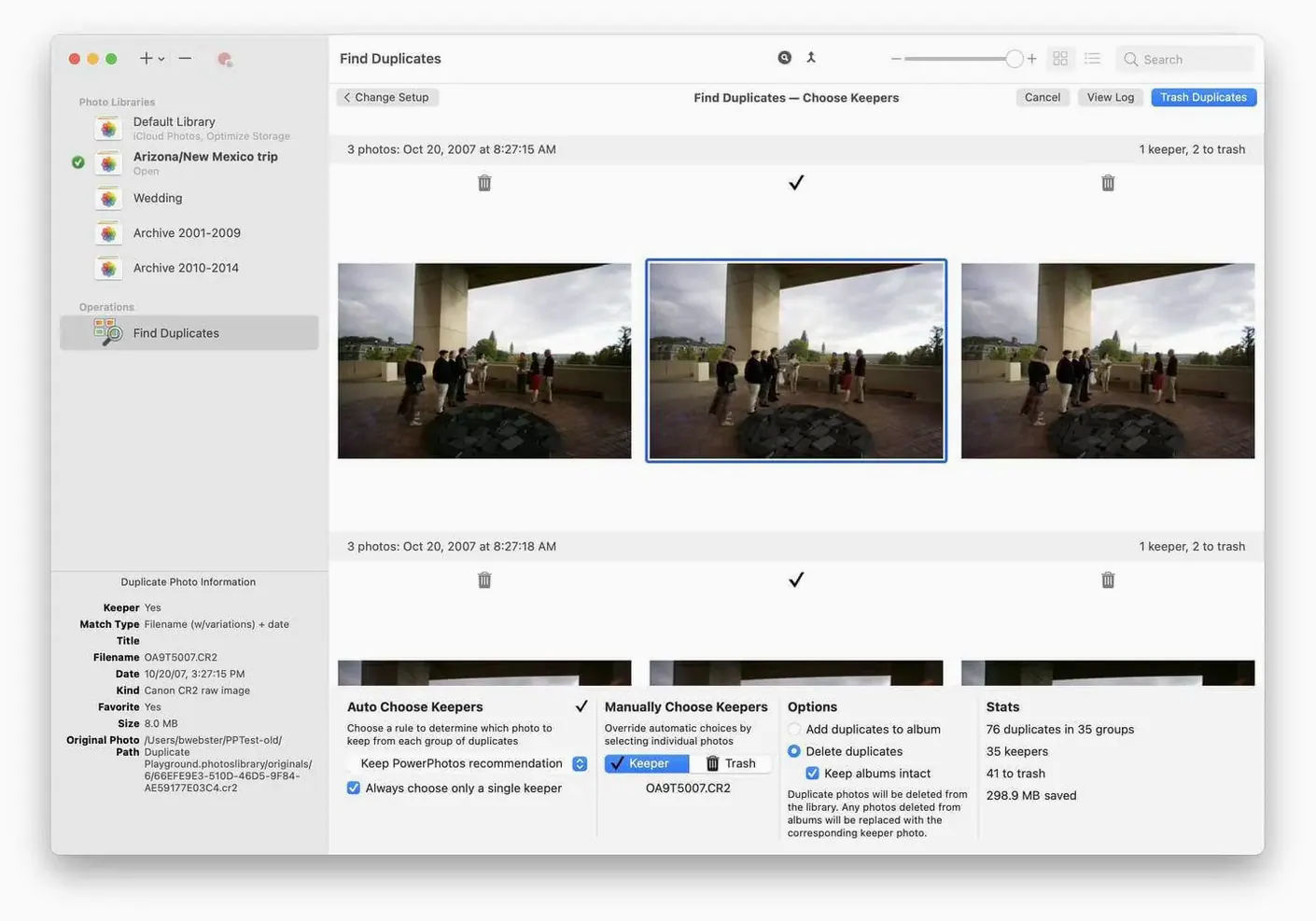
- A duplicate finder that analyzes your libraries and shows extra copies side by side, so you can decide which ones to remove.
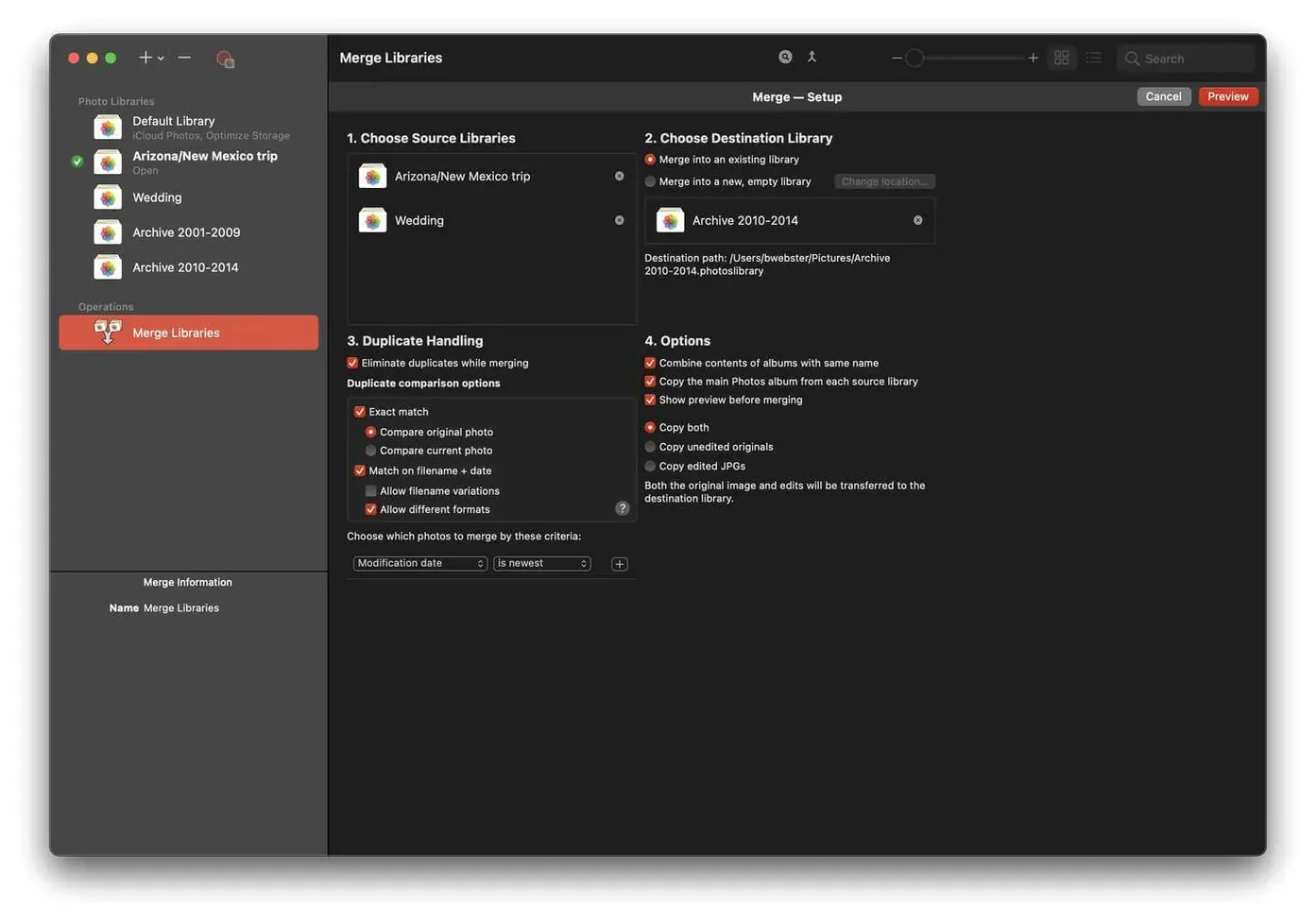
- Straightforward control over multiple libraries—create, switch, or merge them as your collection grows.
Who this is for
This isn't a replacement for Apple's Photos app—it works alongside it. It's built for people who've spread their pictures across several libraries and want a cleaner way to manage them without opening each one separately. The duplicate tools alone can free up a surprising amount of space when you finally track down all those accidental copies.
PowerPhotos in the first week: a few habits worth forming
After you drag PowerPhotos to the Applications folder and fire it up, the duplicate scanner is the obvious first stop—and for good reason. But before you let it sweep through every library, give yourself fifteen minutes to set up a structure that'll keep things tidy later. The app works best when you treat it as a librarian, not just a cleanup crew.
Start by naming your libraries clearly. Names like "Photos Library 2" or "untitled" multiply fast once you begin splitting things up. PowerPhotos shows the library name front and center in its sidebar, so something like "Family 2019–2023" or "Client shoots – June" saves you from clicking into three wrong libraries every session. If you keep one library as your main working space in Apple Photos, set the others as secondary archives and resist the urge to spread new imports across all of them.
The side-by-side duplicate browser deserves a slow morning. Don't rush into bulk deletions—flip through the first few dozen matches yourself to get a feel for what PowerPhotos considers a duplicate. Sometimes it flags two shots that look identical at thumbnail size but differ in subtle ways: one has a flash that caught a reflection, the other is slightly sharper. After a few minutes, you'll know whether to trust the auto-select suggestions or do the final pass by hand.
One small habit that pays off: when you're about to merge or delete photos from a library, let PowerPhotos create a temporary backup library first. It takes seconds, and if you ever second-guess a pruning session, you've got an untouched snapshot waiting.
Photographers Splitting Work from Personal Archives
Not every Mac user needs multiple Photos libraries, and that's fine. PowerPhotos earns its keep for a few specific types of people, and recognizing which camp you fall into helps you decide how deep to go with its tools.
Photographers who use Apple Photos as a secondary catalog—alongside Lightroom or Capture One—often end up with scattered libraries without meaning to. A powerphotos download gives them a single pane of glass for all those libraries, letting them search across shoots without launching each one. The ability to browse a library from within PowerPhotos itself, without triggering a full Photos app switch, becomes a quiet time-saver when you're hunting down a specific image from a shoot two years ago.
Families sharing a Mac also get disproportionate value. When three people dump iPhone photos into separate libraries to avoid tangled memories, PowerPhotos makes switching between those worlds feel instantaneous. A parent can keep a clean family library while a teenager's experimental photography stash lives in its own container—no arguing over what belongs where.
Anyone who's run up against iCloud storage limits will appreciate the splitting tools. Rather than paying for the next tier of storage, you can move older, less-accessed photos into a local-only library that doesn't touch iCloud. PowerPhotos on a Mac lets you reclaim cloud space without deleting anything permanently.
Library Switching Speed Finally Feels Instant
Version 3.4.8 isn't a radical overhaul, but the refinements since the 3.x line began have nudged PowerPhotos from a specialized utility toward something you can live inside for longer stretches. The library switching speed improved noticeably—where earlier versions sometimes hung while a large library loaded its previews, the current build feels snappier on both Apple Silicon and older Intel machines.
macOS 14 compatibility brought better memory handling when scanning very large libraries for duplicates. Users with libraries north of 100,000 photos reported fewer slowdowns during analysis passes, and the progress bar actually reflects real work instead of freezing halfway through. For anyone who's searched for a PowerPhotos torrent out of curiosity, the native performance on Apple Silicon chips is immediately apparent: the duplicate engine rips through metadata comparisons without the beachball that plagued older releases.
Subtle interface tweaks also accumulated. The library list now remembers your sorting preference across launches, and the duplicate viewer's arrow-key navigation works more predictably when you're flying through hundreds of flagged pairs. Small things, but they add up when you're in the app for an afternoon of consolidation work.
- macOS 14 or later
- Apple Silicon or Intel 64-bit Mac
Porch talk 0
Come in or pull up a chair to leave a comment.
Nobody has pulled up a chair yet. If you used it on a real Saturday, say what the hour was.