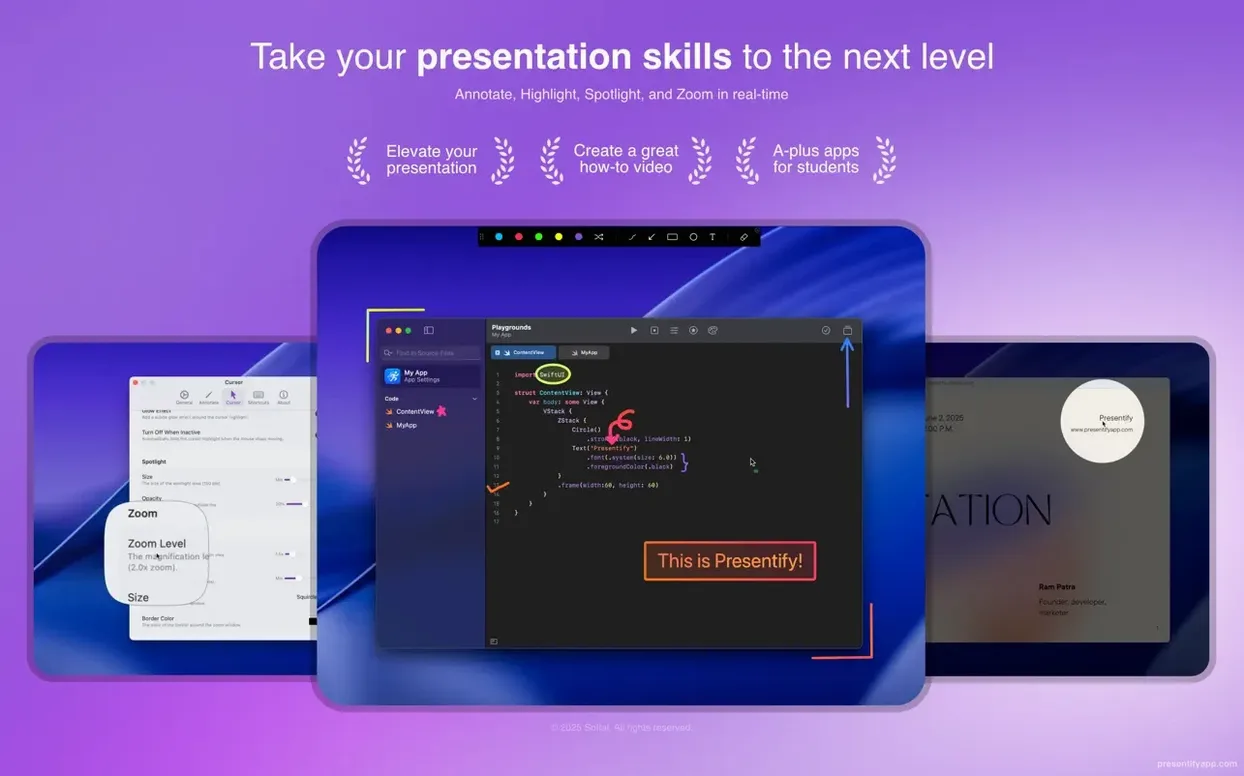
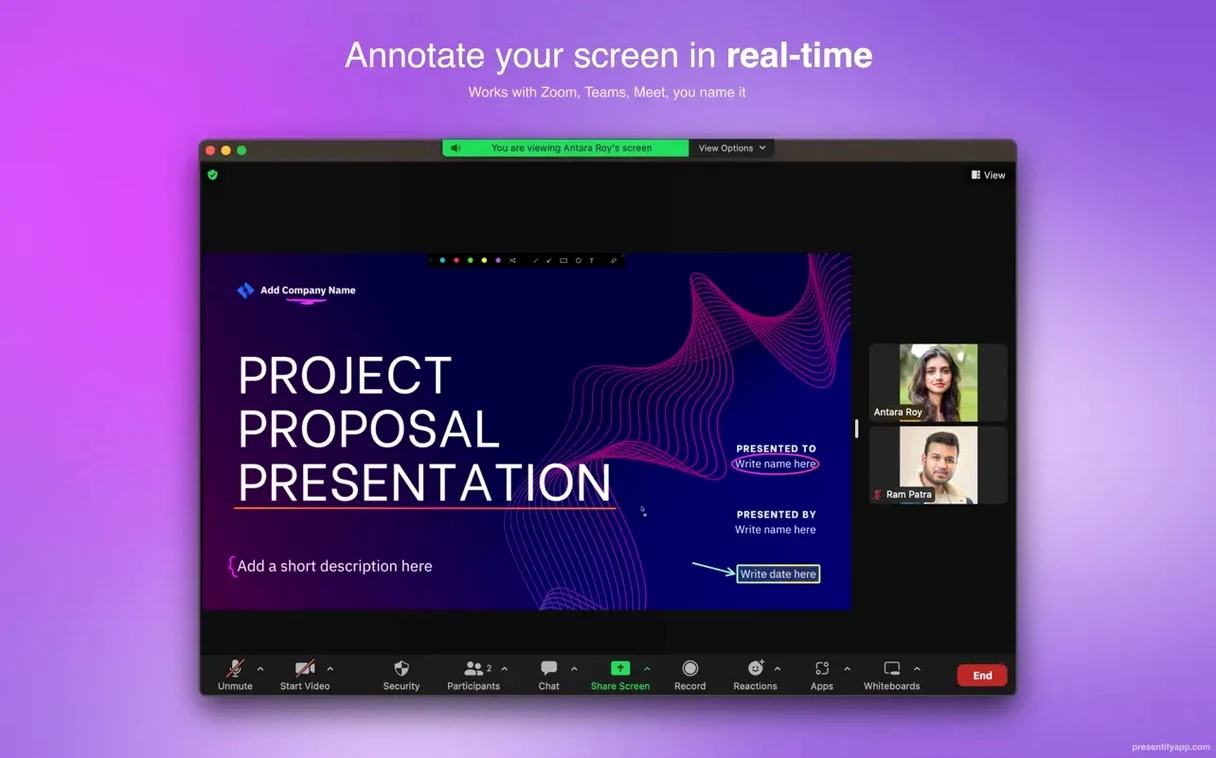
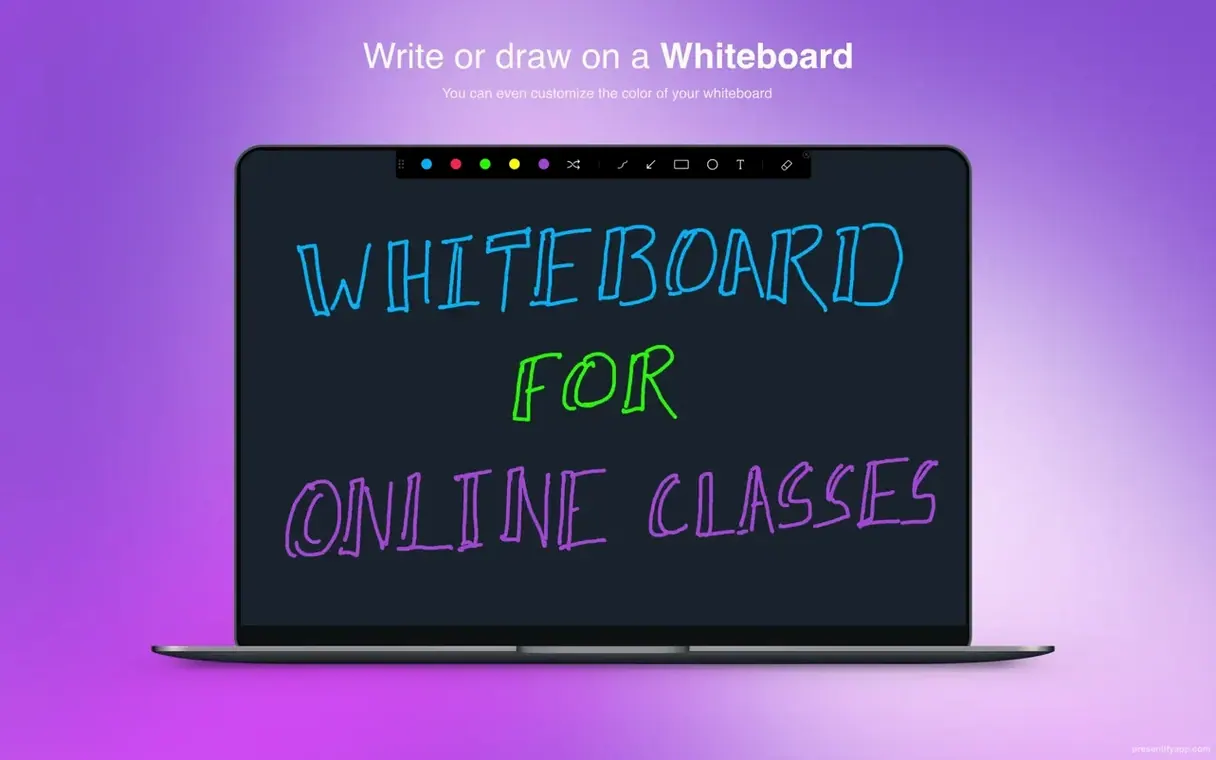
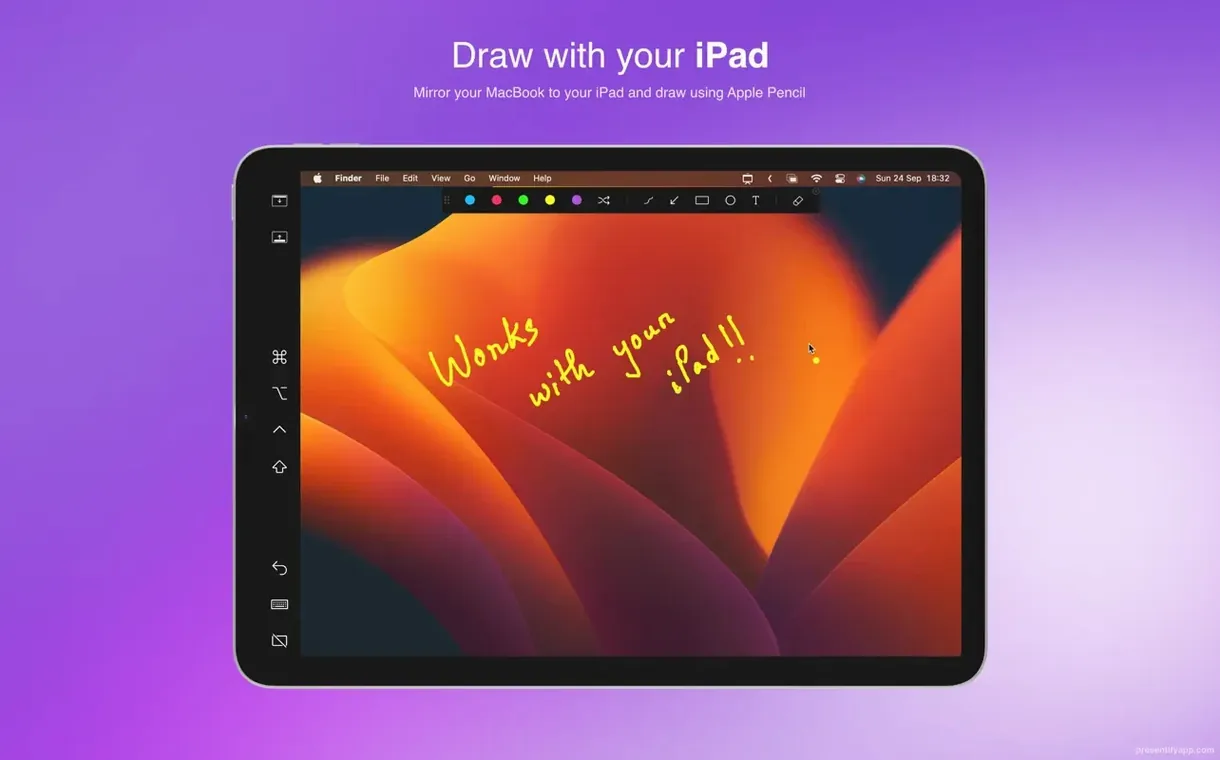
Teachers walking through a dense slide deck, developers live-reviewing code, and designers presenting work on a graphics tablet all share a common need—pointing things out clearly. Presentify lives in your Mac's menu bar and gives you a small but focused set of drawing and focus tools for those moments.
Requires macOS Ventura or Newer
You need macOS 13 Ventura or later, and it runs natively on both Apple Silicon and Intel 64-bit Macs. If you're on an older system, it simply won't launch.
Pressure-Sensitive Drawing on Wacom Tablets
Yes. It feels natural with a Wacom or XP-Pen tablet, letting you draw smooth, pressure-sensitive annotations over images, videos, PDFs, or code without switching apps.
How is the cursor highlighting different?
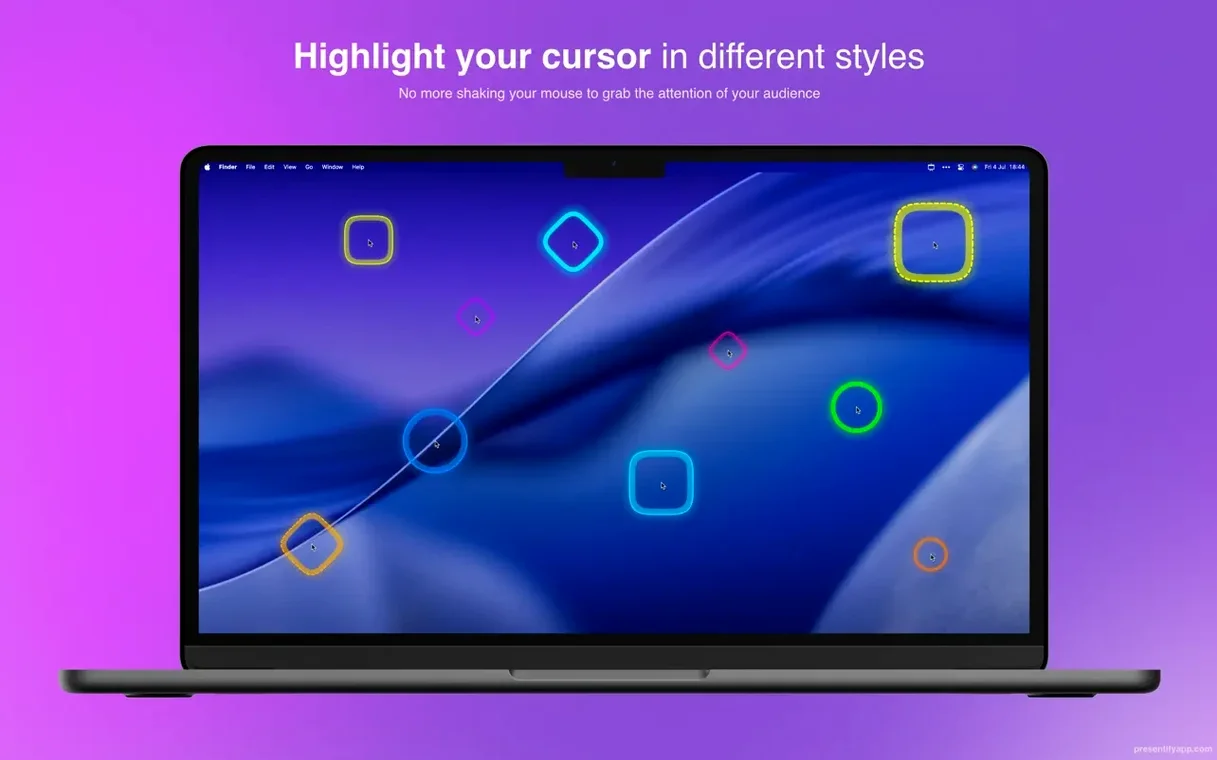
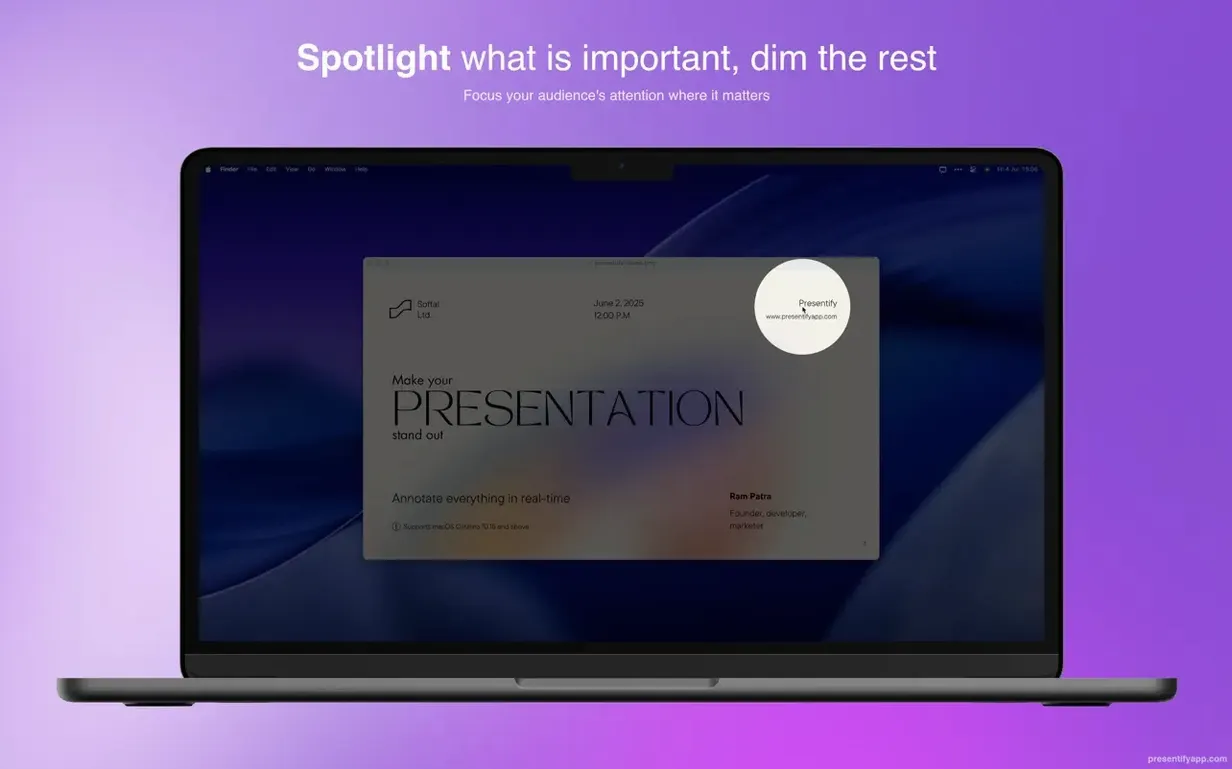
Instead of just enlarging the pointer, it can wrap your cursor in a colored spotlight effect or a high-contrast circle that dims the rest of the screen, so an audience never loses track of where you're clicking.
Can I highlight text without hiding it?
The highlighter sits behind the text, keeping words readable. You can also set annotations to erase automatically after a few seconds, which keeps the screen clean during fast-paced explanations.
Where Presentify fits in your Mac toolkit
Presentify doesn't replace your presentation app or your screen recorder — it sits on top of them. Think of it as a visual overlay that works wherever your cursor goes, whether you're stepping through Keynote slides, whiteboarding in Freeform, or walking a colleague through a spreadsheet in Zoom. Because it's a menu bar app, it's always one click away without cluttering your dock or demanding a separate window.
When you share your screen in Google Meet or Skype, the annotations and spotlight effects travel with the feed. The app doesn't care what's underneath — a browser tab, a video playing in QuickTime, a block of code in Xcode. If you can see it, you can draw on it. Holding the Fn key in the default mode lets you interact with the app behind your annotations without switching tools, which saves you from that awkward pause where you fumble to dismiss drawings just to click a button.
It also plays well with macOS features you already use. Full-screen mode works without glitches — you can annotate over a maximized Keynote presentation and the toolbar stays accessible. The app respects multiple displays too, so you can keep your notes on one screen while annotating on the external monitor your audience sees.
First days with Presentify: small habits that pay off
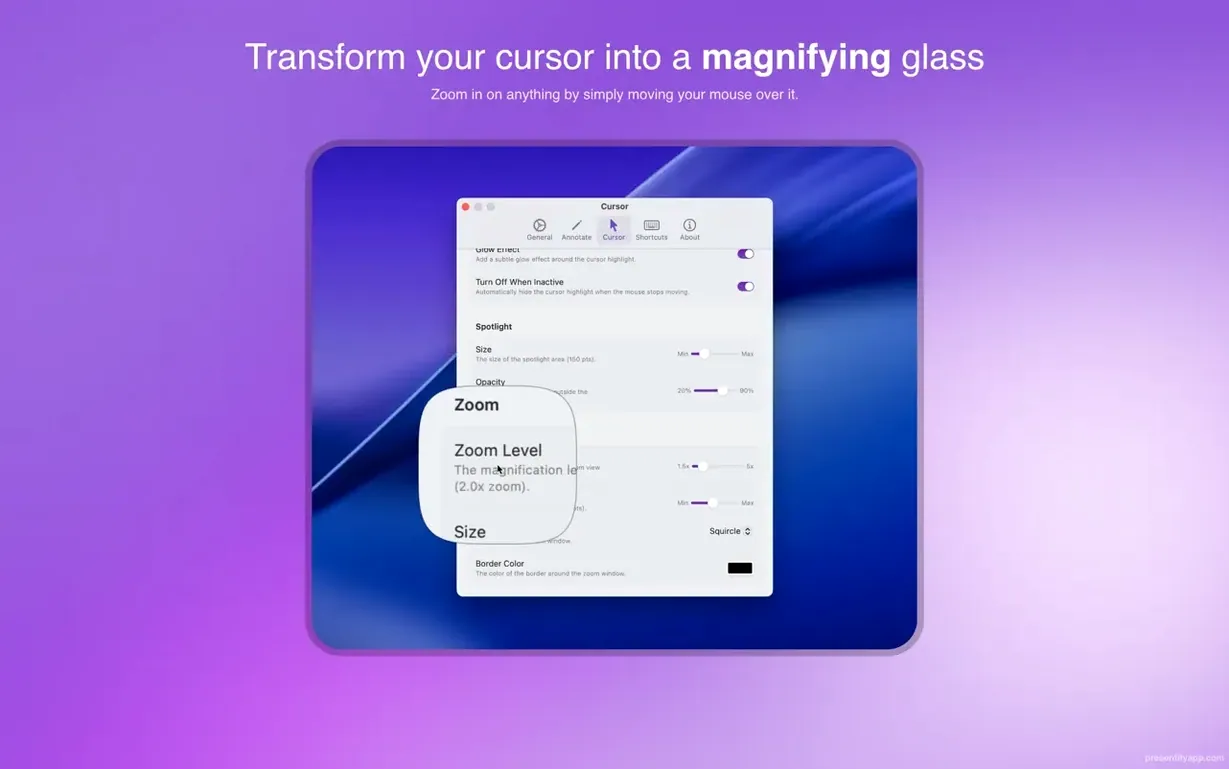
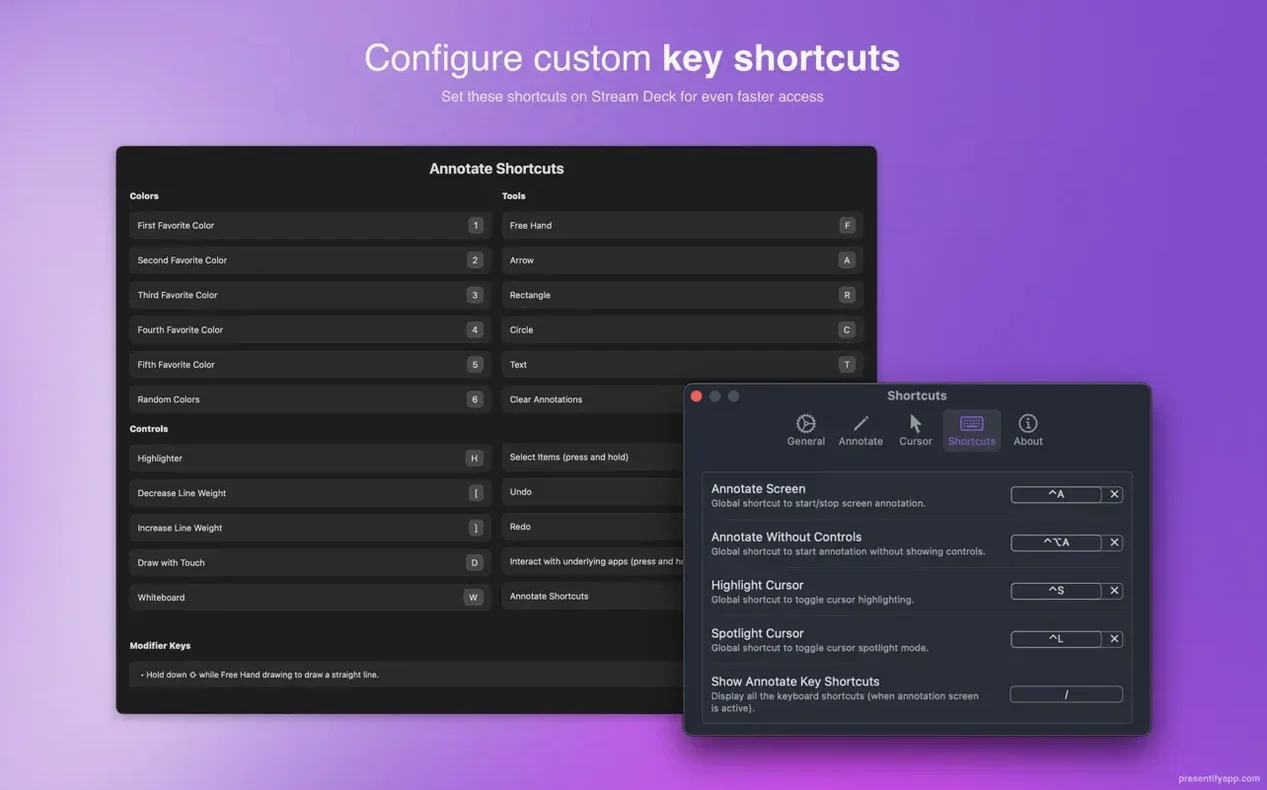
After dragging the app to your Applications folder and launching it, spend your first session just getting the keyboard shortcuts into muscle memory. The menu bar icon gives you a quick toggle for annotations, spotlight, and zoom, but the real speed comes from the hotkeys. Bind them to combinations your fingers already know — many people pair annotation toggling with a thumb-accessible key like Option plus a letter they rarely use elsewhere.
Try the random gradient colors for drawing early on. Instead of picking a color every time, you get a fresh hue with each stroke, which keeps multi-step explanations visually distinct without breaking your flow. It's a small touch, but during a live demo where you're marking up a wireframe in three passes, those automatic color shifts make it obvious which callout belongs to which round of feedback.
Set a short auto-erase timer — maybe eight or ten seconds — while you're getting comfortable. That way, if you mark something up and move on, the screen clears itself. You can always disable it later for sessions where annotations need to persist, but in the early days, it removes one thing from your mental checklist.
App Icon Stays Hidden After First Launch
The first launch can catch people off guard. After copying the app from the disk image to Applications, you might open it and see nothing happen. That's a known quirk — open Activity Monitor, find Presentify in the process list, quit it, then launch it again from Launchpad. From that point forward, it starts normally.
Another hiccup happens when Presentify seems to ignore clicks. If you're in annotation mode and can't interact with the app behind your drawings, you've probably forgotten the Fn key trick. Hold it down and your mouse passes through to whatever's underneath — release it and you're drawing again. New users often think the app has frozen when they just need that modifier.
On some setups, the spotlight effect can feel too aggressive, dimming the screen more than you'd like. Open the preferences and dial back the opacity and radius until it draws attention without making the surrounding content unreadable. The same goes for cursor highlighting — a tight circle with a subtle border often works better than a large, brightly colored halo, especially if your audience is watching on smaller laptop screens.
If you use a Wacom tablet and the pen strokes feel laggy, check that you've granted Presentify the accessibility permissions it asks for on first run. Without those, the overlay can't track input properly. The permissions prompt sometimes hides behind other windows, so if strokes aren't registering, peek at System Settings under Privacy & Security to confirm everything is toggled on.
- macOS 13 Ventura or later
- Apple Silicon or Intel 64-bit Mac
Questions I actually get
What is the Presentify free download situation?
The Presentify free download is a fully functional trial that lets you use all annotation and cursor tools, so you can test it with your own presentations before deciding to keep it.
Porch talk 0
Come in or pull up a chair to leave a comment.
Nobody has pulled up a chair yet. If you used it on a real Saturday, say what the hour was.