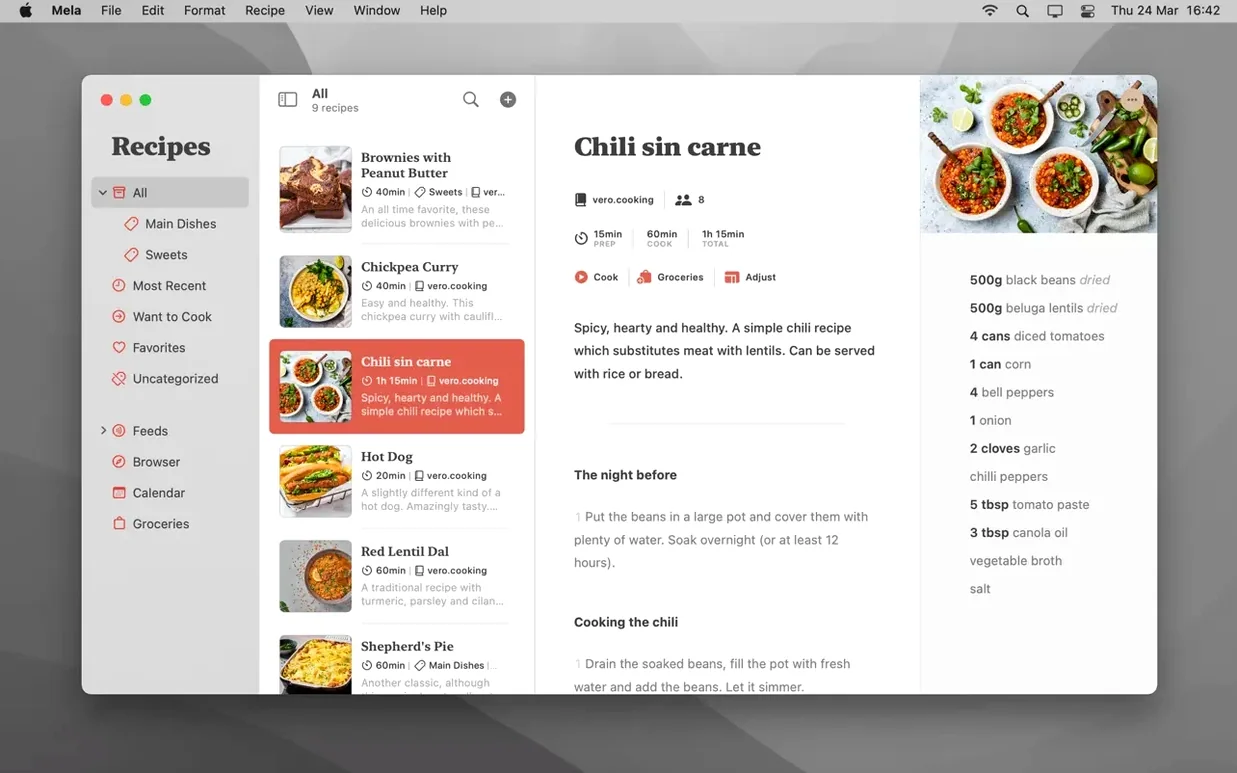
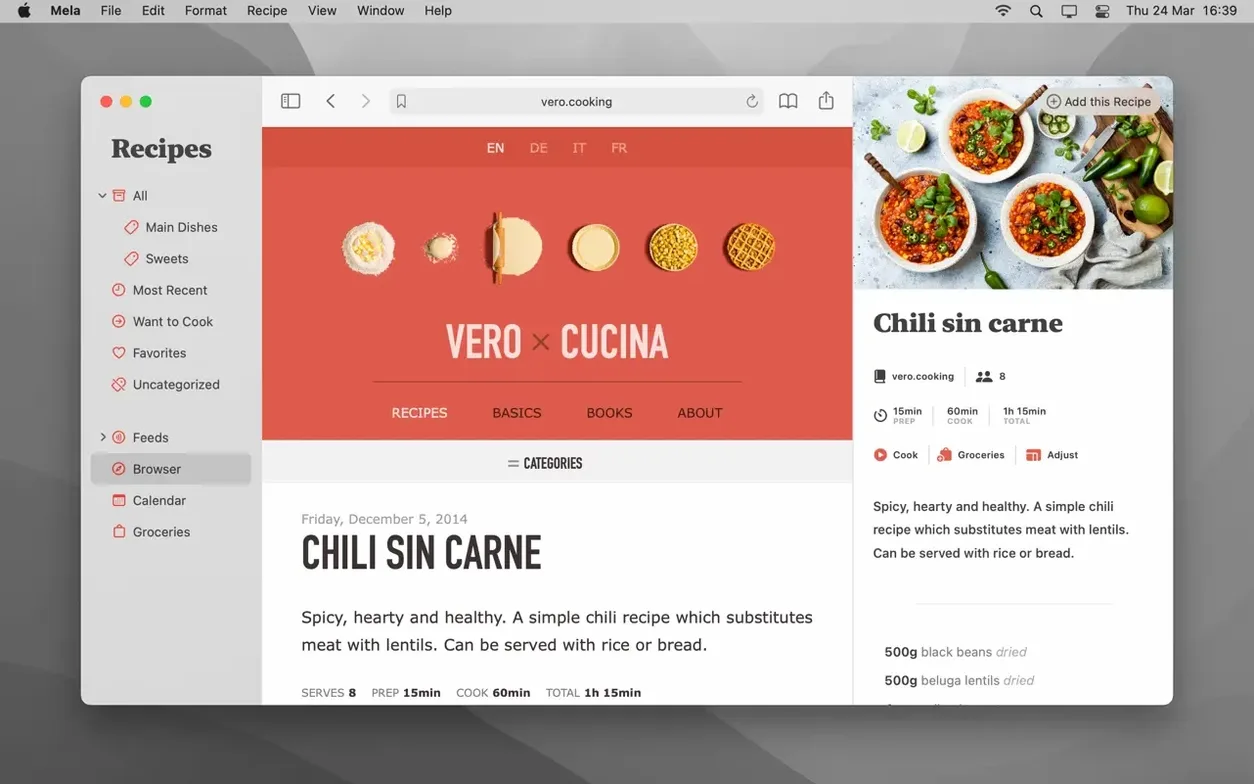
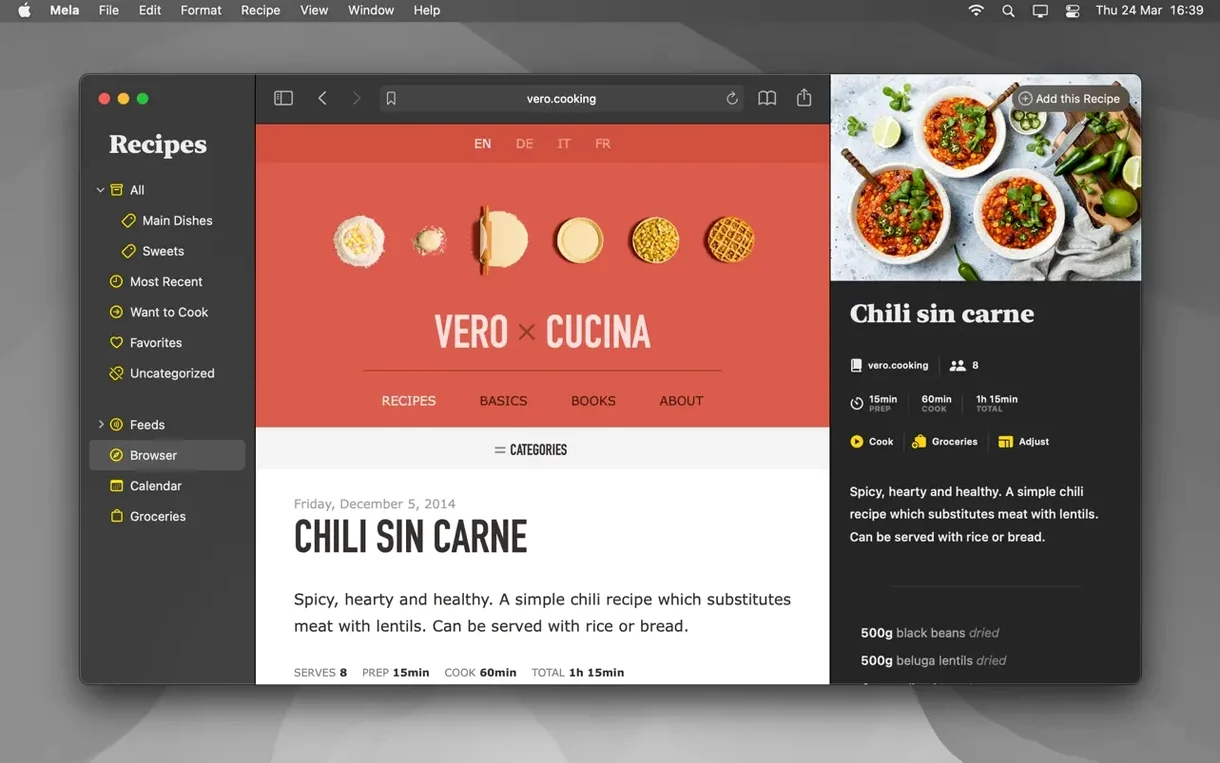
You know how Safari’s Reader view strips away the clutter so you can focus on the words. Mela’s recipe browser does the same trick for food sites, pulling a detected recipe onto a clean card right inside the app. No ads, no life story—just the ingredient list and the steps.
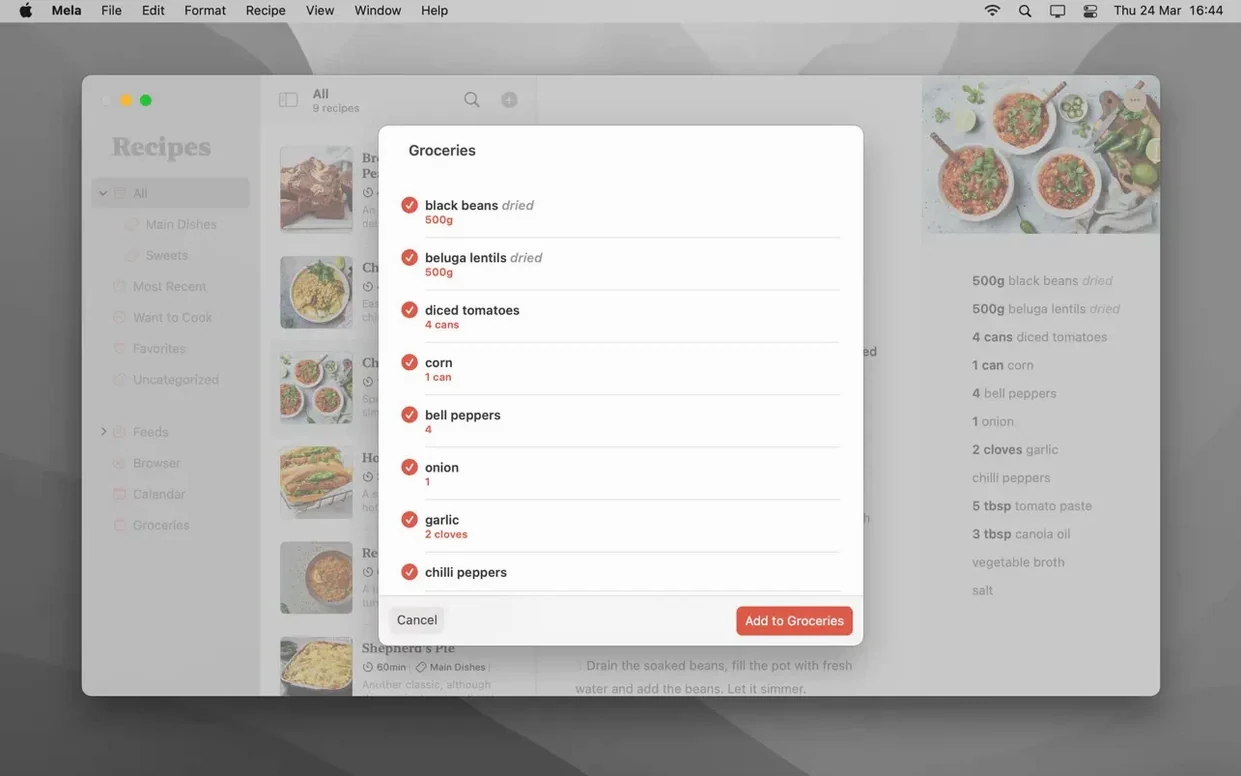
- Get recipes in from anywhere. Use the sharing extension to grab a recipe from Safari or another app. Point your camera at a printed cookbook page and let the text recognition scan it in. The shared iCloud library means a meal idea saved on your phone is already waiting on your Mac.
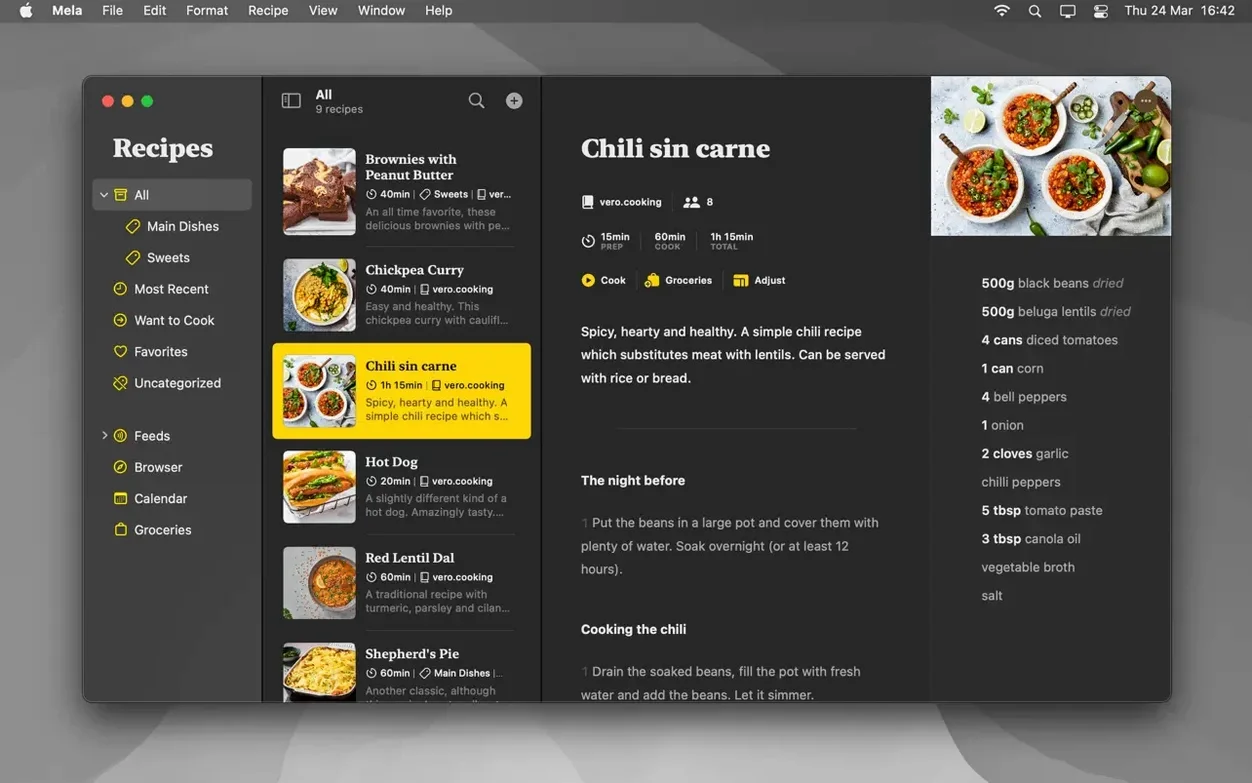
- Sort the pile. Drop recipes into categories you create and mark the interesting ones as Want to Cook. It tucks the chaos into a sensible order so you can find the lentil soup without scrolling past forty casseroles.
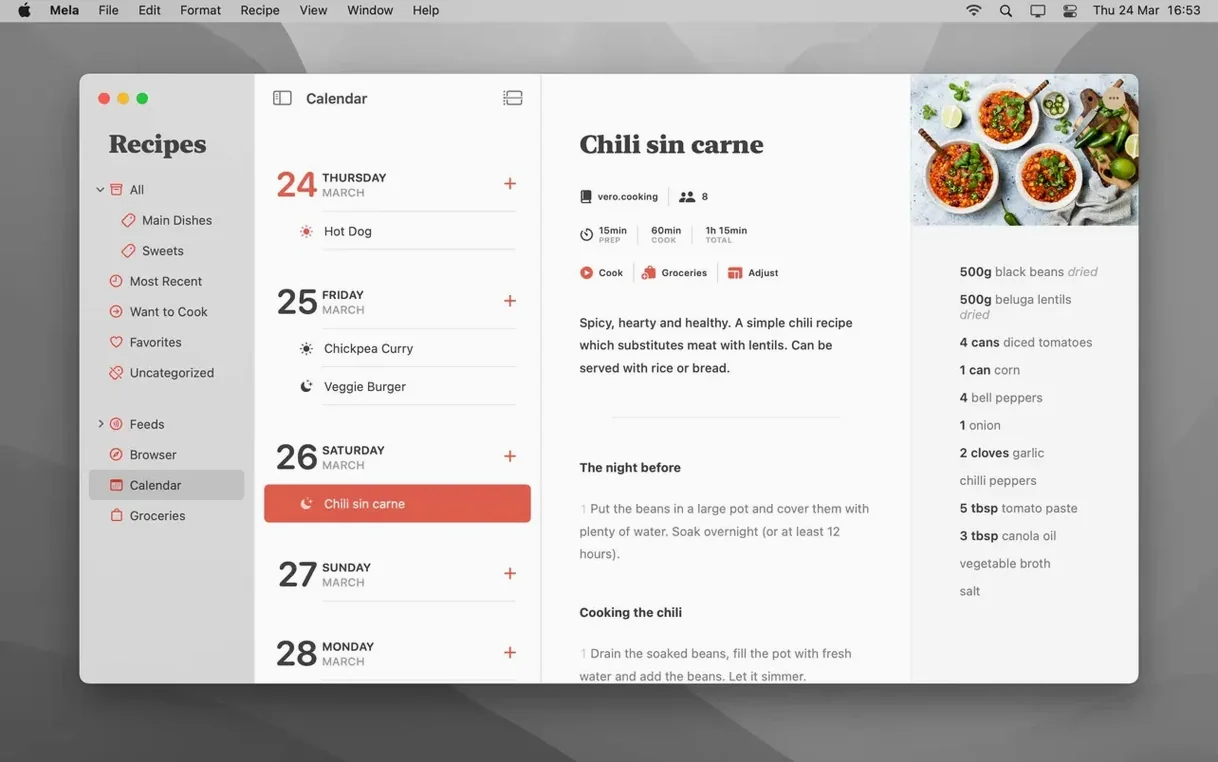
- Plan the week. Drag recipes onto the built-in calendar—it talks to Calendar.app, so the plan shows up on your other devices too.
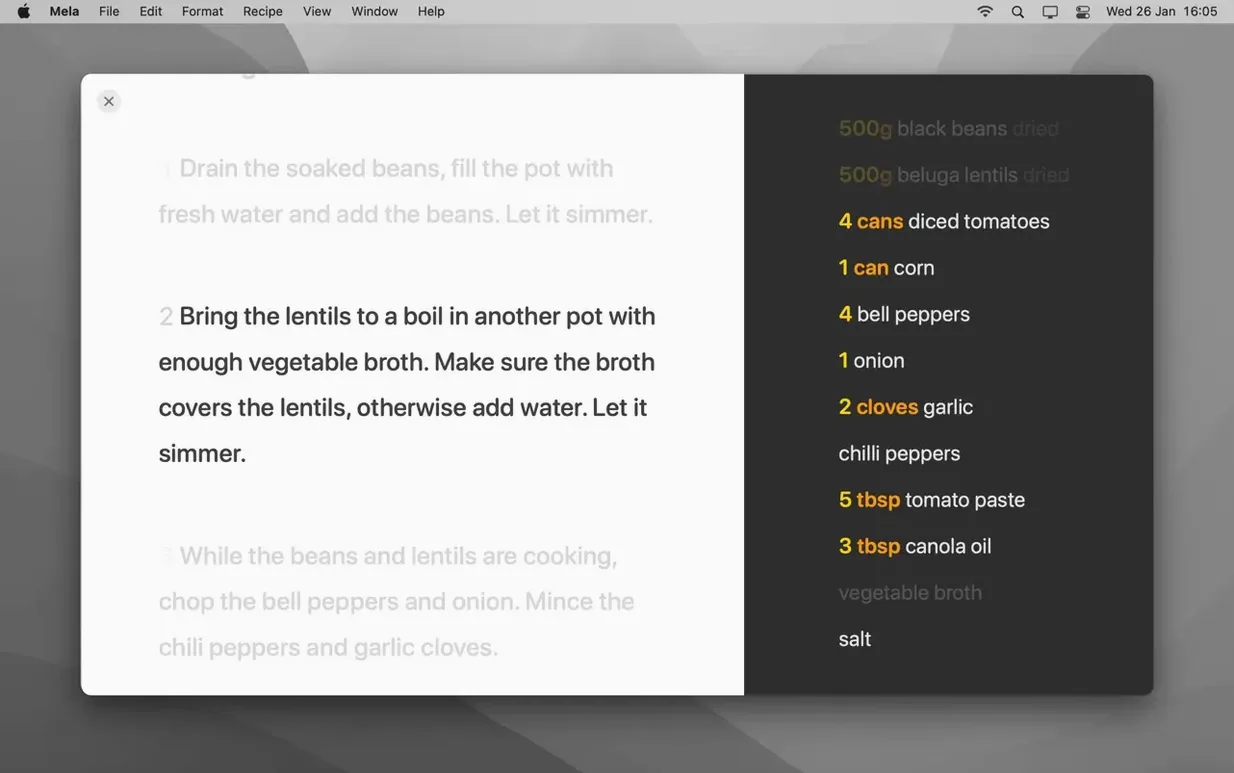
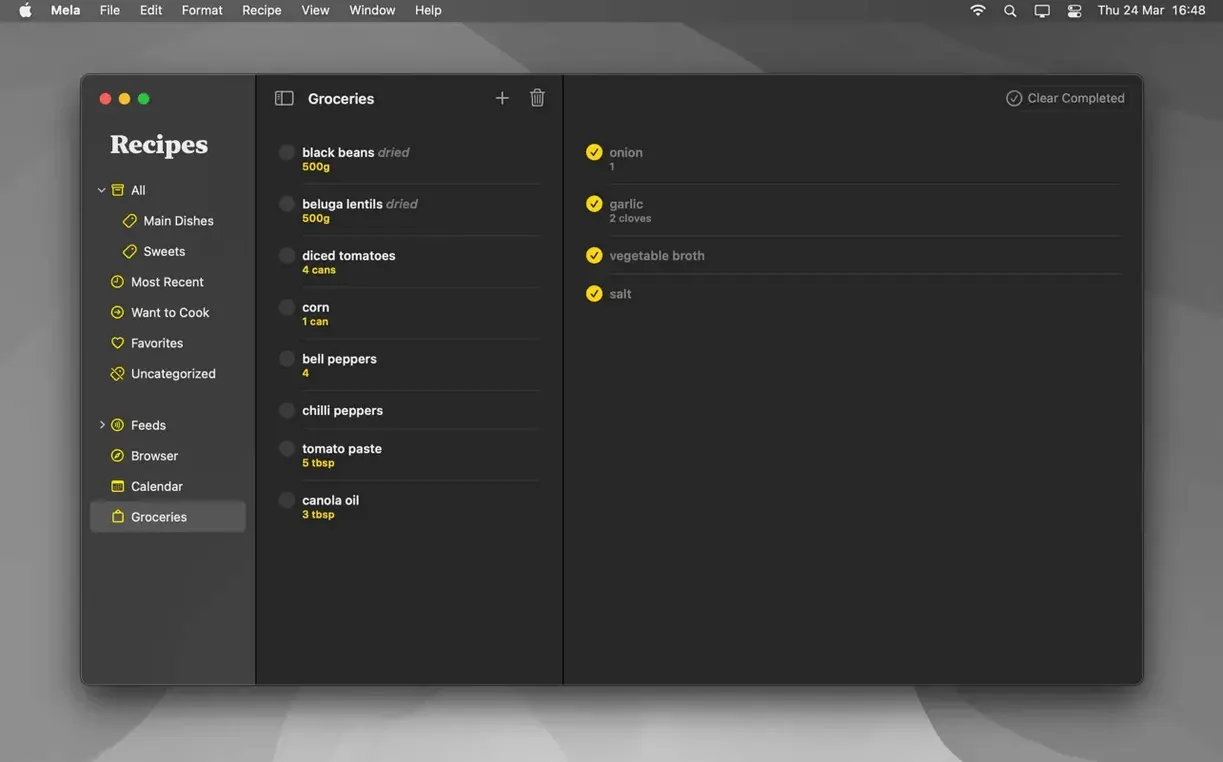
- Cook without the screen fighting you. Switch to cooking mode for larger text that you can read from across the counter. Built-in timers live right on the recipe card, so you don’t have to juggle a separate clock app when the onions are browning.
The app opens recipes from a cold start about as quickly as any native document on a Mac—tap the Space bar on a recipe in the library and the preview slides in without a beat of hesitation. I’ve thrown a few large imported collections at it, the kind where somebody’s exported 800 recipes from an old manager and hoped for the best. Mela chewed through the import without beachballing, and scrolling the recipe list stayed smooth even before iCloud finished its background sync. Memory use sits politely around 120 to 160 MB during a normal session, and the app barely nudges the CPU unless it’s actively scanning a photo for text. Battery impact is low enough that you won’t notice it on a MacBook Air during a Sunday meal-planning session. The only place you’ll spot a brief pause is when the in-app browser first loads a busy recipe blog, and that’s really the web page doing the work, not Mela itself.
First days with Mela: a few things that help
Spend ten minutes setting up categories before you dump in a hundred recipes. Even broad buckets like Weeknight dinners, Baking, and Holiday make the library feel manageable from day one. The Want to Cook marker is easy to ignore at first, but it becomes the single most useful button in the app once you’ve got a backlog. Mark liberally—you can clear the flag with a single click later.
On the sync side, shared libraries need macOS 12 or later on every Mac that’s joining the share, so check that before inviting a household member who’s still on an older system. If you’re scanning from a cookbook, take the photo in good flat light and give the text recognition a moment; it’s surprisingly accurate with printed serif type but will stumble over heavily stylized script fonts. After scanning, glance over the ingredient list—Mela almost always gets the quantities right, but it sometimes interprets a fraction as two separate digits. A quick edit saves frustration mid-cook.
How Mela sits alongside a few other Mac recipe apps
Mela vs. Paprika. Paprika has been the heavyweight in this corner for years, and its feature list is enormous: pantry tracking, nutrition info, a built-in grocery list that auto-sorts by aisle. Mela deliberately does less, and that’s its personality. Where Paprika can feel like a kitchen ERP system, Mela feels like a clean notebook. The shared iCloud library in Mela is simpler to set up than Paprika’s sync, though Paprika gives you cross-platform support that reaches Windows and Android. If you actually use pantry tracking and meal-cost calculations, Paprika earns its keep. If those features just collect dust, Mela’s restraint is a better match.
Mela vs. Crouton. Crouton is the scrappy newcomer with a lively design and a neat trick: it can pull recipes from a shared iMessage link or an AirDrop without you opening the app first. Its meal-planning view is more visual, laying out the week as a series of photo tiles. Mela counters with tighter Calendar.app integration—your meal plan appears in the same calendar you already check for dentist appointments—and a cooking mode that handles multiple recipes and timers more gracefully. Crouton’s scanning is fine, but Mela’s text recognition feels a half-step ahead on accuracy, especially with dense ingredient blocks.
Mela vs. Pestle. Pestle goes hard on the cooking experience: step-by-step voice guidance, hands-free mode, and a clever ingredient-timer system that starts timers when you reach a certain step. Its import is fast and it handles recipe videos natively. Mela takes a quieter approach—no voice, no video, just large clear text and manual timers. Some cooks will prefer Pestle’s guided flow; others will find it overbearing and gravitate toward Mela’s simplicity. Mela also wins on sharing, since Pestle’s collaborative features are still maturing.
If you want a recipe keeper that scans, syncs, and stays out of your way while you're actually cooking, Mela fits the countertop.
- macOS 11 or later
- Apple Silicon and Intel 64-bit
Porch talk 0
Come in or pull up a chair to leave a comment.
Nobody has pulled up a chair yet. If you used it on a real Saturday, say what the hour was.