

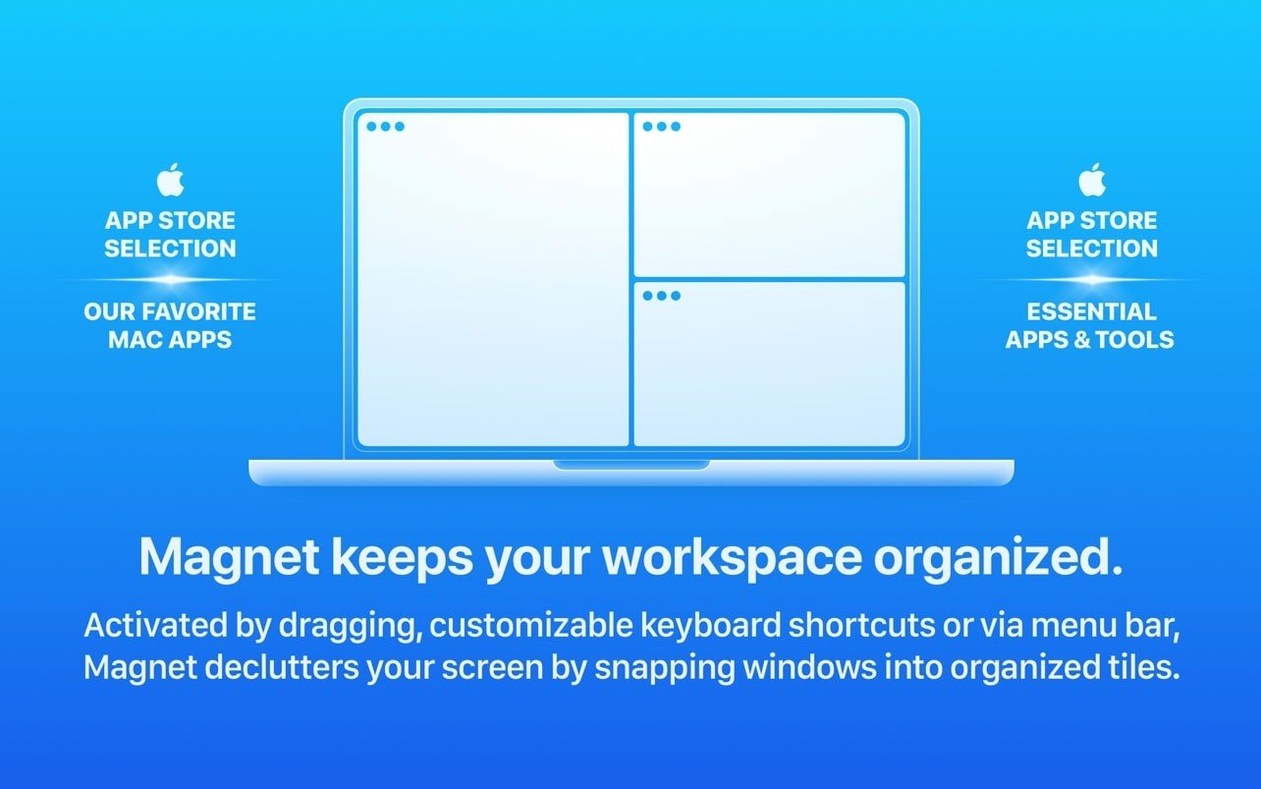
While the 3.0.7 update didn't ship any loud, flashy changes, it quietly moved the baseline to macOS 13 Ventura. For me, that kind of housekeeping is a good sign—it means the developer is keeping things tidy under the hood. Here’s what that means for your setup.
- Check your Mac. Magnet now requires macOS Ventura or later, running natively on both Apple Silicon and Intel machines.
- Get it installed. Once it's on your machine, the app lives in the menu bar, quietly waiting for a keyboard shortcut or a drag to the edge of the screen.
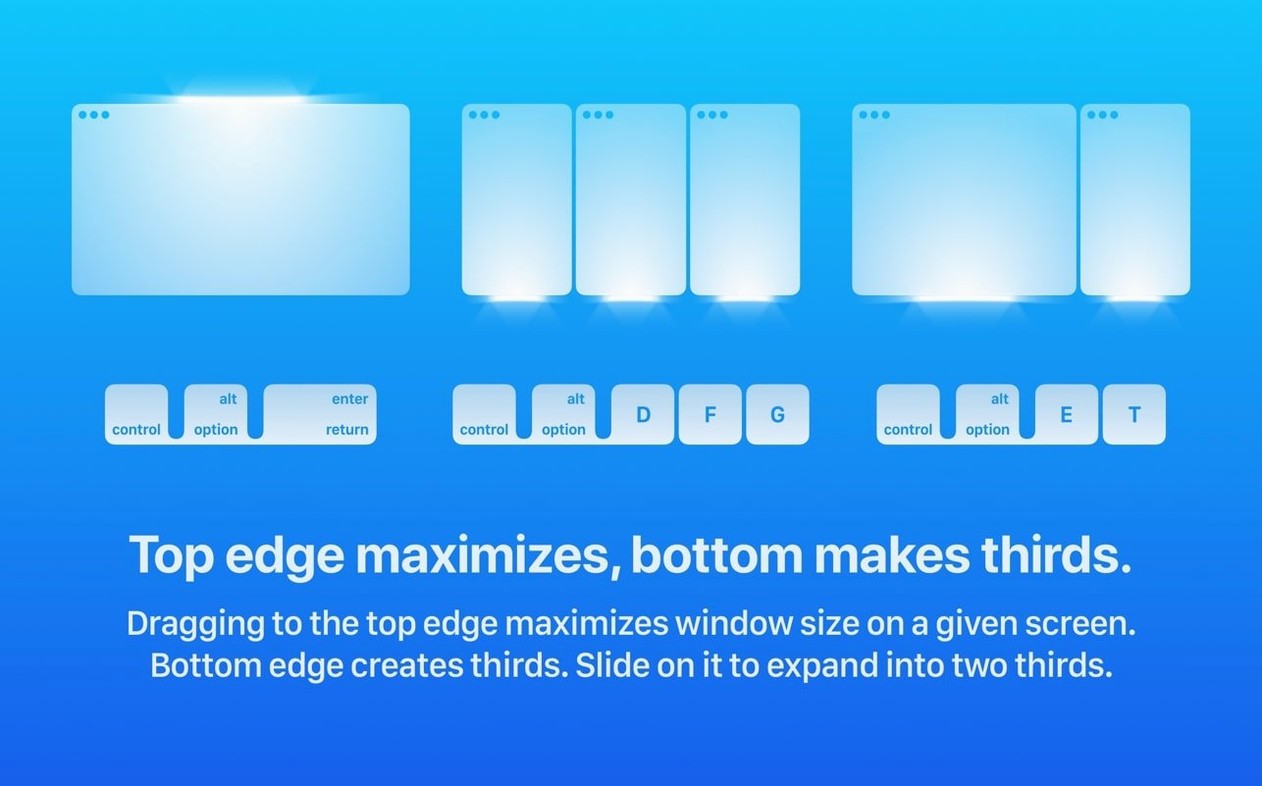
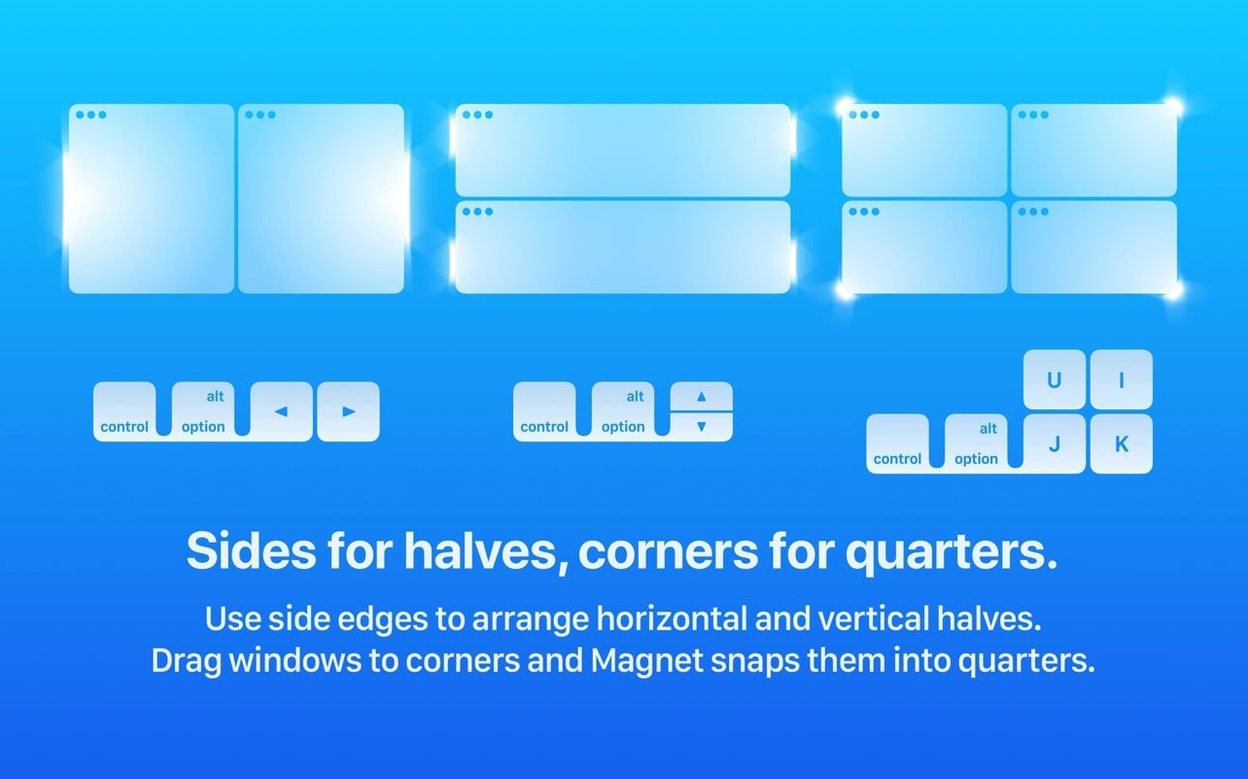
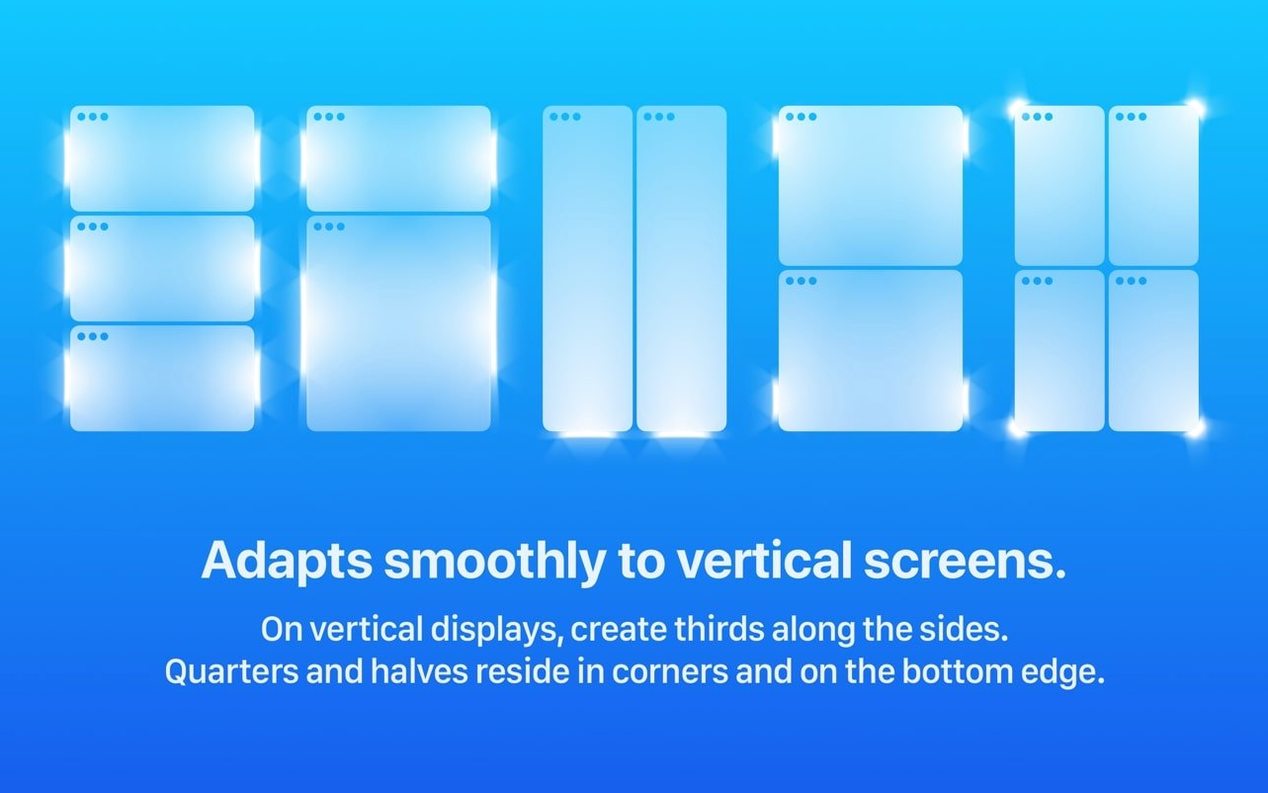
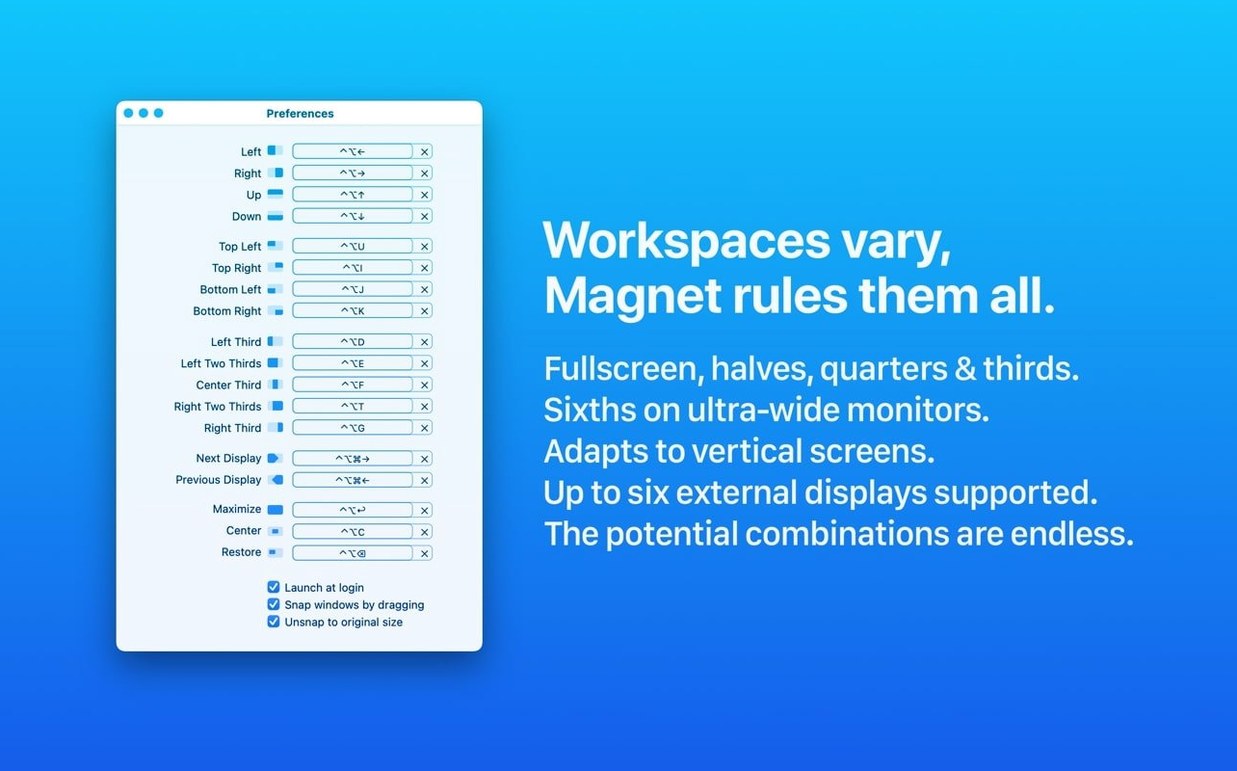
- Build your layout. Snap a window to the left half, the right half, or tuck it into a quarter of the screen. If the preset zones don't cover your workflow, you can set up custom hotkeys for the exact size and position you need.
- Expand your space. The app keeps track of windows across up to six external displays, Retina or otherwise, without missing a beat.
If you're running an older system, this version won't land. But for anyone already on Ventura who wants their windows to fall into place with a keystroke, it's a solid companion.
First days with Magnet: three habits worth building
You install it, the menu bar icon appears, and then—nothing happens. That's by design. Magnet waits until you reach for it, which means the first few days are about teaching your fingers what's possible. Start small.
Pick two shortcuts and use them constantly. Most people land on left half and right half because they cover a dozen daily tasks: comparing documents, dragging files between Finder windows, writing notes alongside a browser. Once those feel automatic, add a maximize shortcut. You probably open apps and then manually stretch them to fill the screen—Magnet's maximize snaps to the usable space without hiding the menu bar or Dock, which macOS full-screen mode does. It's a small difference that keeps the rest of your system visible.
If you work with an ultrawide display or a laptop screen, quarter-snapping becomes a quiet superpower. Three-up layouts—browser on the left half, Slack in the top right, a terminal in the bottom right—feel natural after a day or two. The trick is not to learn every shortcut at once. Let one layout settle into muscle memory before you layer on the next.
Turn On Snap Back to Restore Window Size
The defaults work, but a handful of tweaks make the app feel less like a utility and more like an extension of how you think about workspace. Open the preferences from the menu bar icon.
- Turn on "Snap windows by dragging." It's off by default, and it's the feature that makes Magnet feel native. Drag any window to the left edge and it fills the left half. Drag to a corner and it snaps to the corresponding quarter. On a trackpad, the motion is quick enough that you stop thinking about it.
- Revisit the keyboard shortcuts panel. The default bindings use Control+Option with arrow keys. If you already use those modifiers for something else—terminal shortcuts, accessibility zoom—swap them. Some people move everything to Control+Command to avoid collisions. The app lets you set combinations with up to three modifiers plus a letter or arrow key, so there's room to find a scheme that fits your existing muscle memory.
- Disable the menu bar animation. It's a tiny thing, but if you trigger layouts frequently, the icon bounce adds a fraction of a second that adds up. The toggle lives under the general preferences tab.
- Check "Launch Magnet at login." Without it, you'll forget to start the app and wonder why your windows stopped snapping mid-morning.
How Magnet sits next to Rectangle, Moom, and BetterSnapTool
Put four window managers on the same Mac and you notice where philosophies split. Rectangle is the closest cousin—keyboard-driven, free, and open-source. It handles edge snapping and shortcuts similarly, but the drag-to-snap behavior is less polished. Rectangle's window outlines don't preview the final position with the same clarity, and on busy desktops that's the difference between a clean snap and a second drag. Where Rectangle pulls ahead is customization depth: it exposes more layout configuration for people who want to define exact pixel coordinates. Magnet stays simpler on purpose, and that simplicity is either a relief or a limitation depending on how much you like tinkering.
Moom takes a visual approach. Instead of memorizing shortcuts, you hover over the green zoom button and a pop-up grid appears. Click a zone, the window lands there. It's excellent for mouse-first workflows and people who find keyboard shortcuts a chore to remember. The trade-off is speed: Moom's grid interaction takes about a second longer per window arrangement than pressing a key combination. Over a day of constant rearranging, Magnet's keyboard path shaves off noticeable friction.
BetterSnapTool lives closest to Magnet in spirit—both grew out of the same drag-to-snap idea—but BetterSnapTool leans harder into customization. You can set per-application snapping rules, define custom snap areas of any size, and tweak the appearance of the preview overlays. The cost is a preferences window that can feel like a cockpit dashboard. Magnet's restraint means fewer decisions, faster setup, and a cleaner menu bar presence. If you want one window manager that you install and barely configure again, that's where Magnet fits best.
Fix Dragging That Won't Snap by Toggling This
Every window manager has friction points. Here are the ones that come up most often with Magnet and what to do about them.
"Dragging doesn't snap." This is almost always the preference toggle. Open the menu bar icon, click the gear, and confirm "Snap windows by dragging" is checked. If it's on and still not working, check whether the window you're dragging belongs to an app that resists resizing—some Adobe panels, a few system preference windows, and full-screen video players ignore window management calls entirely. That's not a bug; those windows simply don't expose the hooks Magnet needs.
"Keyboard shortcuts conflict with another app." The most common collision is with Xcode, where Control+Option+Arrow keys navigate between files. Open Magnet's shortcuts panel, find the conflicting binding, and assign an alternative. A safe fallback is Control+Command plus the same arrow direction—it rarely clashes with anything.
"A window snaps but doesn't fill the zone properly." Some apps enforce a minimum or maximum window size. Terminal windows, for instance, resize in character-width increments and may leave a small gap at the edge of a half-screen zone. There's no universal fix, but Magnet honors the constraints the application reports. If the gap bothers you, shrinking the font in that app's preferences often lets the window settle into the zone more cleanly.
"Magnet disappeared after a macOS update." Gatekeeper occasionally strips the login item permission. Open System Settings, navigate to General > Login Items, and re-enable Magnet. It takes ten seconds and the app picks up right where it left off.
Most of these snags resolve with a preference tweak or a restart. Very little about Magnet requires deep troubleshooting, and the menu bar icon is always there as a visual reminder that the tool is running—or a quick way to confirm it isn't.
- macOS 13 or later
- Apple Silicon or Intel 64-bit Mac
Questions I actually get
Can I use Magnet with more than one monitor?
Yes, it supports arranging windows across up to six external displays, both Retina and non-Retina.
Porch talk 0
Come in or pull up a chair to leave a comment.
Nobody has pulled up a chair yet. If you used it on a real Saturday, say what the hour was.
More for the same hour
Everything in Mac Apps
 MAMP PRO
6.9.0 Mac Apps
472 MB
MAMP PRO
6.9.0 Mac Apps
472 MB

 Marmoset Toolbag
4.02 Mac Apps
169 MB
Marmoset Toolbag
4.02 Mac Apps
169 MB

 Macxvideo AI
3.16.0 Mac Apps
250 MB
Macxvideo AI
3.16.0 Mac Apps
250 MB

 Marvelous Designer
v2024.2.139 Mac Apps
1.7 GB
Marvelous Designer
v2024.2.139 Mac Apps
1.7 GB

 MacWhisper
15.8 Mac Apps
Updated 75 MB
MacWhisper
15.8 Mac Apps
Updated 75 MB
 macOS Mojave
10.14.6 Mac Apps
5.6 GB
macOS Mojave
10.14.6 Mac Apps
5.6 GB
 macOS High Sierra
10.13.6 Mac Apps
4.9 GB
macOS High Sierra
10.13.6 Mac Apps
4.9 GB
 macOS Catalina
10.15.7 Mac Apps
7.7 GB
macOS Catalina
10.15.7 Mac Apps
7.7 GB