
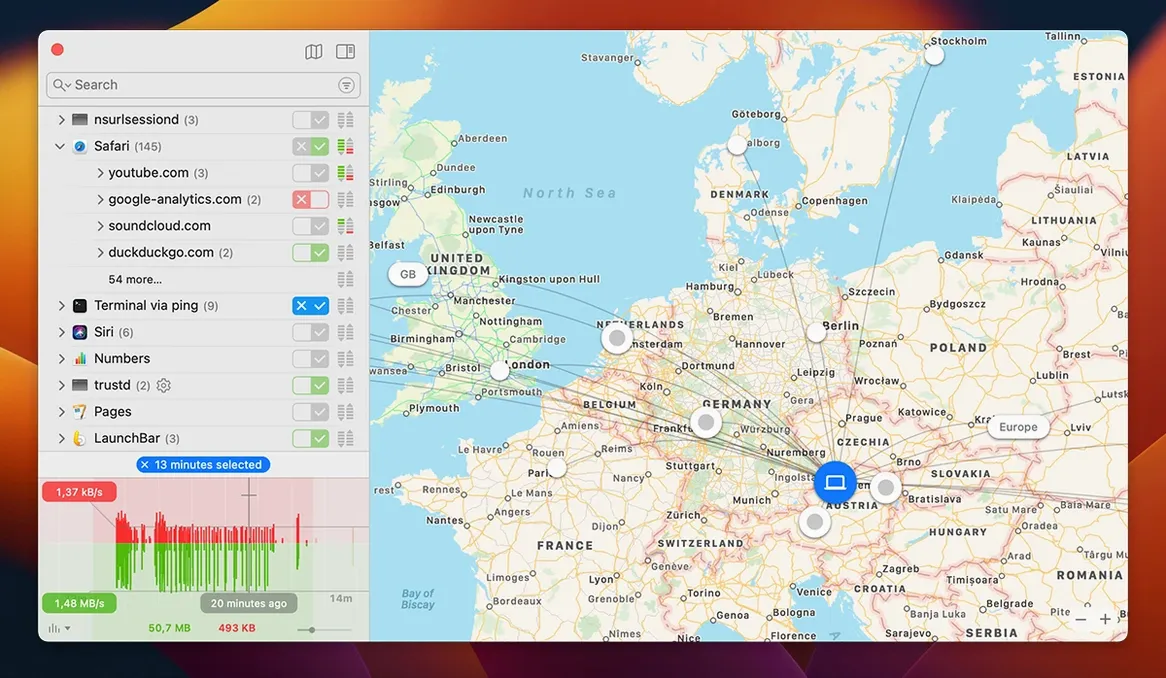
A video call just dropped, but you’re not on Wi‑Fi. Something on your Mac is quietly pushing data out in the background. Tools like Little Snitch make that traffic visible before it becomes a problem, pairing a real‑time connection map with a firewall that waits for your answer.
What actually shows up on the map?
The Network Monitor lists every outgoing and incoming attempt, grouped by app and destination. In version 6.5 the label changed from "traffic amount" to "traffic volume" and inbound connections no longer rely on hostnames, which keeps the list cleaner when your Mac is listening for local requests.
Does it keep asking the same thing?
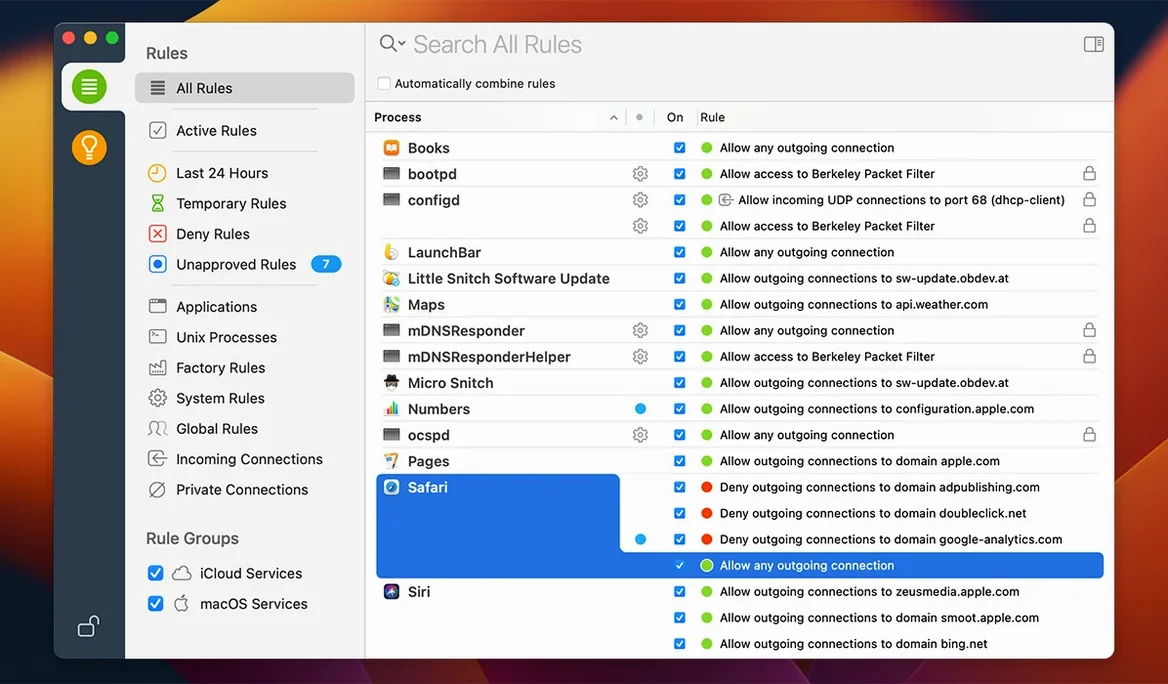
Only once per situation. When you allow or deny a connection the app remembers the rule you chose and applies it automatically later. If you need some peace during a presentation, Quiet Mode postpones notifications and decisions until you’re ready.
Encrypted DNS and a CLI join the engine
Encrypted DNS handling got tighter, and an experimental NAT64 implementation (RFC 6052) is now available for networks that run IPv6-only. A command-line interface is included too, so you can adjust settings without touching the main window.
Does it watch anything besides traffic?
One-click blocking versus surgical rules
Put Little Snitch next to Radio Silence and the differences pop out immediately. Radio Silence keeps things dead simple: you drag an app into its window and it blocks all connections from that app, no questions asked. That’s great for someone who wants to silence a handful of known offenders and never think about it again. The trade‑off is granularity — you can’t allow connections to one server while blocking another from the same app, and there’s no traffic map to show you what’s actually happening on the wire. Little Snitch goes far deeper on both fronts, which makes it feel heavier at first but far more informative once you settle in.
Lulu sits somewhere in between. It’s open source, lightweight, and gives you per‑process allow/deny alerts much like Little Snitch does. What it lacks is the visual feedback layer — no world map, no traffic history graph, no real‑time breakdown by server location. Lulu also doesn’t touch encrypted DNS handling or bundle integrity checks, so the protection stops at the connection request itself. If you want to see the shape of your Mac’s network life over an hour or a day, Little Snitch is the only one of the three that draws that picture for you.
Metered hotspots, photo apps, and every megabyte counted
Imagine a photographer who spends mornings editing in a café before uploading selects to a client’s cloud gallery. She’s on a metered hotspot, every megabyte counts, and a handful of creative apps love phoning home for analytics, font syncing, and update checks. Without a monitor, those background calls just blend into the data cap.
With Little Snitch running, the first time her raw editor reaches out to an analytics endpoint she hasn’t seen before, a quiet alert tells her the server location and the app making the request. She denies it, saves the rule permanently, and moves on. Over the next hour the Network Monitor’s traffic volume graph shows a flat line for that app except for the single export she authorized to her delivery service. When she later tether‑checks a location scout on an IPv6‑only network, the experimental NAT64 support keeps rules consistent without her having to reconfigure anything. Back at the hotel, she glances at the world map and spots a connection attempt to a region she doesn’t do business with — something worth investigating before the next trip.
Quiet Mode calms the first-hour alert storm
The most common stumble is alert fatigue during the first few hours. Little Snitch doesn’t know your habits yet, so it asks about every connection. The fix isn’t to allow everything — it’s to lean on Quiet Mode for an afternoon while you work normally, then sit down once and review the pending decisions in one batch. Most people find they only need to make about twenty meaningful choices before the alerts drop to a trickle.
Another snag shows up after macOS updates, when system processes with new identifiers trigger fresh prompts. If you see a flood of alerts for services like trustd or com.apple.geod, don’t panic — those are normal Apple daemons. Check the destination server: if it points to an Apple‑owned IP range, allowing it is generally safe. The bundle integrity feature in version 6.5 adds a second layer here, flagging if a previously trusted process has been altered since you last approved it.
On machines that swap between Wi‑Fi, Ethernet, and VPNs, rules sometimes stop matching because the network profile changed. Little Snitch ties rules to the network environment, so if a rule works on your home Wi‑Fi but not on the VPN, open the rule editor and confirm the profile scope isn’t restricted. A quick toggle to "Any Network" usually clears it up.
Devs and admins chasing unknown build-script calls
System administrators and developers who juggle local servers, containers, and cloud tools live in the Network Monitor view. They’re the ones who notice when a build script suddenly phones a new dependency host, and they benefit from the command‑line interface when scripting rule changes across multiple machines. The encrypted DNS improvements in recent versions matter especially to them, since misconfigured DNS over HTTPS can break local name resolution in ways that are hard to diagnose without visibility.
Privacy‑focused users who run a tight ship — journalists, researchers, anyone handling sensitive client data — lean on the bundle integrity checks. Knowing an app hasn’t been quietly modified since installation removes one variable from the trust equation. These users also tend to keep the world map open on a secondary display, treating it as a background heartbeat for the Mac’s network activity.
Everyday Mac owners who just want to know what’s leaving their machine also fit here, but they get the most out of it after the initial setup. Once the core rules are in place, Little Snitch fades into the menu bar and only speaks up when something genuinely new happens. That’s the sweet spot: informed without being interrupted.
macOS 27 Golden Gate lands without breaking your rules
Version 6.5 brought compatibility with macOS 27 Golden Gate, so anyone moving to the latest system release can keep their rule set intact without waiting for a compatibility patch. The label tweak from "traffic amount" to traffic volume is small on screen but clarifies what the numbers actually represent, especially when comparing data usage across apps.
The app bundle integrity monitoring is the kind of change you don’t notice until it catches something. In practice, it means Little Snitch can alert you if an application’s code has changed while it’s running — a scenario that’s rare but significant for anyone who downloads utilities from outside curated stores. The fix for expired temporary rules not appearing under Suggestions restores a cleanup path that had quietly broken, so stale "allow once" decisions no longer clutter the background.
On networks that have moved fully to IPv6, the experimental NAT64 implementation removes the need to manually translate IPv4 addresses in rules, which previously could cause silent failures. Combined with the inbound connection change — no more hostname lookups for incoming traffic — the connection list loads faster and reads cleaner on busy machines that run web servers or file sharing.
It can. While an app is running, Little Snitch now monitors its bundle integrity, which helps catch an application that’s been tampered with between launches.
Version 6.5 keeps the firewall you know while stretching into new territory. Here’s what arrived with the update:
- macOS 27 Golden Gate support
- Bundle integrity monitoring for running apps
- Experimental NAT64 implementation (RFC 6052)
- Improved encrypted DNS handling
- macOS 14 or later
- Apple Silicon or Intel
- Available in English and German
Porch talk 0
Come in or pull up a chair to leave a comment.
Nobody has pulled up a chair yet. If you used it on a real Saturday, say what the hour was.