You update to the latest macOS, open your app grid, and the layout feels different — icons are harder to scan and the old way of launching just isn't there. LaunchOS steps in to bring back the app organizer you remember.
Set up your app grid
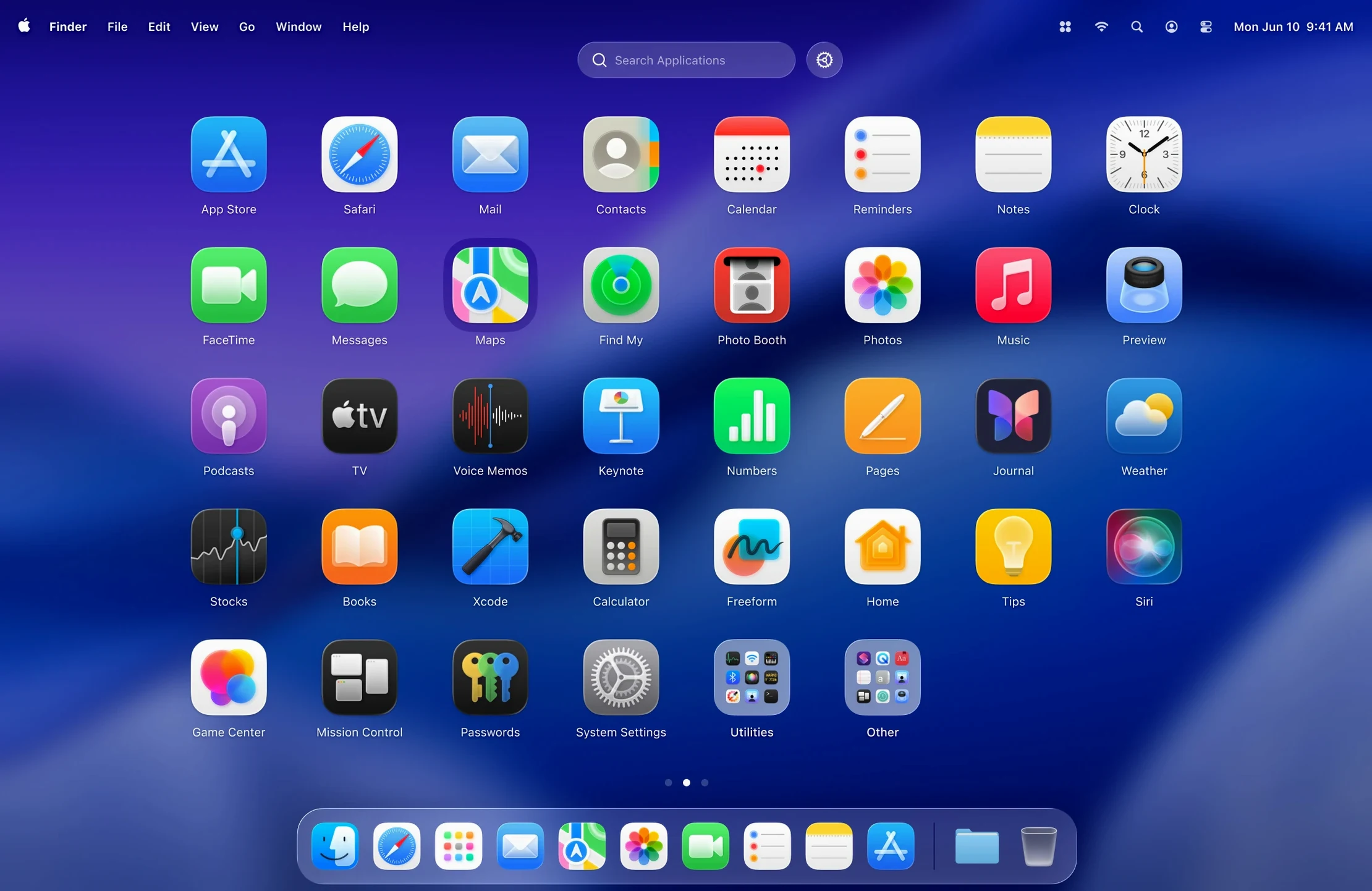
Once you drag LaunchOS into Applications and open it, you'll see a clean grid of your apps. The look mirrors the original Launchpad, so you can organize icons into folders and pages without second-guessing where things landed.
Uninstall apps with a long press
Just like on a phone, you can long-press an icon to start the jiggle and delete apps right from the grid. A right-click does the same, which keeps housekeeping quick and visual.
Restart from the menu bar
The status bar icon gives you a handy Restart command, so if the layout ever needs a refresh you don't have to dig through the app itself. It's a small touch that keeps the organizer feeling responsive.
A real morning workflow, start to finish
You sit down with coffee, plug in your external drive, and need to jump between a photo culling app, your RAW editor, and a backup utility — three apps buried on different Launchpad pages. With LaunchOS set to a 6×5 grid and a handful of rarely‑used utilities hidden, all three sit on the first page, top‑left corner. You invoke the grid with a four‑finger pinch, tap B to highlight the backup tool, hit Return, and you're in. While the backup runs, a quick three‑finger swipe down brings the grid back; this time you type PH and the photo apps appear side by side. No hunting through folders, no mousing to the Dock. The whole sequence — backup, cull, edit — starts in under ten seconds because the grid behaves the same way every morning. You can set a keyboard shortcut to invoke LaunchOS itself, so your hand never leaves the keys when you're deep in a task. Assign something like ⌥ Space and the grid becomes a heads‑up launcher rather than a separate destination you visit. Once the edit is done, a long‑press on the backup utility’s icon lets you uninstall the older version you no longer need, right there in the grid, without opening Finder or a dedicated cleaner. The workflow feels tactile: pinch, type, launch, work, clean up, repeat.
Hide List Survives Restarts
Most people open LaunchOS, resize the grid, and stop there. A few tucked‑away behaviors reward a closer look. The app remembers your hide list across restarts, so seasonal tools — tax software, holiday card designers — vanish from view but reappear instantly when you unhide them. You don’t have to drag them back from a buried folder.
The right‑click context menu packs more than uninstall. A Restart entry sits right there, identical to the one in the status bar, which matters when you’ve just installed a new app and want to force a fresh scan without quitting the whole organizer. If you work with a Wacom tablet or a Magic Trackpad, the gesture triggers feel natural; a three‑finger outward spread can summon the grid, and a three‑finger inward pinch dismisses it. The app reads these from macOS accessibility settings, so you can remap them to whatever feels right for your hands.
Typing a letter jumps to apps starting with that character — a small detail, but on a 7×4 grid with seventy icons visible, it spares you from squinting. And if you hold Option while clicking an app, LaunchOS reveals its location in Finder, which helps when you’re troubleshooting an alias or want to duplicate a portable app to an external drive. None of these shortcuts are advertised loudly; they surface as you use the app day to day.
Power Collectors of Niche Apps
Not everyone needs an alternative launcher. The people who settle into LaunchOS tend to share a few habits. First, they keep a lot of apps — photographers with three RAW processors, developers with multiple IDEs, musicians with a dozen plug‑in hosts. When the built‑in Launchpad sprawls across four or five pages, the visual scanning slows down. LaunchOS lets them collapse everything into two pages by hiding the cruft and tightening the grid. Second, they value muscle memory. If you already reach for a gesture or a hotkey to open apps, you’ll appreciate that the organizer responds to the same gestures you use everywhere else on macOS 26. Third, they do regular housekeeping. The long‑press uninstall feature, new in version 2.1.0, appeals to anyone who tests beta software, runs side‑project tools, or cycles through utilities quickly. Dragging an app to the Trash feels abstract; watching the icon jiggle and disappear from the grid feels final and satisfying. Finally, if you’ve stuck with macOS 26’s Liquid Glass look and want every panel — including your launcher — to match, LaunchOS picks up that translucency without extra configuration. It looks like it belongs, which matters more than you’d think when you see it fifty times a day.
Uninstall Right from the Grid
Version 2.1.0, released in early June, brought two practical additions that reshape quick sessions. App uninstallation via long‑press or right‑click means you no longer bounce between the grid and Finder when you want to remove something. In earlier versions, you could hide an app but not delete it; now the full lifecycle — install, launch, hide, delete — plays out inside the same window. The Restart command, now in both the status bar menu and the right‑click menu, speeds up the rhythm when you’re adding or removing apps in batches. Before, a newly installed app sometimes didn’t appear until you quit and reopened LaunchOS. Now a quick Restart from the menu bar pulls it into the grid immediately. The change is subtle but cuts out the friction of manually quitting a background helper. Together, the two updates shift LaunchOS from a passive launcher into an active app manager — you’re not just opening things; you’re curating the set of tools you see every day, and the app keeps pace with your changes. If you rely on launchos as your daily launcher, these small evolutions mean fewer trips to the Applications folder and a tidier workspace overall.
Version 2.1.0 brings two practical quality-of-life additions:
- App uninstallation via long-press on an icon or a right-click trigger.
- A Restart option added to both the status bar menu and the right-click context menu.
- macOS 26 or later
- Apple Silicon or Intel Mac
Porch talk 0
Come in or pull up a chair to leave a comment.
Nobody has pulled up a chair yet. If you used it on a real Saturday, say what the hour was.