
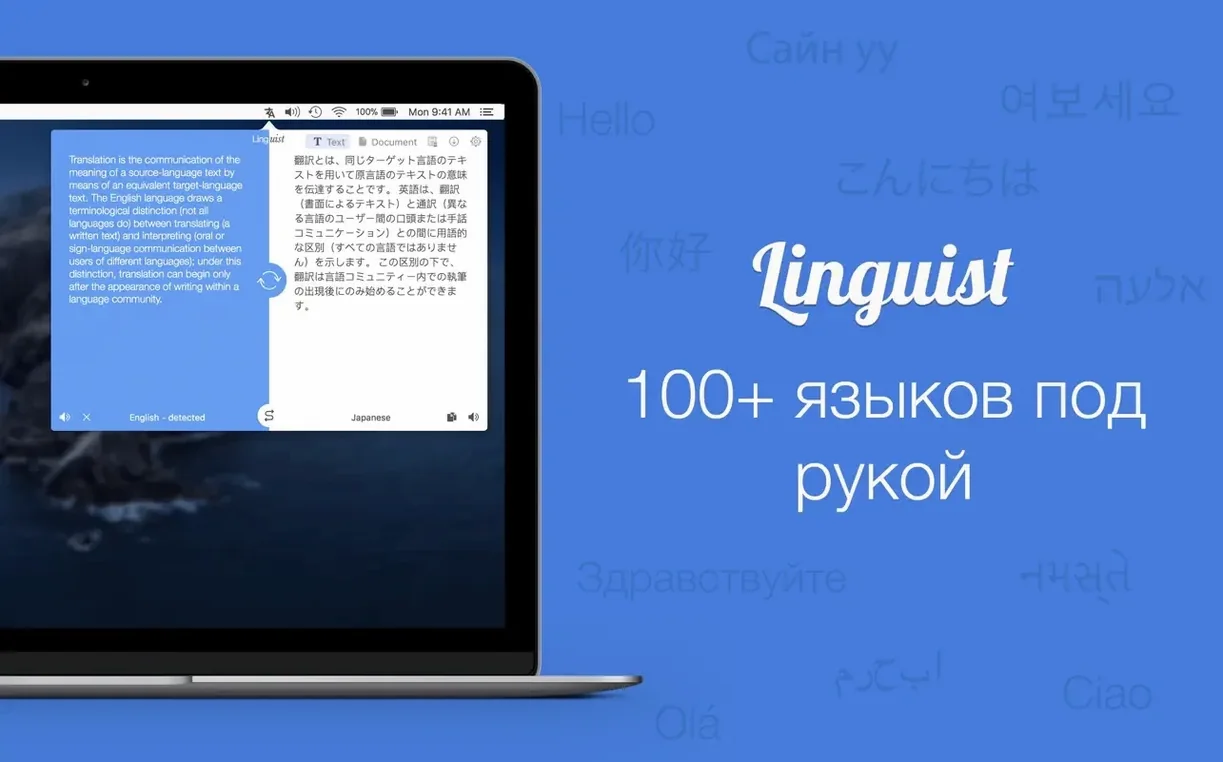
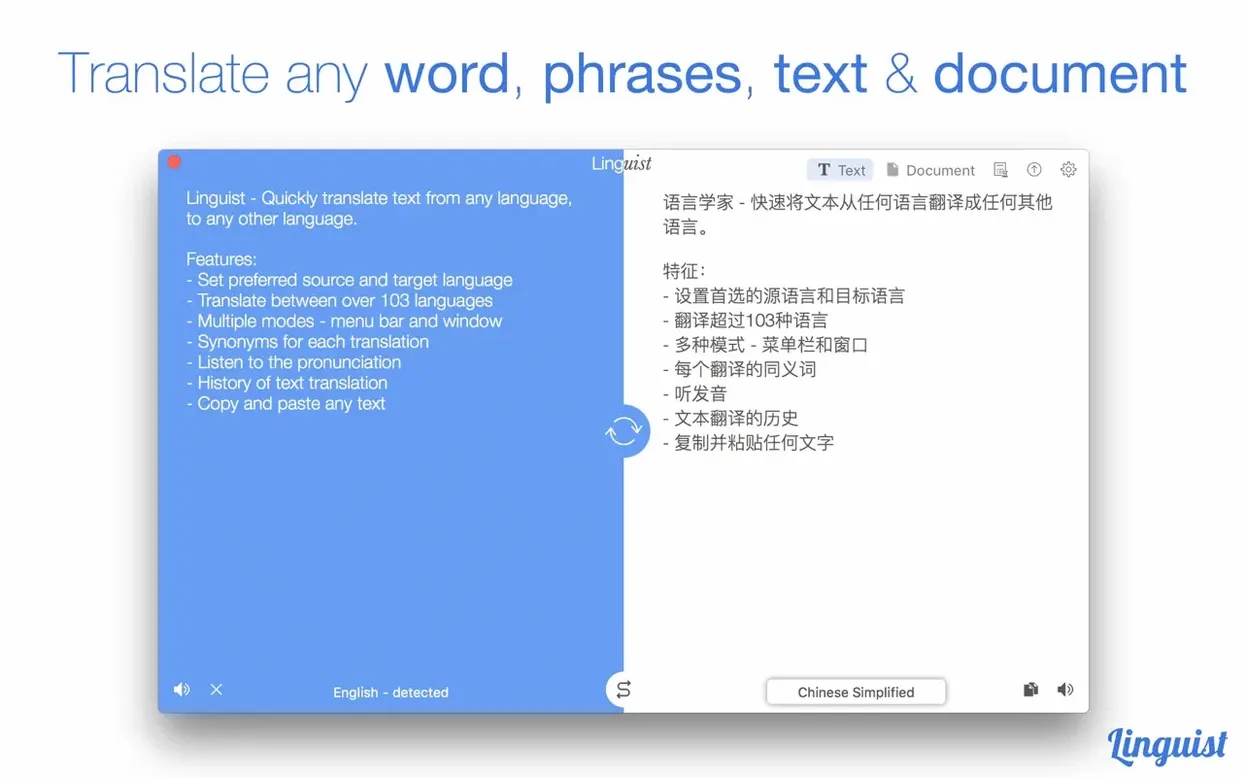
Linguist is a Mac translator that works with whatever you throw at it — a pasted paragraph, a selected phrase in a document, or a word you just want to hear pronounced.
Offline access, 103+ languages, and audio playback
- Does it work offline? No, it needs an internet connection to fetch translations.
- How many languages does it handle? More than 103, from Afrikaans to Zulu.
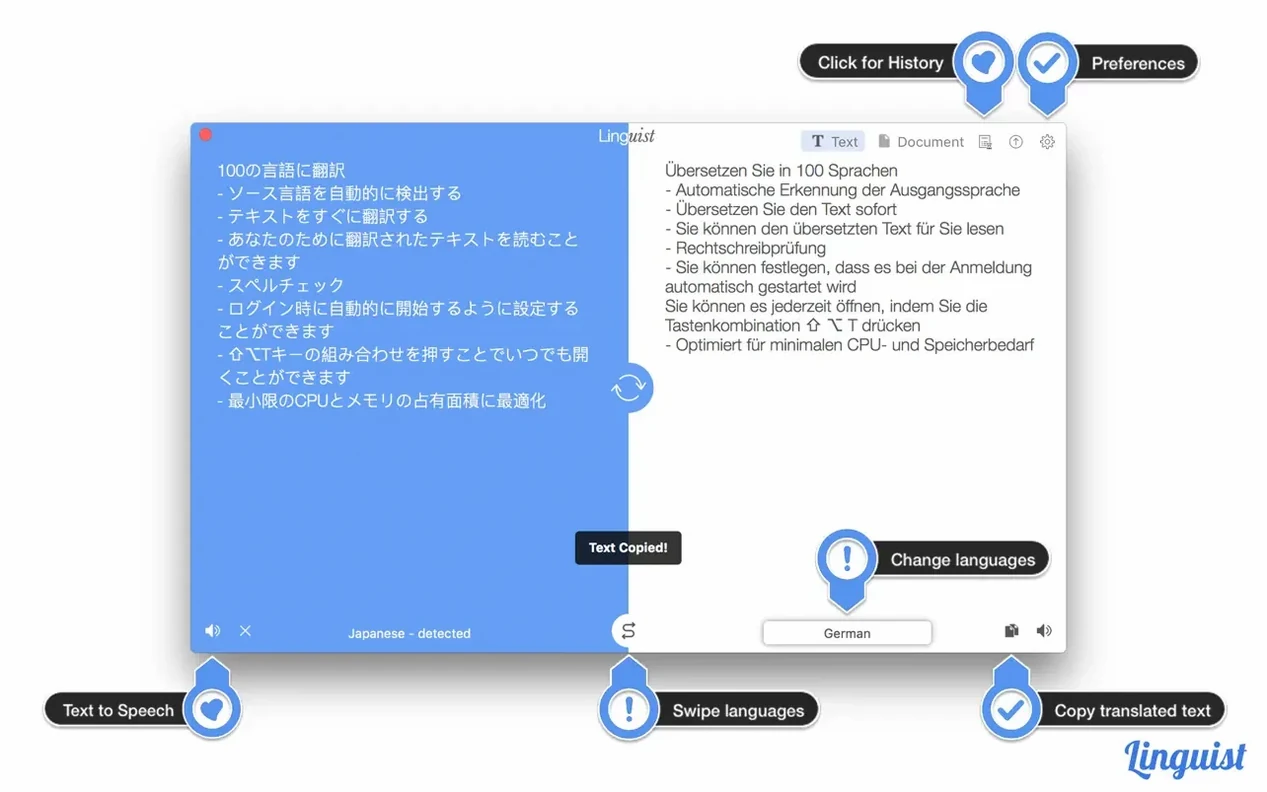
- Can it help with pronunciation? Yes, you can play audio of the translated text right in the app.
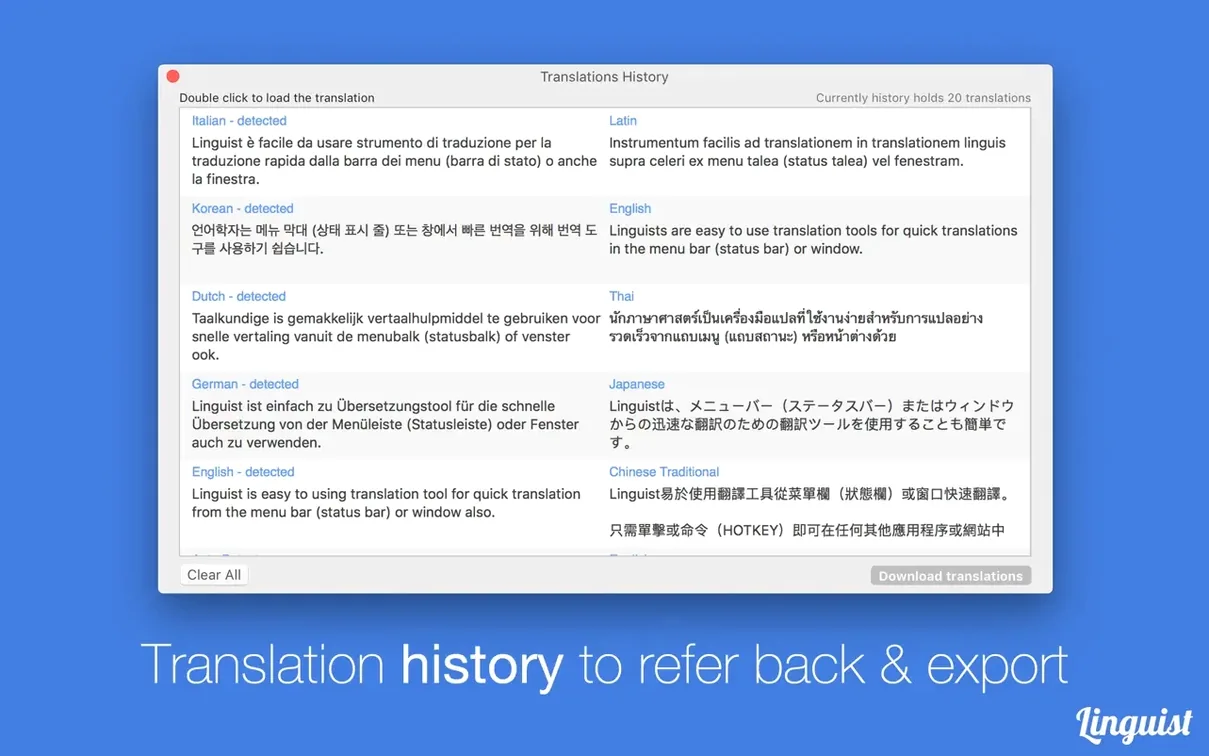
- Does it keep track of my past translations? It does, and you can export that history as a plain .txt file whenever you want.
- What about synonyms? Each translation can show a list of synonyms, which is handy when you're searching for just the right word.
Paste, translate, never lose a phrase
You copy text from an email, paste it into Linguist, and get a translation in seconds. The history panel means you never lose a phrase you looked up last Tuesday. If you regularly switch between a handful of languages, having synonyms and pronunciation in one window saves a lot of tab-hopping.
Why pasting huge blocks gives you stiff results
Most people open Linguist, paste a huge block of text, and wonder why the translation feels a little stiff. The engine handles paragraphs just fine, but it works best when you give it a moment to breathe. Breaking a long document into smaller, logical chunks — a few sentences at a time — almost always yields a more natural result, especially with language pairs that don't share a common root.
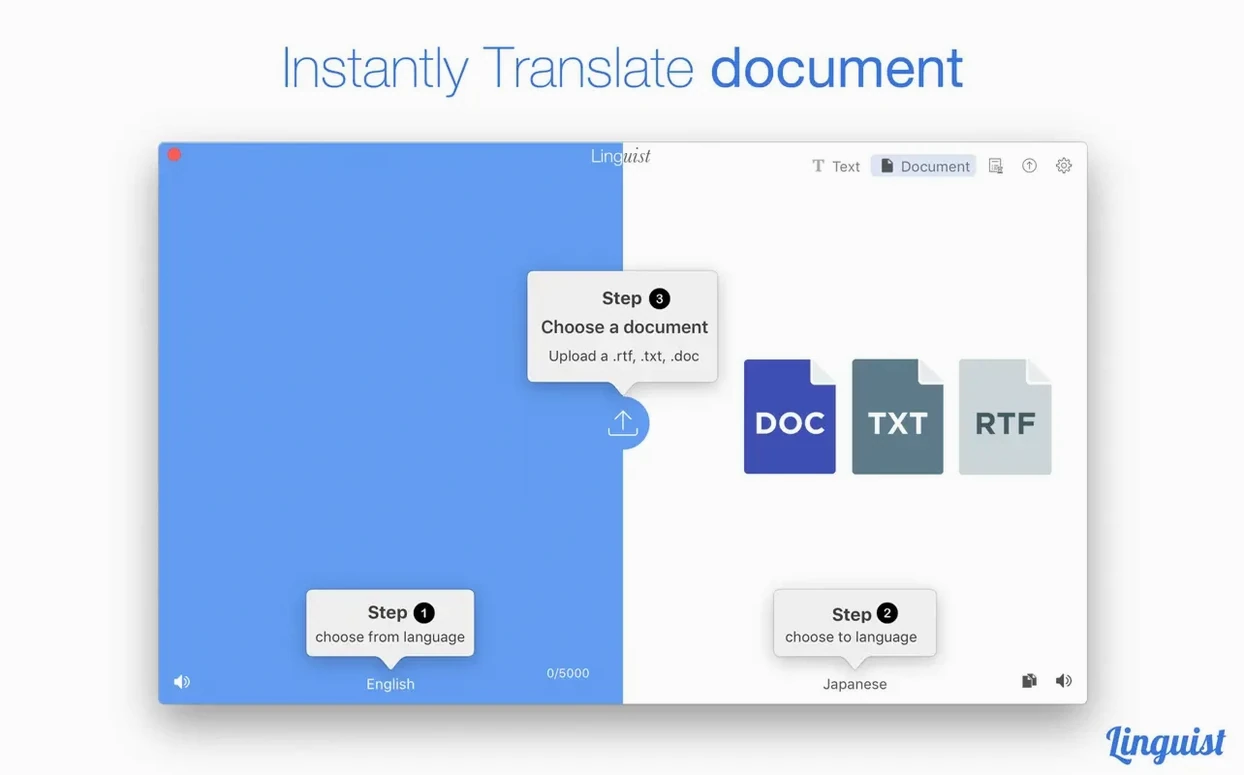
Another slip is ignoring the format selector before dropping in a document. If you drag a PDF straight into the window without checking that the source language is set correctly, you might get a garbled first pass. The app trusts what you tell it, so a two-second glance at the language pair avoids a lot of head-scratching.
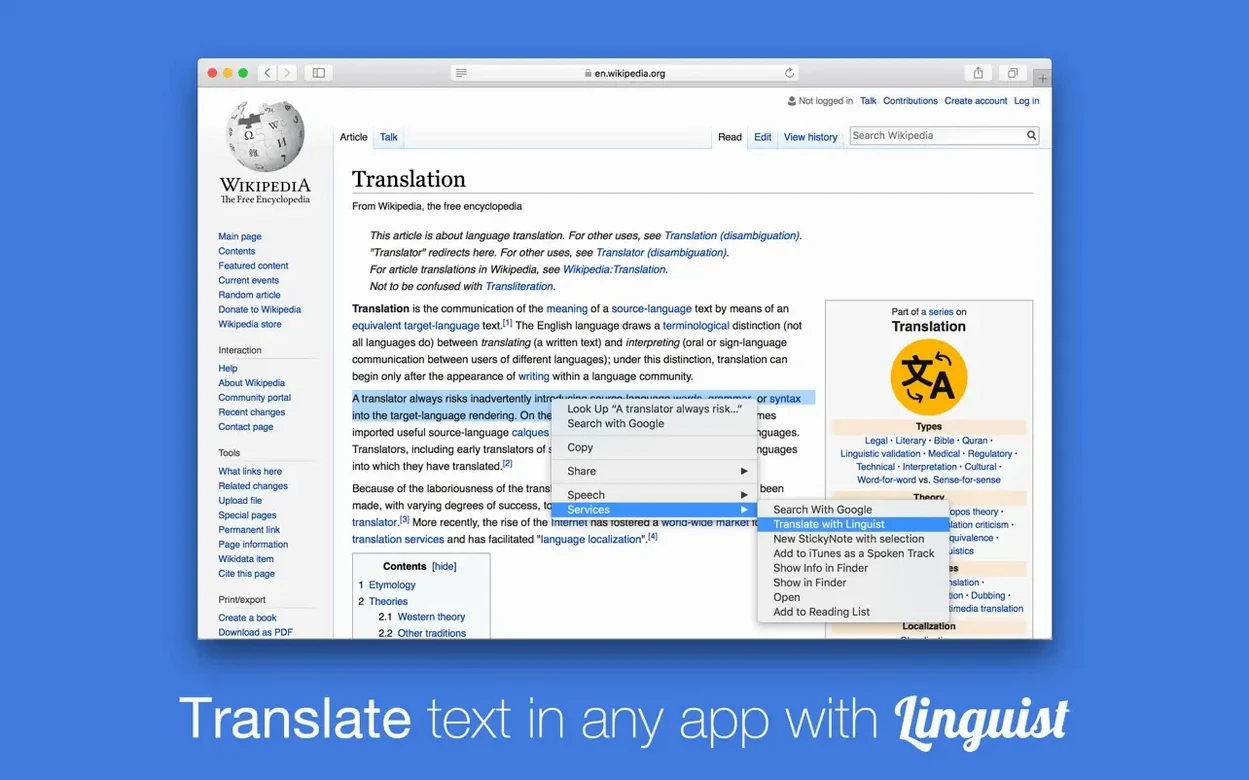
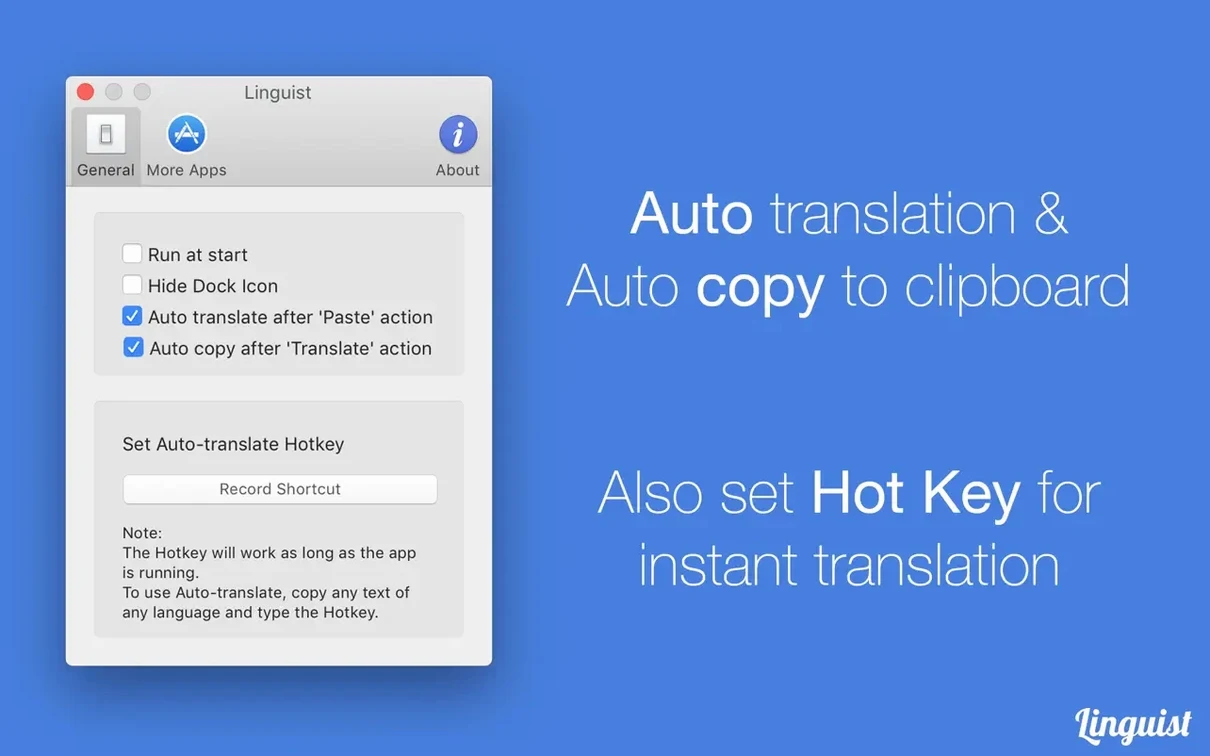
Finally, plenty of newcomers never touch the hotkey for translating selected text. They bounce between windows, copying and pasting manually, not realizing you can highlight a phrase in any app and summon a translation without lifting your fingers from the keyboard. The hotkey turns Linguist from a destination into a layer that rides along with whatever else you're reading.
Build a useful history file your first afternoon
Spend your first afternoon building a small history file on purpose. Translate things you actually need — snippets from a research paper, a line from a song, a menu item you keep seeing at a local restaurant. After a day or two, scroll through the history panel and notice which phrases keep surfacing. That list is your personal cheat sheet, and exporting it as a .txt file gives you something to pin to the desktop or share with a study partner.
If you often work between, say, Japanese and Portuguese, try the same short sentence with the synonym panel open. Watching the alternate word choices appear alongside the main translation teaches you more about the target language than a dictionary app that only hands you one answer. You start to see where the translation engine leans formal versus casual, and that instinct carries over into your own writing.
On day two or three, move the app to the menu bar and leave it there. The windowed mode is great for longer sessions, but the menu bar popover is what makes a linguist app mac setup feel invisible until you need it. A single click, a quick paste, and you're back to your work without rearranging any windows.
- OS X 10.10 or later
- Apple Silicon or Intel 64-bit Mac
Questions I actually get
Does Linguist require an internet connection?
Yes, it needs an active internet connection to perform translations since it relies on online services.
Can I save my translation history?
Absolutely. You can export your entire translation history as a .txt file for reference or sharing.
How do I get pronunciation help?
After translating a word or phrase, you can click to play its pronunciation aloud.
Porch talk 0
Come in or pull up a chair to leave a comment.
Nobody has pulled up a chair yet. If you used it on a real Saturday, say what the hour was.