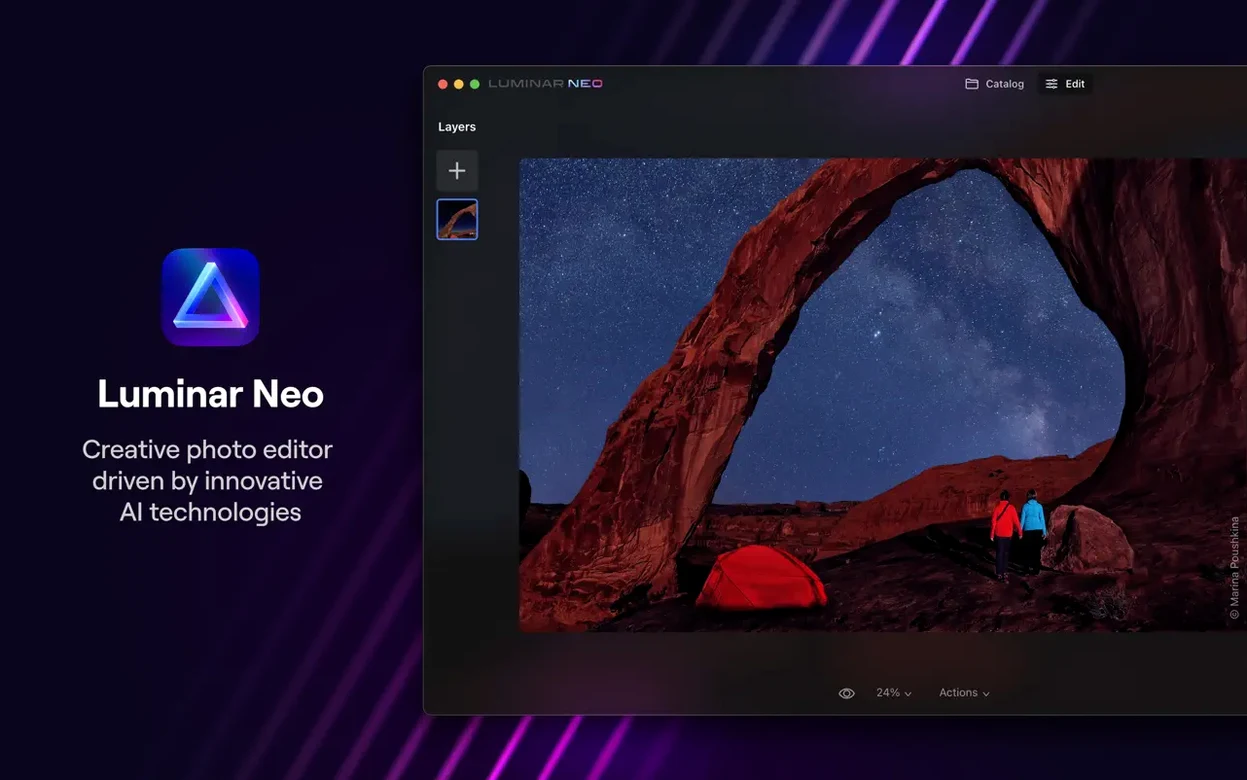
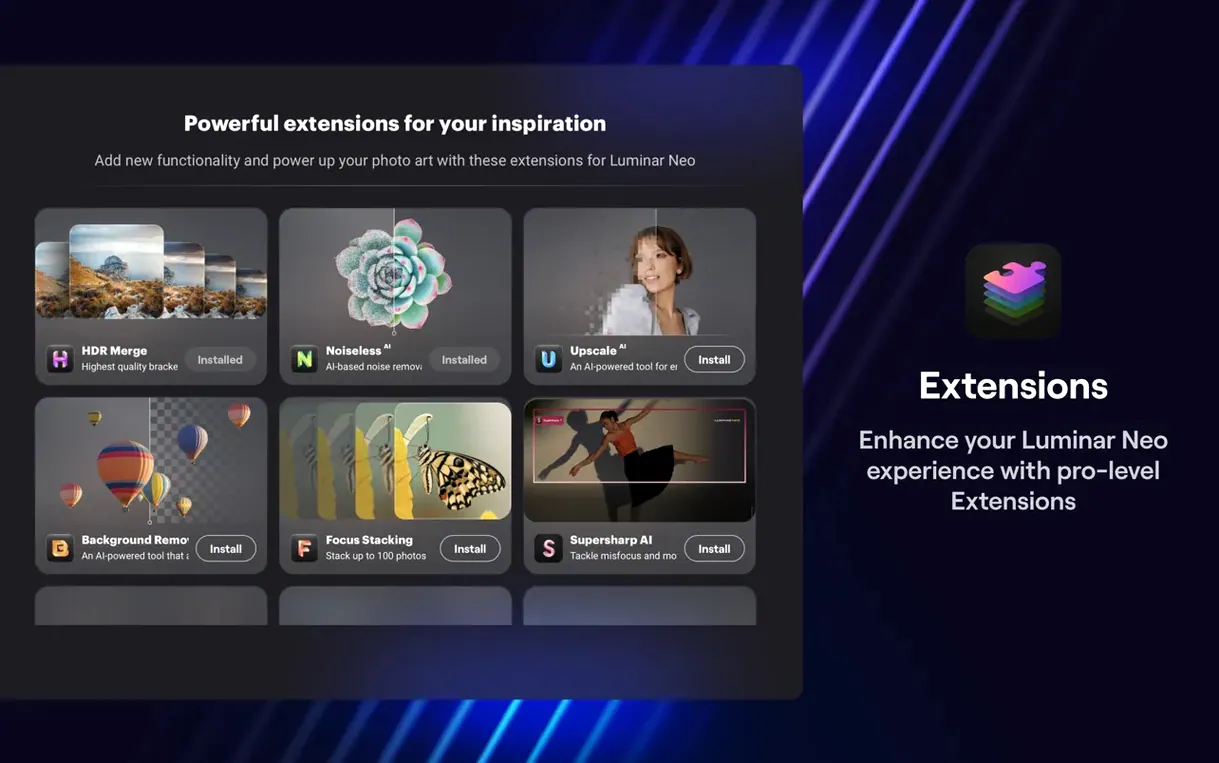
Not every photo editor plays nice with your current setup. Before you get into relighting a portrait or dropping in a new sky, you want to know the app actually opens. That's the sensible starting point with Luminar Neo, Skylum's AI-driven editor.
Fast Swaps on Modern Macs
- Macs running Ventura or later, with Apple Silicon or Intel chips.
- Systems with 16 GB of RAM for smooth layer work and AI tasks.
- Photographers who want fast background swaps and preset-based edits.
Monterey Minimum, Ventura Baseline
- macOS 12 Monterey is listed as the minimum, but Skylum notes Ventura as the supported baseline going forward.
- 8 GB of RAM can work, though you'll feel the pinch with larger files.
- It's built as a standalone editor, not a plug-in for other hosts.
AI Assistant Reads Your Scene First
The AI Assistant showing up in the Presets and Edit tabs isn't a splash-screen feature you glance at once. It shifts how you start a session. Open a raw file from a weekend walk and the assistant reads the scene before you touch a slider—sky exposure, face light, haze in the middle distance. You get a suggested starting point that you can accept or tweak, which means fewer minutes spent staring at a flat image wondering where to begin.
In daily editing that plays out as a quicker first pass. Landscape shots get a gentle contrast bump and sky deepening without the neon look early versions sometimes leaned toward. Portraits see the relighting engine kick in only where the face needs fill, leaving the background alone. The assistant lives inside the Edit tab too, so you can trigger it mid-session after cropping or removing a distraction, and it re-evaluates the frame. That looping back and forth—edit, ask the assistant, edit again—feels more conversational than previous releases.
Offline Editing with a Few Cloud Needs
Does it work without an internet connection? Mostly. The core editing tools, presets, layers, and dust removal all run locally. A few generative features phone home for processing, but you can edit a full session offline and only connect when you specifically want those cloud-backed extras. Plenty of folks treat it as an offline editor with occasional online perks.
Will it choke on my raw files? It handles common raw formats from Canon, Nikon, Sony, and Fuji without a separate import step. Older or less common camera profiles sometimes load flatter than expected, but the lens corrections and profile picker inside the Develop section usually sort that out. Convert to DNG beforehand if you run into a stubborn file and you're set.
Can I keep my Lightroom catalog or do I have to start over? Luminar Neo is a standalone editor, not a catalog manager. You browse folders, not databases. That means no import overhead, but also no migration path for your existing star ratings or collections. For photographers who prefer the folder-based life—or who edit in passes and export to a DAM—it fits right in. For the catalog loyalist, it's a companion app, not a replacement.
Does the Mac version feel like a Mac app? Mostly yes. Dark mode, trackpad gestures for zoom and pan, and the usual menu bar setup are all present. The interface uses its own UI framework, so it doesn't match every native convention, but the responsiveness on Apple Silicon makes up for the occasional design quirk. If you are downloading luminar neo full mac you want the whole toolkit, and it delivers without feeling like a port.
Stacking Every AI Tool at Once
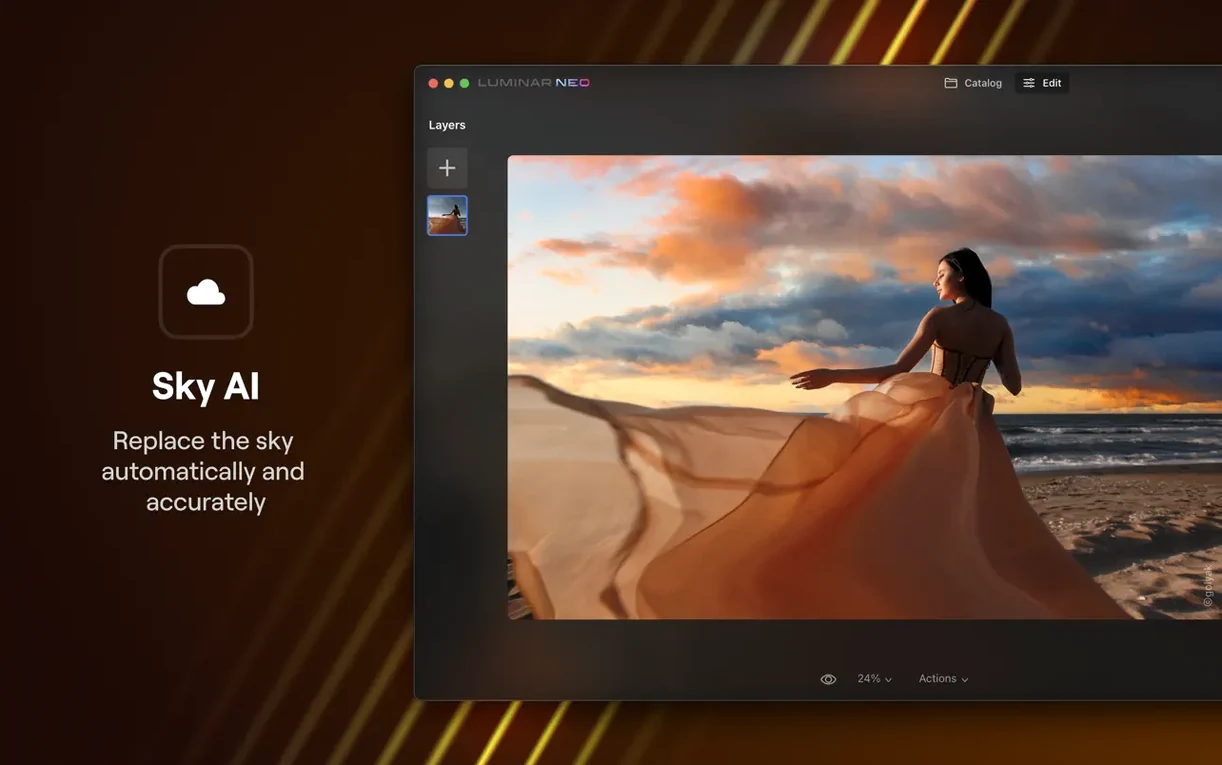
Throwing every AI tool at a photo at once is the classic. Sky replacement, relighting, structure, and a heavy preset all stacked on the first pass. The result looks like an HDR postcard from 2009. Better approach: pick one big change—say, replacing a gray sky—then dial everything else back to support it. Layers help here, since you can paint in effects only where they belong.
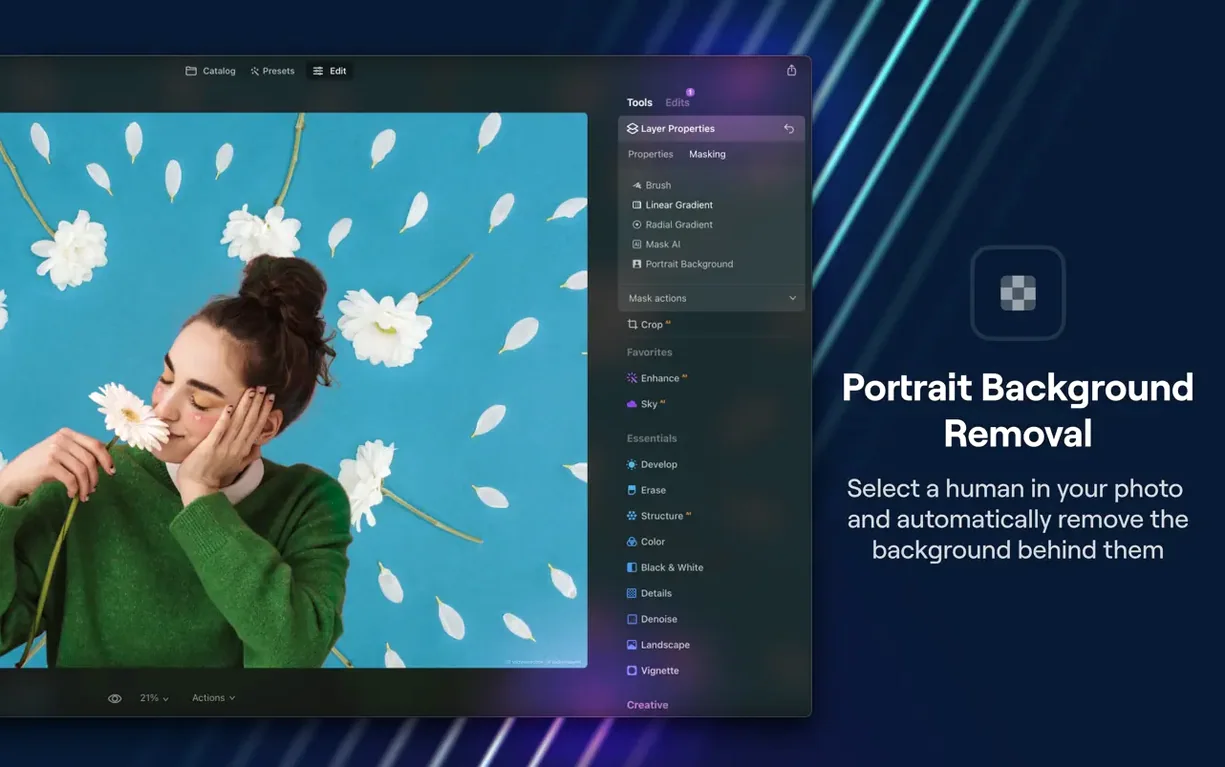
Skipping the masking step after background replacement is another one. The automatic cut is good, but hair edges and translucent fabric trip it up. Zoom to 100% and refine the mask with the brush; thirty seconds of cleanup saves you from an image that looks composited. Also, beginners often ignore the histogram panel tucked in the corner. With some of the heavier presets crushing shadows, a quick glance at the graph catches clipped blacks before you export.
Finally, assuming the app is slow when it's really just indexing. First launch after installation builds a preview cache, and fans can ramp up on Intel machines during that minute or two. Let it finish. Subsequent opens are quieter. If you read chatter about Luminar Neo torrent downloads and performance complaints, a chunk of those stem from people judging speed before the cache settles—so give it that initial breathing room and you'll get the true experience.
Four-Second Cold Launch on Apple Silicon
On an Apple Silicon Mac with 16 GB of RAM, Luminar Neo opens in about four seconds cold, under two warm. Switching between the Catalog and Edit tabs is instant. Raw files from a 24-megapixel sensor render previews in roughly a second; the full-resolution background load completes a beat later without blocking your next click. Applying a preset with four or five AI components—sky, structure, face light—takes under two seconds on an M1 Pro, a bit longer on an M1 Air where the fans stay off and the chip throttles earlier.
Memory pressure sits around 2 to 3 GB for a single image. Open five or six layered edits and you'll see usage climb past 6 GB, which is where the recommended 16 GB pays off. On an 8 GB Intel MacBook Air, the app runs but swap writes increase noticeably once you add layers, and export times stretch from seconds to half a minute. Stability across a three-hour editing session is solid; version 1.26.0 hasn't thrown a beach ball once in testing, though the occasional UI element—a slider that needs a second click to register—reminds you the framework isn't fully native.
Export speeds are competitive. A layered edit with sky replacement and relighting exported as a full-resolution JPEG in under five seconds on Apple Silicon. TIFF exports with masks intact take about double that. Batch processing a folder of fifty raw files to JPEG, each with a preset applied, completes in roughly four minutes on an M1 Pro, with CPU temperatures staying in the mid-60s Celsius. No thermal throttling, no crashes. For the curious searching Luminar Neo Mac torrent to try before committing, the stability holds up regardless of where the binary came from, so long as the system meets the Ventura baseline.
J Key for Instant Full-Frame Before/After
The J key toggles between before and after views—not just a split-screen mode but a full-frame swap that's faster than clicking the icon. Holding Option while dragging a slider resets it to default. Double-clicking any slider does the same. These are tiny things, but after an hour of tweaking skin tones they spare your wrist.
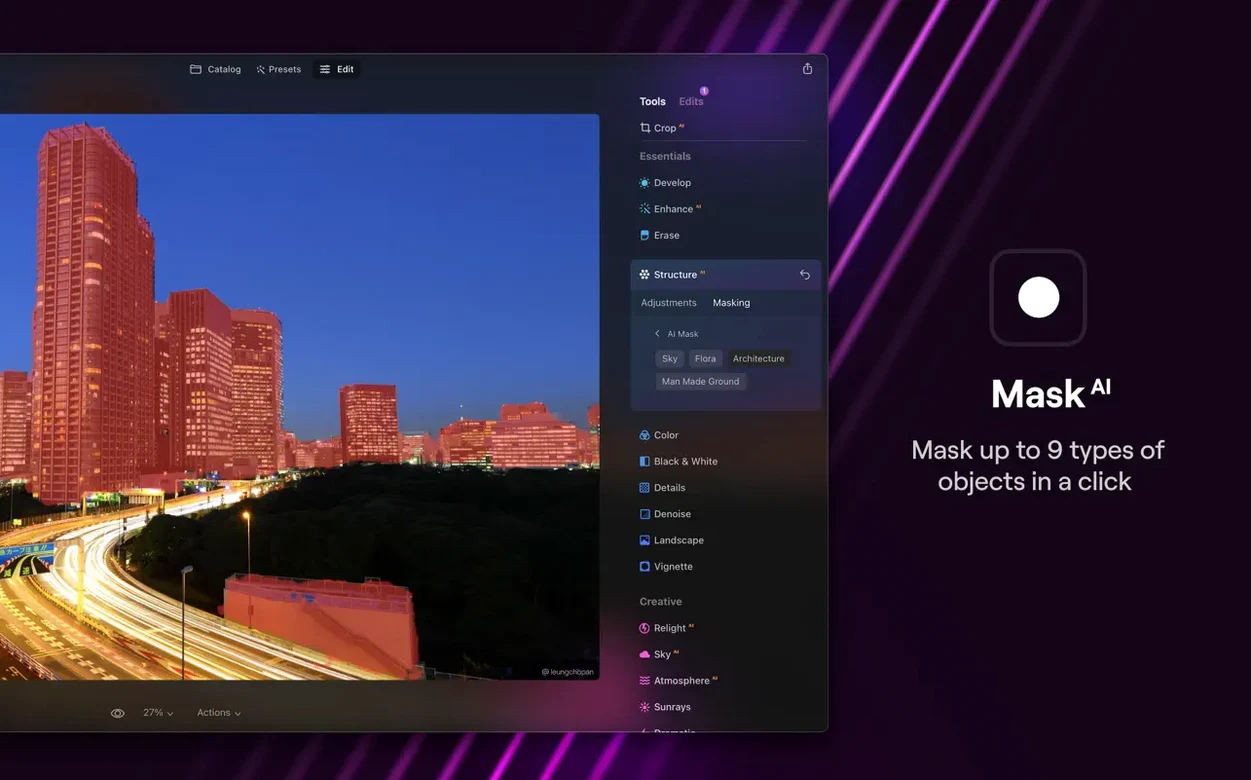
Right-clicking a preset gives you a "Preview on current image" option that loads a small thumbnail without committing. You can hover through a dozen looks in under a minute and pick the one that actually suits the light. In the Edit tab, the masking brush has a hidden precision mode: hold Control while painting and the brush edge hardens for clean lines along architecture or product shots.
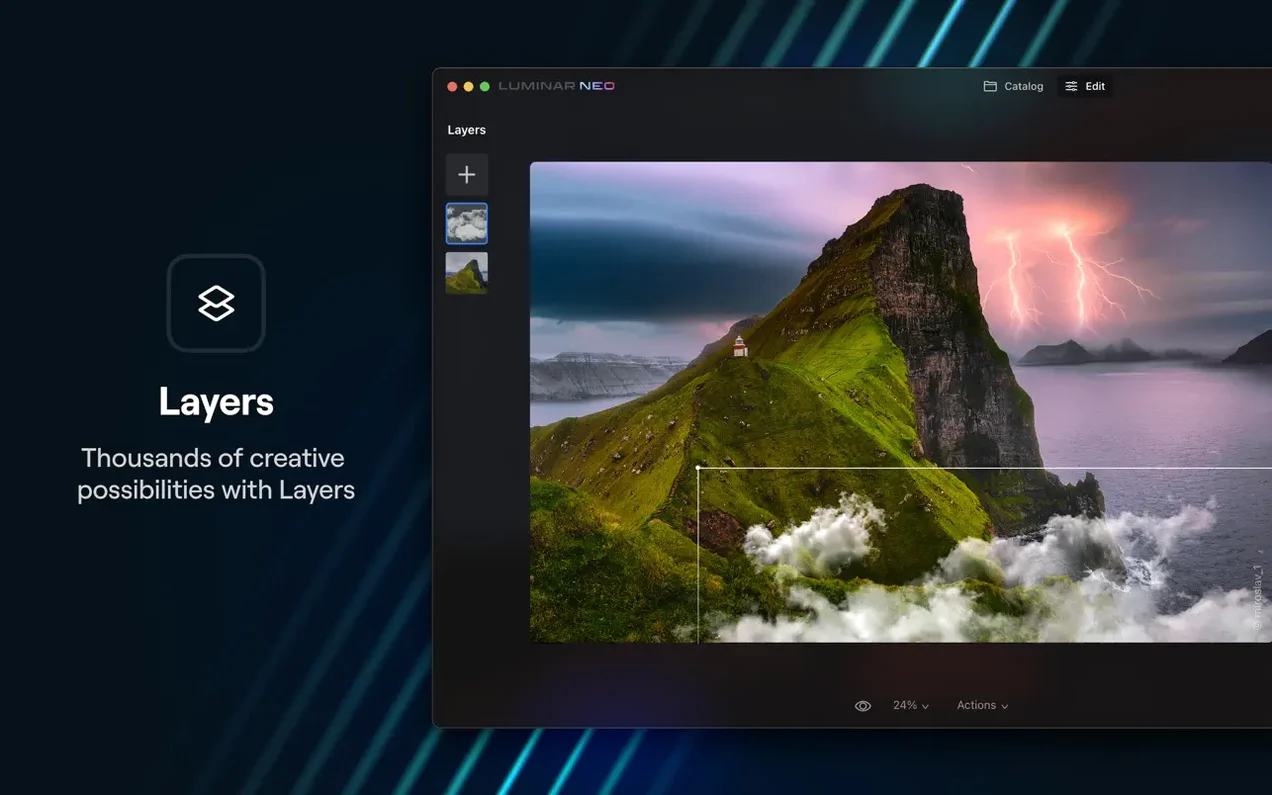
The Layers panel supports blend modes familiar to Photoshop users—Multiply, Screen, Overlay, Soft Light—and dragging a layer up or down the stack reorders effects in real time. If you apply a sky replacement and the foreground feels disconnected, drop a Curves adjustment clipped to the foreground layer and pull the midtones down slightly. The eye reads the scene as more cohesive immediately.
One last detail: the dust removal tool works on scans too. Got an old film scan with scratches? Point the tool at the mark, and the AI fills it from surrounding texture. It's not billed as a restoration feature, but it quietly handles the job, and that kind of cross-use discovery is what makes poking around the app feel rewarding. Anyone chasing a full-featured editor on Mac—whether via Luminar Neo Mac crack exploration or a straight install—should know these small moves exist; they add up faster than the headline features.
The latest release brings the AI Assistant into the Presets and Edit tabs, so you can get a nudge on an edit without leaving your workflow. It's a small shift that makes the whole experience feel a bit quicker.
- macOS 12.0 or later
- Intel or Apple Silicon Mac
- 8 GB RAM minimum, 16 GB recommended
Questions I actually get
Does Luminar Neo work on Apple Silicon Macs?
Yes, it runs natively on both Apple Silicon and Intel-based Macs.
What macOS version do I need for Luminar Neo 1.26.0?
The installer requires at least macOS 12 Monterey, but the current support note points to macOS 13 Ventura as the minimum supported version.
Can I use layers in Luminar Neo?
Yes, the app supports image layers for more customizable edits.
Porch talk 0
Come in or pull up a chair to leave a comment.
Nobody has pulled up a chair yet. If you used it on a real Saturday, say what the hour was.