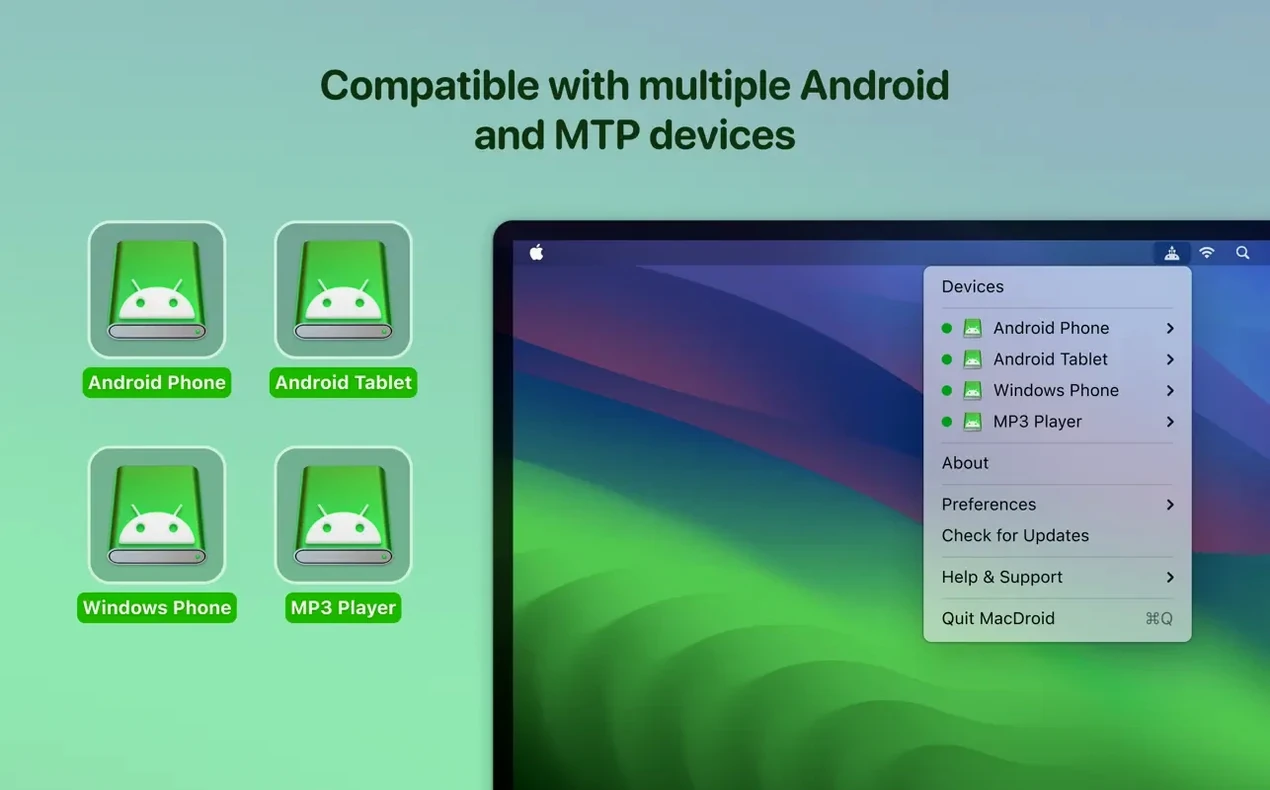
Before you get started, it's good to know where it fits. MacDroid Pro runs on any Mac with macOS 11.5 or later, and it's at home on both Intel and Apple Silicon machines.
Connecting a phone for the first time
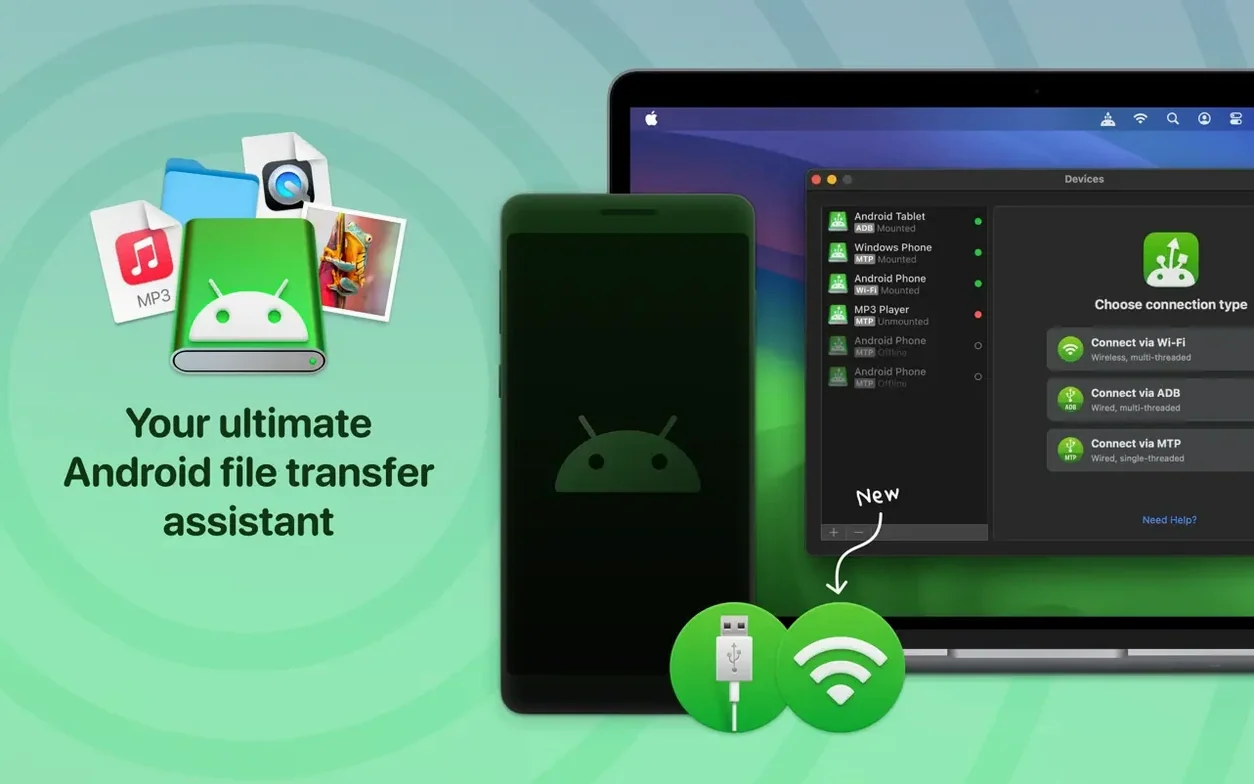
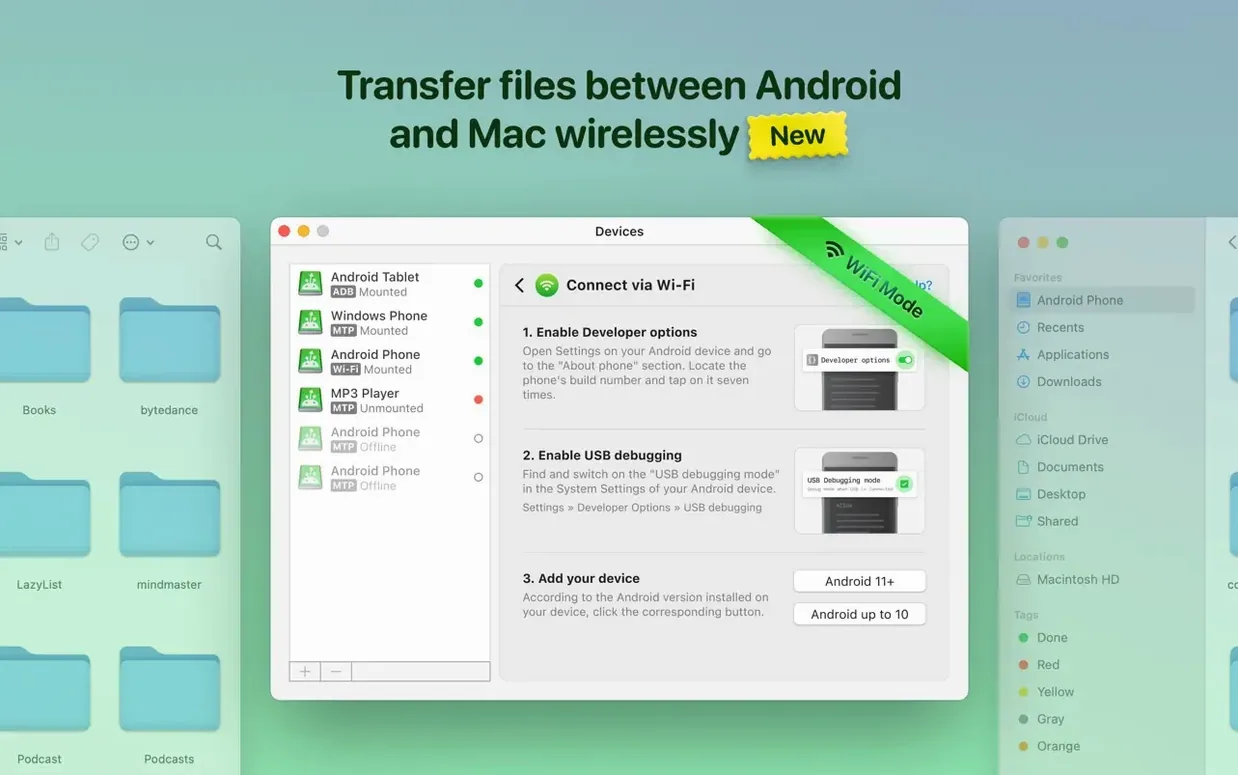
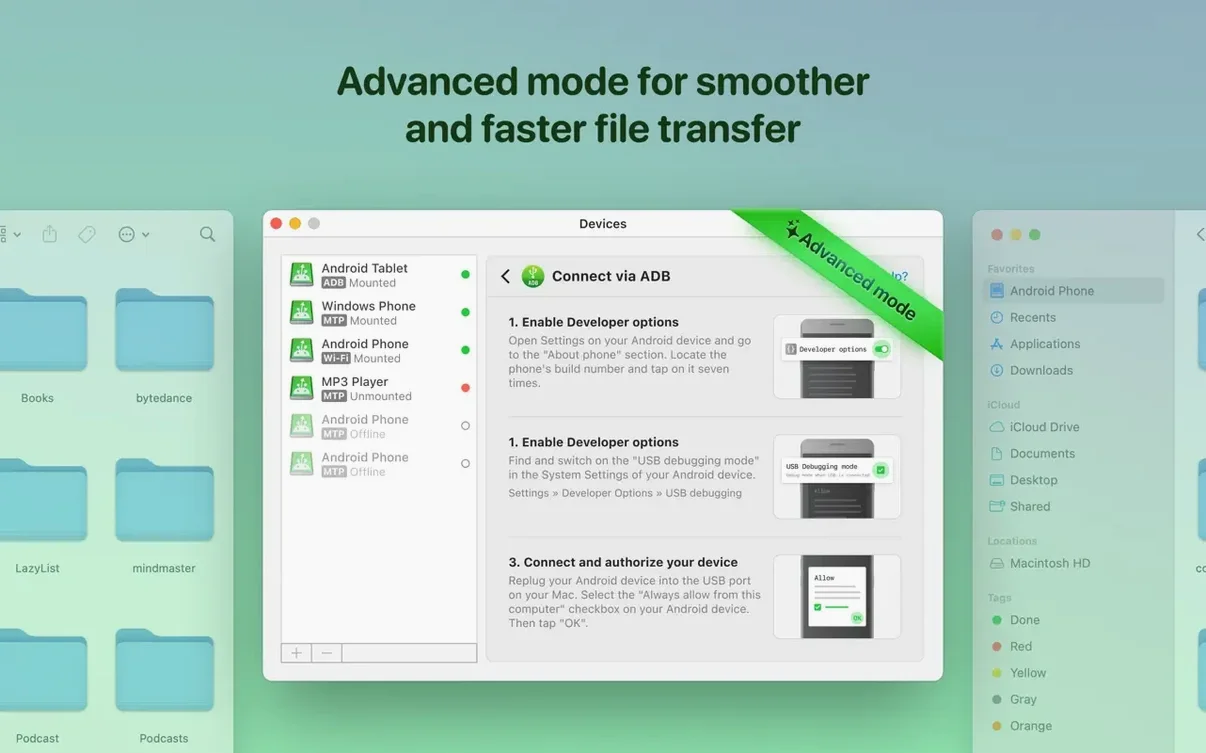
You can go wired with a USB cable or skip the cord and connect over Wi‑Fi. The app speaks three connection languages — MTP, ADB, and wireless — so it can usually find a handshake even with devices that have been stubborn in the past.
Browsing and editing without the clutter
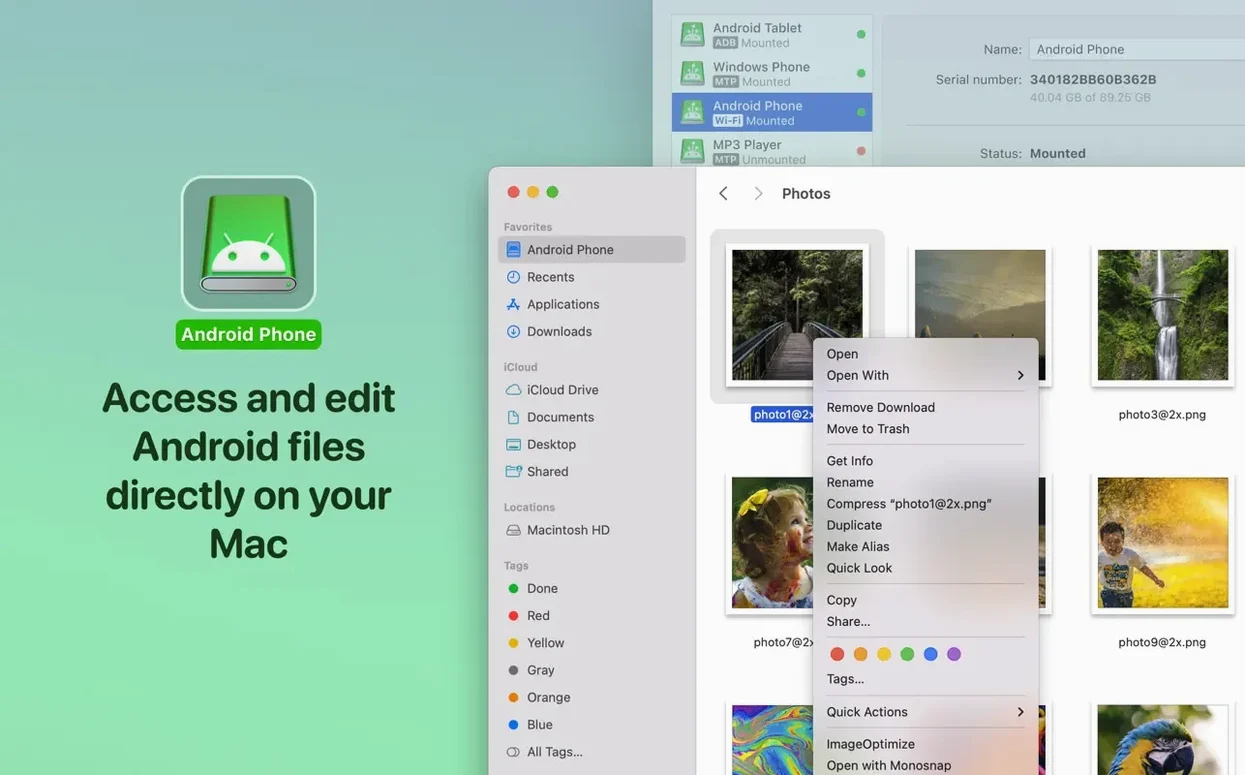
Your Android's internal and external storage both show up. You can edit a file right on the device instead of copying it to your Mac first, which keeps things tidy. Loading those file and folder listings got quicker in the latest update, so you spend less time waiting for thumbnails to populate.
Moving music and whole folders
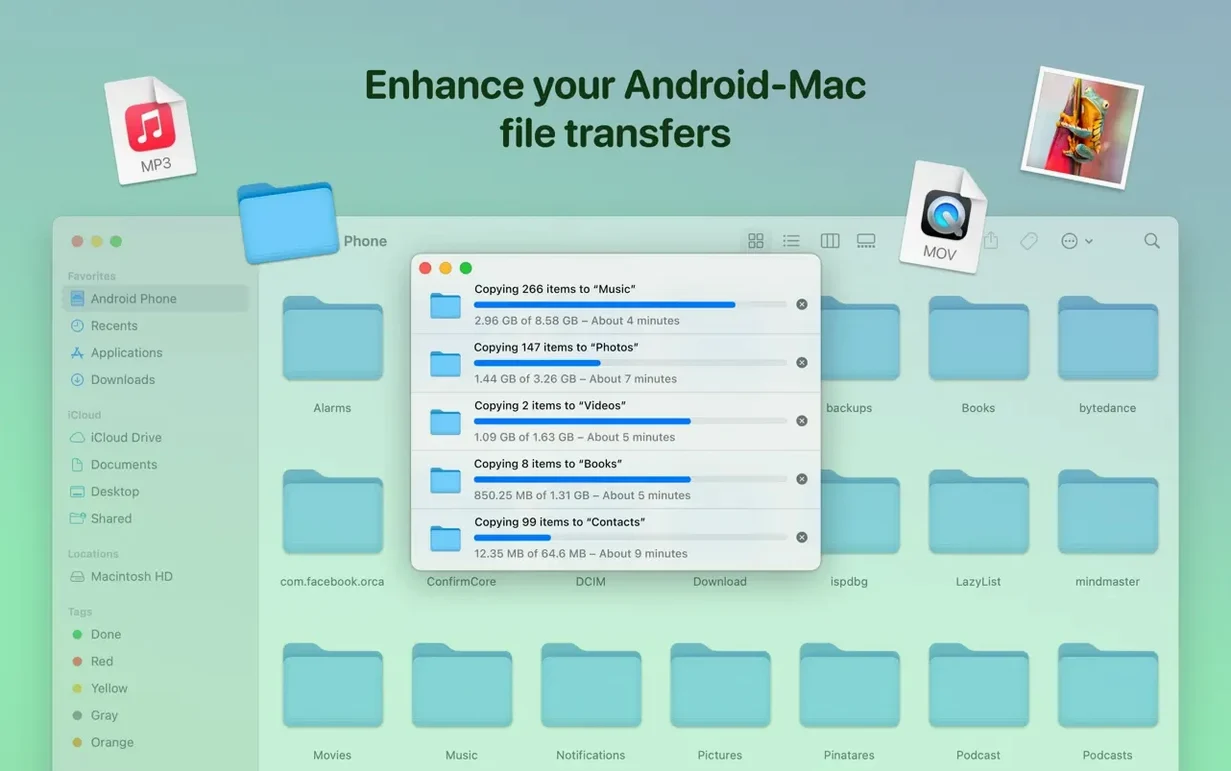
Dragging an album onto your phone or pulling a folder of photos onto your Mac works like any external drive. Music, videos, photos, and entire folders move between the two systems without extra conversion steps.
How MacDroid sits alongside similar tools
Plenty of Mac users try Android File Transfer first because it's free and comes straight from Google. The problem is it hasn't aged gracefully. Crashes on larger transfers, no Wi‑Fi option, and zero support for editing files in place mean you outgrow it fast once you're moving more than a handful of photos. MacDroid Pro skips those headaches by letting you mount the phone as a disk and work directly, wire or no wire.
Then there's OpenMTP, an open-source alternative that feels closer to a developer tool than a daily driver. It handles MTP connections reliably and the split-pane layout is useful once you get used to it. What it doesn't offer is ADB mode for devices where MTP gets fussy, and you won't find a wireless transfer mode either. If your Android sits on the desk plugged in all day, OpenMTP does the job. If you want to grab a few files from across the room without hunting for a cable, MacDroid Pro has the edge.
Commander One with its Android plugin is another path some folks take. It's powerful if you already live in a dual-pane file manager, but you're adding a paid plugin on top of a paid app, and the Android mounting isn't its main focus. MacDroid Pro keeps the scope tight — Android storage, three connection modes, no extra panels to configure — which makes it the one I reach for when I just need my phone to show up like a drive.
Switch the connection mode when MTP misbehaves
The defaults are sensible, but a couple of tweaks make the first week smoother. Open preferences and look at the connection mode selector. If you primarily transfer over USB and your device plays nicely with MTP, leave it there. If you own a Pixel or something that responds better to ADB, switch modes early so you don't trip over a failed handshake later.
Next, decide whether you want the Android to mount automatically when detected. I leave it off because I don't always need the phone mounted the second I plug in to charge, but if your workflow is "plug in, dump photos, eject," auto-mount saves a click every time. Also worth a glance: the Wi‑Fi discovery setting. Enabling it means the app looks for your device on the local network without you initiating the scan, handy if you move between rooms often.
Blast your first bulk transfer over USB
Start with a wired connection for your initial heavy transfers — pulling a year's worth of photos or pushing a large music library. Wi‑Fi is convenient but USB still wins on raw speed for bulk work, and you'll get a feel for how the app structures your storage before introducing network variables.
After that first big sync, try editing a file directly on the phone from your Mac. Open a photo in Preview, crop it, save. The change writes straight to Android storage without a duplicate appearing on your desktop. This one habit — editing in place — eliminates the "which version is the real one" puzzle that plagues copy-based workflows.
If you're juggling both internal storage and an SD card, use the sidebar to pin the folders you visit most. Music on the card, photos on internal memory, whatever your setup looks like. The folder listings load faster than they used to, but pinning keeps your frequent destinations one click away instead of buried in a tree.
Drag photos straight from DCIM into a Finder window
Imagine a weekend photographer who shot a family gathering on a Pixel. Back home with coffee, she plugs the phone into her Mac via USB. MacDroid Pro mounts it — DCIM folder right there in a Finder-style window. She drags the morning's burst shots onto her desktop, deletes the blurry ones directly from the phone's storage without importing anything first, then opens three keepers in Affinity Photo and saves the edits back to a "Edited" folder she created on the Android. No cloud upload, no emailing files to herself, no duplicate copies littering her Mac. Twenty minutes from plug-in to finished edits, and the phone's gallery already reflects the culled set. That's the rhythm MacDroid Pro settles into once the muscle memory kicks in.
Version 2.10.0 brings a handful of practical improvements. MTP connections are smoother, file and folder listings load faster, and Traditional Chinese is now available in the interface.
- macOS 11.5 or later
- Apple Silicon and Intel Macs
Questions I actually get
Can I edit Android files directly on my Mac?
Yes, MacDroid Pro lets you open and edit files stored on the Android device without copying them to your Mac first.
Does it work with external SD cards in an Android phone?
It does. The app supports both internal storage and external storage, so SD cards show up alongside the main memory.
What connection types are available?
You can connect using a USB cable via MTP or ADB, or you can go wireless with a Wi‑Fi connection.
Porch talk 0
Come in or pull up a chair to leave a comment.
Nobody has pulled up a chair yet. If you used it on a real Saturday, say what the hour was.