
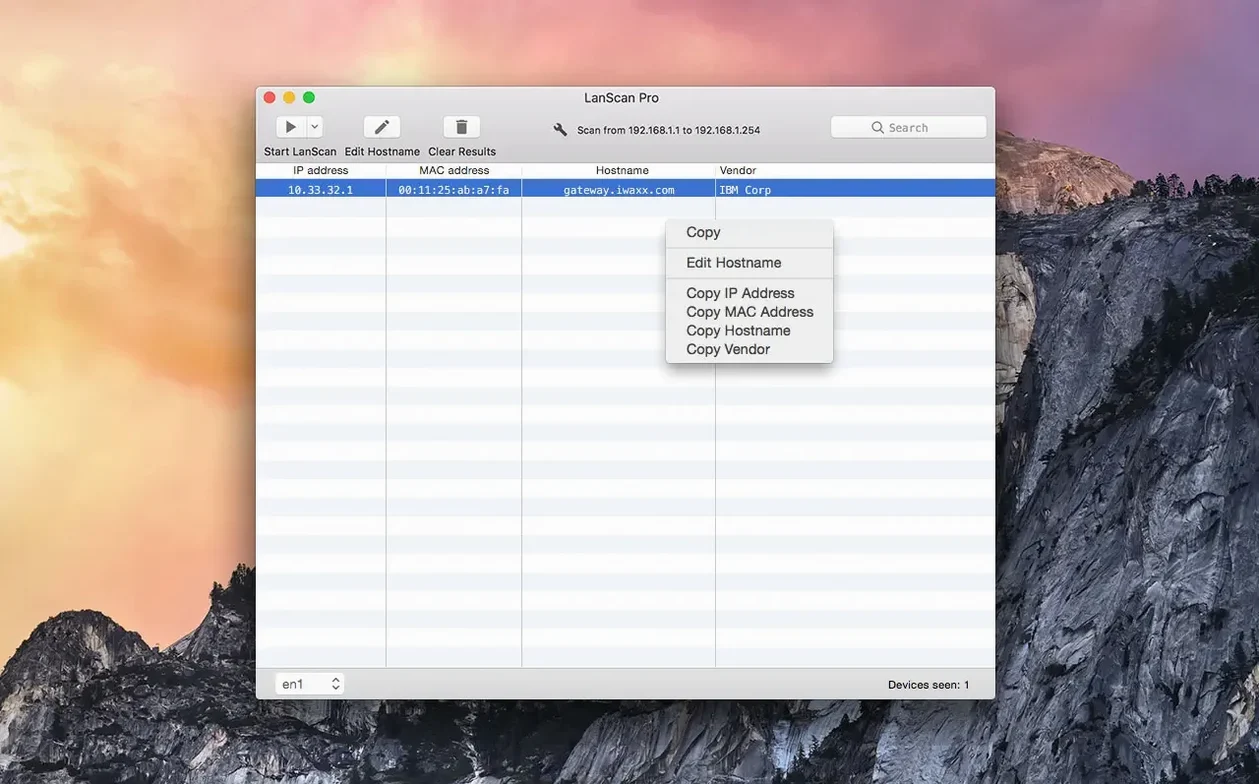
LanScan is a no-fuss network scanner that shows you every device connected to your local network.
Getting a clear picture of your subnet
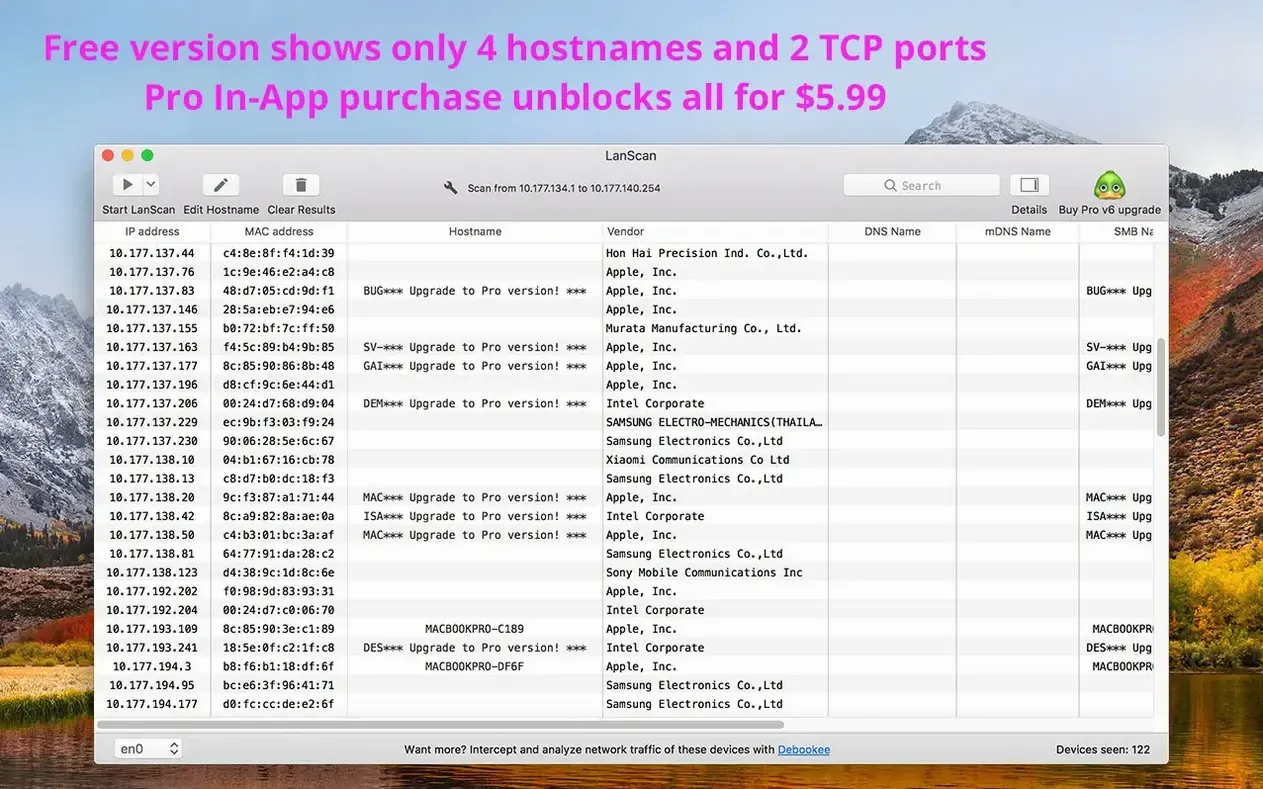
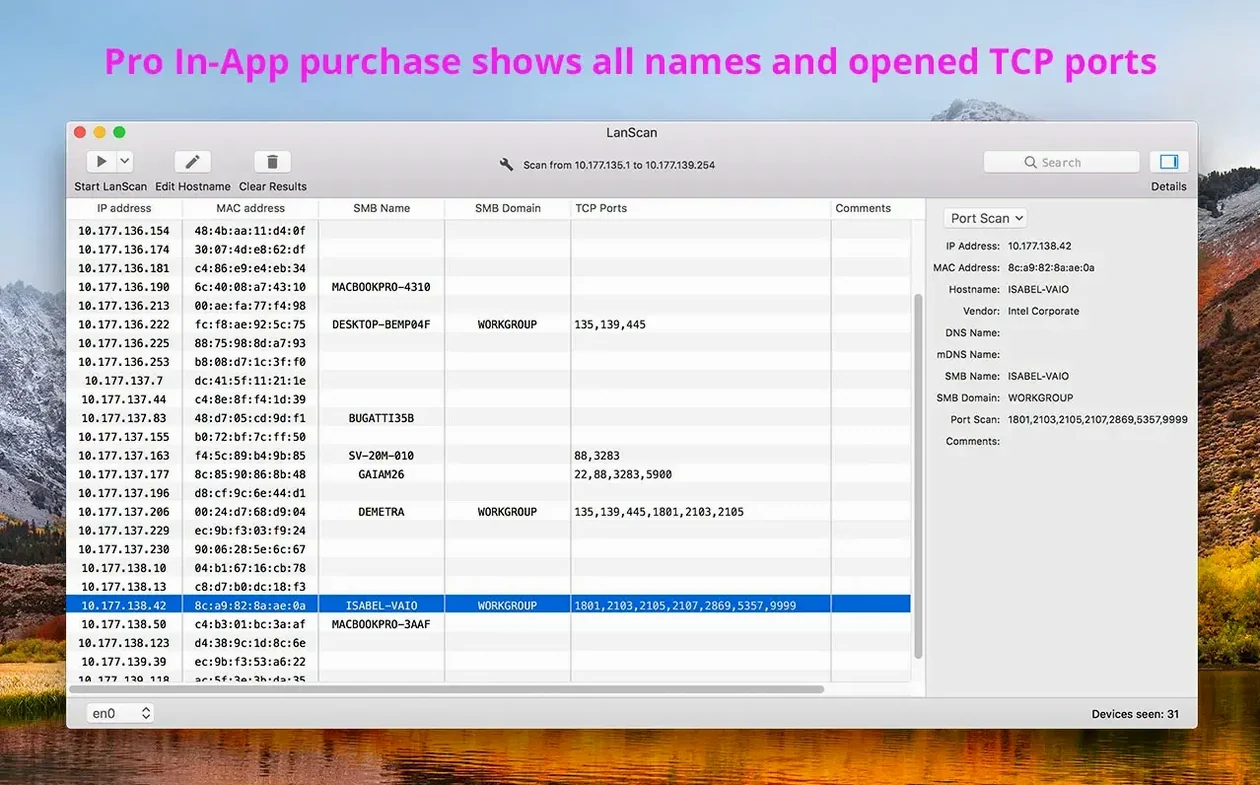
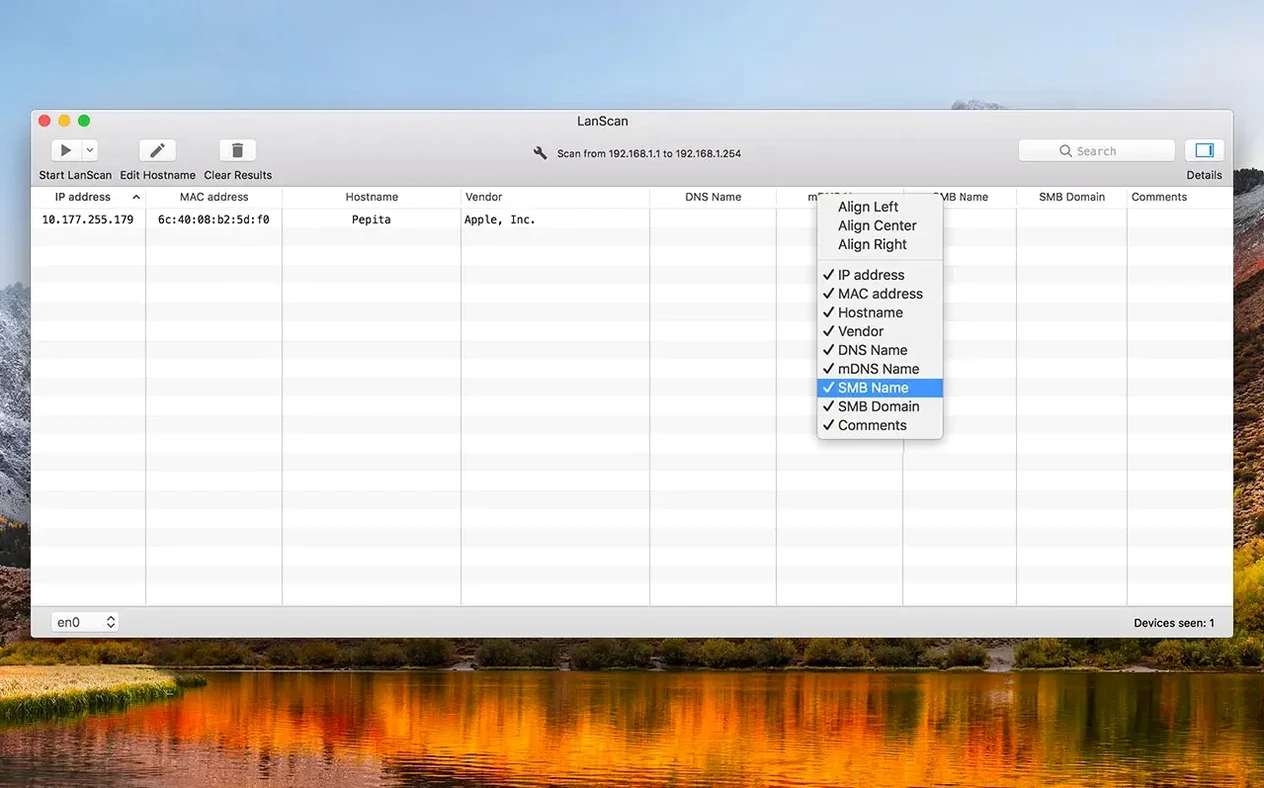
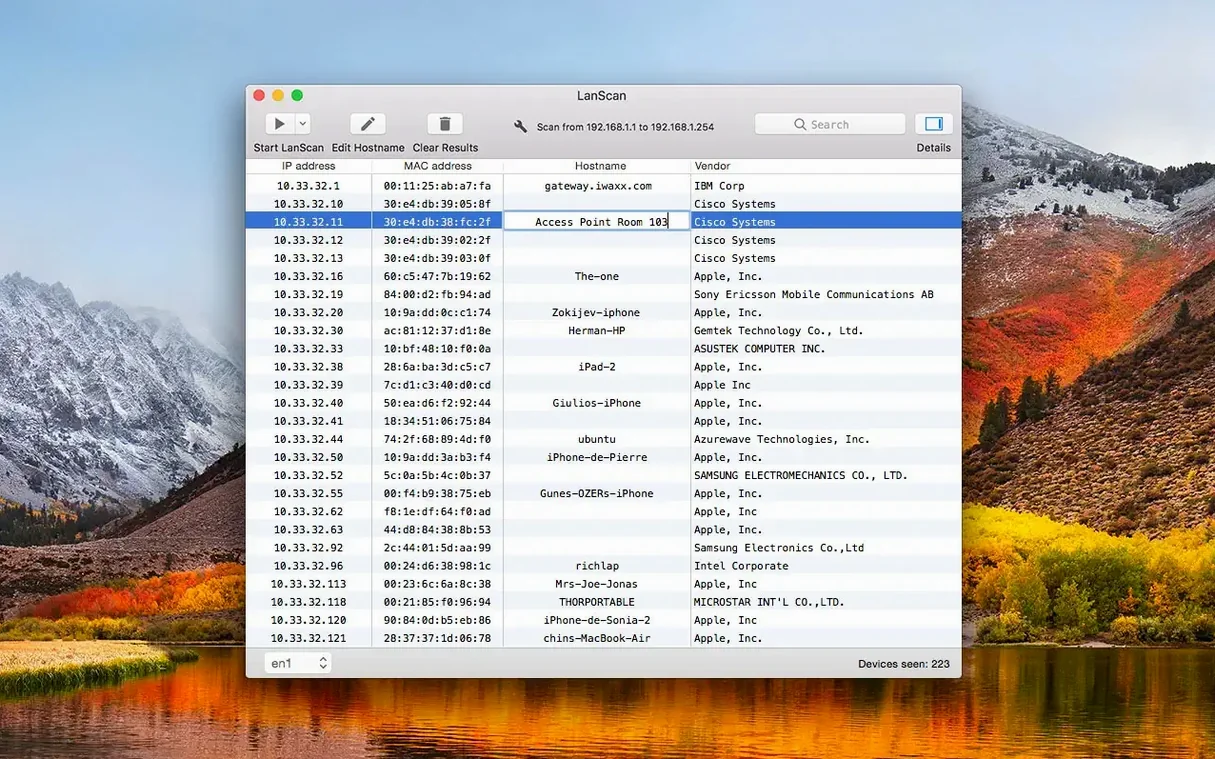
You open the app, hit the scan button, and within seconds your screen fills with a tidy table of everything that responded. For each device, LanScan pulls the IP address, MAC address, host name and the hardware vendor from its OUI database. Host names get resolved three ways — DNS, mDNS and SMB — so that printer your colleagues swear is named "HP-Laser-Floor-2" actually shows up with a readable label instead of a cryptic IP. The table stays calm and legible because you can hide any column you don’t need right now and align the rest individually to suit how you read data.
Taking the guesswork out of device discovery
Sometimes you need more than a passive list. LanScan sends out Ping, SMB, and mDNS packets when scanning a public range, which helps wake up devices that might otherwise stay quiet. When you spot a device you want to investigate further — say a web interface on a smart switch — you can hand a custom URL straight to your browser from inside the app. It handles both IPv4 and IPv6 addresses without complaining, which is rarer than it should be for a Mac utility. The tool runs natively on Apple Silicon and older Intel Macs, and it asks for nothing newer than macOS 11. If your network closet feels like a mystery, this is the sort of tool that clears the fog in one click.
Save a baseline CSV before you change anything
Run a scan right after installing, then save the CSV before you change anything. That first snapshot is your baseline — you will come back to it more often than you expect. A good second move: add a custom comment to your router, your main switch and any device you touch regularly. The comment field sticks around between scans, so those labels become a quick visual anchor when you reopen the app a week later and try to remember which MAC belongs to the test rig in the corner.
Keep an eye on the interface selector in the toolbar. If your Mac juggles Ethernet and Wi-Fi, LanScan picks up whichever is active, but flipping between them manually before a scan saves you from wondering why half the office disappeared. If you work across VLANs or VPN subnets, take a moment to configure the IP range by hand — the automatic detection handles the common cases well, but a deliberate range gives you cleaner results when you know exactly what you are looking for.
Full sweep in under ten seconds, no beachball
LanScan feels light. On a home network with thirty-something devices, a full ARP sweep finishes in under ten seconds. Larger subnets take proportionally longer, but the app stays responsive while it works — no beachball, no frozen table rows. Memory use hovers in the low tens of megabytes even after repeated scans, which makes it easy to leave running in the background while you jump between terminal sessions and browser tabs.
The real stability win is how it handles incomplete responses. Some scanners stall when a device answers a ping but refuses to share a host name. LanScan fills what it can and leaves the rest blank, then moves on. That means your scan completes even when the network is messy, which is exactly when you need the results most. In months of regular use, crashes are rare enough to be forgettable.
Tracking down a mystery device: a short workflow
Say you notice an unfamiliar IP gulping bandwidth on your router’s dashboard. You know the IP but nothing else. Open LanScan and switch to a custom range that covers just that address — no need to scan the entire /24 if you are in a hurry. Hit scan and wait for the single row to populate.
The MAC address appears first, and the vendor column tells you the manufacturer. That alone often solves the puzzle: an old Raspberry Pi you forgot about, a smart plug that reconnected after a power cycle. If the host name remains empty, check the mDNS column. IoT devices tend to announce themselves there more reliably than through DNS. Still nothing? Add a manual host name and a comment — "corner shelf, white casing" — so next month’s scan does not start from scratch. Right-click the row and send a custom URL to your browser if the device has a web interface worth poking at. The whole loop takes under a minute, and you walk away with a labeled device instead of a lingering question mark.
- macOS 12 or later
- Apple Silicon or Intel 64-bit
Porch talk 0
Come in or pull up a chair to leave a comment.
Nobody has pulled up a chair yet. If you used it on a real Saturday, say what the hour was.